Searching for how to split a CSV file into multiple files in Excel usually ends the same way: there's no button for it. Excel's Text to Columns feature splits the contents of a single column across several columns in the same row - it has nothing to do with dividing a file into separate files. Power Query can be configured to write out separate files based on a grouping, but that means building a query from scratch, understanding its output-file logic, and testing it against your specific data. Recording a VBA macro is another route, but it means writing and debugging code, and a mistake in that code can silently produce incomplete or malformed files.
The bigger issue shows up before you even get to splitting: opening the file in the first place. Excel enforces a hard limit of 1,048,576 rows per worksheet. A CSV export from a database, a POS system, or an analytics platform can easily blow past that number, and when it does, Excel doesn't warn you clearly that rows are missing - it just opens the first 1,048,576 and stops there, leaving the rest of the file's rows completely invisible to you unless you know to check the total row count in the source file first. That's a real risk if you're relying on Excel to review or report on the data, because the file will look complete even though it isn't.
What most people actually want when they search for this is simple: take one CSV file that's too big or unwieldy for Excel, and get back several smaller CSV files that each open in Excel cleanly, with nothing missing and nothing duplicated. That's a job better handled outside Excel, by a tool built specifically to read and write CSV files at any size.

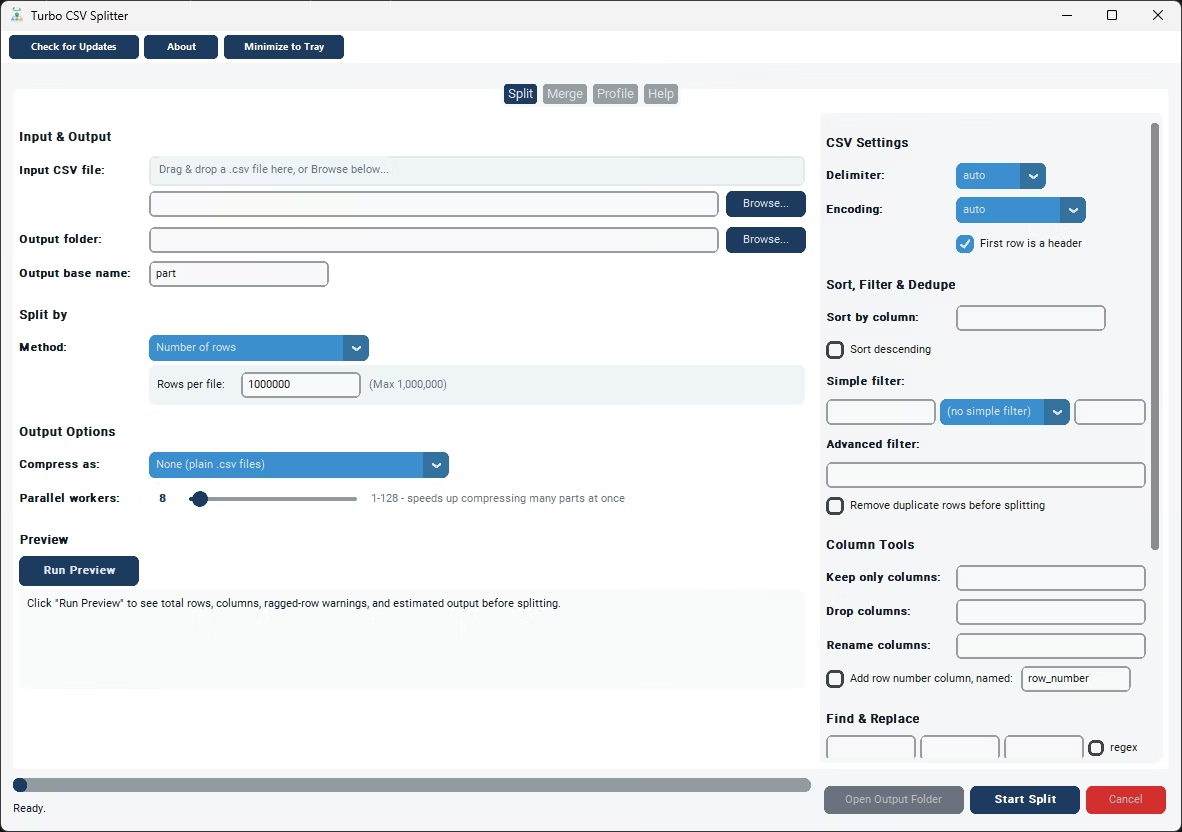
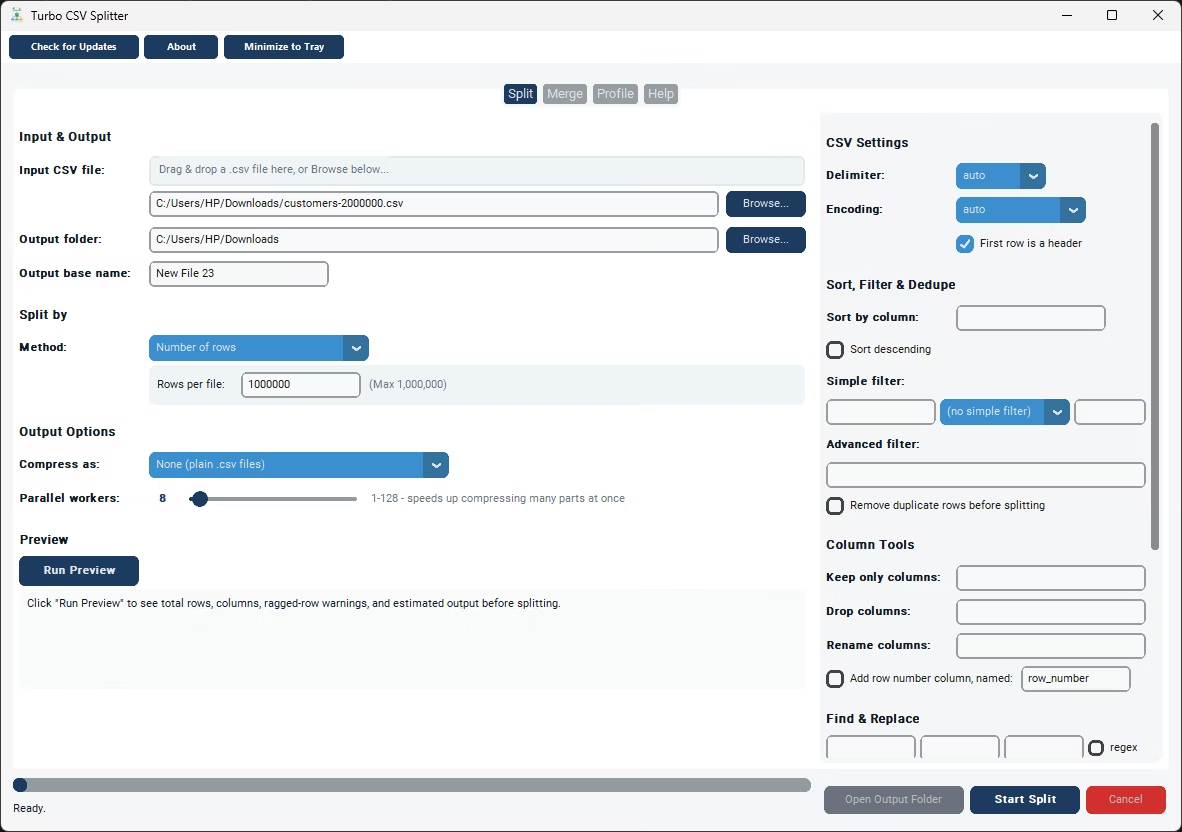
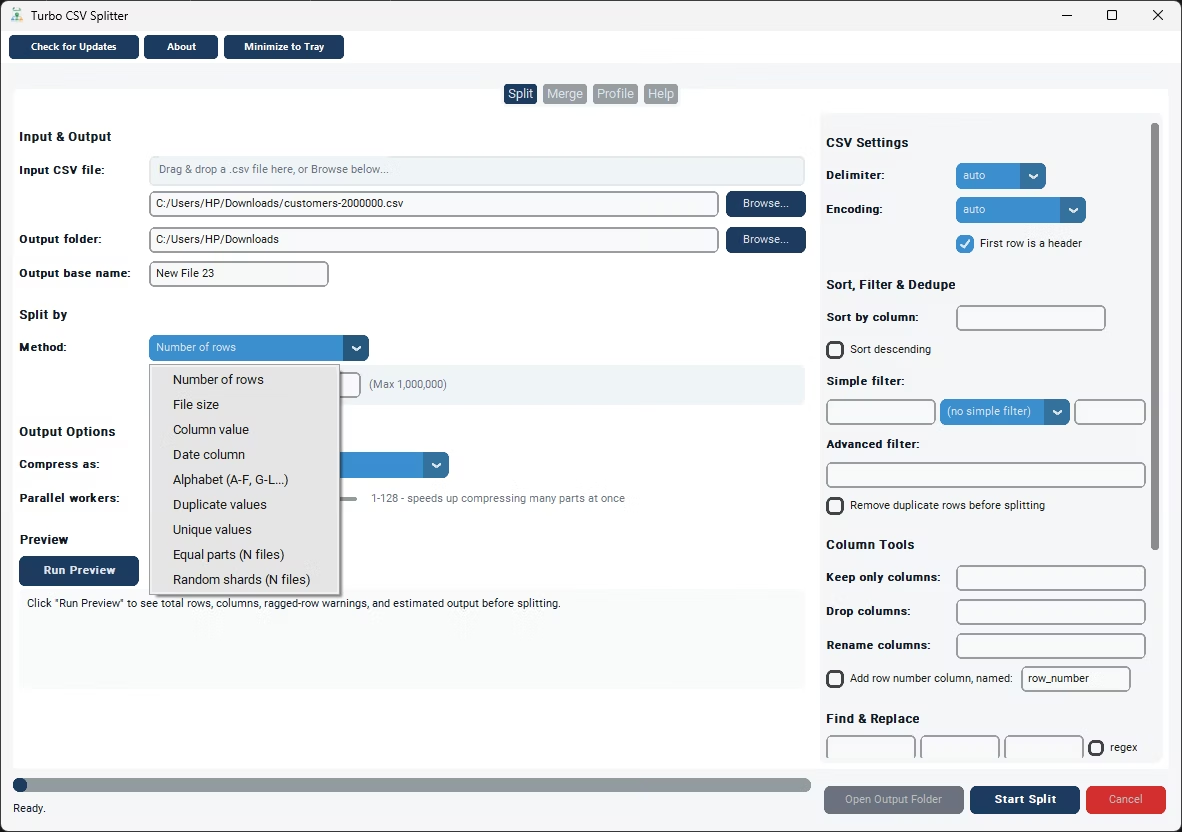
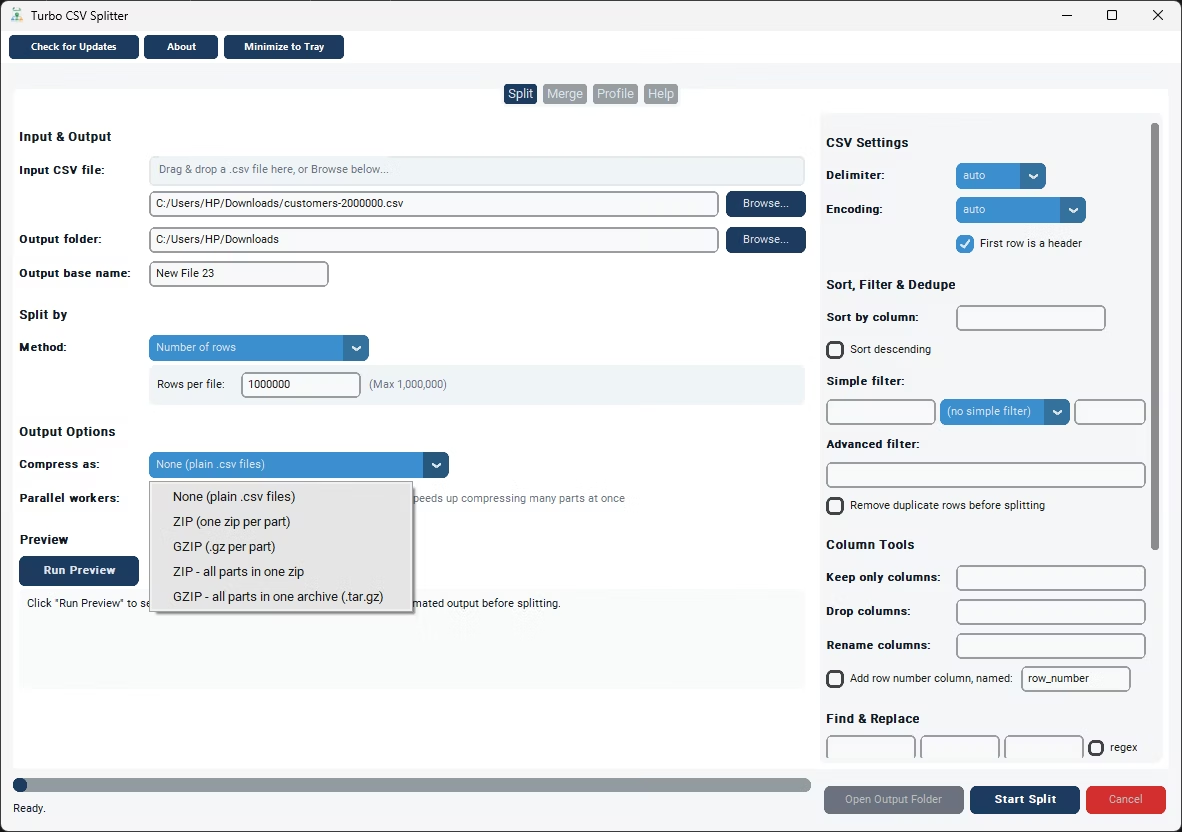
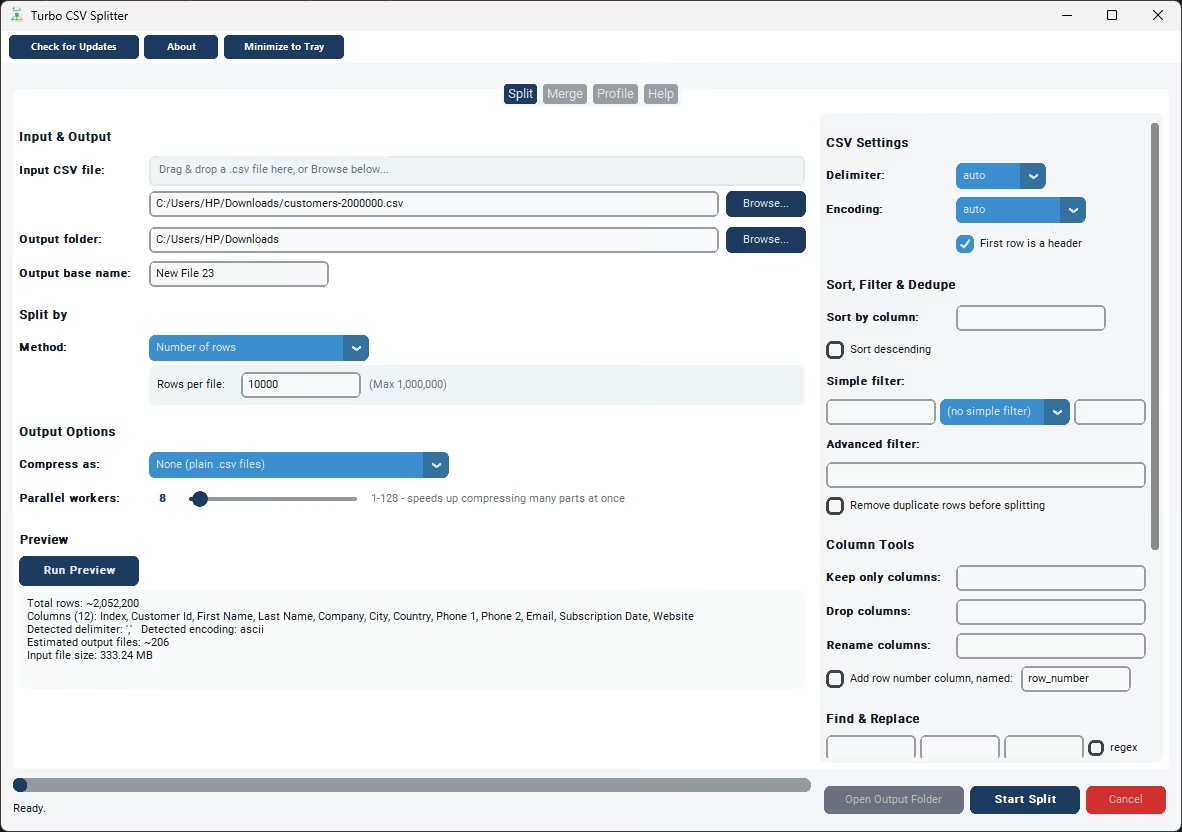
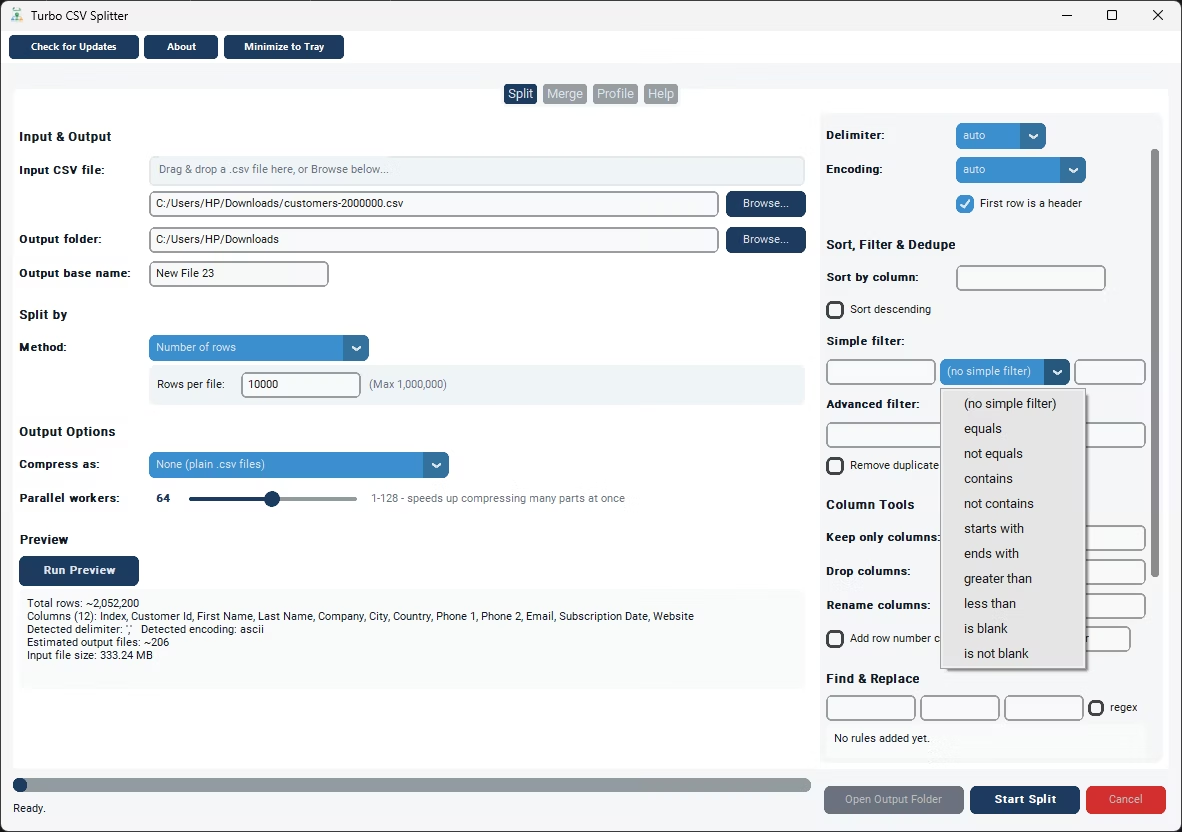
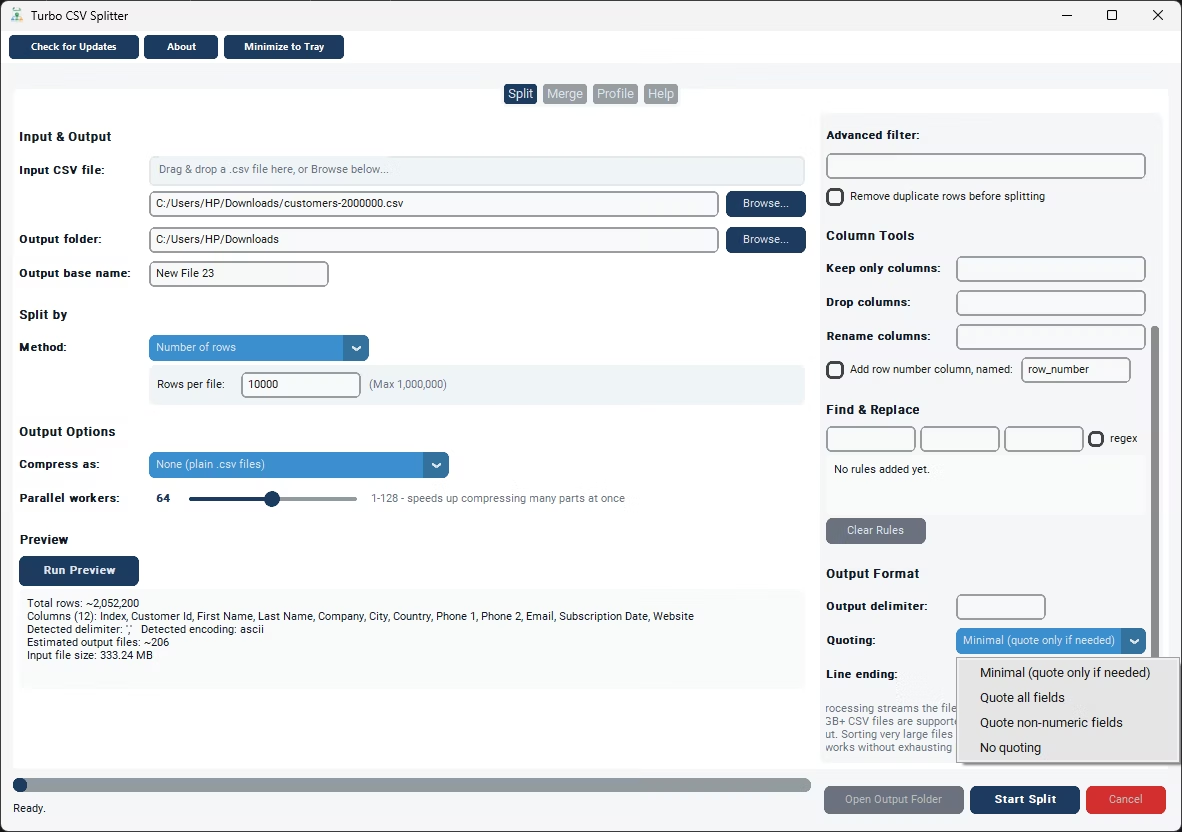
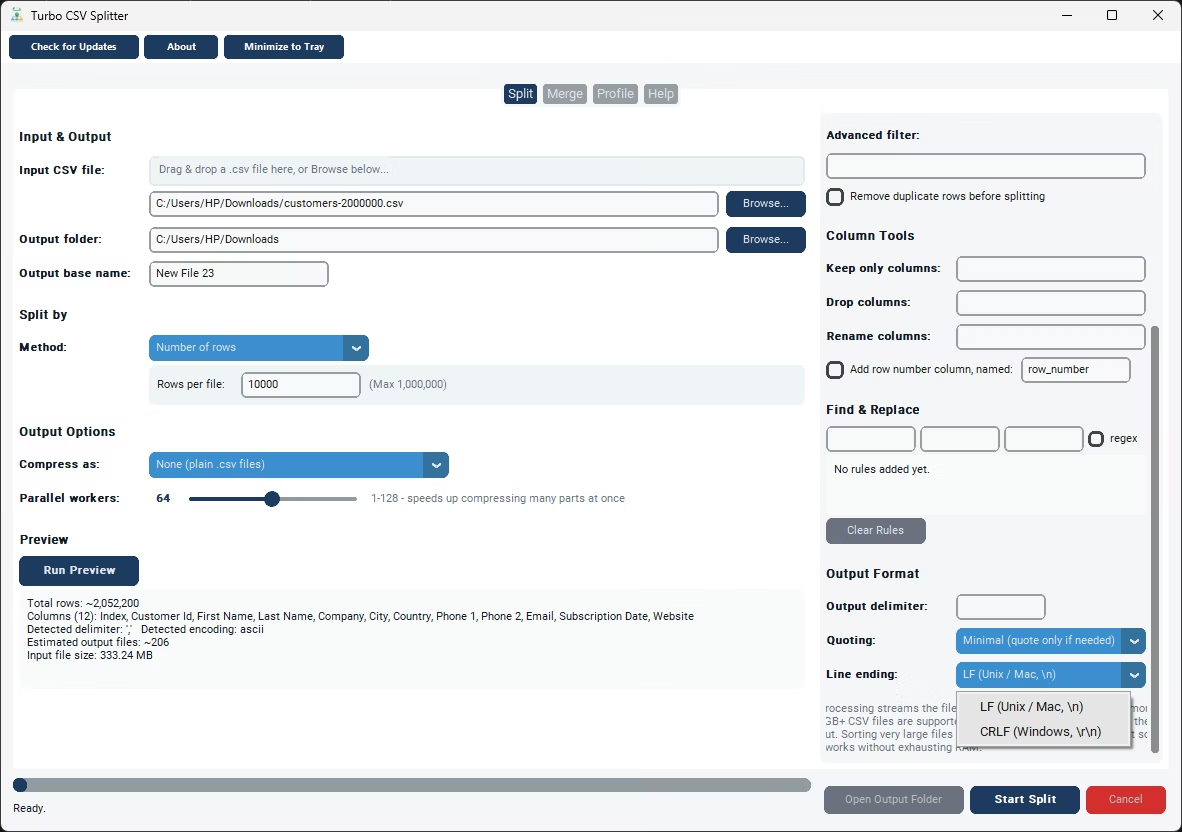
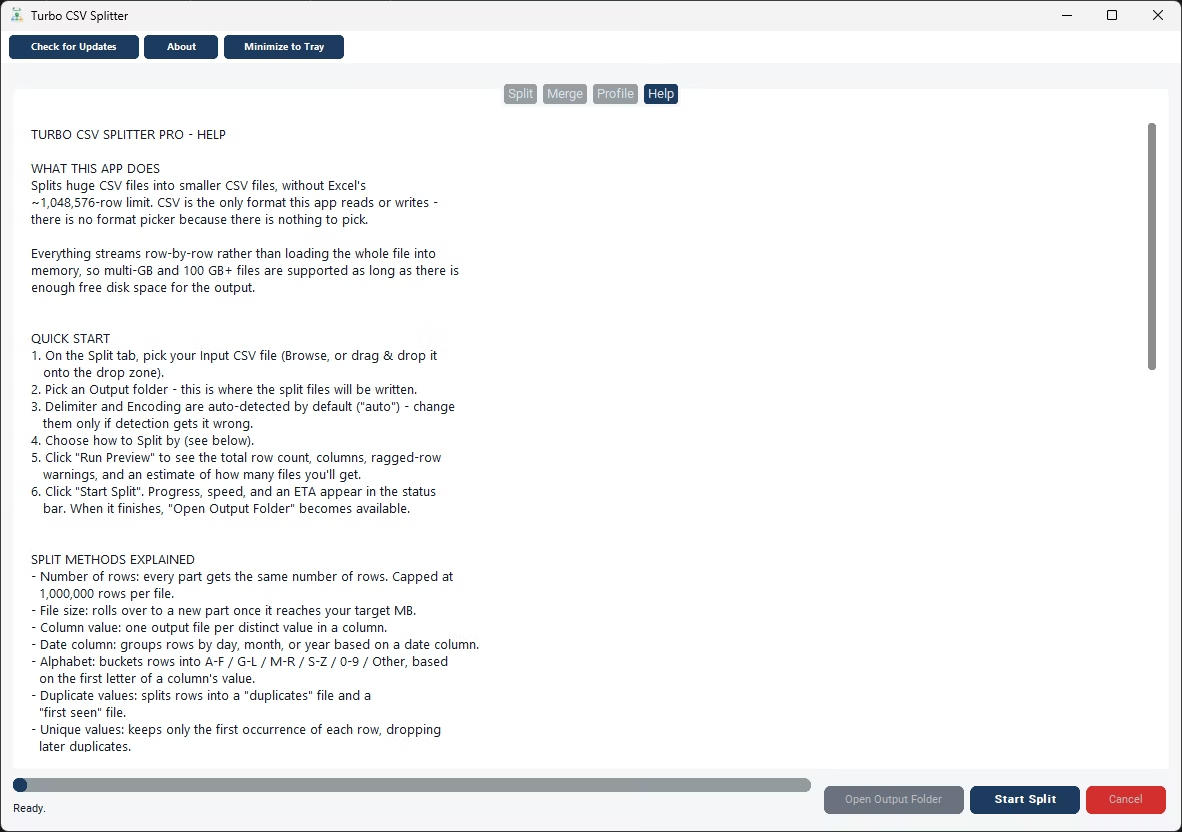
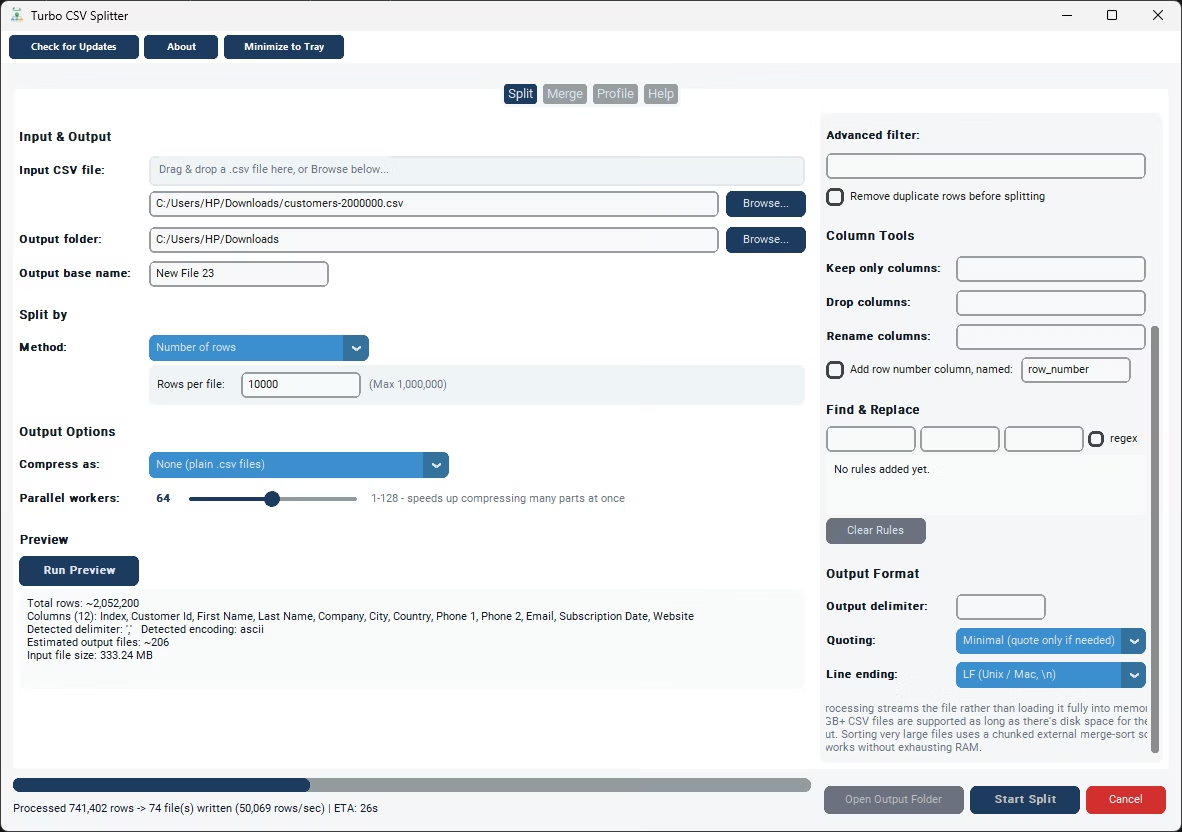
Turbo CSV Splitter exists to do the job Excel can't. Point it at your CSV file, choose Number of Rows as the split method, and set a target such as 500,000 or 900,000 rows per file - safely under Excel's 1,048,576-row ceiling - and the app writes out as many output files as needed, each one a complete, independent CSV with the original header row included. Every part opens straight into Excel without hitting the limit, and without any rows being silently dropped.
Because the file is streamed row by row instead of being loaded fully into memory the way Excel effectively has to, there's no upper bound on the size of the source file. A CSV with 20 million rows splits just as reliably as one with 200,000 - the app simply keeps writing new files as the row count for each part is reached. If File Size is a better fit for your situation than row count (say, you need each part to stay under a certain megabyte limit for an email attachment or an upload form), that split method is available too, alongside seven others including splitting by column value, by date, or into an exact number of equal parts.
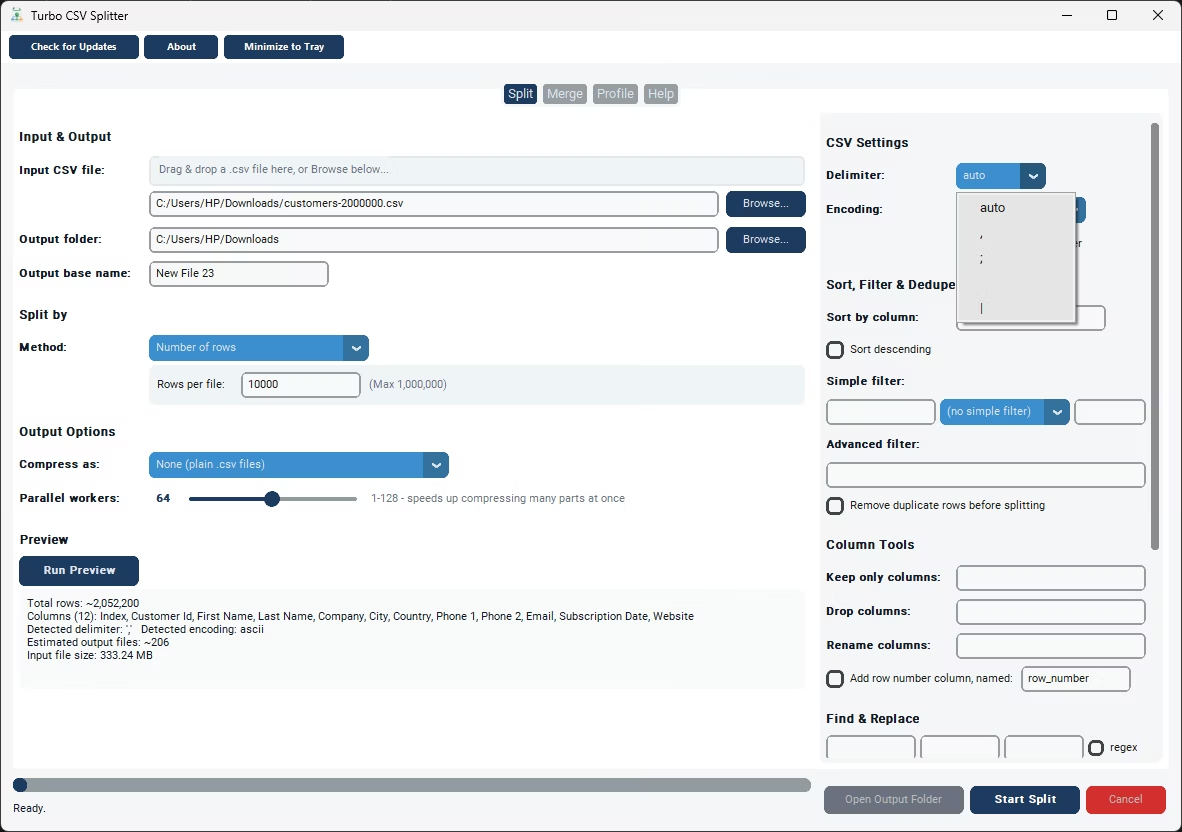
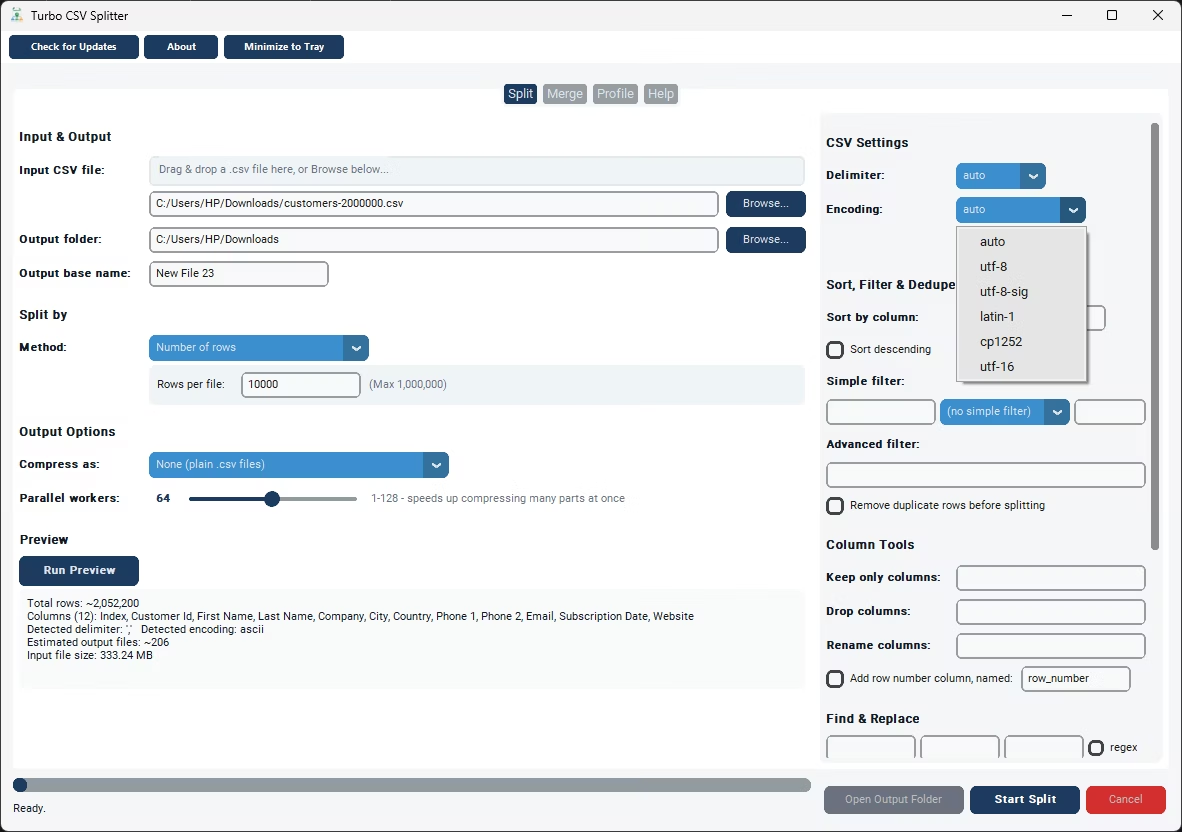
Delimiter and text encoding are auto-detected, which matters because CSV exports headed for Excel often come from different systems that use commas, semicolons, or tabs, and encodings ranging from UTF-8 to CP1252. Turbo CSV Splitter samples the file and figures this out automatically so the split files open in Excel with the correct columns and characters, rather than everything getting crammed into a single column because of a delimiter mismatch. A Preview option lets you check the total row count and column structure before committing to a split, so you know in advance roughly how many Excel-ready files you'll end up with.
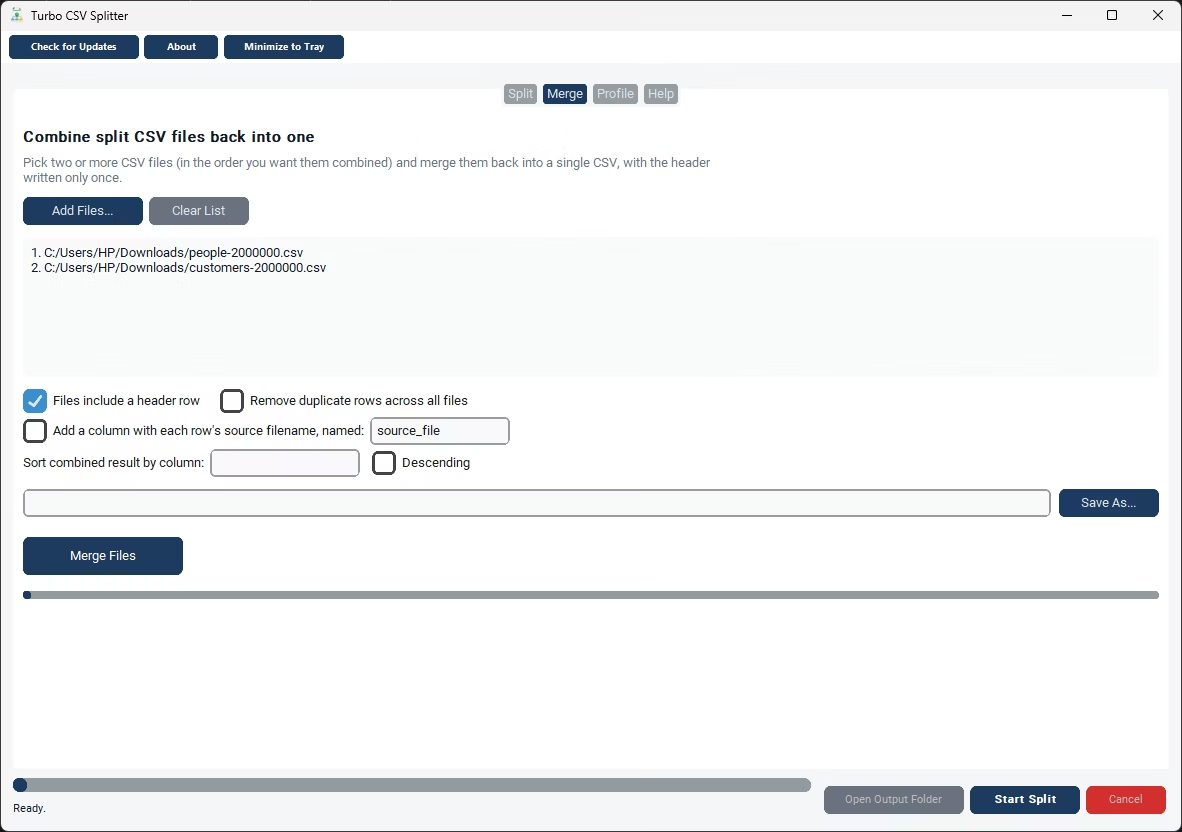
Once the split is done, you can also use the Merge tab later if you need to bring several of those files back together into one CSV - handy if you split a file for distribution and later need the combined dataset again for a single Excel report.
- Install Turbo CSV Splitter and open the app on your Windows PC.
- Browse to the CSV file that's too large or unwieldy to open cleanly in Excel.
- Choose Number of Rows as the split method and set a row count comfortably under 1,048,576.
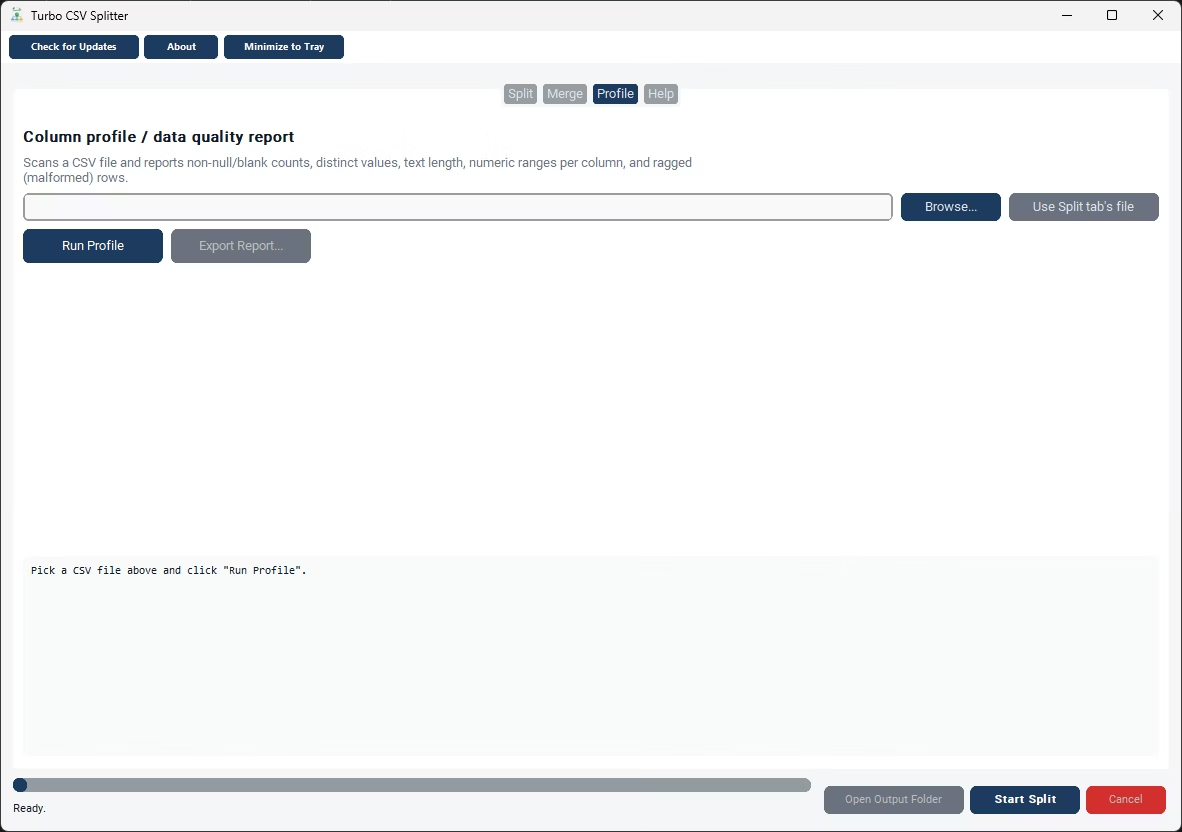
- Run Preview to confirm the total row count and check for any ragged rows.
- Click Start Split and let the app write out the smaller files.
- Open any of the resulting files directly in Excel - each one is a complete, self-contained CSV.
- Split by exact row count to stay comfortably under Excel's 1,048,576-row limit
- Every output file includes the header row for a clean Excel import
- Auto-detects delimiter and encoding from CSVs exported by different systems
- Streams the file instead of loading it, so source file size is not a limiting factor
- Merge tab available if you need to recombine files afterward
- Runs fully offline on your own Windows PC
Does Excel have a built-in CSV splitter?
No. Excel has no menu command for splitting a file into parts. Text to Columns splits data across columns within one row, not a file into several files, and Power Query or VBA can technically do it but both require building your own logic first.
Why does my CSV look cut off when I open it in Excel?
Excel versions with the standard row limit stop at 1,048,576 rows per sheet. If your CSV has more rows than that, Excel opens only the first 1,048,576 and the rest are left out entirely, with no warning that data is missing.
Can I open the split files straight into Excel afterward?
Yes. Every file Turbo CSV Splitter produces is a standard, complete CSV file with its own header row, so each one opens directly in Excel exactly like any other CSV.
Does the split file order stay in Excel's usual row order?
Yes, when splitting by row count or file size. Rows are written out in the same order they appear in the source file, so the sequence you'd see in Excel is preserved across the split parts.
Ready to split your CSV files the easy way?