Excel's own method for getting a picture out of a workbook, right-click and Save As Picture, works fine for one image, but a workbook holding dozens or hundreds of pictures turns that into an hour of repetitive clicking, with no easy way to keep track of which pictures you've already saved and which you haven't.
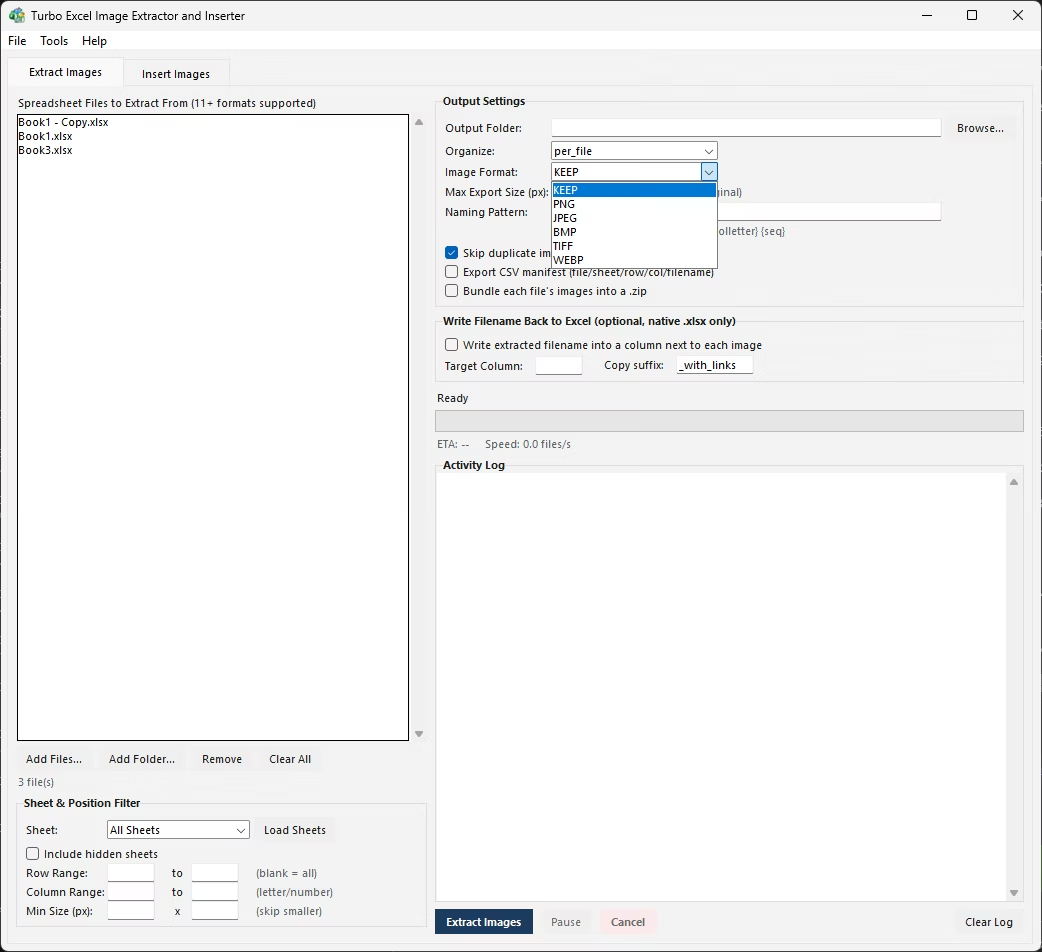
Turbo Excel Image Extractor and Inserter automates saving every picture in a workbook. It walks through the embedded pictures automatically, filtered by sheet, row, column, or a minimum size if you only want the larger ones, and writes each picture out as its own file, no manual right-clicking required.
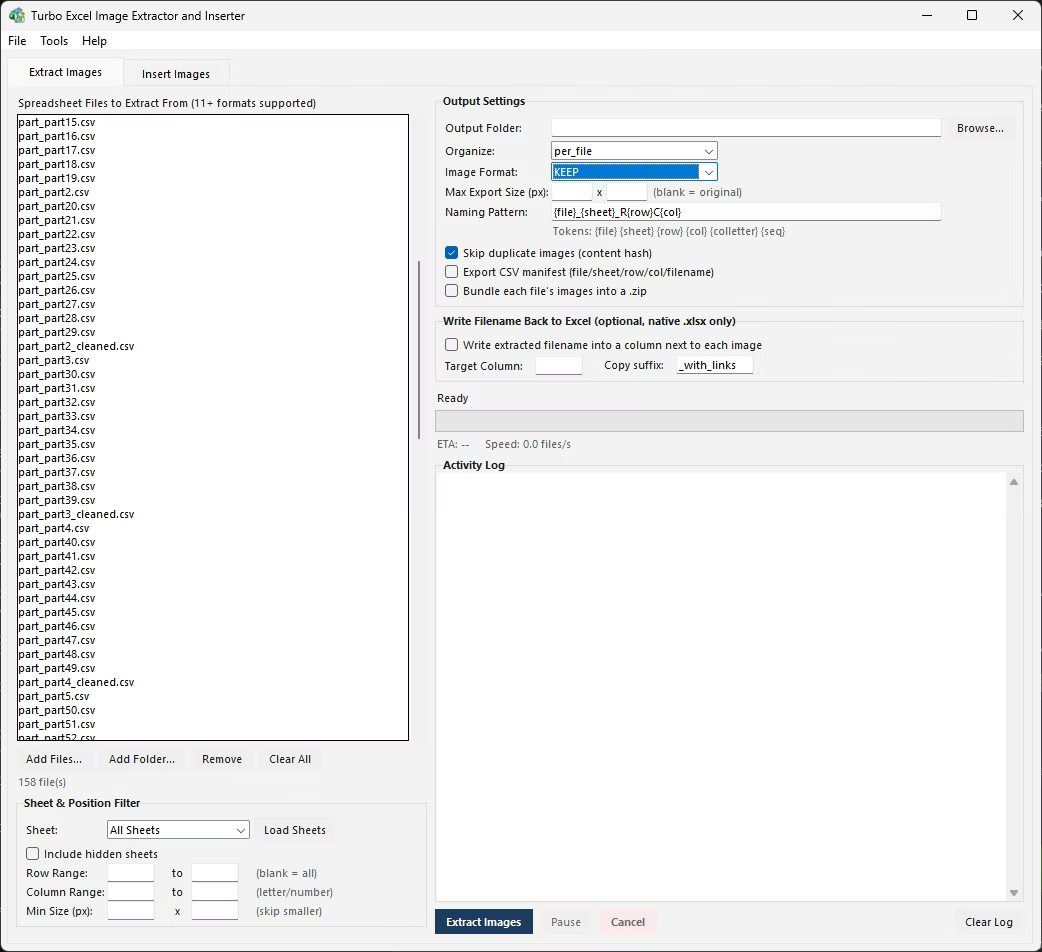
Saved files follow a naming pattern you set, so instead of a folder full of generically numbered images, you end up with something you can actually navigate, especially useful when the picture's original position in the sheet corresponds to something meaningful like a product code or employee name. Deduplication catches identical pictures so you're not left with unnecessary copies.
A CSV manifest logs the sheet, row, and column each saved picture came from, useful for auditing or tracing a picture back to its source data later. The whole process runs on a multi-threaded engine, processing an unlimited number of workbooks in one batch, entirely offline on your own PC.
Beyond the core workflow built for extract Pictures from Excel, Turbo Excel Image Extractor and Inserter includes the full toolkit found throughout the application: content-hash deduplication that compares actual pixel data rather than filenames, per-format quality and compression controls, folder organization on output, and a license activation system tied to a single one-time purchase. Any of these can be combined with the workflow described above, so a job that starts simple can grow into a fully configured pipeline without switching tools.
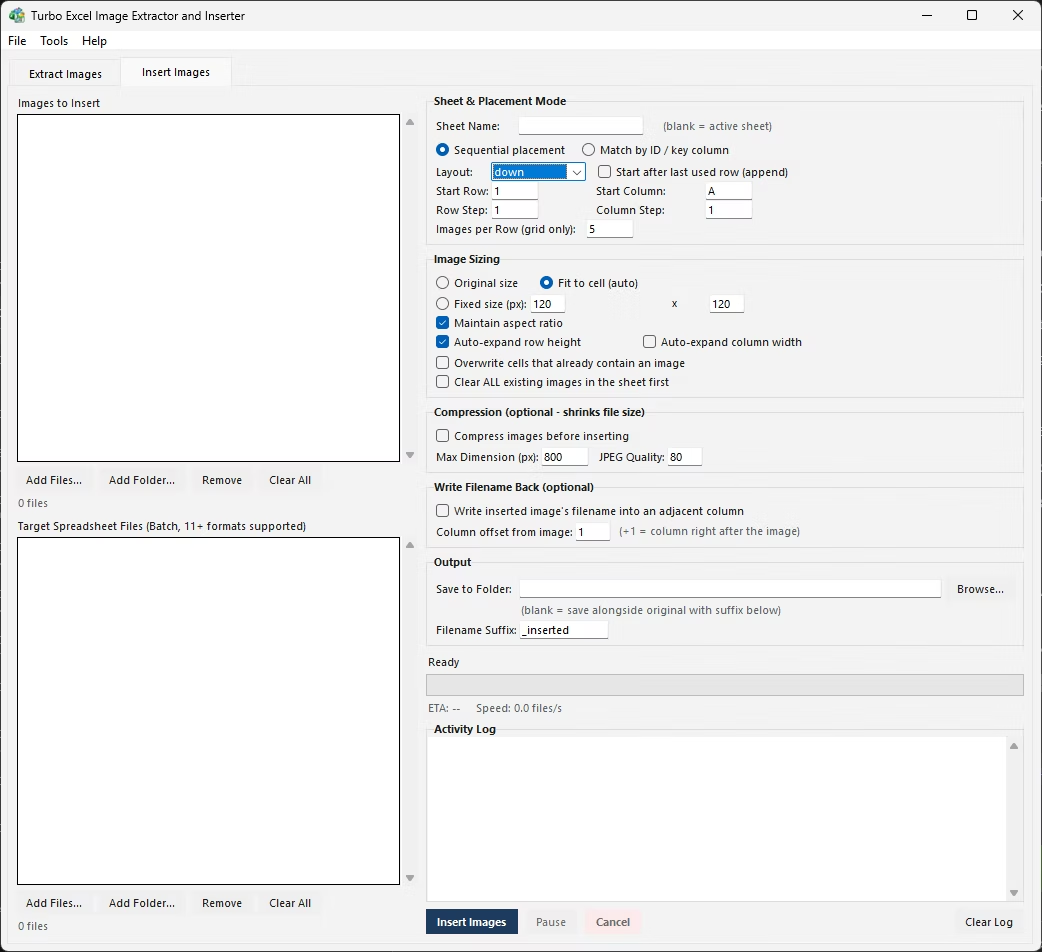
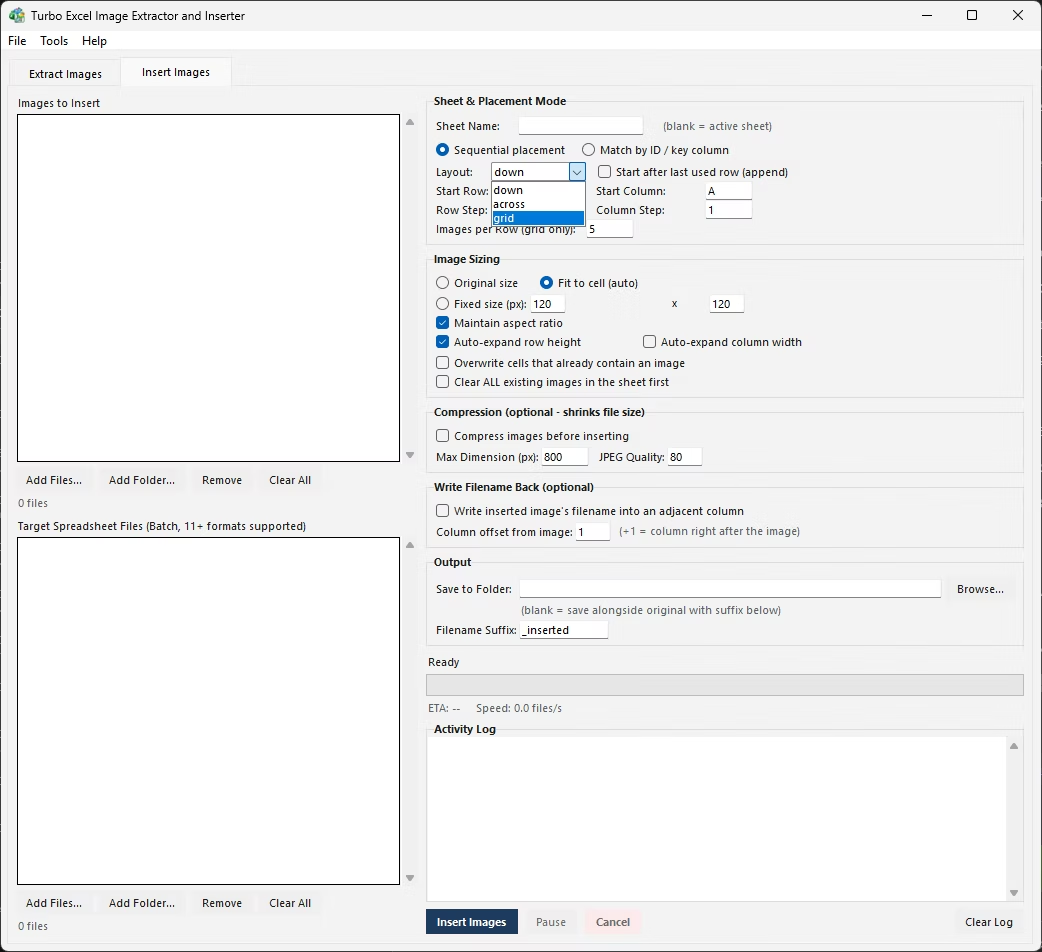
The application itself is a one-time purchase for Windows, with no subscription and no watermarks added to extracted or inserted images, and no data ever leaving your PC during a run. Every extraction can be documented with a CSV manifest recording the source file, sheet, row, column, cell reference, saved filename, and pixel dimensions for each image, and every insertion job can be paused, resumed, or cancelled, giving you full control over even a very large batch.
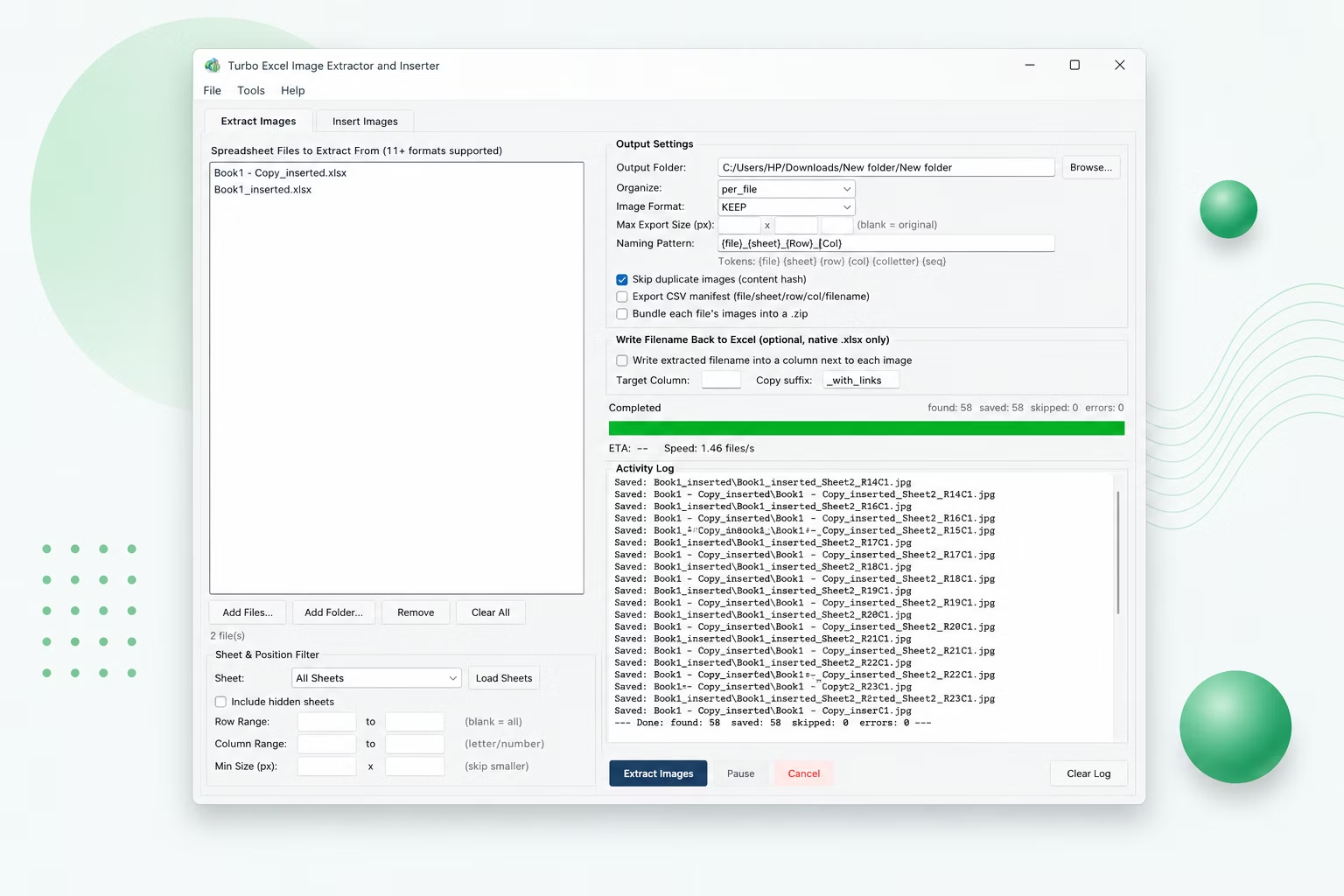
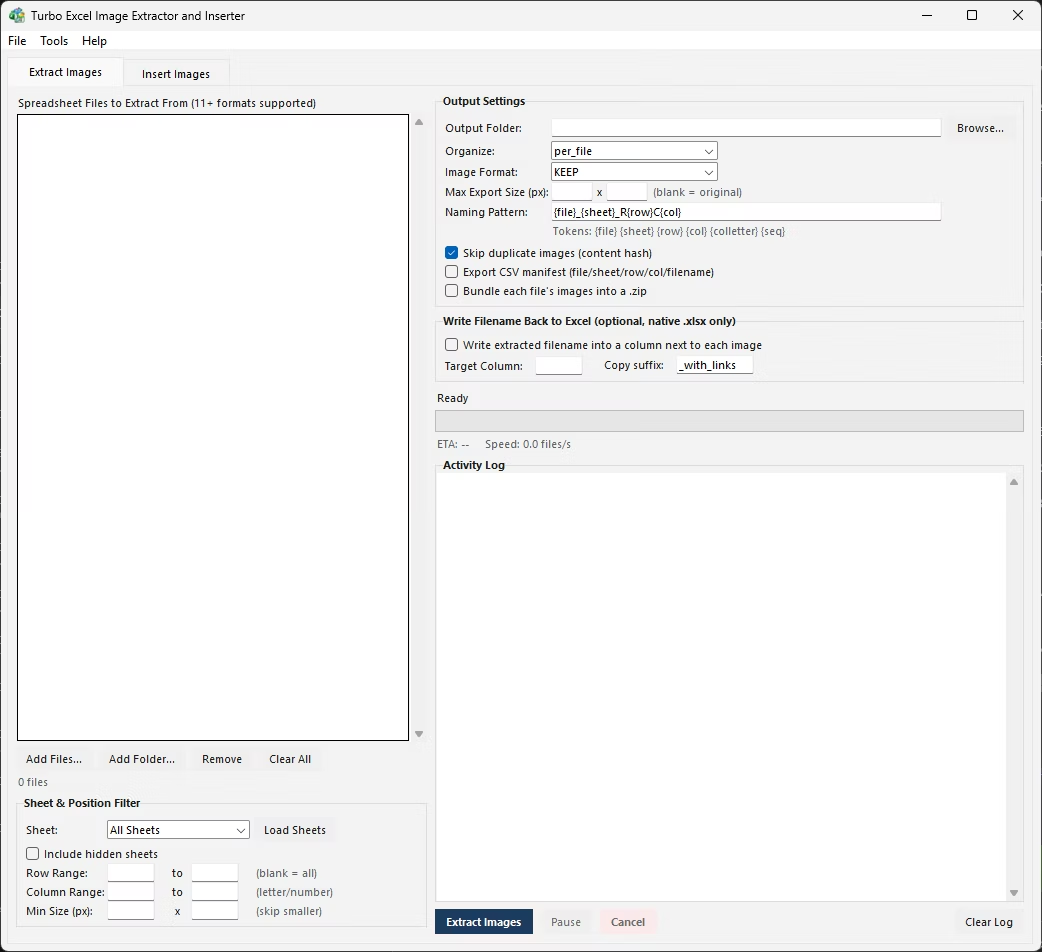
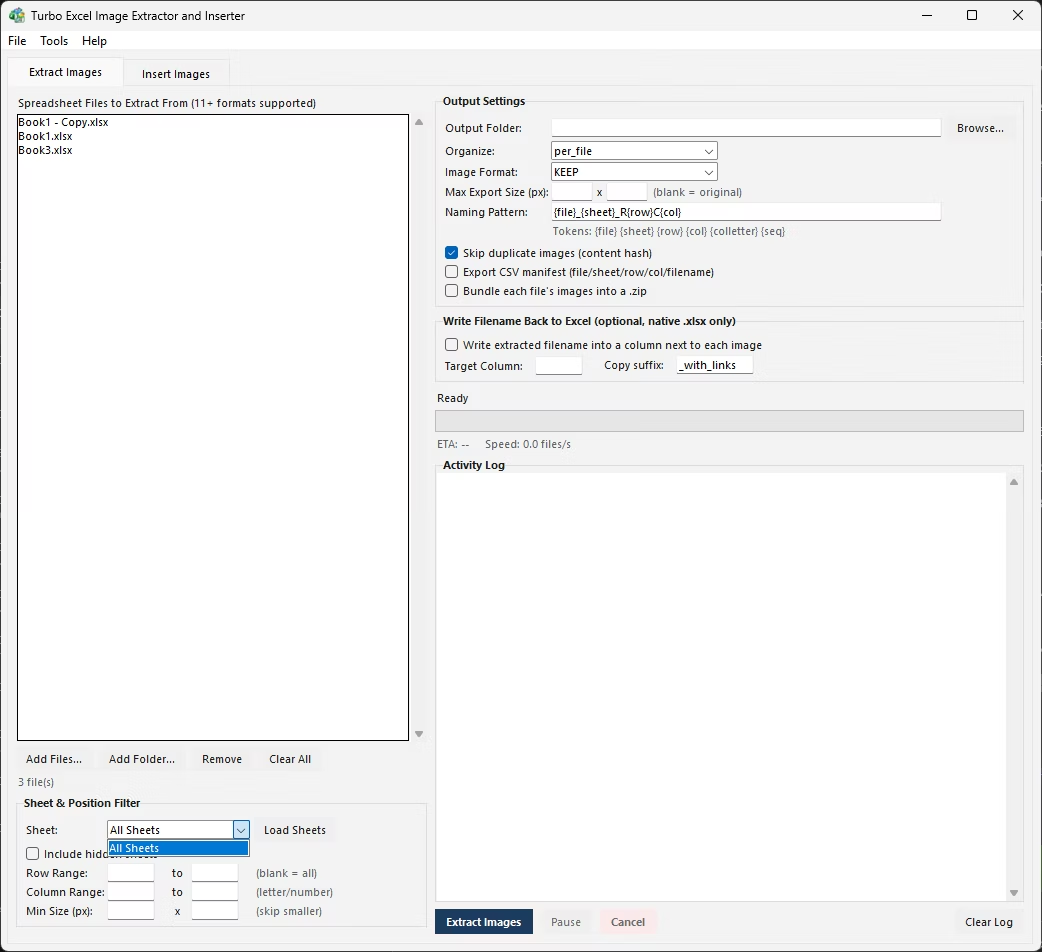
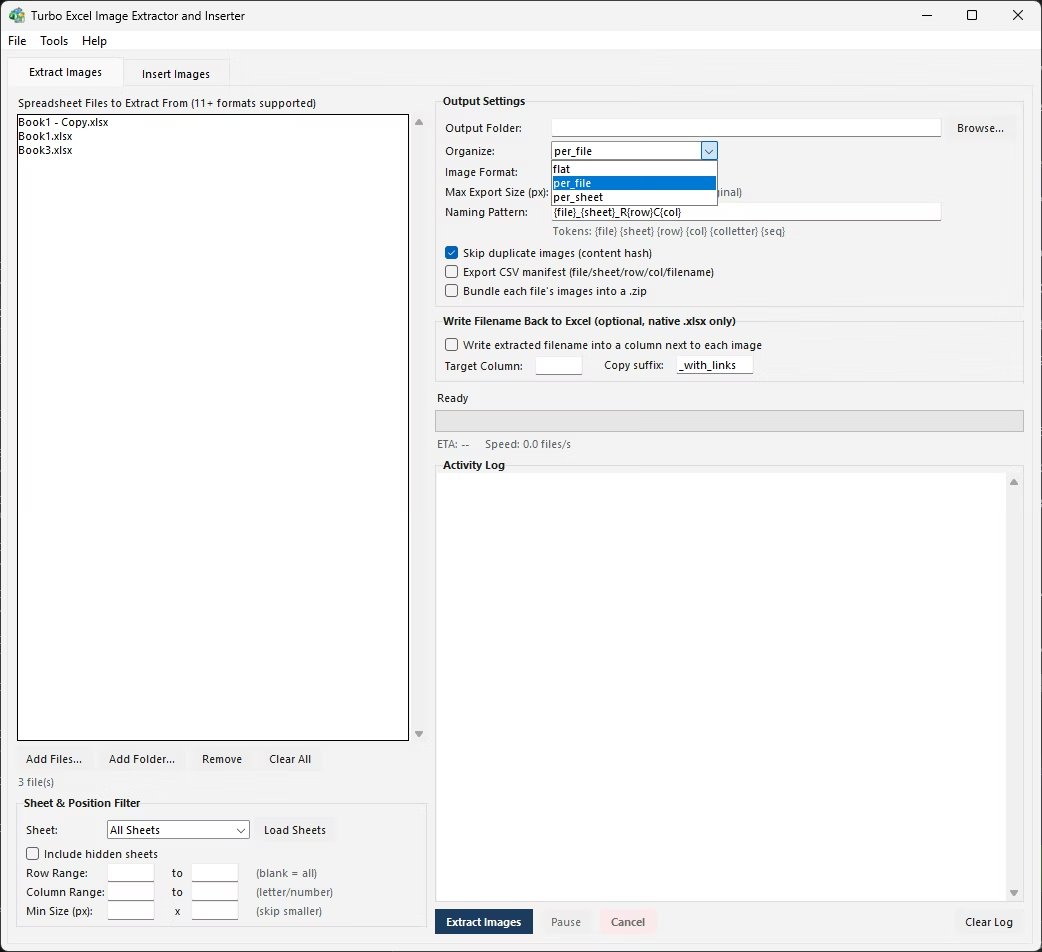
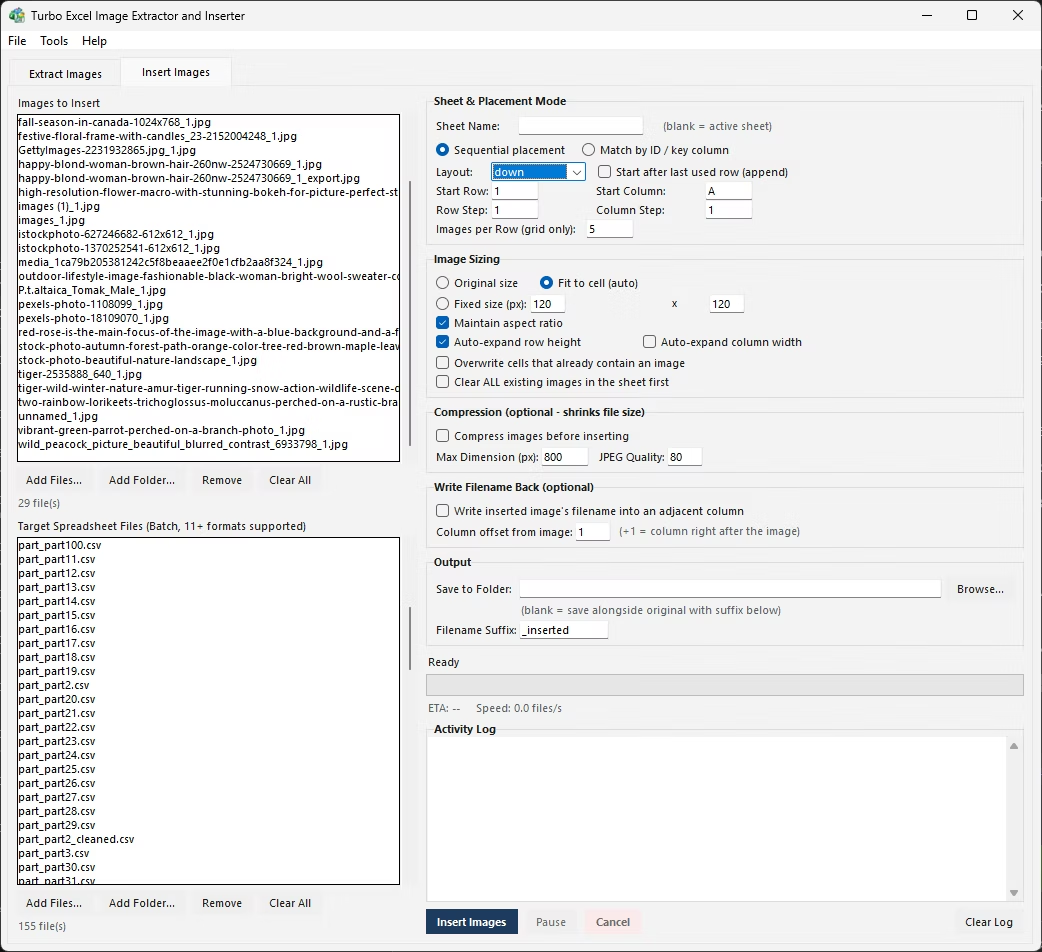
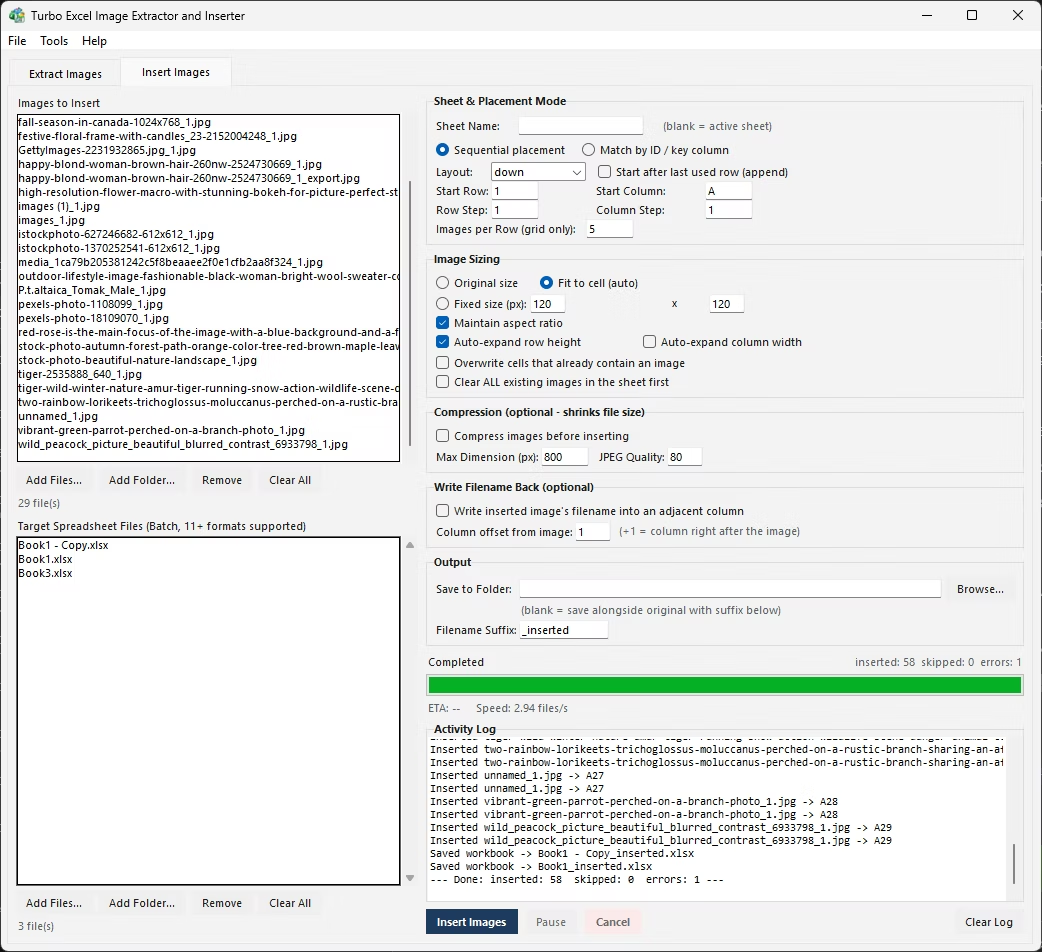
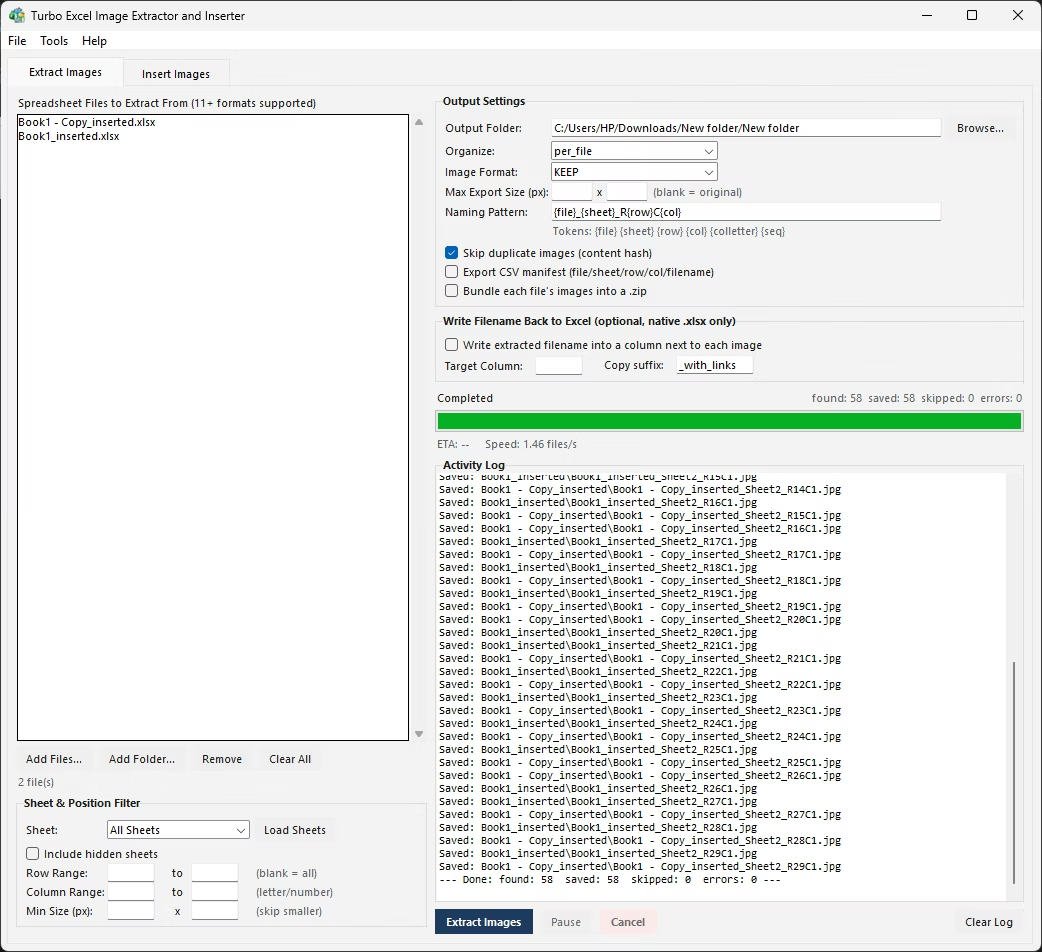
- Install Turbo Excel Image Extractor and Inserter on your Windows PC.
- Open the Extract Images tab.
- Add the workbook or workbooks containing the pictures.
- Set sheet, row, column, or minimum size filters as needed.
- Choose your naming pattern and output format.
- Enable deduplication if pictures repeat within the workbook.
- Click Start and monitor progress.
- Collect your saved pictures and the CSV manifest from the output folder.
- Double-check the activity log for any files or images that need a second look.
- Repeat the process on additional workbooks or folders as your workflow requires.
- Automatically saves every picture in a workbook, no manual right-clicking
- Filter by sheet, row, column, or minimum picture size
- Custom naming patterns for organized output
- Deduplication avoids saving the same picture twice
- CSV manifest traces each picture back to its source location
- Processes unlimited workbooks in a single batch
- Runs fully offline with no upload limits
- One-time purchase for Windows, with no subscription or watermarks
- Content-hash deduplication compares actual pixel data, not just filenames
- Works with files on local drives, external drives, and network shares
Is this faster than right-clicking and saving each picture manually?
Yes, the entire workbook is processed automatically in one batch, rather than requiring a separate right-click and save action for every picture.
Can I extract pictures from a specific area of the sheet only?
Yes, row and column filters let you limit extraction to a specific range within the sheet.
What naming convention will the saved pictures follow?
You define the naming pattern, so extracted files can be named however makes sense for your workflow, such as by row number or a related data value.
Does the tool keep track of where each picture was in the sheet?
Yes, the CSV manifest logs the sheet, row, and column for every extracted picture.
Does this work on both Windows 10 and Windows 11?
Yes, Turbo Excel Image Extractor and Inserter is built and tested for both Windows 10 and Windows 11.
Is my data safe when using this tool?
Yes, all processing happens locally on your PC; no workbooks or images are ever uploaded, so proprietary or sensitive content stays fully under your control.
Can I cancel a job partway through if I need to?
Yes, both extraction and insertion jobs support pausing, resuming, and cancelling at any point during processing.
Can I use this on files stored on an external or network drive?
Yes, workbooks and image folders on local drives, external drives, or mapped network shares all work the same as any local folder.
Is there a trial version available before buying?
Check the product page on turbo-soft.com for current trial availability and details.
Ready to save every picture from your Excel files automatically, fully offline?