An Image Converter That's Actually Easy
Plenty of conversion tools promise simplicity but bury it under settings and jargon. An easy image converter should genuinely be usable without reading documentation first.
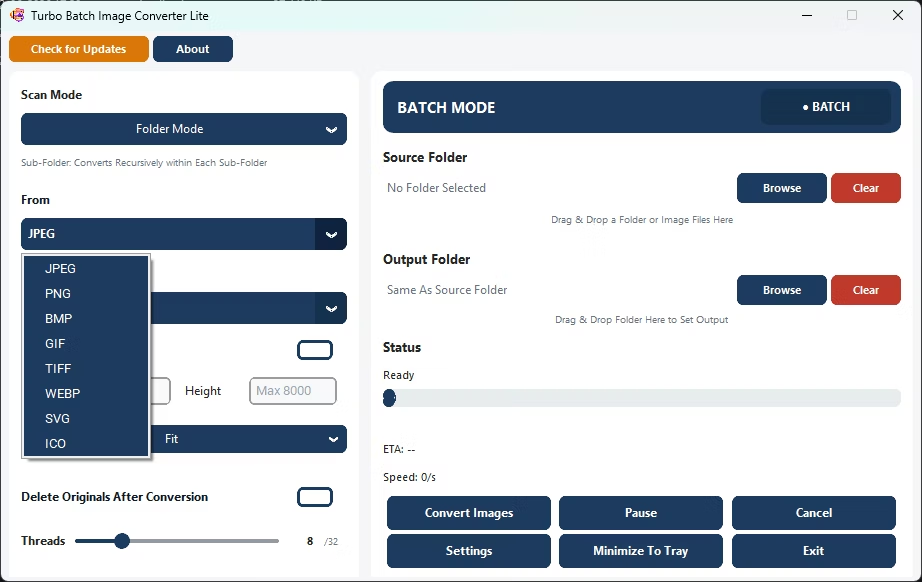
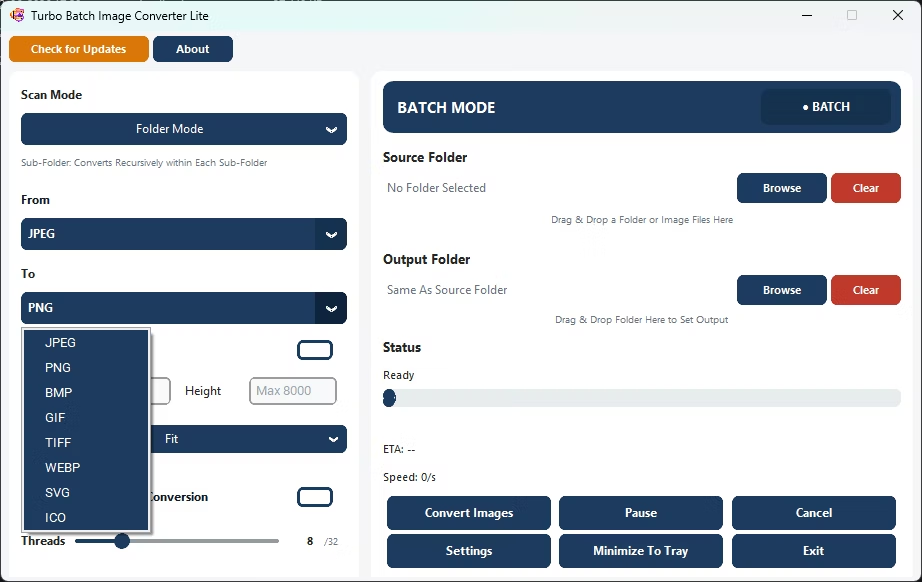
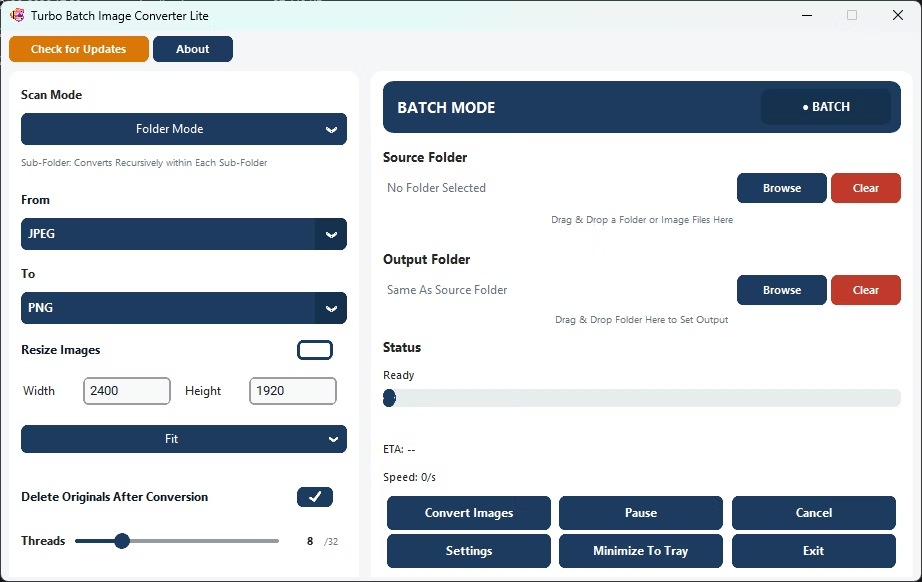
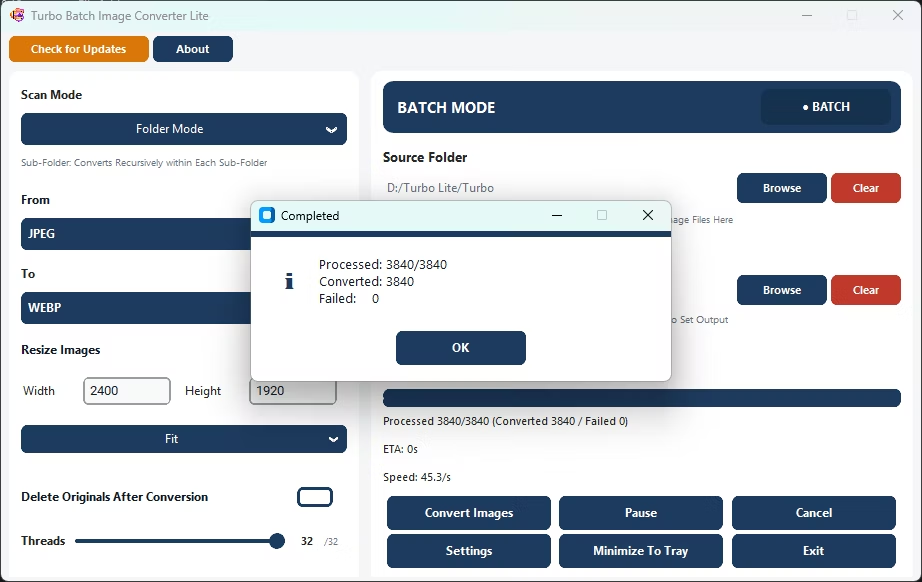
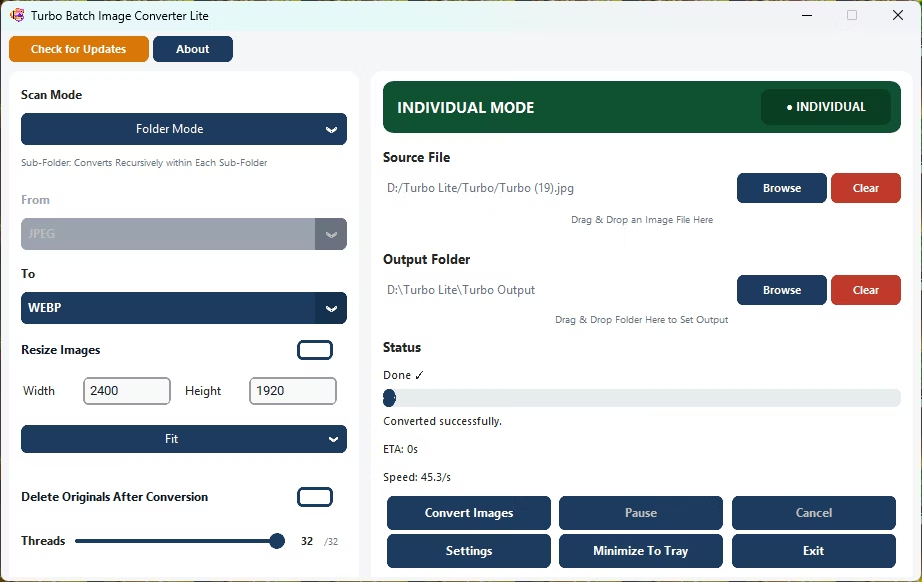
Turbo Batch Image Converter Lite sticks to a simple folder-in, format-out workflow, covering JPEG, PNG, WebP, GIF, BMP, TIFF, SVG and ICO, so most people can convert a folder within a minute of opening the app.
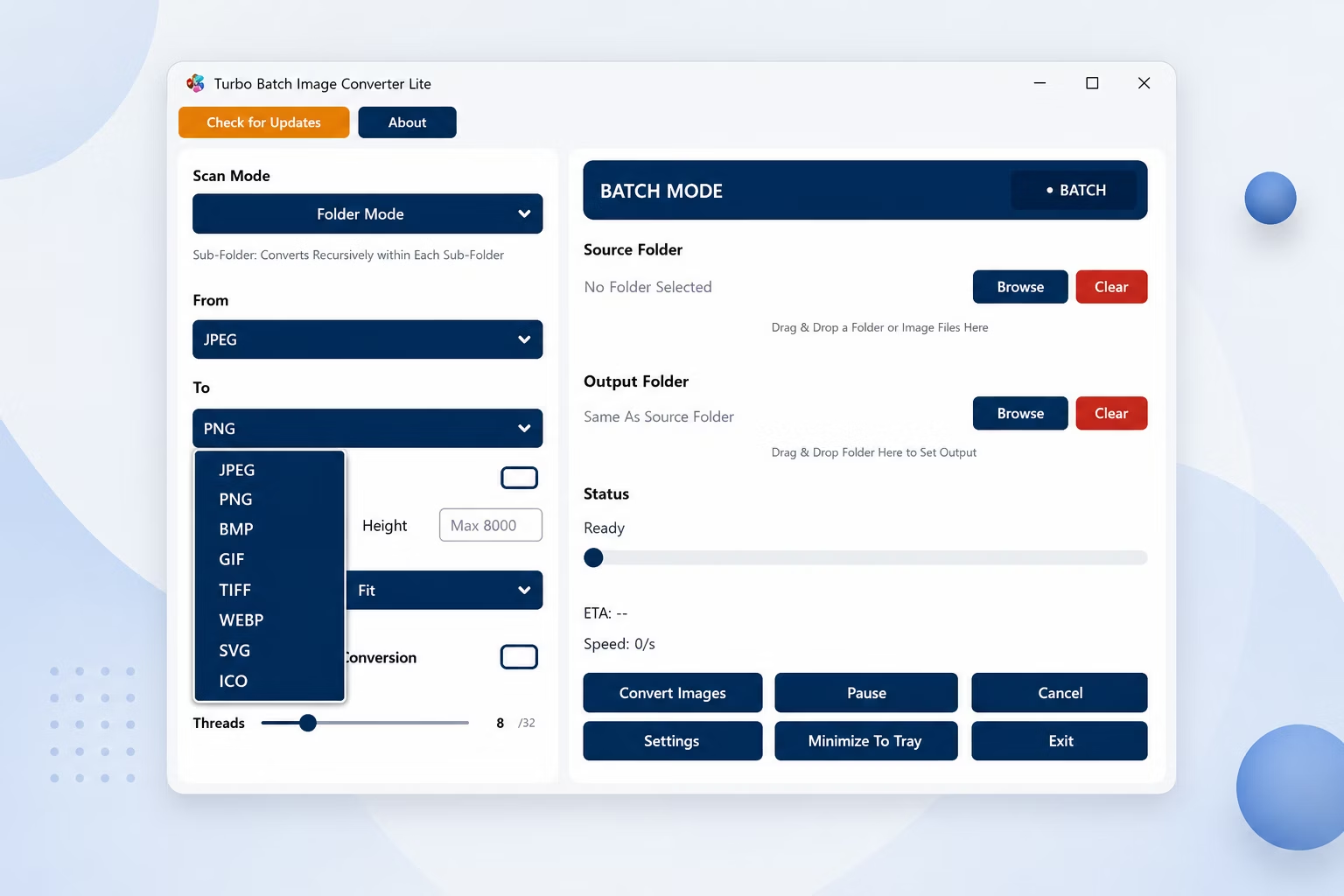
App Screenshots
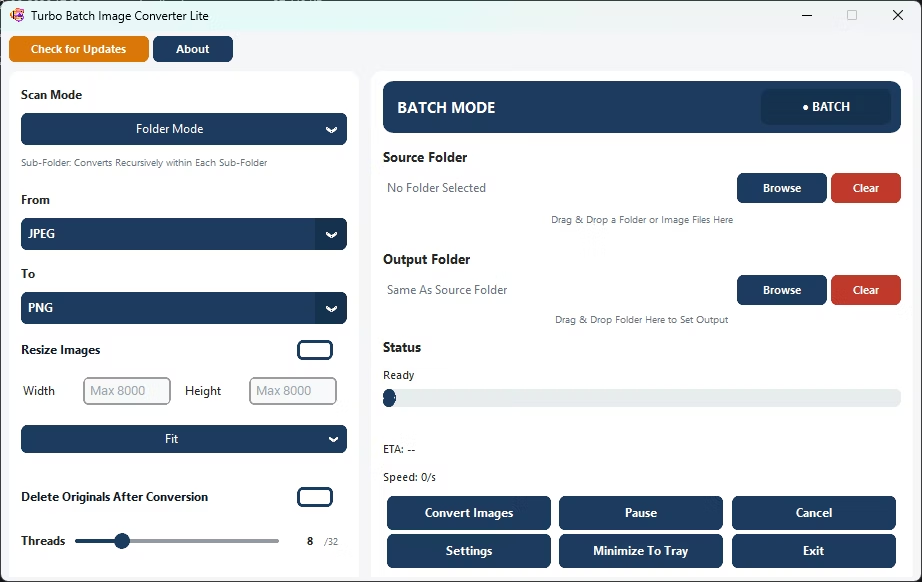
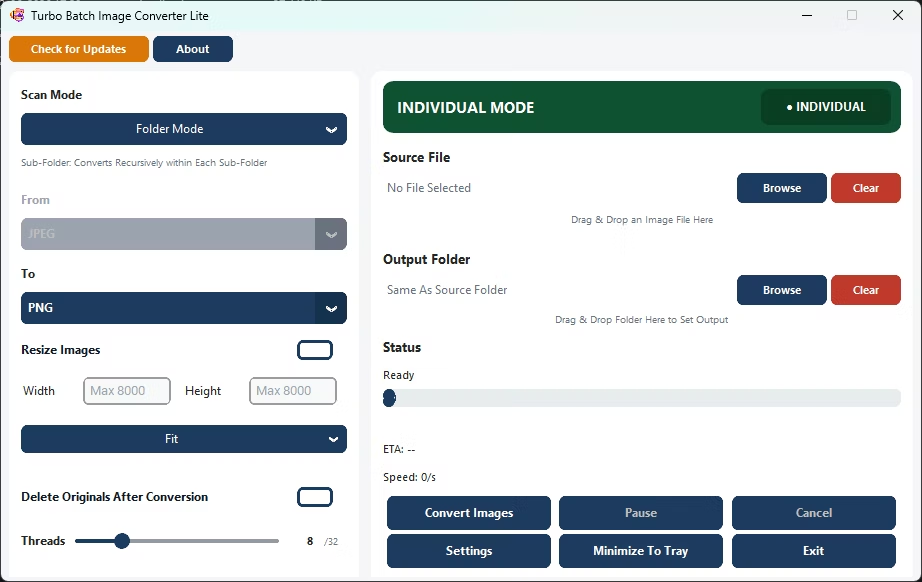
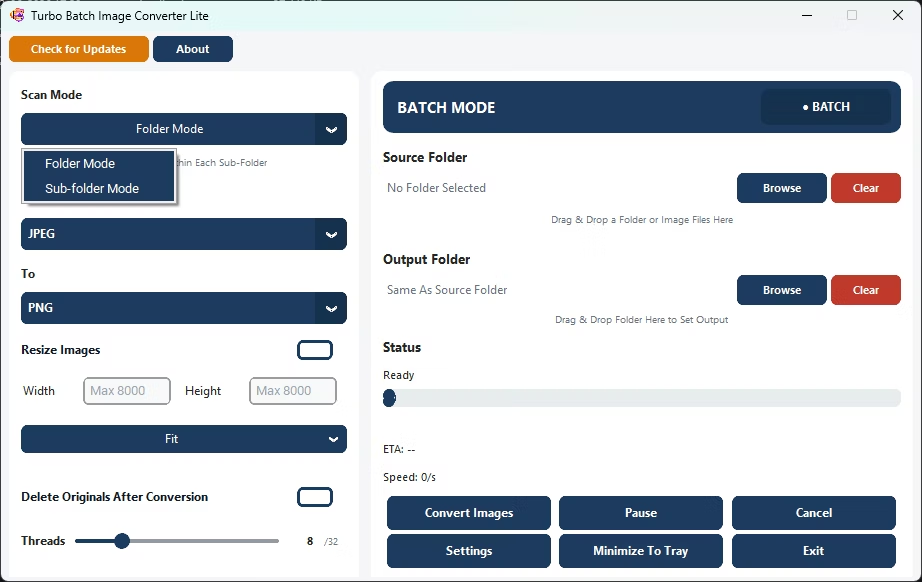
How to Easily Convert Images
- Install Turbo Batch Image Converter Lite on your Windows PC.
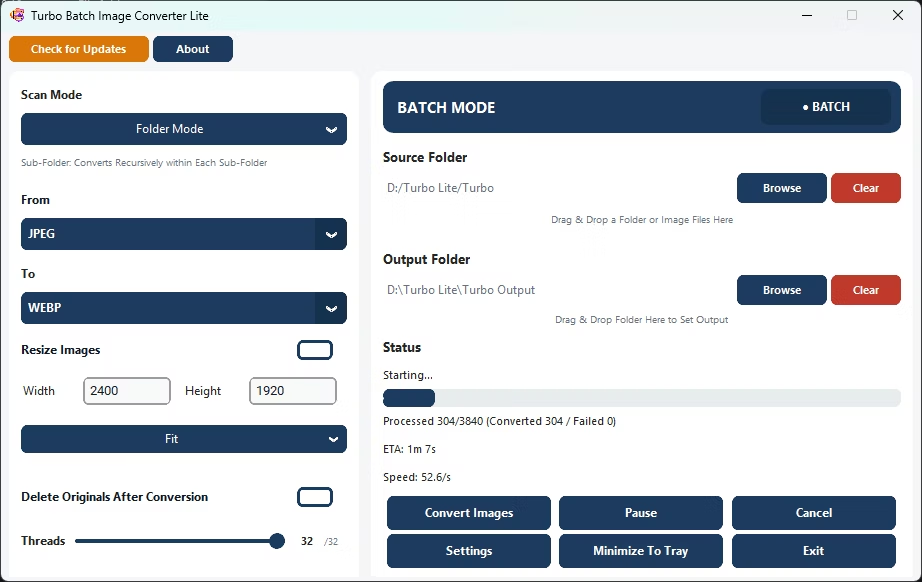
- Open Batch Mode and select your image folder.
- Choose your target format from the dropdown.
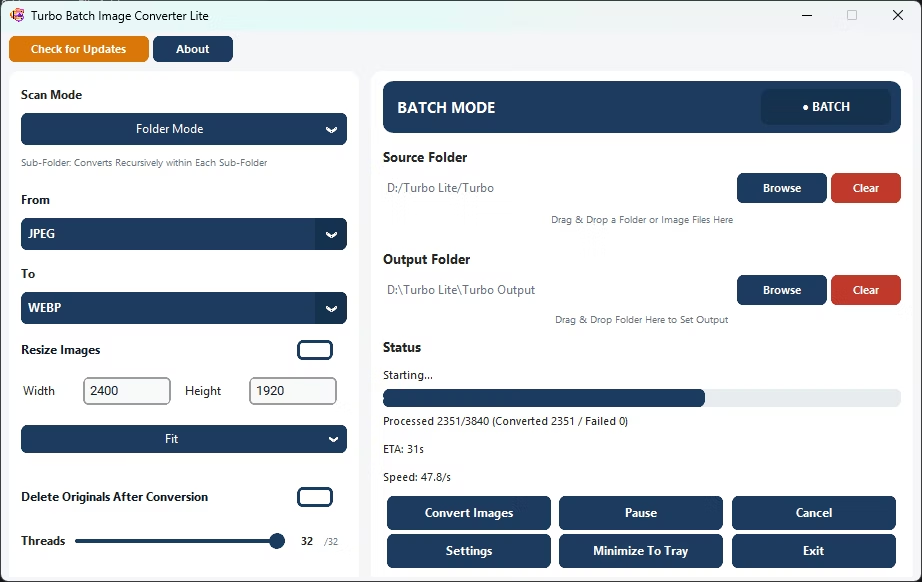
- Click Convert.
- Find your converted images in the output folder.
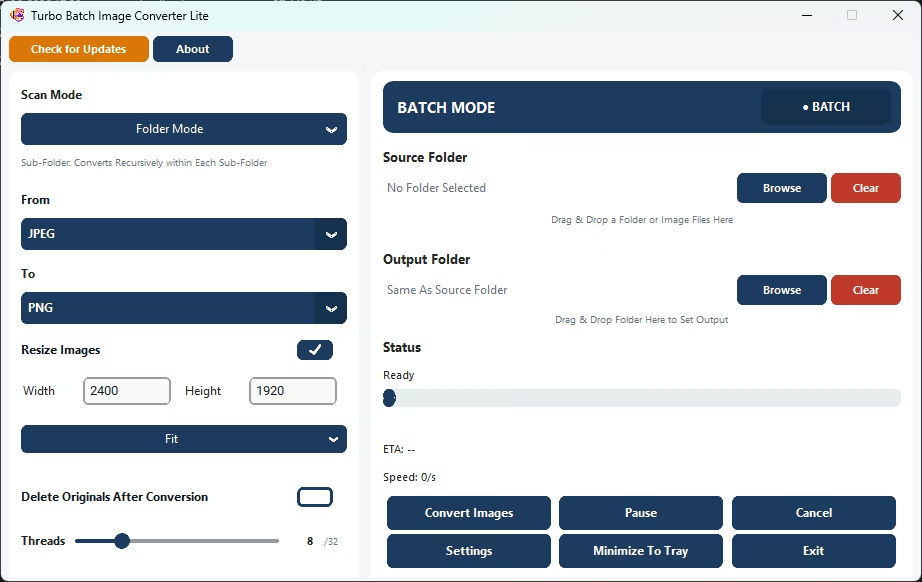
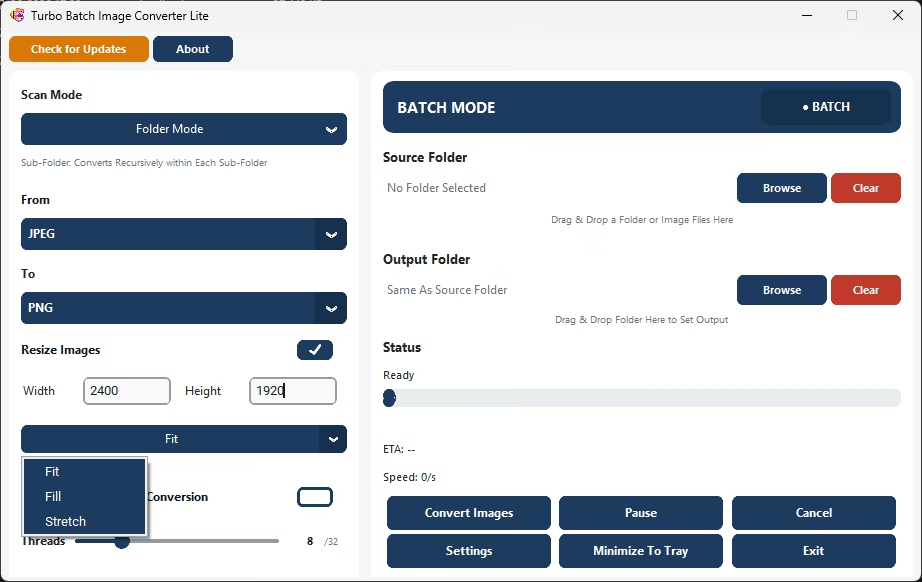
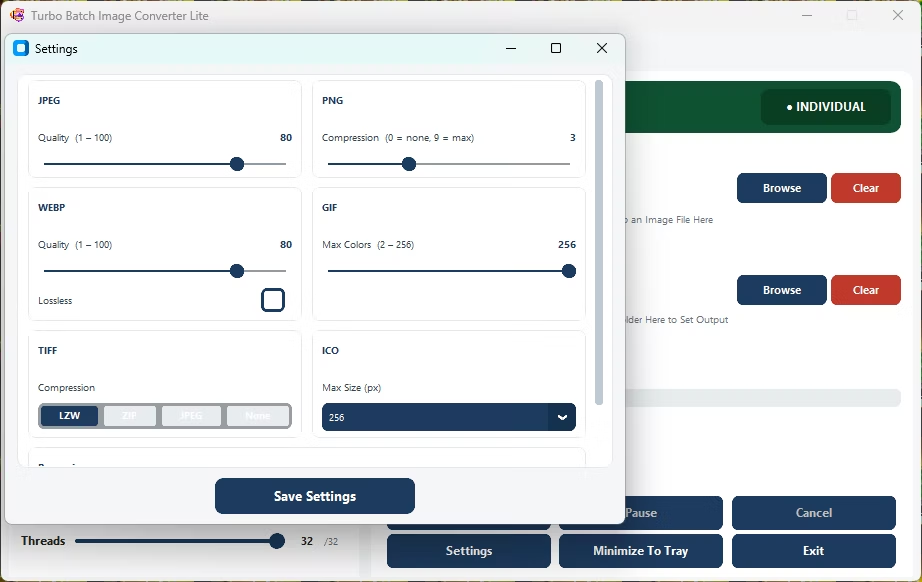
- Adjust quality or resize settings only if you want extra control.
Why Use This Easy Image Converter
- Simple, learn-in-a-minute interface
- Sensible defaults, so advanced settings are optional
- Covers the 8 formats most people actually use
- No watermarks or subscriptions
- Runs fully offline with no upload limits
Frequently Asked Questions
Is there a tutorial required to use this app?
No, the interface is designed to be usable without a tutorial for basic conversion.
Can I still access more advanced options?
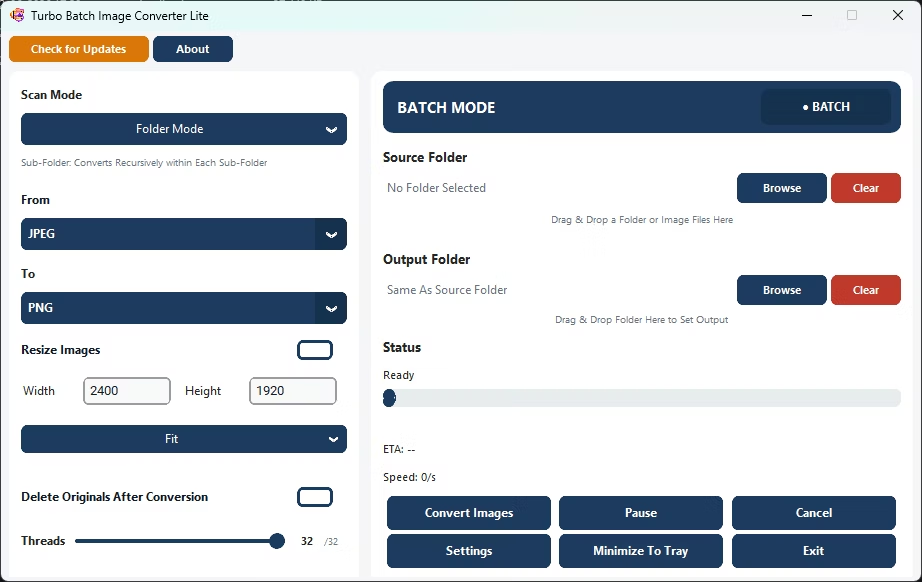
Yes, resizing, quality, and worker count settings are available but never required for a basic conversion.
Is this app suitable for someone who isn't tech-savvy?
Yes, the simple folder-in, format-out workflow is built for exactly that.
Ready for a genuinely easy image converter?