When several CSV files all share exactly the same columns — think weekly exports from the same system, or logs generated on different days — merging them is really just a matter of stacking the rows from each file underneath one another, keeping a single header at the top.
Turbo Large Data Splitter's merger handles this appending process automatically. You point it at the folder containing your matching-structure CSV files, and it stacks every row into one output file, keeping the data in the order the files are added.
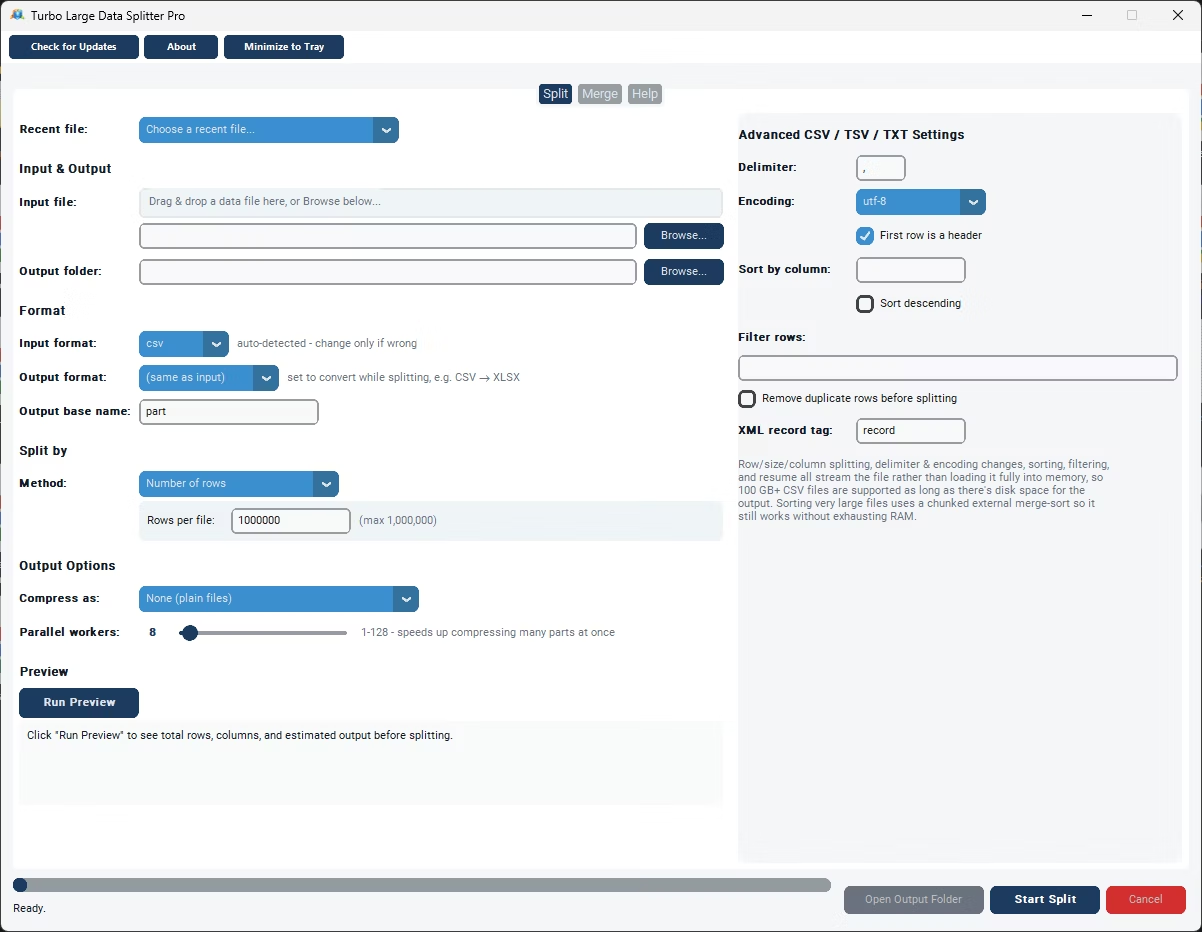
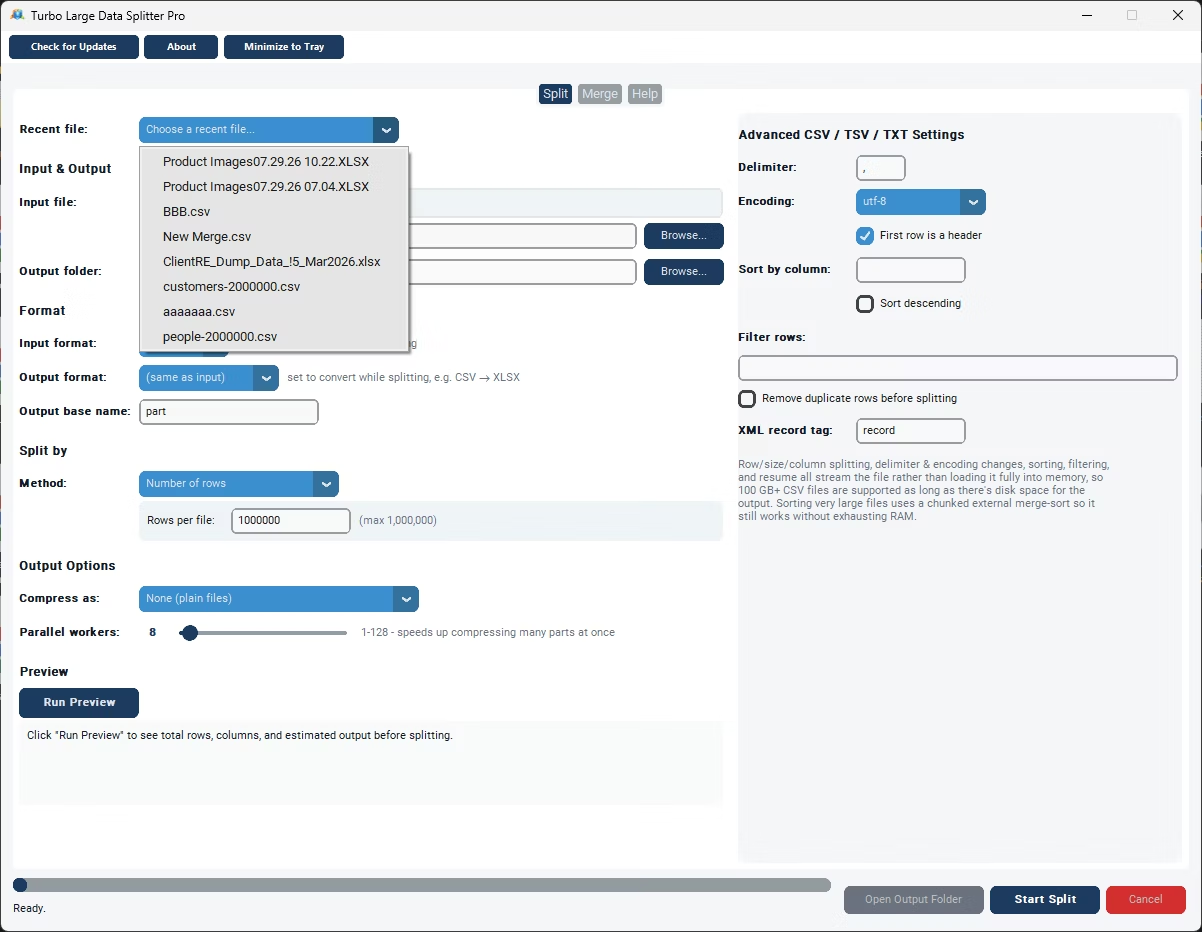
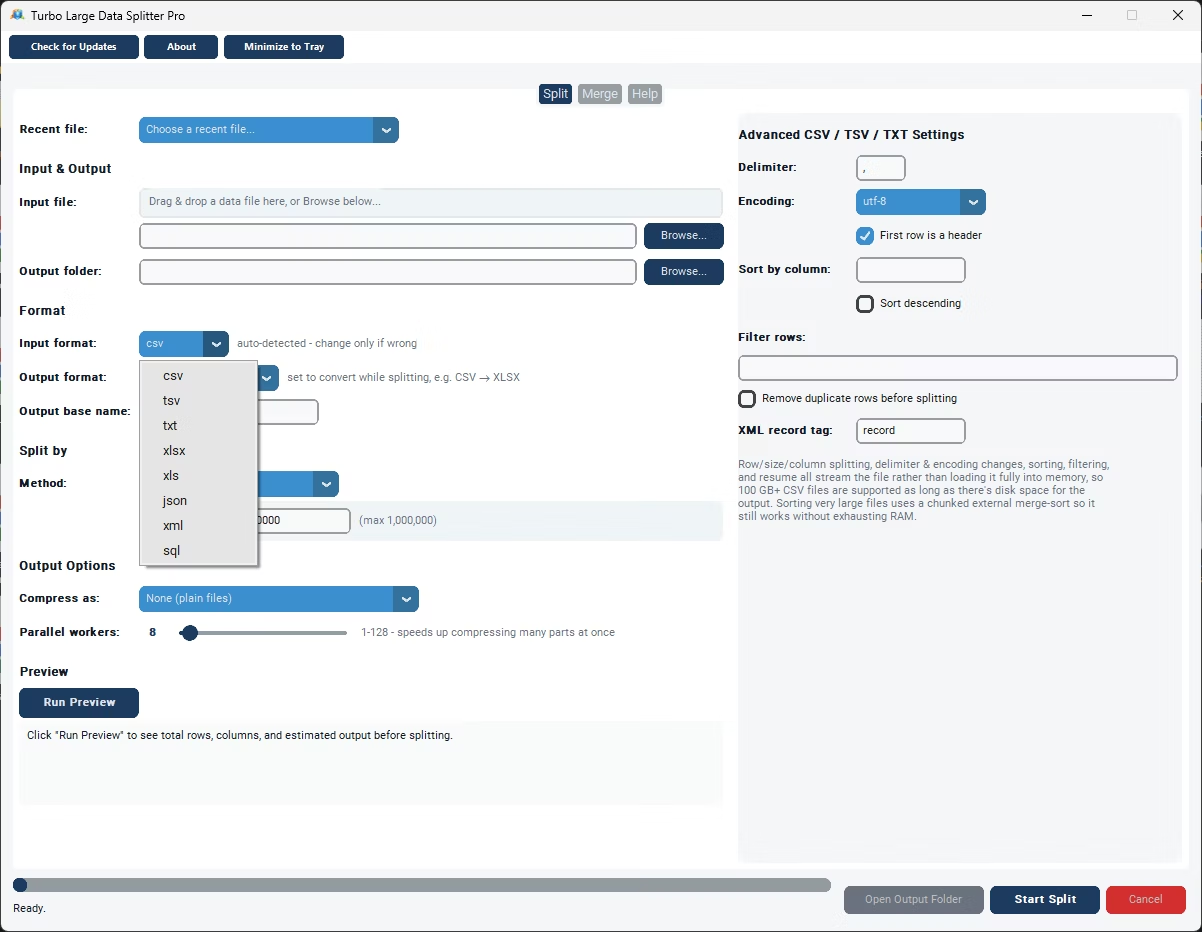
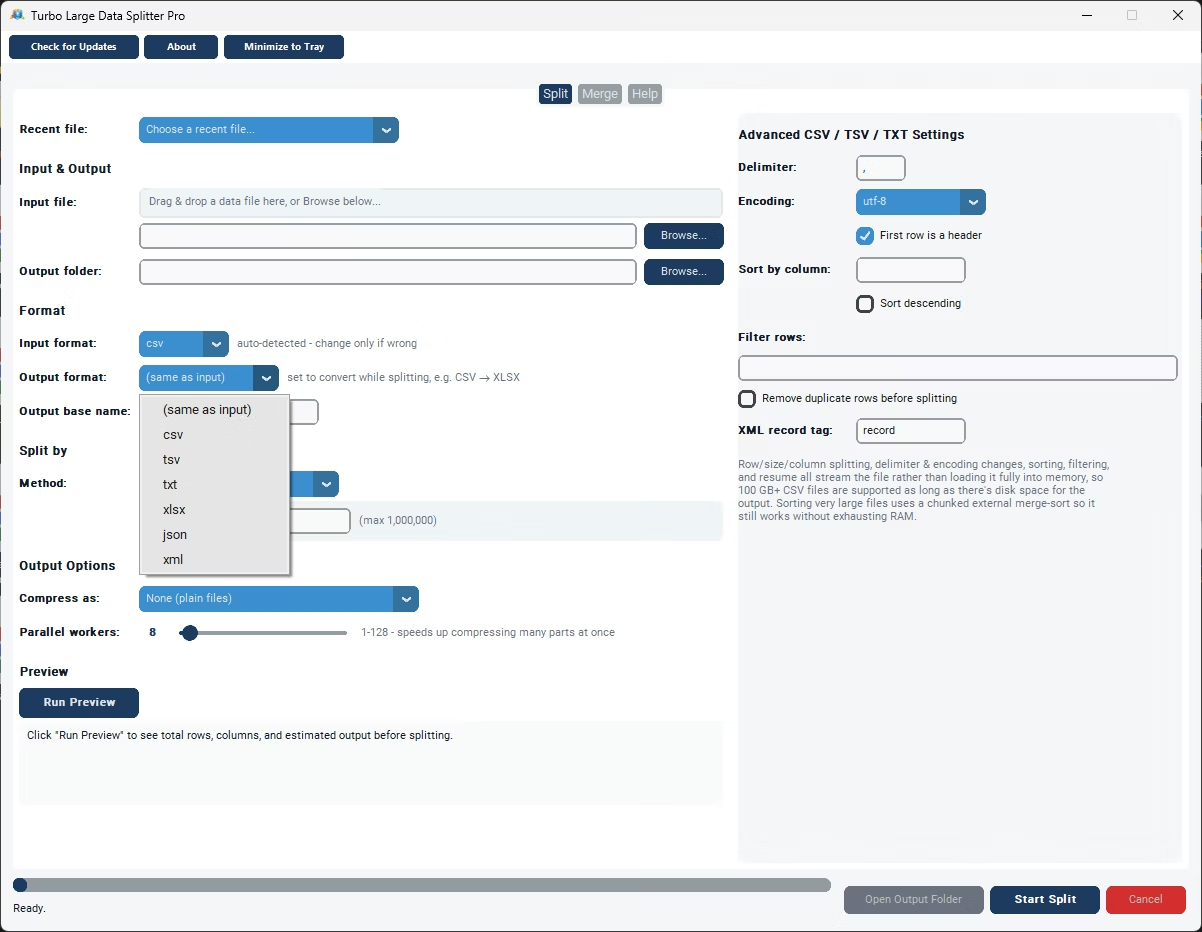
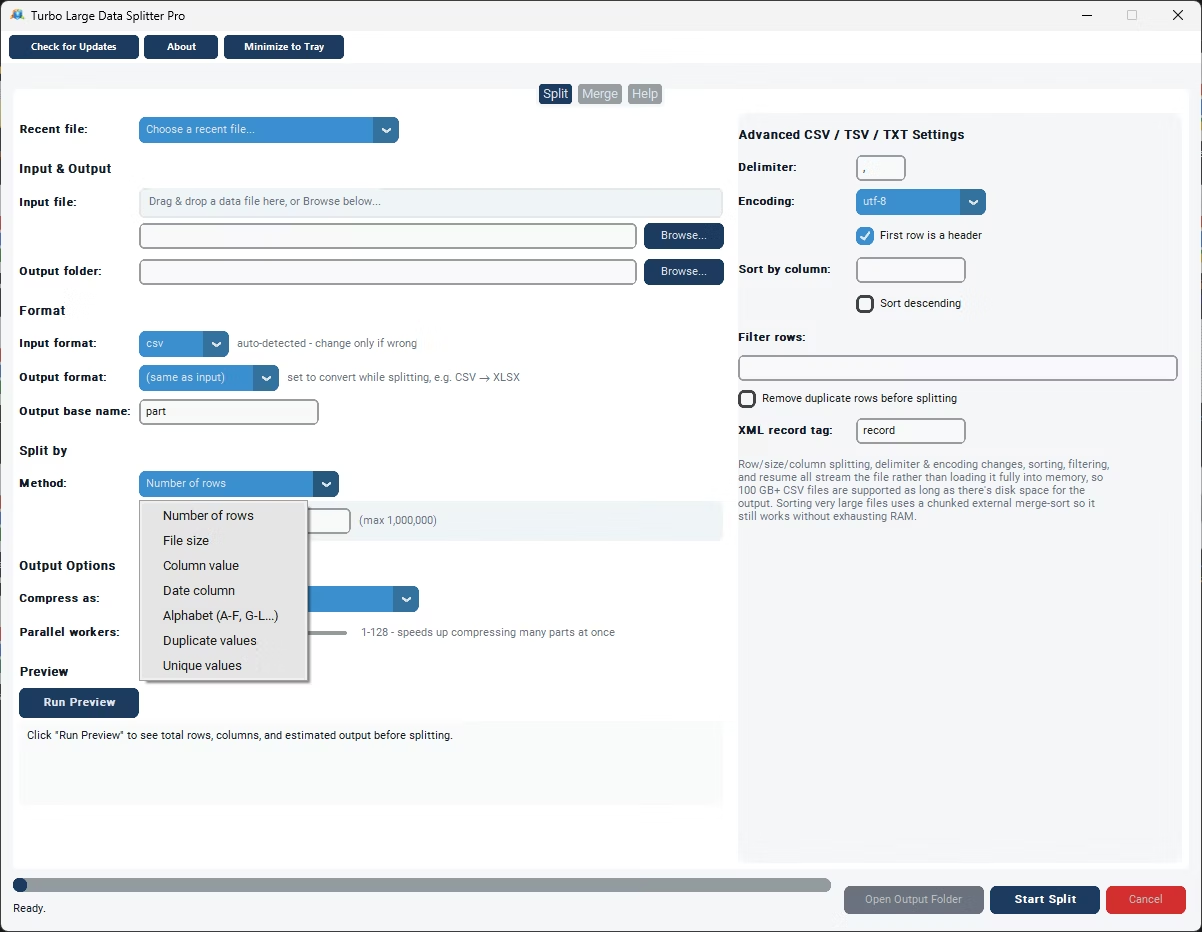
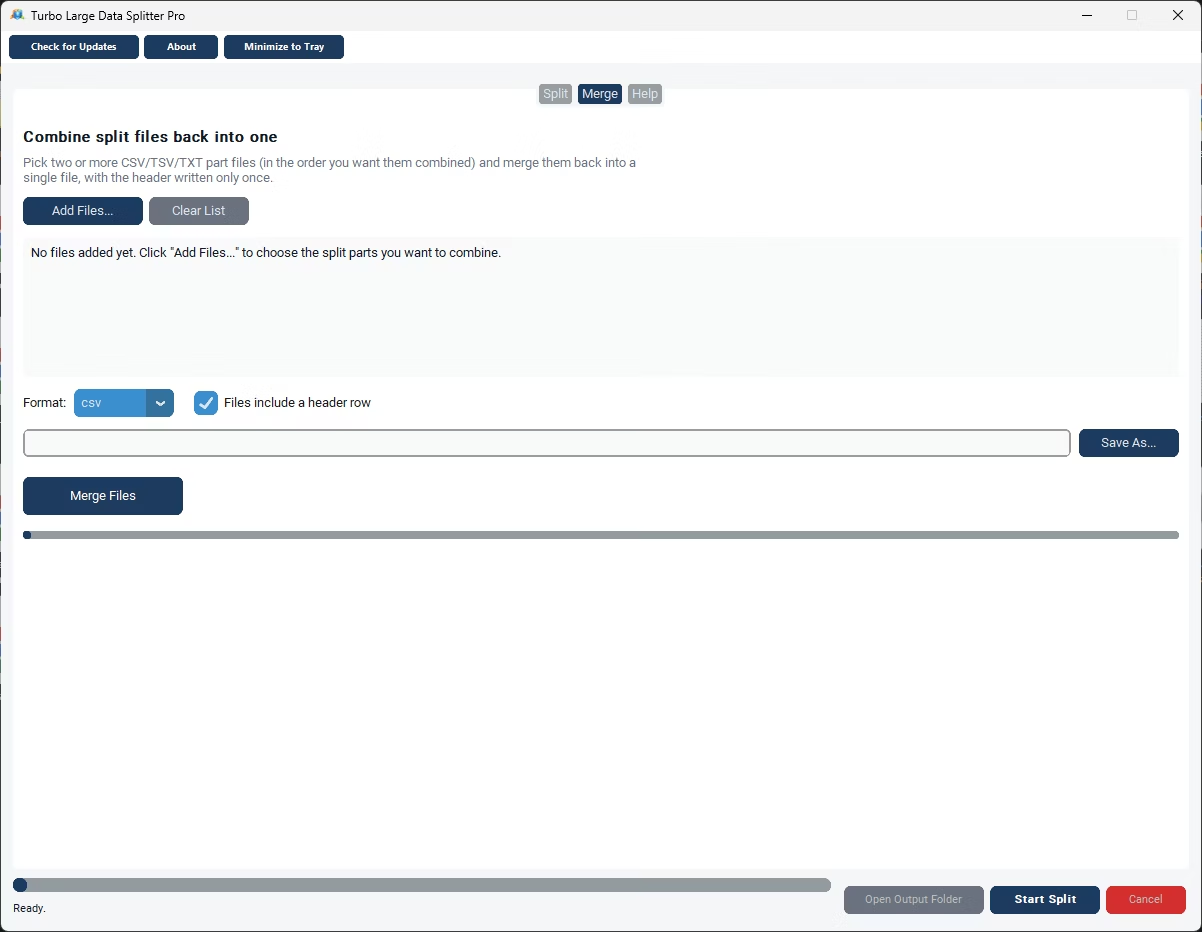
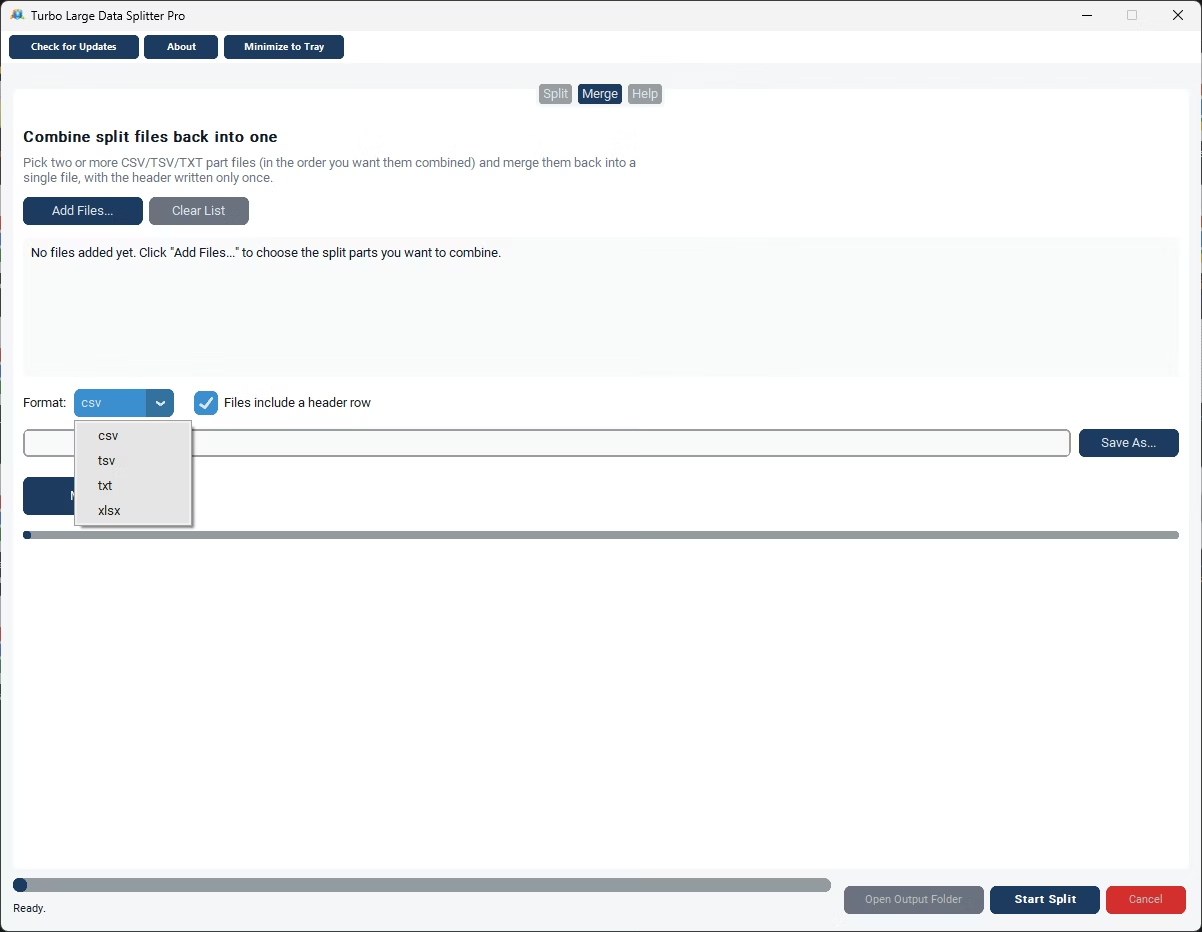
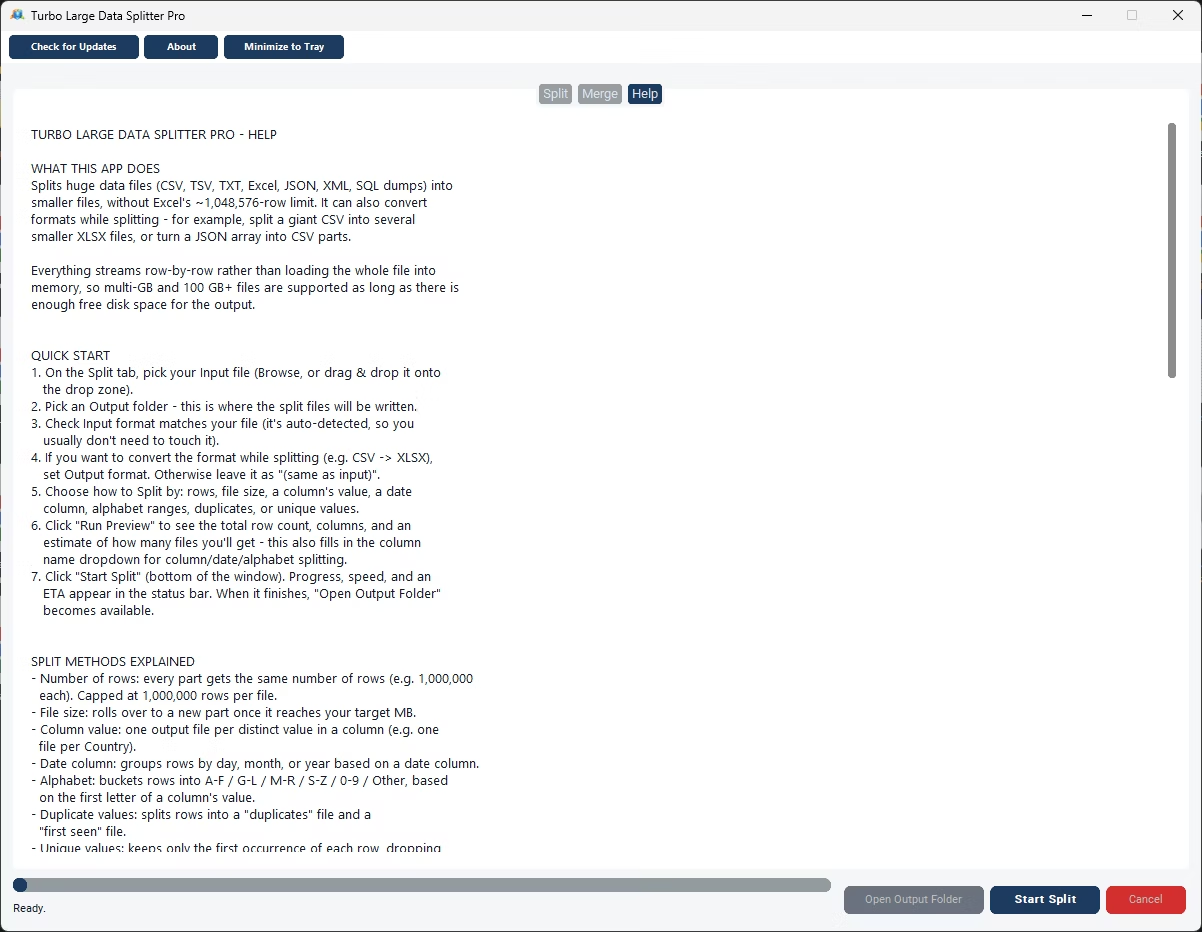
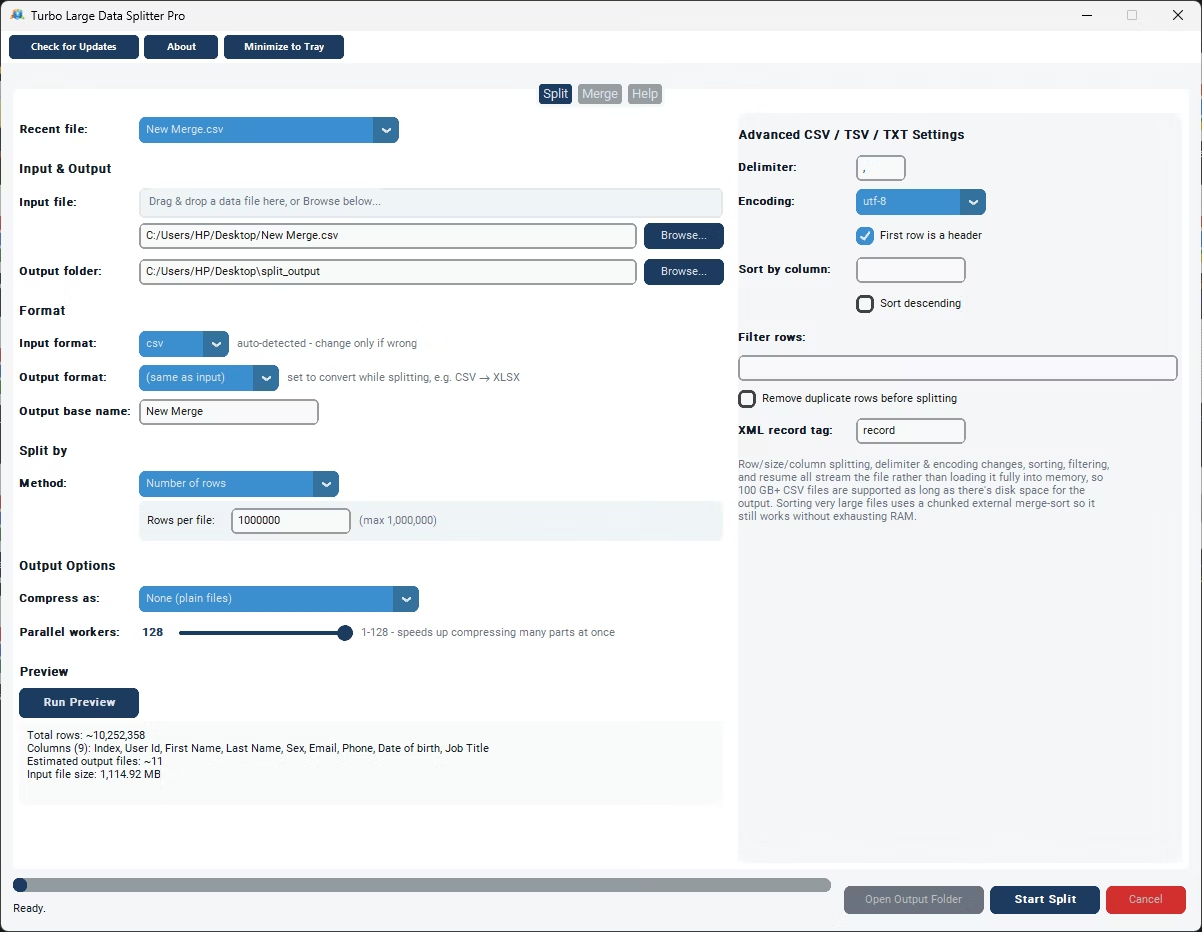
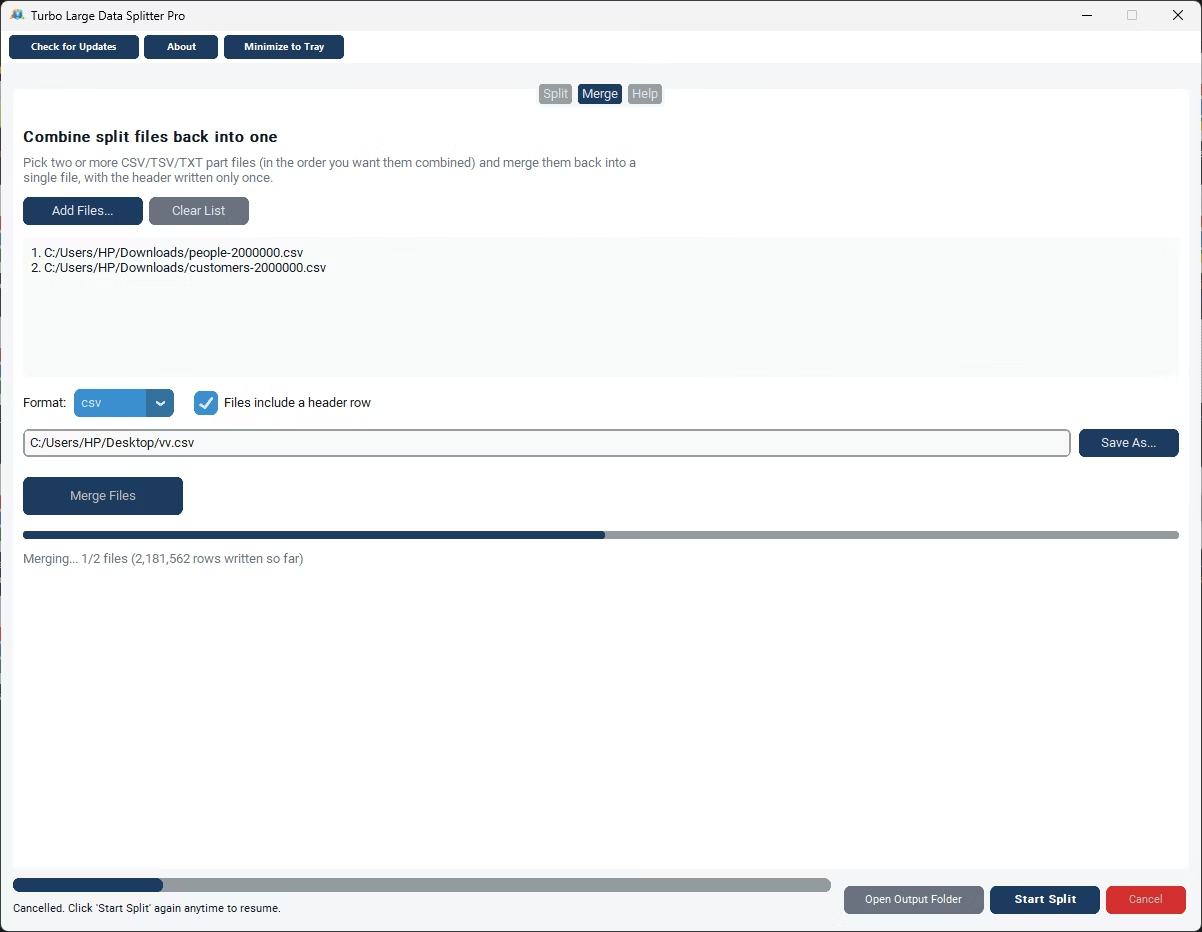
- Install Turbo Large Data Splitter and open the merge mode.
- Select the folder or files containing your matching CSV files.
- Confirm the app has detected the shared column structure correctly.
- Set the order in which the files should be merged, if it matters.
- Click Merge to stack all rows into one output file.
- Save the merged CSV file to your chosen location.
- Fast row-stacking merge for files with matching columns
- Keeps a single header row in the merged output
- Preserves the original row order across merged files
- Handles many files at once from a single folder
- Runs offline, keeping your data on your own machine
- One-time purchase with no recurring cost
What if the files don't have exactly the same columns?
The merger works best with matching column structures; for files with different columns, the combiner mode can align them by header name instead.
Can I control the order the files are merged in?
Yes, you can arrange the file order before merging, which matters if row sequence needs to reflect something like date or file name order.
Will merging remove duplicate rows automatically?
No, duplicates are not removed automatically during a merge, since duplicate rows may be intentional; a separate deduplication step can be run afterward if needed.
Ready to merge your matching CSV files into one?