Processing a large CSV file means more than just opening it, it means splitting, filtering, deduplicating, or reorganizing data that's too big for a spreadsheet program to handle comfortably. Doing all of that reliably requires software built for Windows that can work with the file directly on disk.
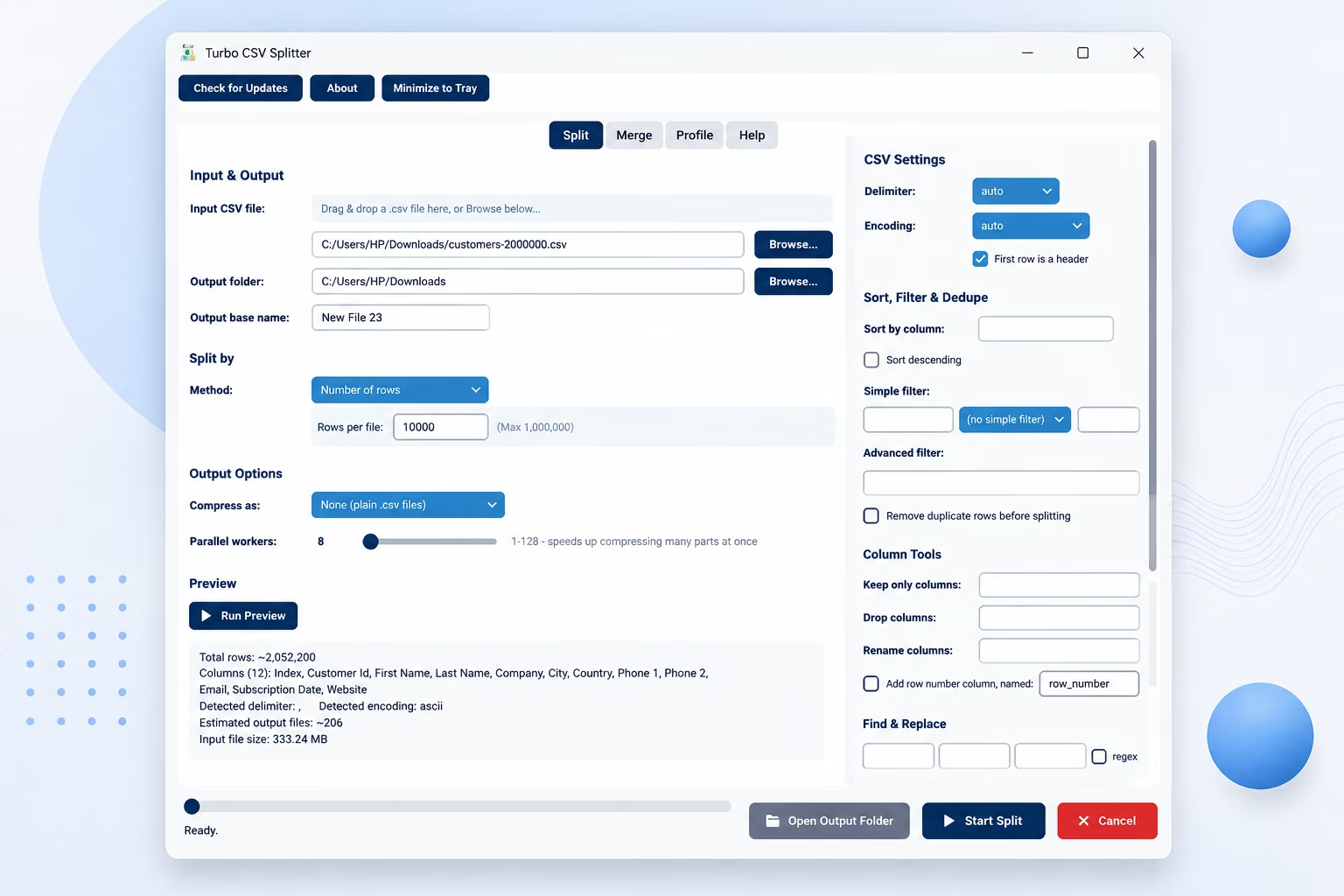
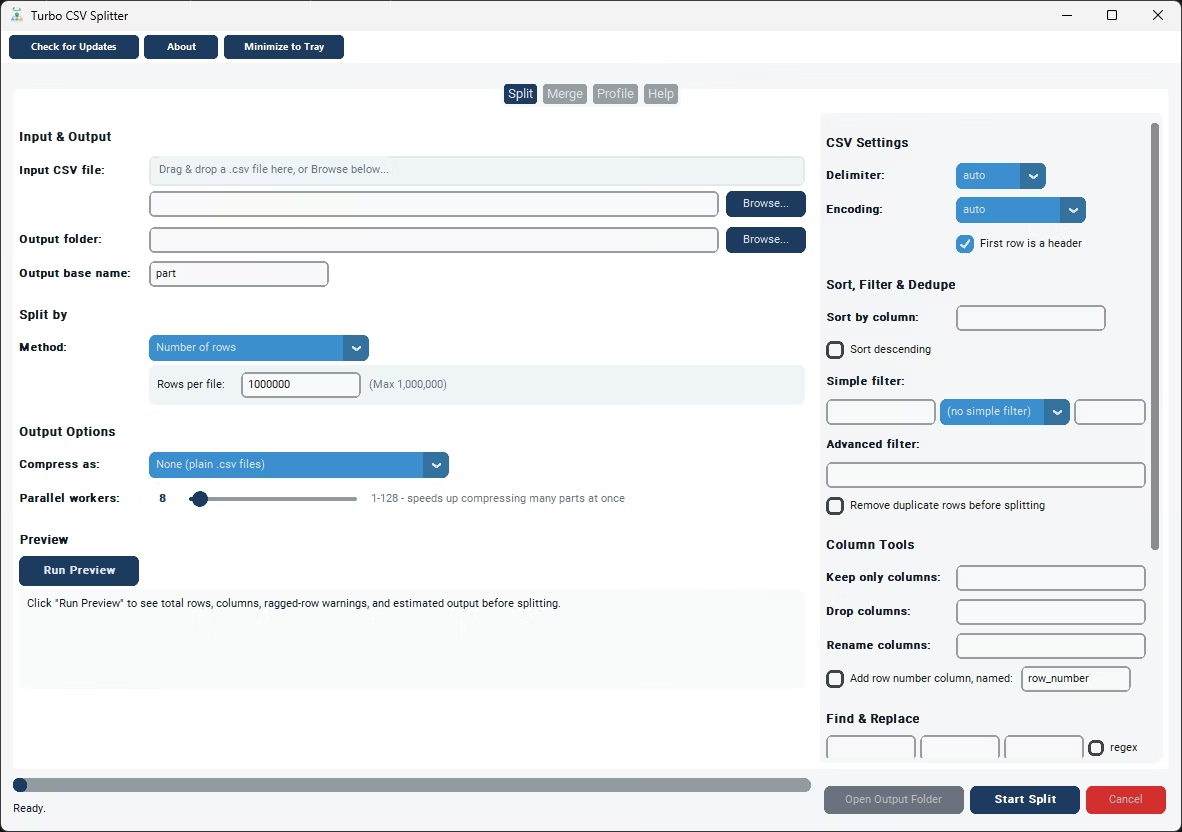
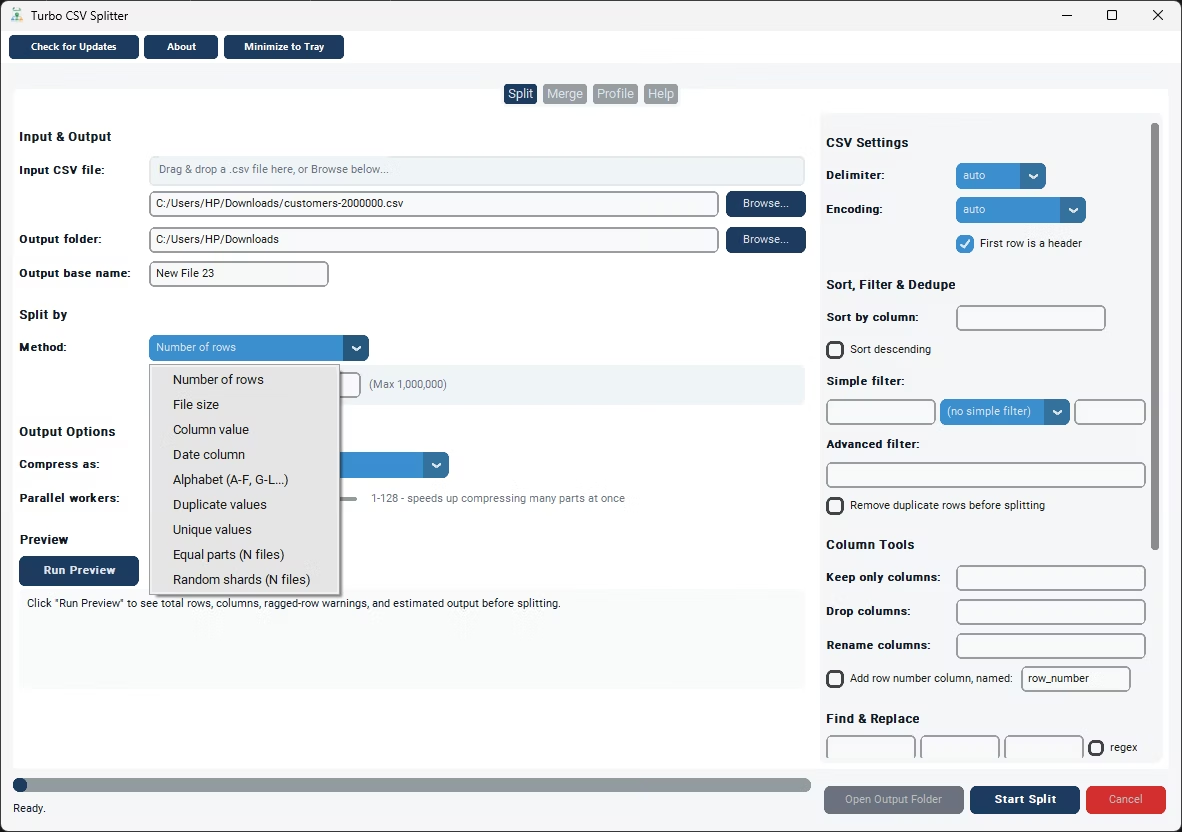
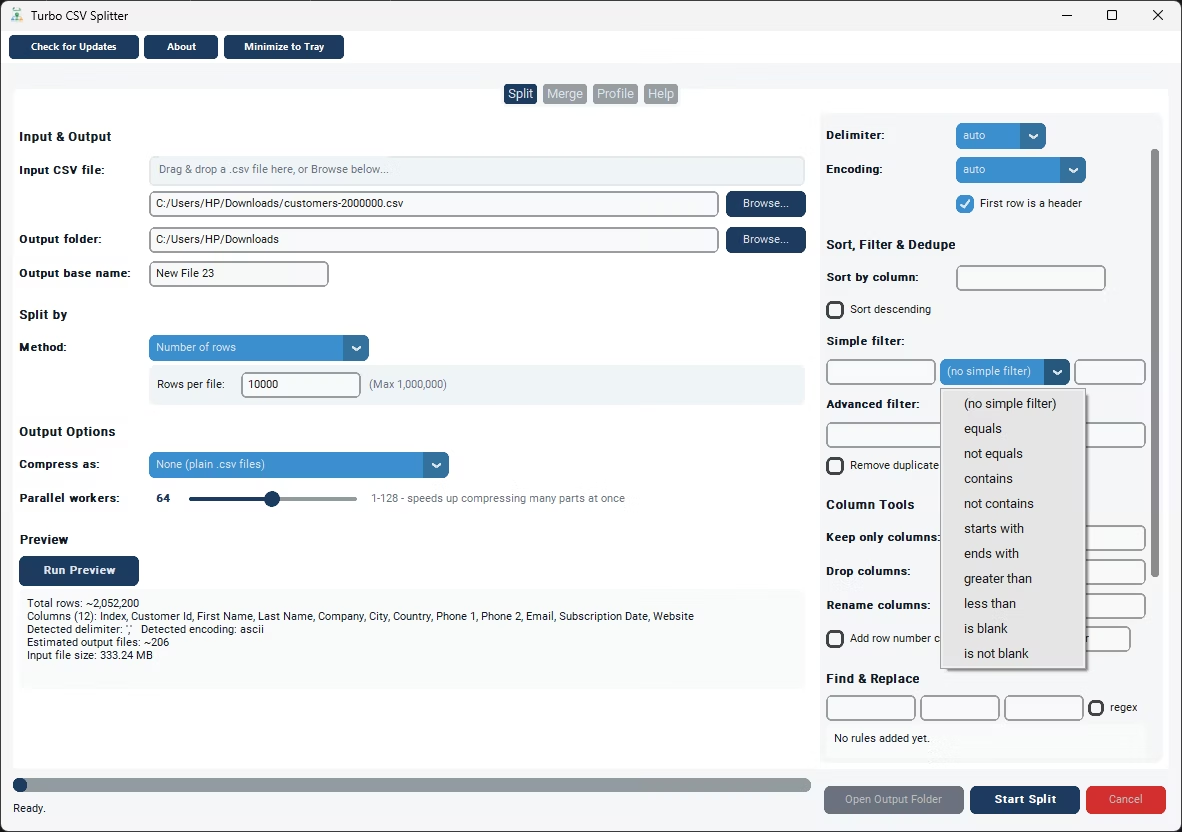
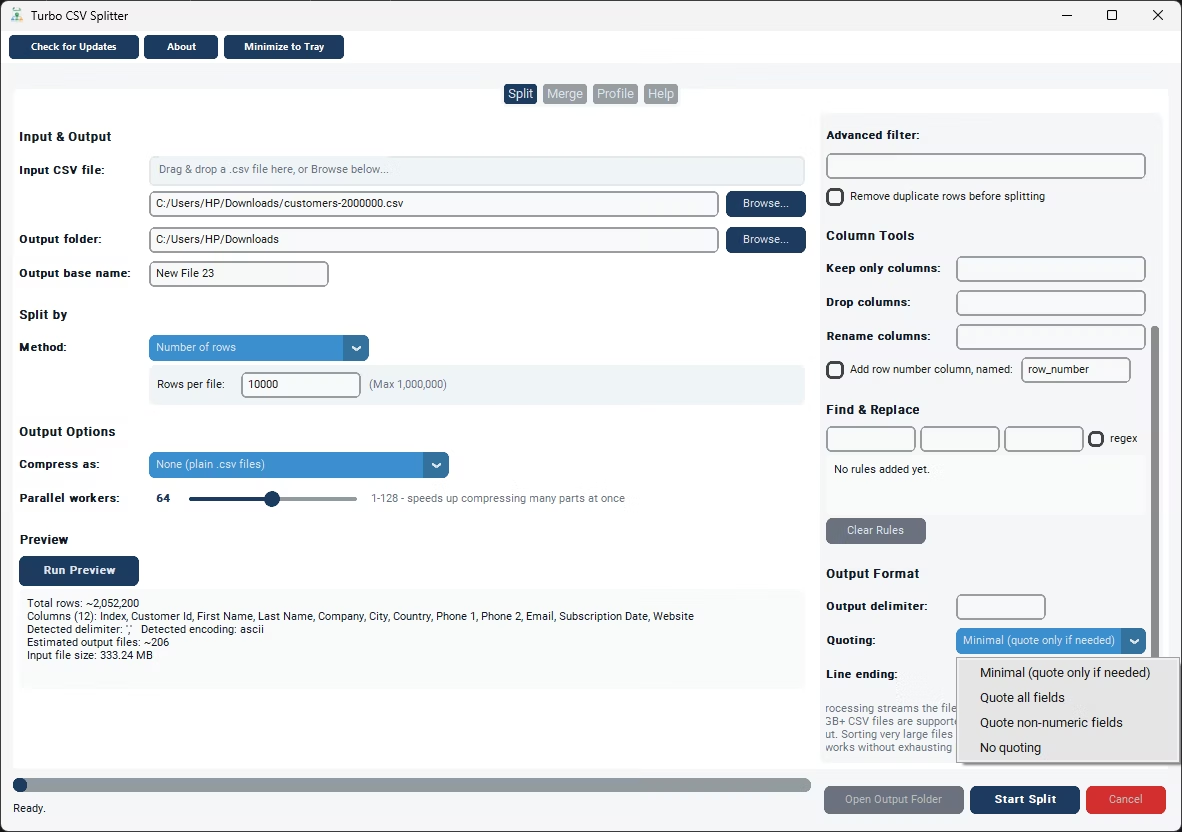
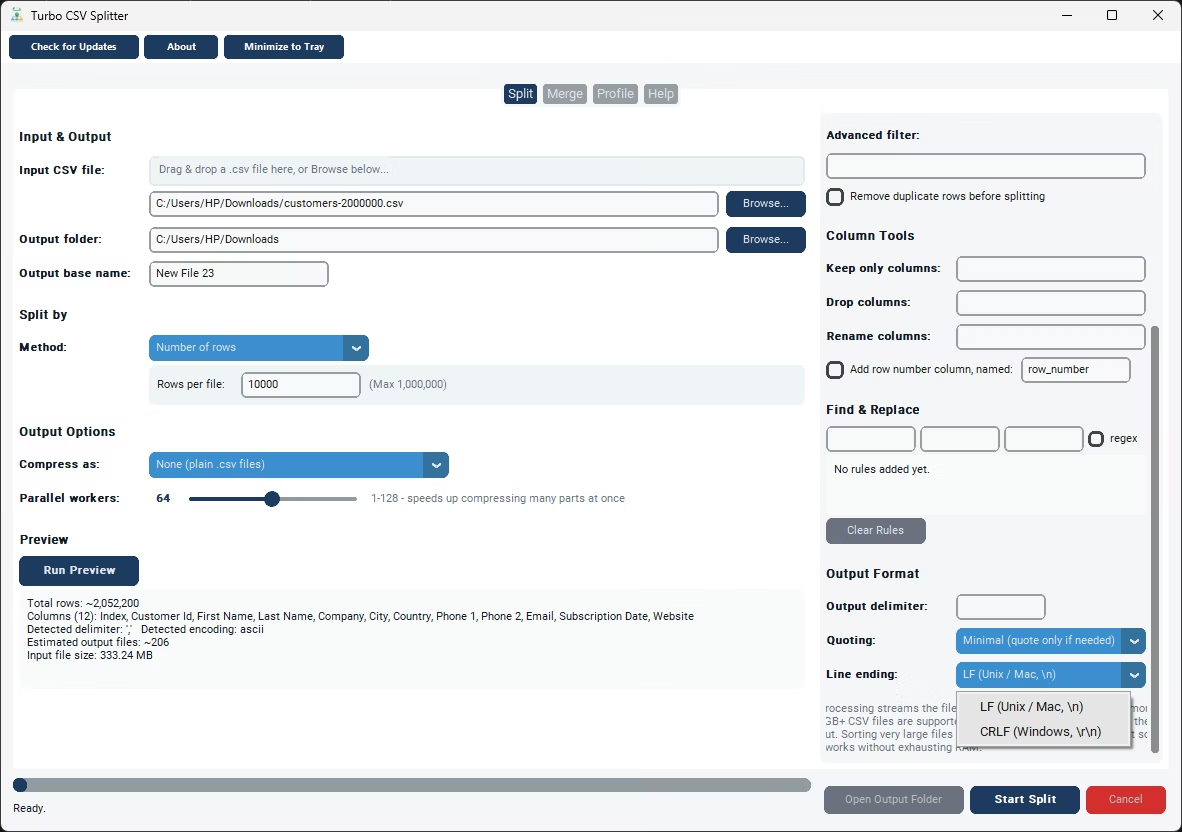
Turbo CSV Splitter processes large CSV files entirely locally on your Windows PC. Beyond splitting via nine different methods, it includes column tools to keep, drop, or rename columns, filters with both simple point-and-click and advanced Python-expression options, sorting, and duplicate row removal, all applied before or during the split.
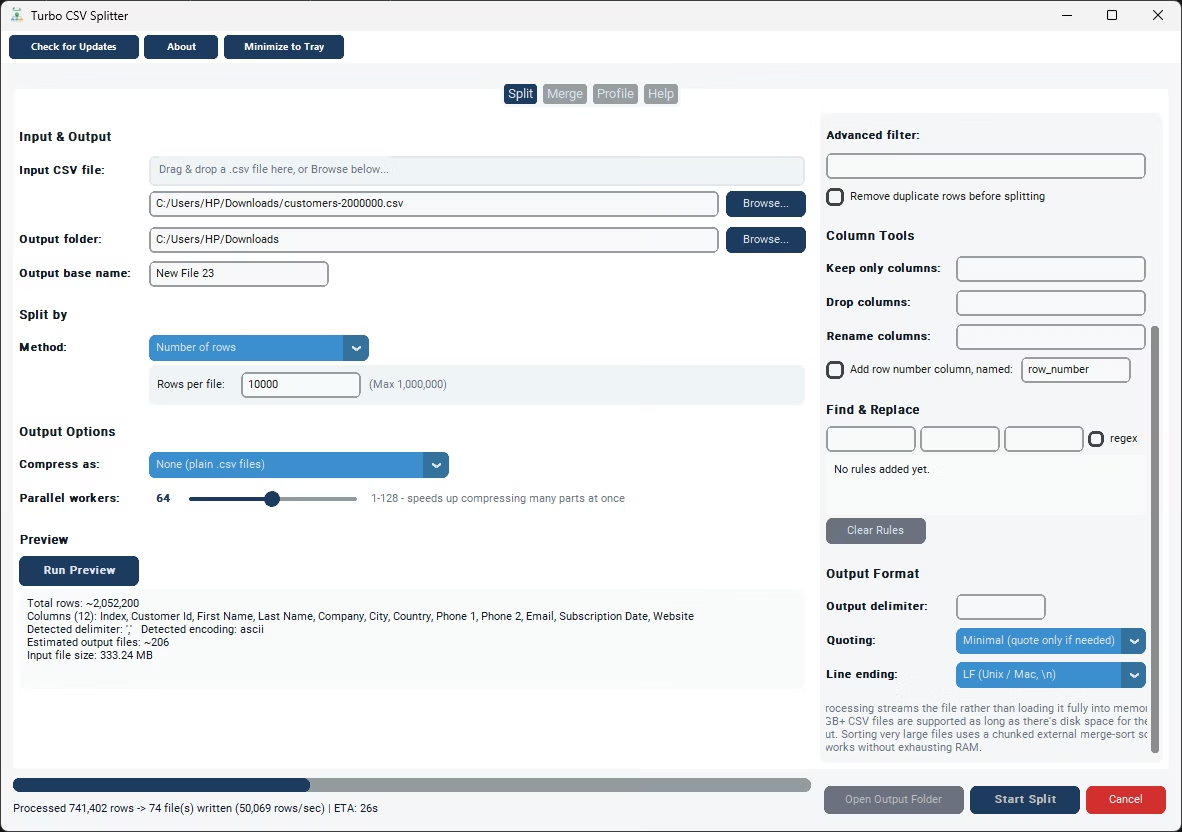
Processing streams row by row rather than loading the whole file into memory, so files in the multi-gigabyte or even 100 GB+ range are handled the same way as small ones, just taking proportionally longer, with a live status bar showing speed in rows per second and an ETA throughout.
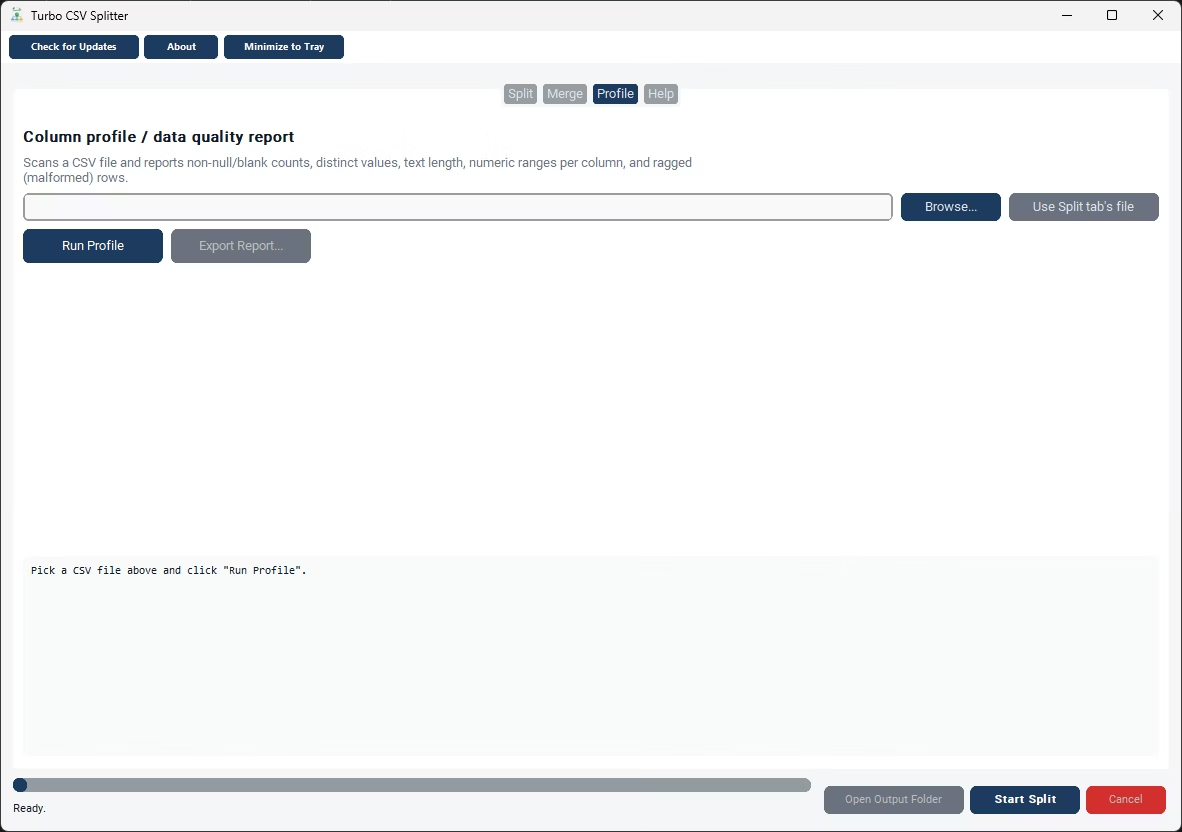
A Profile tab adds another layer of processing, scanning a CSV to report per-column data quality: non-null and blank counts, distinct value counts, min and max text length, and numeric statistics, flagging ragged rows with an inconsistent number of fields along the way.
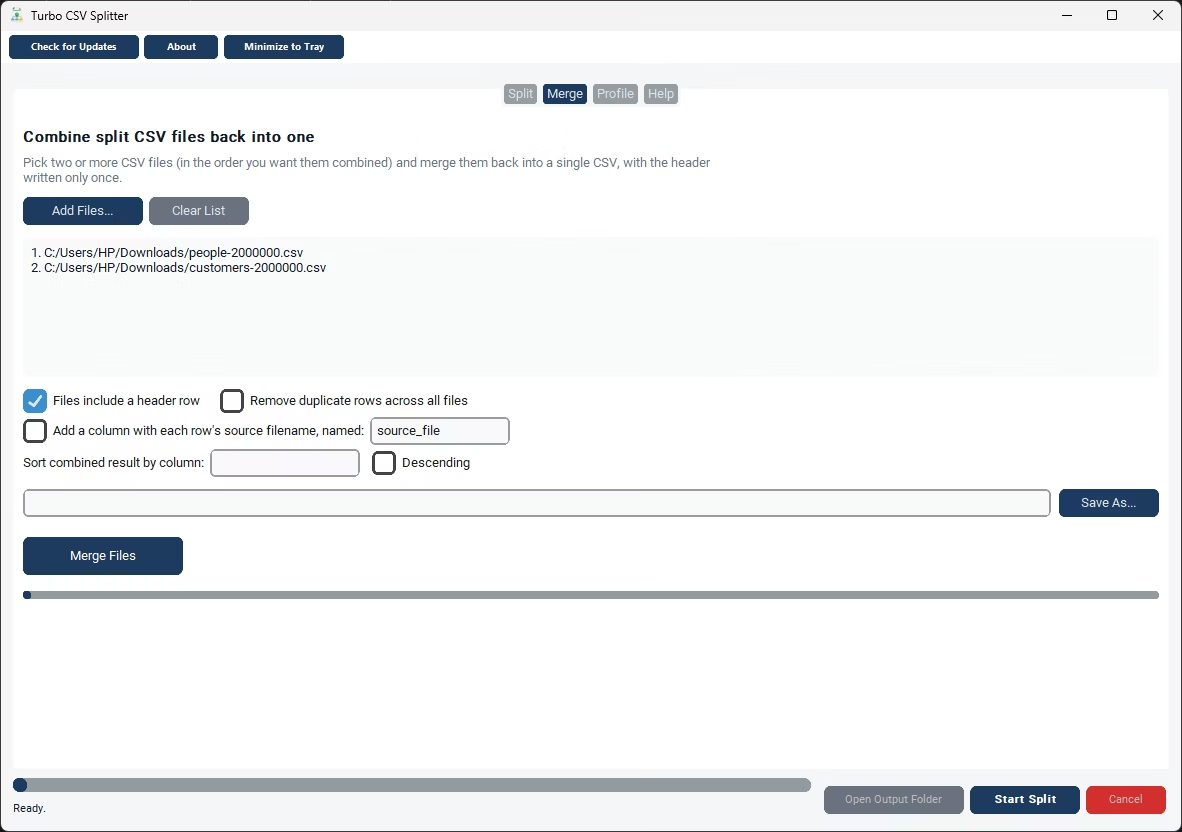
A Merge tab handles the reverse direction, combining two or more CSV files, including parts you split earlier, back into a single file with the header written once, optionally tagging each row with its source filename.
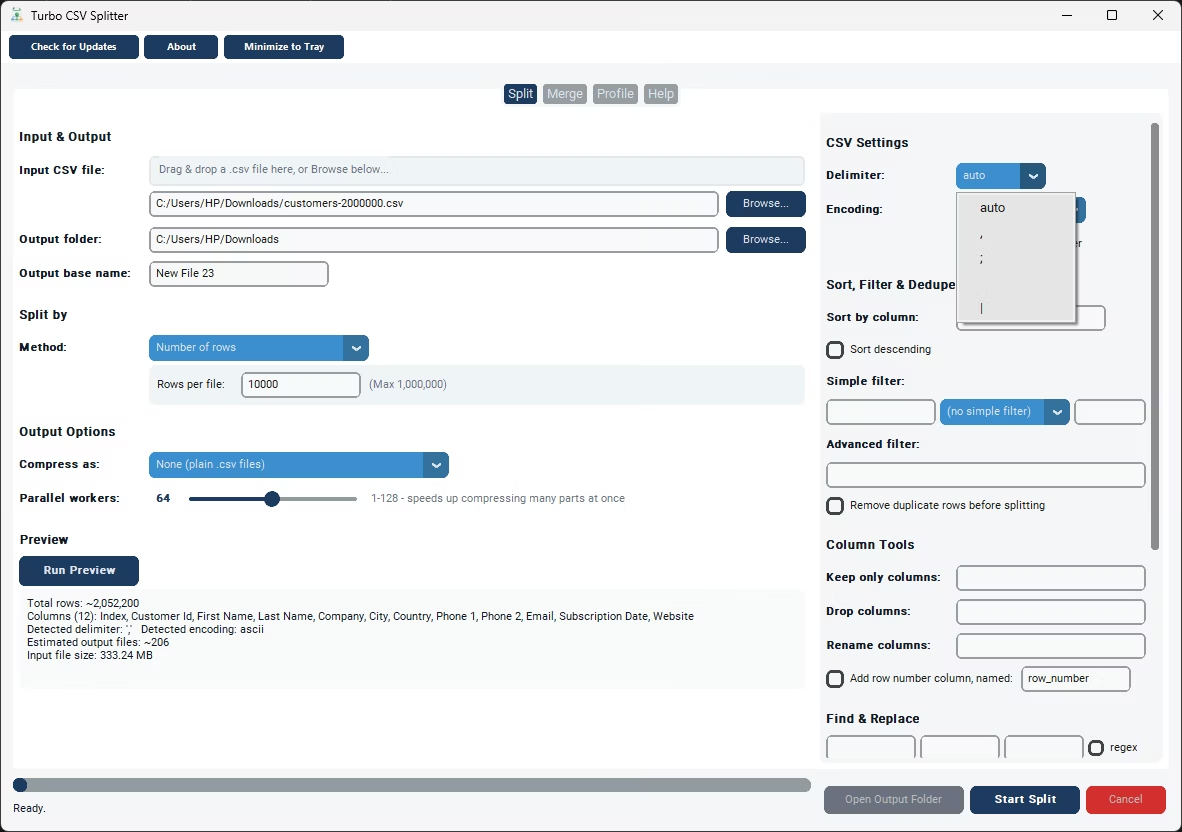
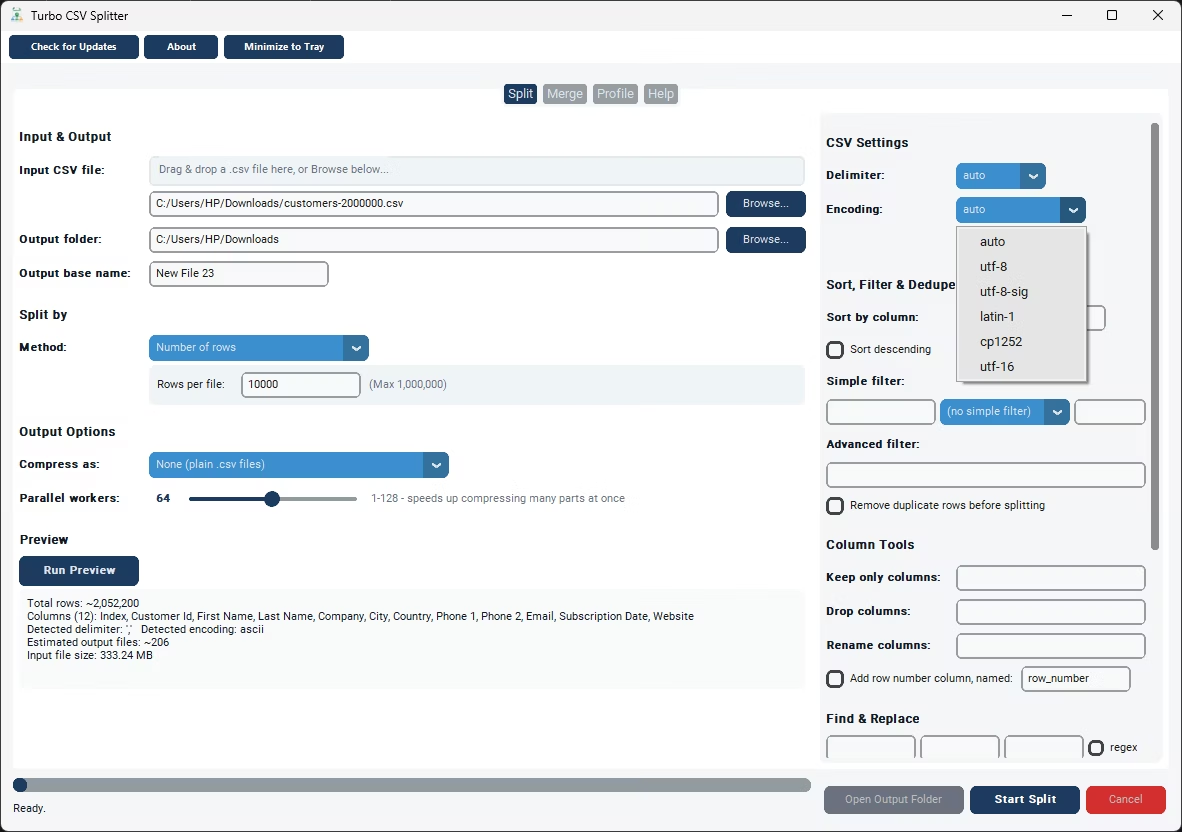
Everything happens locally, on your own Windows PC, so processing a large CSV file full of sensitive records never requires uploading it to an external service at any point in the workflow. Delimiter and encoding both default to Auto and are detected directly from the file itself, so you only need to touch them in the rare case detection gets something wrong, an unusual delimiter or a legacy encoding, for example. This makes the tool equally useful for data analysts working with irregular exports, developers automating a recurring pipeline step, e-commerce teams distributing catalog data by category, and anyone else who regularly runs into the practical limits of opening a large CSV file directly in a spreadsheet program.
- Install Turbo CSV Splitter on your Windows PC.
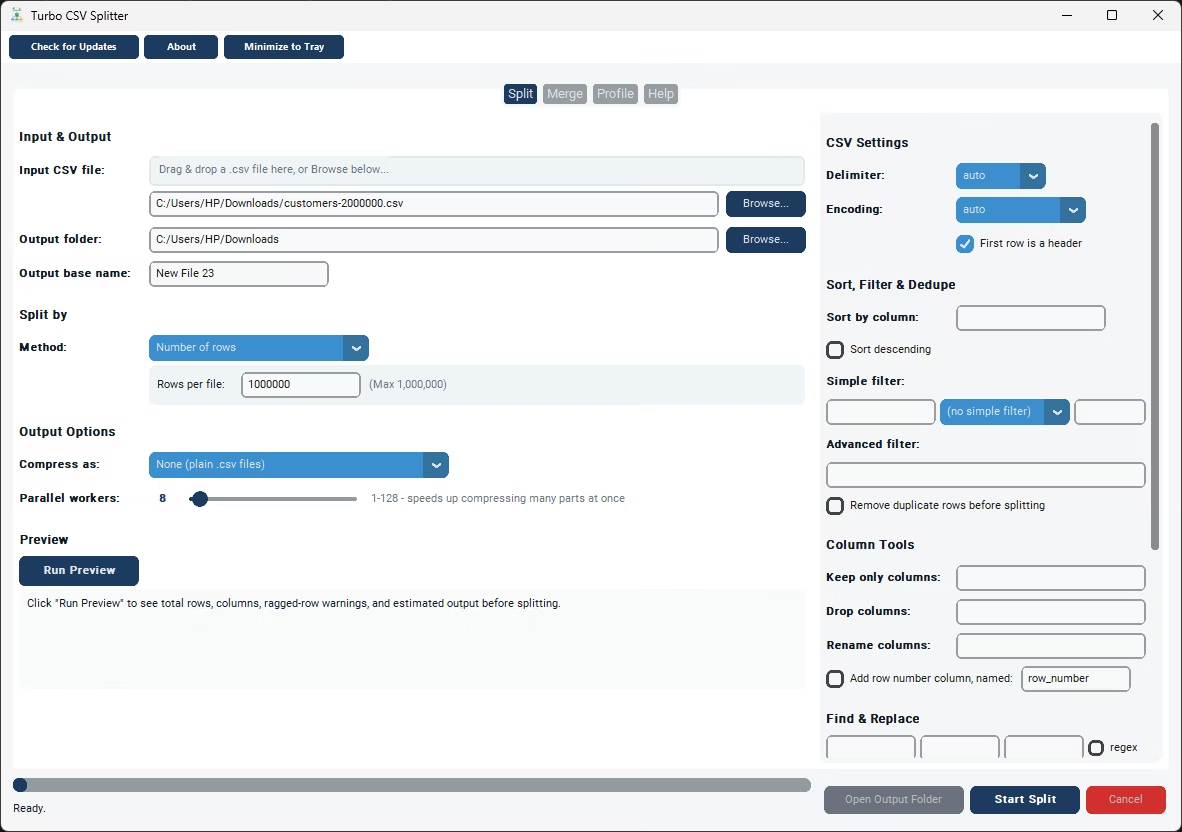
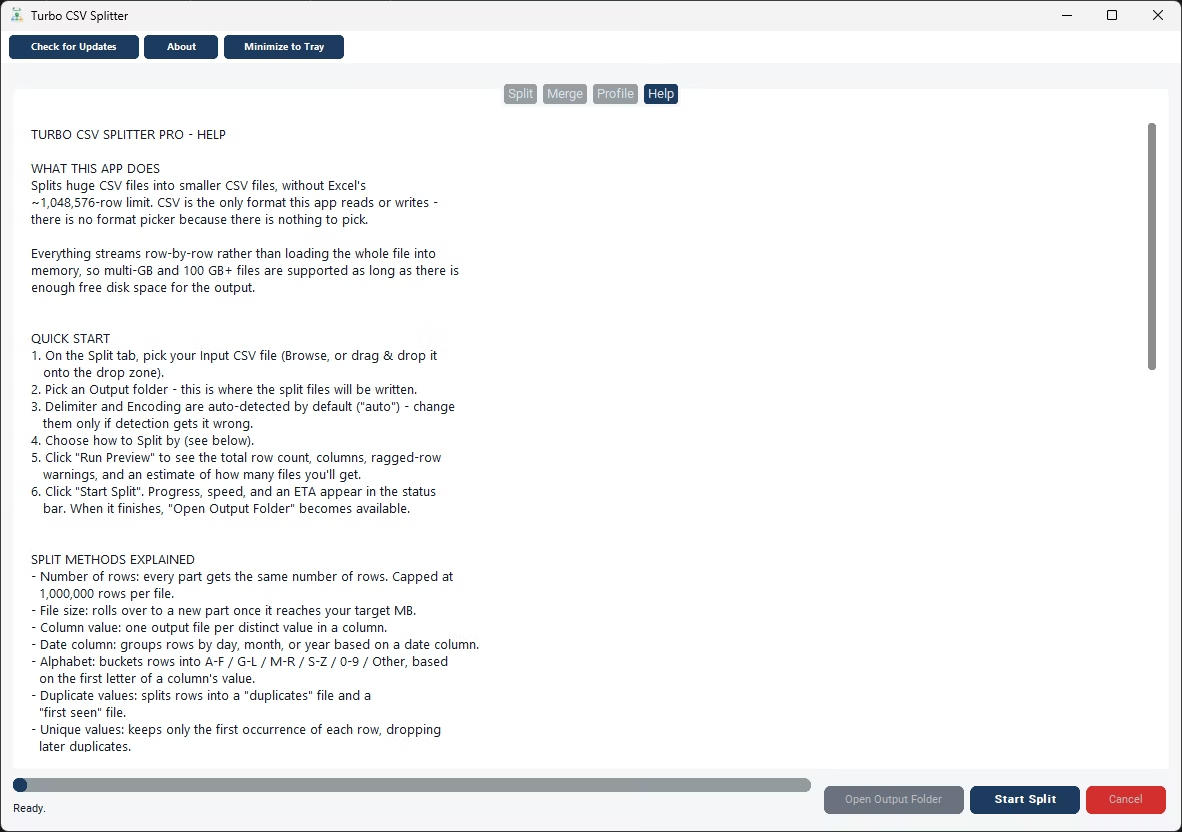
- Browse to or drag and drop your large CSV file.
- Apply column tools, filters, sorting, or deduplication if needed.
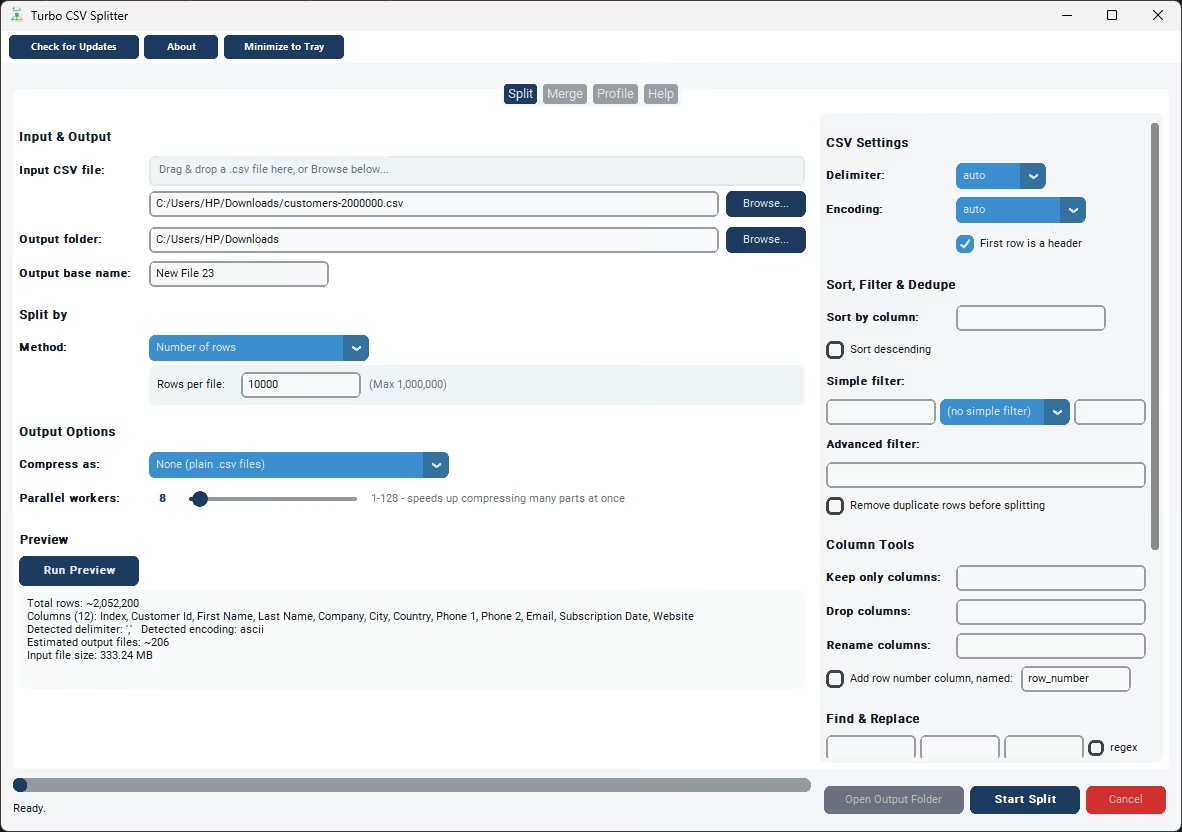
- Choose your split method.
- Run Preview to confirm the setup.
- Click Start Split and monitor progress.
- Use the Profile or Merge tab for further processing if needed.
- Open the output folder once processing completes.
- Adjust the parallel worker slider (1-128) if compressing many output parts.
- Check the status bar for the final row count and file count summary.
- Processes large files entirely locally on Windows
- Column tools, filters, sorting, and deduplication built in
- Streaming engine handles multi-GB and 100 GB+ files
- Profile tab reports per-column data quality statistics
- Merge tab combines files back into one
- Live status bar with speed and ETA
- Runs fully offline with no uploads required
- One-time purchase for Windows, with Gumroad license activation
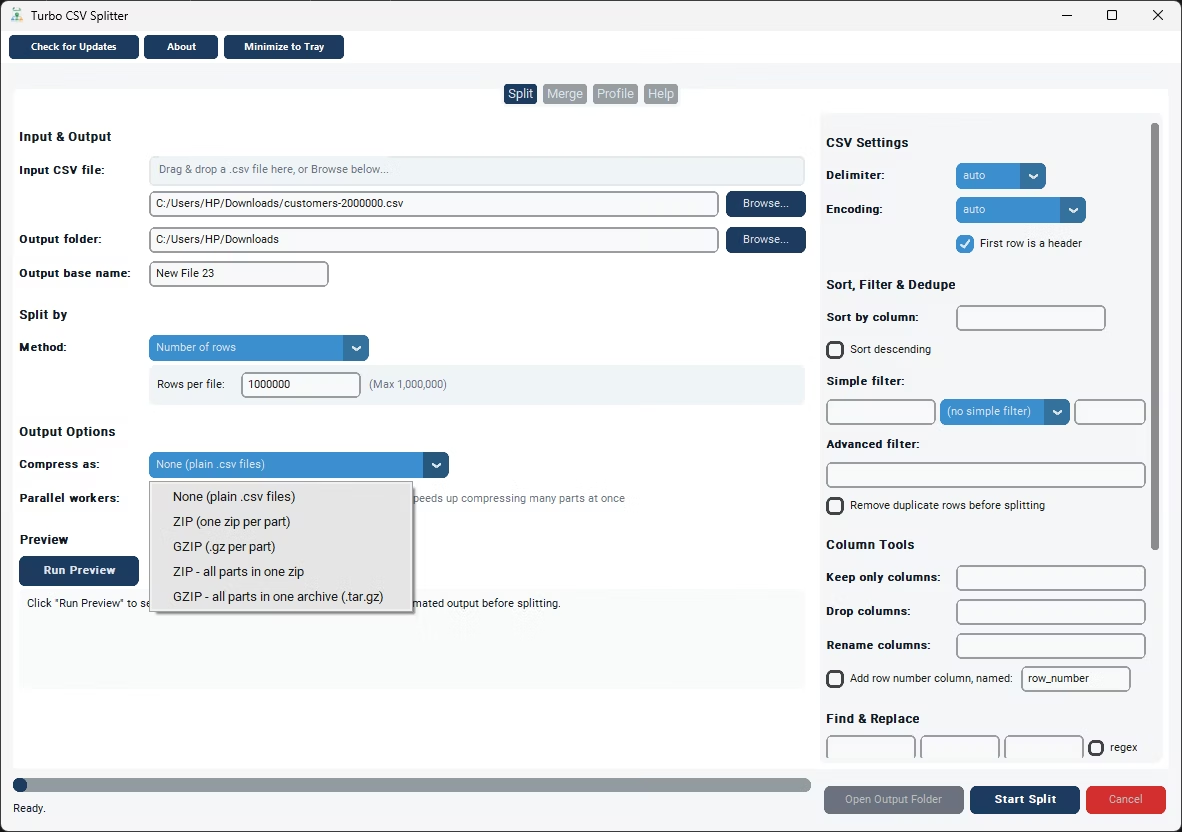
- Compression options: uncompressed, per-part ZIP/gzip, or a single bundled archive
- Works with files on local drives, external drives, and network shares
What kinds of processing can this tool do beyond splitting?
Column tools for keeping, dropping, or renaming columns, simple and advanced filters, sorting, duplicate removal, a data quality profiler, and a file merger are all included alongside the splitting functionality.
Can I filter rows without writing any code?
Yes, a simple filter selects rows by column, operator, and value with no coding required; an advanced filter accepting a Python expression is available for more complex needs.
Does processing large files require a powerful PC?
The streaming engine is designed to work efficiently on typical hardware by processing row by row rather than requiring enough memory to hold the whole file at once.
Can I check data quality before or after splitting?
Yes, the Profile tab scans a CSV and reports per-column statistics and ragged-row warnings, which you can run before or after a split.
Does this work on both Windows 10 and Windows 11?
Yes, Turbo CSV Splitter is built and tested for both Windows 10 and Windows 11.
Is my data safe when using this tool?
Yes, all processing happens locally on your PC; no files are ever uploaded, so proprietary or sensitive data stays fully under your control.
Can I compress the split output files?
Yes, you can leave parts uncompressed, zip or gzip each part individually, or bundle everything into a single ZIP or gzip archive, sped up by a parallel worker slider.
Can I use this on files stored on an external or network drive?
Yes, CSV files on local drives, external drives, or mapped network shares all work the same as any local file.
Can I cancel a split job partway through if I need to?
Yes, cancelling saves a checkpoint file in the output folder, so you can resume the job later exactly where it left off instead of starting over.
Is there a trial version available before buying?
Check the product page on turbo-soft.com for current trial availability and details.
Ready to process your large CSV files on Windows, fully offline?