CR2 is Canon's widely used RAW format, used across Canon DSLR and many mirrorless cameras, storing unprocessed sensor data with full editing flexibility for exposure, white balance, and color correction. CR2 files can't be viewed directly in browsers, photo viewers, or social platforms, since they need to be demosaiced before they're even a viewable image.
Turbo Batch Image Converter Pro batch converts an entire folder of CR2 files into JPG, PNG, TIFF, or any other supported format in one pass, which is the standard step once a Canon shoot has been edited and is ready to share, upload, or print.
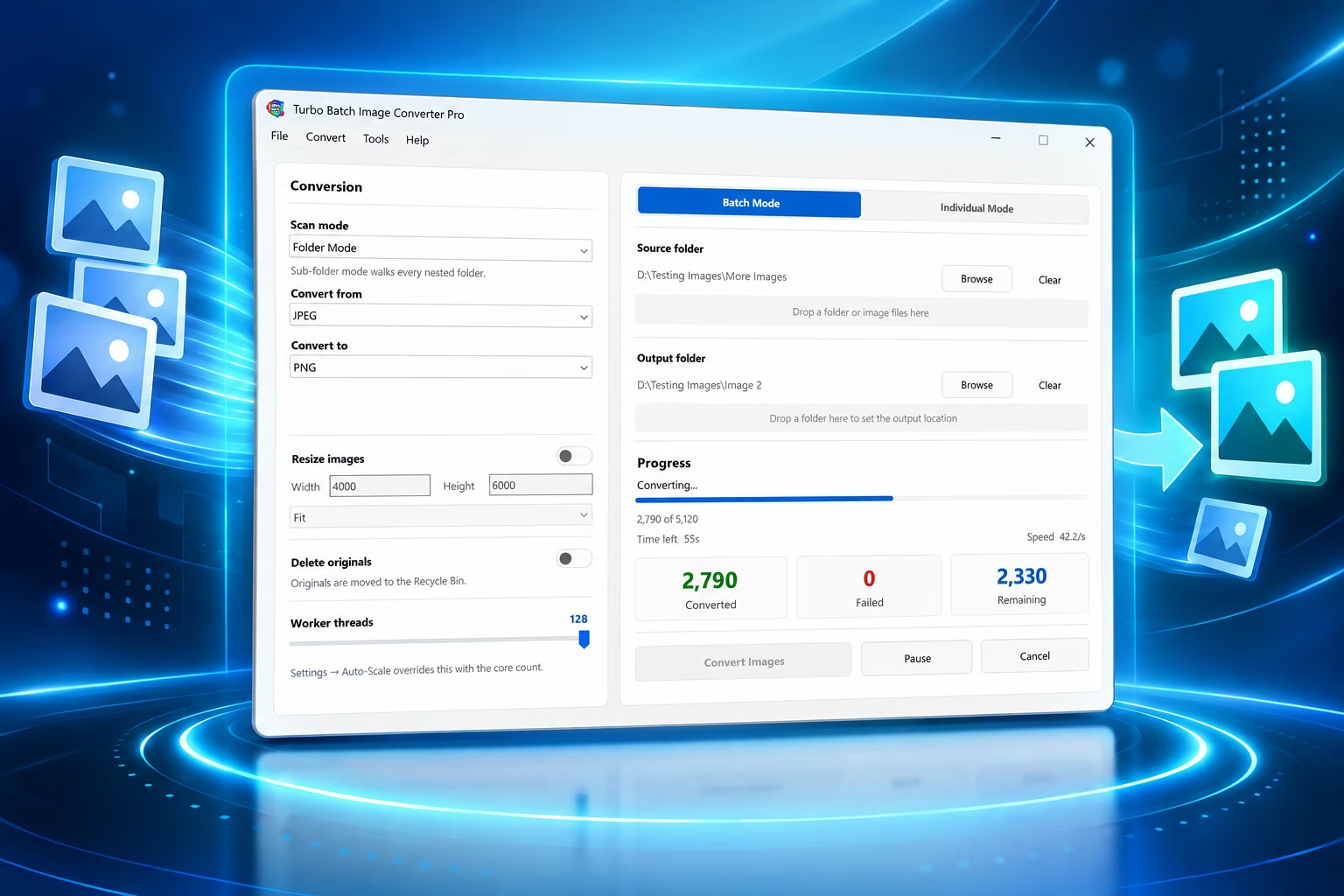
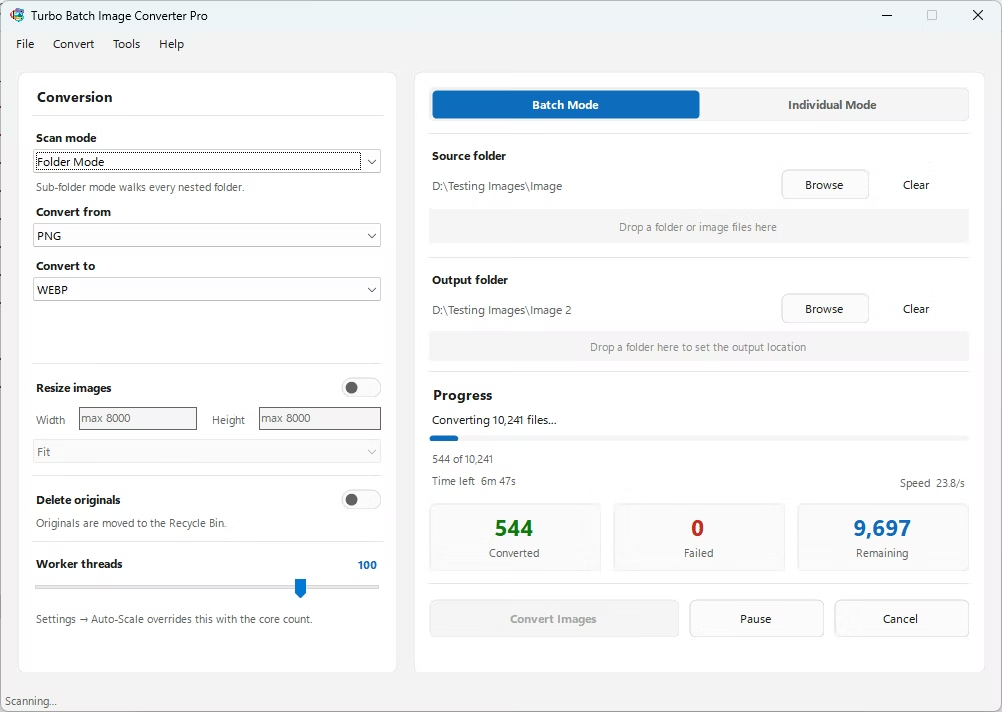
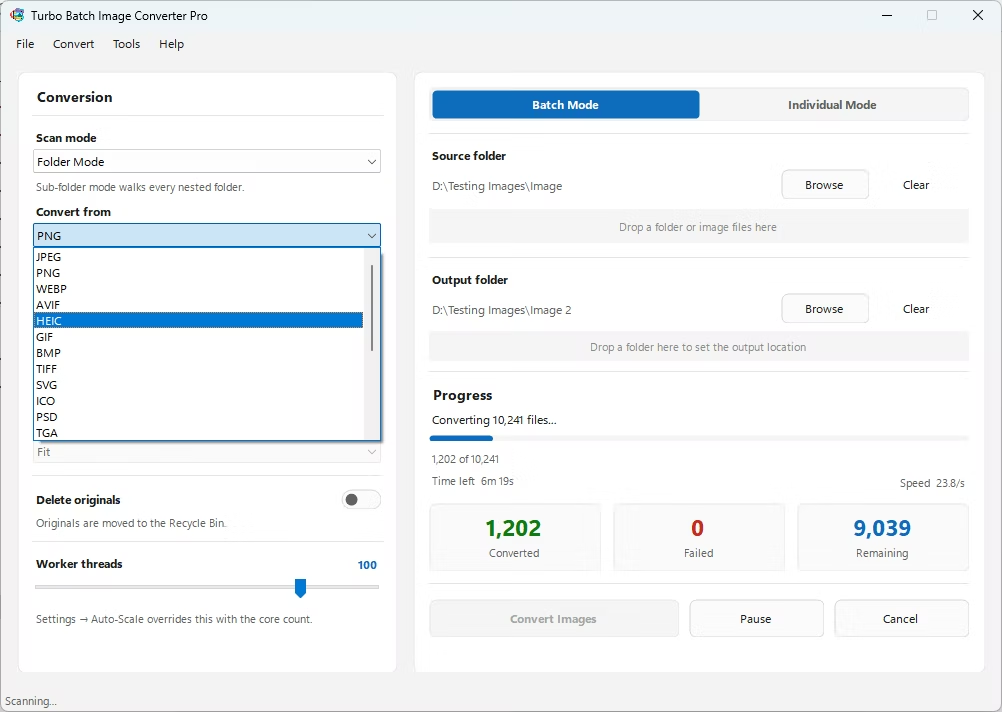
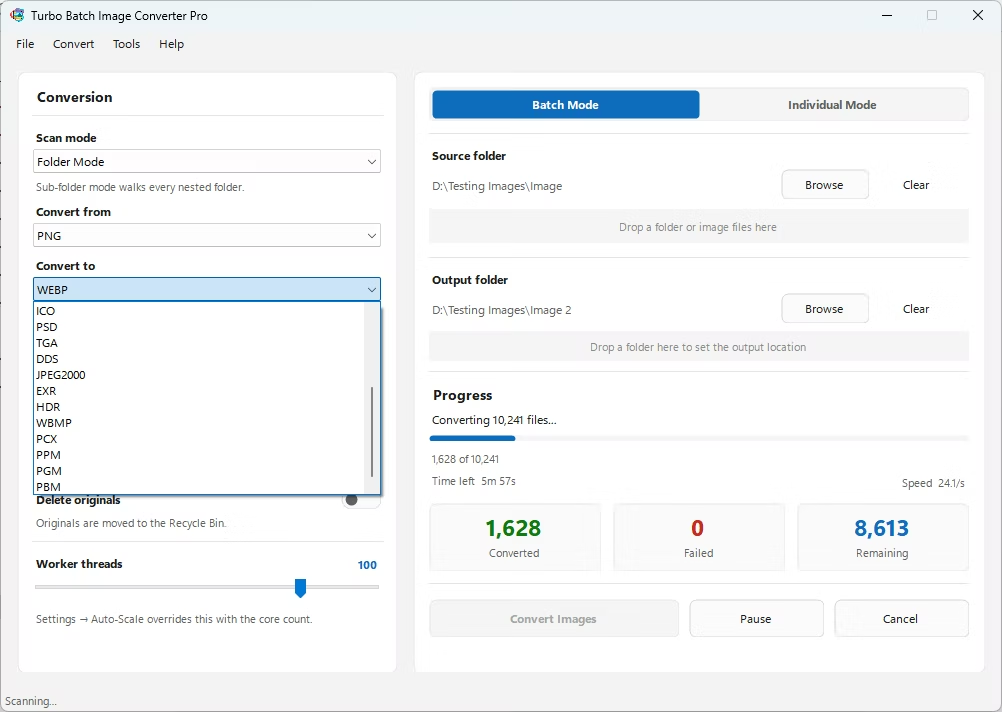
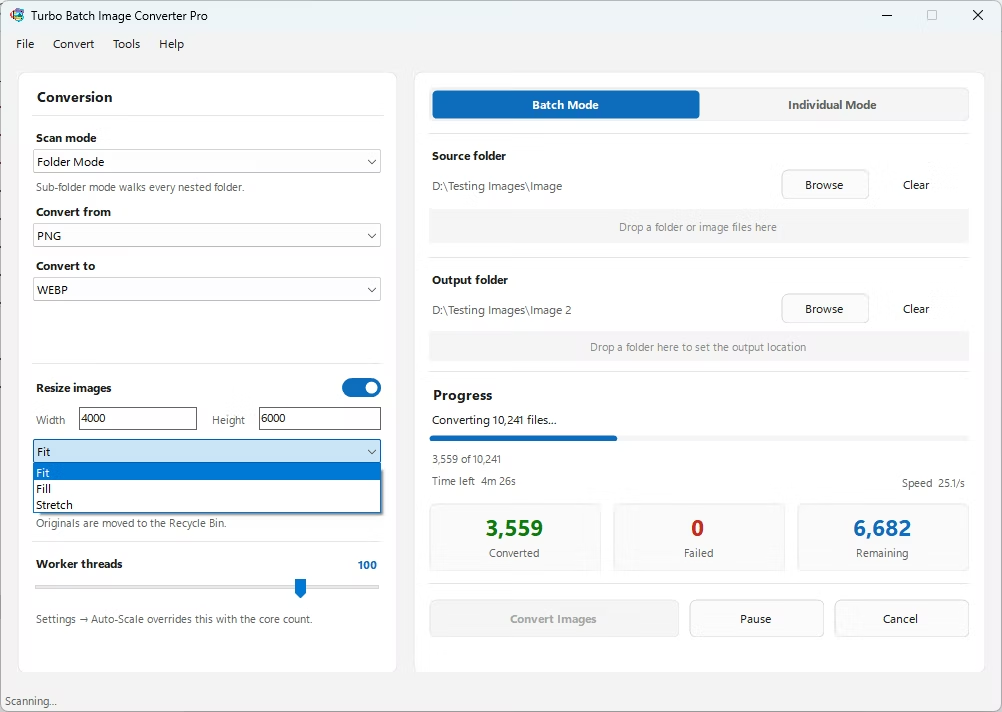
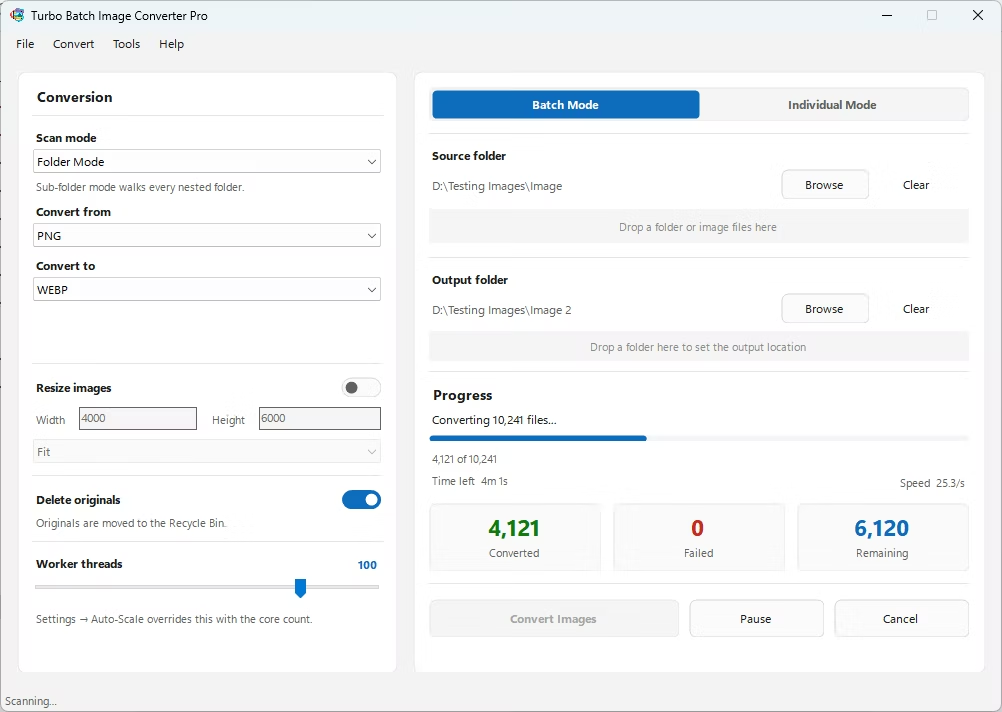
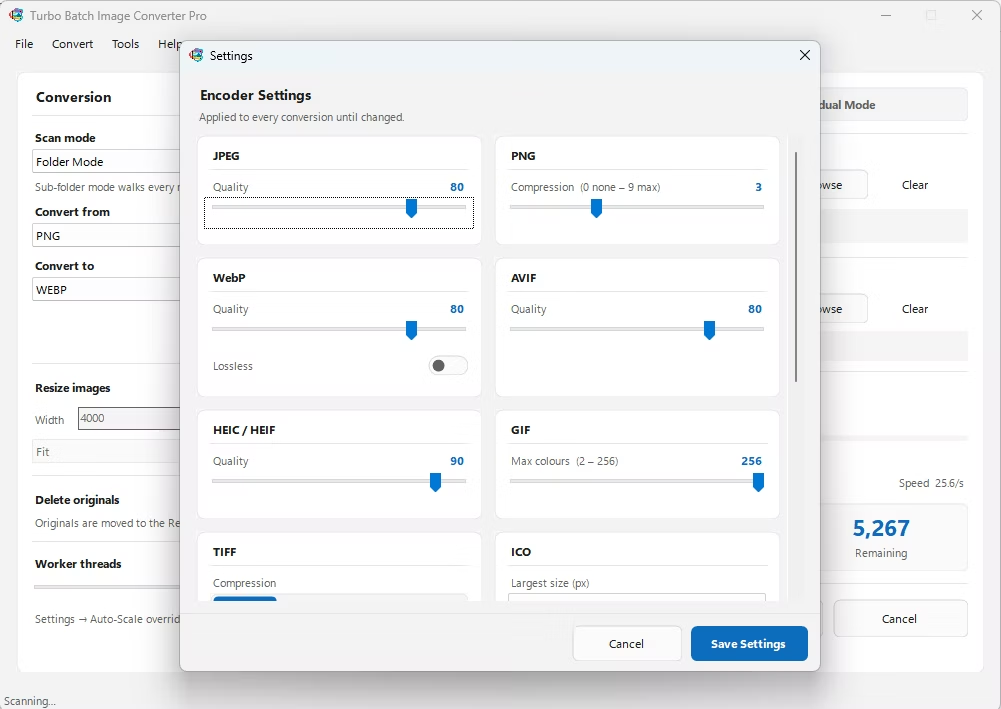
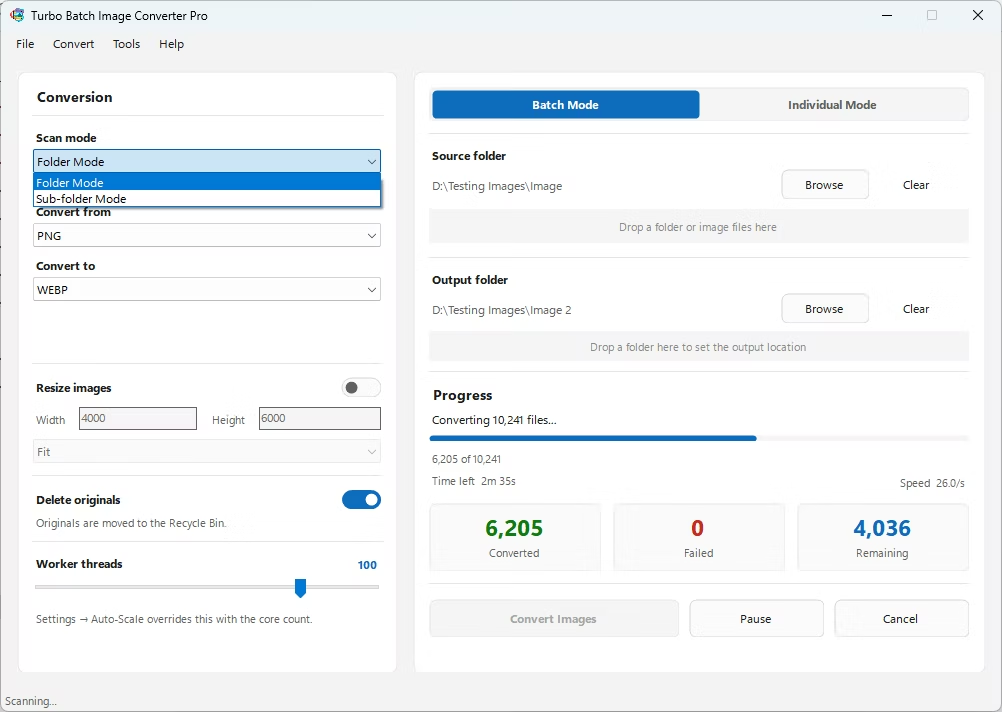
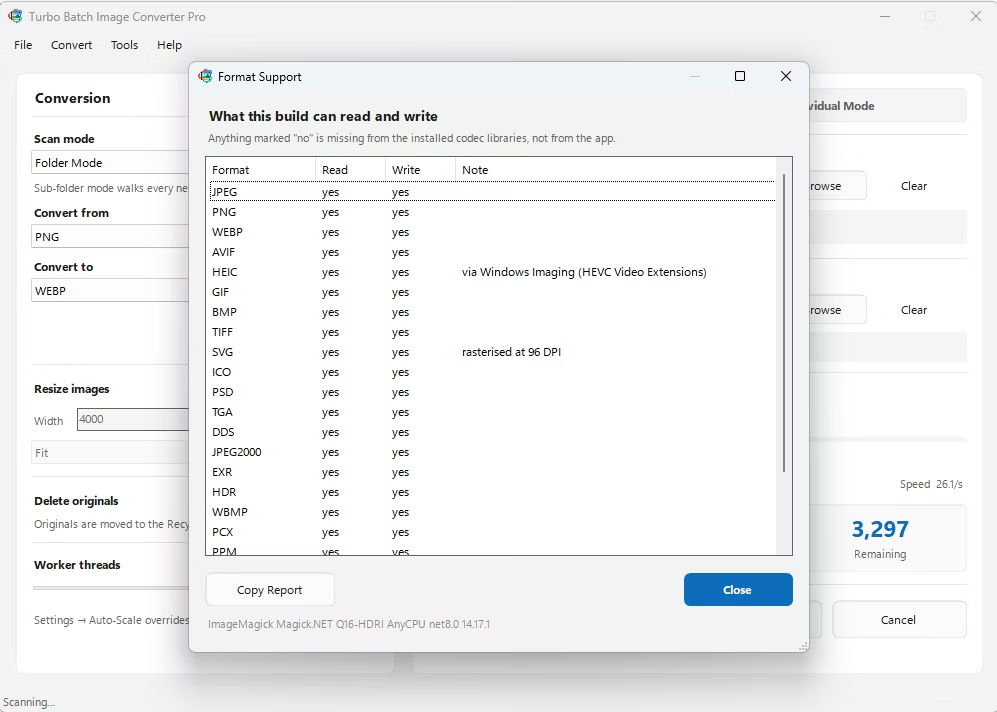
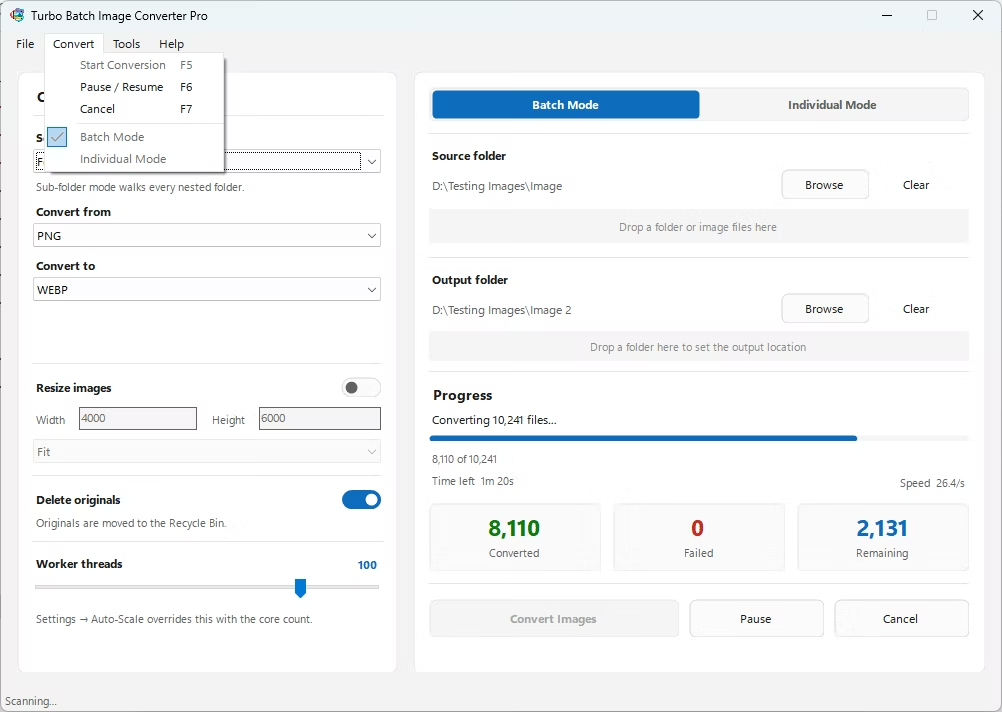
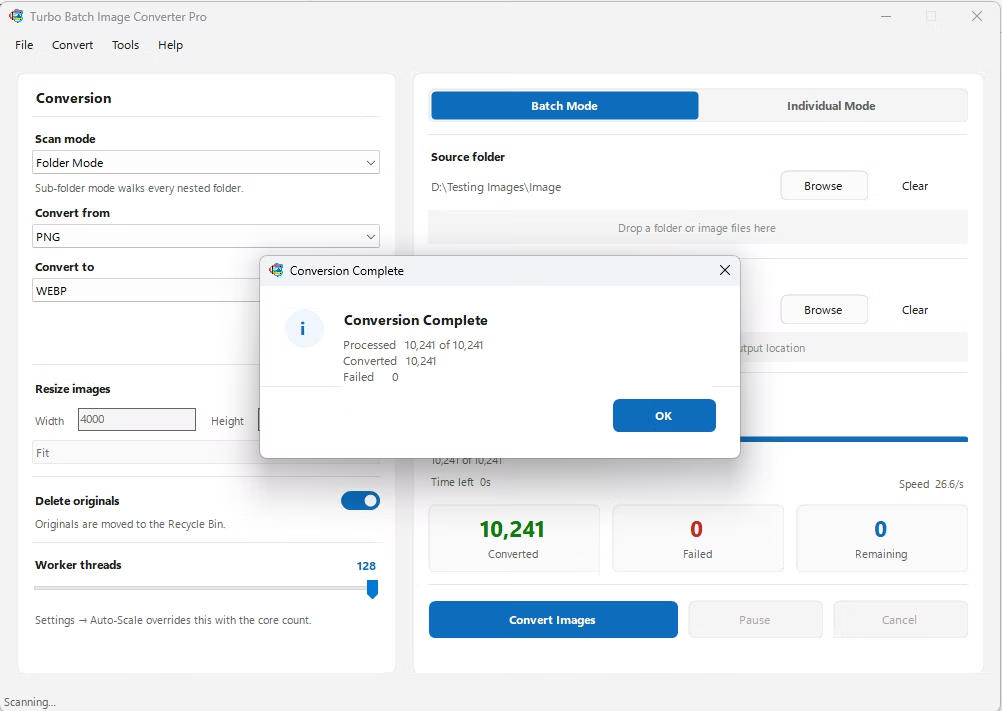
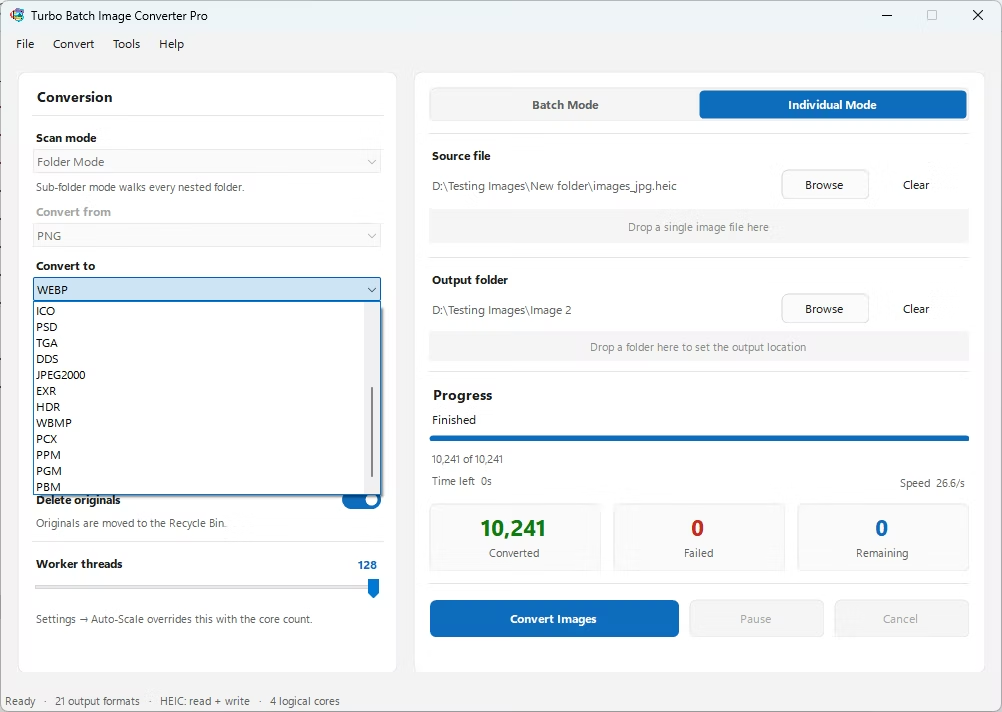
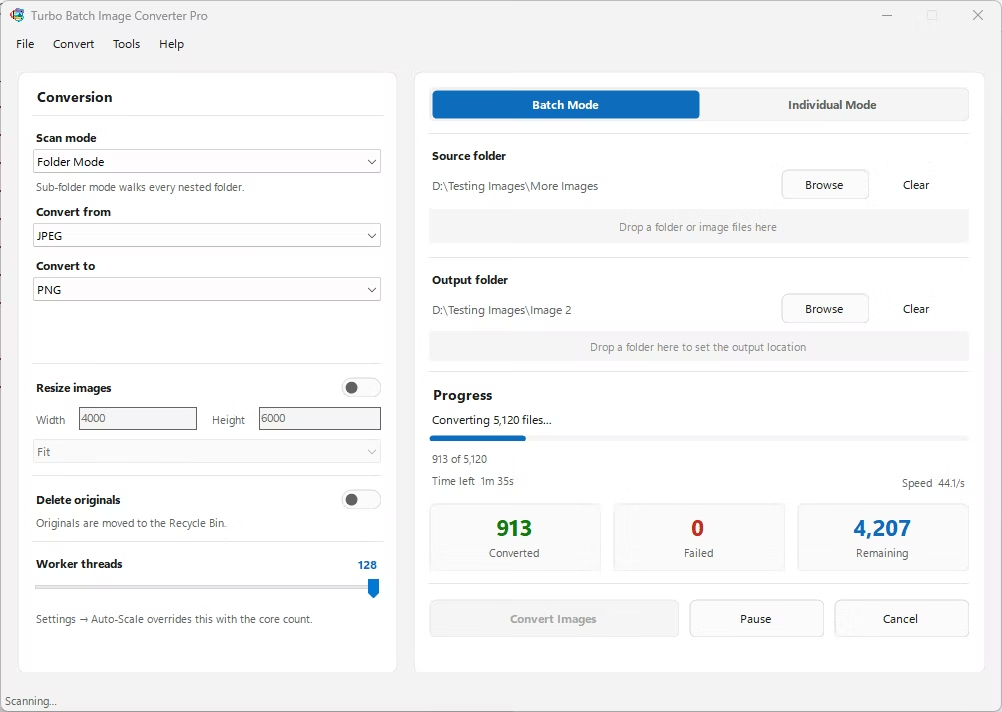
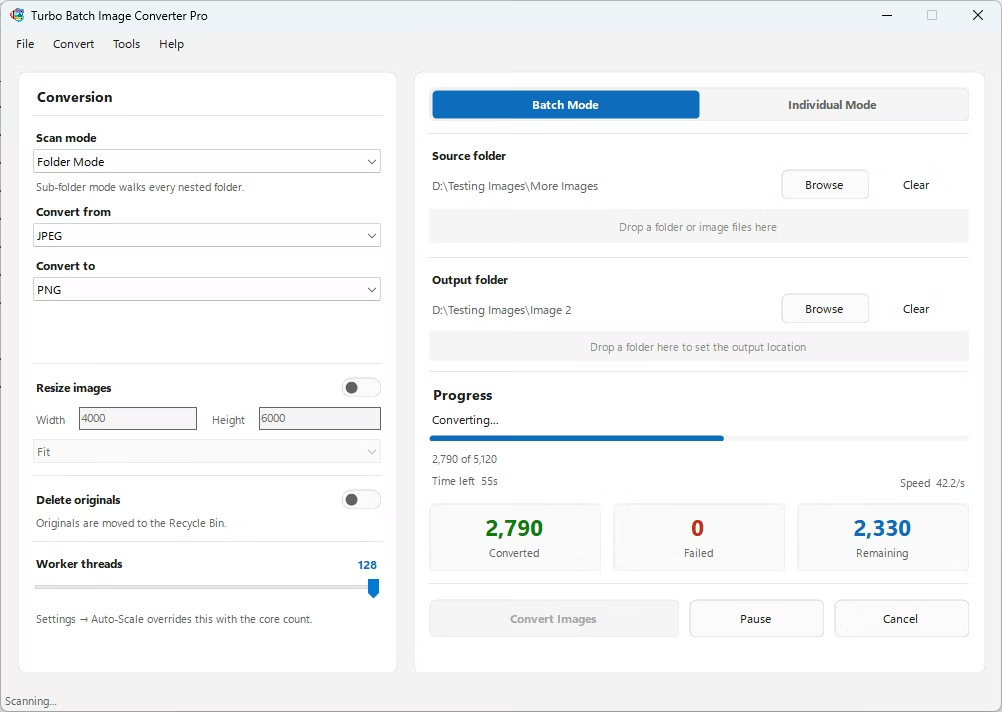
- Install Turbo Batch Image Converter Pro on your Windows PC.
- Open the app and select Batch Mode for an entire shoot, or Individual Mode for a single CR2 file.
- Drag your CR2 files or folder into the app window, enabling recursive folder scanning if needed.
- Set the "From" format to CR2 and the "To" format to JPG, PNG, or TIFF.
- Adjust the output quality slider to balance file size against image detail.
- Click Convert. Your output files are written to your output folder, fully offline.
- Native support for Canon's CR2 RAW format
- Bulk-convert an entire shoot's worth of files in one batch
- Adjustable output compression for sharing or client delivery
- Runs fully offline, keeping unreleased shoots private
- Multi-core processing scales up to 128 parallel workers
Does converting CR2 affect my original files?
No, the converter reads your CR2 files and writes new output files to your chosen output folder, leaving the original RAW files untouched.
Which cameras produce CR2 files?
CR2 is Canon's widely used RAW format, found across Canon DSLR and many mirrorless cameras.
Can I convert an entire shoot of CR2 files at once?
Yes, Batch Mode processes an entire folder of CR2 files in one pass, including nested sub-folders if recursive scanning is enabled.
Ready to convert your RAW camera files offline, in bulk, with full privacy?