A folder of photos in one format often needs to move to another, whether that's shrinking photos for a website, standardizing a shared drive, or preparing images for a specific platform's requirements.
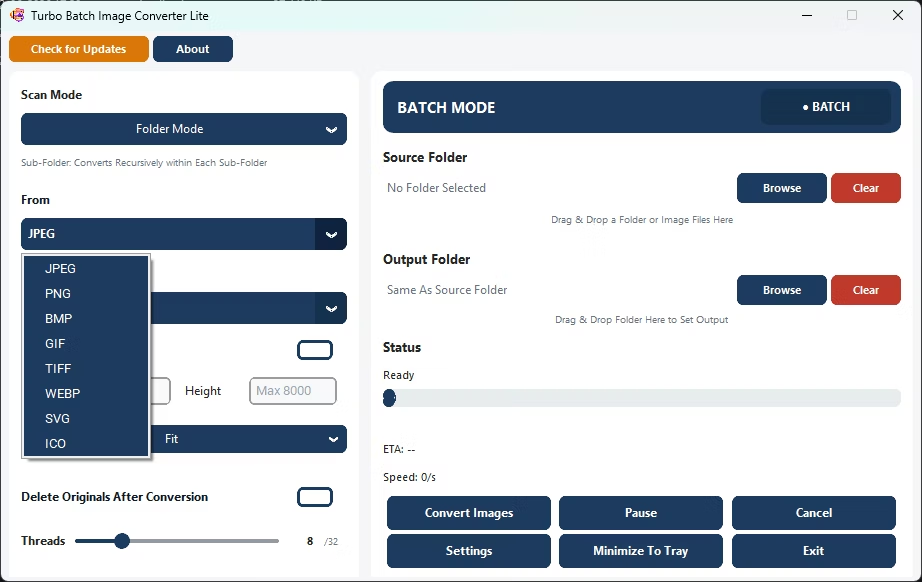
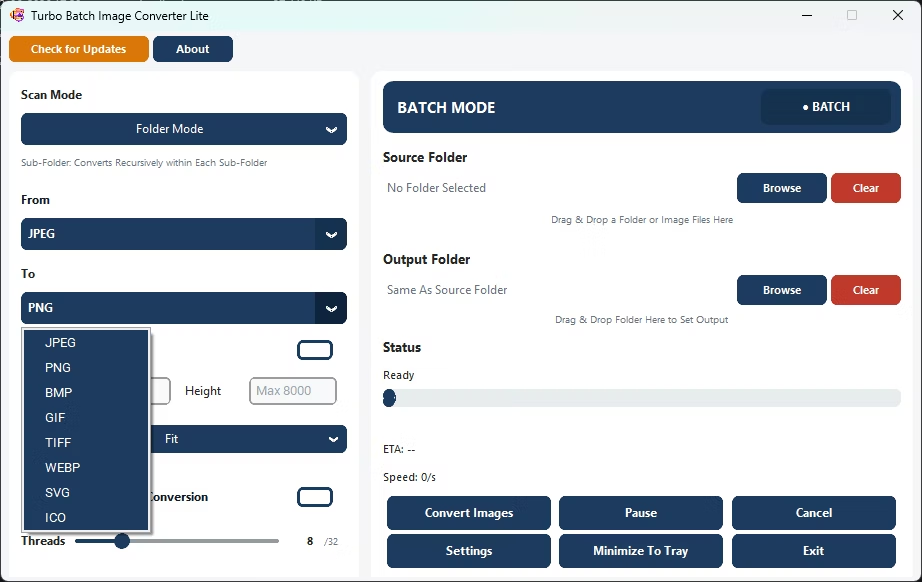
Turbo Batch Image Converter Lite batch converts an entire folder of photos between JPEG, PNG, WebP, GIF, BMP, TIFF, SVG and ICO, so you can standardize a whole photo collection on your chosen format in one pass.
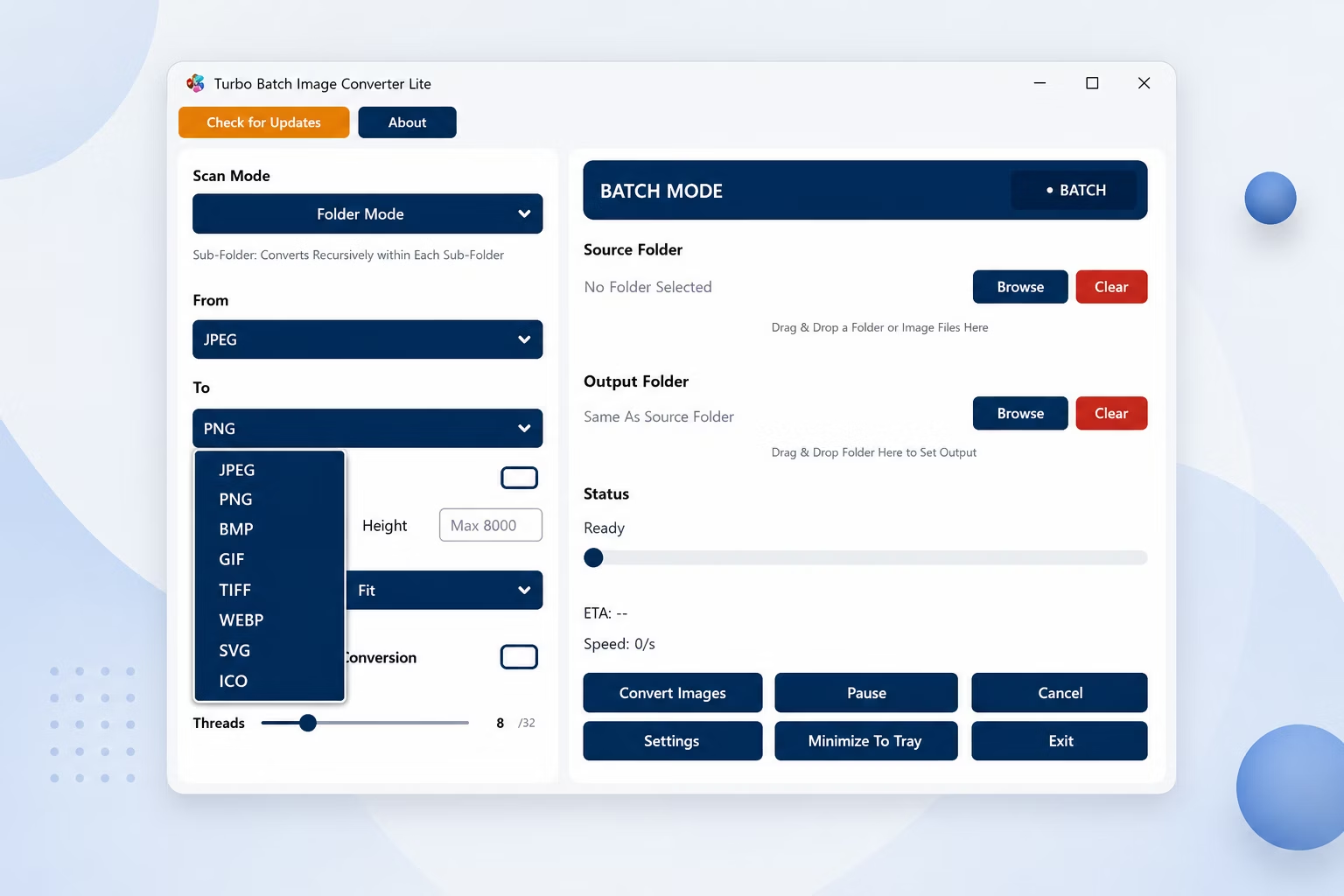
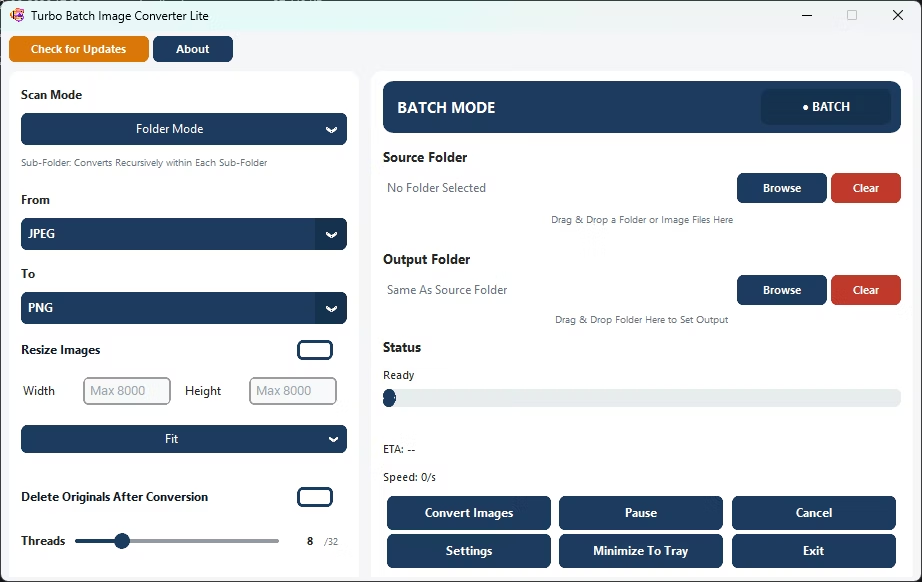
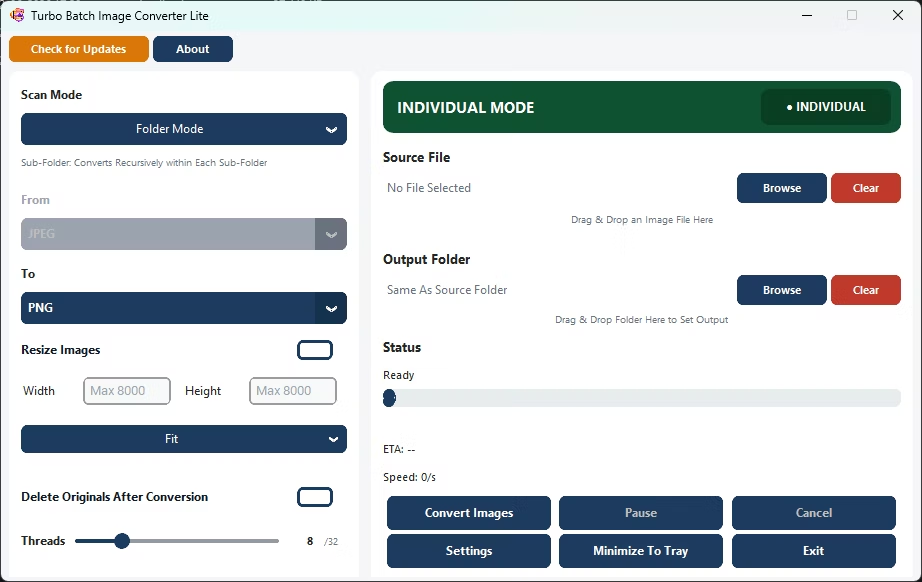
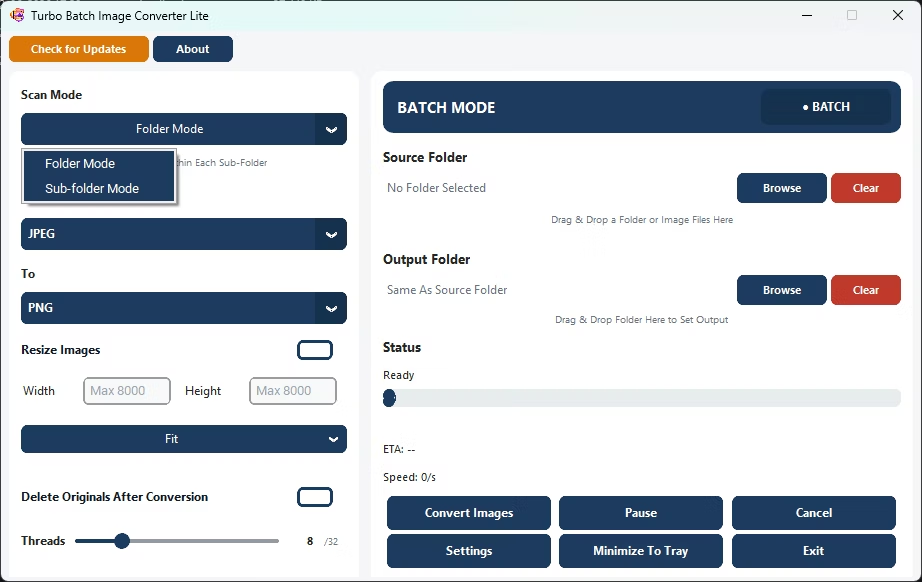
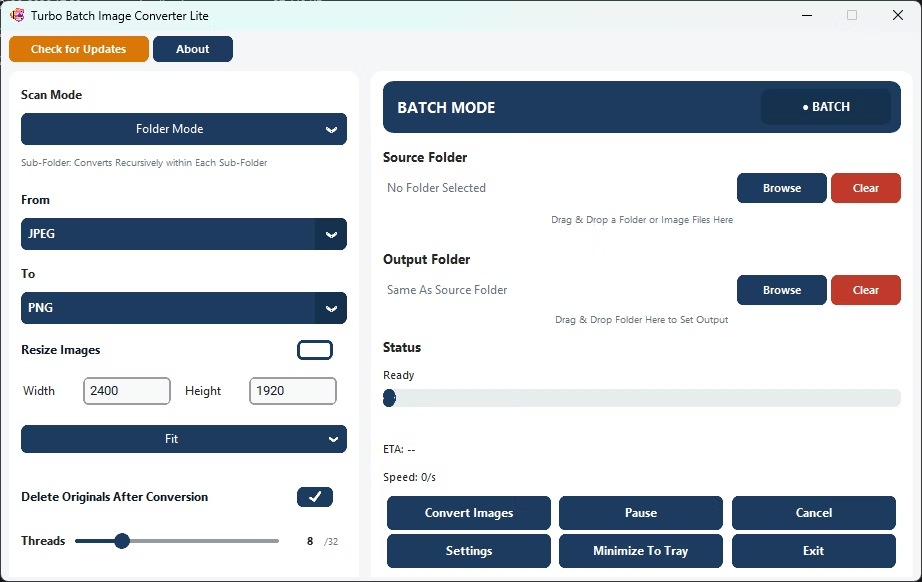
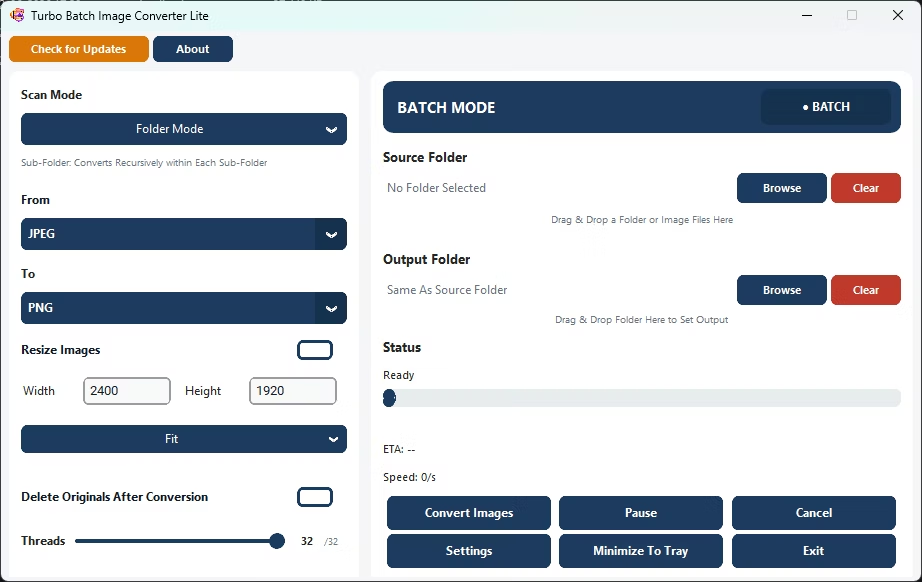
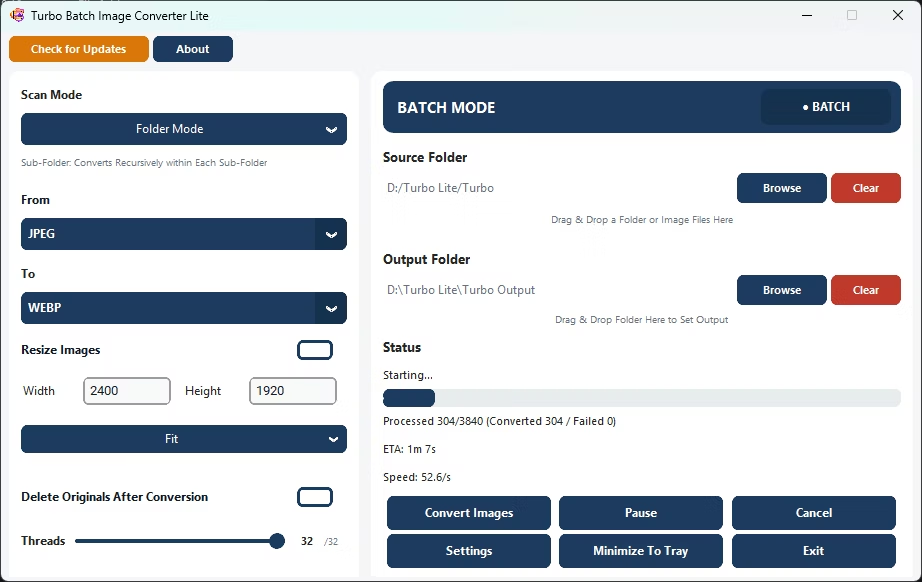
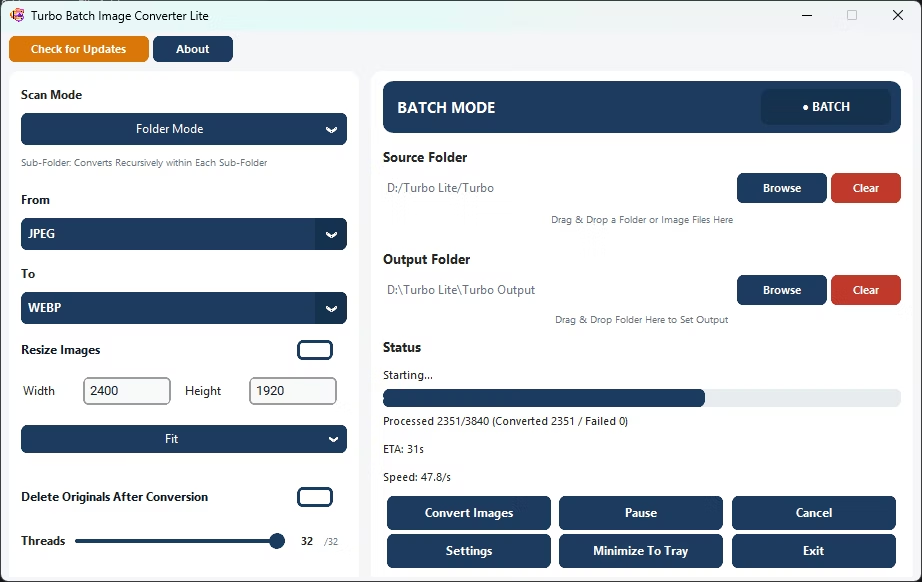
- Install Turbo Batch Image Converter Lite on your Windows PC.
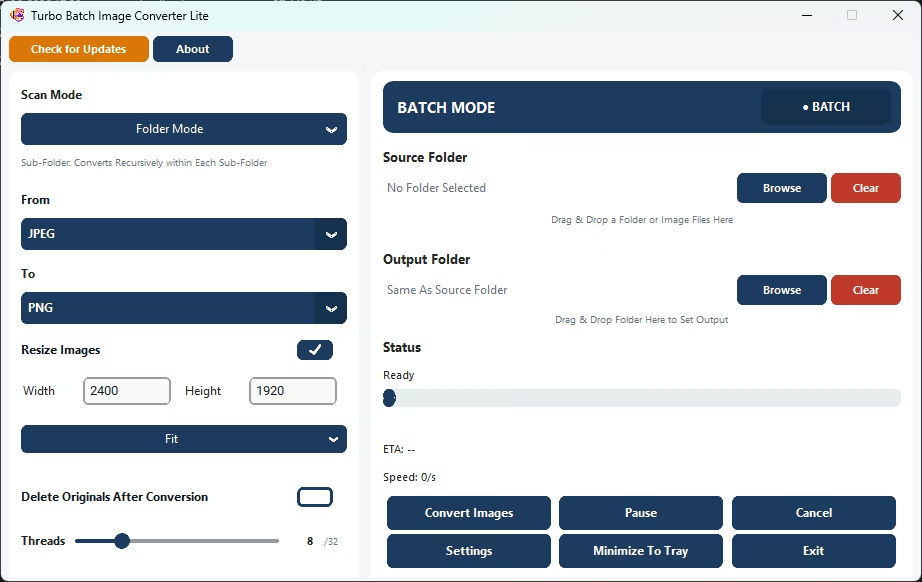
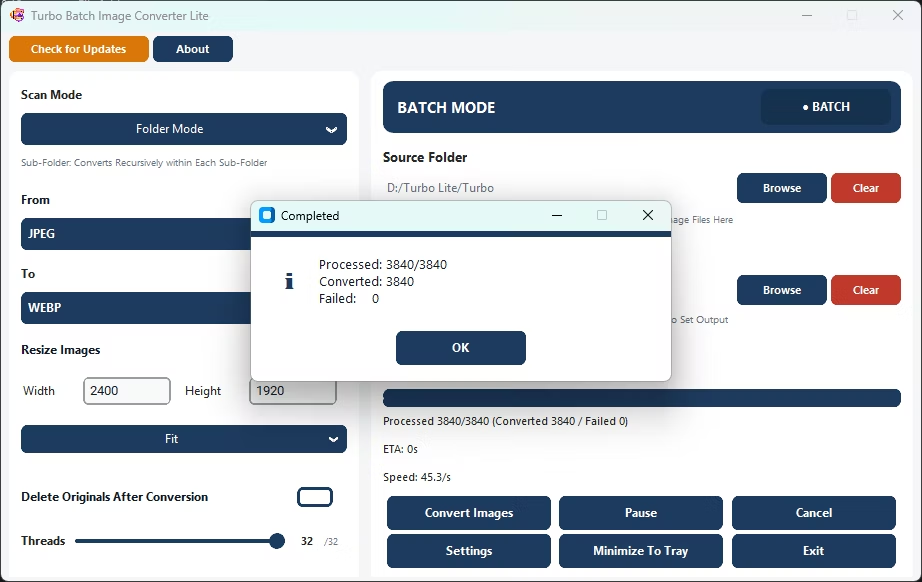
- Open Batch Mode and select your photo folder.
- Set your source format, or let it auto-detect mixed formats.
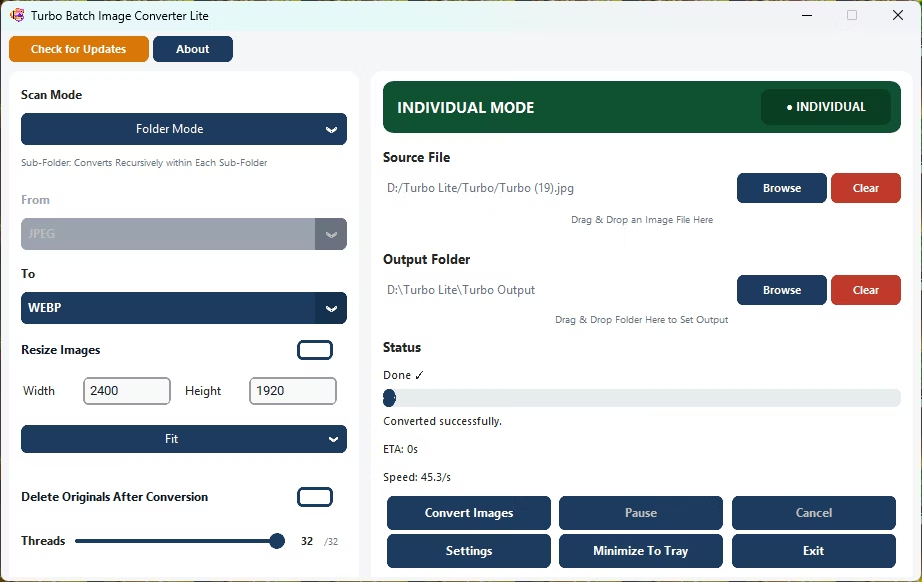
- Choose your target format.
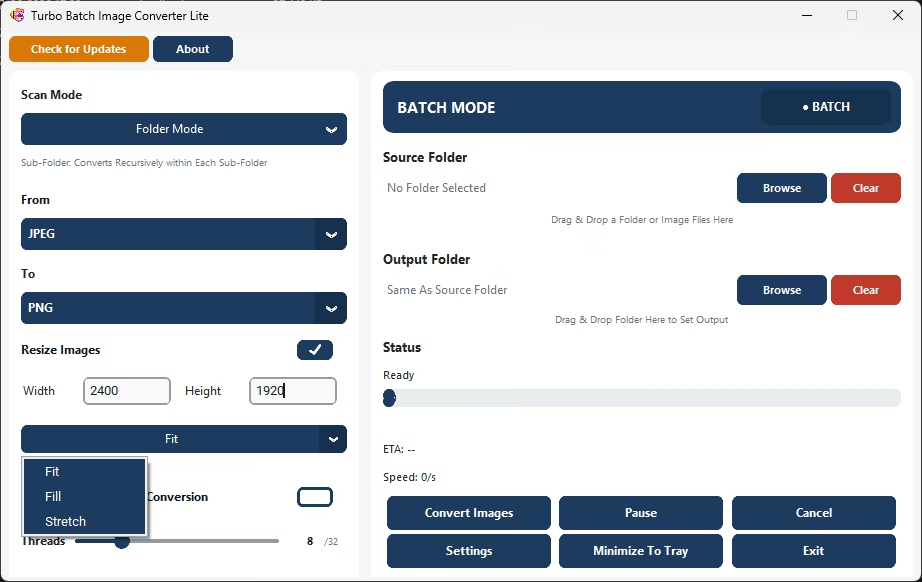
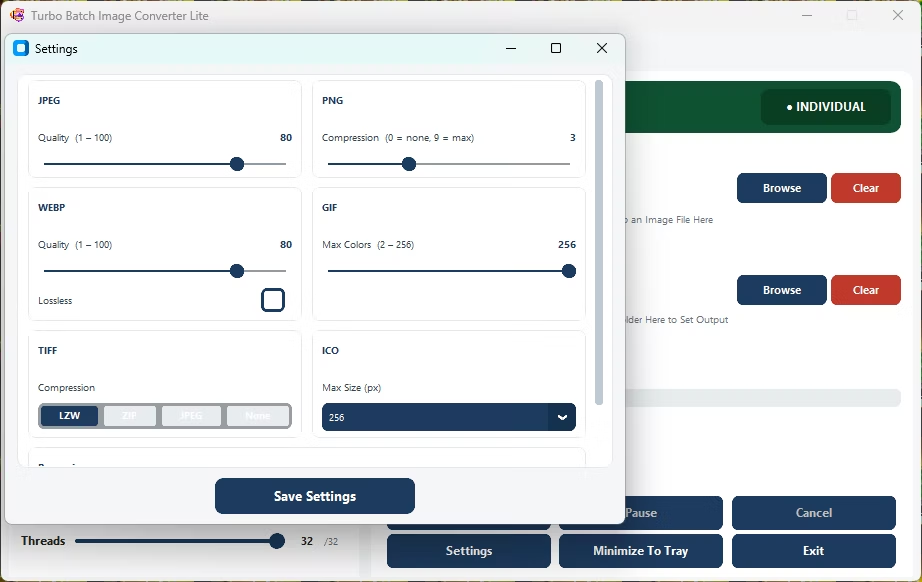
- Adjust quality settings for your chosen output.
- Click Convert to process the entire photo folder.
- Converts between 8 everyday photo formats
- Processes an entire photo folder in one batch
- Per-format quality settings for precise output
- Runs fully offline with no upload limits
- Multi-core engine scales up to 32 parallel workers
Can I convert a folder of mixed photo formats at once?
Yes, auto-detect handles mixed-format folders, converting every recognized format to your chosen output.
Will bulk converting affect my photo quality?
You control the output quality with per-format compression settings, letting you balance file size against visual detail.
Does this cover photos exported from a phone or camera?
Yes, as long as they're in one of the supported everyday formats such as JPEG, PNG, WebP, or TIFF.
Ready to convert your photos in bulk, between formats and fully offline?