BMP files are uncompressed, which means they preserve full image data but take up far more disk space than necessary for everyday viewing and sharing. JPG's compression shrinks file size dramatically while remaining perfectly viewable, making it the practical choice when you need to email, upload, or store a batch of BMP images without the bulk.
If you have a folder of BMP screenshots, scans, or exports, converting each file individually wastes time. A batch BMP to JPG converter processes the whole folder in one pass with consistent quality settings.
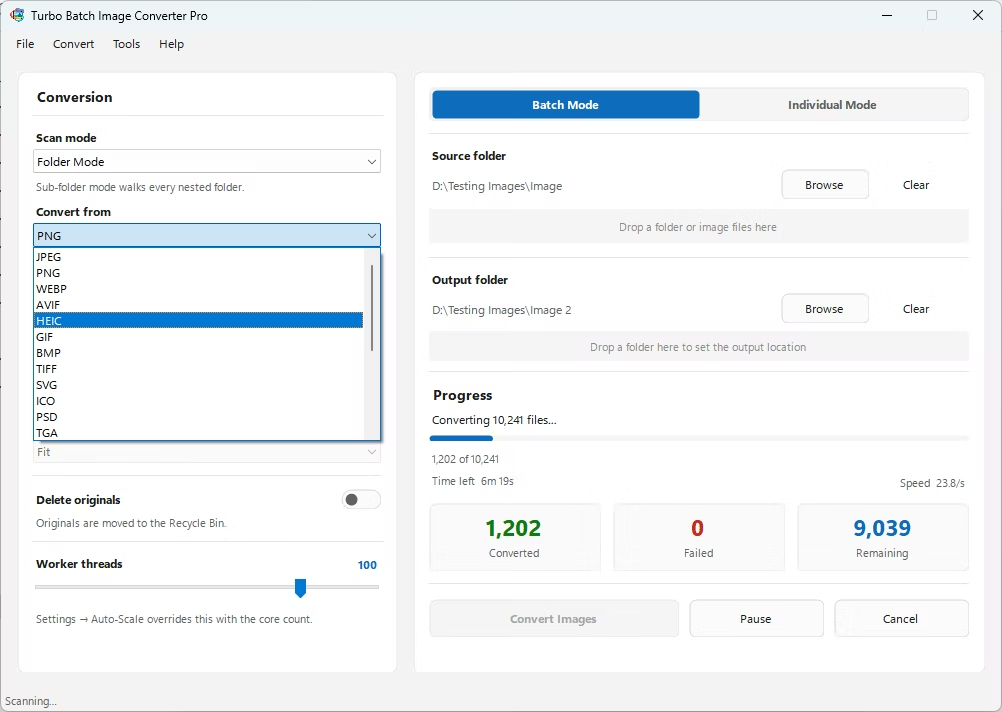
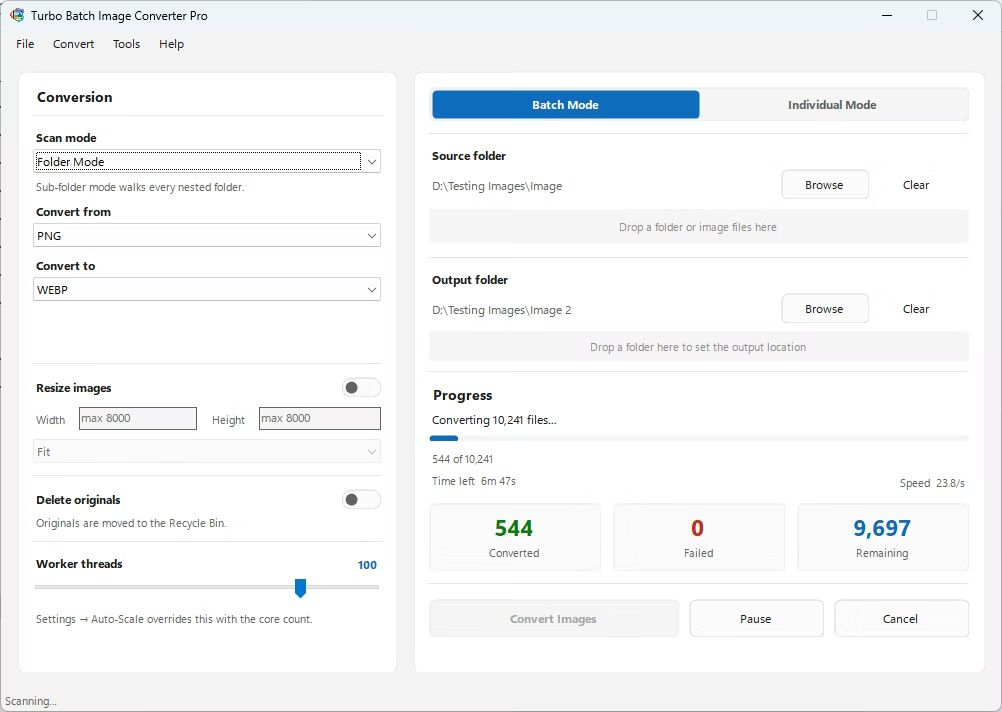
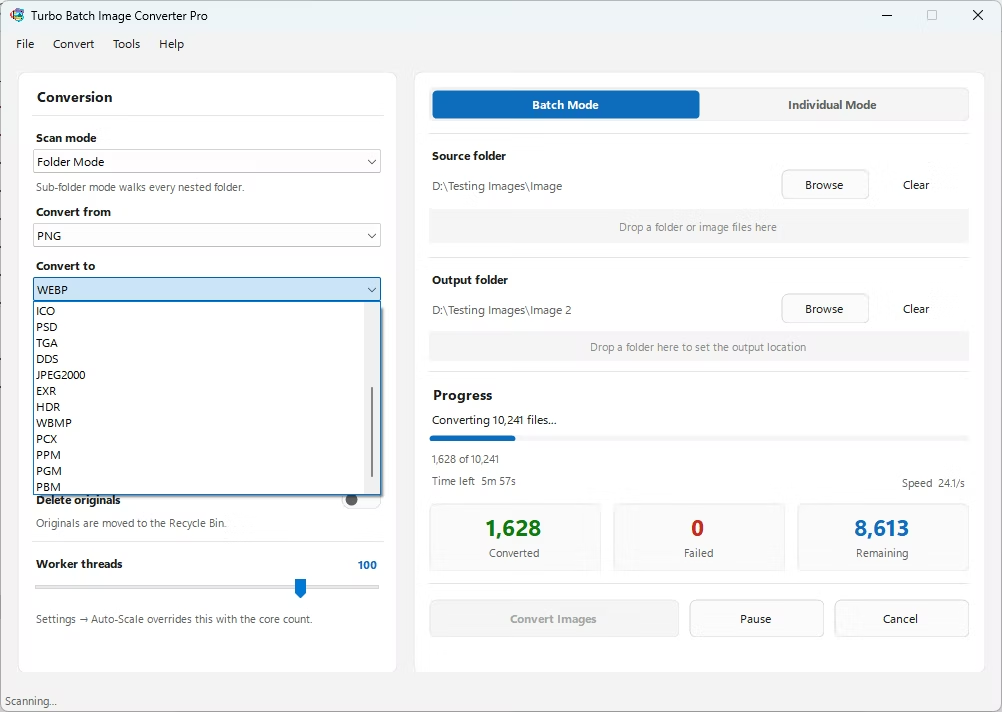
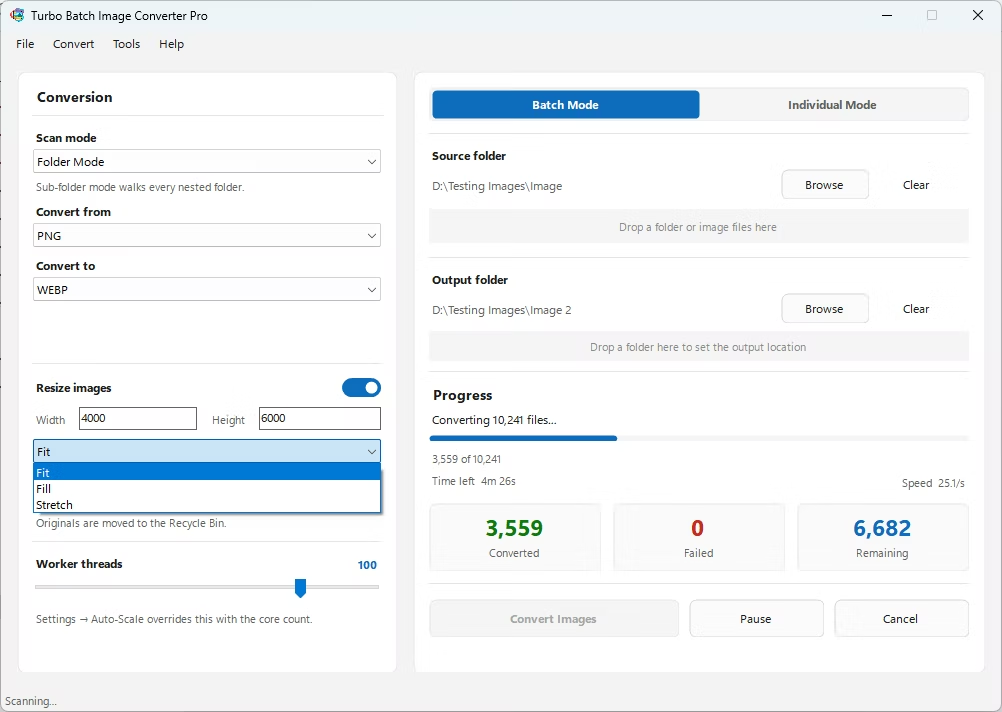
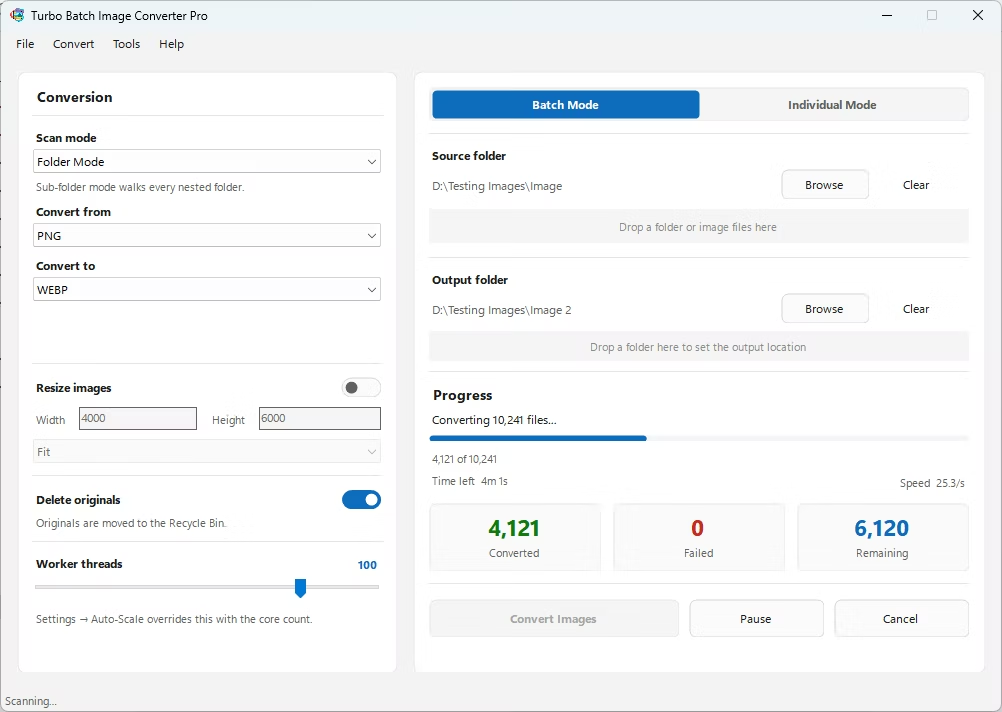
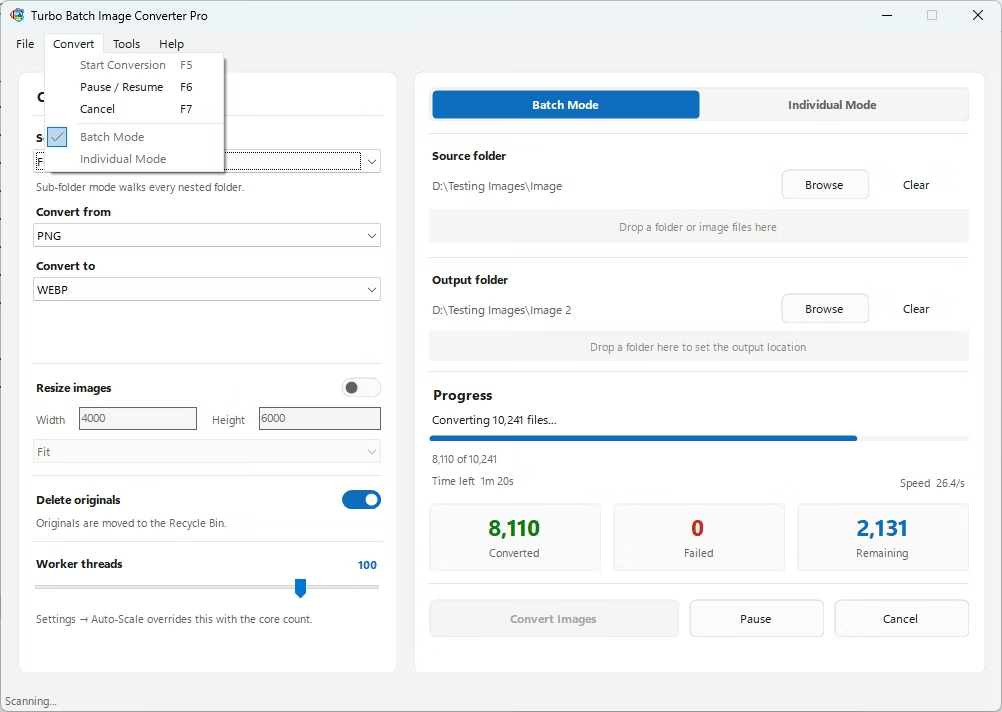
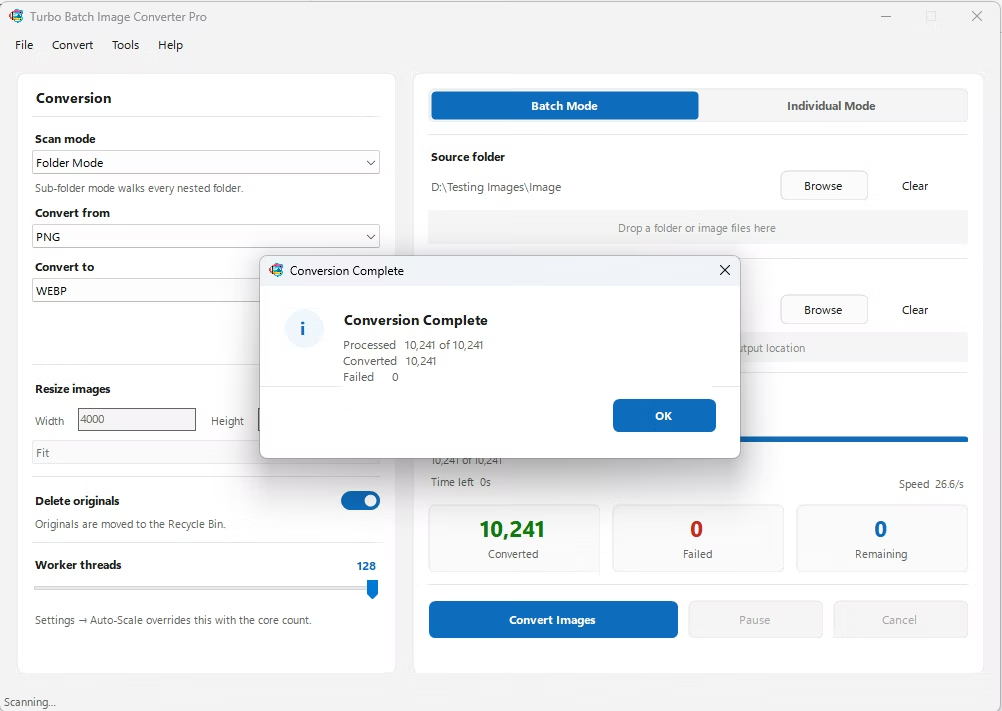
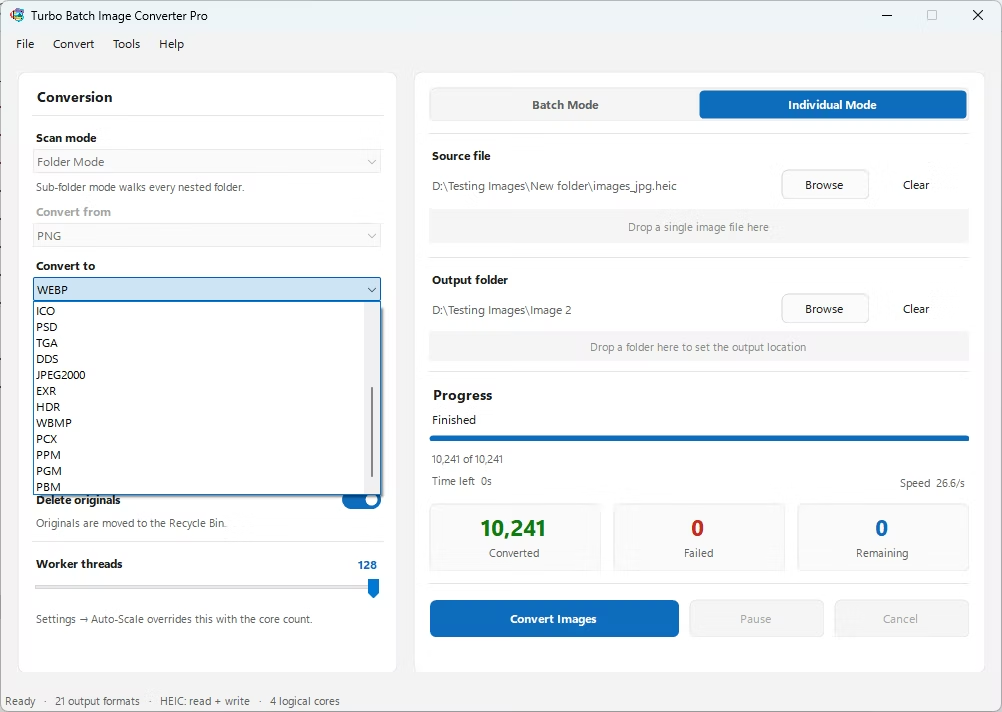
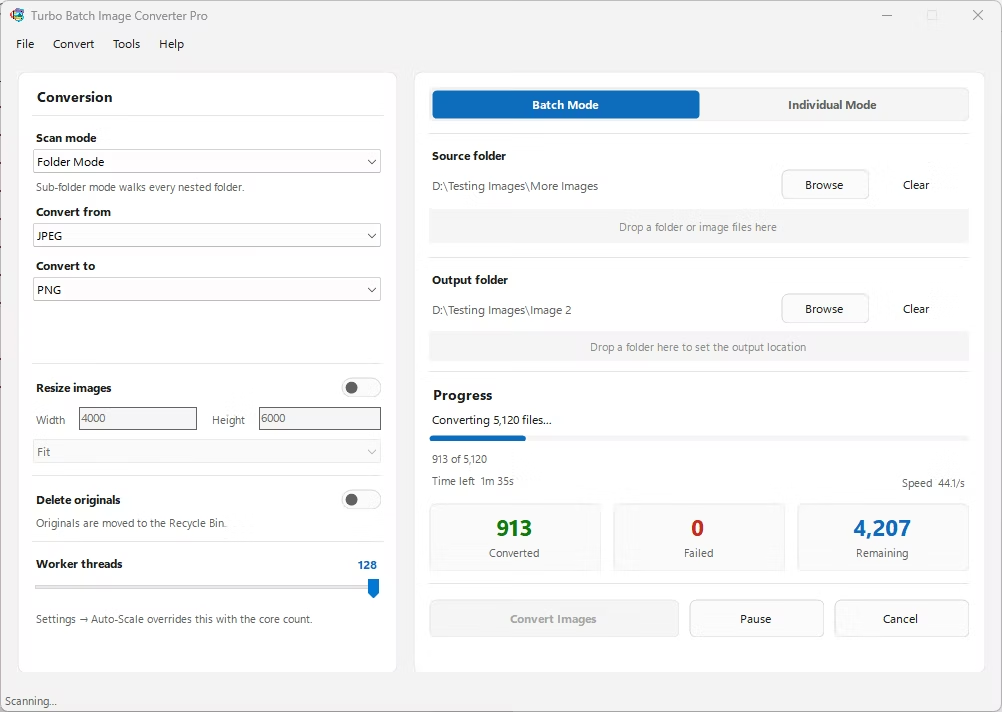
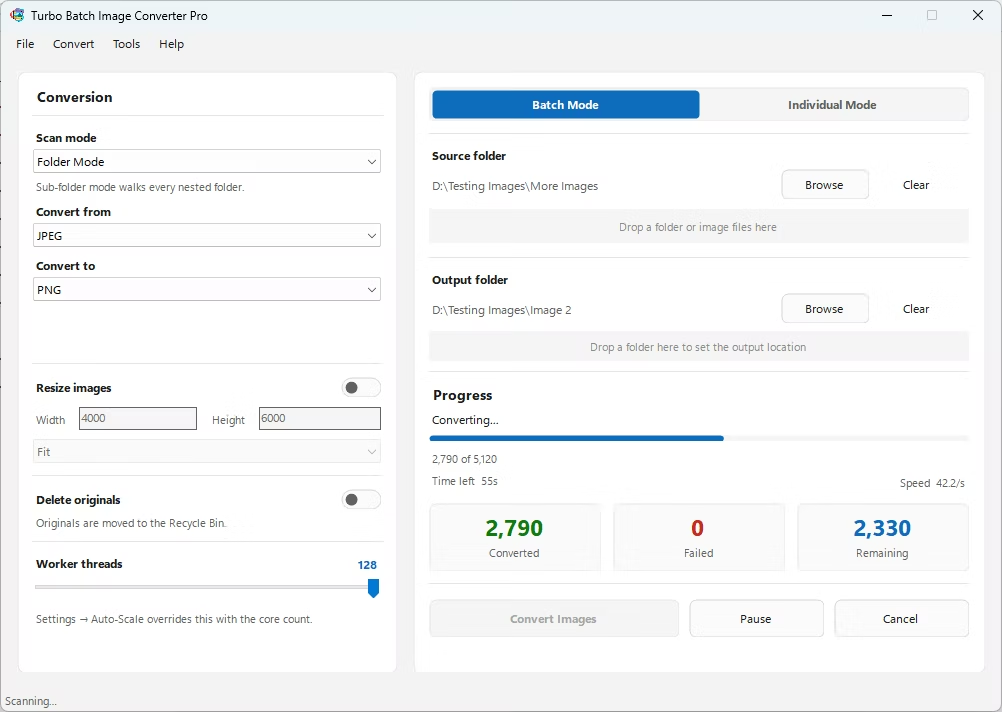
- Install Turbo Batch Image Converter Pro on your Windows PC.
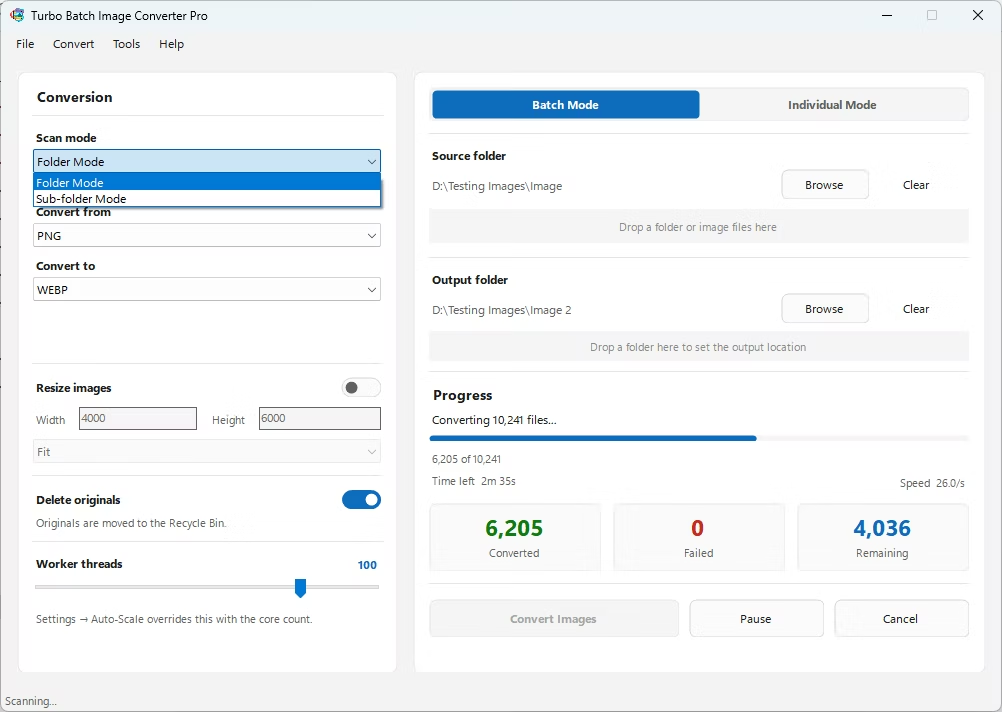
- Open the app and select Batch Mode for multiple files, or Individual Mode for a single BMP.
- Drag your BMP file or folder into the app window, enabling recursive folder scanning if needed.
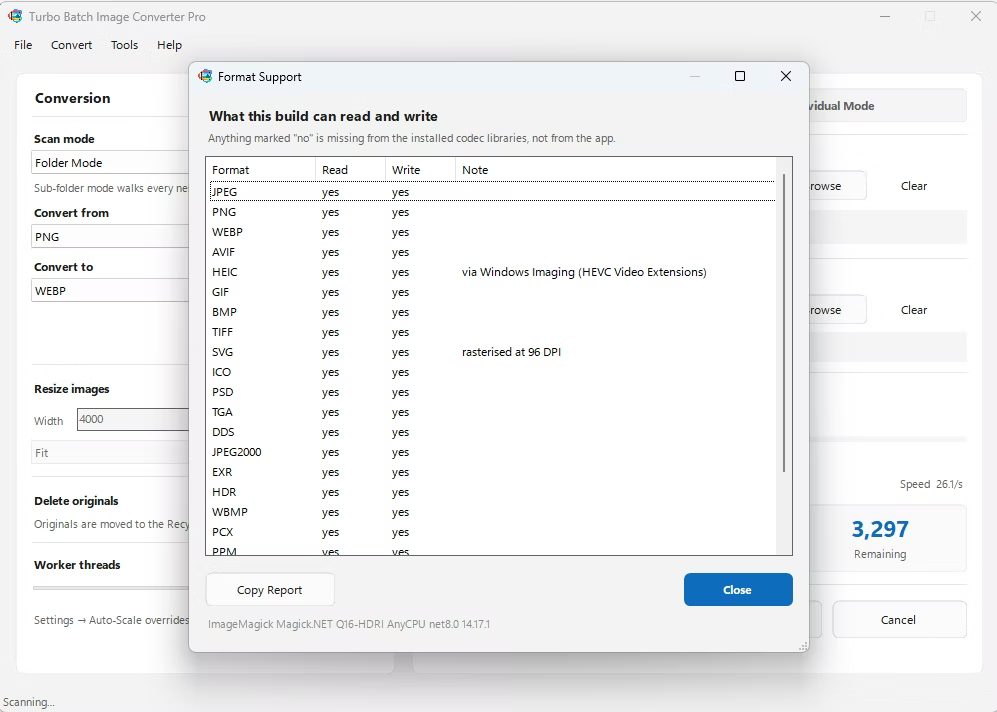
- Set the "From" format to BMP and the "To" format to JPG.
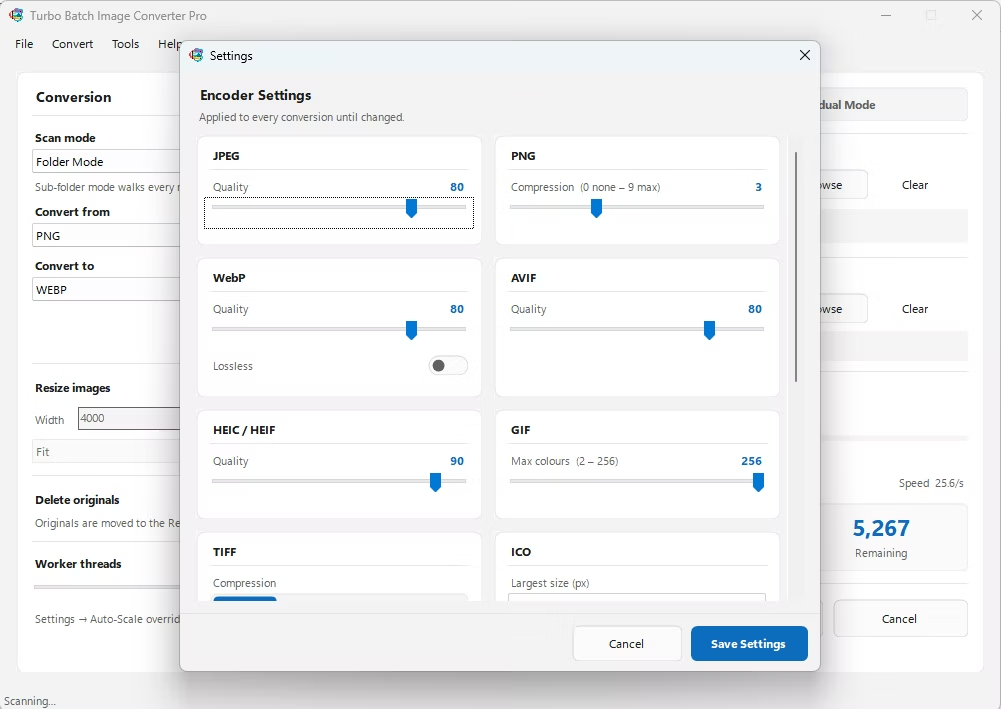
- Adjust the JPG quality slider to balance file size against image clarity.
- Click Convert. Your JPG files are written to the output folder, fully offline.
- 100% offline — your images are never uploaded anywhere
- Bulk conversion of entire folders, including sub-folders, in one click
- Adjustable JPG compression for the right size-to-quality balance
- Multi-core processing for fast handling of large batches
- Option to delete original BMP files automatically after conversion
- No recurring subscription or hidden upload limits
Why are BMP files so much larger than JPG?
BMP typically stores image data without compression, while JPG uses lossy compression to dramatically reduce file size, which is why converting from BMP to JPG usually results in a much smaller file.
Will I lose quality converting BMP to JPG?
Some quality is traded for smaller file size due to JPG's lossy compression, though using a higher quality setting in the converter keeps visible loss minimal for most uses.
Can I convert an entire folder of BMP files at once?
Yes, Batch Mode handles entire folders, including nested sub-folders, in a single conversion run.
Ready to convert your images offline, in bulk, with full privacy?