BMP is an old, uncompressed Windows bitmap format that produces files many times larger than a modern format storing the same image, which is why folders of BMP files are usually converted down to JPG, PNG, or WebP.
Turbo Batch Image Converter Lite batch converts an entire folder of BMP files into a compressed, modern format in one pass, dramatically shrinking file sizes while keeping every image usable for sharing or archiving.
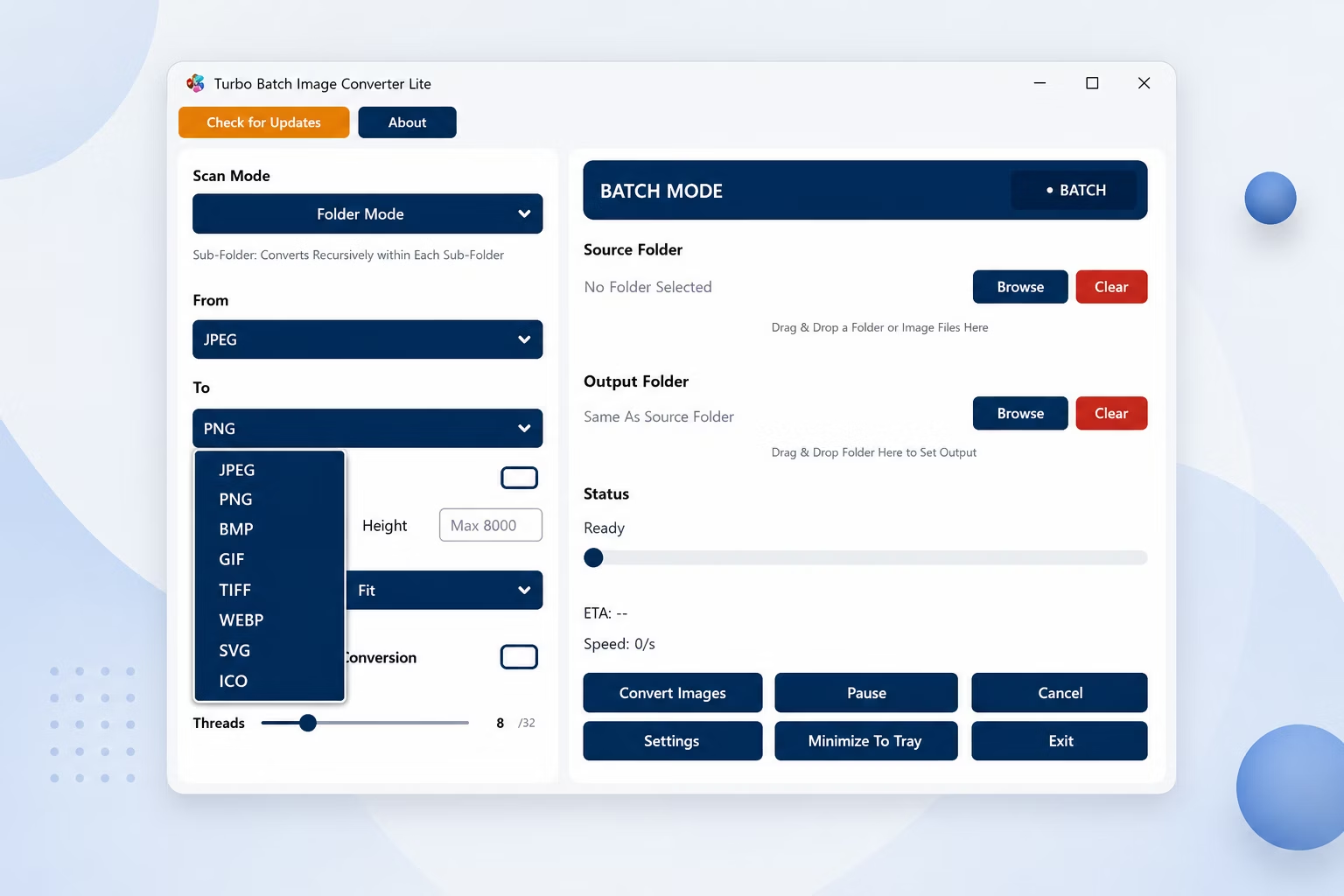
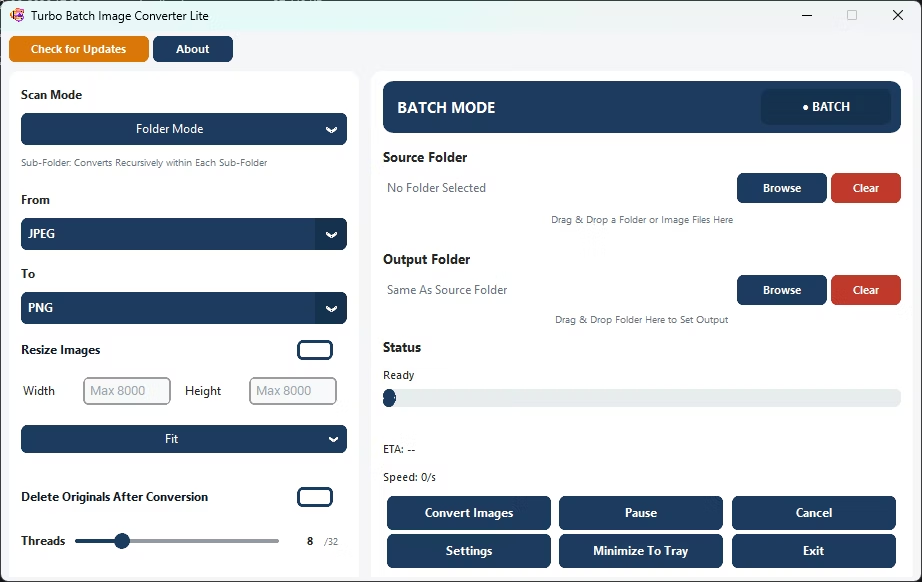
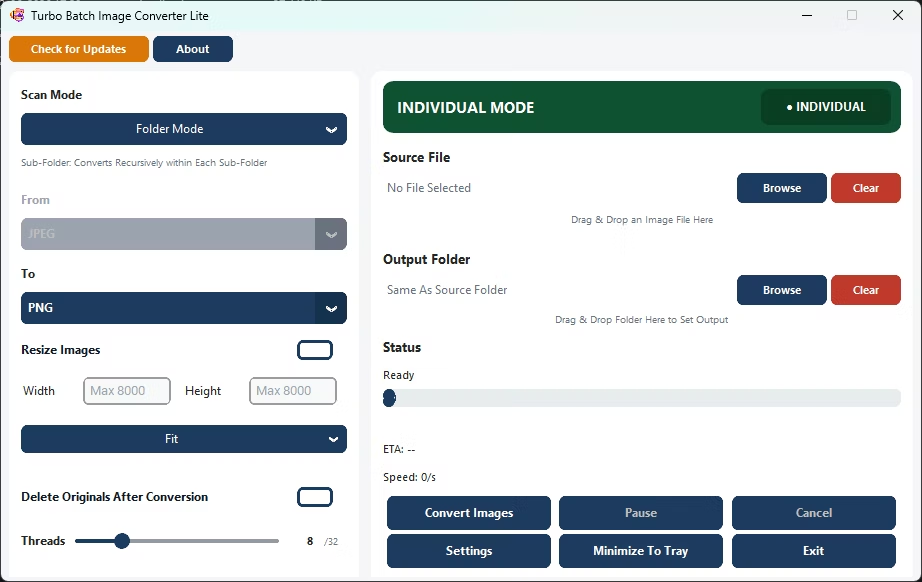
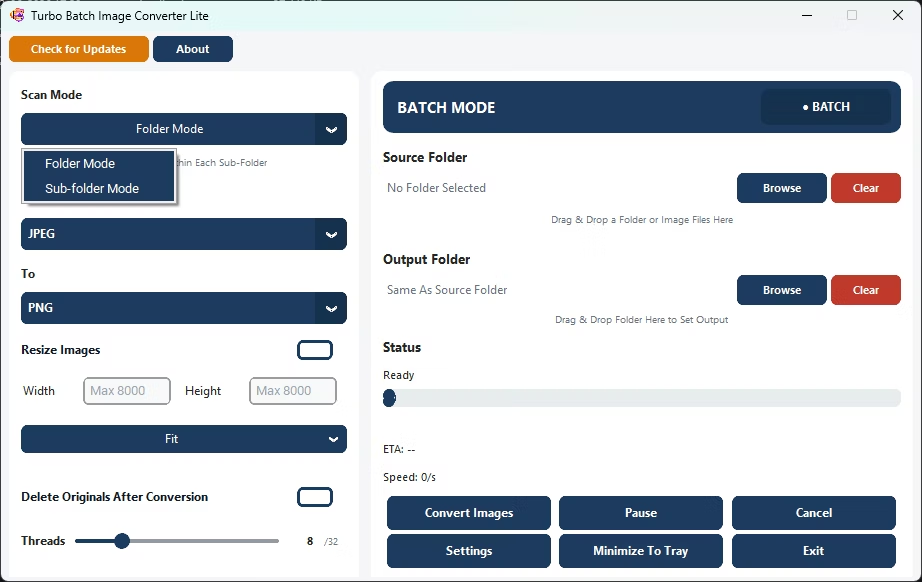
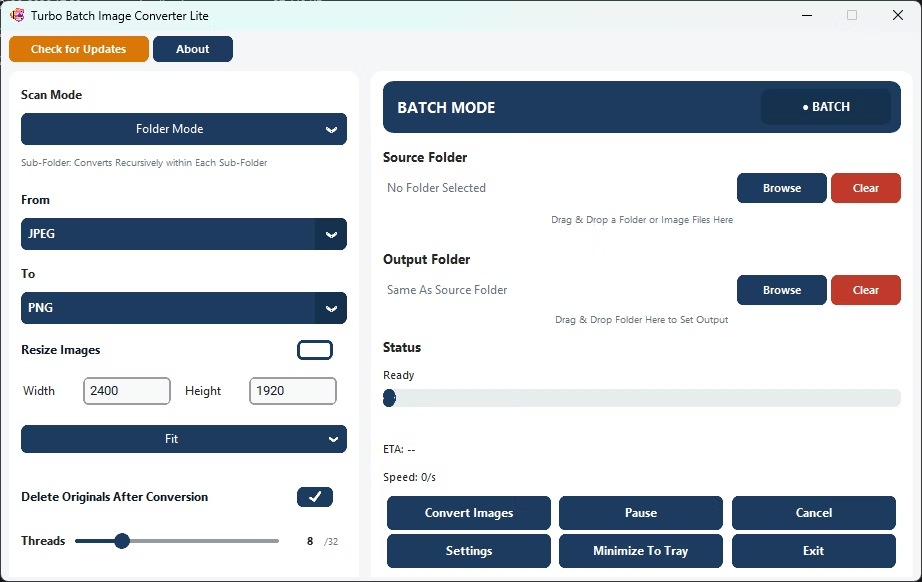
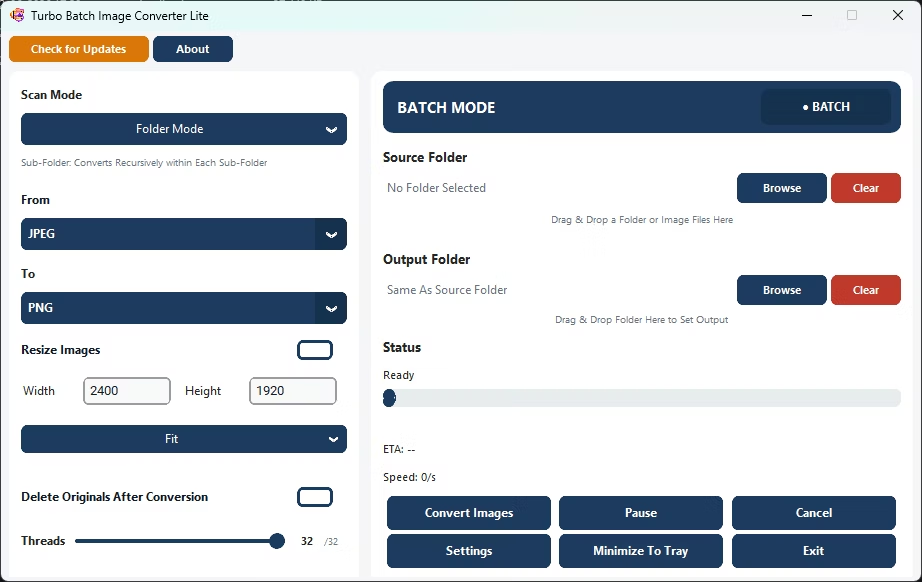
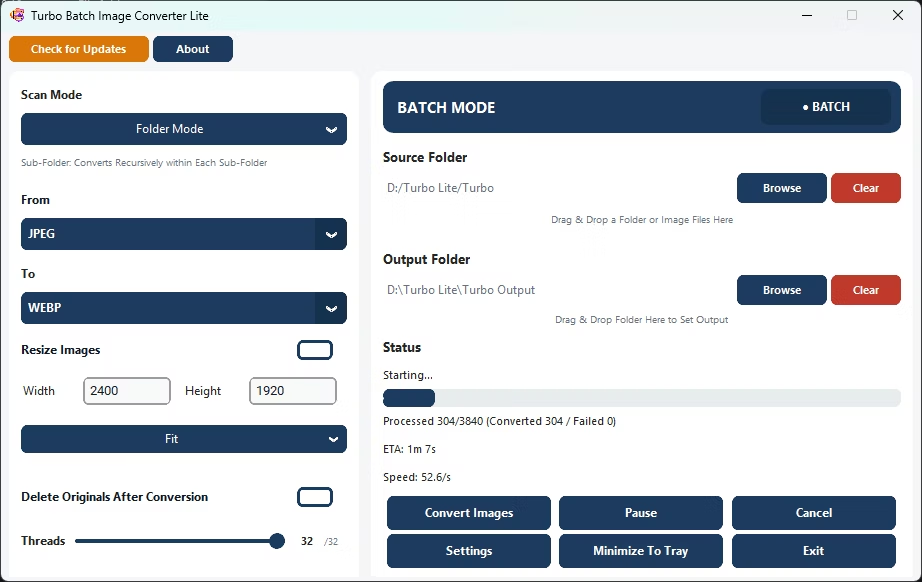
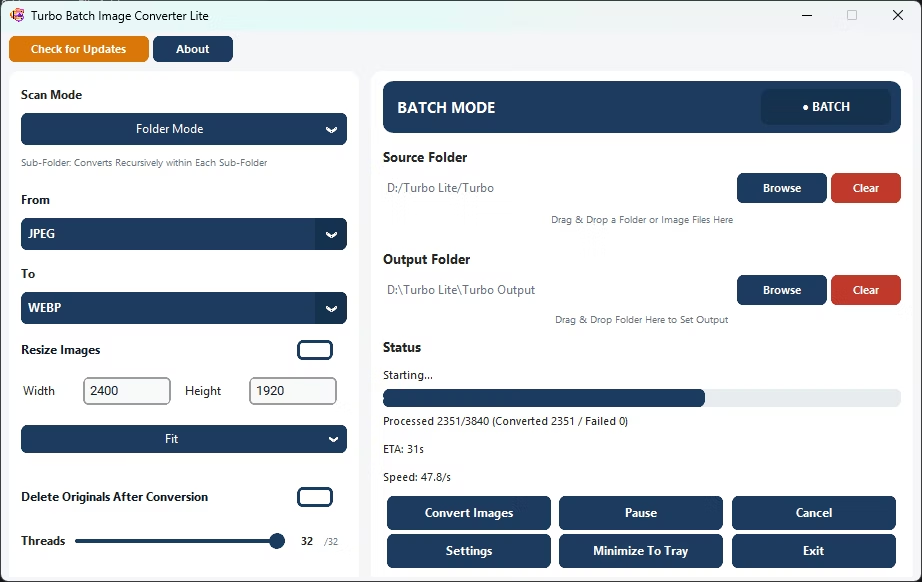
- Install Turbo Batch Image Converter Lite on your Windows PC.
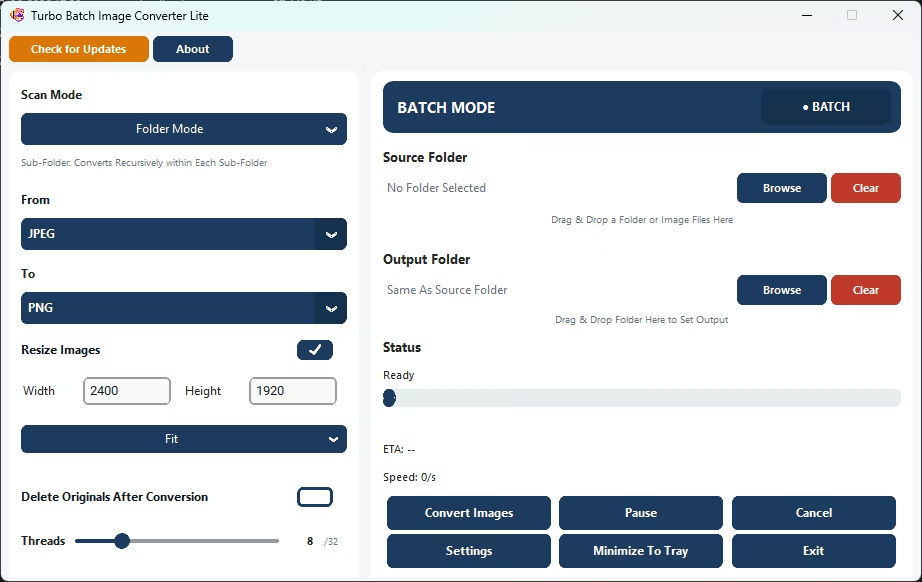
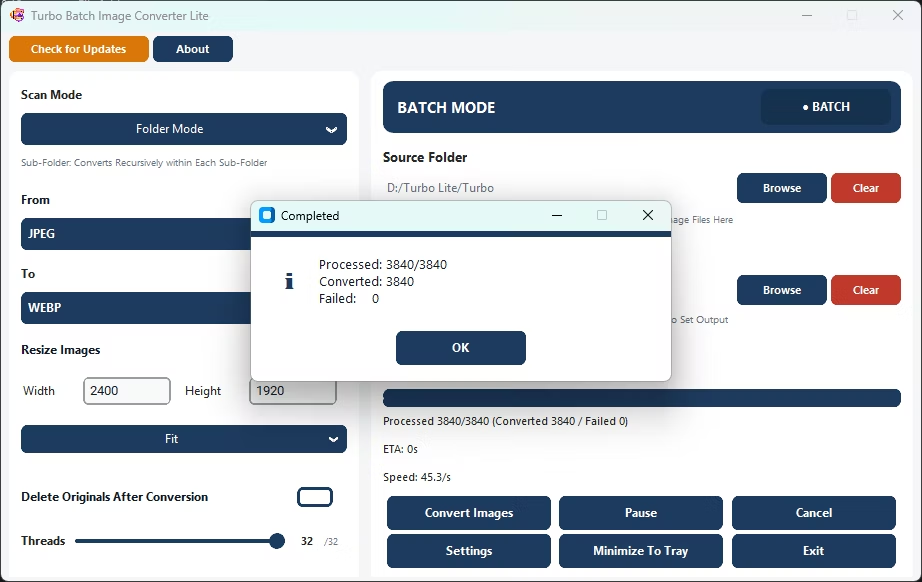
- Open Batch Mode and select your folder of BMP files.
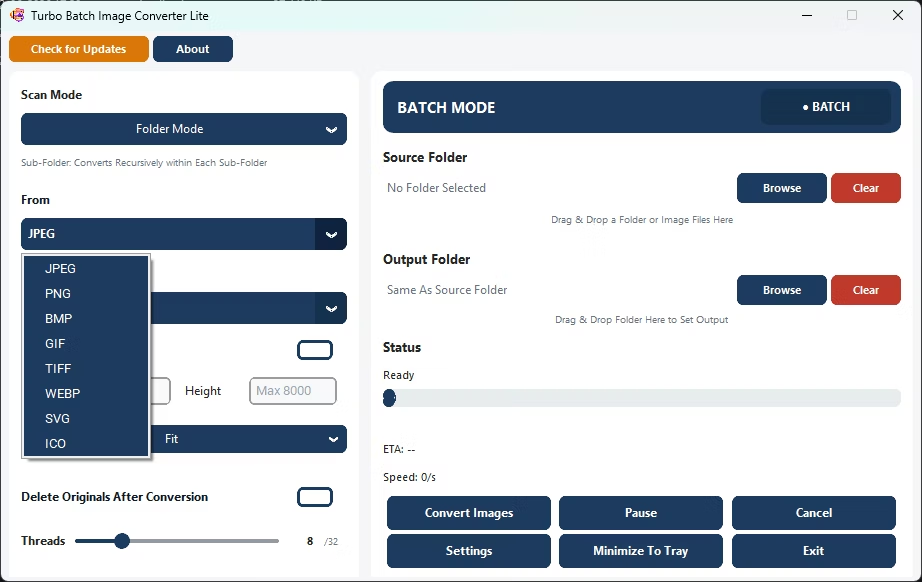
- Set BMP as the "From" format.
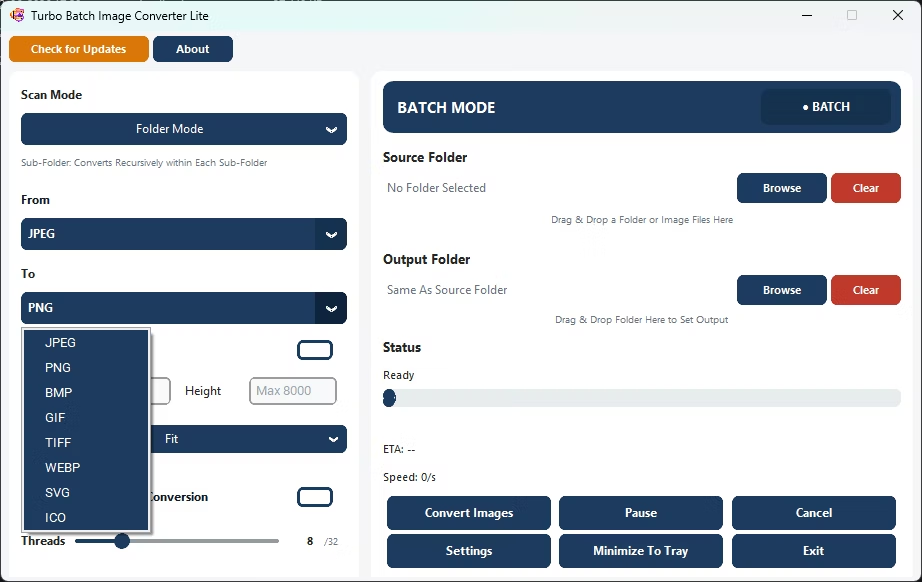
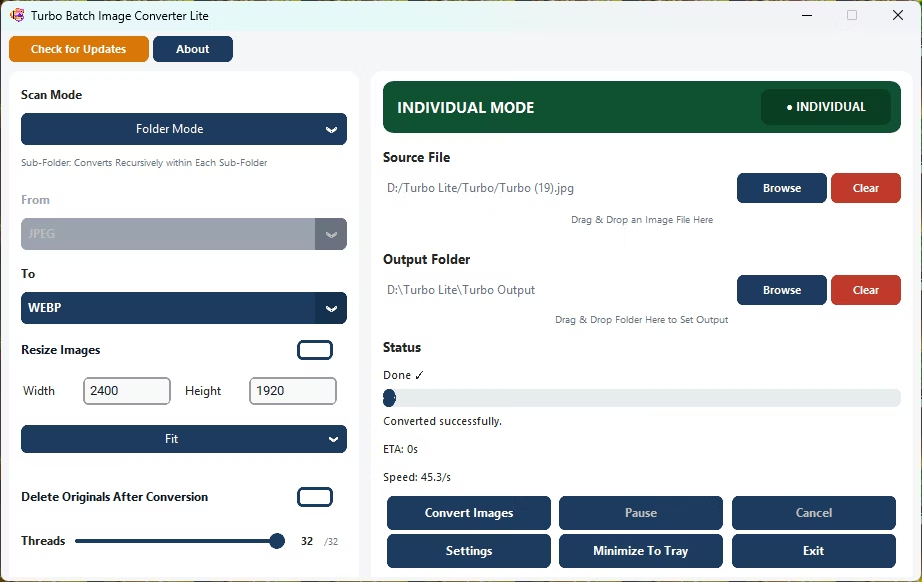
- Choose JPG, PNG, or WebP as your target format.
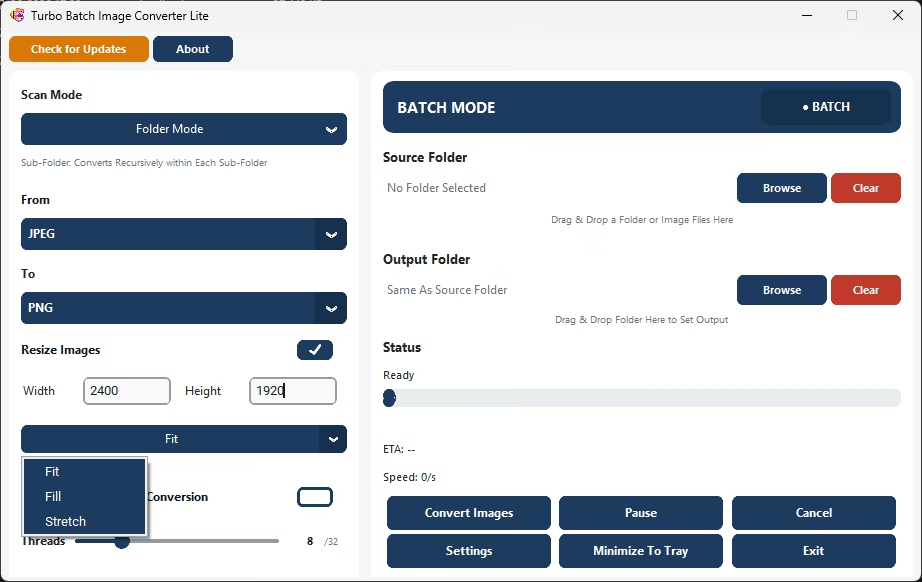
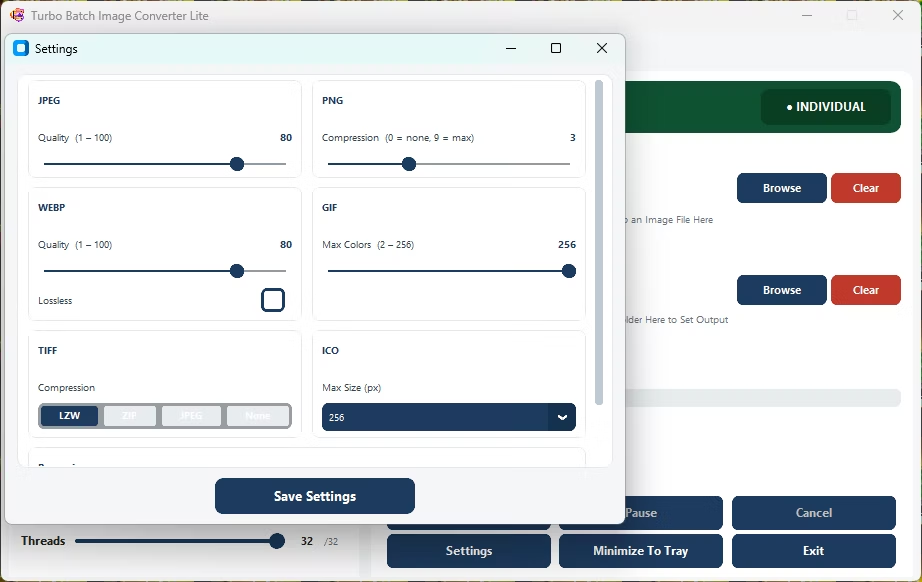
- Adjust the quality slider to balance size against detail.
- Click Convert to shrink the entire folder in one batch.
- Shrinks uncompressed BMP files into far smaller modern formats
- Converts an entire legacy BMP folder in a single batch
- Choose JPG, PNG, WebP, or any other supported output format
- Multi-core processing handles large legacy archives quickly
- Runs fully offline with no file size limits
Why are BMP files so much bigger than JPG or PNG?
BMP typically stores image data with little or no compression, so the same image saved as BMP can be many times larger than the same image saved as JPG or PNG.
Can I batch convert an old folder of BMP screenshots?
Yes, point Batch Mode at the folder and every BMP file will be converted to your chosen output format in one run.
Does converting BMP to JPG lose any image detail?
Some detail loss is possible with JPG's lossy compression, but the quality slider lets you keep it minimal, or choose PNG for lossless output instead.
Ready to batch convert your BMP files into a modern format, fully offline?