A dedicated conversion tool, rather than a general editor pressed into service, is built specifically to move images between formats quickly and consistently across a batch.
Turbo Batch Image Converter Lite is a dedicated batch image format conversion tool for Windows, moving files between JPEG, PNG, WebP, GIF, BMP, TIFF, SVG and ICO quickly, entirely offline.
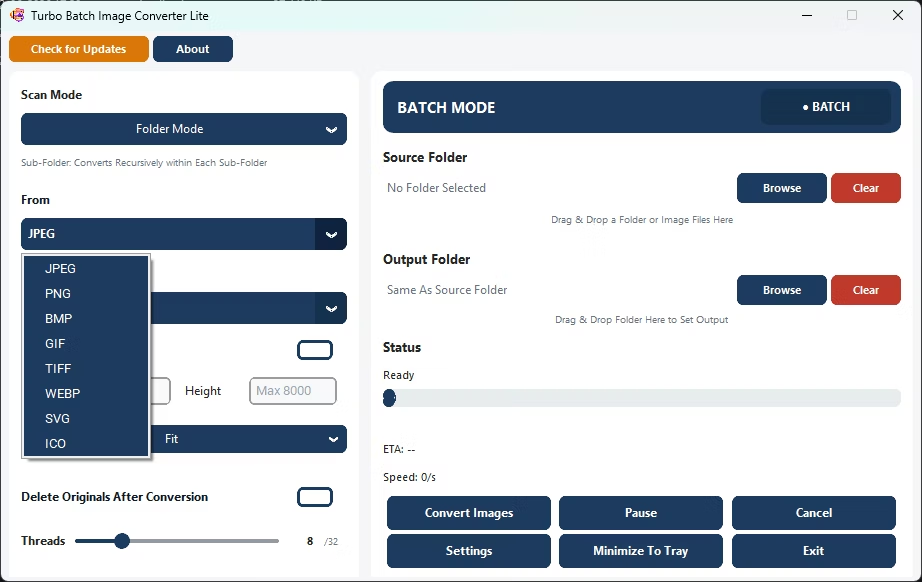
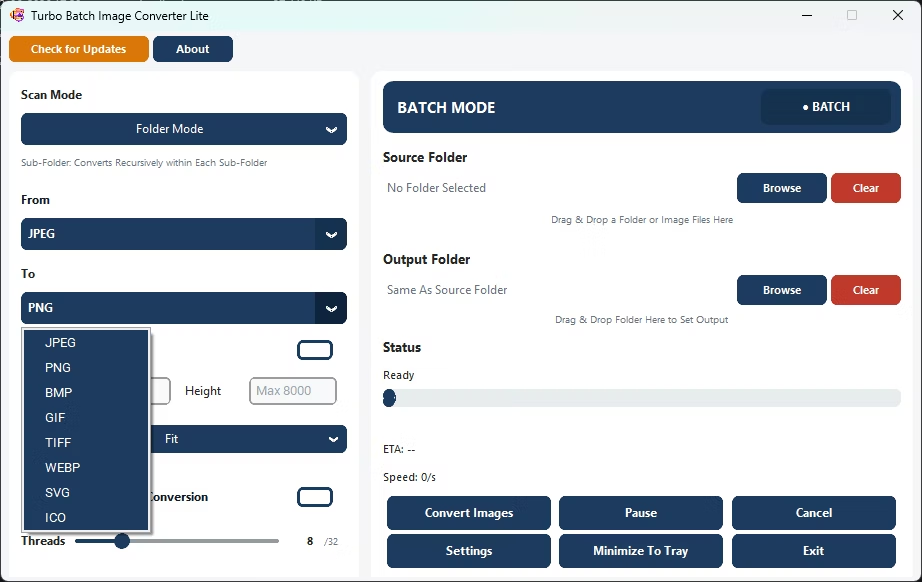
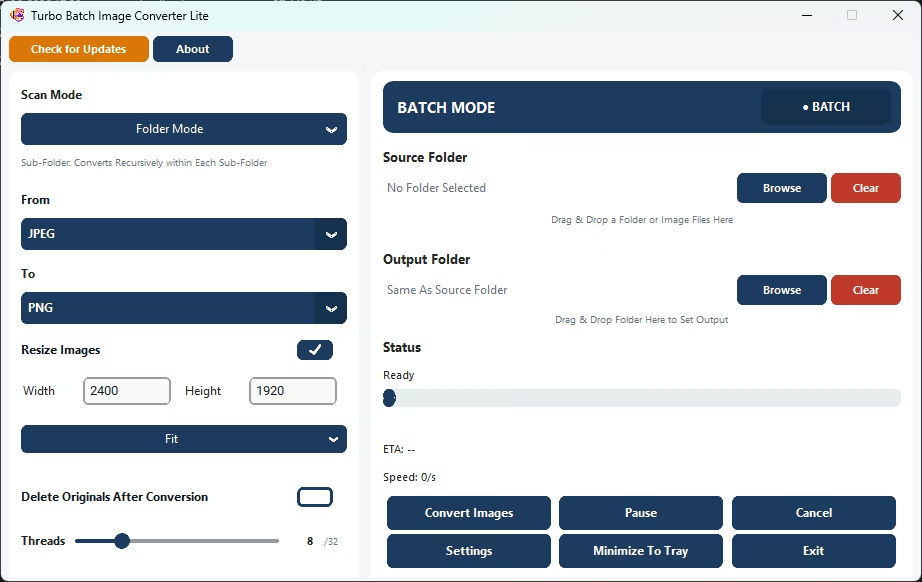
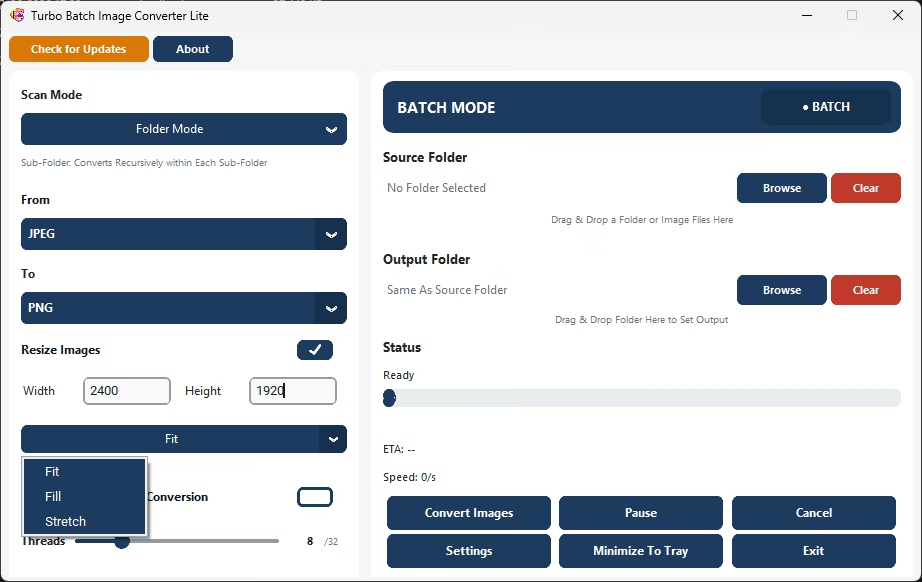
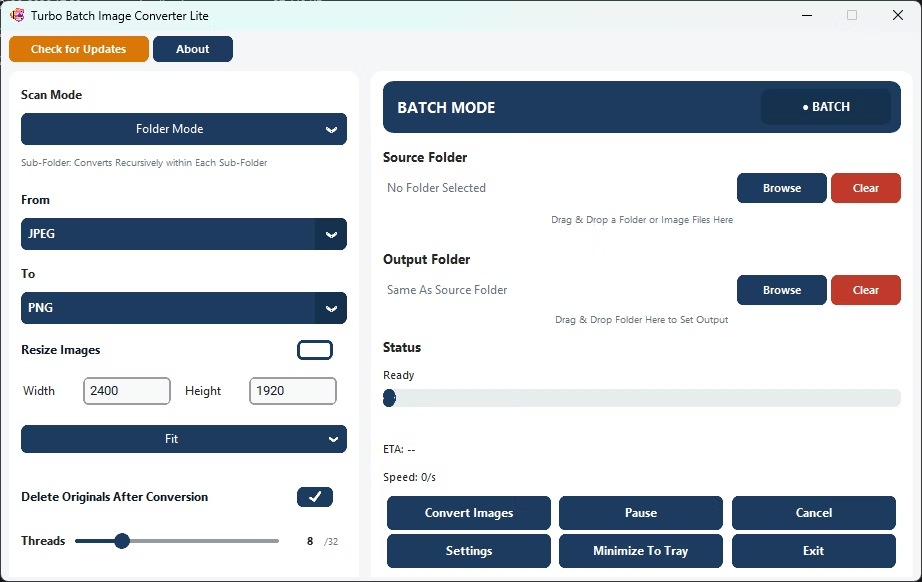
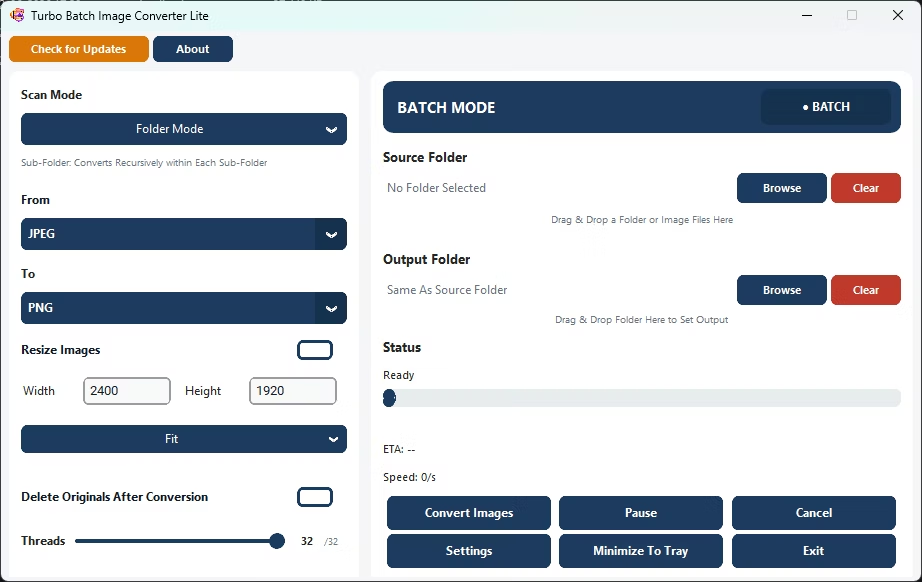
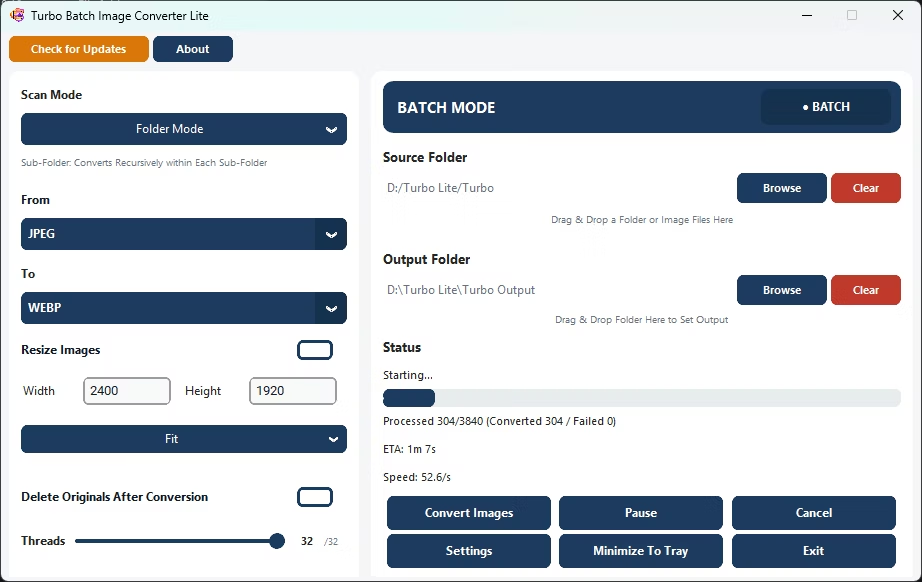
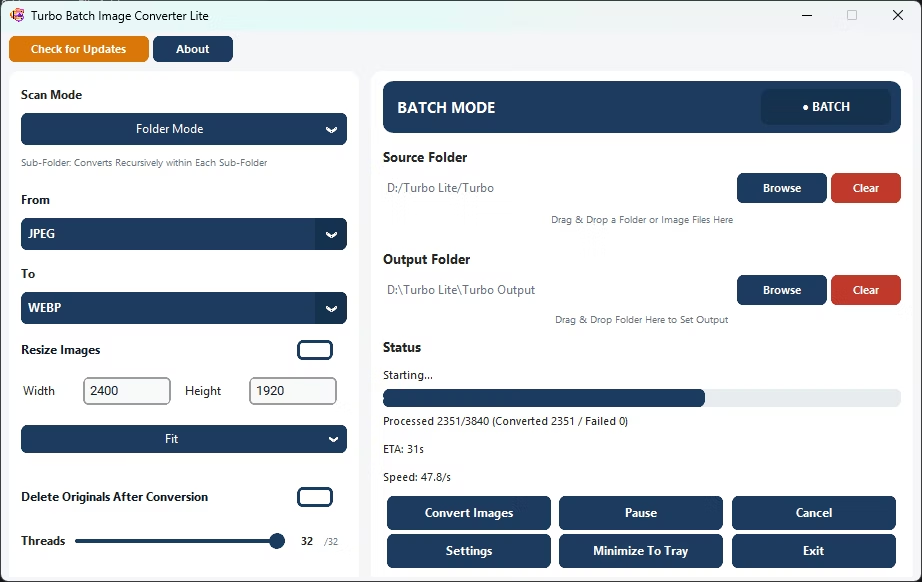
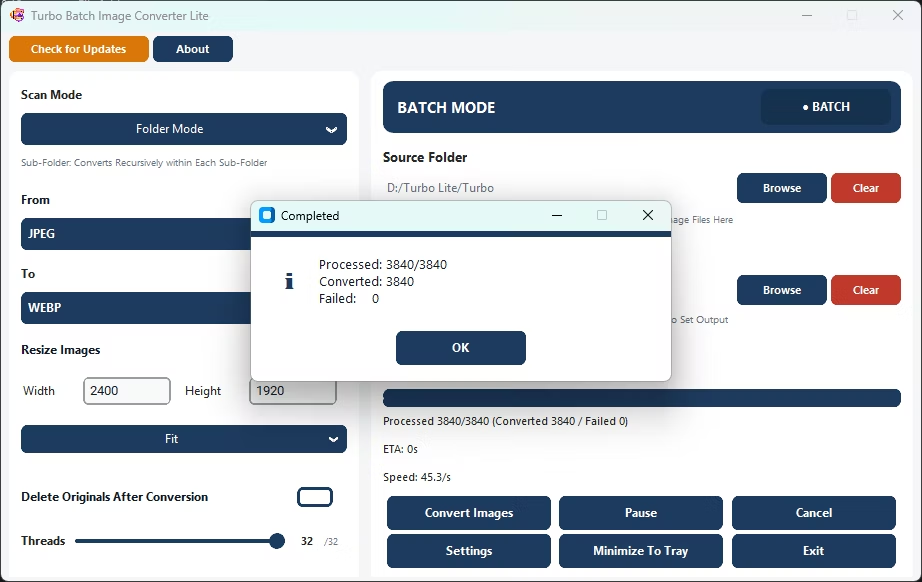
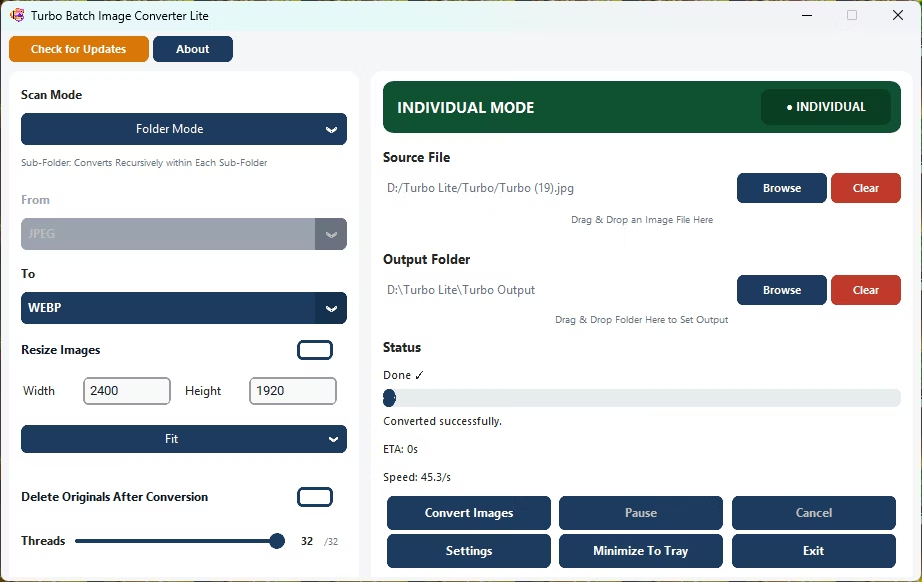
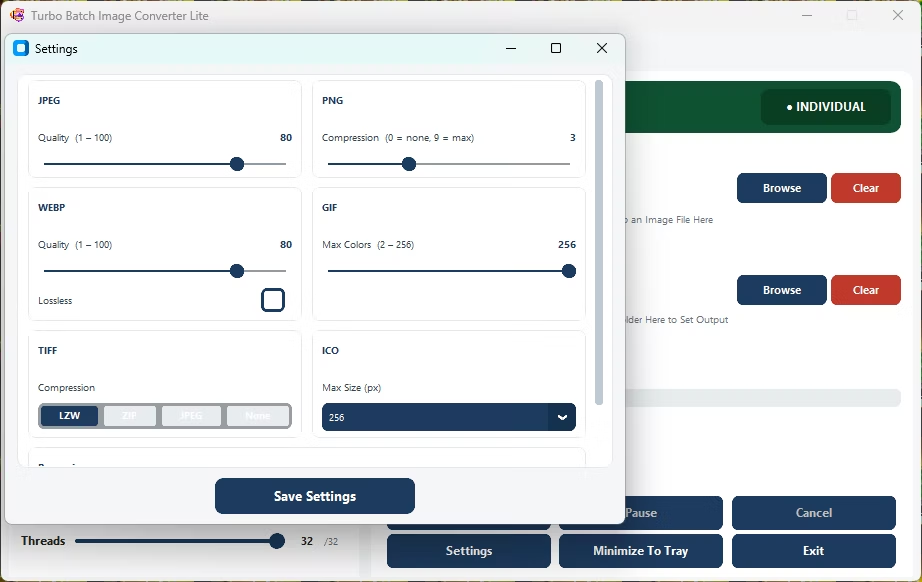
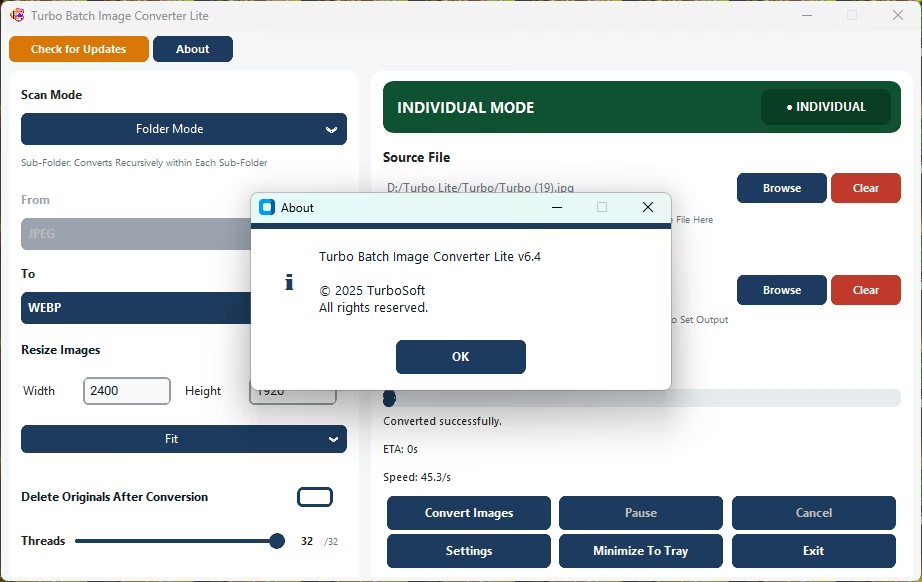
- Install Turbo Batch Image Converter Lite on your Windows PC.
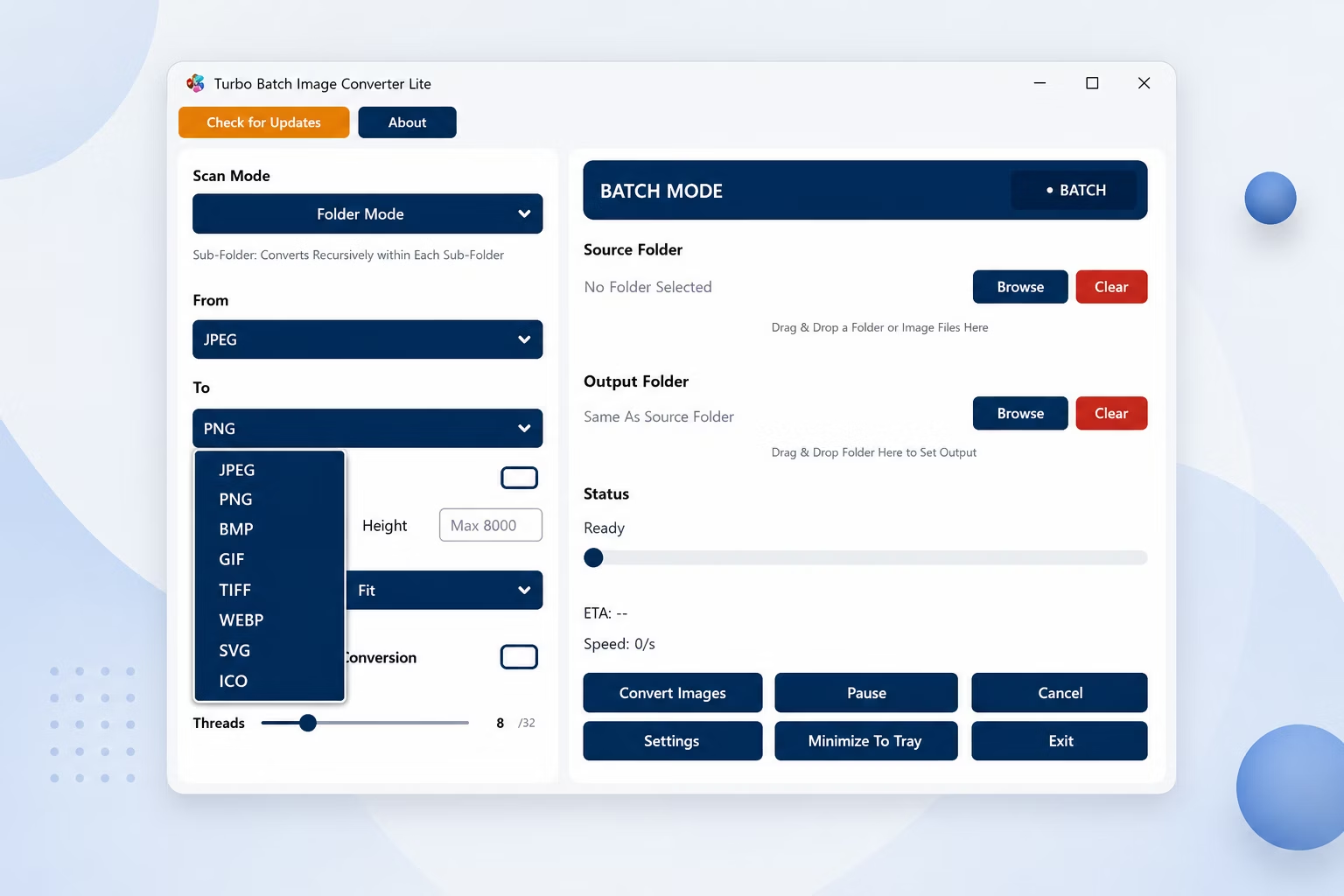
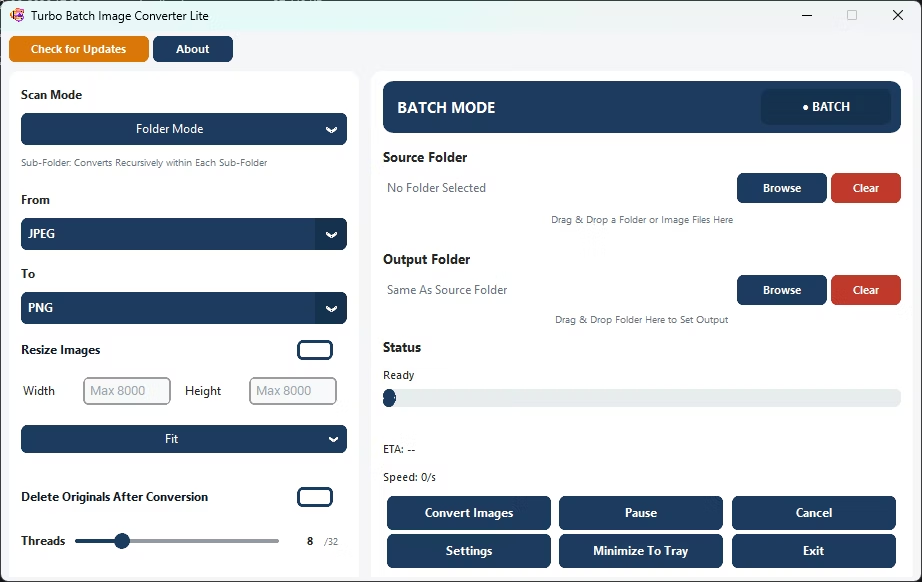
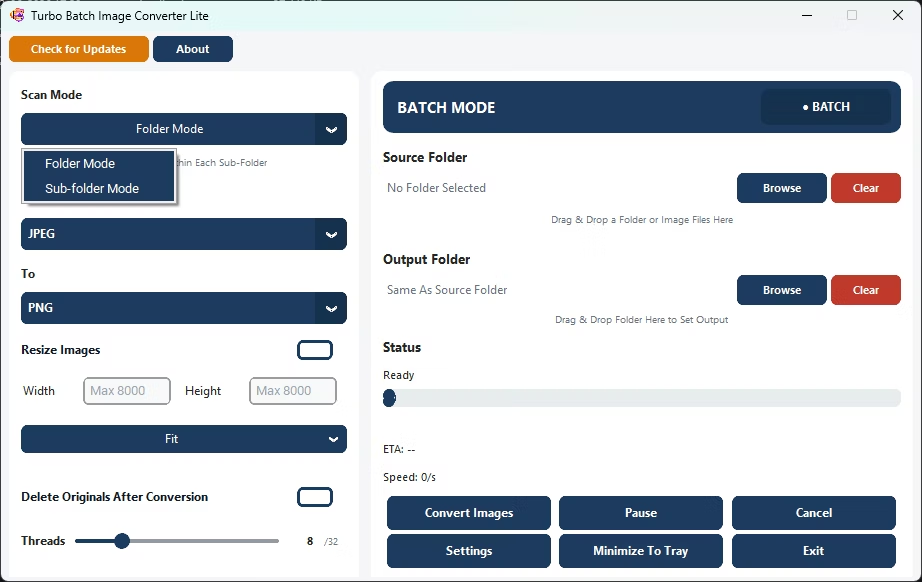
- Open Batch Mode and select your image folder.
- Set your source and target formats.
- Adjust quality or resize settings as needed.
- Click Convert to run the tool across your entire batch.
- Find your converted images in the output folder.
- Purpose-built for fast, consistent format conversion
- Covers 8 everyday formats
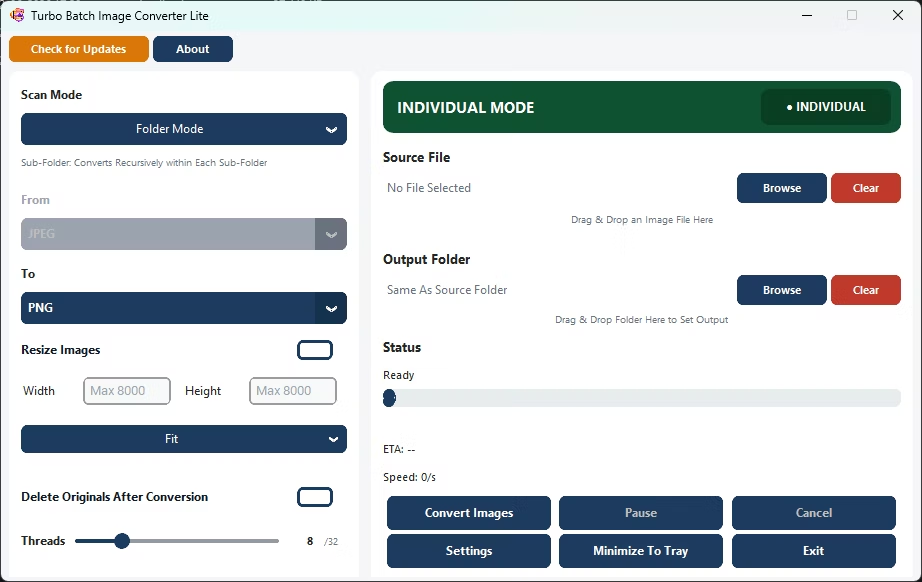
- Works on a single file or an entire batch
- Runs fully offline with no upload limits
- Multi-core engine scales up to 32 parallel workers
How is a dedicated tool different from a general photo editor?
A dedicated conversion tool is built specifically for moving files between formats quickly and consistently across a batch, rather than as a side feature of a broader editor.
Can I use it for a single file as well as a batch?
Yes, Single Mode handles one file at a time, while Batch Mode processes an entire folder.
Is the tool fast for everyday conversion jobs?
Yes, its multi-threaded engine scales up to 32 parallel workers for quick processing.
Ready to convert your images quickly with a dedicated conversion tool?