Select Files or Folder
You can add files to Turbo Renamer in multiple convenient ways:
- Drag & Drop files or an entire folder directly into the application window
- Or click Browse to manually select files or a directory from your system
Turbo Renamer instantly loads and displays all selected files in the preview panel with their current filenames.
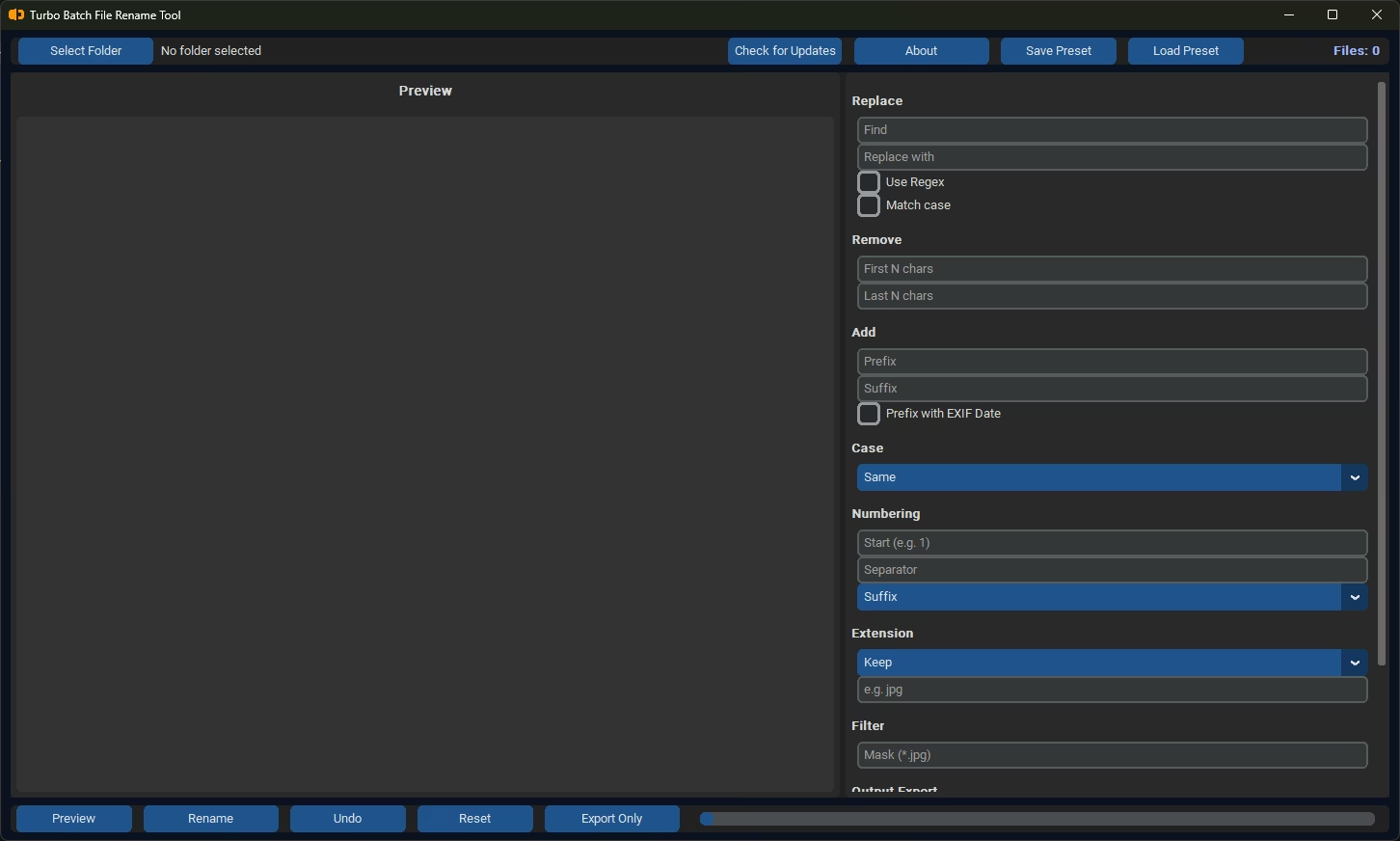
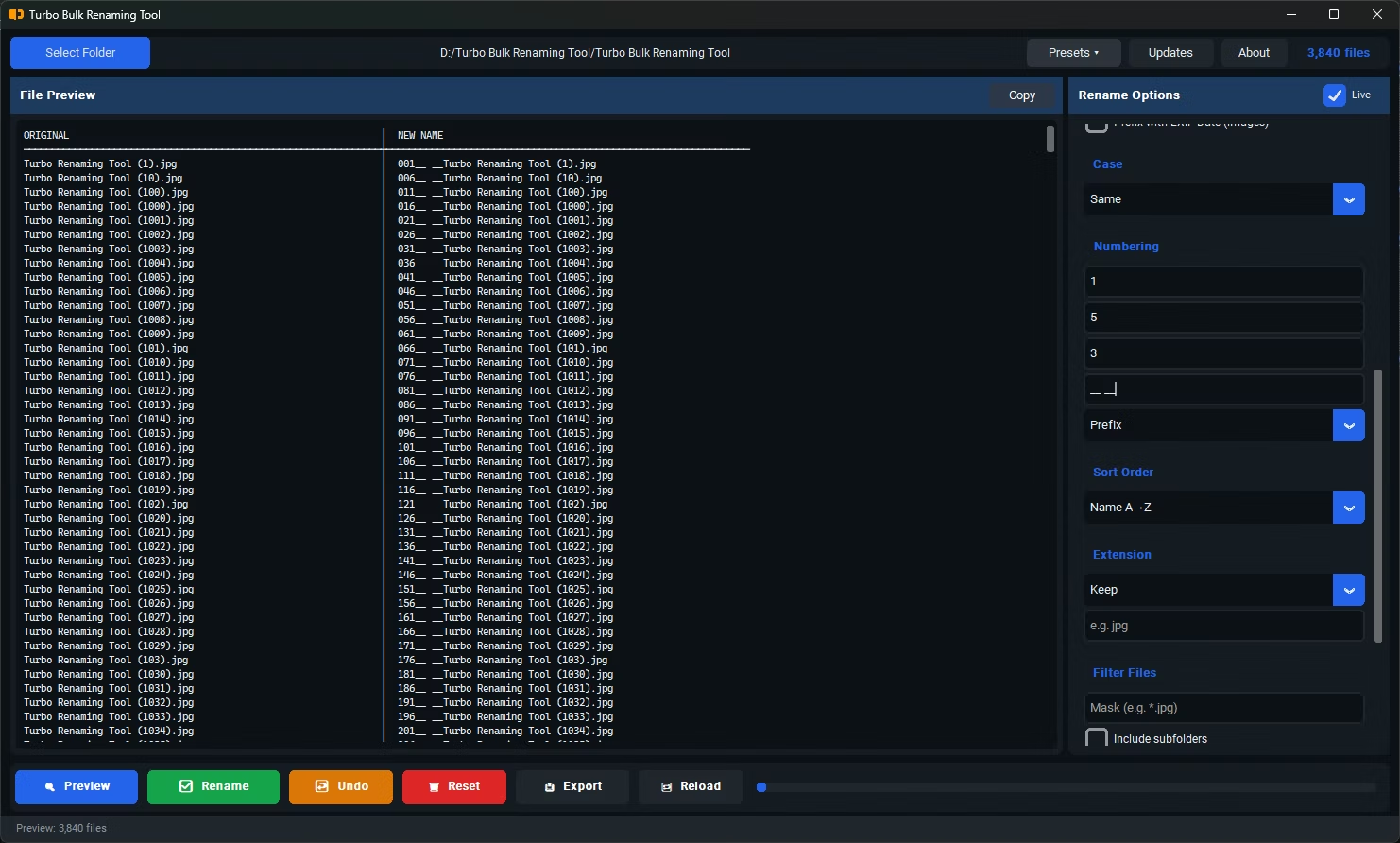
Choose Your Renaming Rules
Select one or more renaming rules to apply. Multiple rules can be combined for advanced workflows:
Each rule updates the live preview instantly so you can verify results before applying.
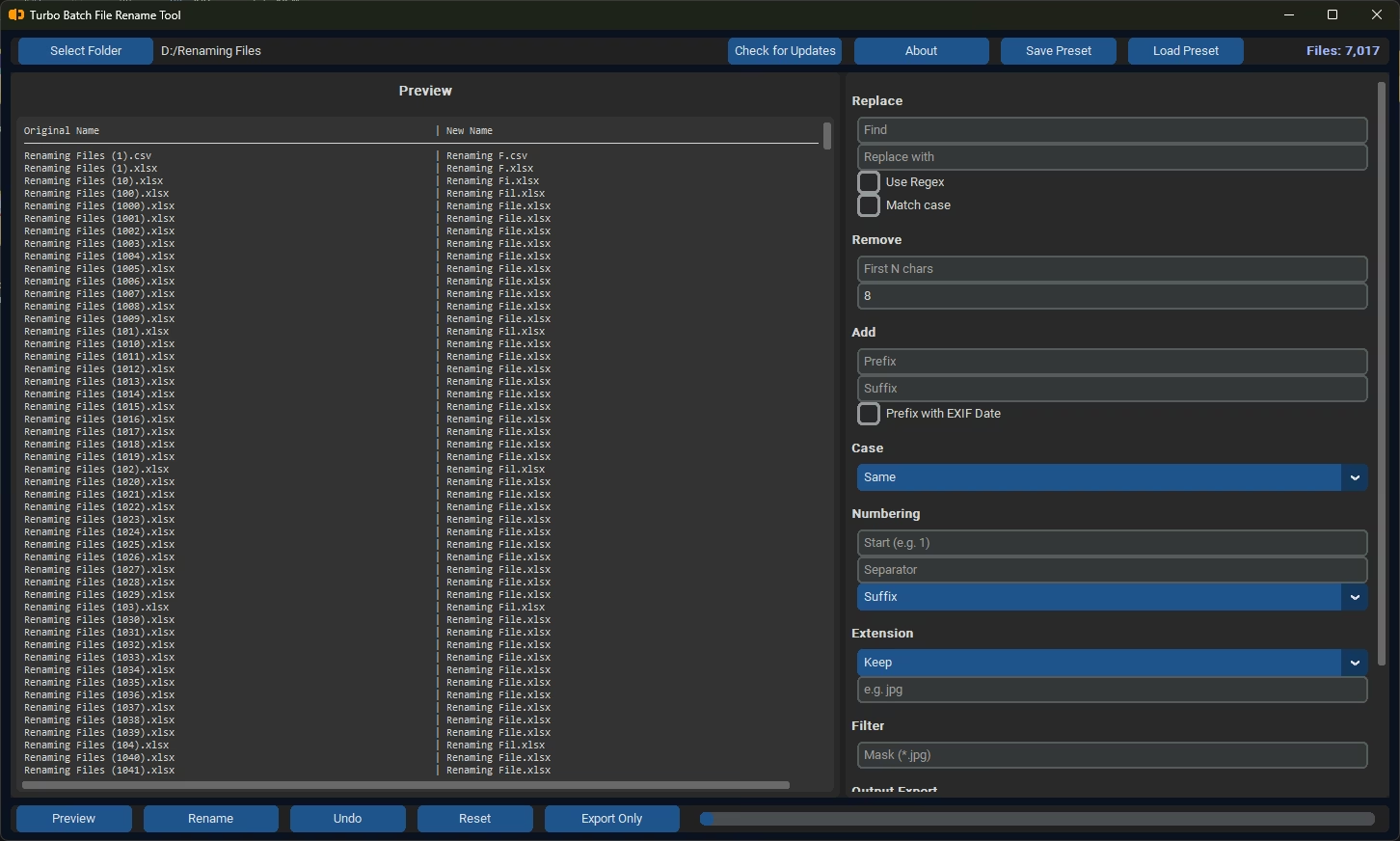
Preview Changes in Real-Time
Turbo Renamer provides a live preview before applying any changes:
- View original filenames alongside new filenames side by side
- Instantly detect mistakes, conflicts, or unexpected patterns
- Modify rules and see updates reflected in the preview immediately
This ensures complete accuracy before executing the rename operation on your files.
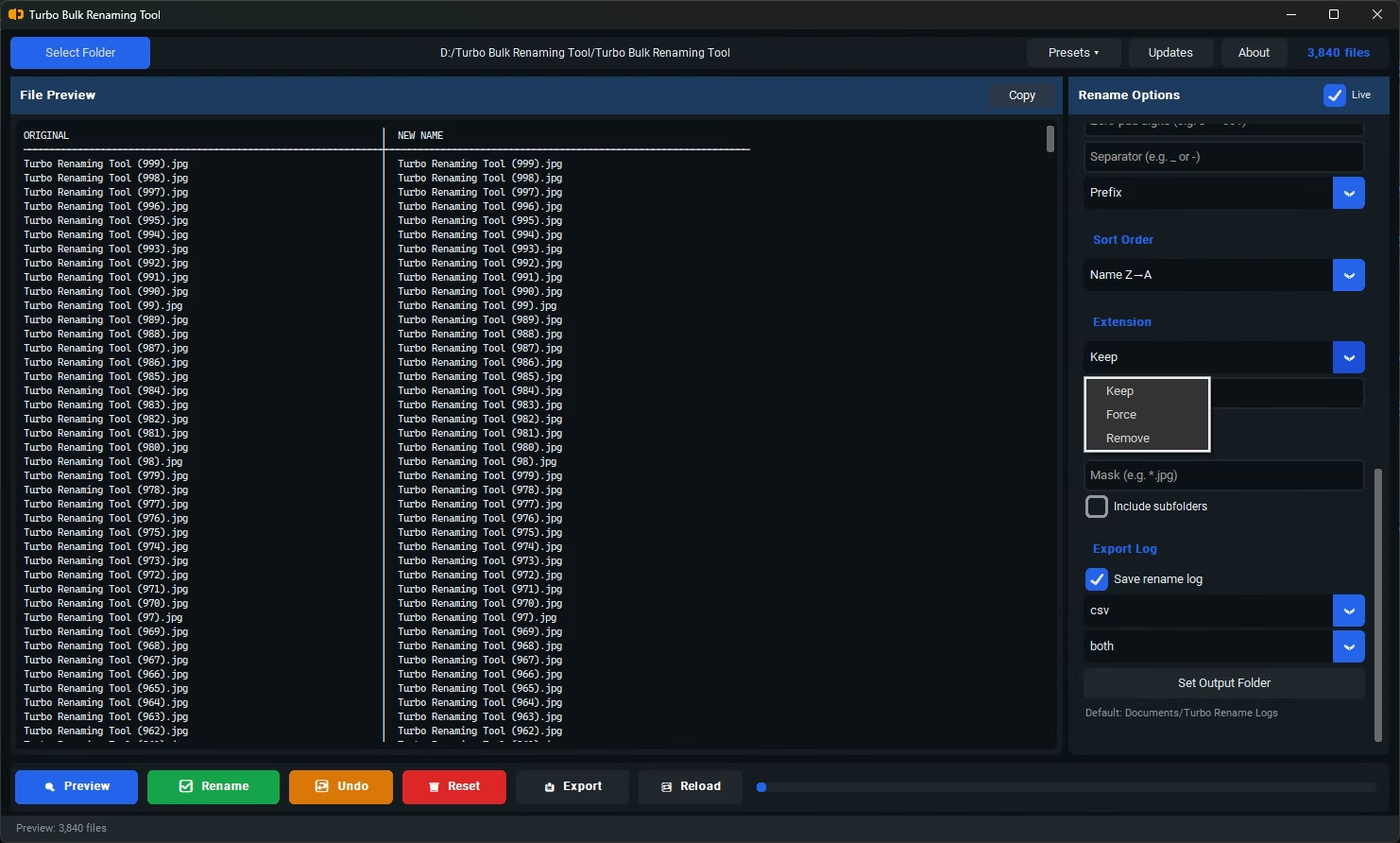
Handle File Extensions
Control how file extensions are treated during the rename operation:
- Keep original extensions unchanged (recommended for most workflows)
- Force a specific extension across all files if needed
- Prevent accidental changes to file types that could break file associations
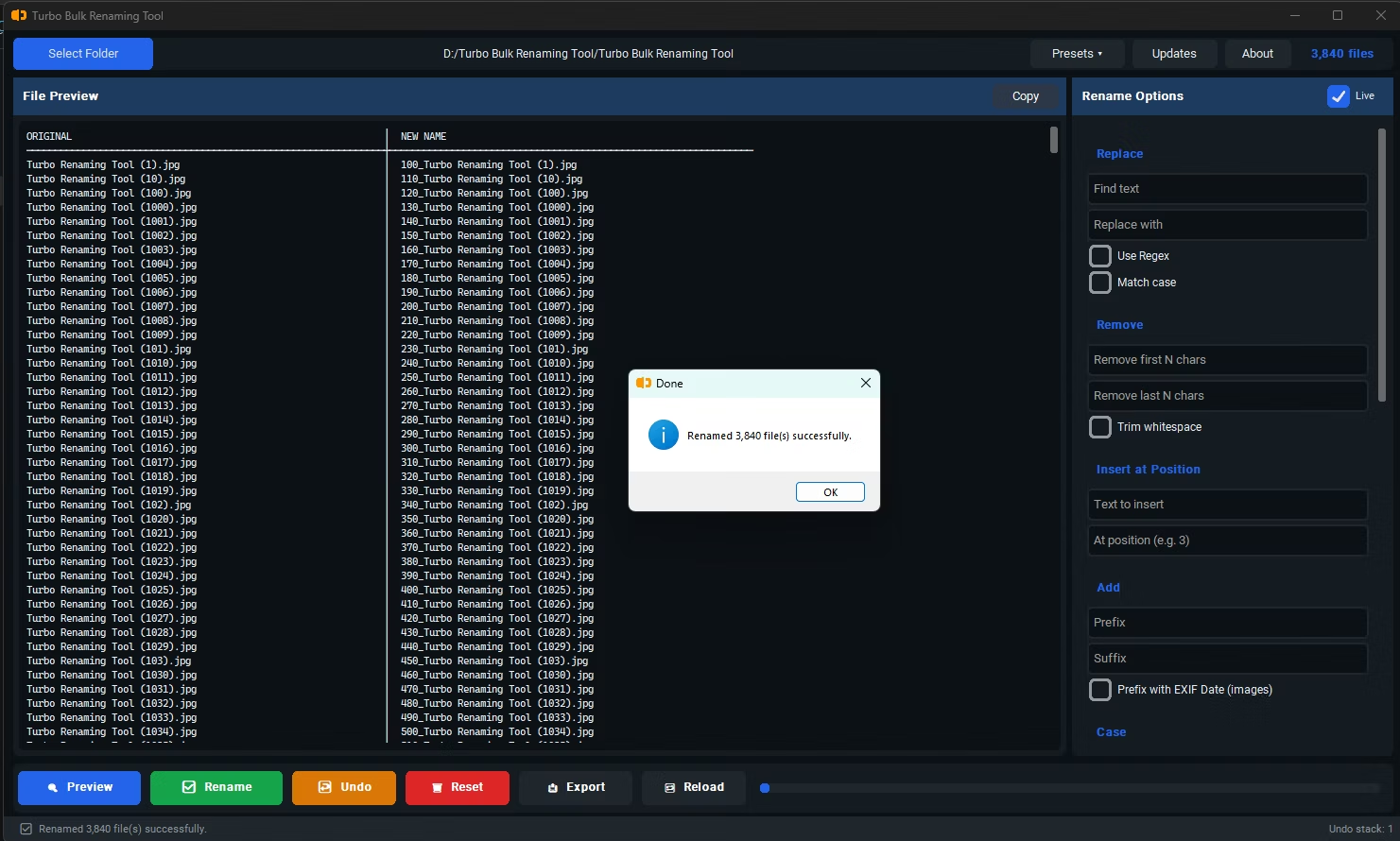
Click Rename
Once everything is configured and the preview looks correct, click the Rename button:
- Turbo Renamer renames all files instantly and safely
- A two-step engine prevents filename collisions and duplicate conflicts
- Progress and status updates are shown in real time
- Any errors are handled without interrupting the remaining batch
Output File Generation & Results Log
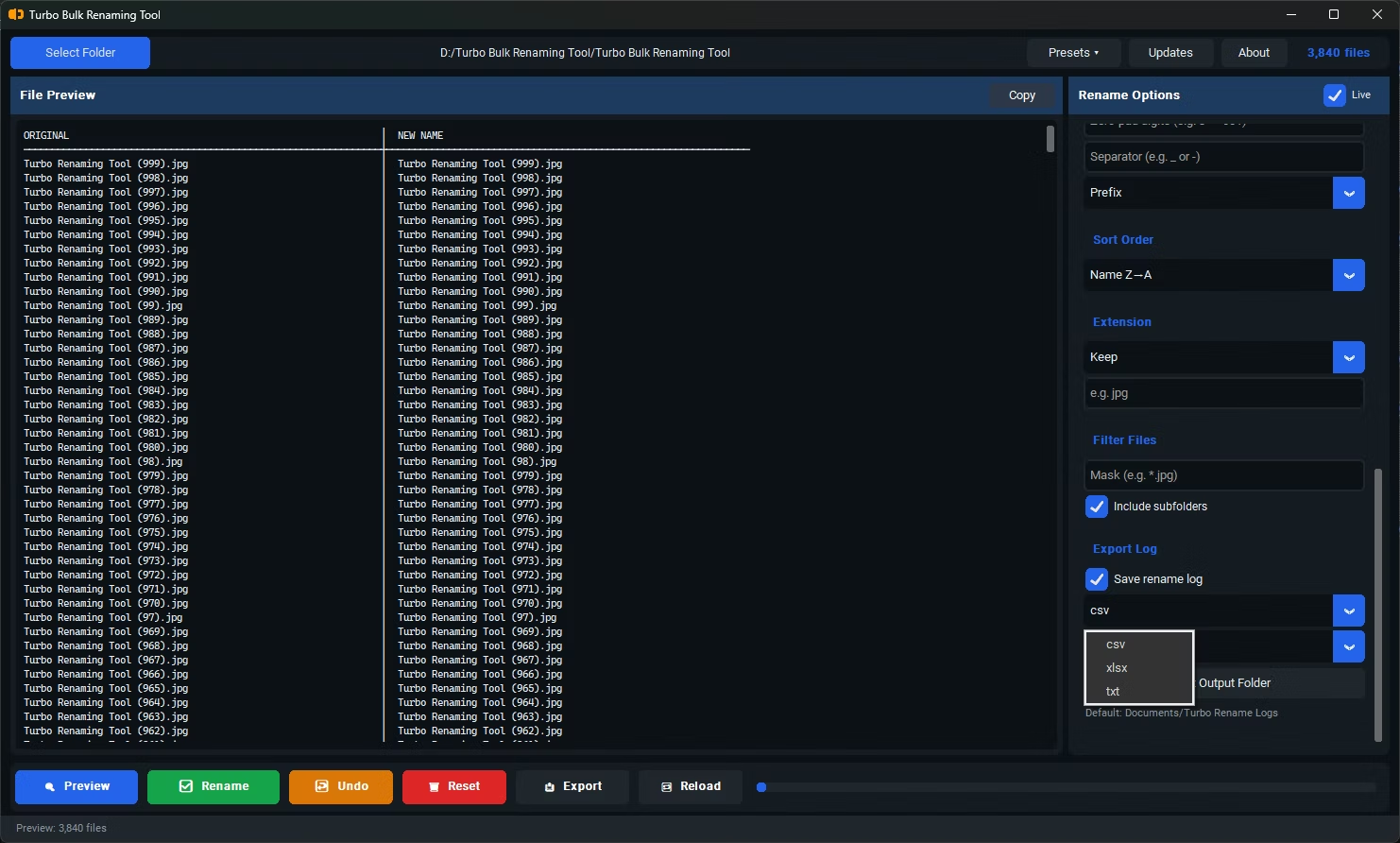
After the renaming process completes, generate a structured output log for audit or reference:
- Export as CSV — for spreadsheet import and data processing
- Export as XLSX — for sharing with teams or compliance records
- Export as TXT — lightweight plain-text log for scripts or pipelines
The log lists all original filenames alongside their new names, plus any files that were skipped or encountered errors.
What Happens Next
✓ Original folder structure and file integrity are preserved
✓ Any skipped or conflicted files are reported
✓ Turbo Renamer ensures a fast, reliable, and predictable renaming experience