SVG is a vector format that scales cleanly to any size, which is great for logos and icons, but many platforms, presentation tools, and photo viewers expect a raster format like JPG instead. Converting SVG to JPG rasterizes the vector graphic at a fixed resolution, producing a standard image file that opens everywhere without needing SVG support.
This is a common need when preparing graphics for platforms that don't render SVG properly, or when you need a flattened, fixed-size version of a vector design for sharing or embedding elsewhere. Doing this for a whole batch of SVG files at once saves significant time over converting them individually.
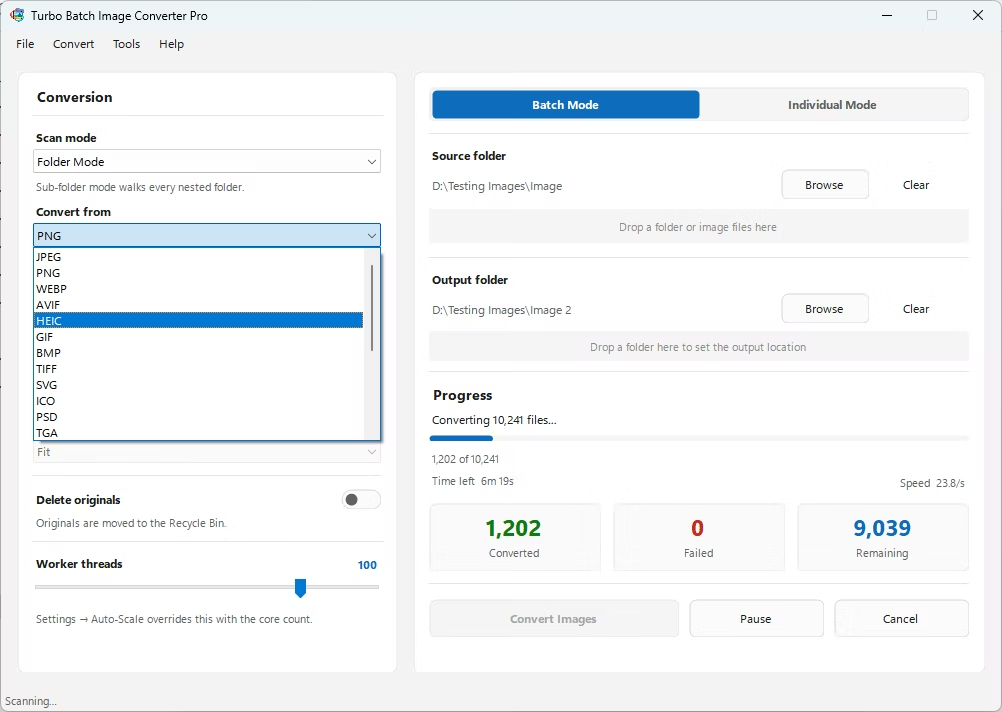
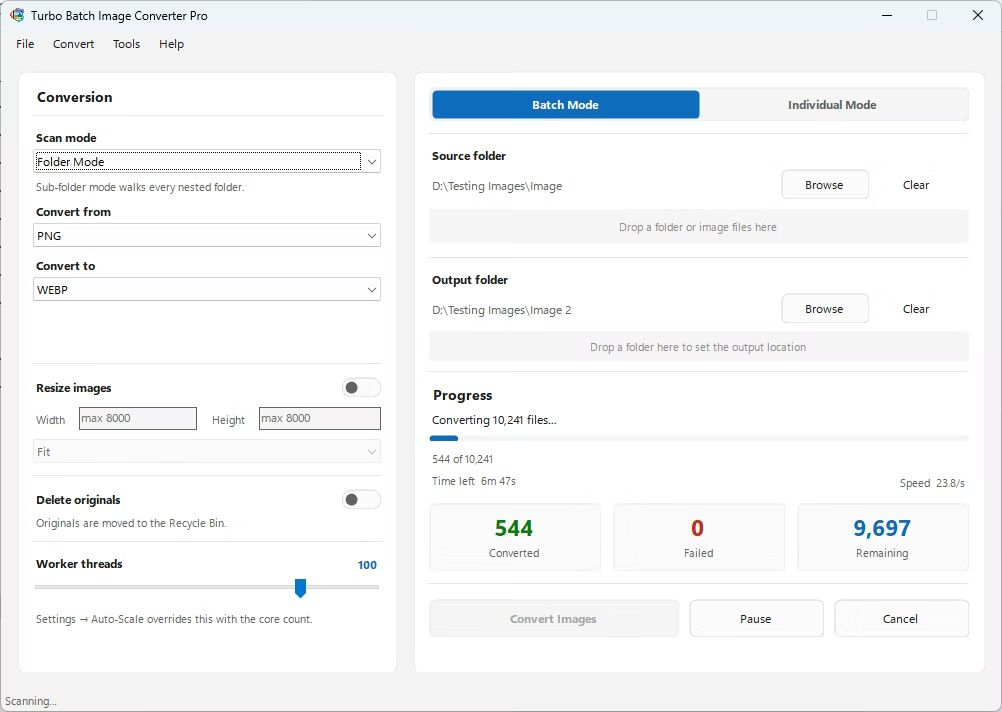
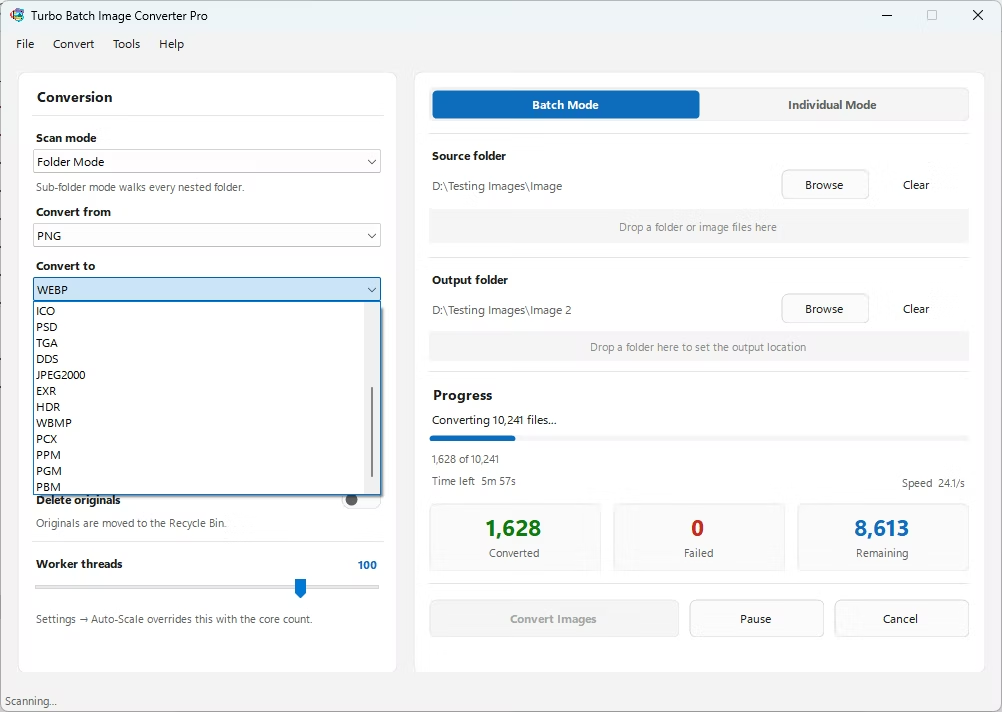
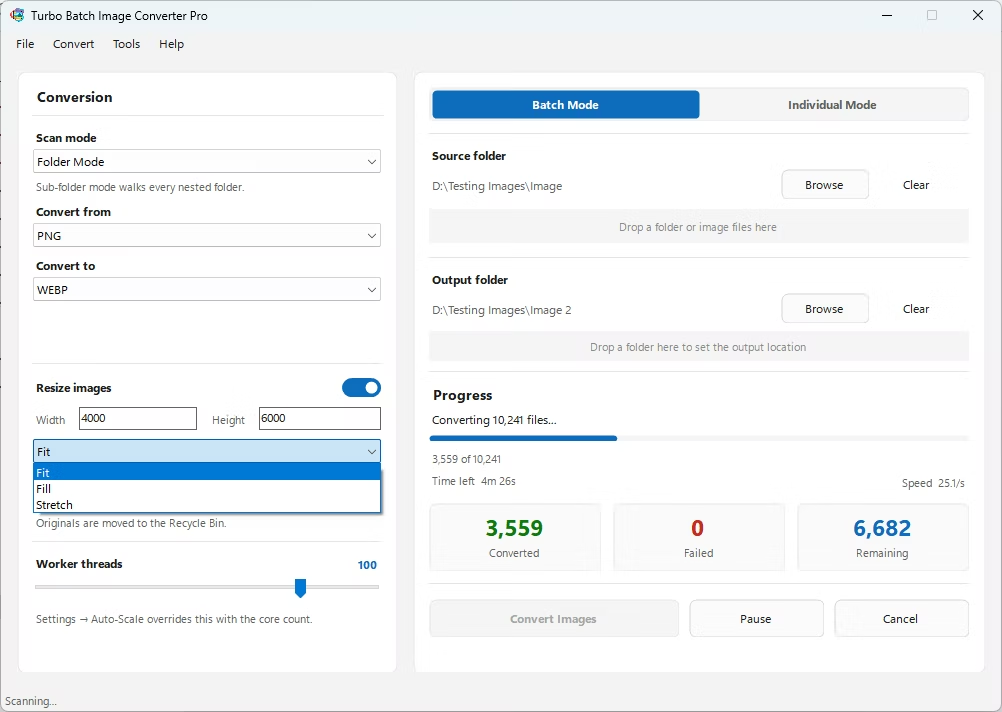
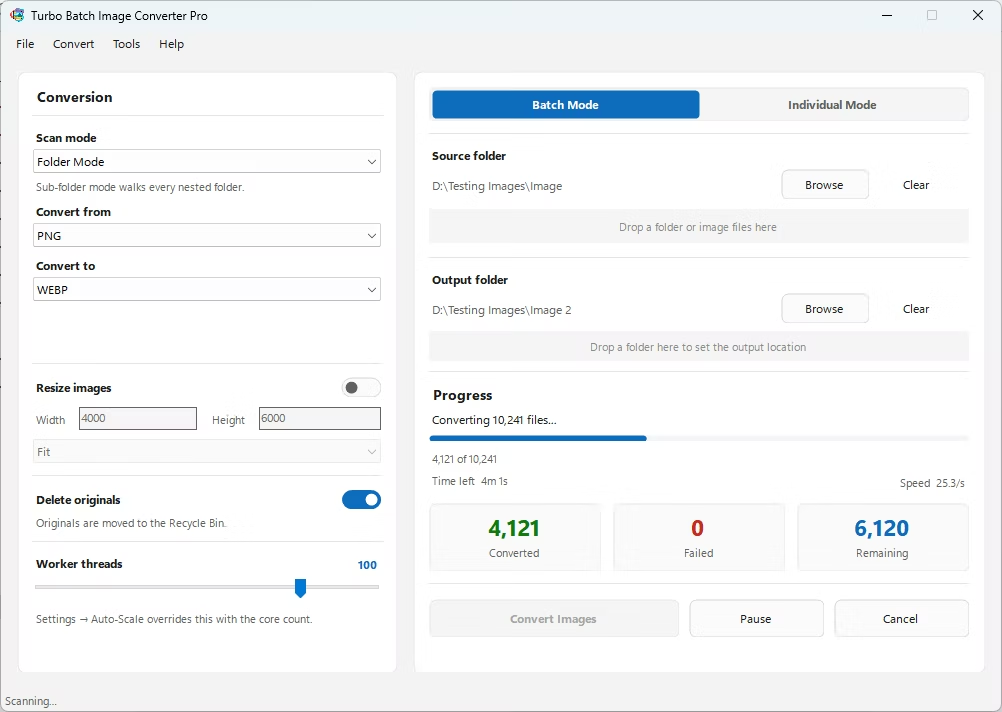
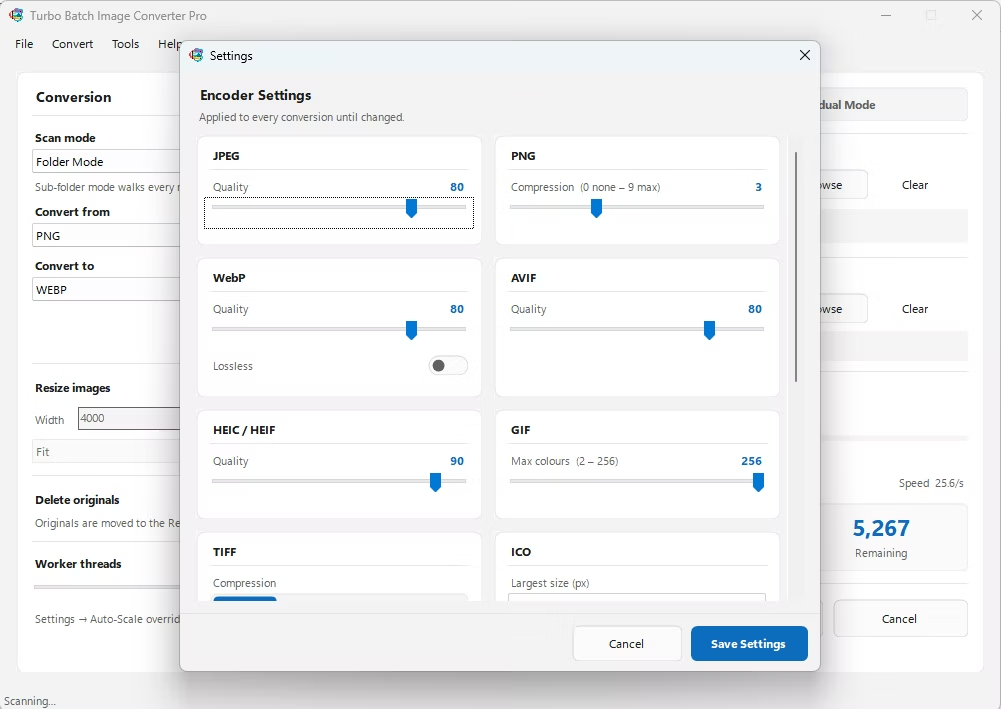
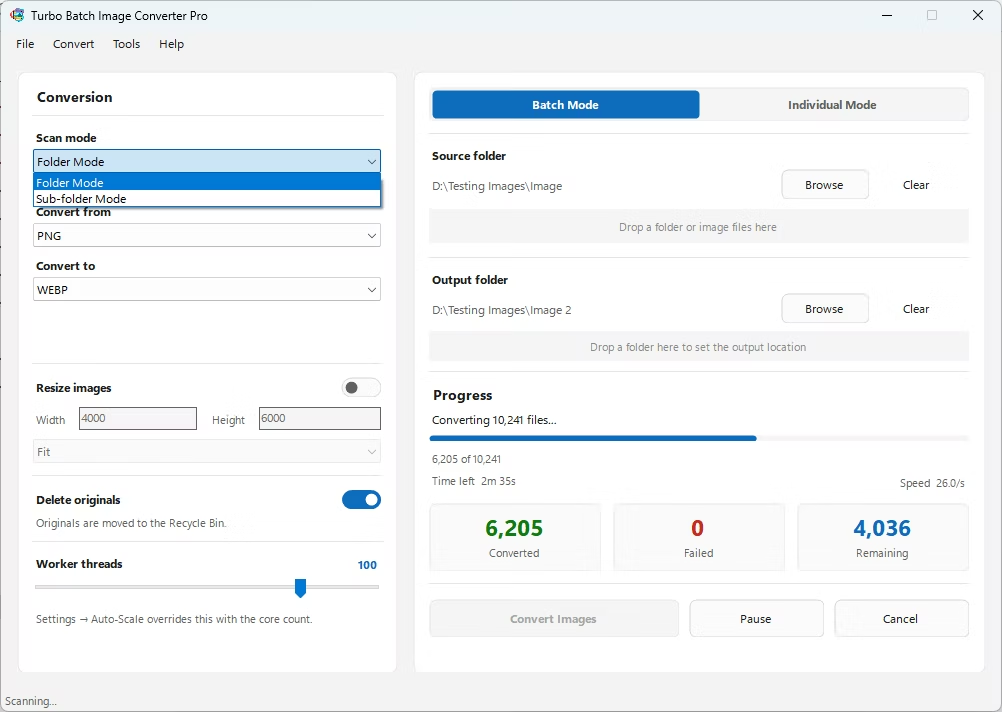
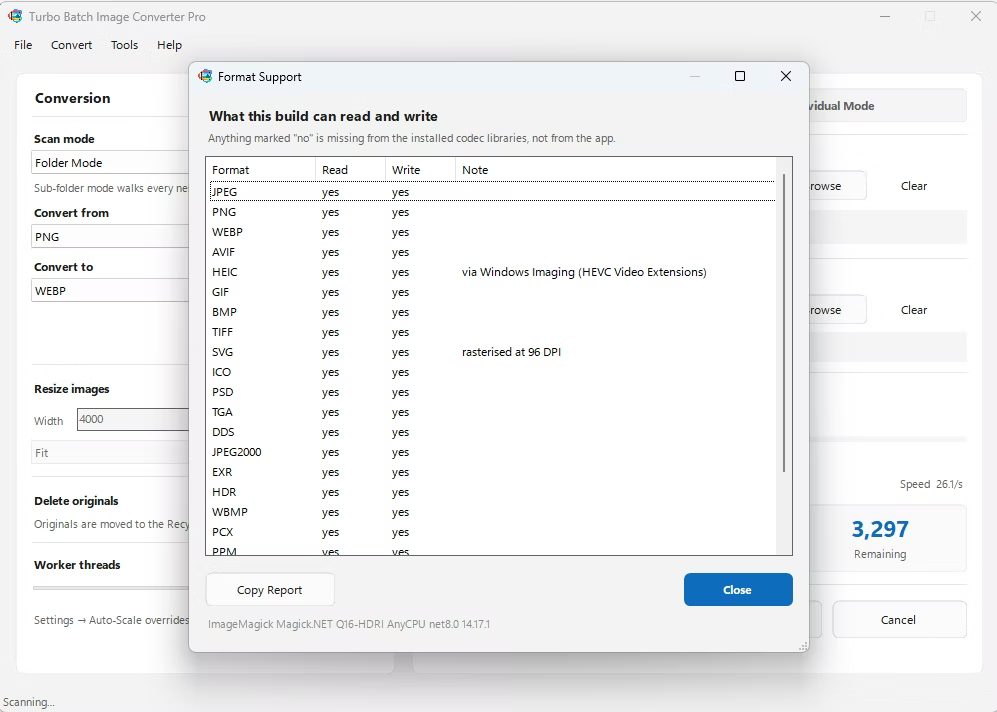
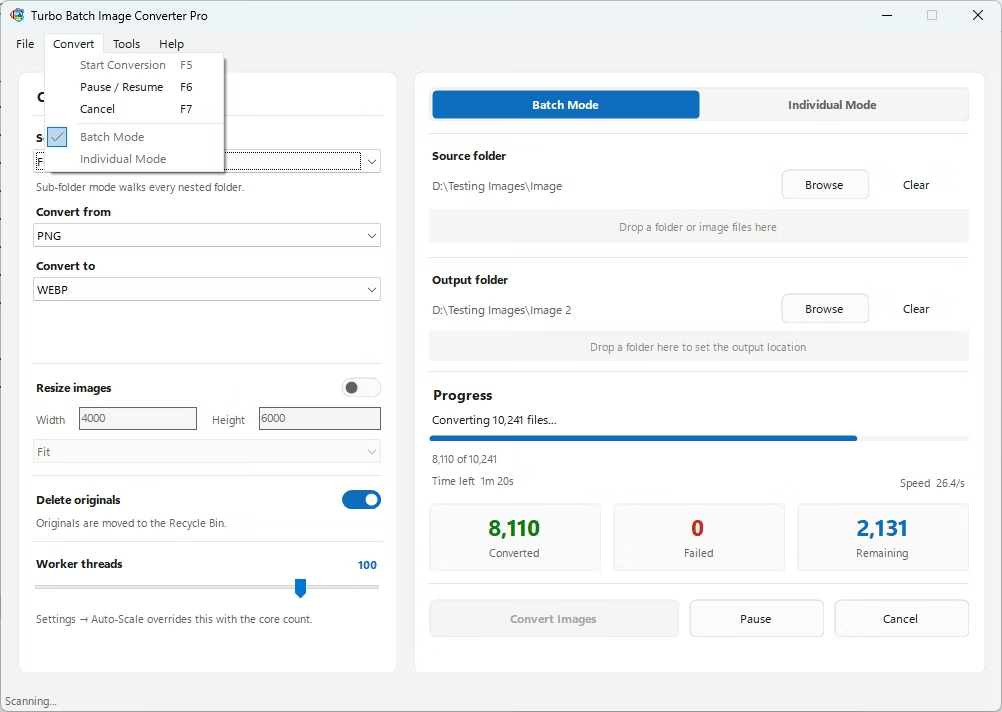
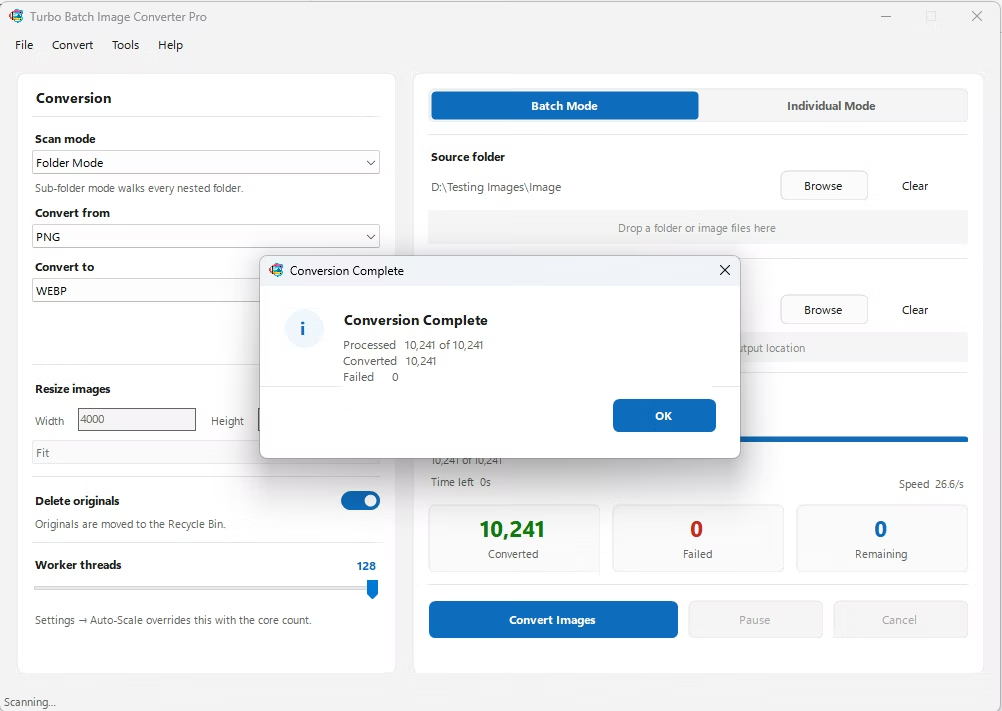
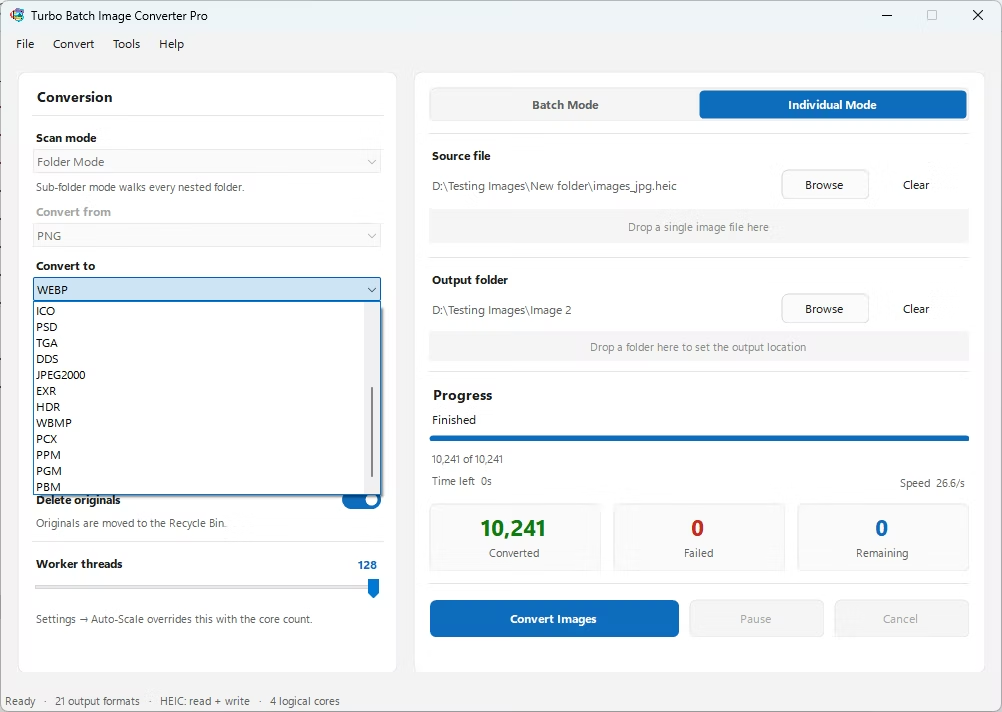
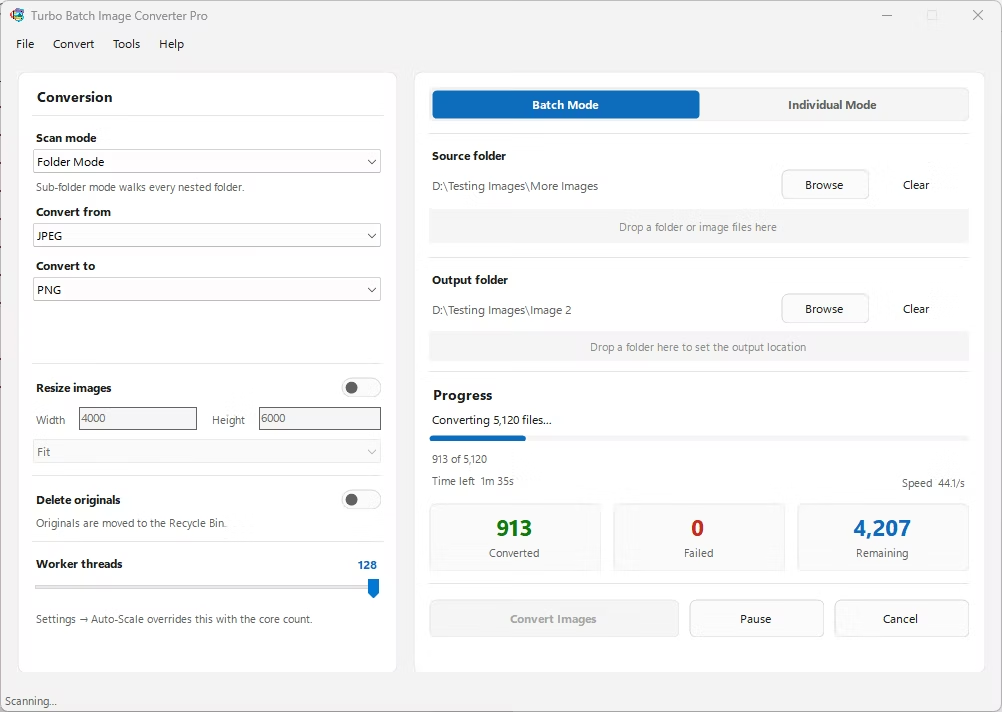
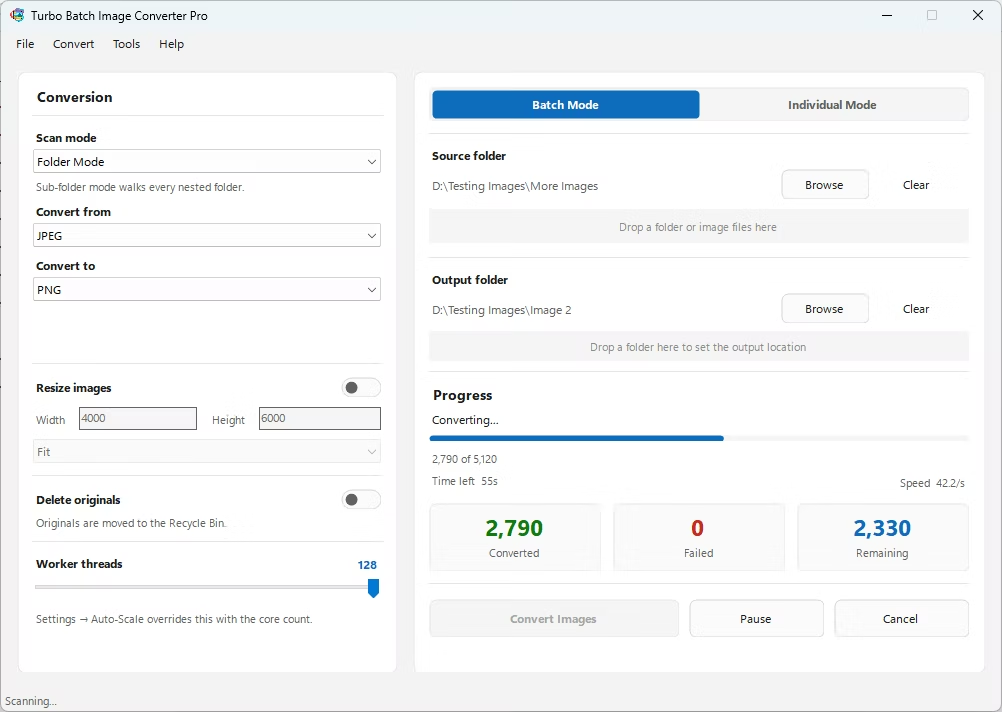
- Install Turbo Batch Image Converter Pro on your Windows PC.
- Open the app and select Batch Mode for multiple files, or Individual Mode for a single SVG.
- Drag your SVG file or folder into the app window, enabling recursive folder scanning if needed.
- Set the "From" format to SVG and the "To" format to JPG.
- Set your desired output resolution, since SVG has no fixed pixel size until rasterized.
- Click Convert. Your JPG files are written to the output folder, fully offline.
- 100% offline — your design files are never uploaded anywhere
- Bulk conversion of entire folders, including sub-folders, in one click
- Control over output resolution when rasterizing vector graphics
- Multi-core processing for fast handling of large batches
- Option to delete original SVG files automatically after conversion
- No recurring subscription or hidden upload limits
Will my SVG stay scalable after converting to JPG?
No, JPG is a raster format with a fixed pixel size, so the resulting image will lose the infinite scalability that made SVG useful in the first place. Choose your output resolution based on your largest intended use case.
Why would I need to convert SVG to JPG?
Some platforms, presentation software, or photo viewers don't support SVG natively, so converting to JPG ensures the graphic displays correctly everywhere.
Can I batch-convert many SVG files to JPG at once?
Yes, Batch Mode handles entire folders, including nested sub-folders, in a single conversion run.
Ready to convert your images offline, in bulk, with full privacy?