Renaming multiple files at once means applying a single rule — or a sequence of rules — to an entire group of selected files in one operation, rather than opening and editing each filename individually. The specific rule you need depends on what you're trying to achieve: adding consistent text, fixing inconsistent formatting, removing unwanted characters, or numbering files in order.
A bulk renaming tool brings all of these options together in one place, so whichever transformation you need, you select your files once, choose a rule, and apply it across the whole group.
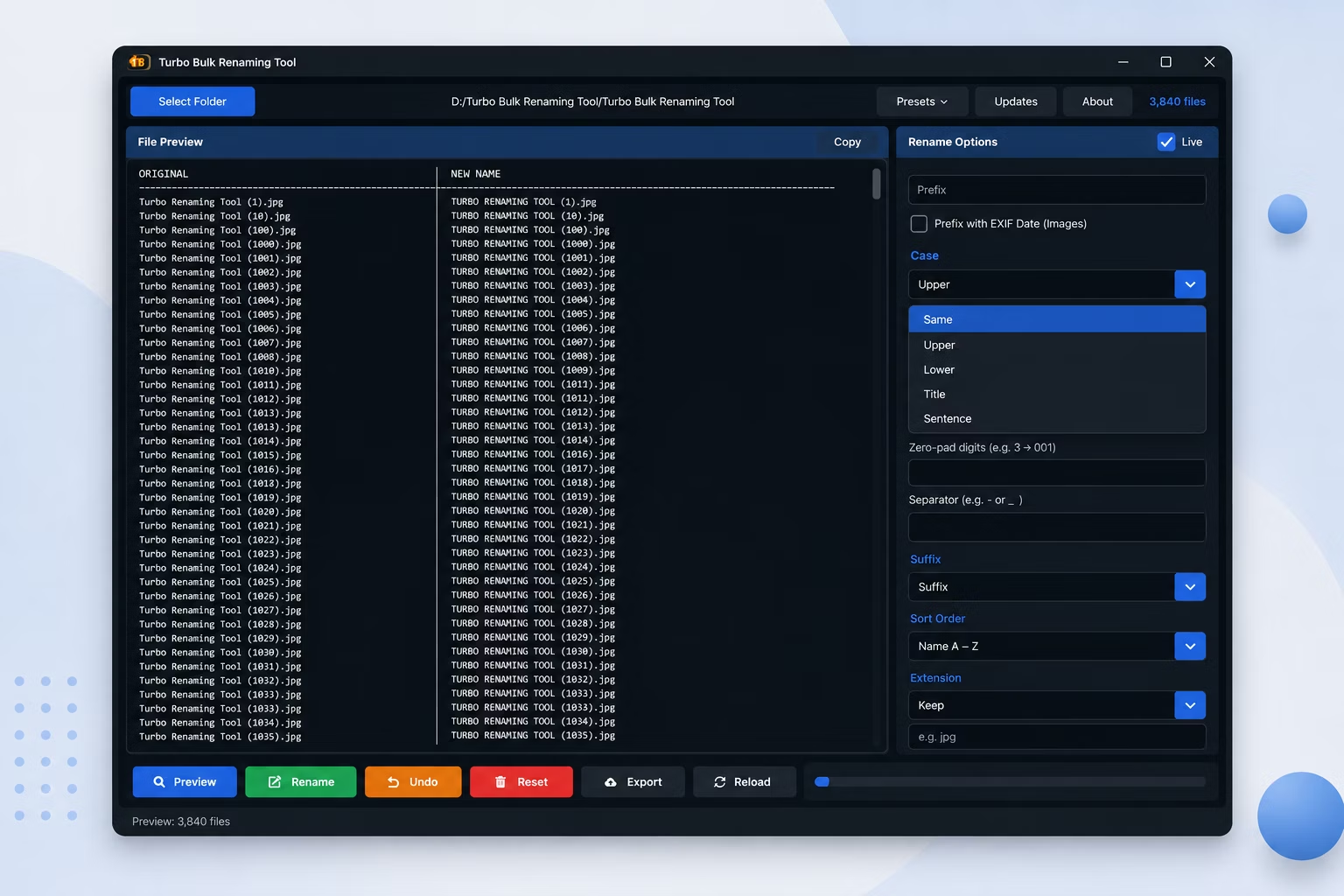
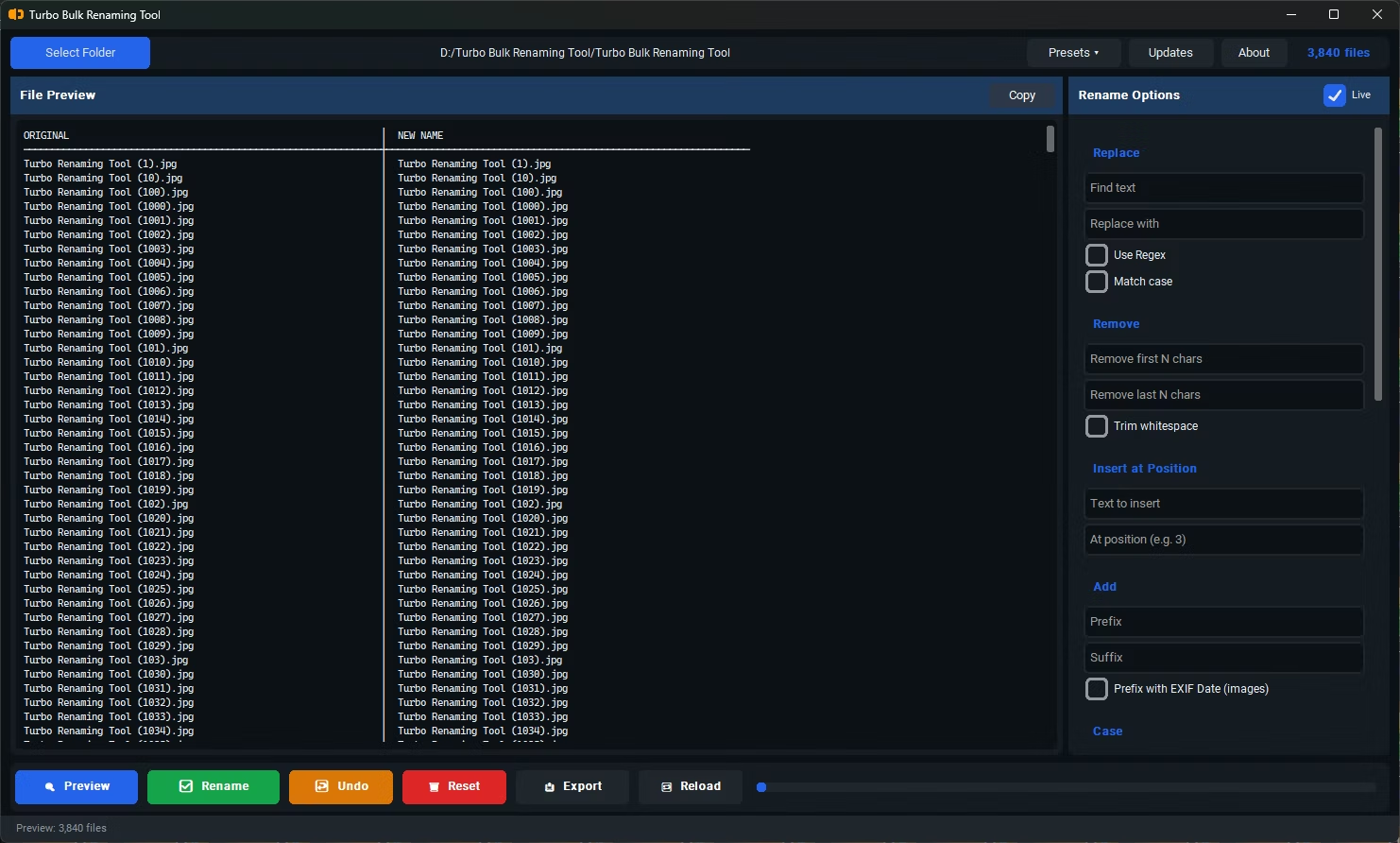
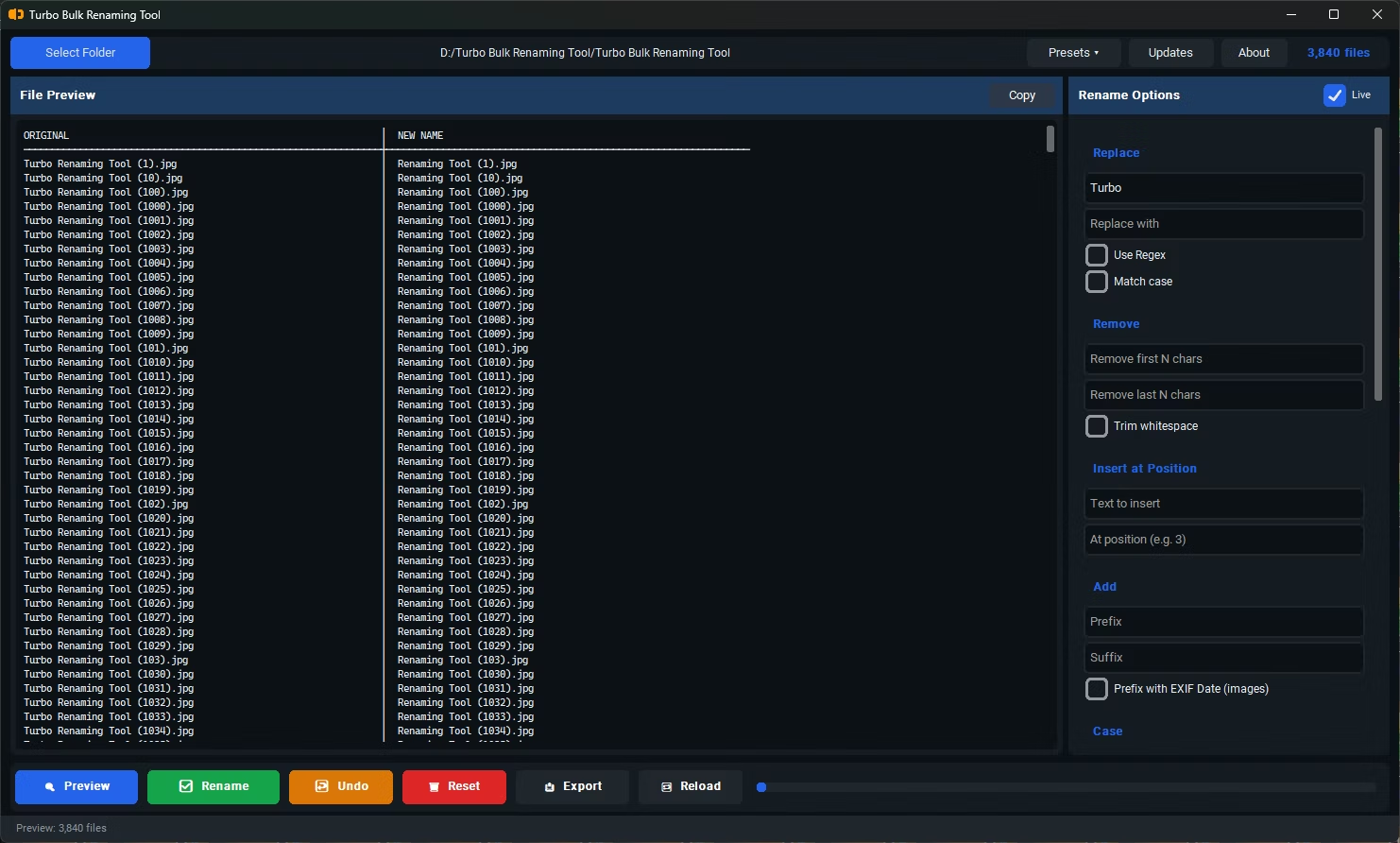
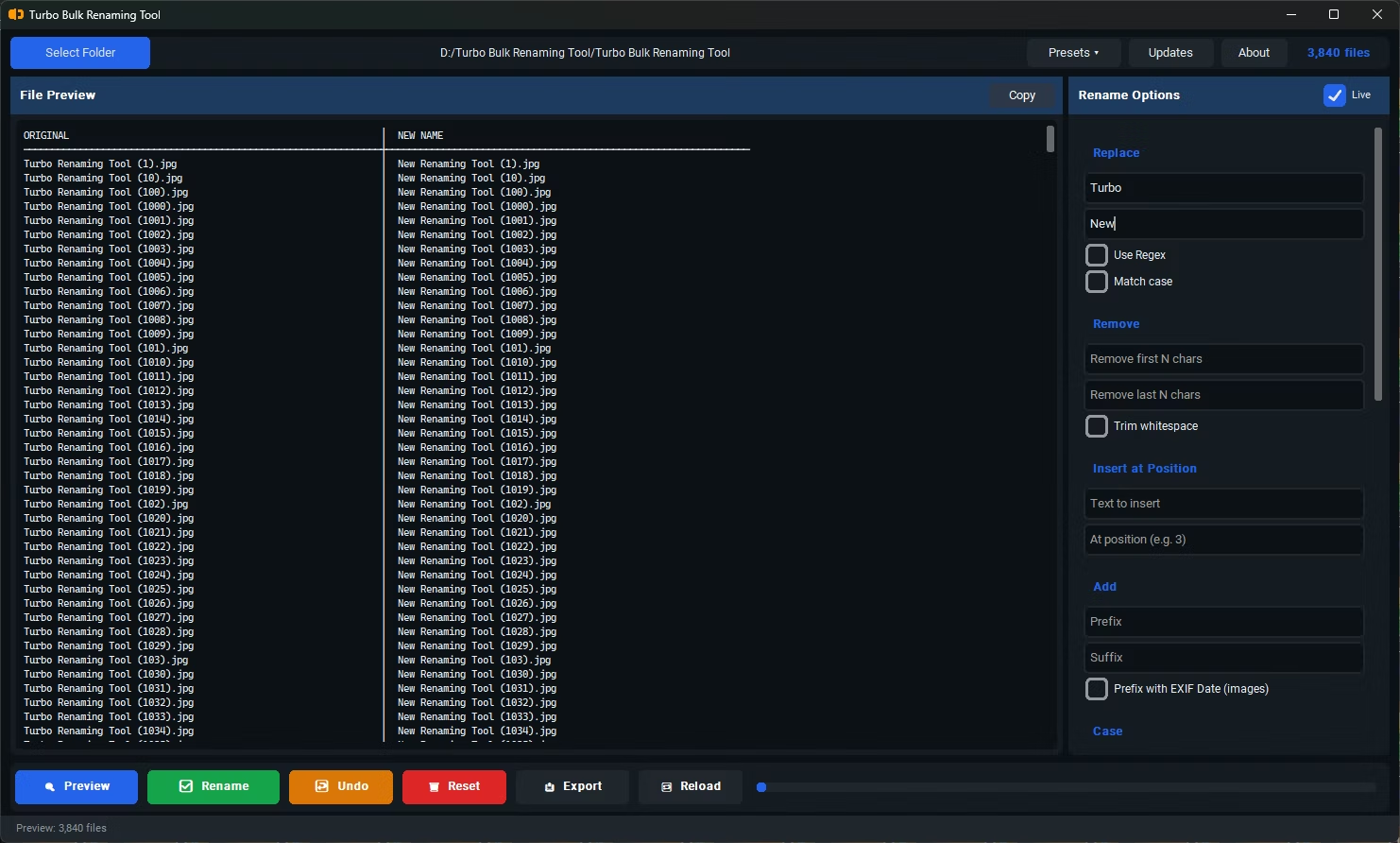
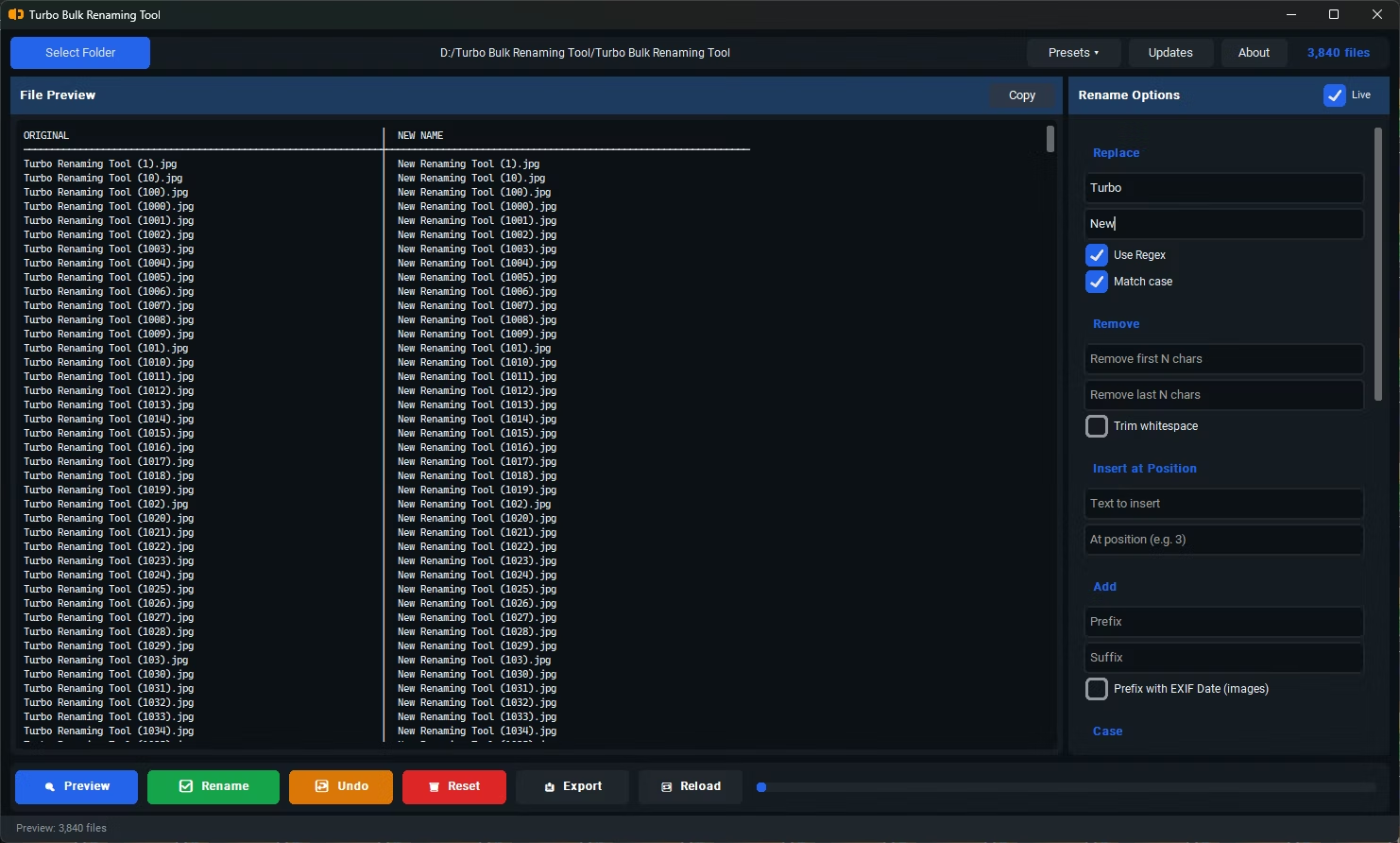
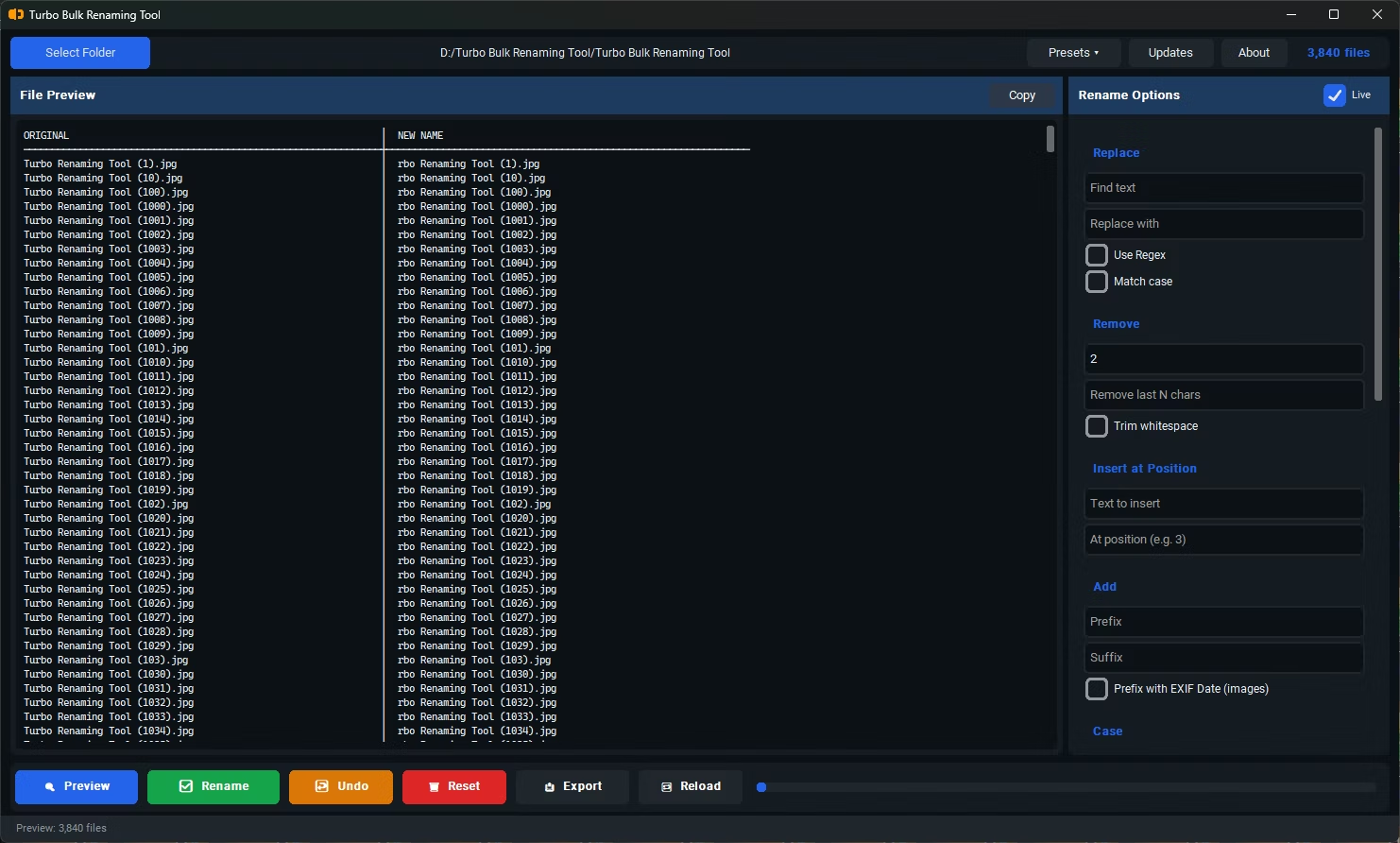
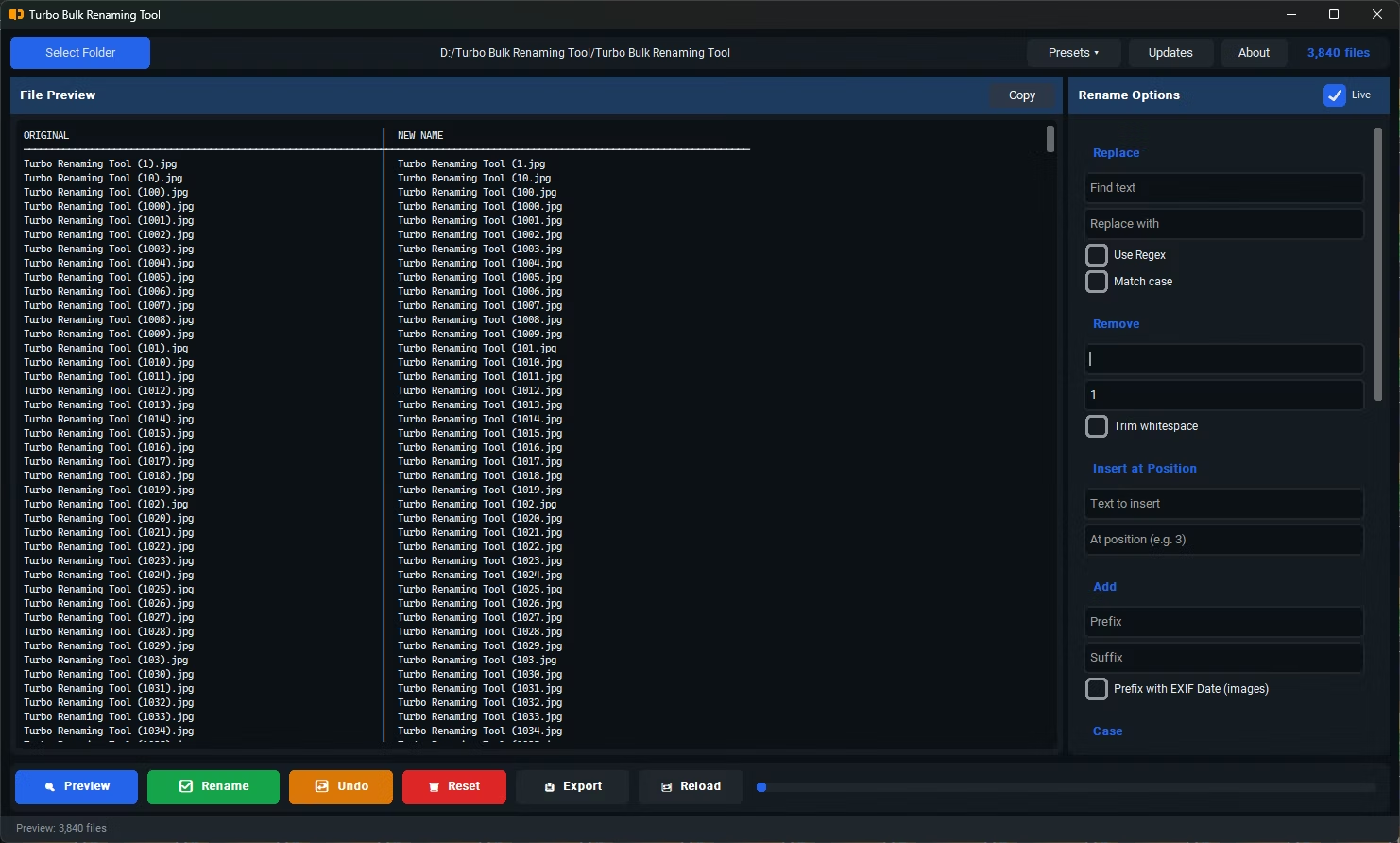
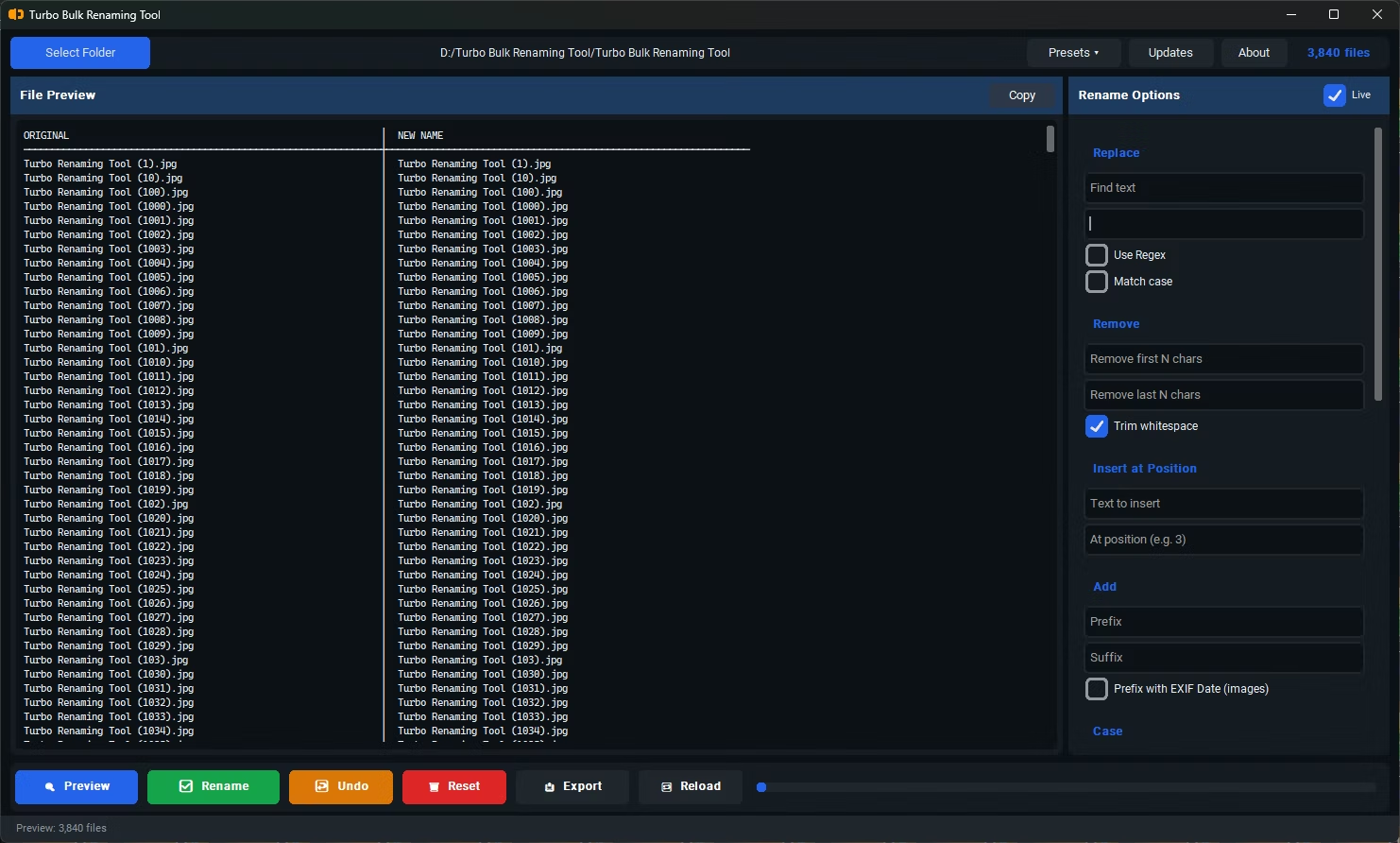
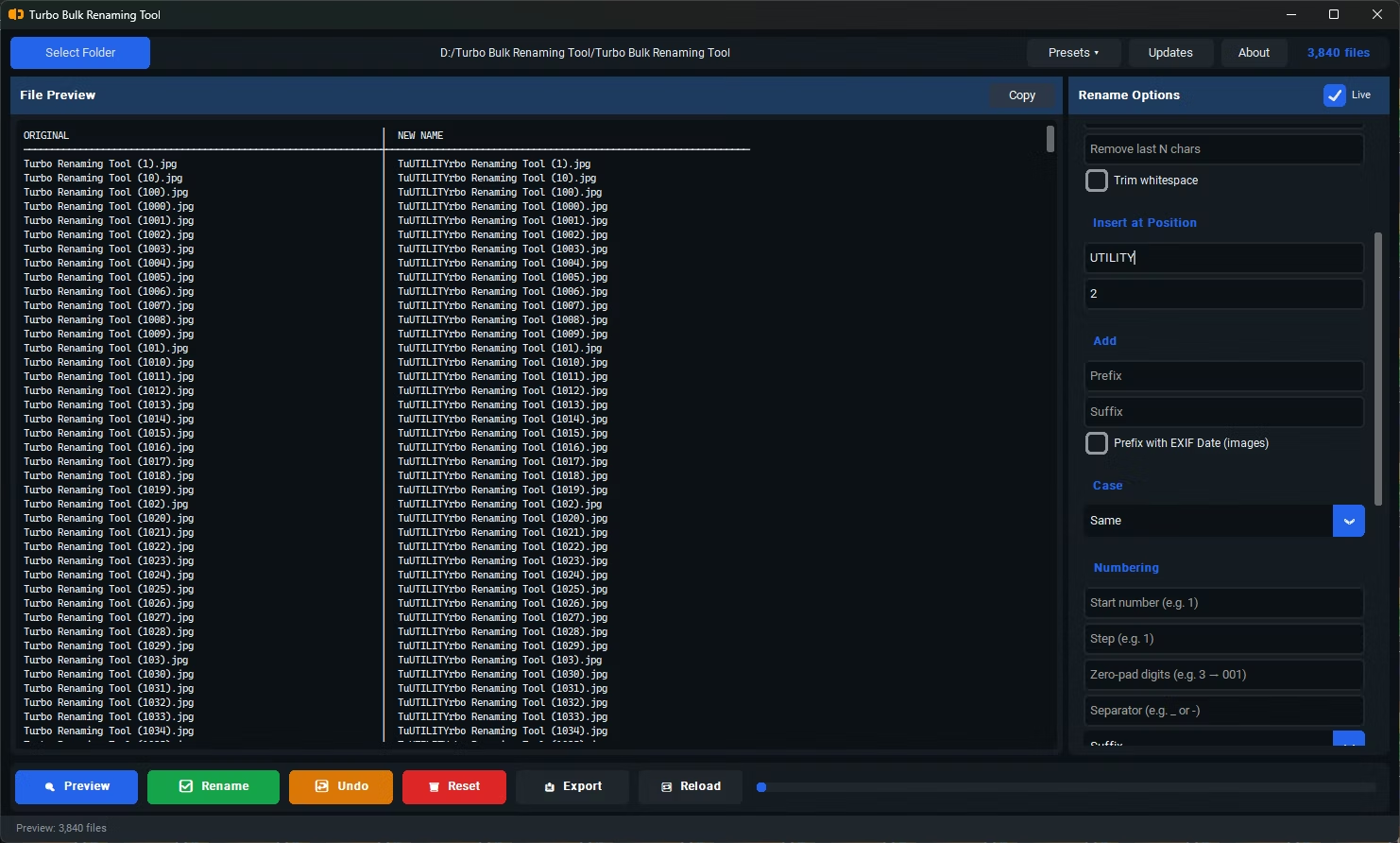
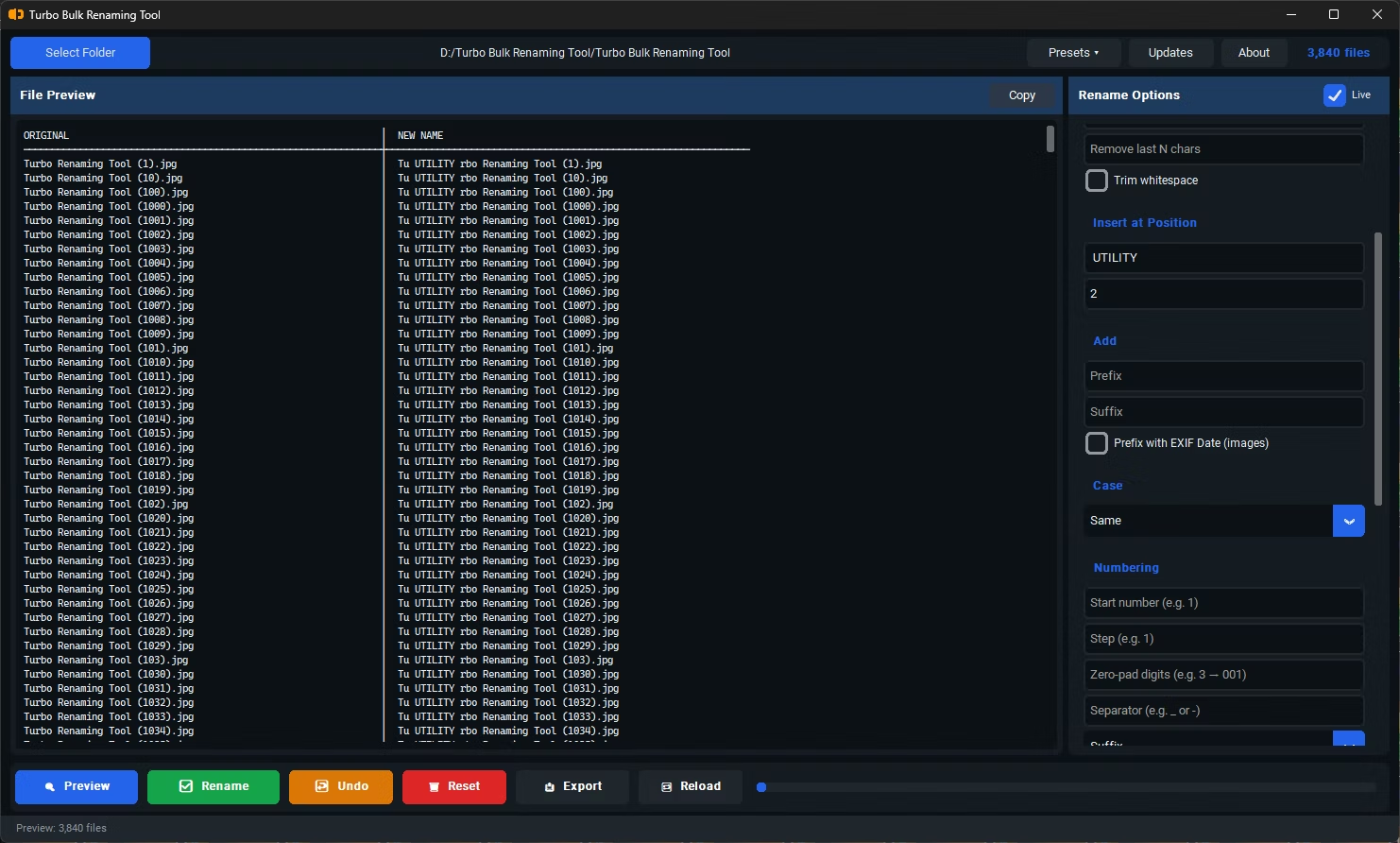
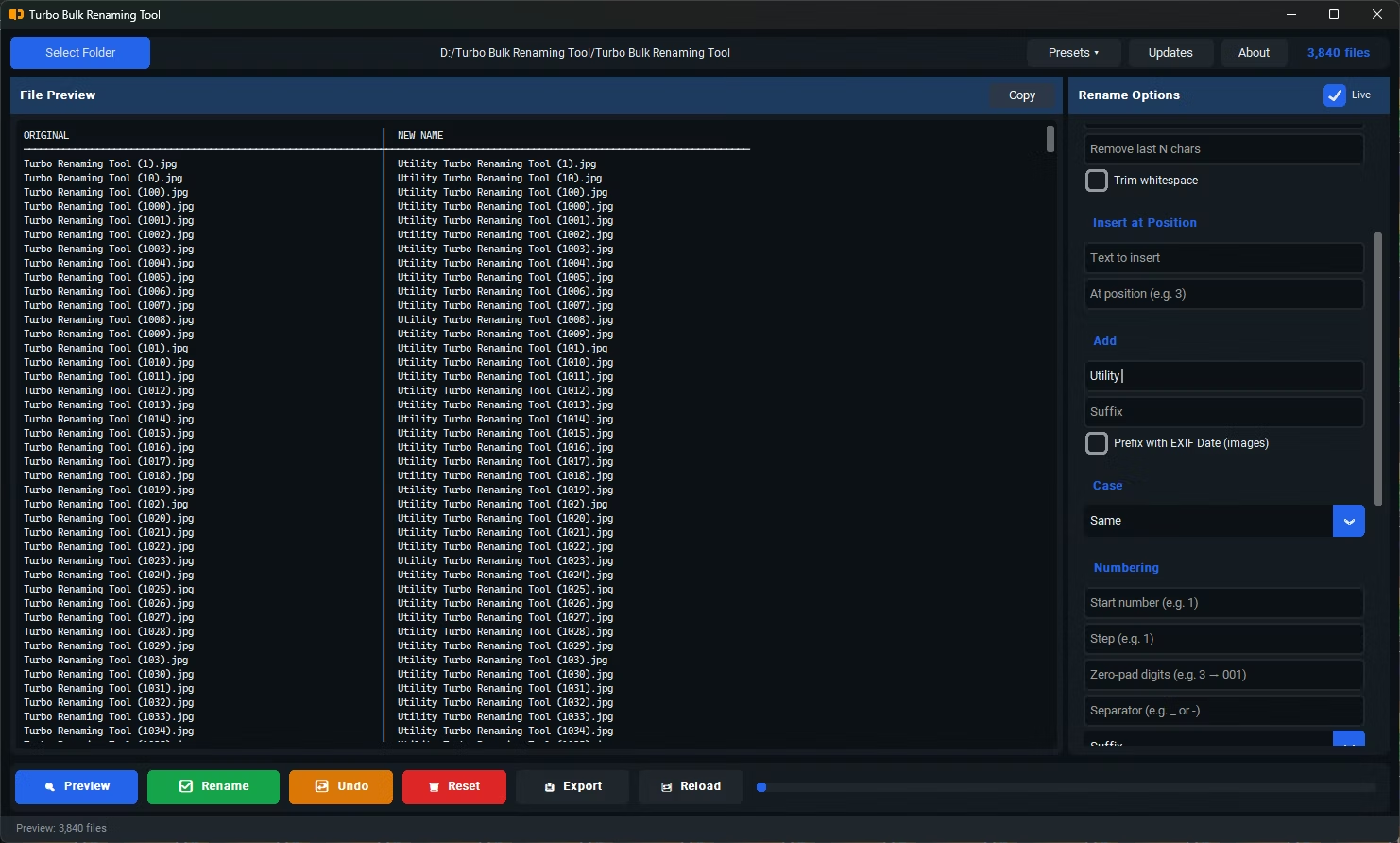
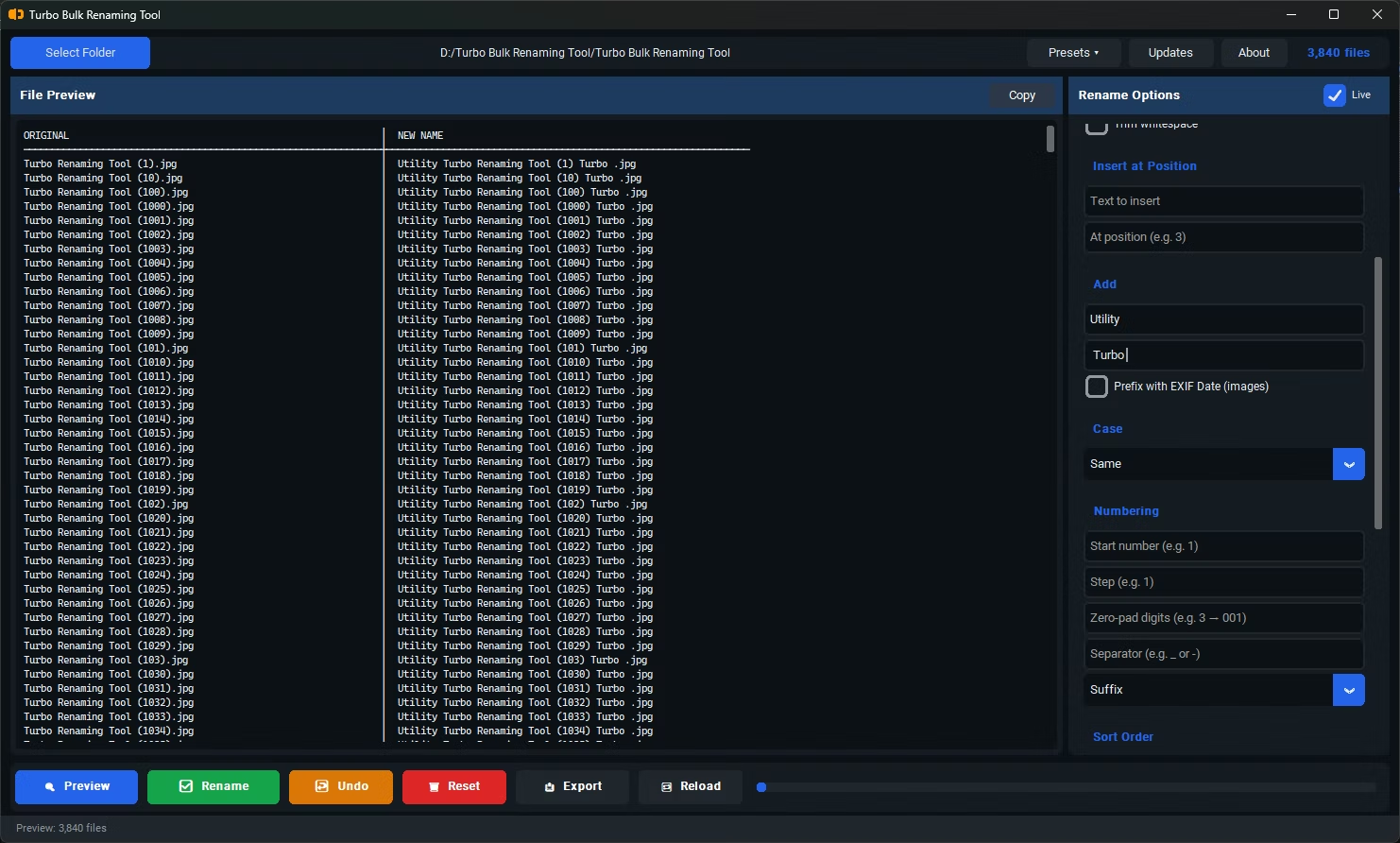
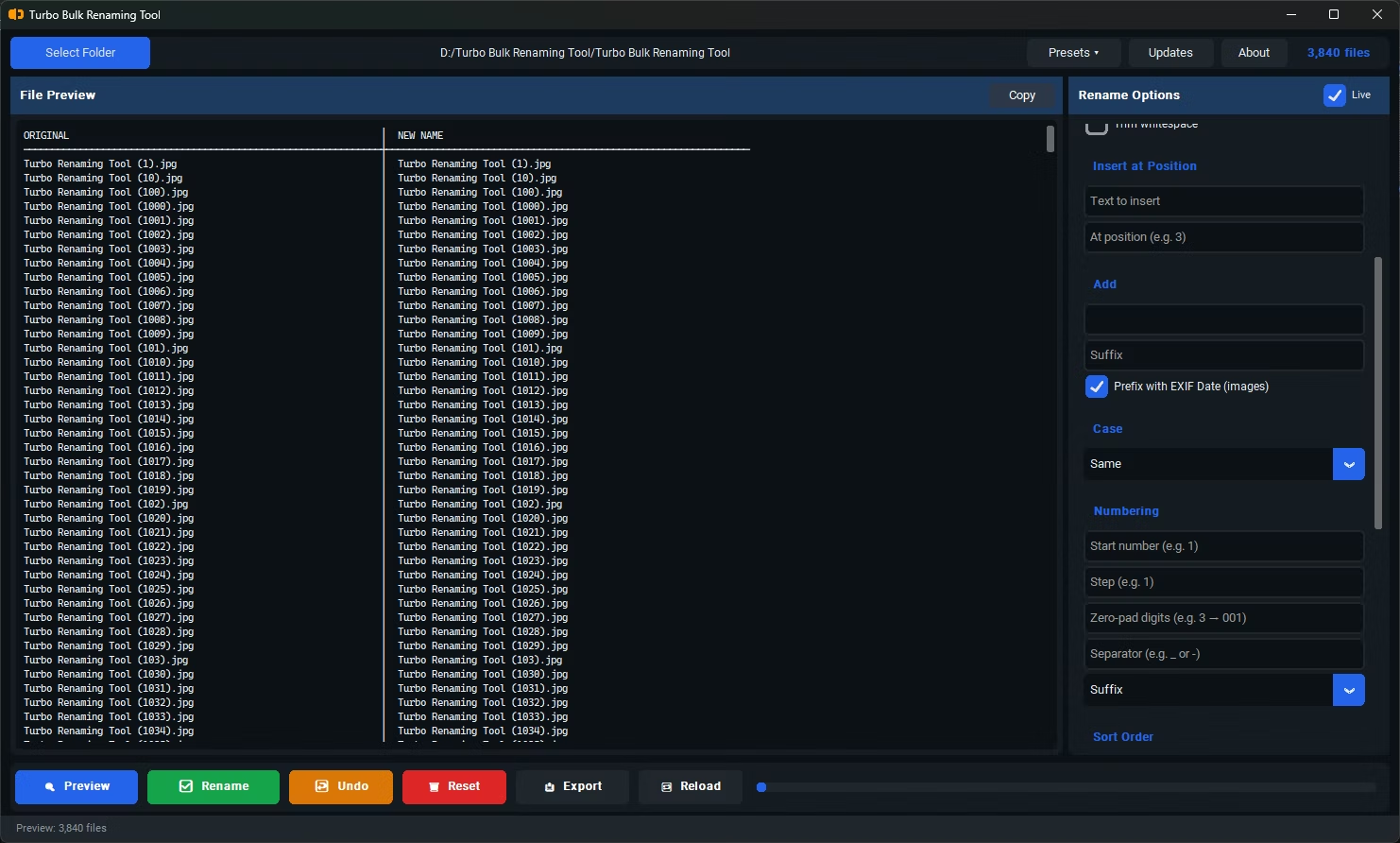
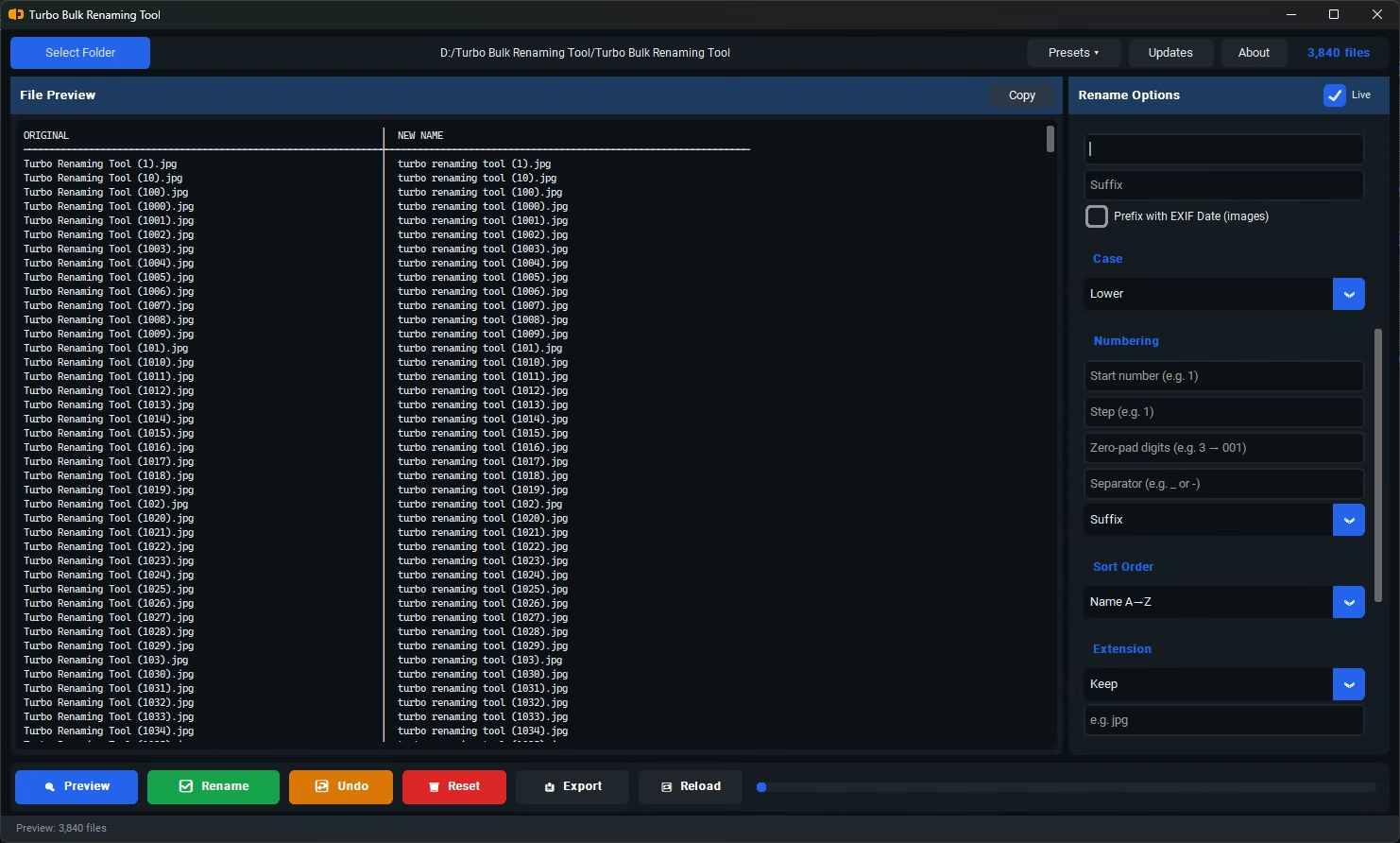
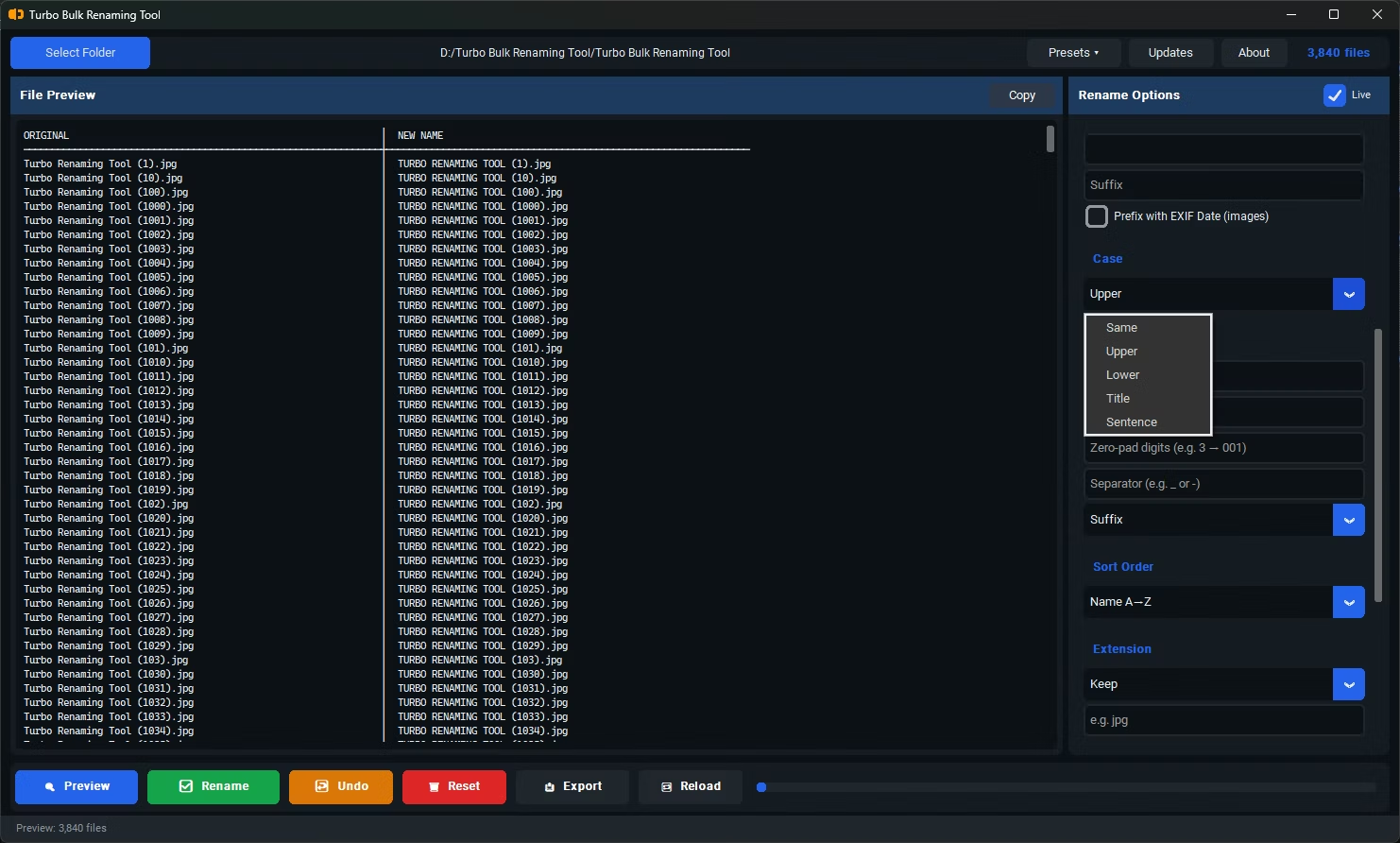
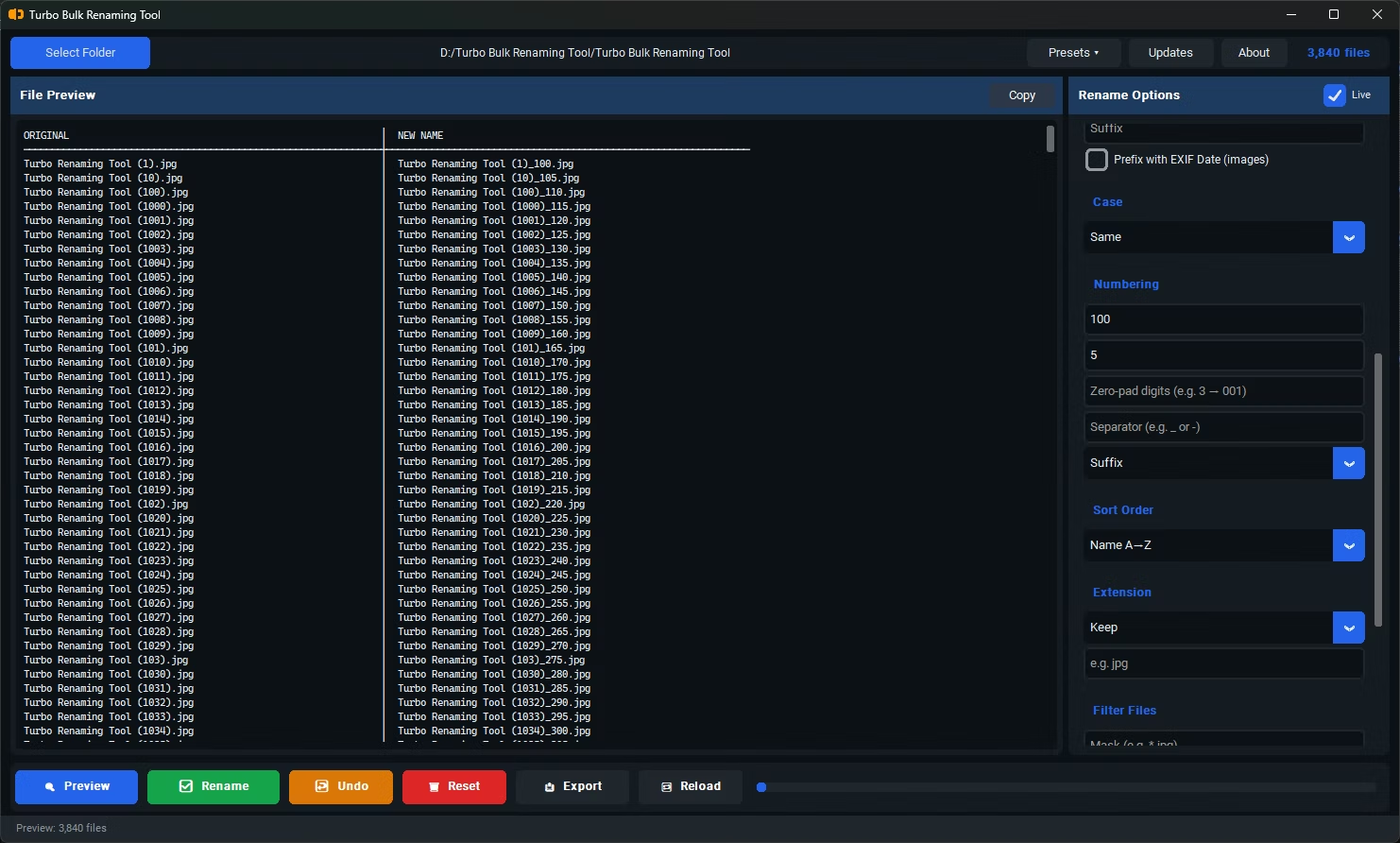
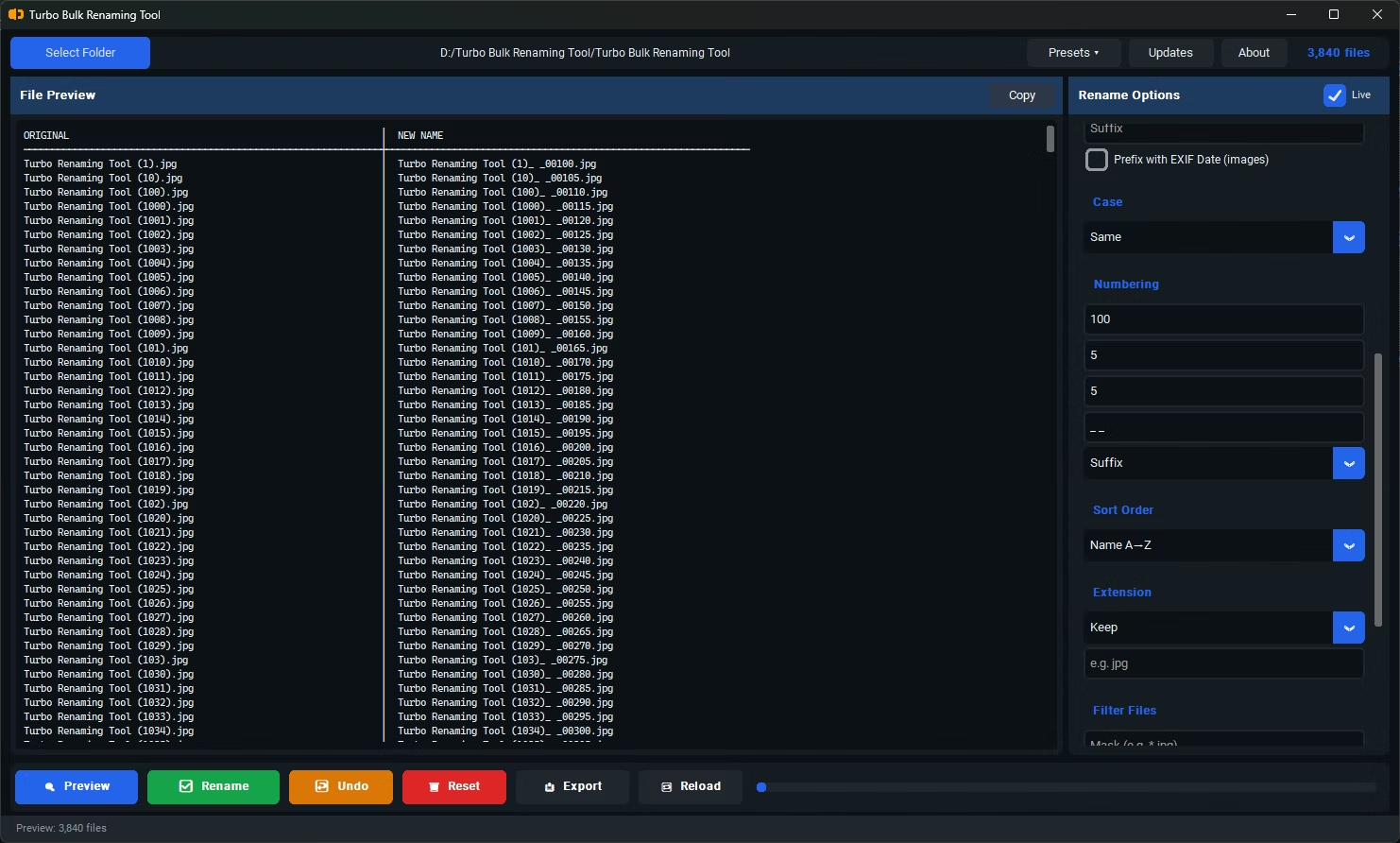
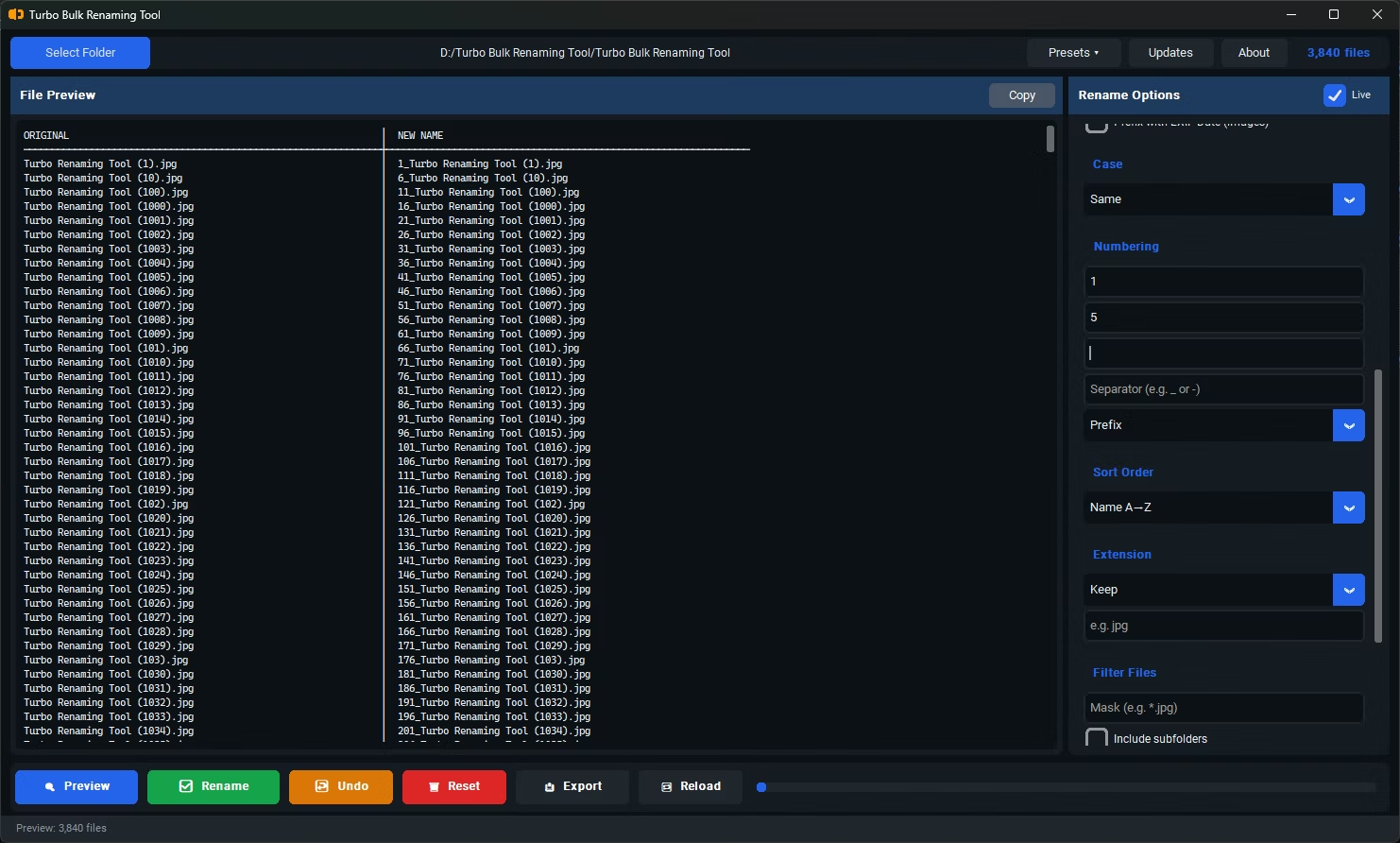
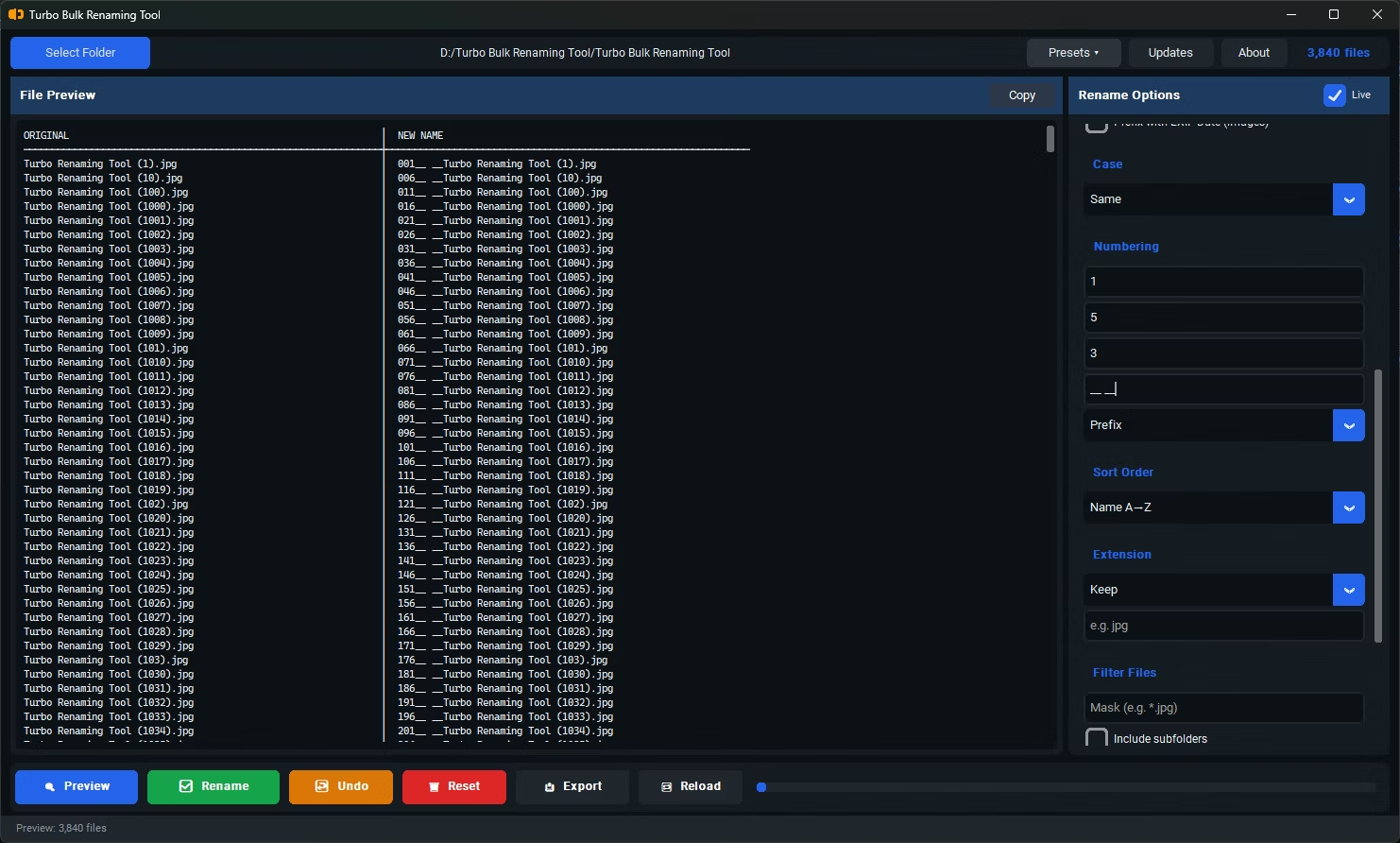

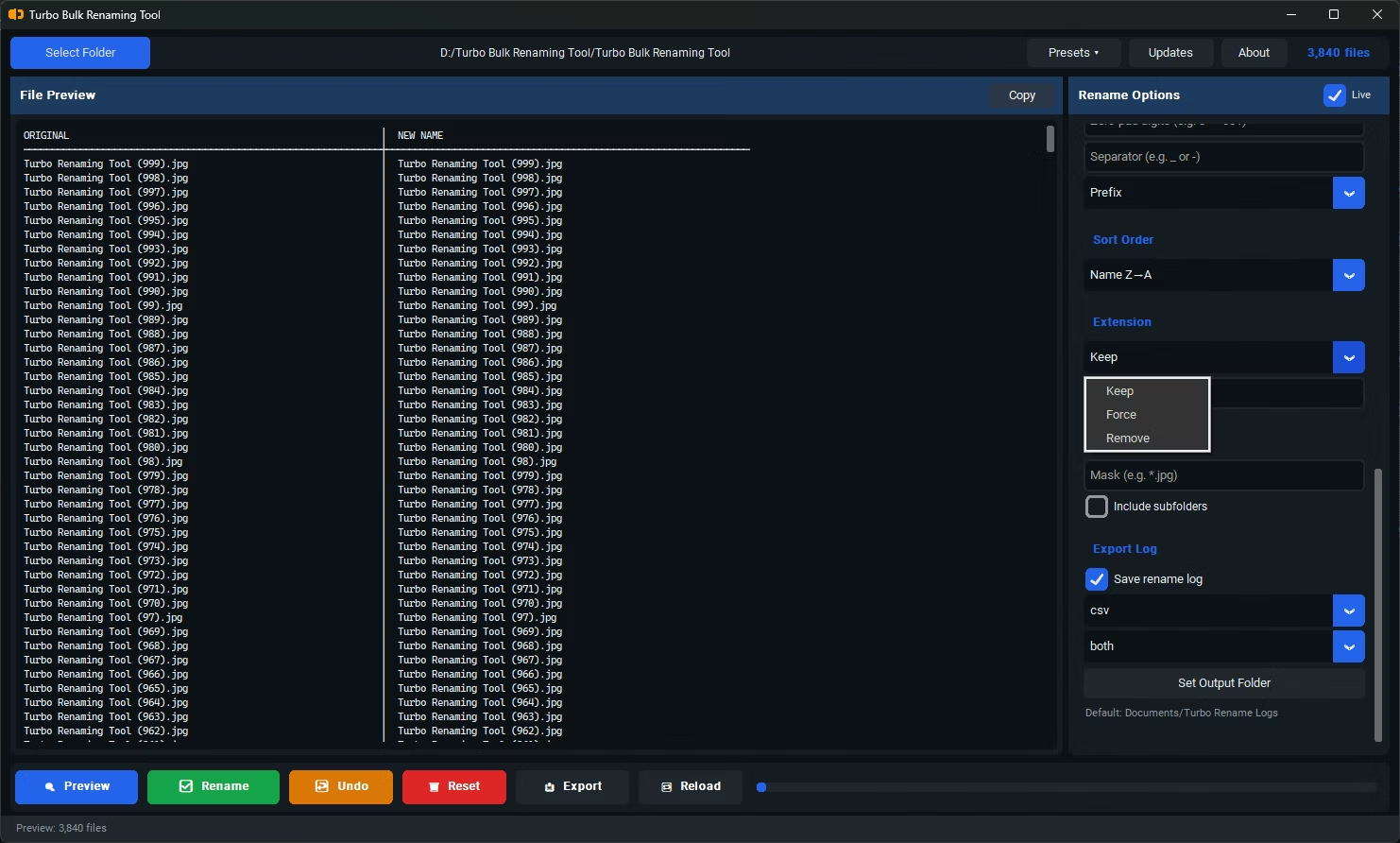
- Install Turbo Bulk Renaming Tool on your Windows PC.
- Open the app and load the folder containing the files you want to rename.
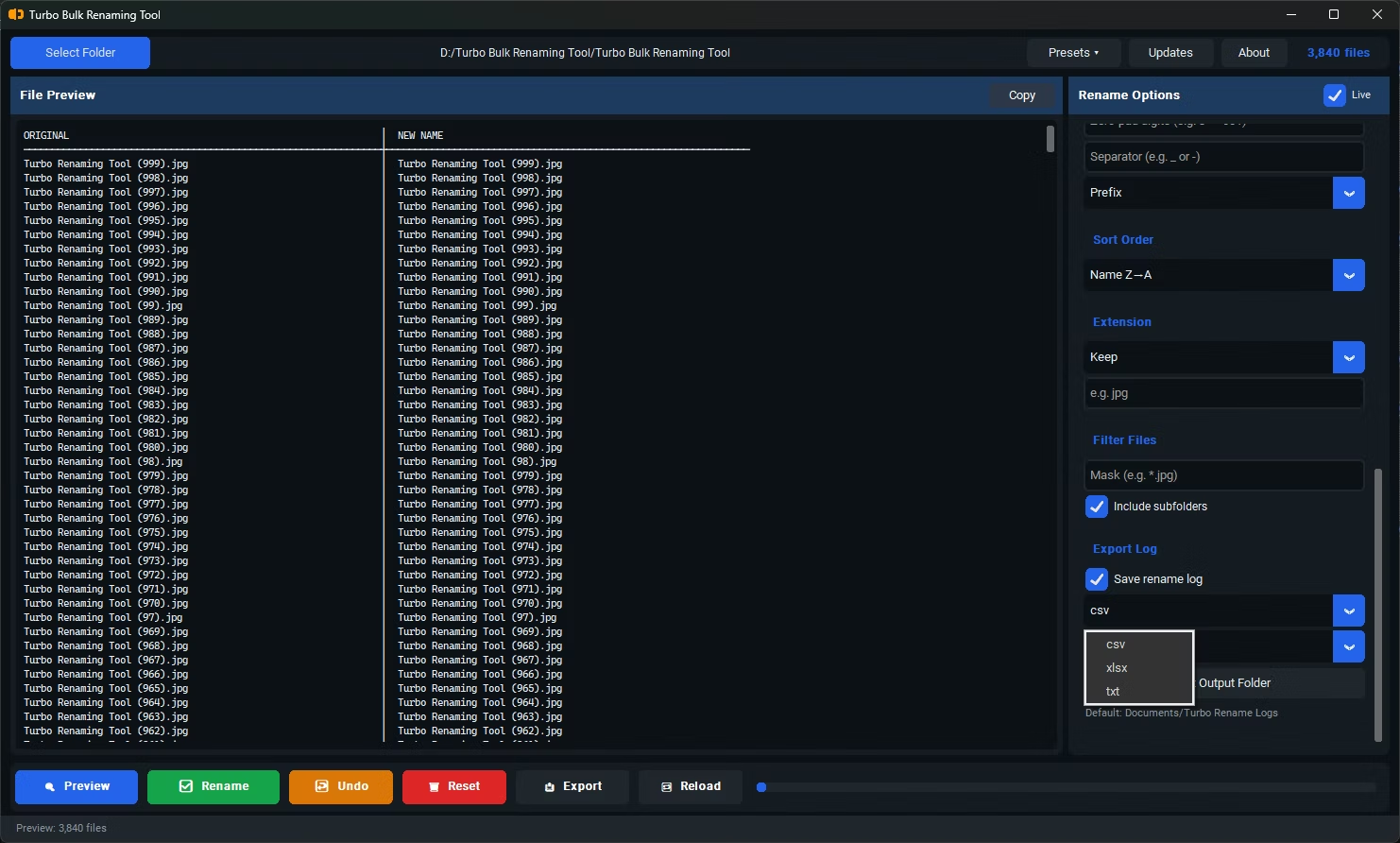
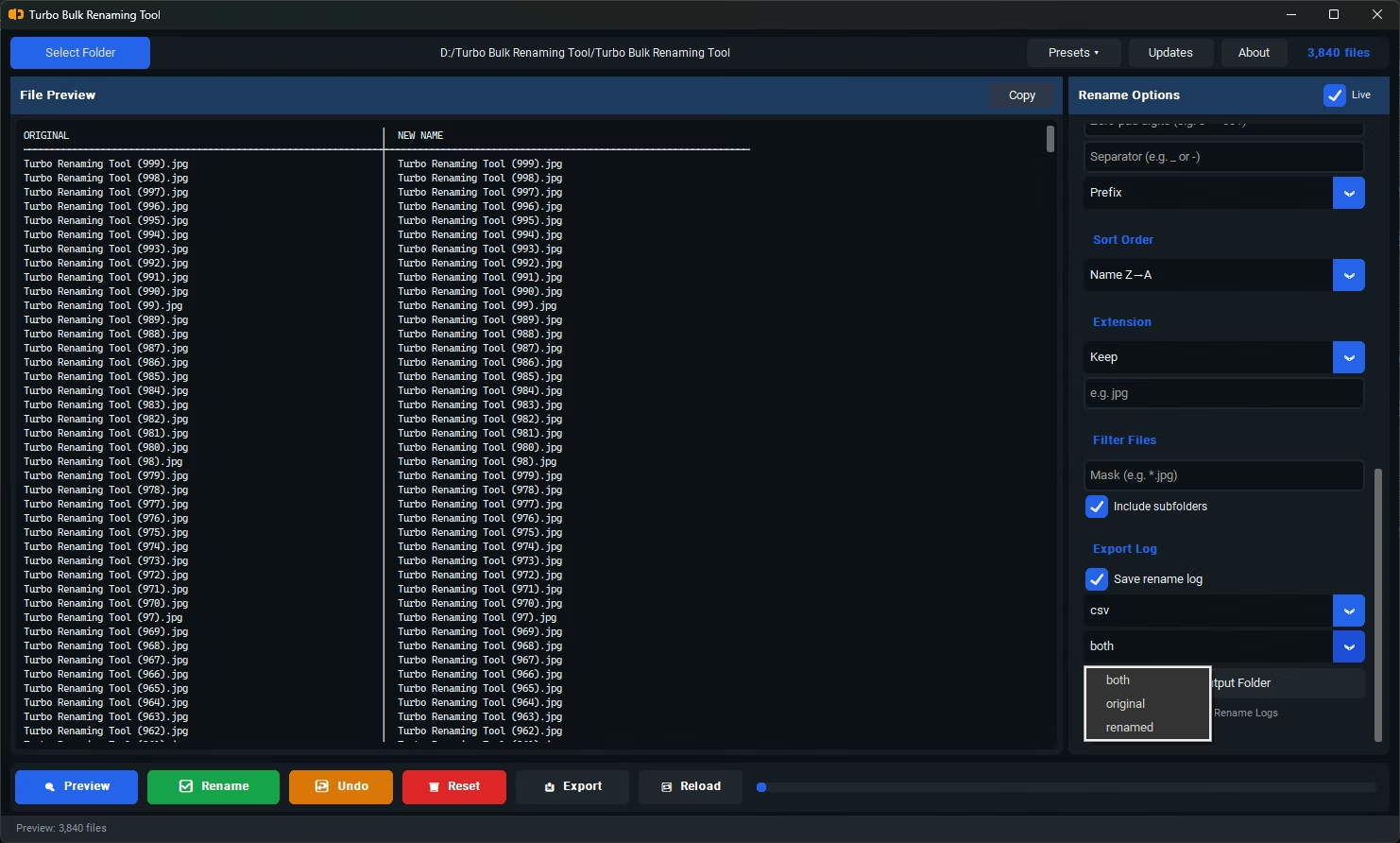
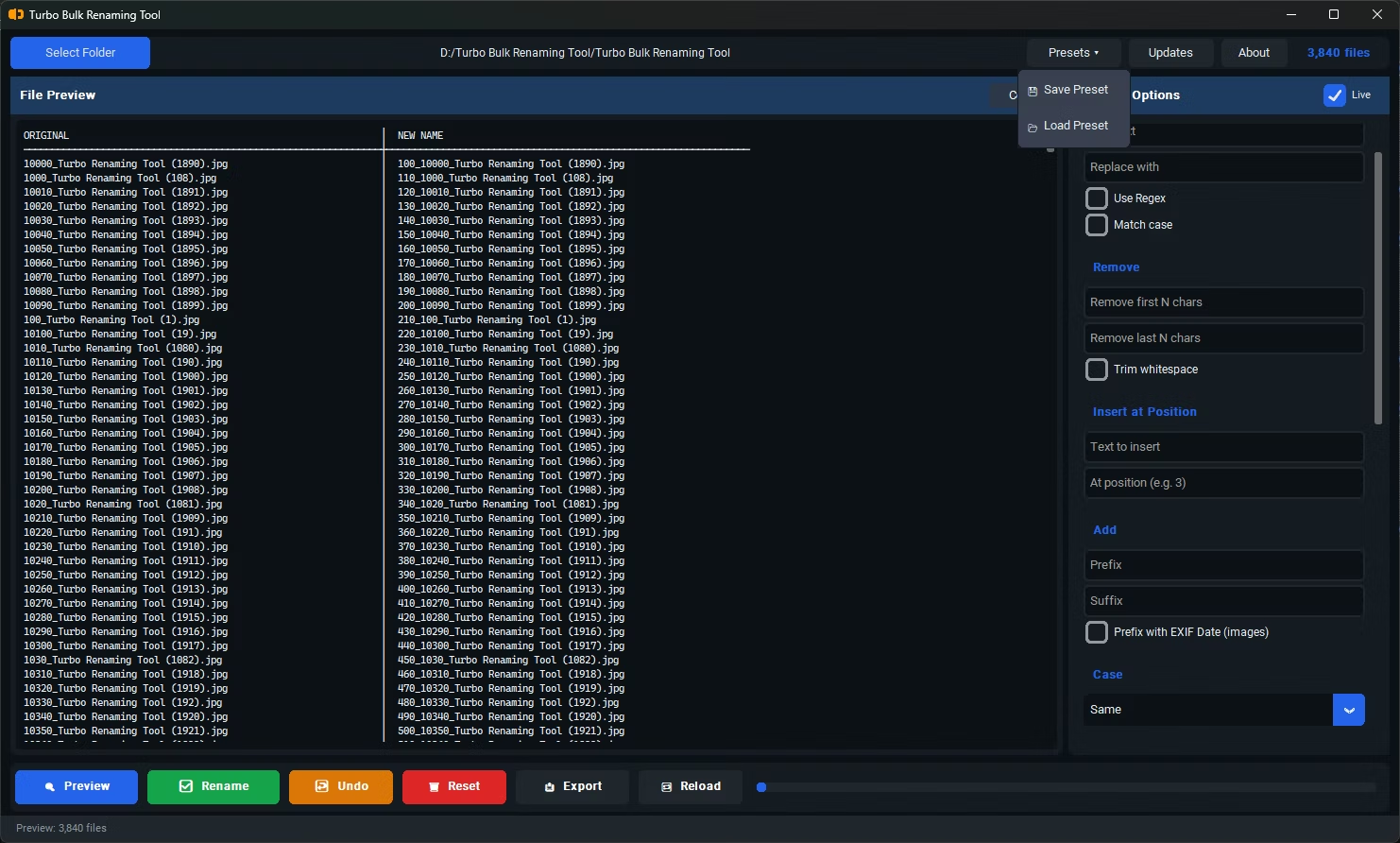
- Browse the available renaming rules — Find & Replace, Sequential Numbering, Case Conversion, Prefix, Suffix, Insert at Position, Trim Whitespace, Remove First or Last N Characters, and EXIF Date Prefix, among others.
- Select the rule that matches your goal and configure its settings.
- Review the live preview to confirm the result across all selected files.
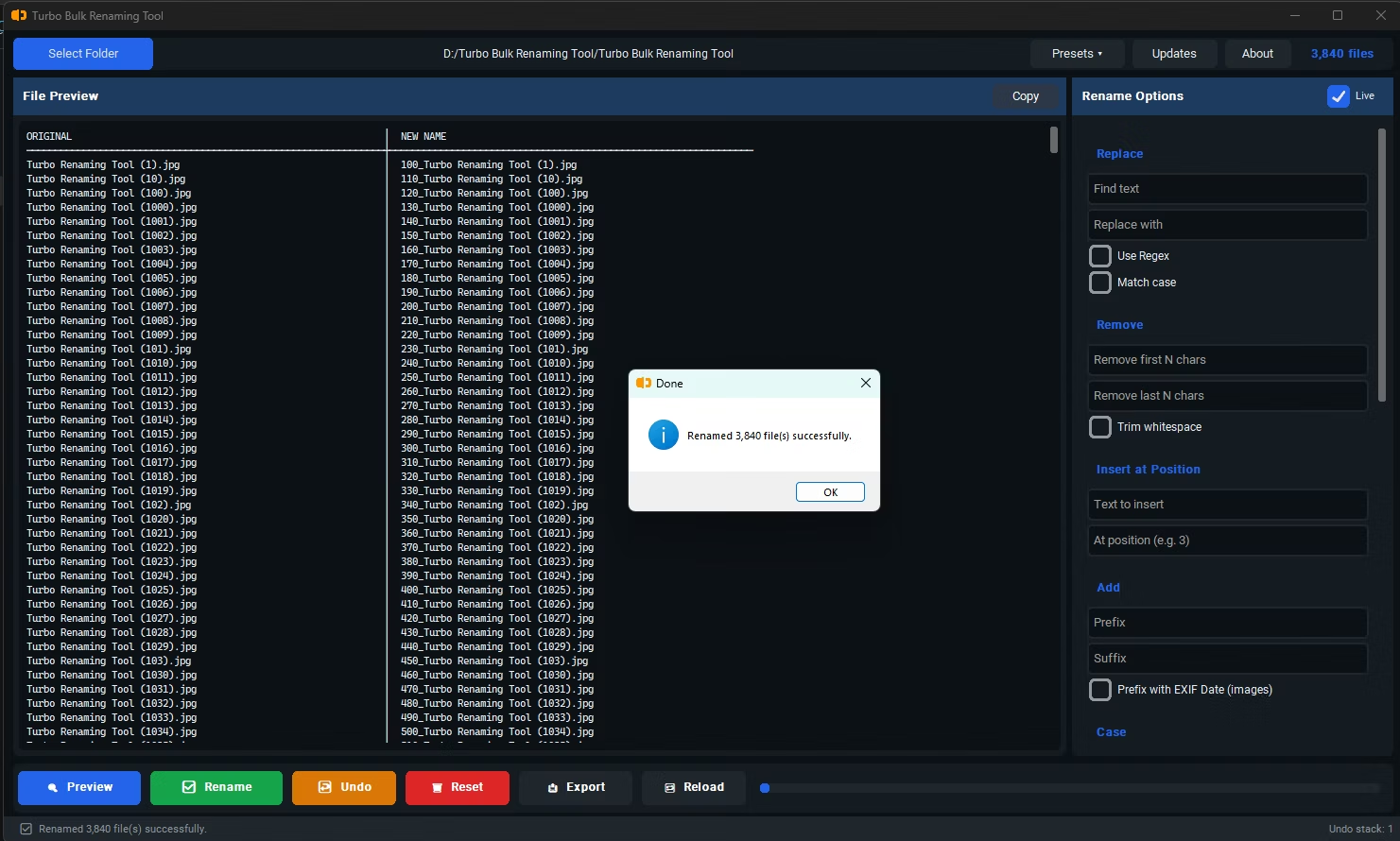
- Click Rename to apply the change to every file in the group in one action.
- 15 renaming rules covering most common bulk renaming needs in one tool
- Live preview shows the exact outcome before anything is changed on disk
- Conflict detection flags potential duplicate filenames ahead of time
- One-click Undo restores the previous filenames if a rename doesn't look right
- Recursive sub-folder support for renaming across nested directory structures
- Runs fully offline, with no file-count limits beyond your own storage
Can I apply more than one renaming rule in sequence?
Yes, many tasks benefit from combining rules — for example, trimming whitespace first, then adding a prefix, then applying sequential numbering.
What if I select files of different types in the same batch?
Most renaming rules work on the filename text itself regardless of file type, though rules like EXIF Date Prefix only apply to supported image formats within the selection.
Is there a limit to how many files I can rename at once?
No artificial limit is built into the software; practical limits depend on your computer's available resources rather than the application itself.
Ready to rename your files in bulk, offline, with full privacy?