A suffix, added just before the file extension, is often used to mark a version, a status, or a category, such as marking a batch of images as edited or a set of documents as final. Applying that consistently across a folder by hand is tedious and error-prone; a dedicated suffix tool handles it in one pass.
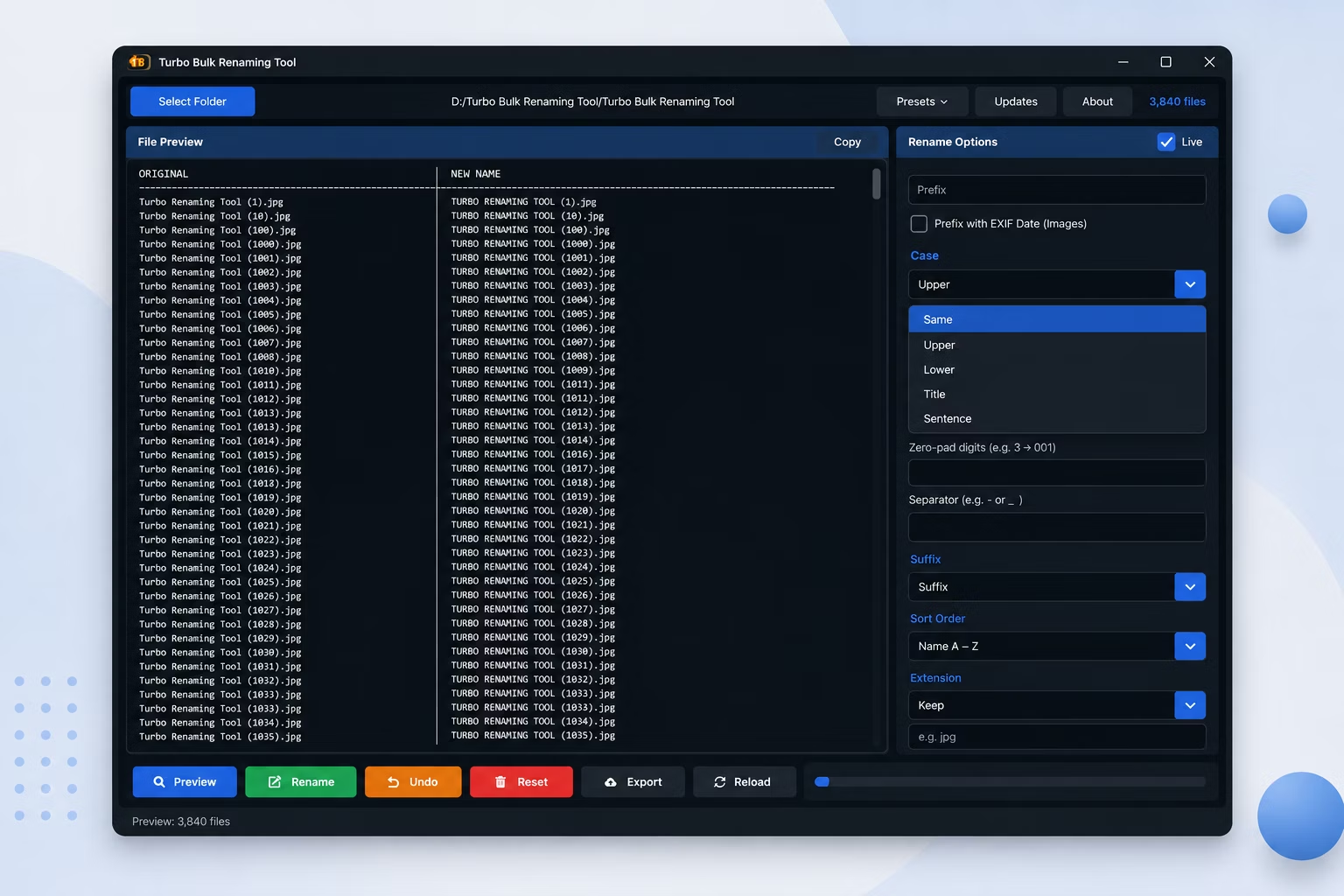
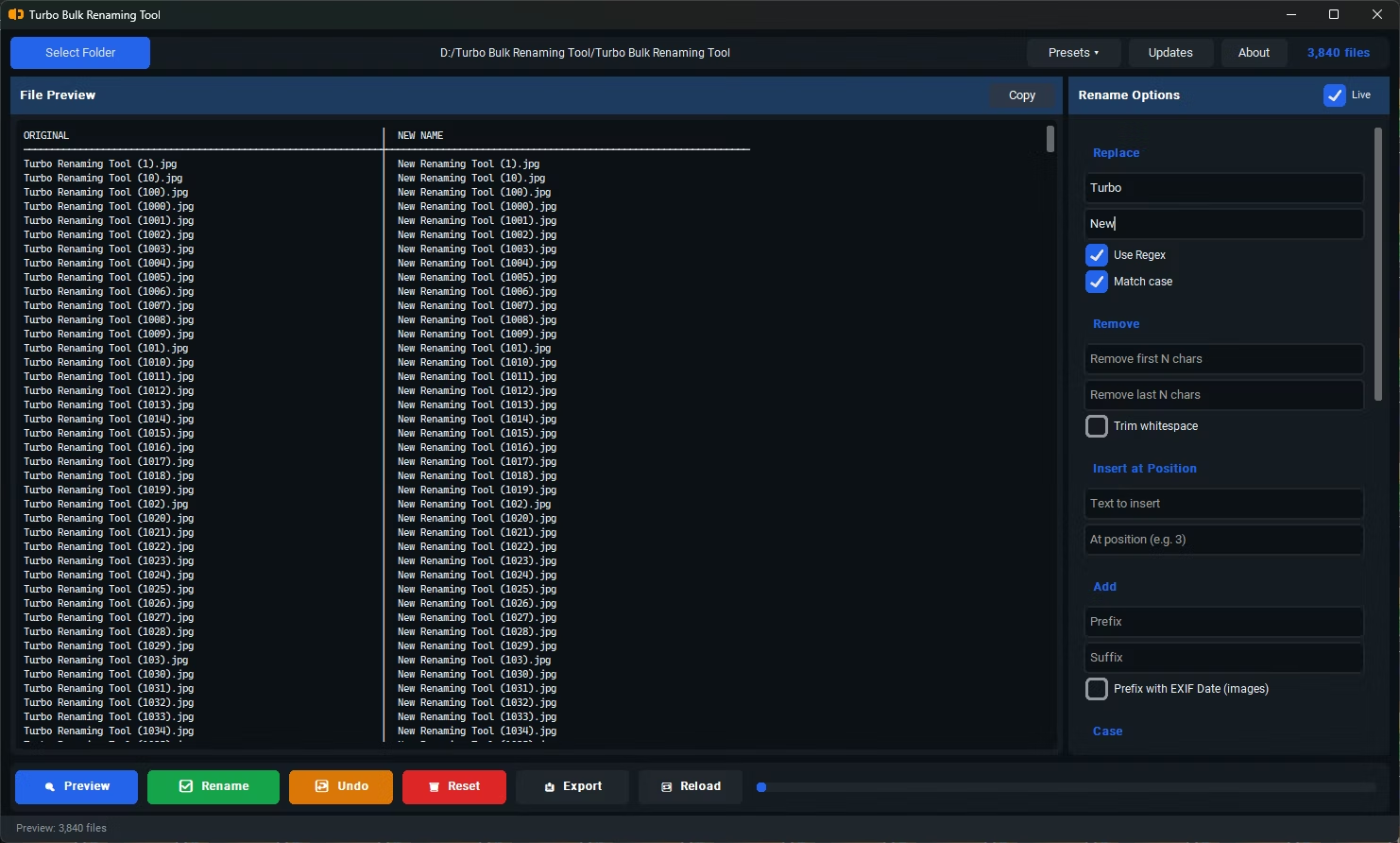
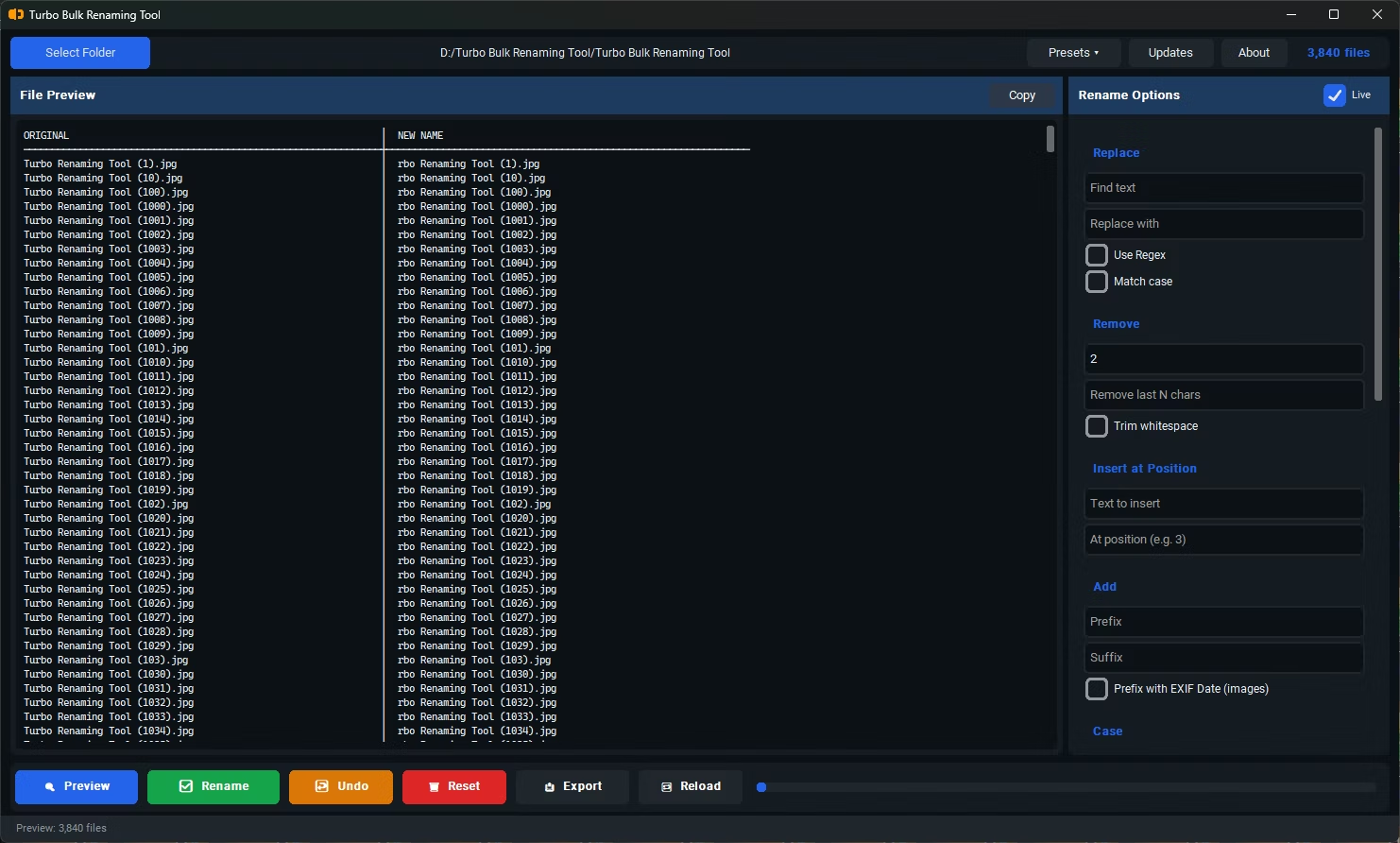
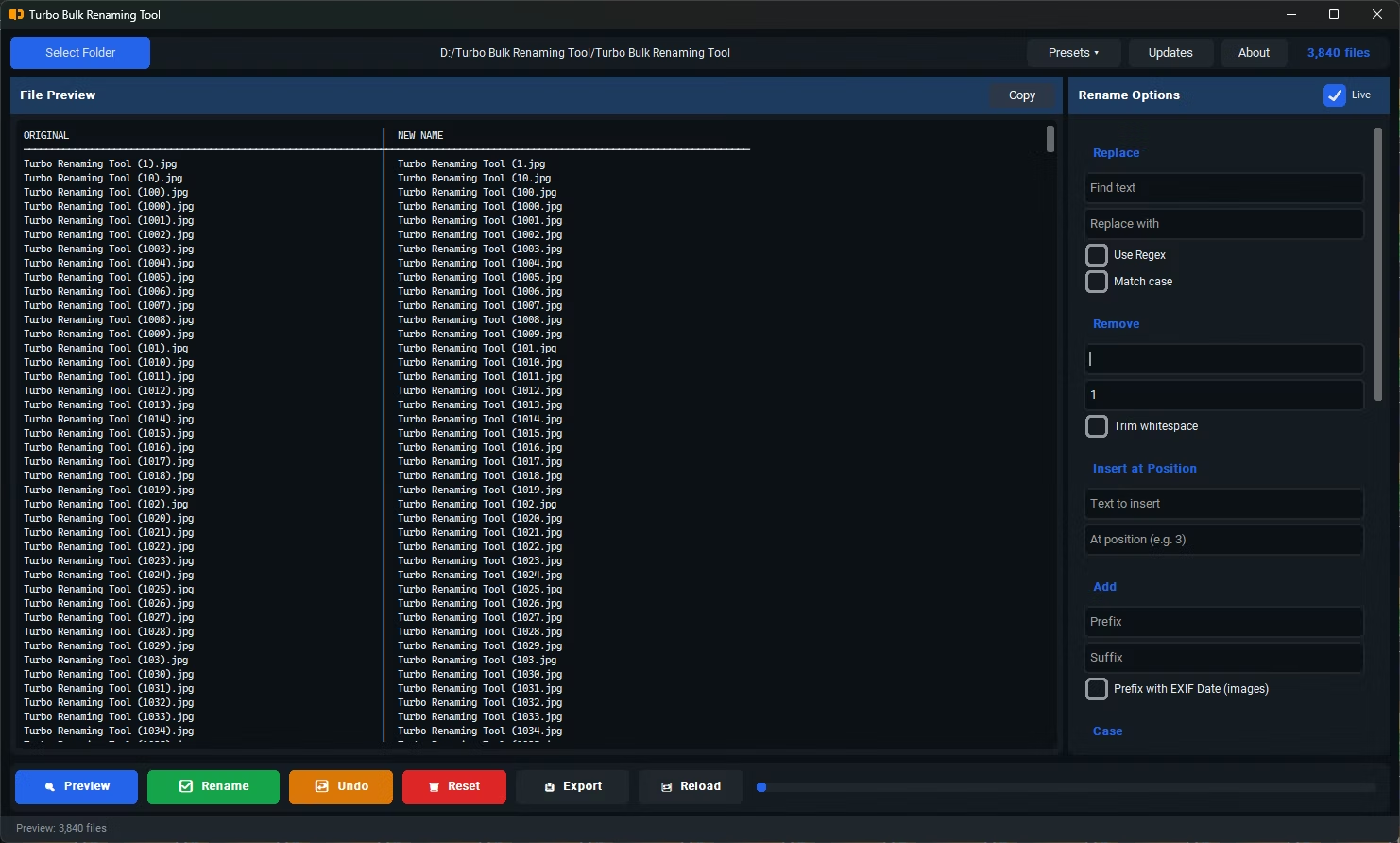
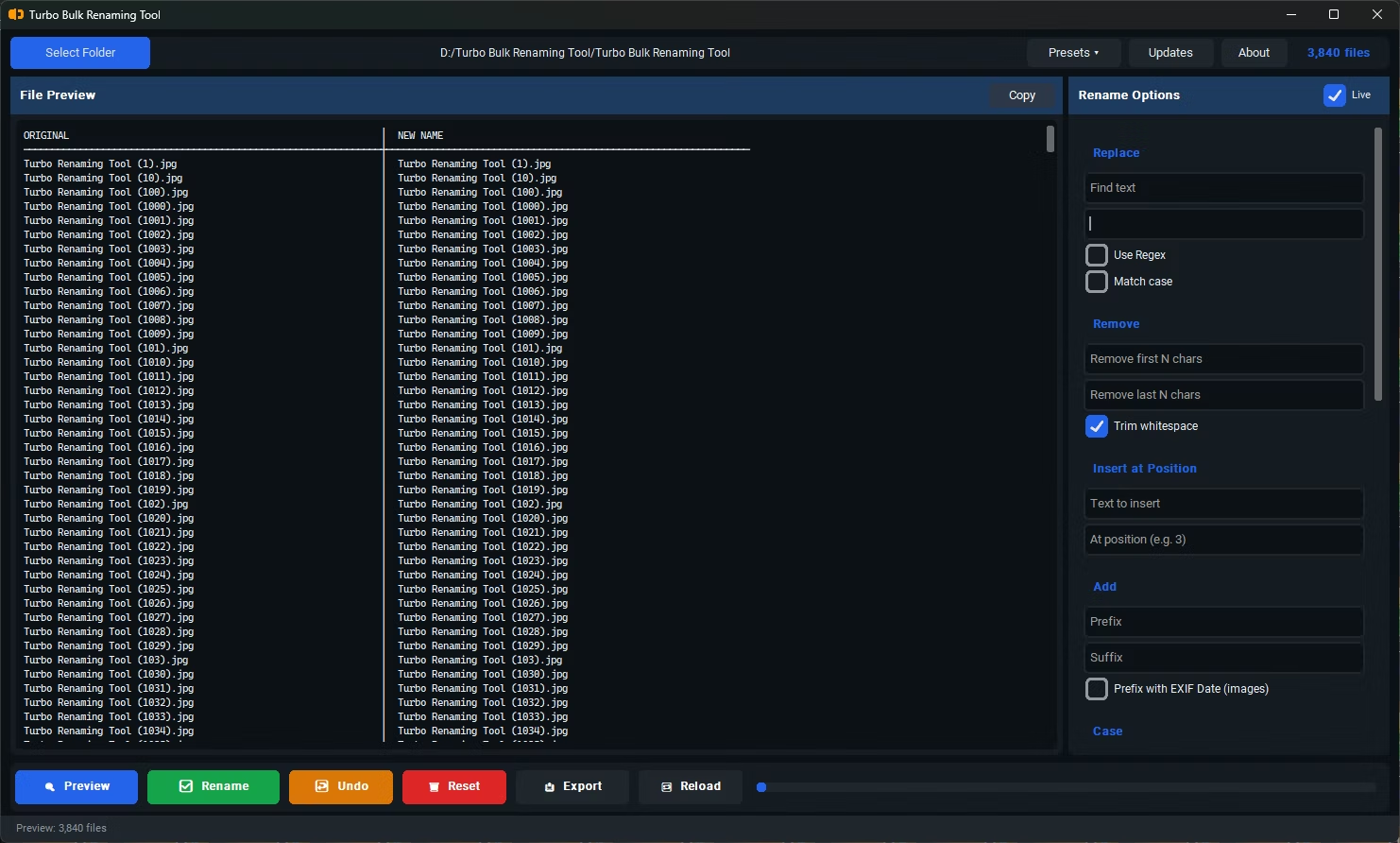
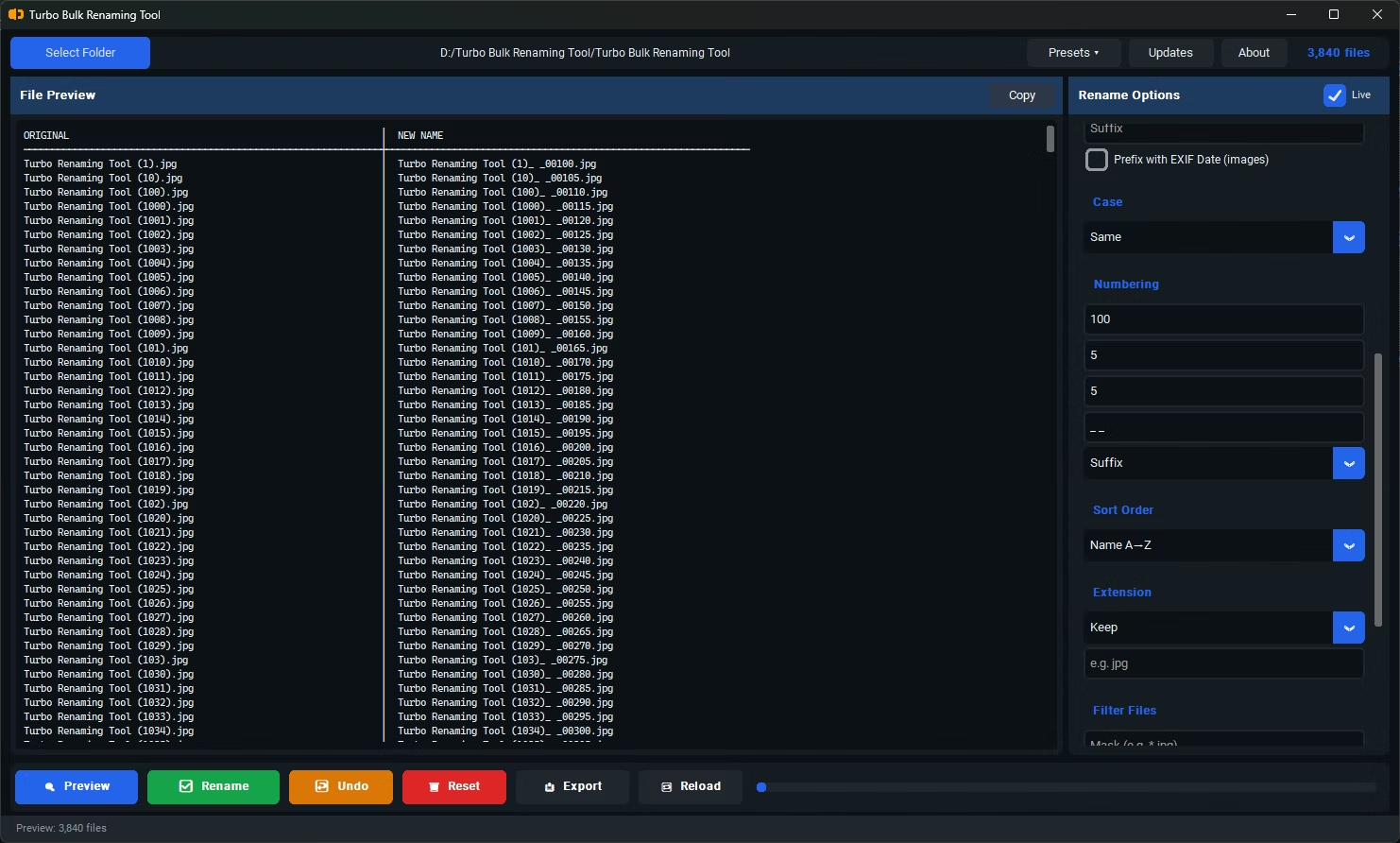
Turbo Bulk Renaming Tool adds a suffix to as many files as you select at once. Enter the suffix text, and it's inserted right before the file extension on every filename in the batch, with the live preview confirming exactly how each name will look before you commit.
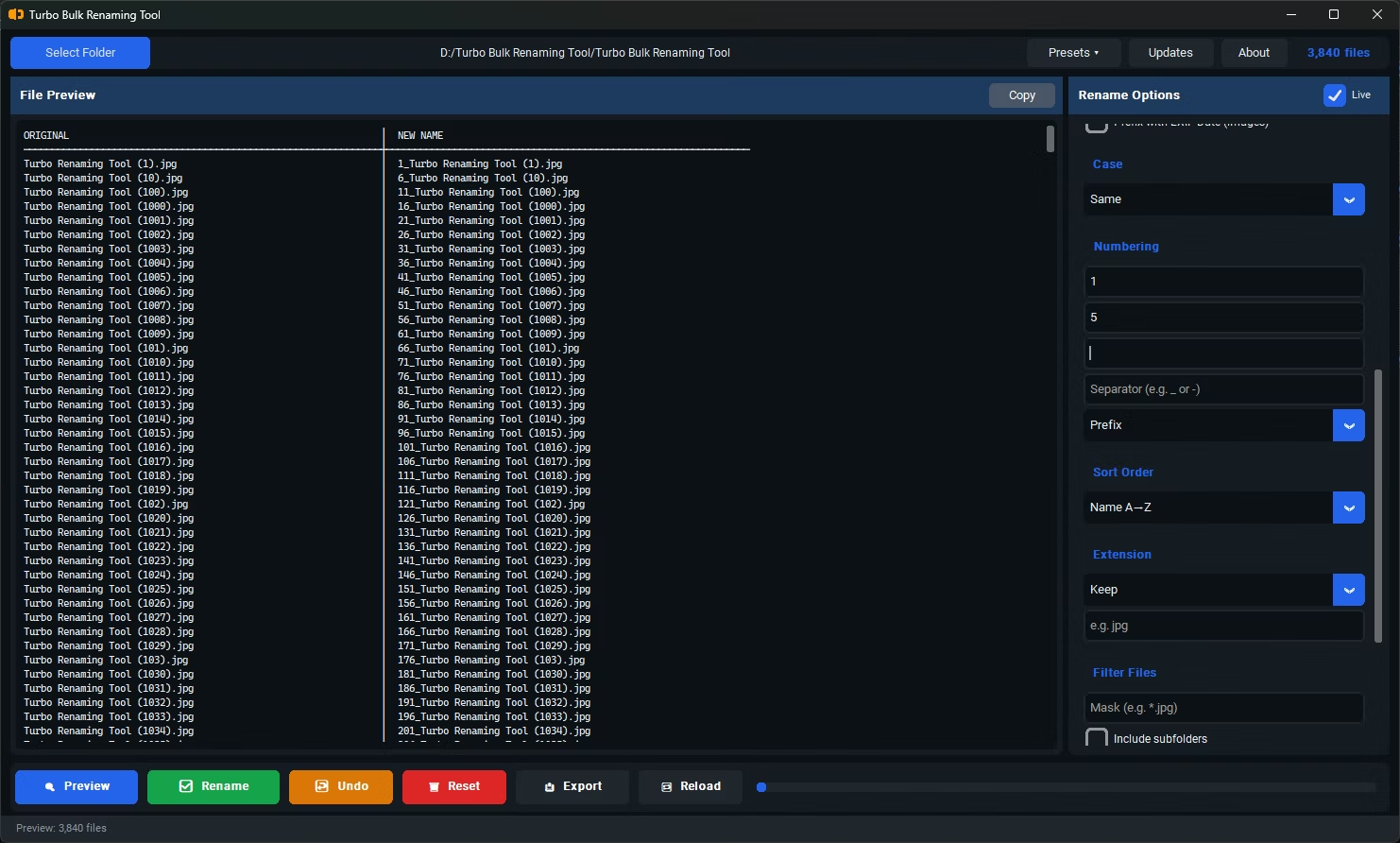
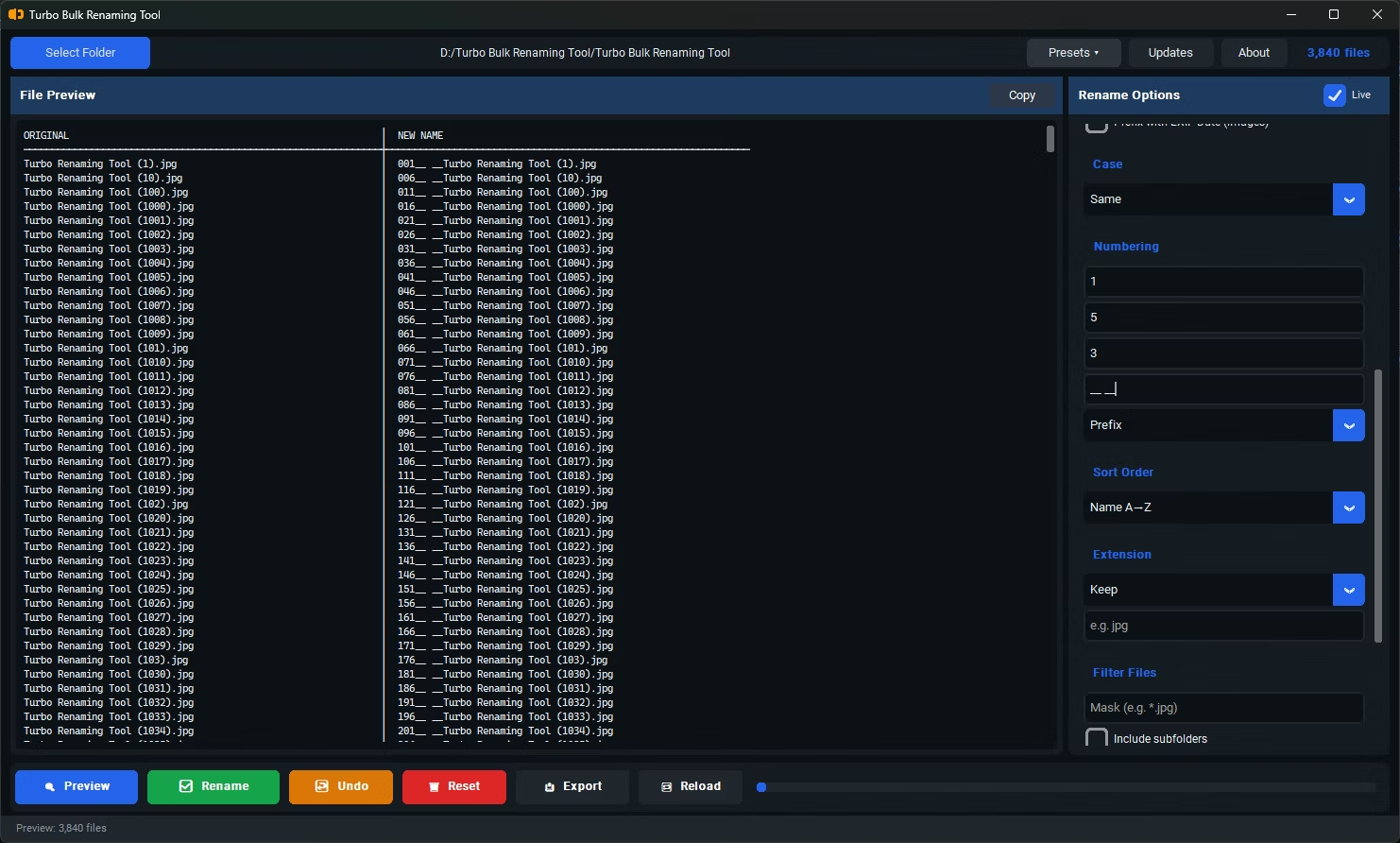
Suffix addition combines cleanly with other rules, letting you, for example, add sequential numbers and a suffix in the same operation. Once the preview shows the result you want, applying the suffix across the whole selection takes a single click, with an optional log recording exactly what changed.
Beyond the core workflow built for rename Files with Suffix, Turbo Bulk Renaming Tool includes the full renaming toolkit found throughout the application: regex-based find and replace for advanced pattern matching, EXIF date extraction for photo libraries, case conversion for consistent capitalization, character trimming to strip a fixed number of characters from either end of a filename, text insertion at any position, and recursive folder scanning that pulls in files from every nested sub-folder. Any of these tools can be layered on top of the rules described above, so a job that starts as a simple rename can grow into a complete naming convention without switching to a different application.
The application itself is a one-time purchase for Windows 10 and Windows 11, with no subscription, no watermarks added to renamed files, and no data ever leaving your PC during a rename operation. Every batch can be logged to CSV, XLSX, or TXT so you always have a written record of the original and new name for each file, and any combination of rules you build can be saved as a reusable preset, so a renaming job you configure today is ready to run again in a couple of clicks the next time the same kind of files come in.
For teams and individuals who rename the same kind of files repeatedly, the combination of live preview, saved presets, and exportable logs turns rename Files with Suffix from an occasional chore into a routine, low-risk step in a larger workflow. You configure the rules once, confirm the result looks right, and from then on a job that used to take an afternoon of manual renaming takes a few clicks, with a clear written record left behind for anyone who needs to check exactly what changed and when.
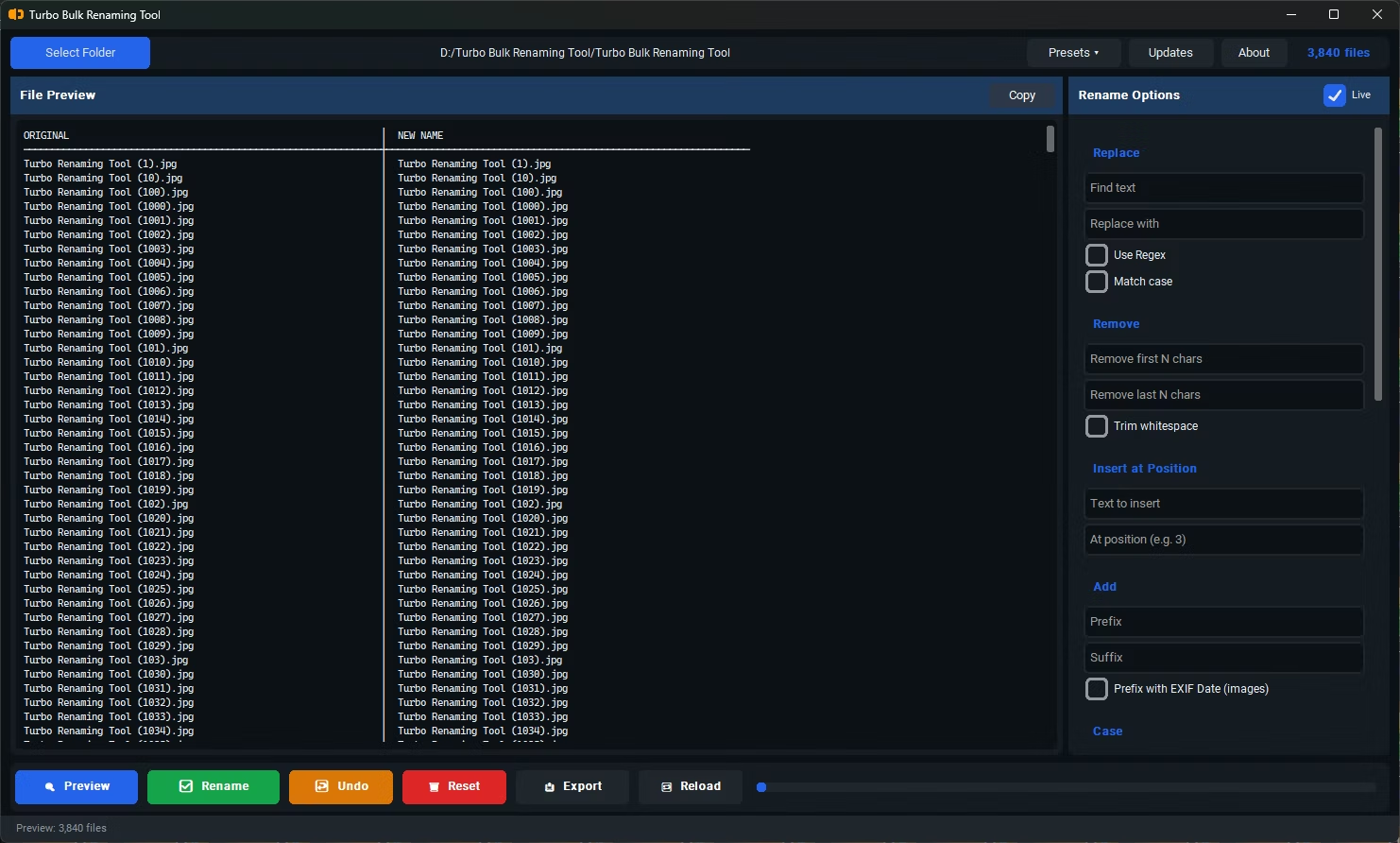
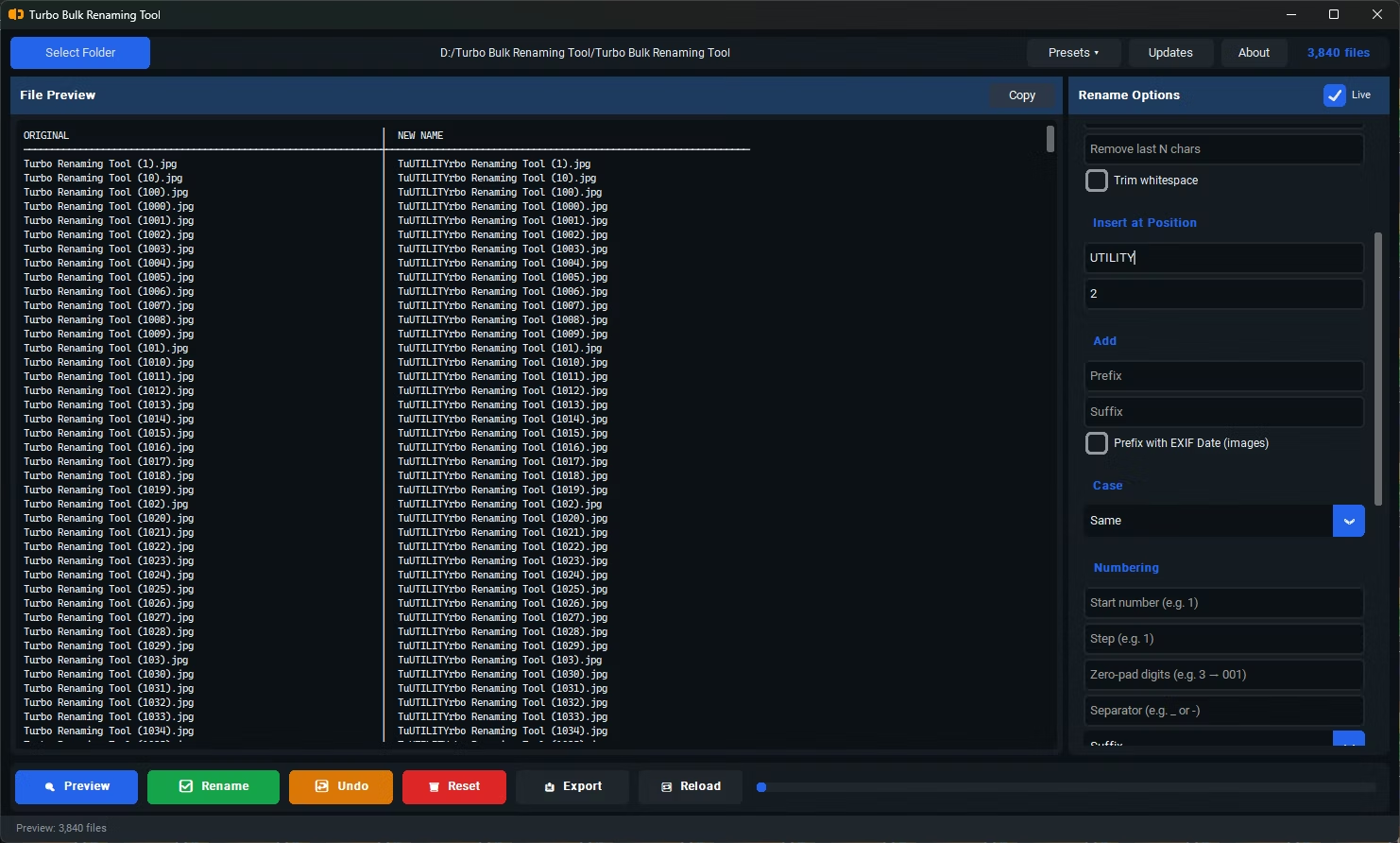
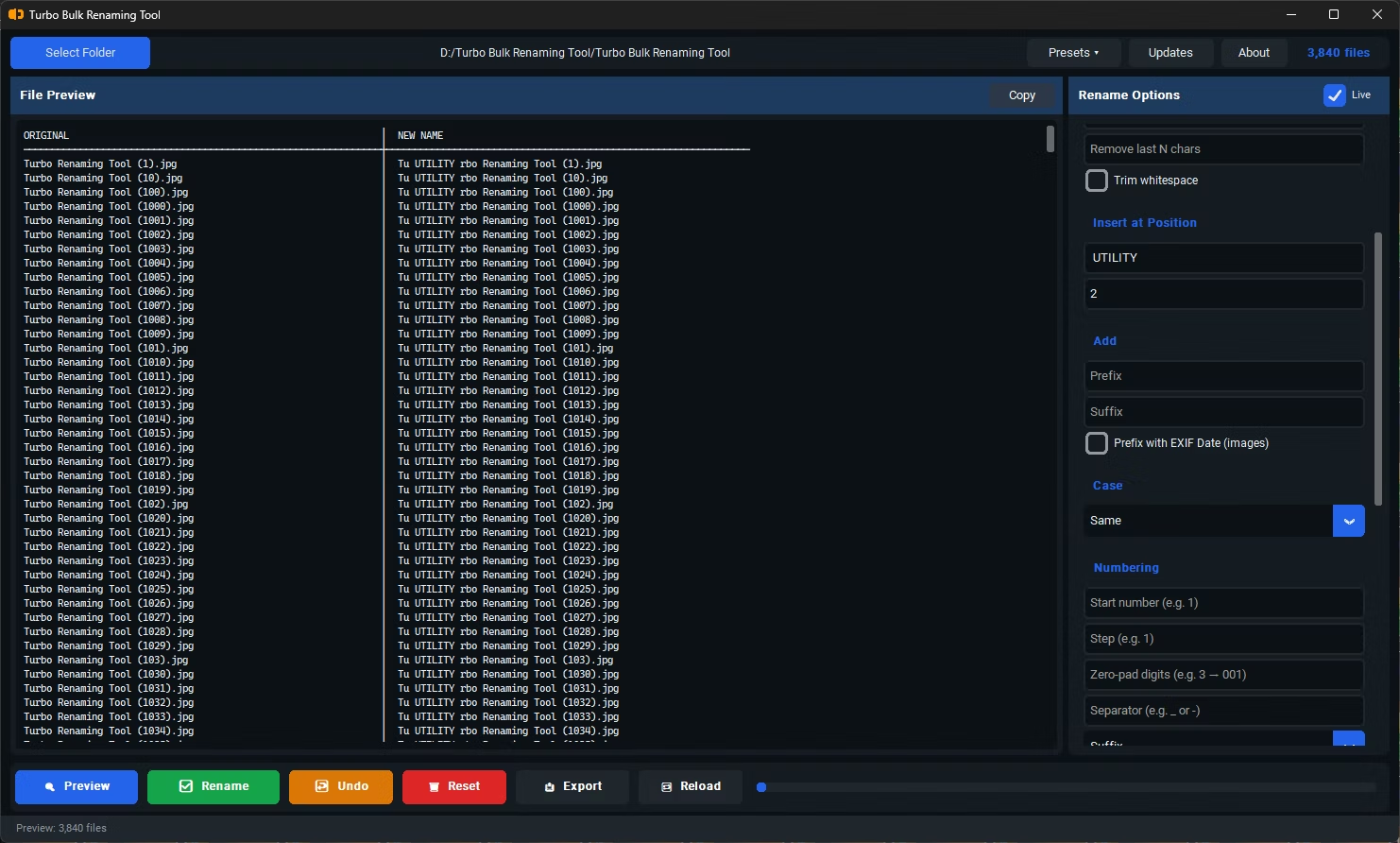
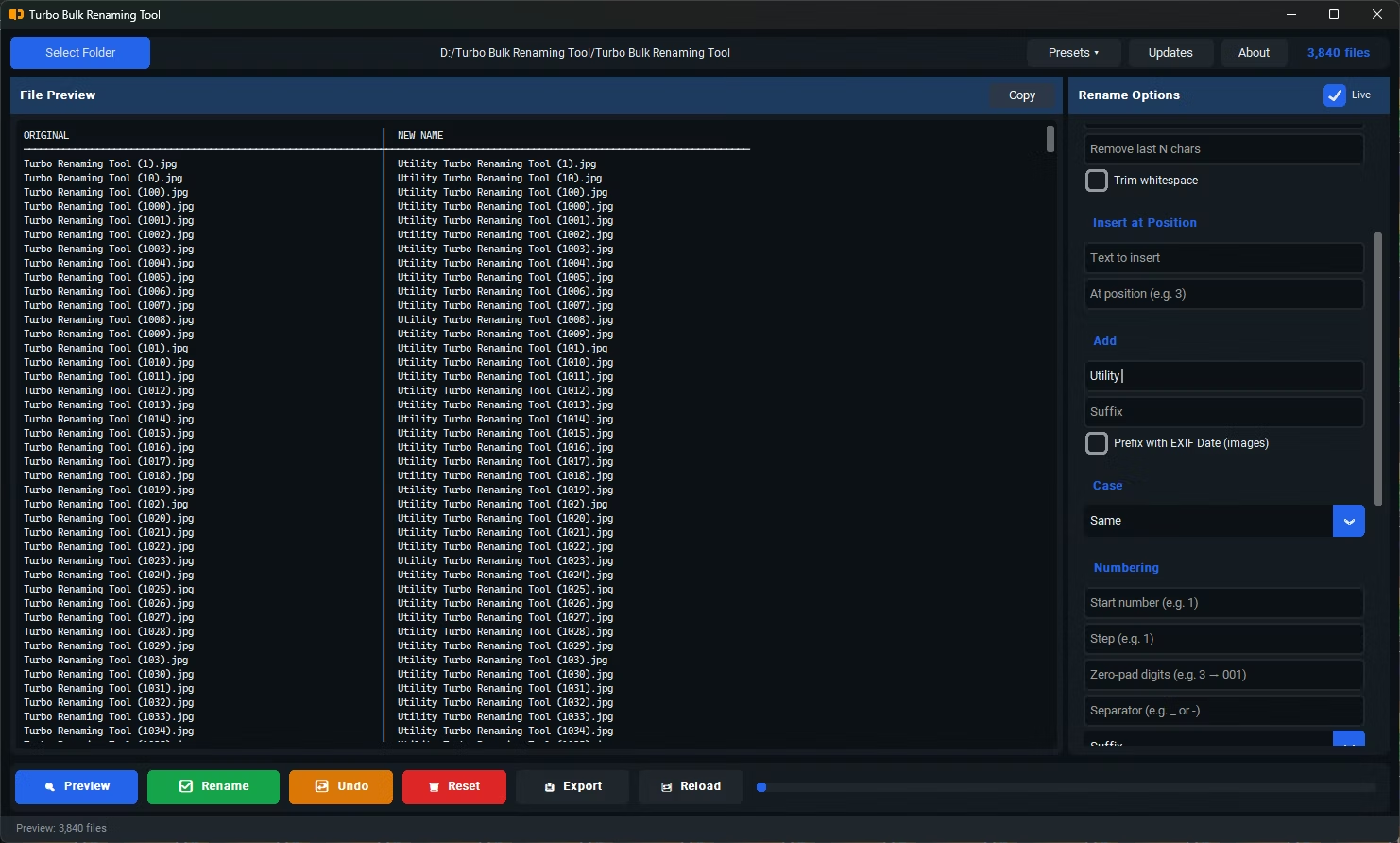
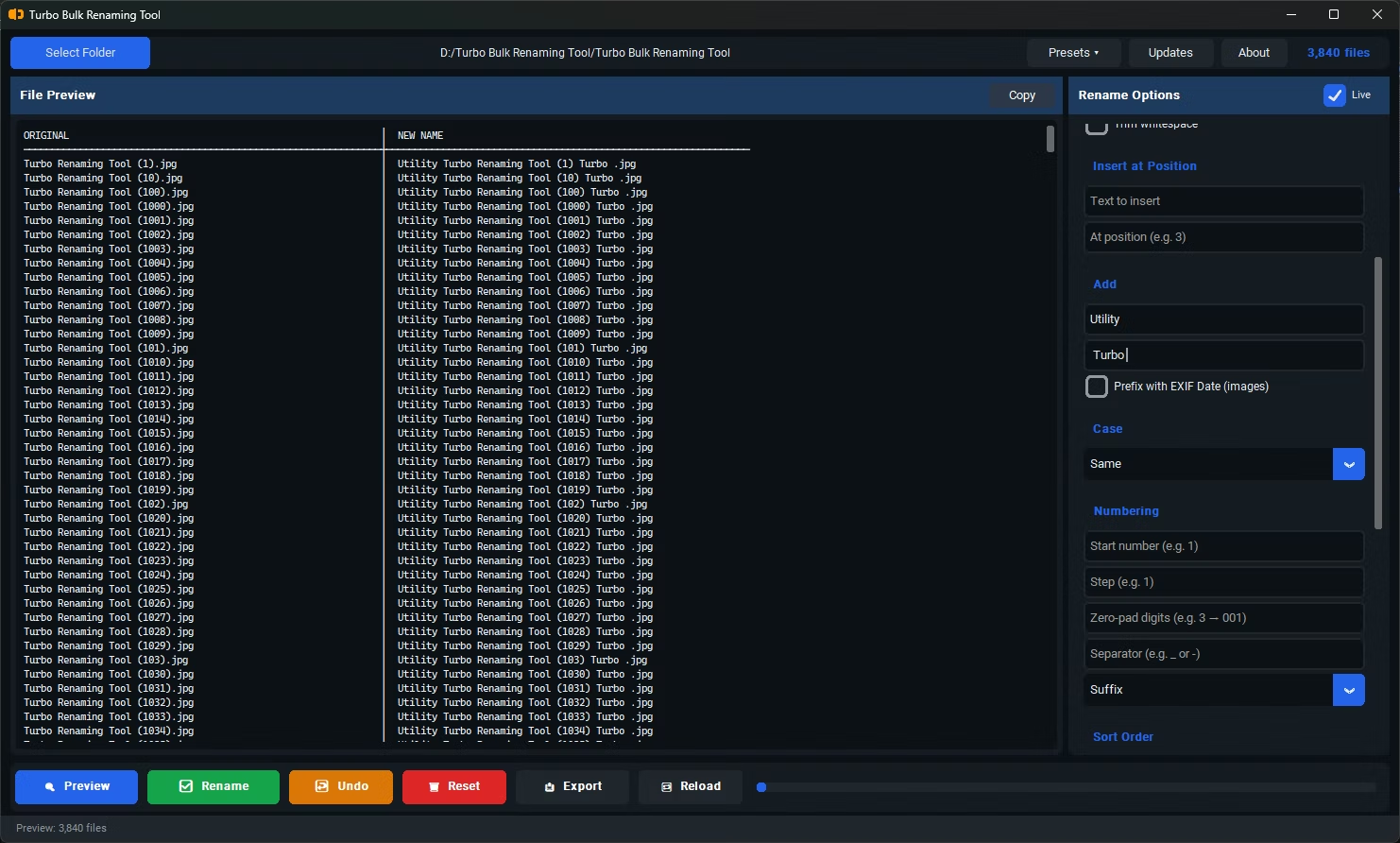
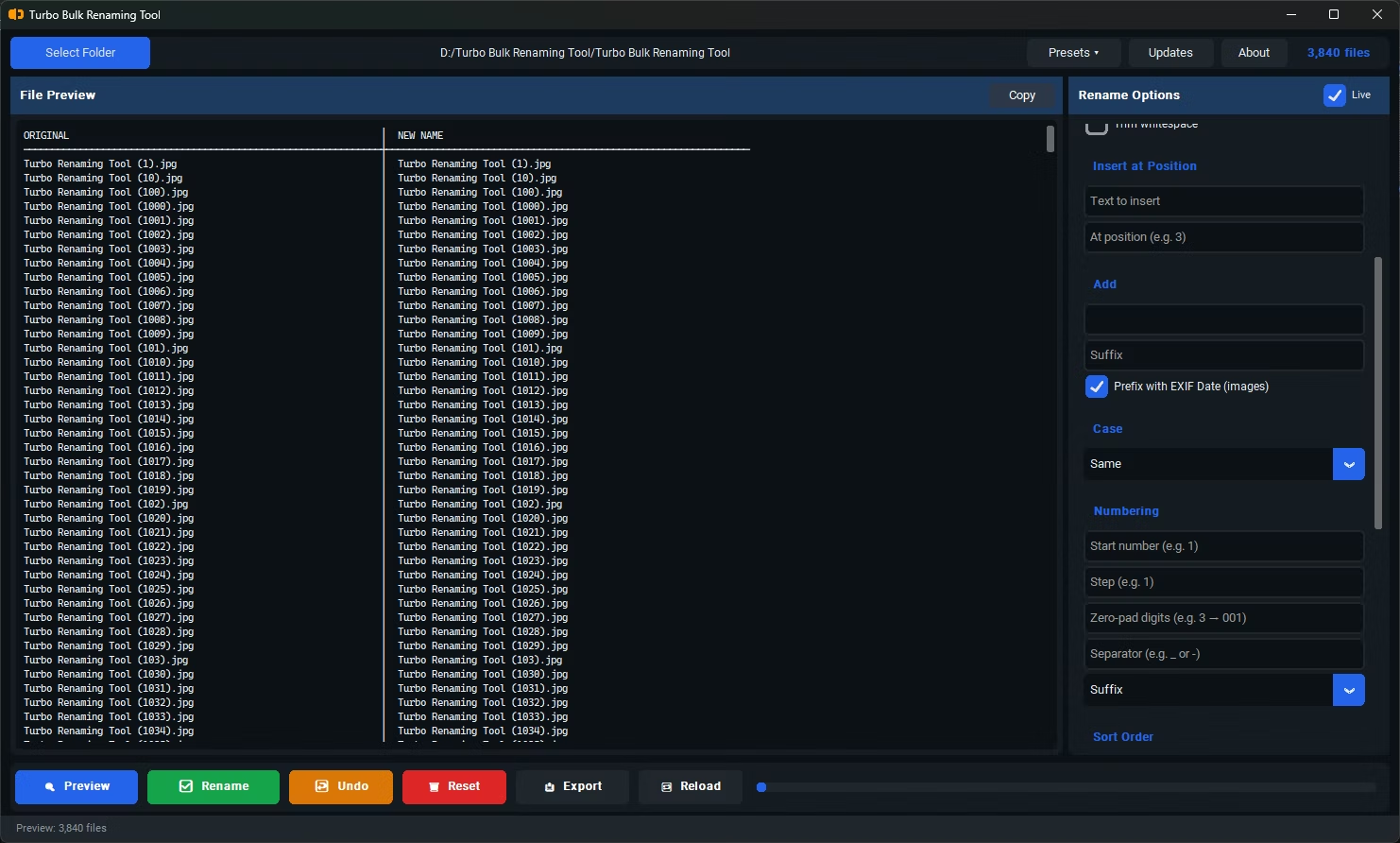
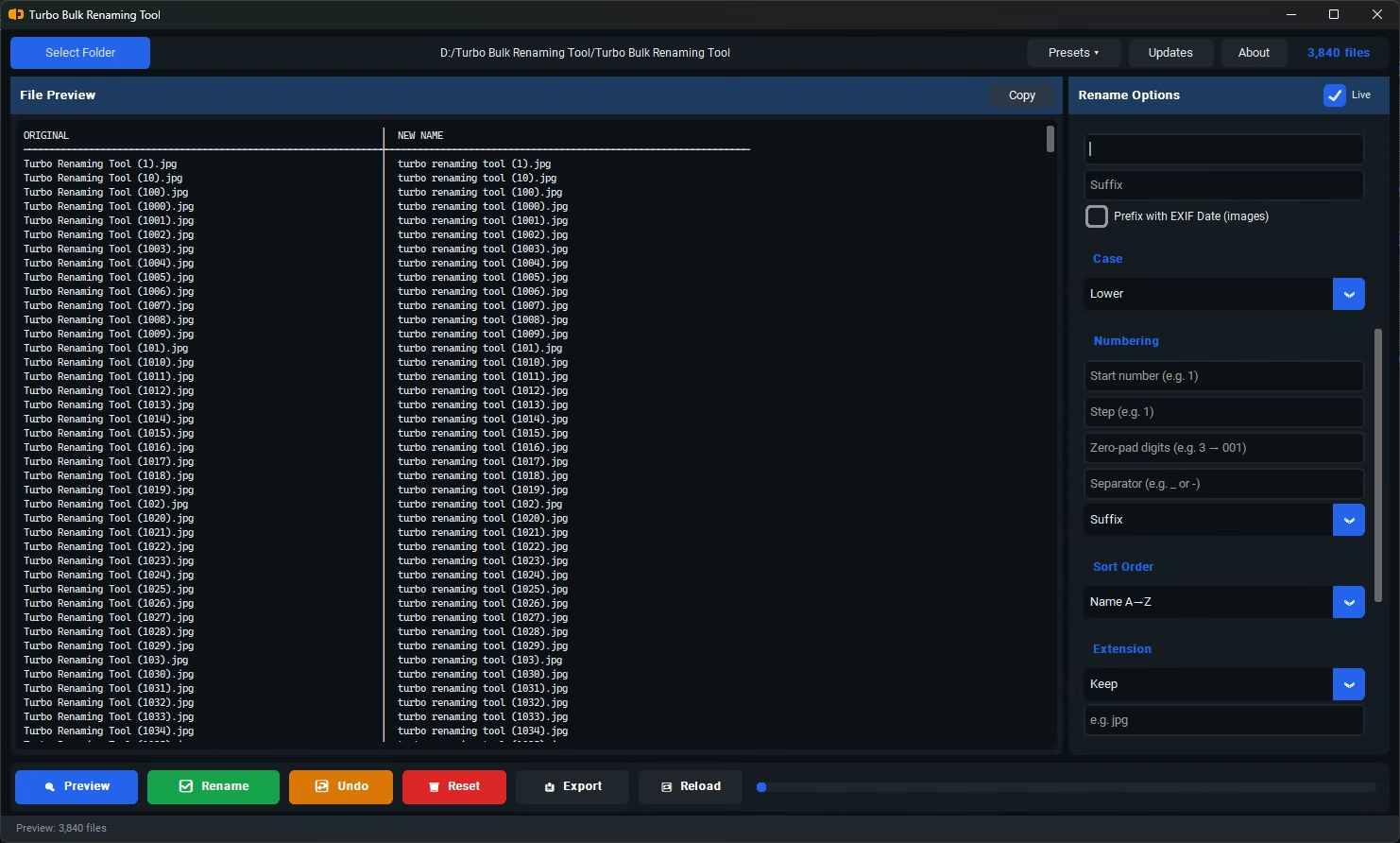
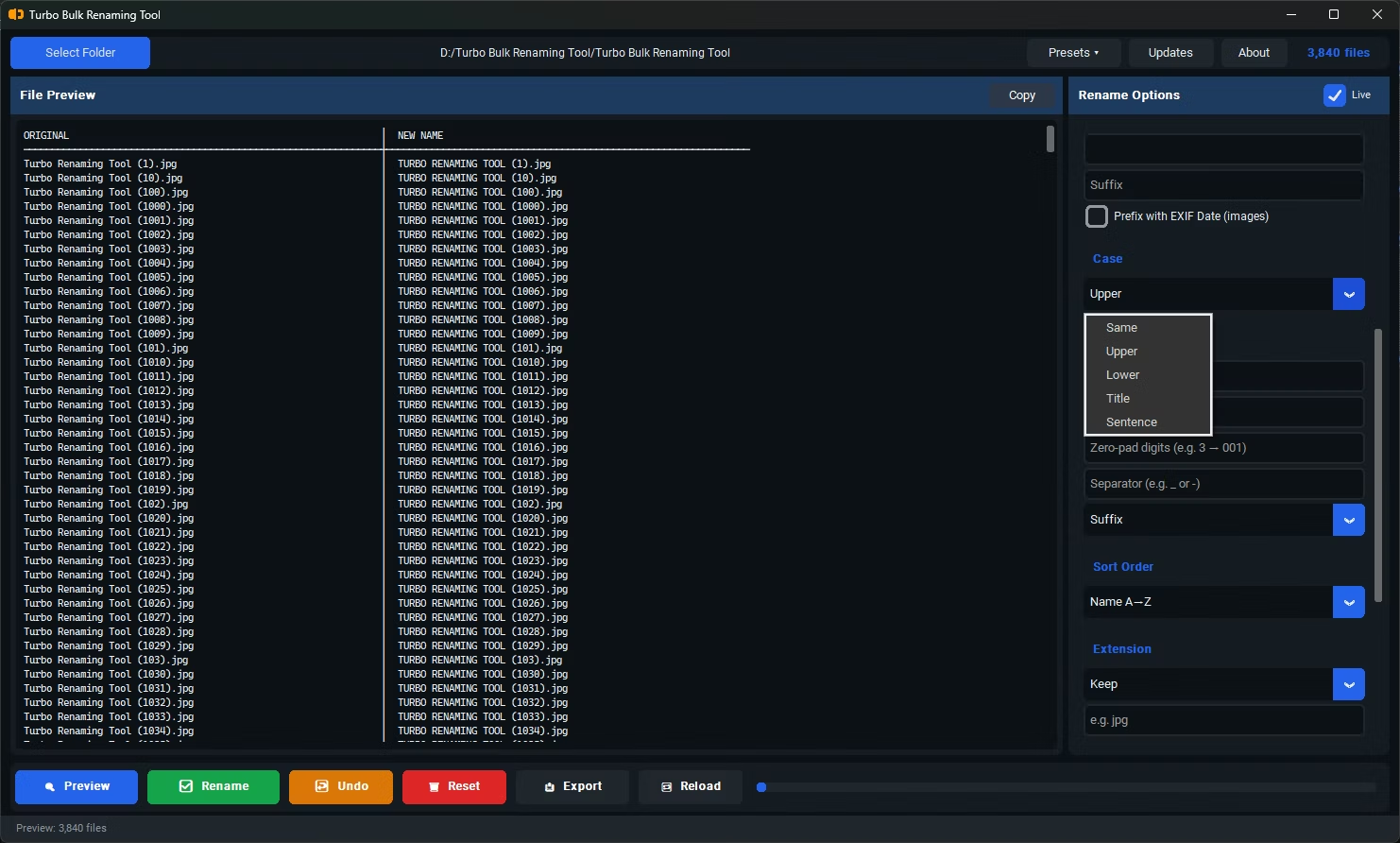
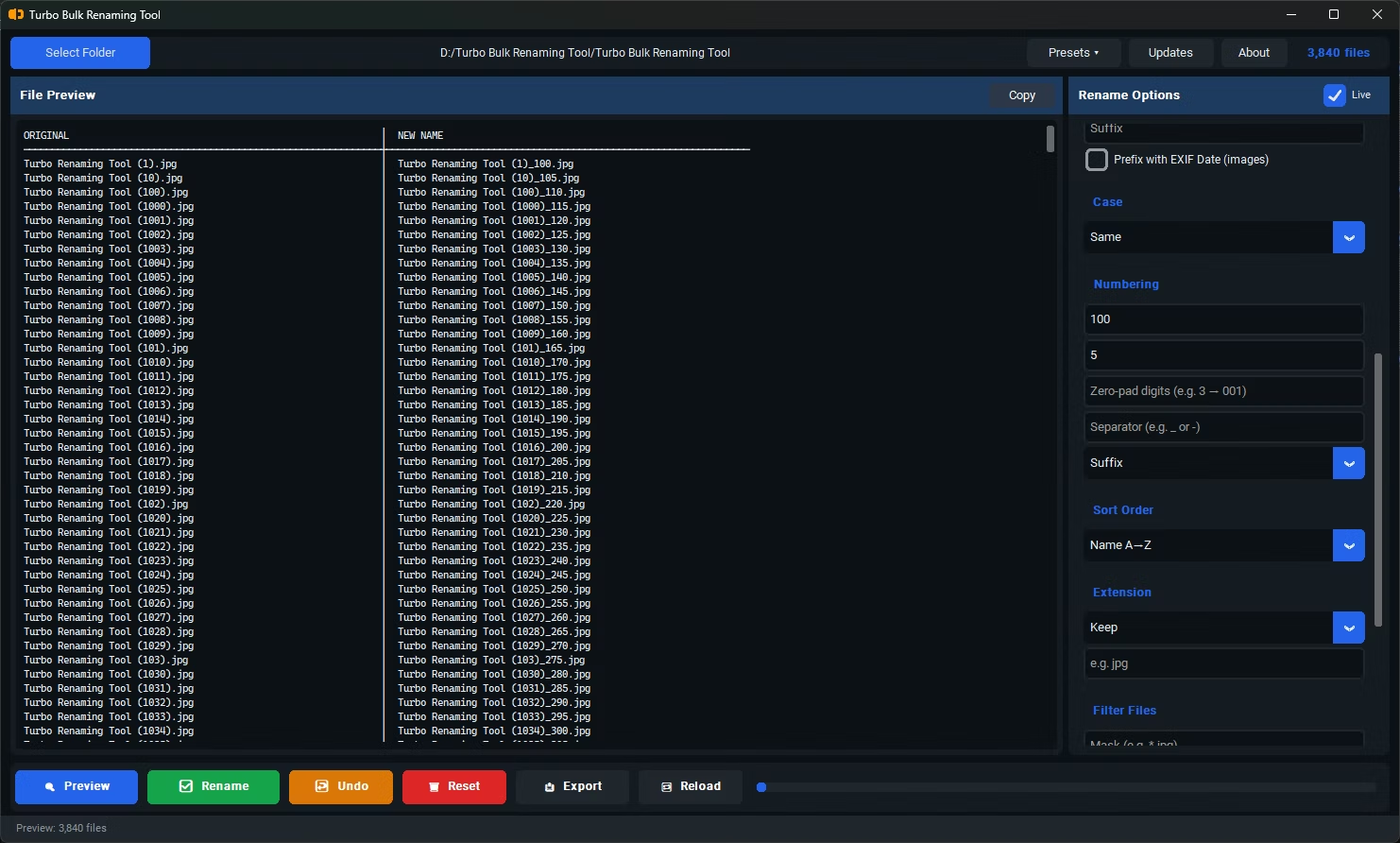

- Install Turbo Bulk Renaming Tool on your Windows PC.
- Select the files you want to add a suffix to.
- Choose the Add Suffix rule.
- Type the suffix text you want applied.
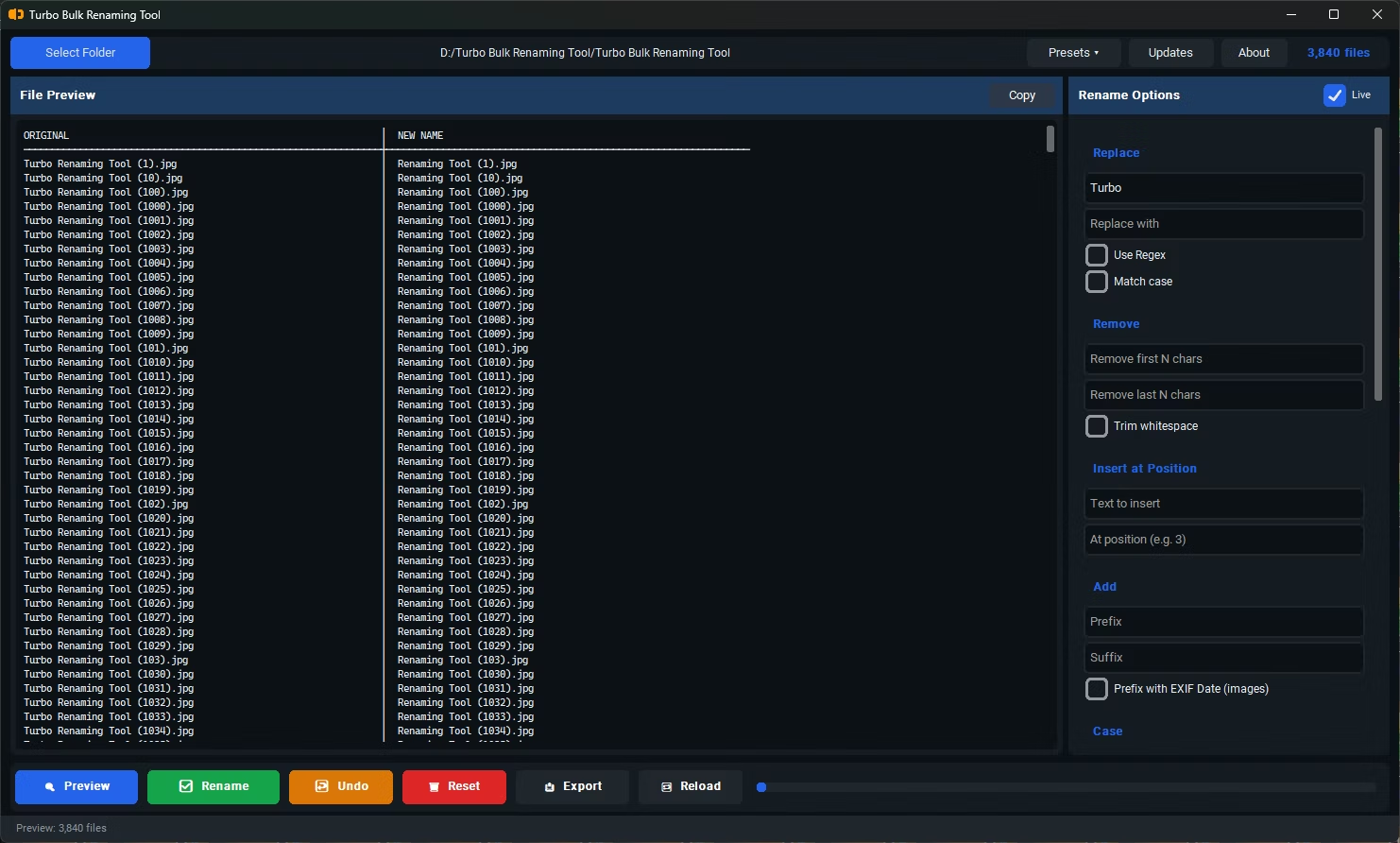
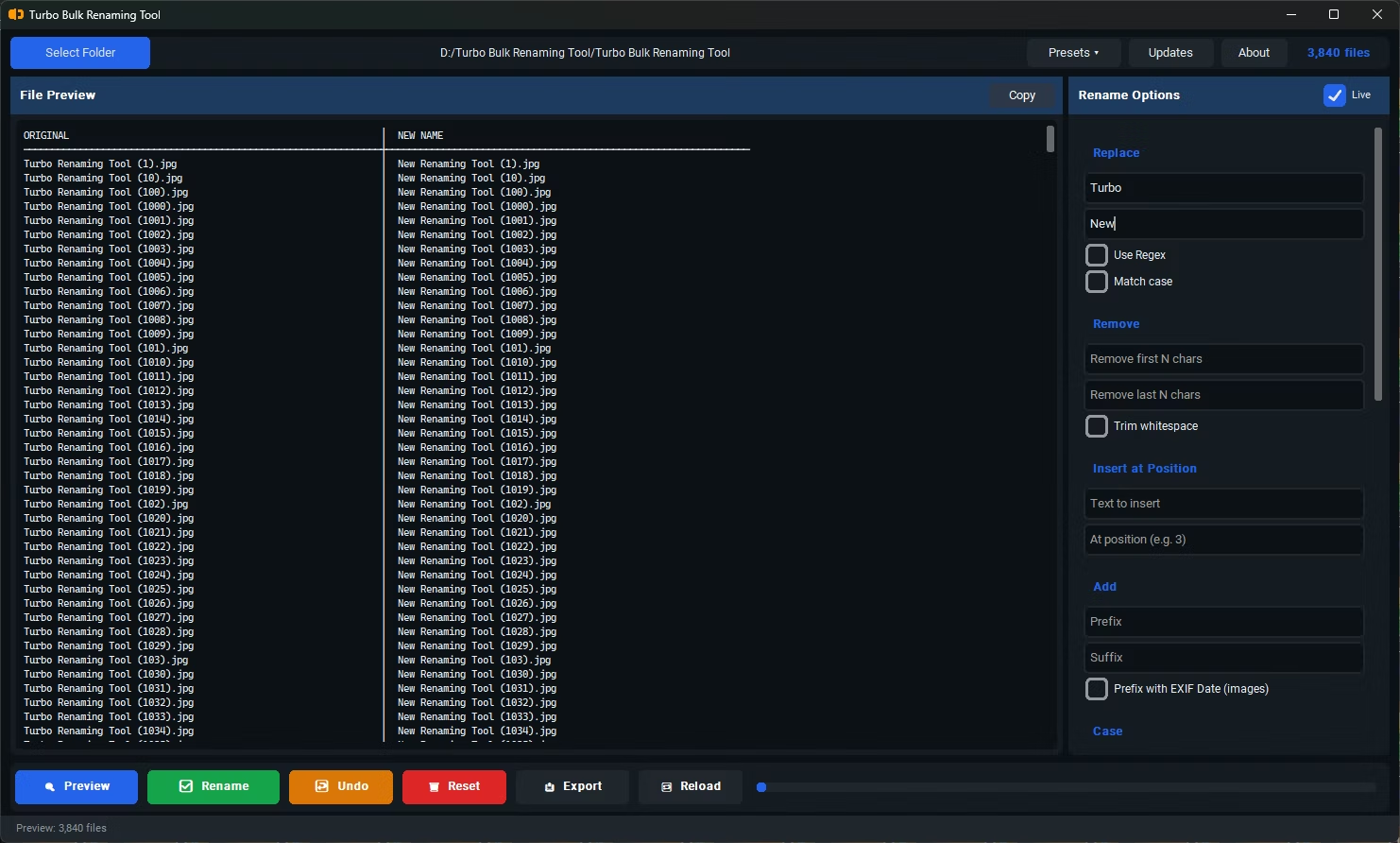
- Check the live preview to confirm the result.
- Combine additional rules if needed, such as case conversion.
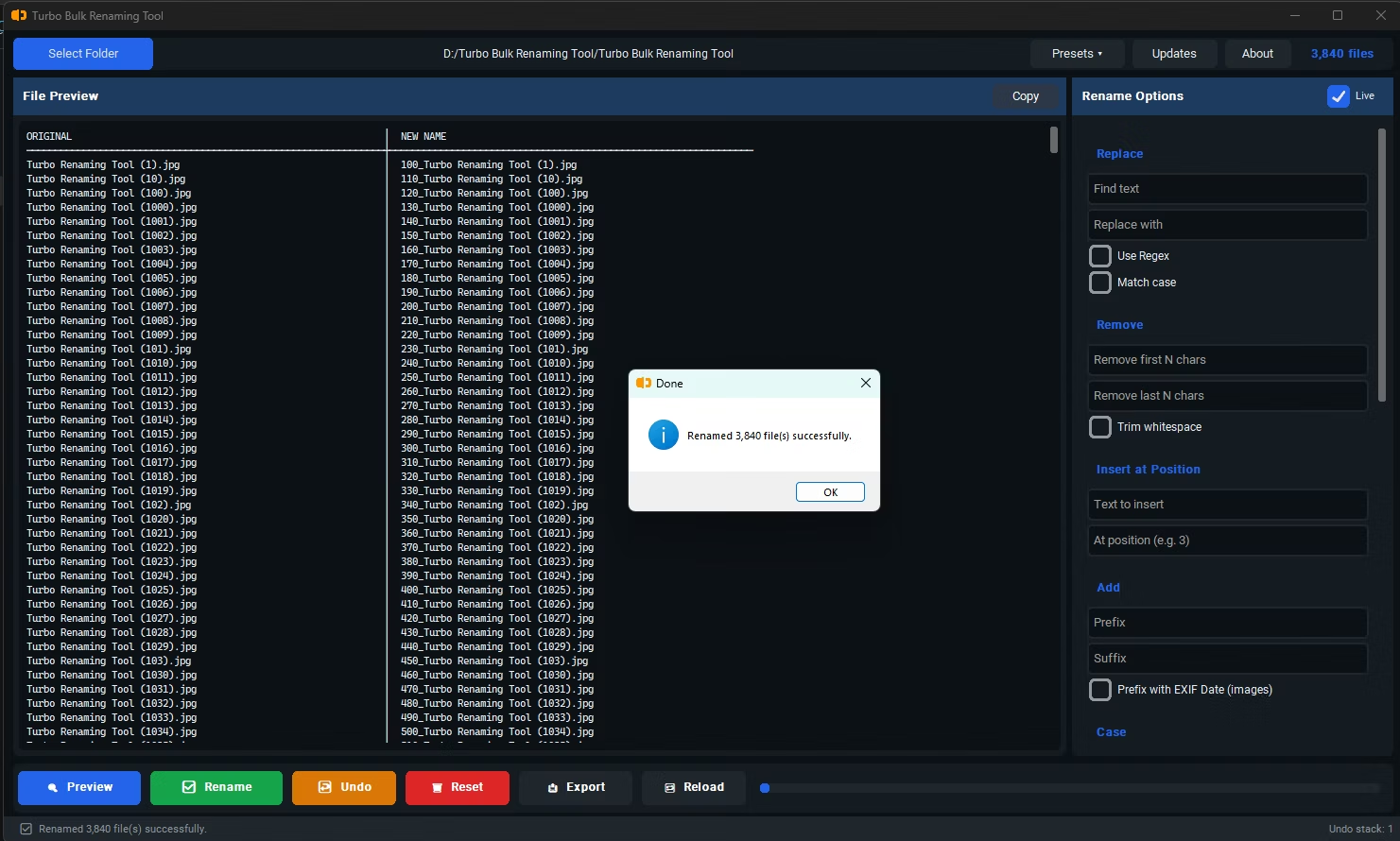
- Click Rename to apply the suffix to every selected file.
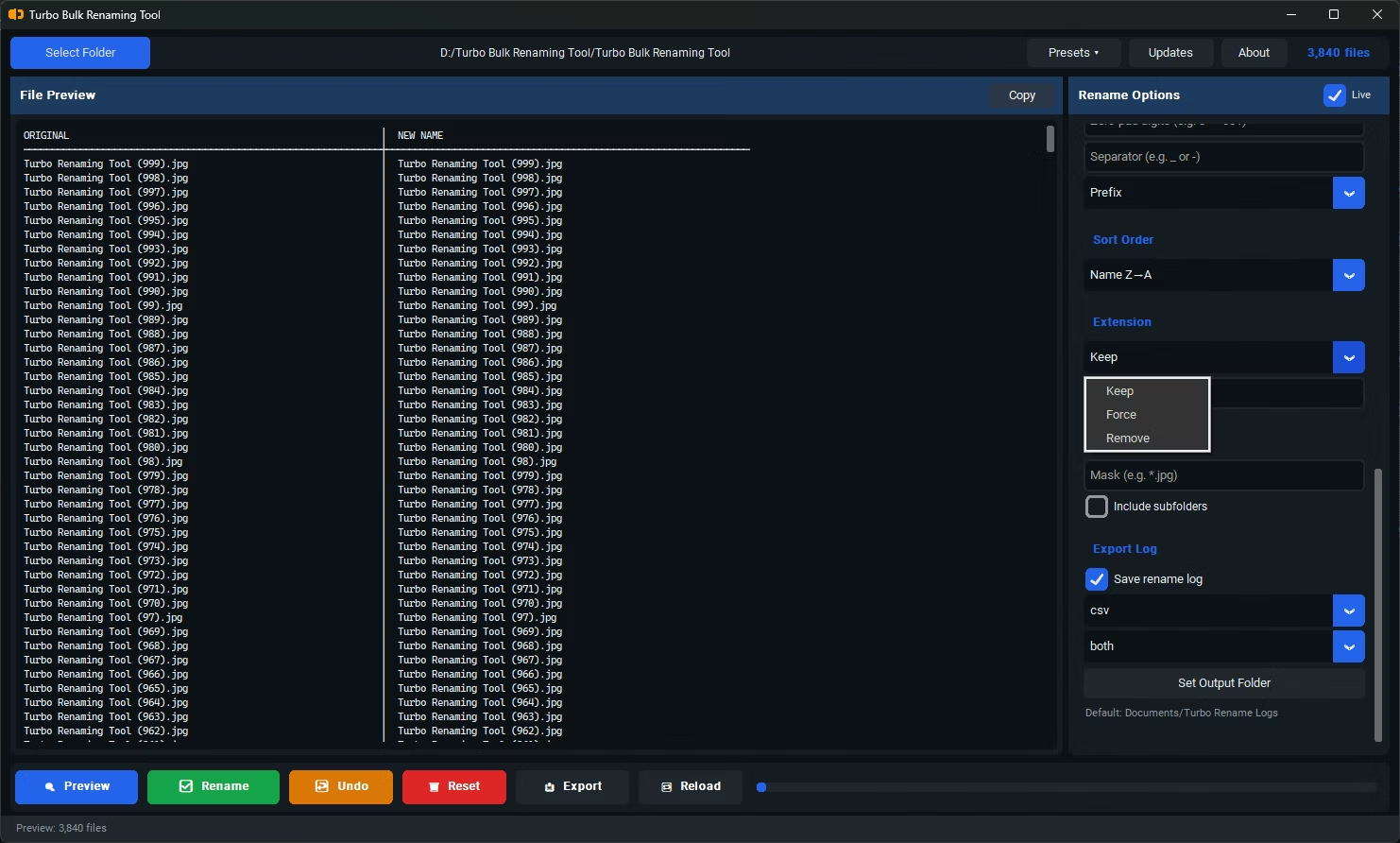
- Export a rename log if you want a written record.
- Double-check the live preview one more time for any file that looks unexpected.
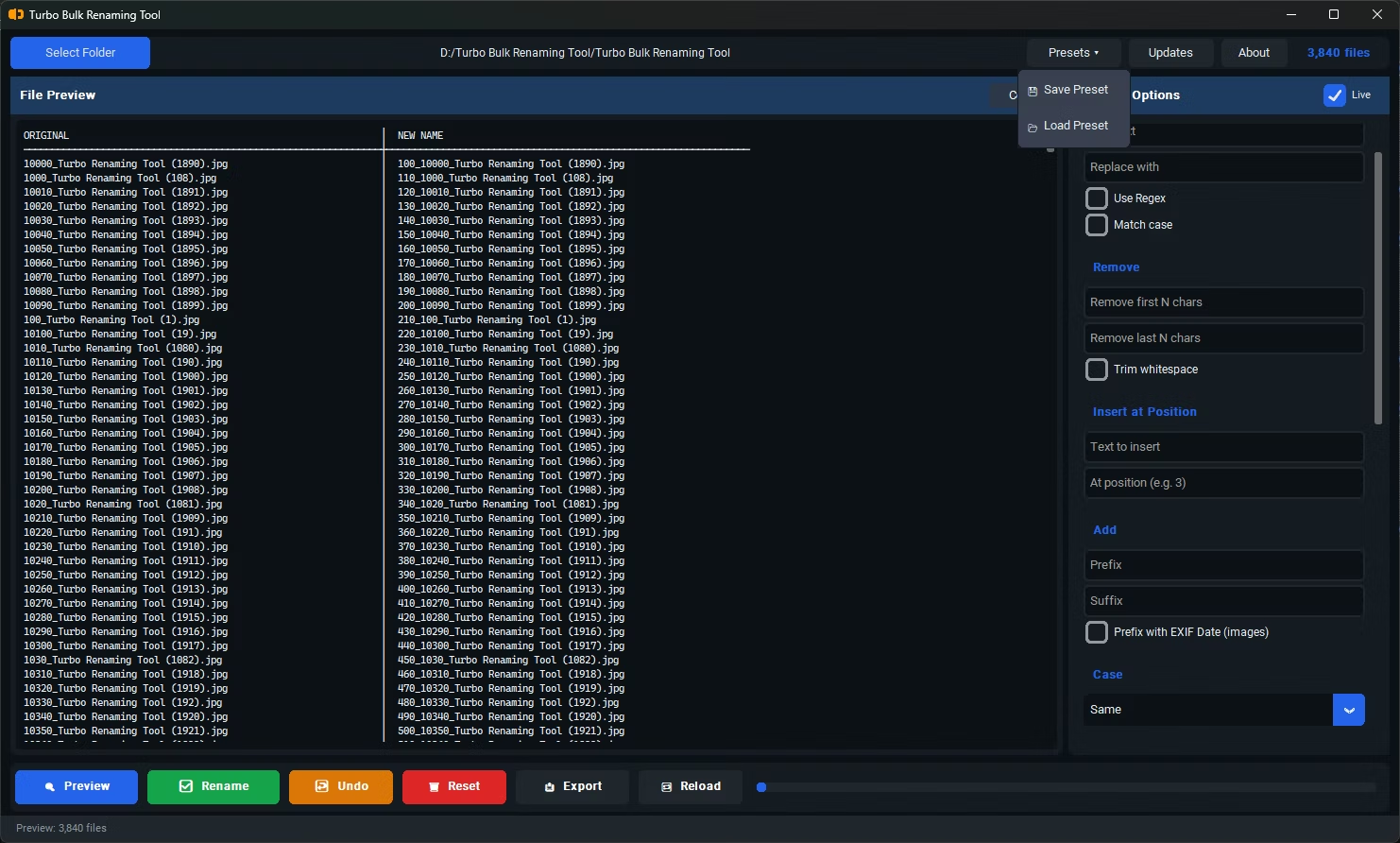
- Save your configuration as a preset if this is a job you expect to repeat.
- If you're renaming a recurring job, note down the settings or save them as a preset so the next run takes seconds.
- Adds the same suffix to any number of files in one operation
- Live preview confirms results before renaming
- Combine suffix addition with prefix, numbering, or other rules
- Suffix is correctly inserted before the file extension
- Save presets for suffix conventions you use repeatedly
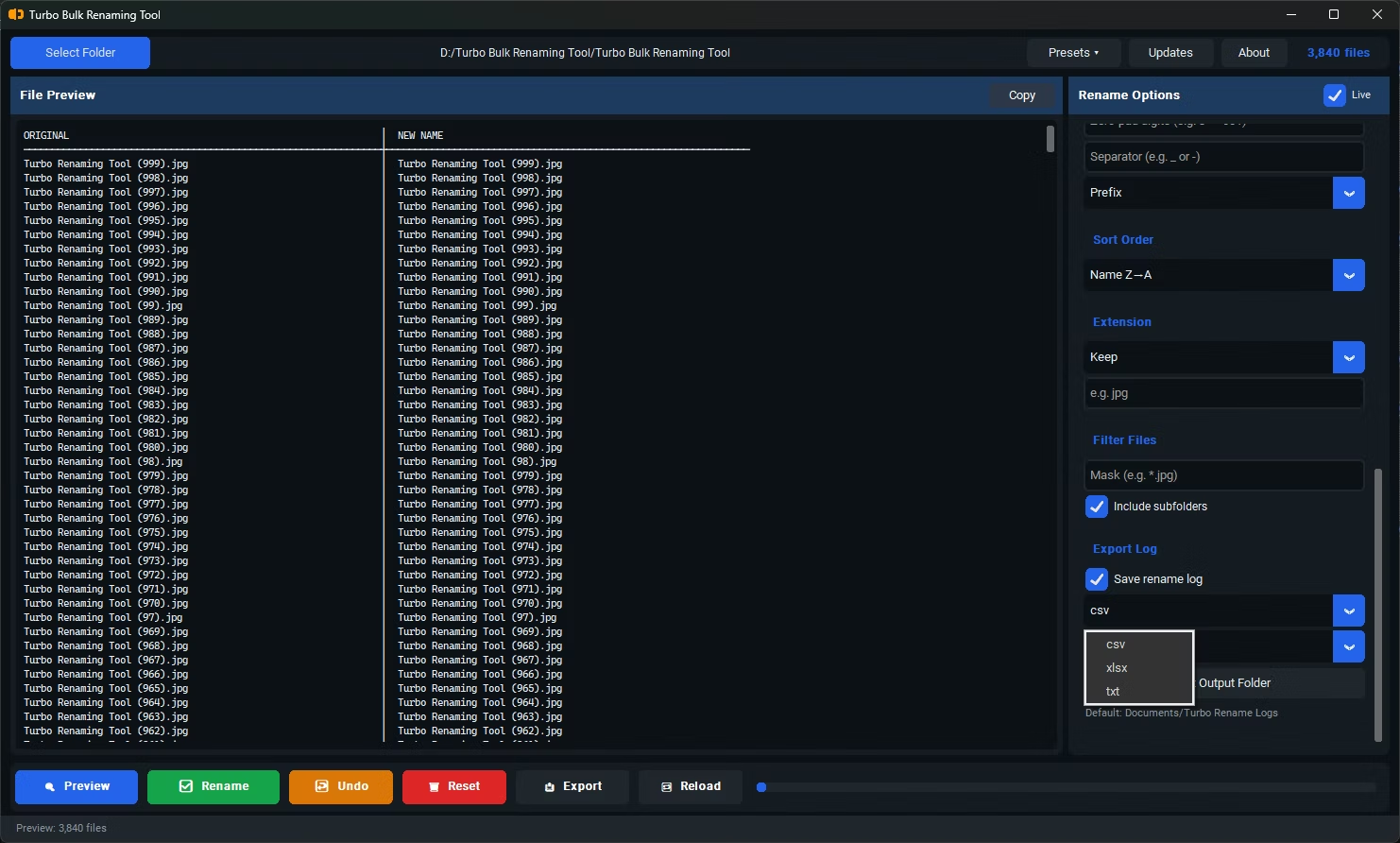
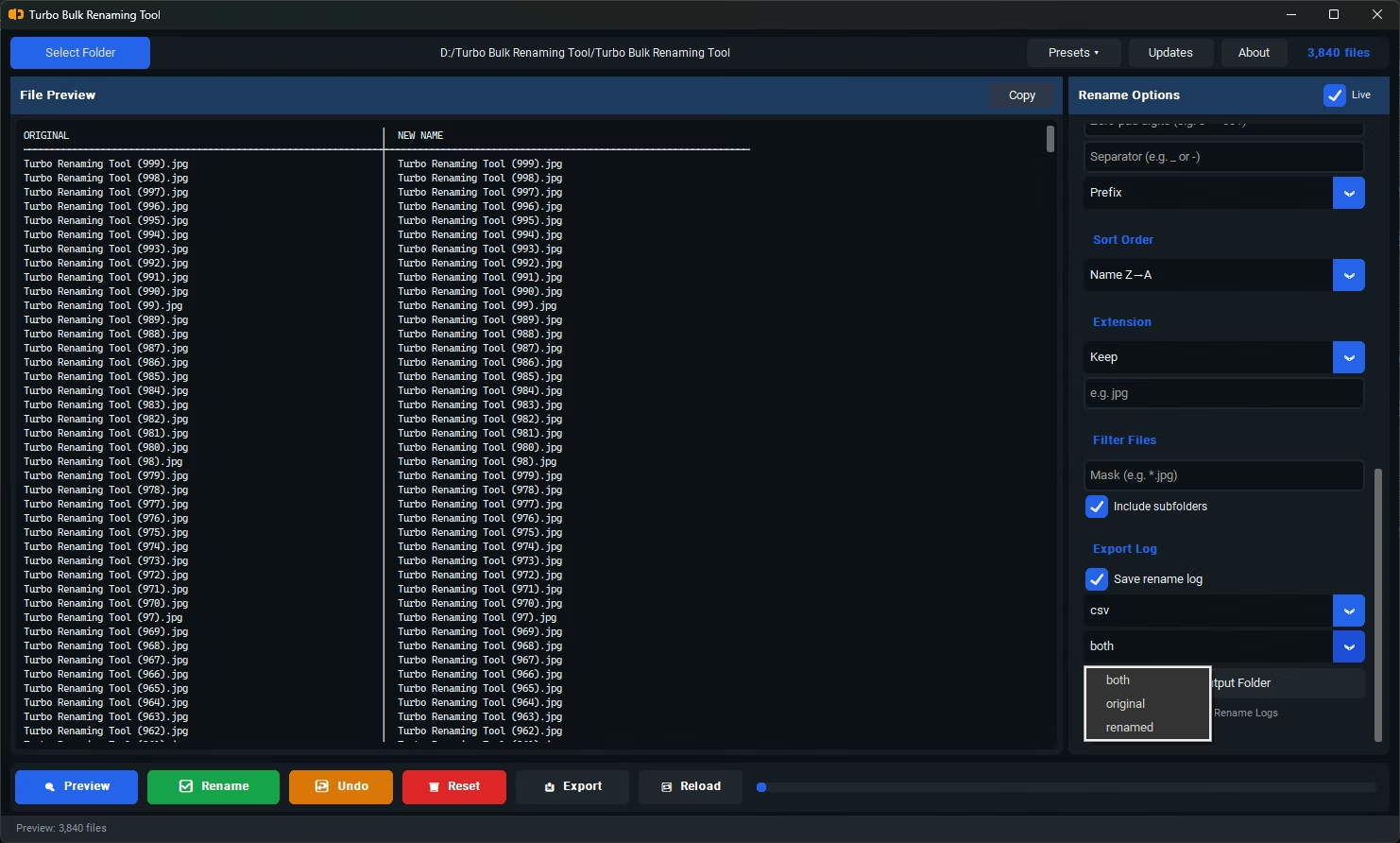
- Exportable rename logs to CSV, XLSX, or TXT
- Runs fully offline with no upload limits
- One-time purchase for Windows 10 and Windows 11, with no subscription or watermarks
- Save and reload full renaming configurations as presets for repeat jobs
- Straightforward installer with no extra dependencies to configure
- Works with files on local drives, external drives, and network shares
- Safe cancel support for stopping an in-progress rename mid-batch
- Clear, side-by-side original and new filename listing in every exported log
Does the suffix go before or after the file extension?
The suffix is inserted right before the file extension, so a file like report.pdf with a '-final' suffix becomes report-final.pdf.
Can I combine a suffix with sequential numbering?
Yes, suffix addition can be combined with numbering and other rules in a single rename operation.
Will I see the suffixed filenames before renaming?
Yes, the live preview shows every file's new name, suffix included, before you click Rename.
Can I reuse a suffix rule for future batches?
Yes, save your suffix configuration as a preset and reload it for future renaming jobs.
Does this work on both Windows 10 and Windows 11?
Yes, Turbo Bulk Renaming Tool is built and tested for both Windows 10 and Windows 11.
Is my data safe when using this tool?
Yes, all renaming happens locally on your PC; no files are uploaded or sent anywhere, so private or sensitive files stay fully under your control.
Can I try a renaming rule without permanently committing to it?
Yes, the live preview lets you experiment with any rule and see the exact result before you click Rename, so nothing changes until you're ready.
Do I need to install anything else for this to work?
No, the installer includes everything needed; there are no separate dependencies or plugins to set up.
Can I rename files stored on an external or network drive?
Yes, you can select files from local drives, external drives, or mapped network shares, the same as any folder on your PC.
Can I cancel a rename operation partway through?
Yes, safe cancel support lets you stop an in-progress rename, and any files already renamed at that point stay renamed while the rest keep their original names.
What if I select a mix of files and folders together?
You can rename files and folders in the same selection; the same rule set applies to both, and the live preview shows the result for each.
Can I see exactly what changed after a rename is finished?
Yes, the exported rename log lists the original and new name side by side for every file, giving you a complete record of the operation even after the fact.
Does the tool support both files and folders in the same rule set?
Yes, the same prefix, suffix, numbering, and find and replace rules apply equally whether your selection contains files, folders, or a mix of both.
Is there a trial version available before buying?
Check the product page on turbo-soft.com for current trial availability and details.
Ready to add a suffix to multiple files, fully offline and with full control?