Sequential numbering is one of the most common renaming needs — numbering photos in the order they were taken, labeling scanned pages 001, 002, 003, or organizing exported files into a clear, sortable order. Windows Explorer can append a number automatically, but it always wraps it in parentheses and offers no control over the starting number, padding, or separator, which often doesn't match what you actually need.
A dedicated numbering rule gives you full control: where the number goes, what it starts at, how many digits it's padded to, and what separates it from the rest of the filename.
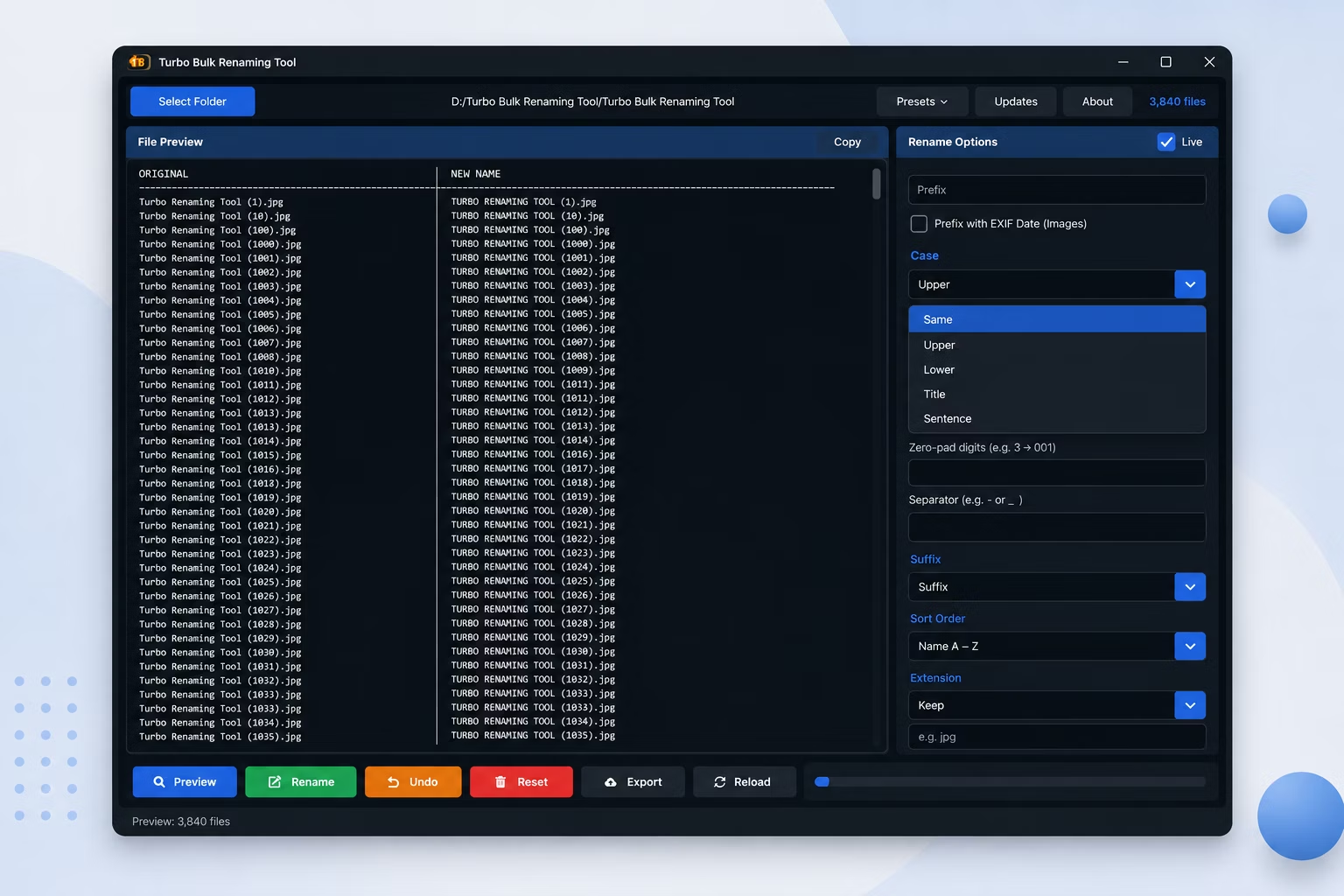
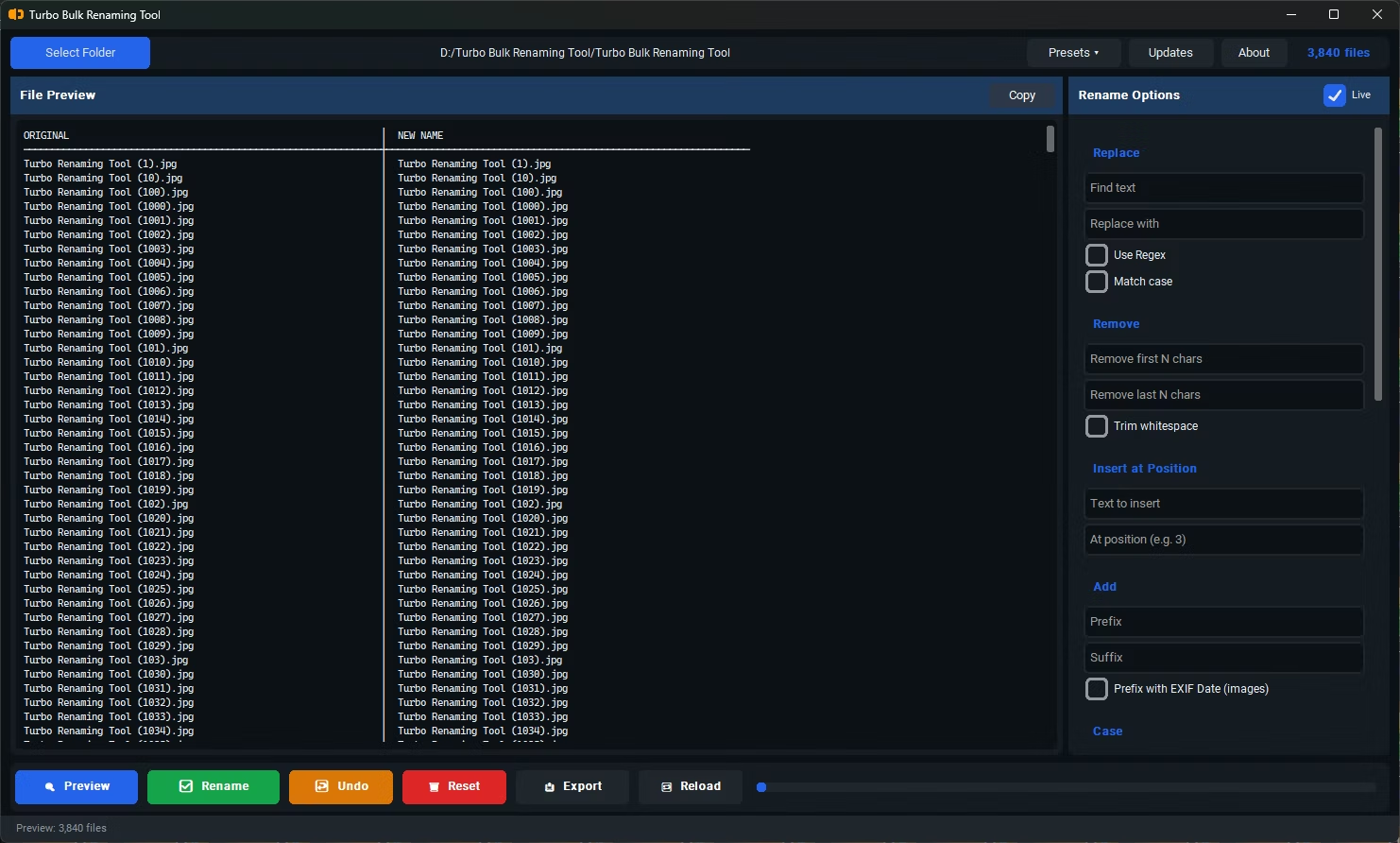
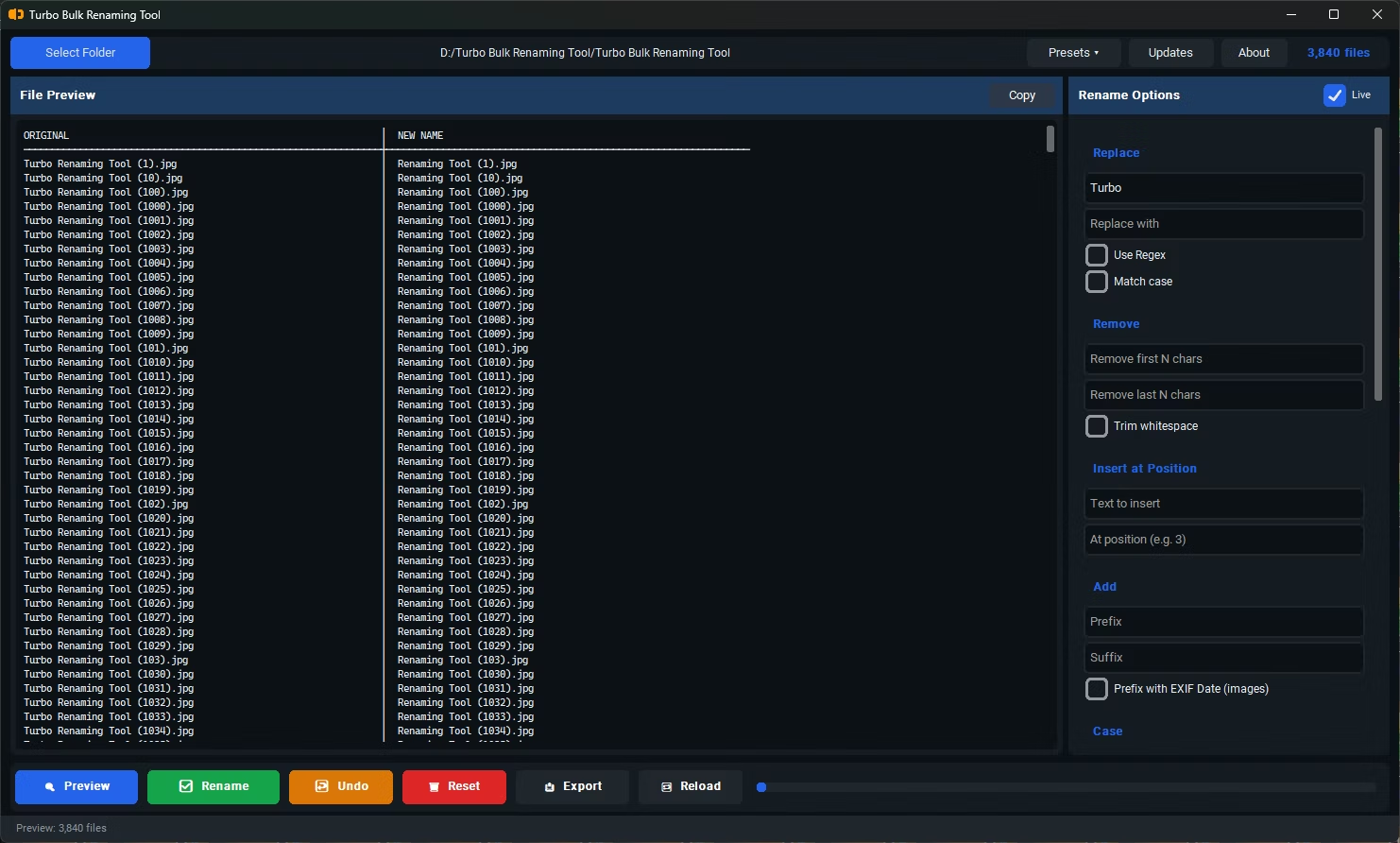
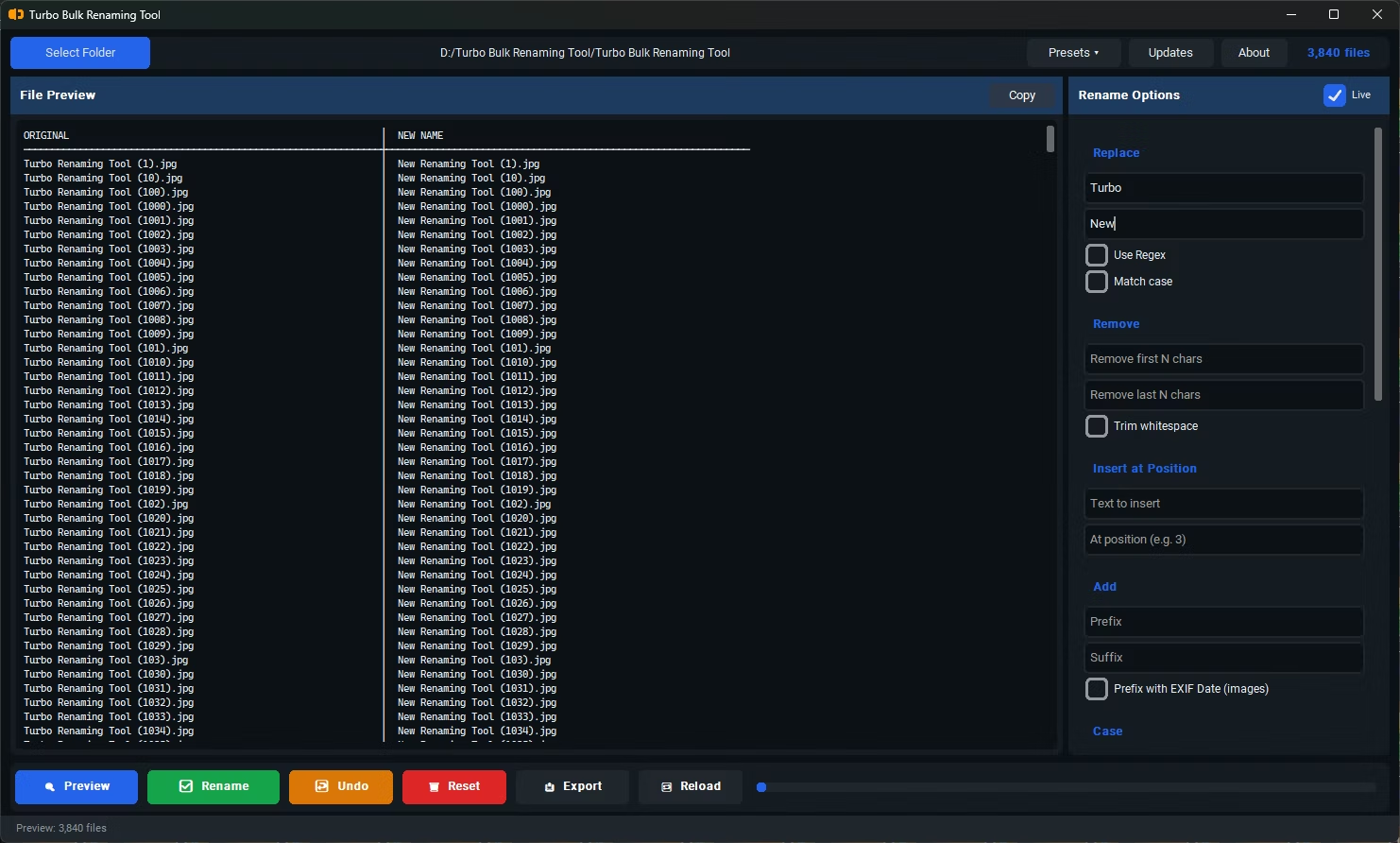
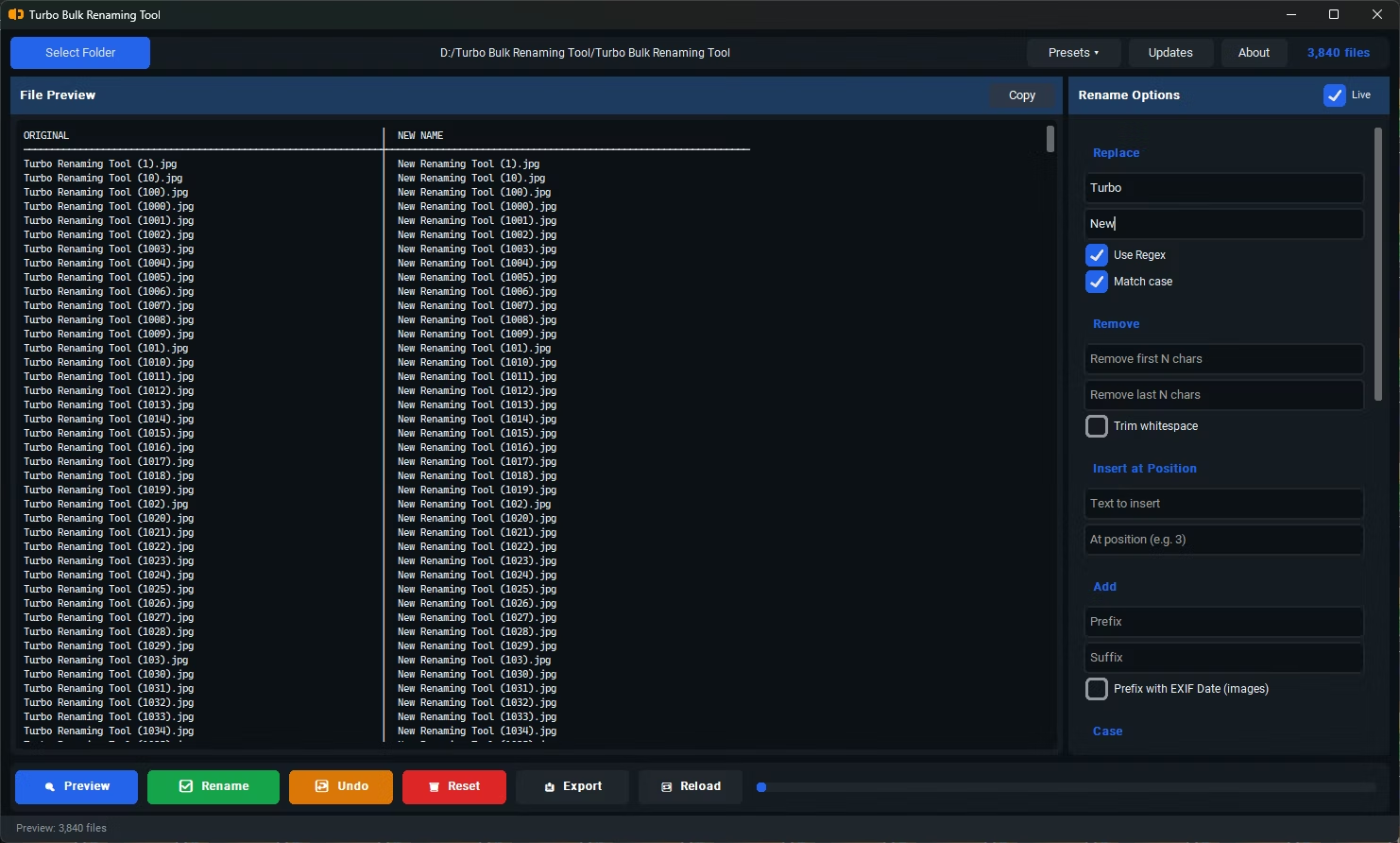
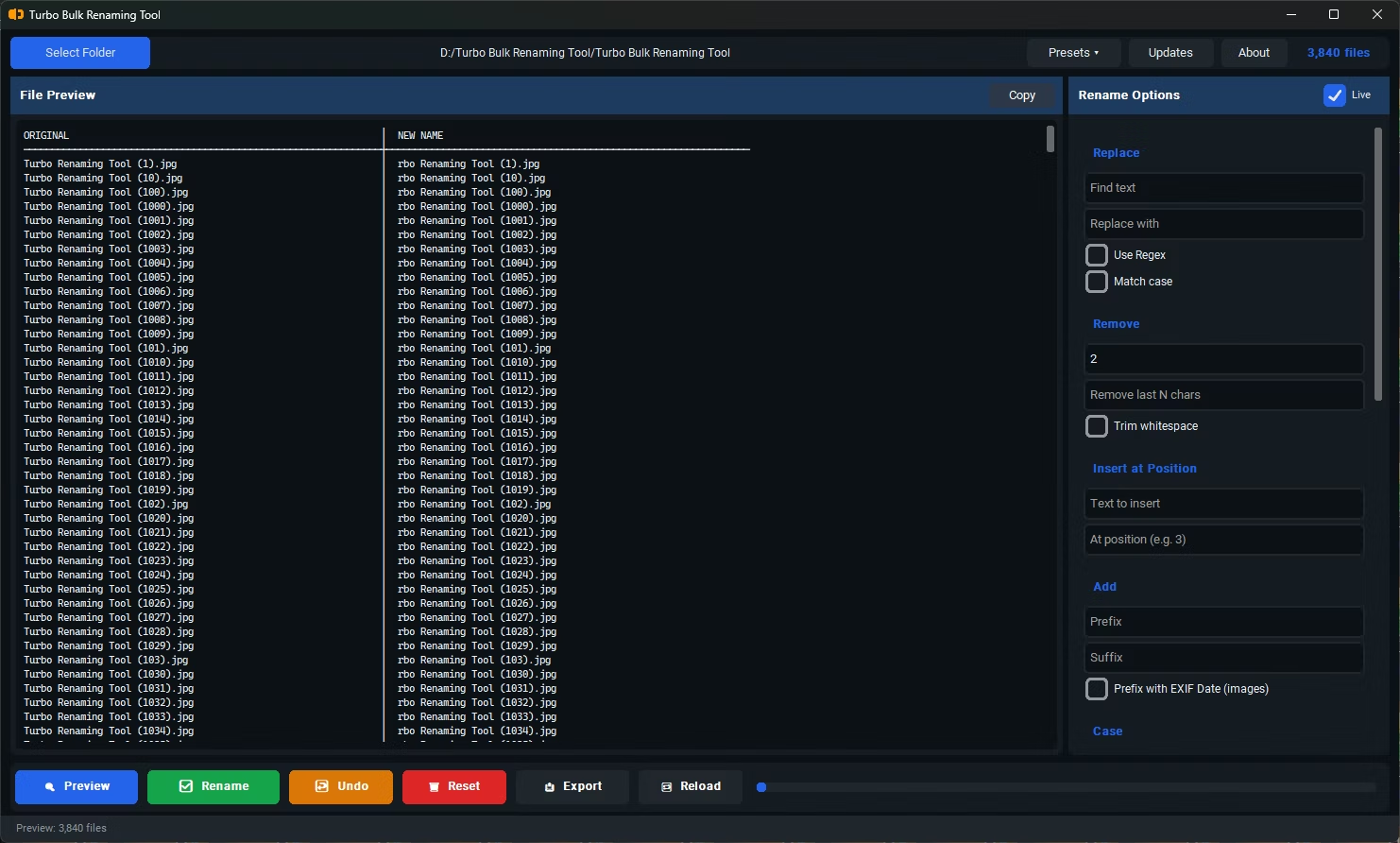
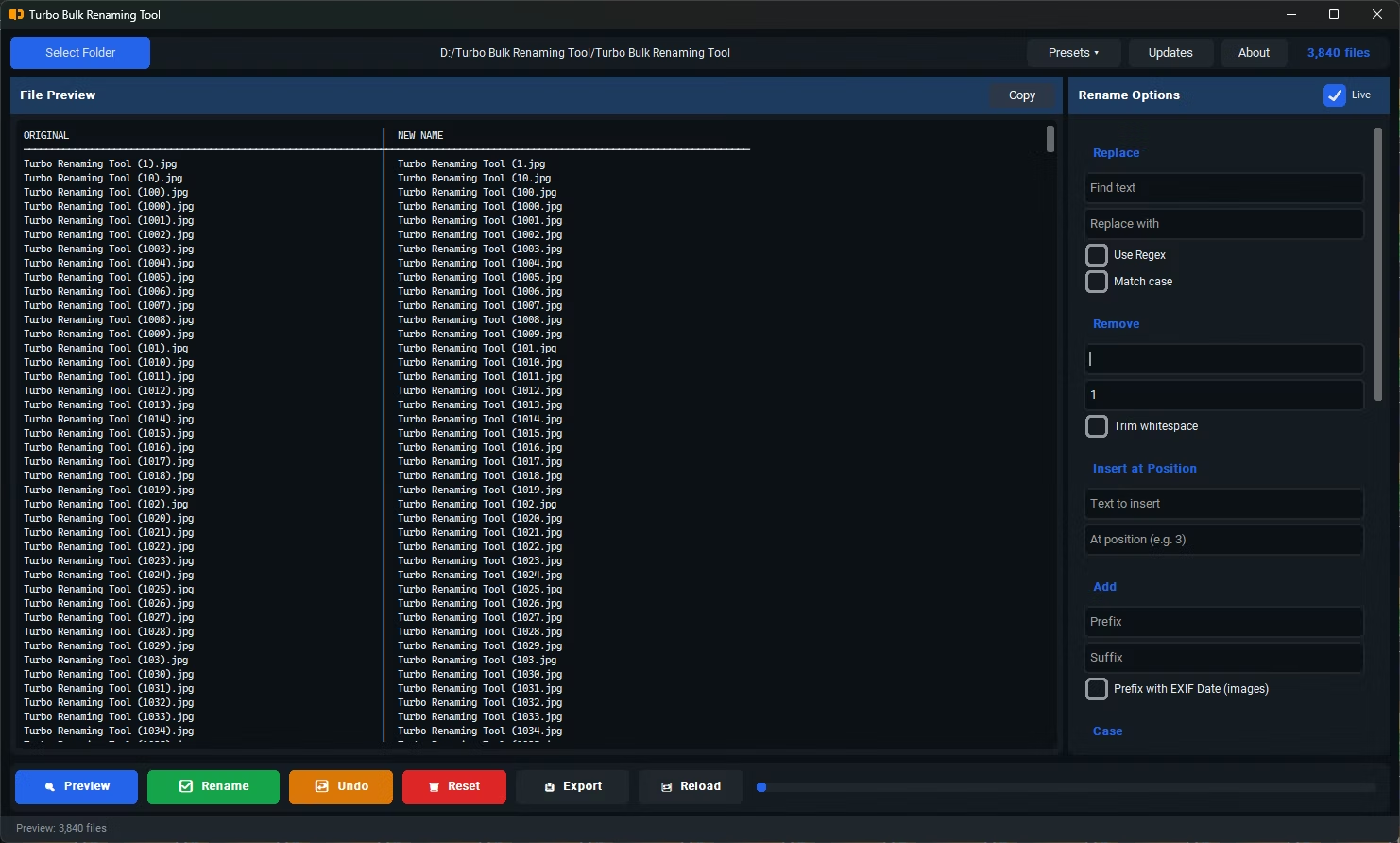
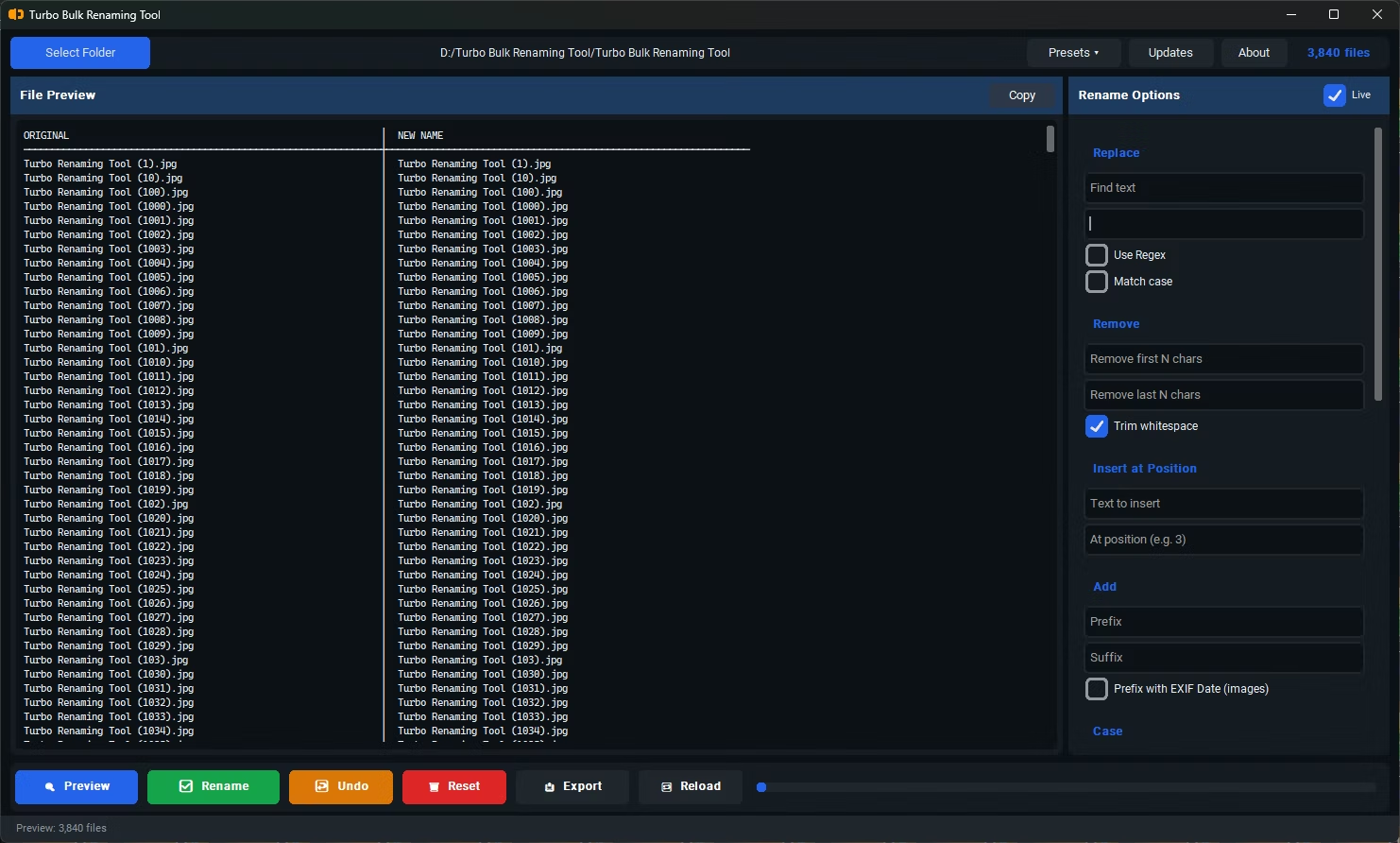
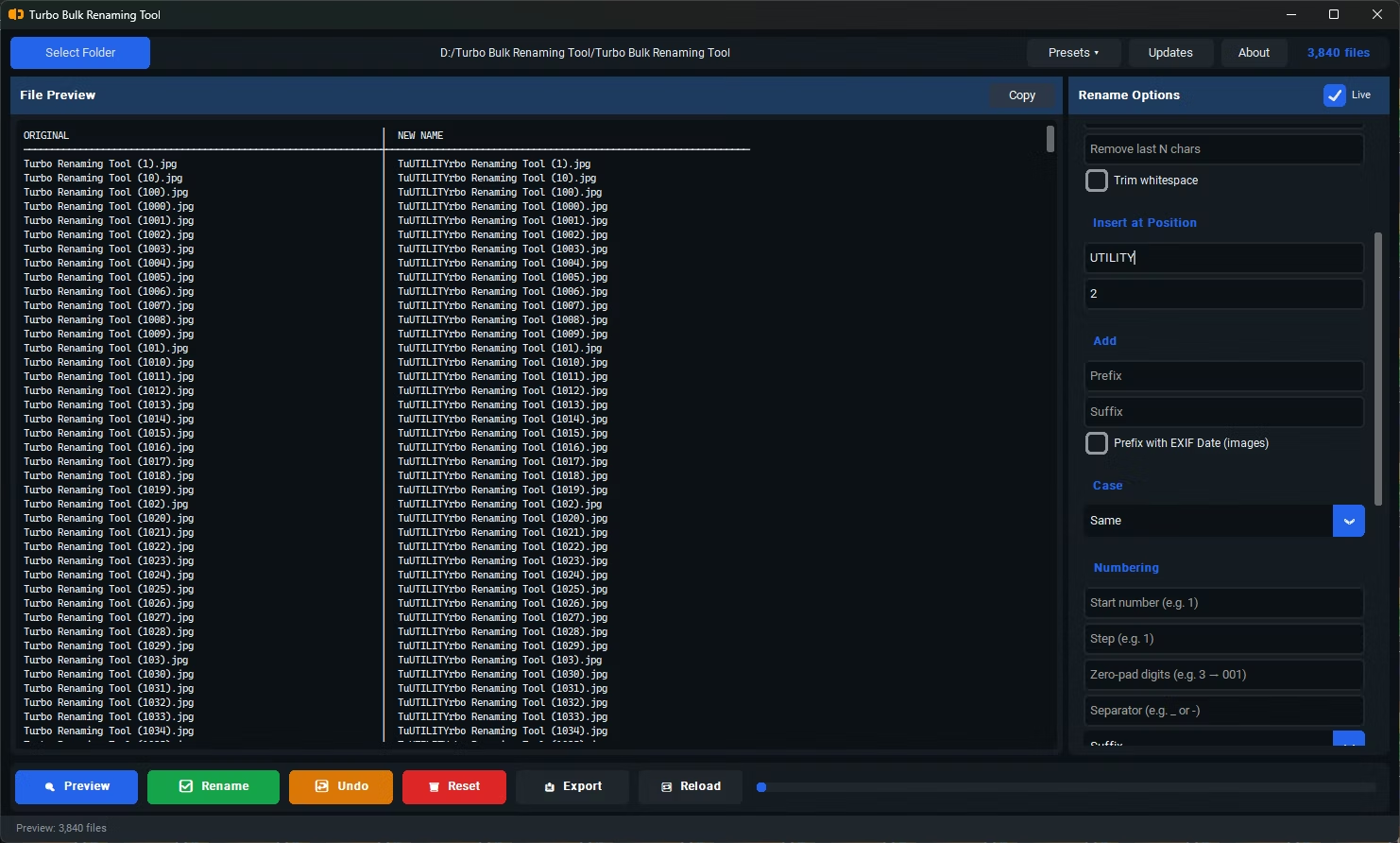
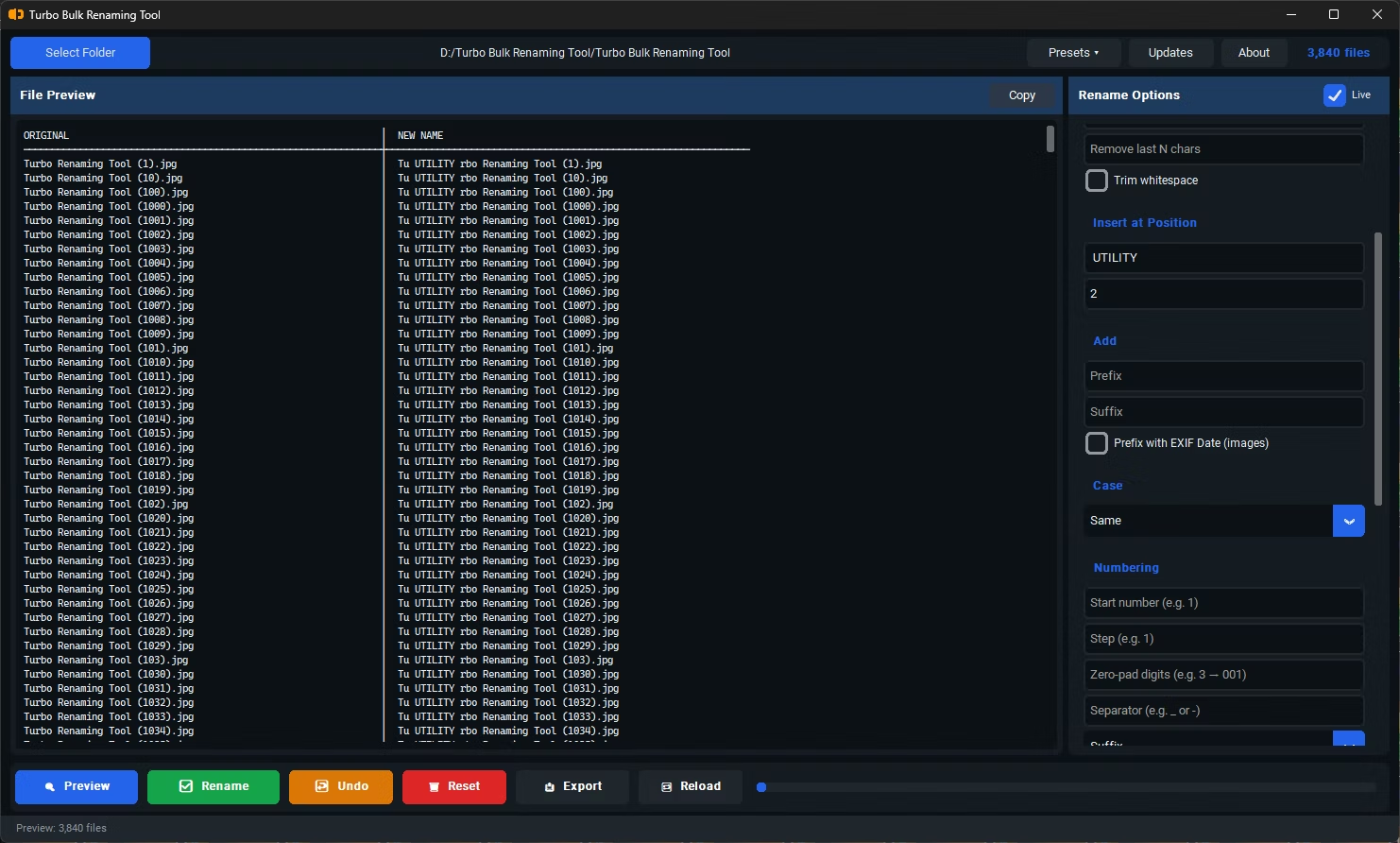
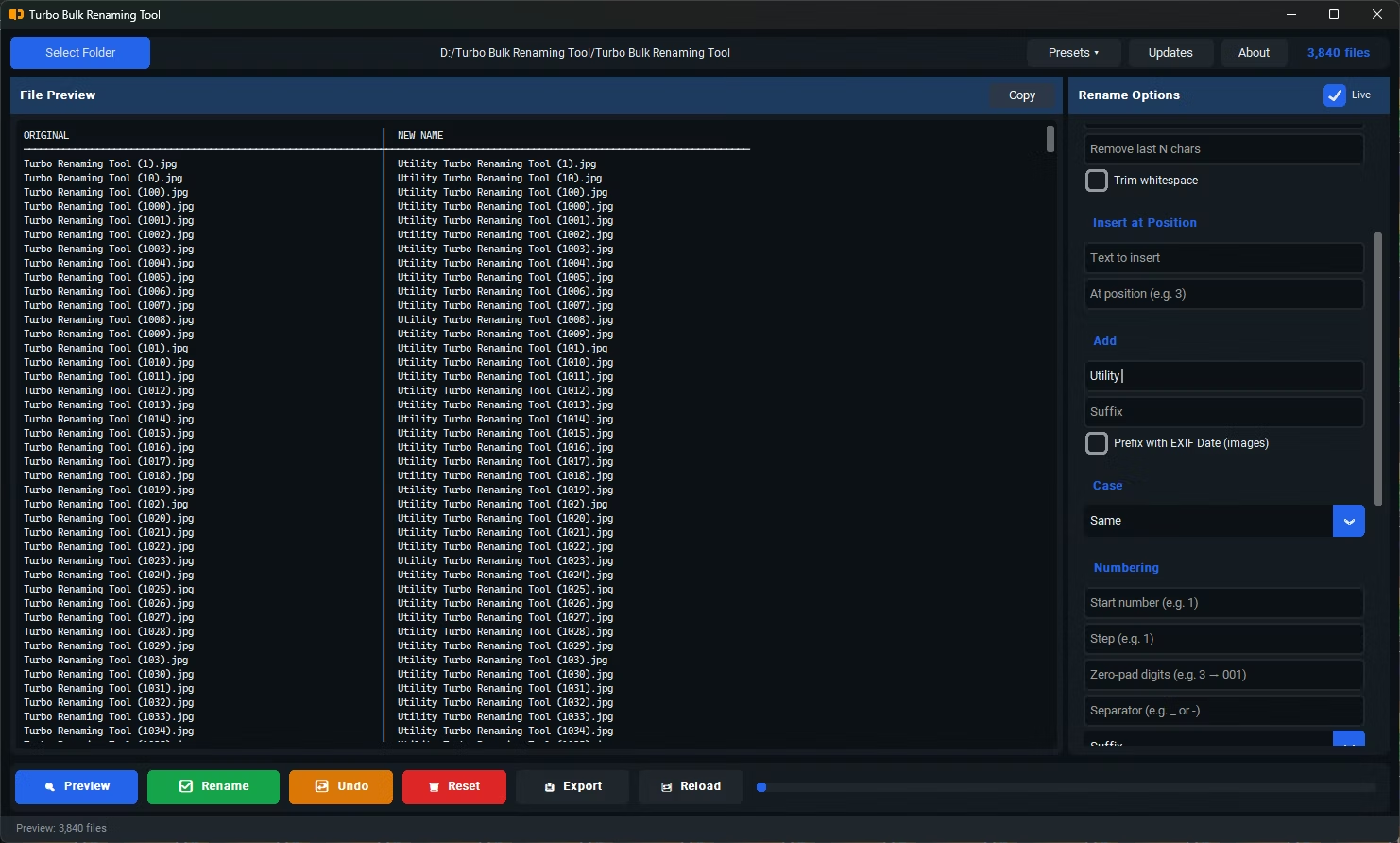
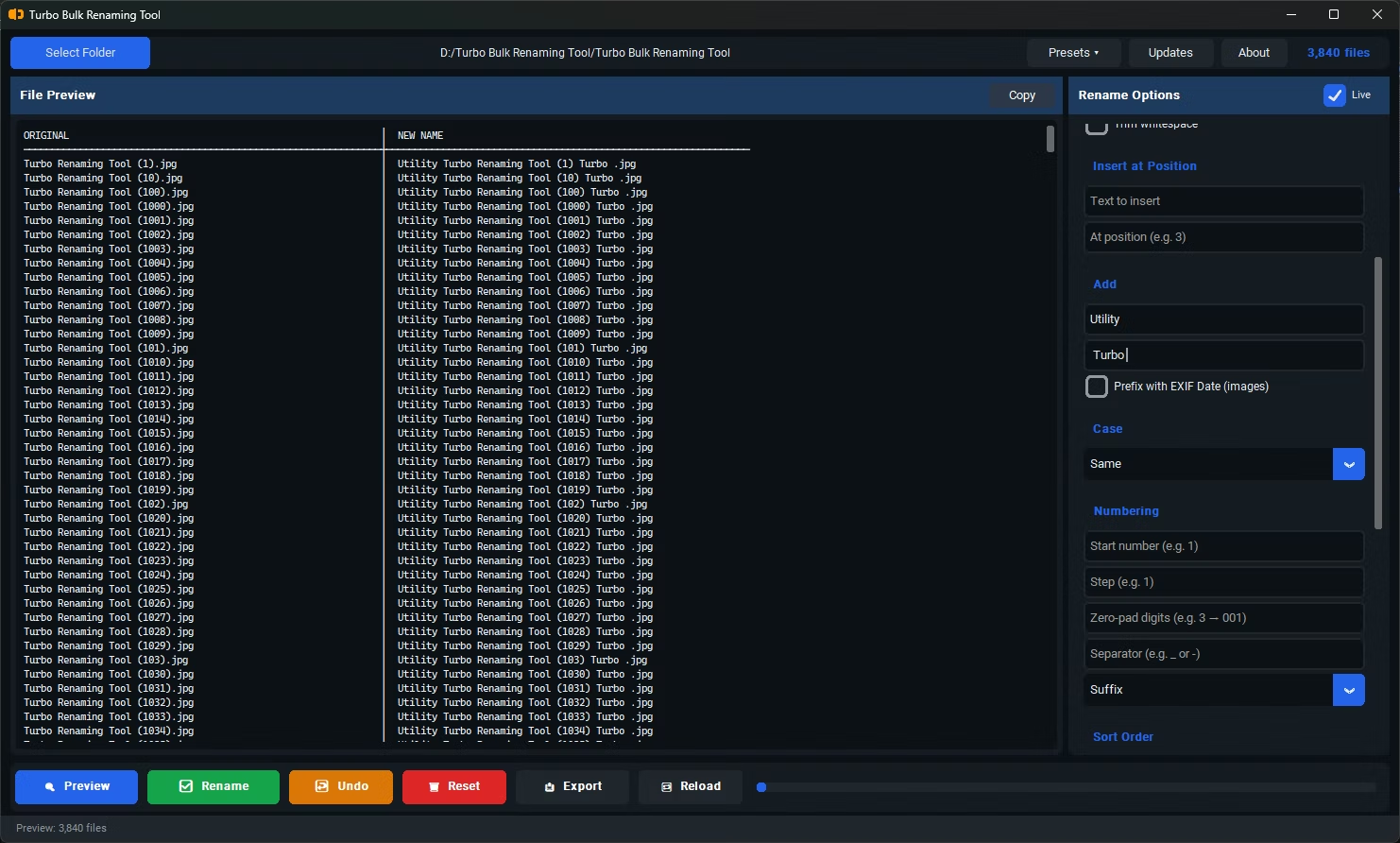
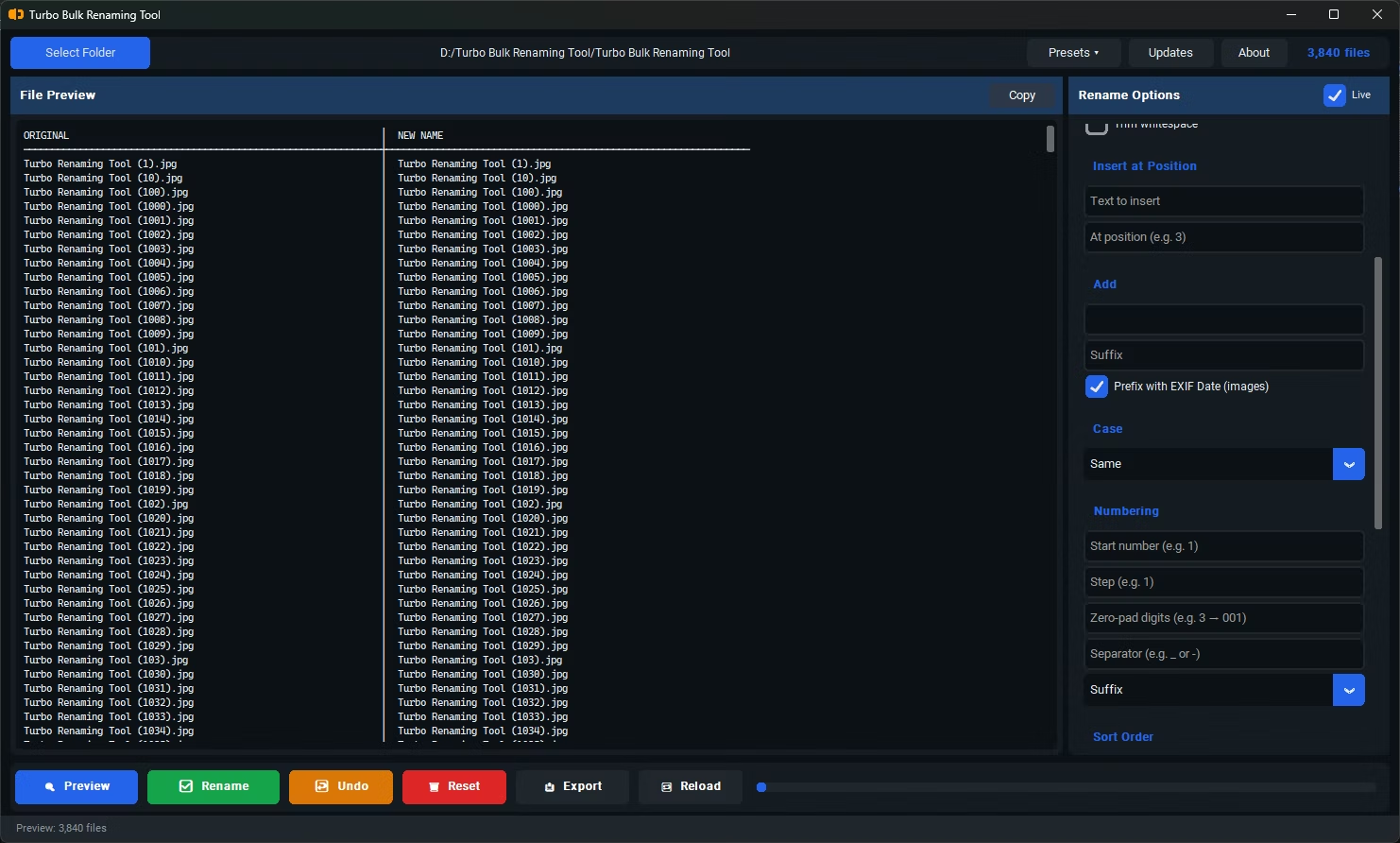
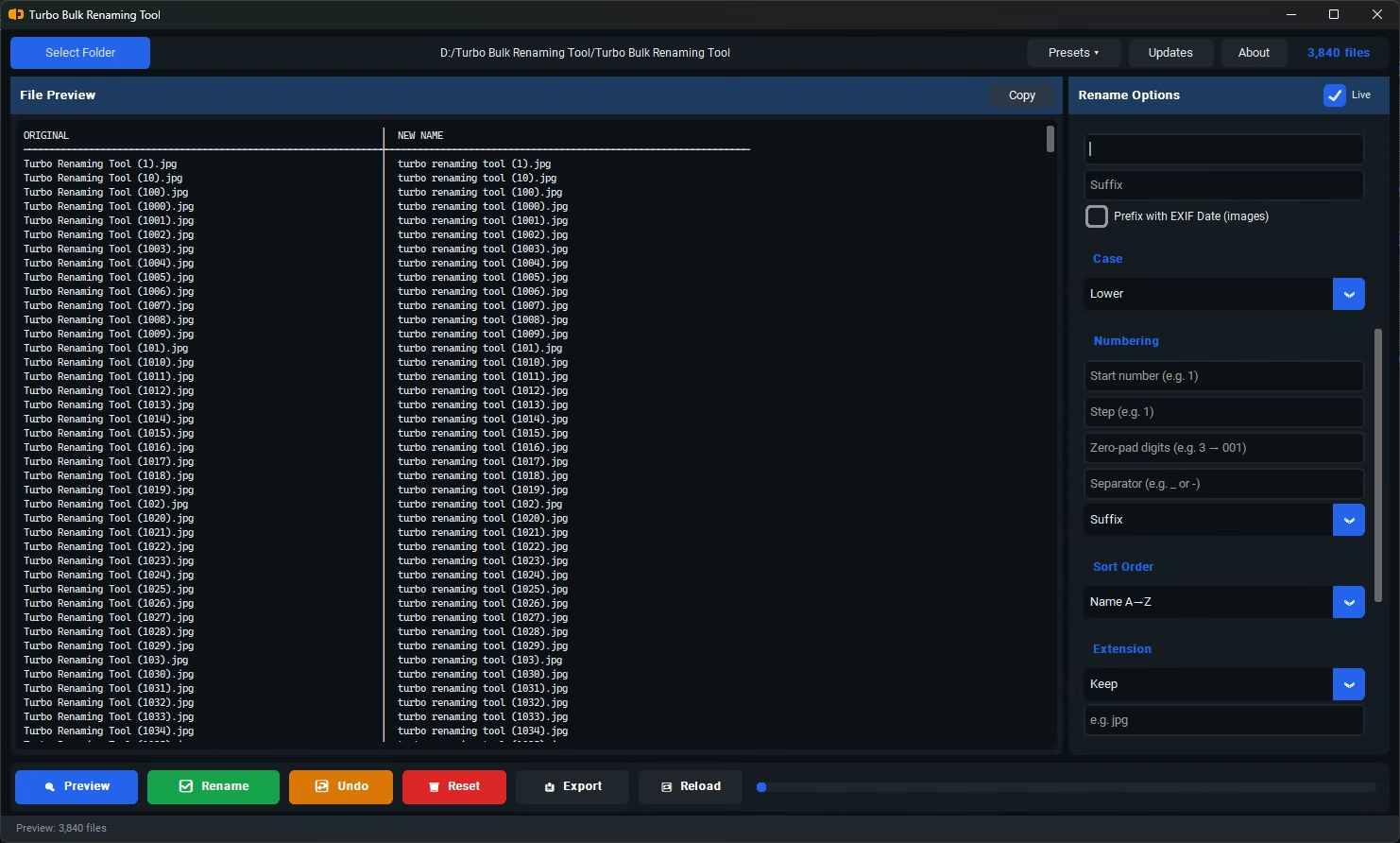
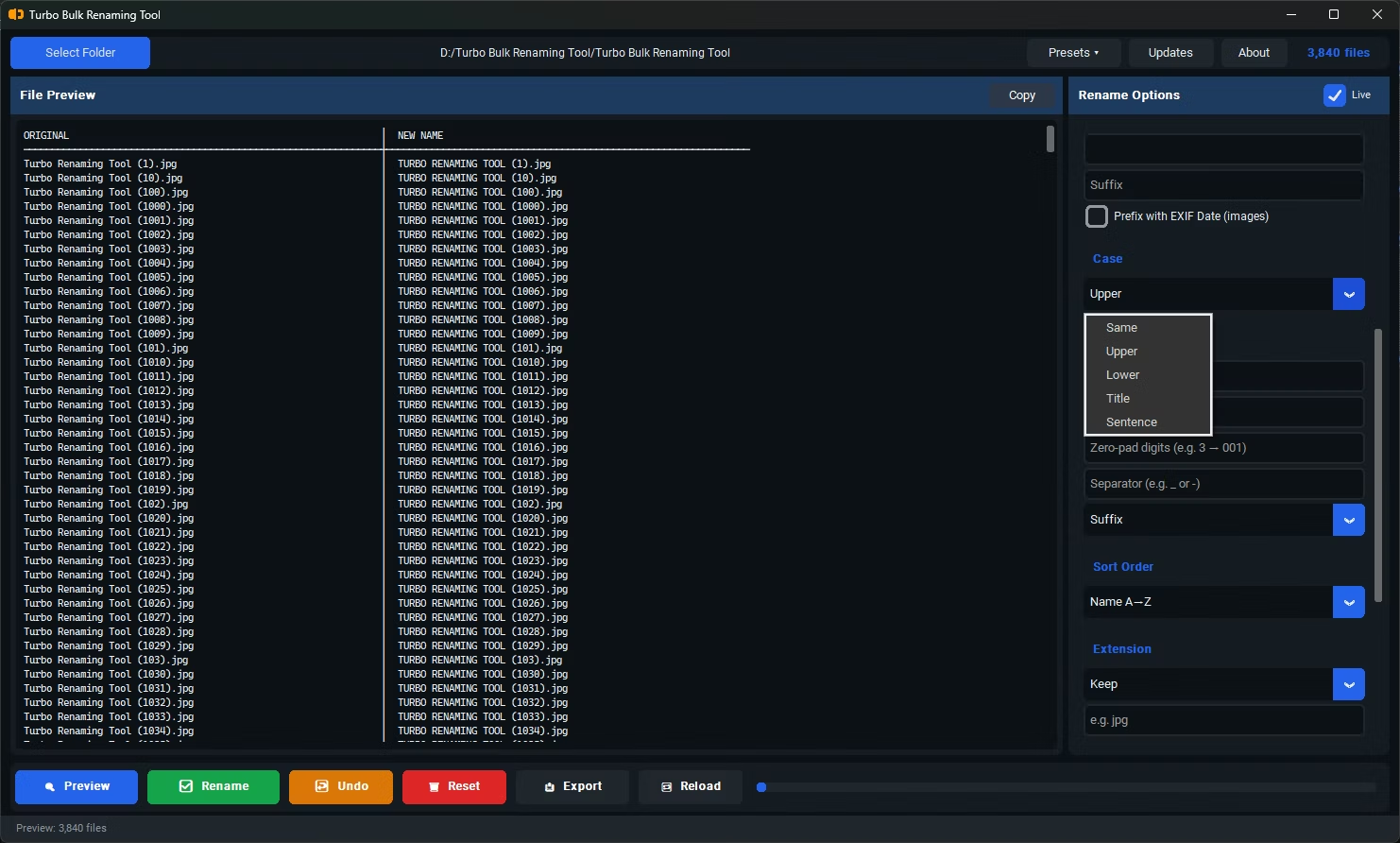
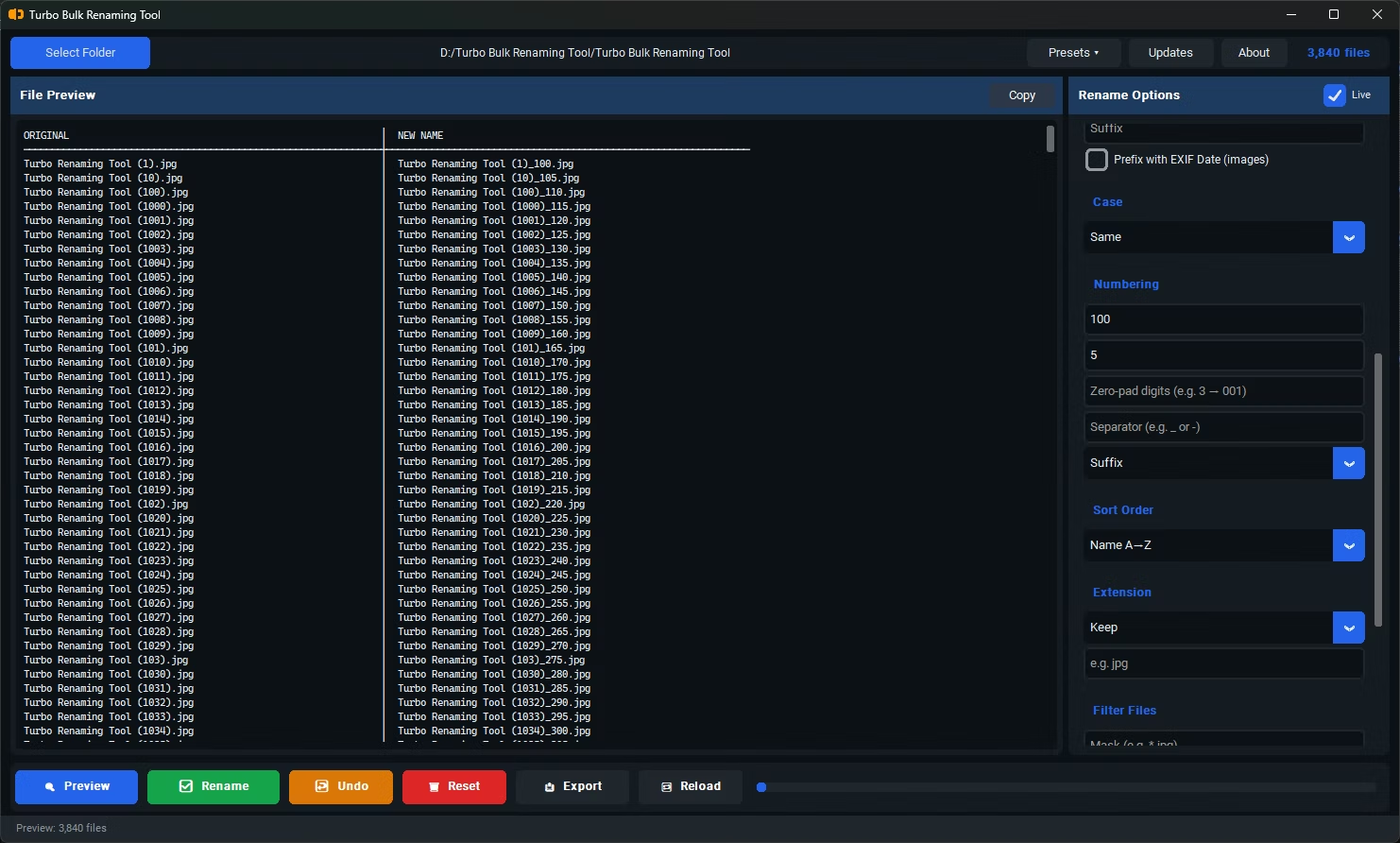

- Install Turbo Batch File Rename Tool on your Windows PC.
- Open the app and load the folder containing the files you want to number.
- Select the Sequential Numbering rule from the list of renaming rules.
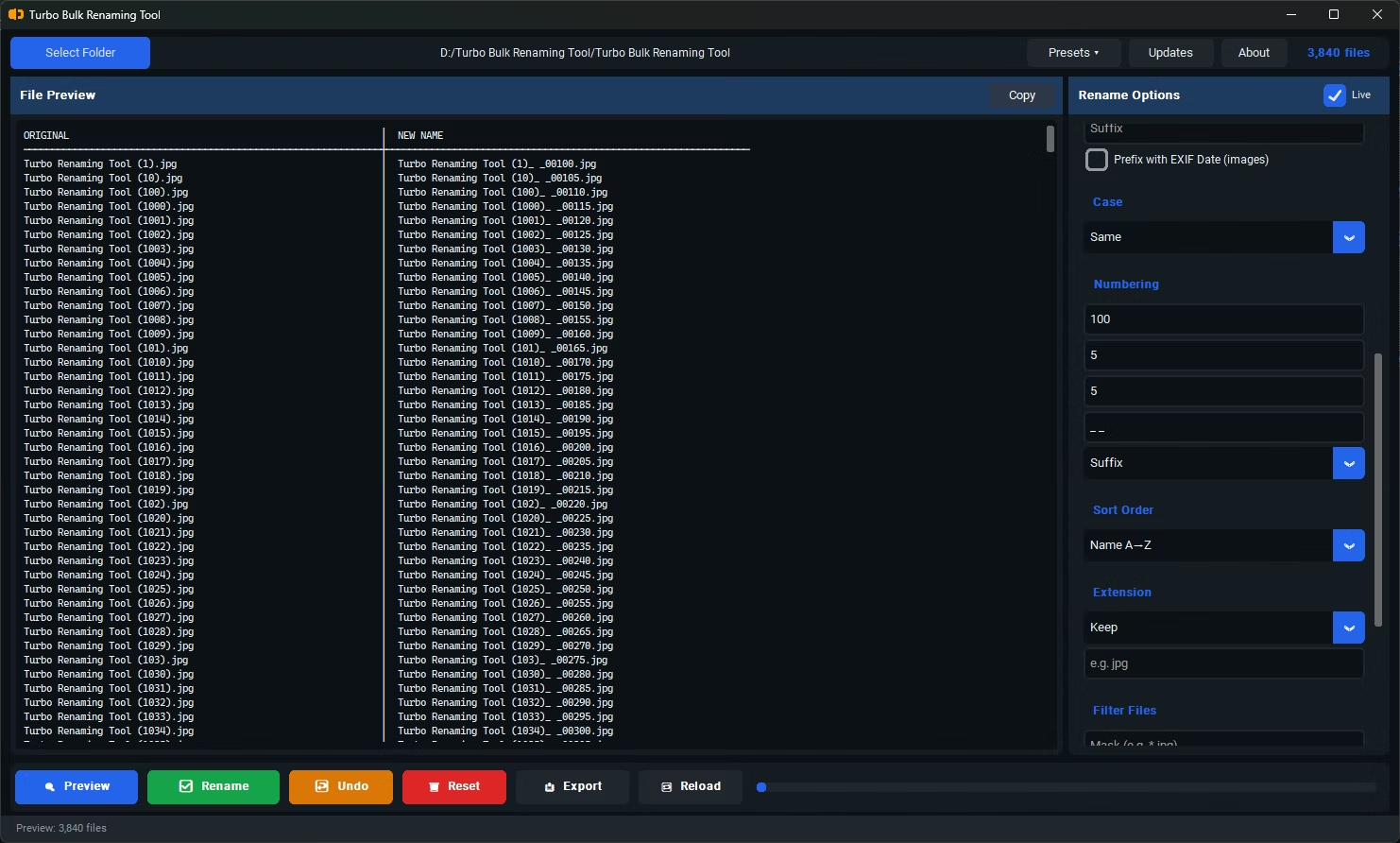
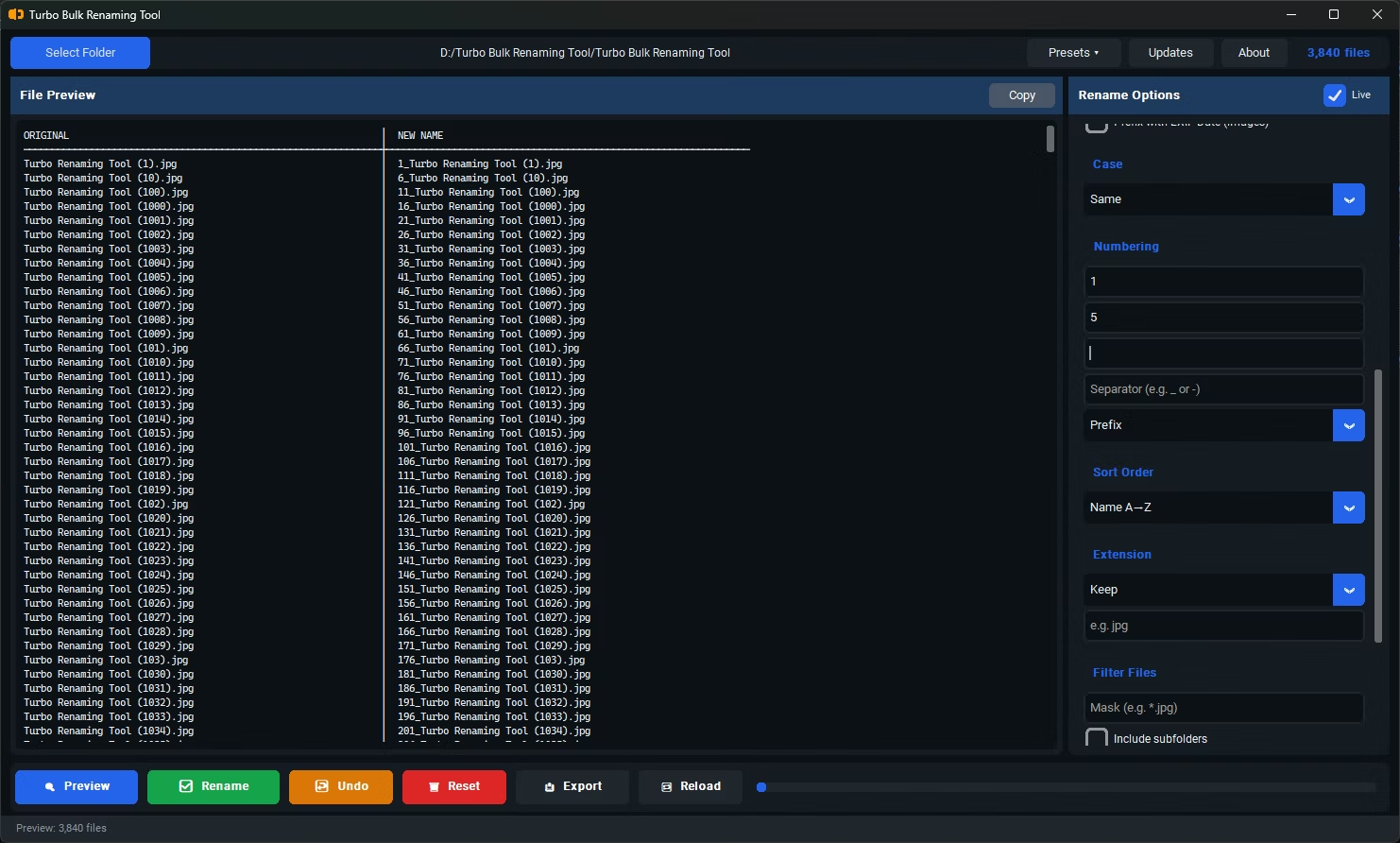
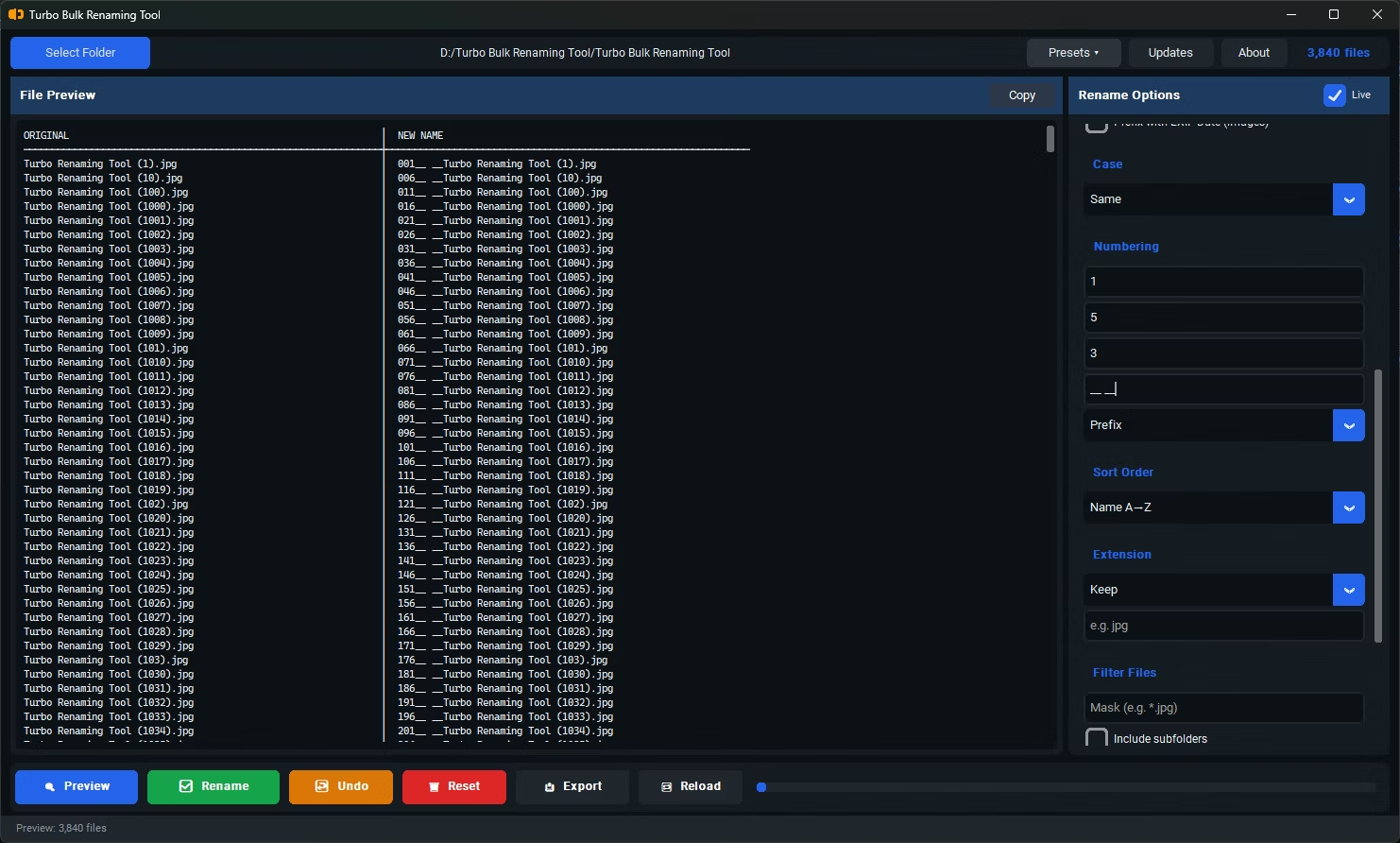
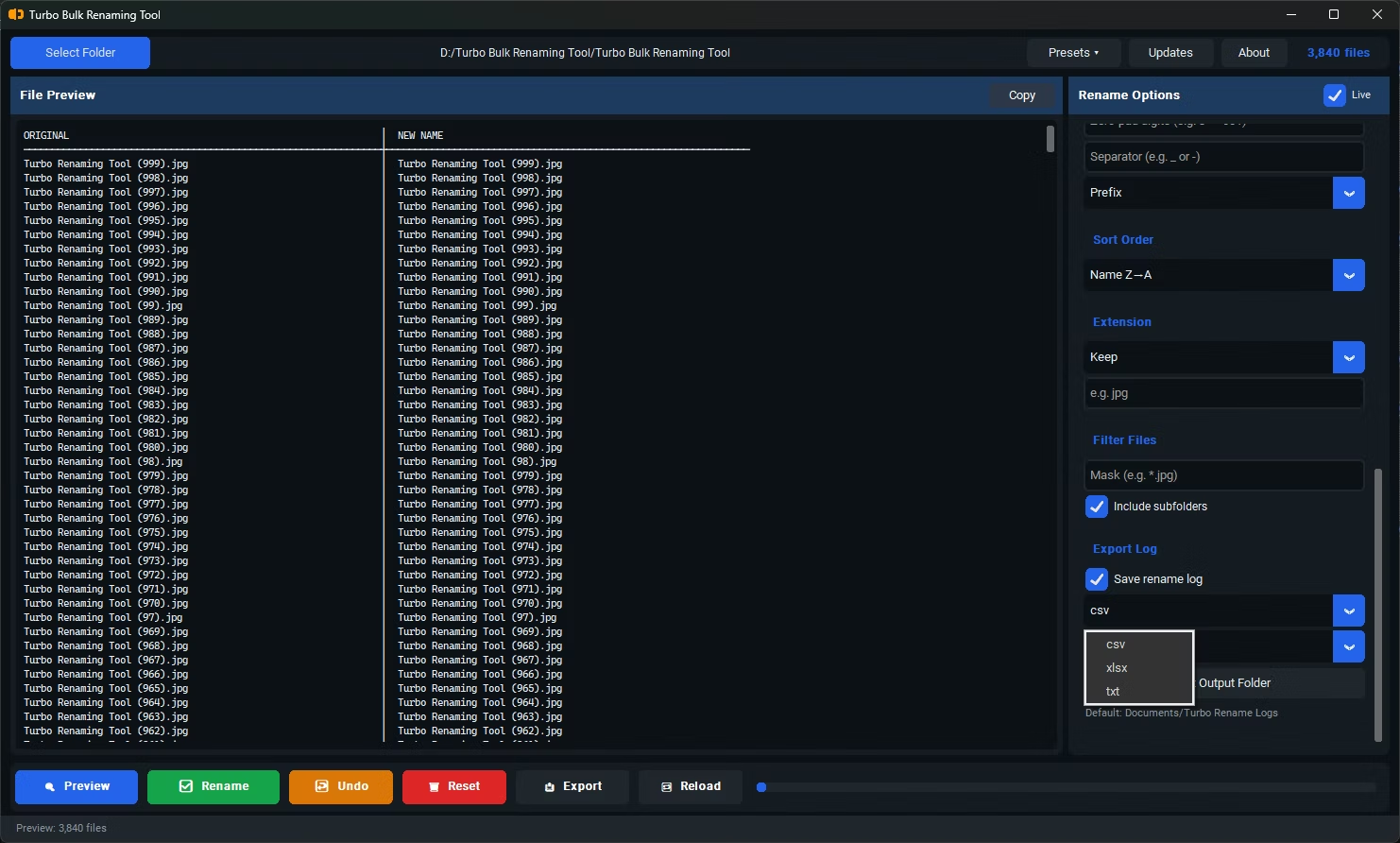
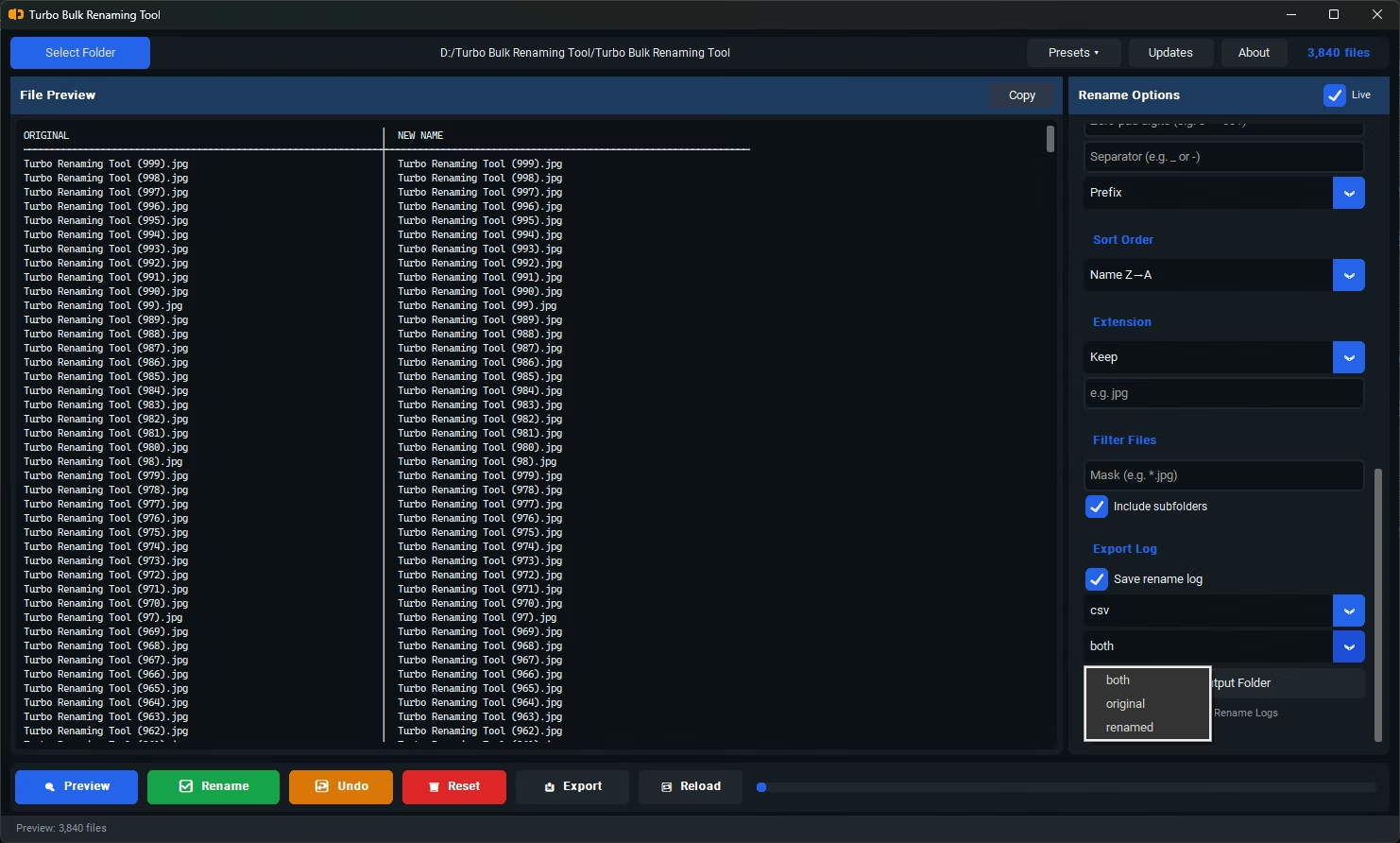
- Set your starting value, the separator (such as an underscore or hyphen), and whether the number appears as a prefix or suffix.
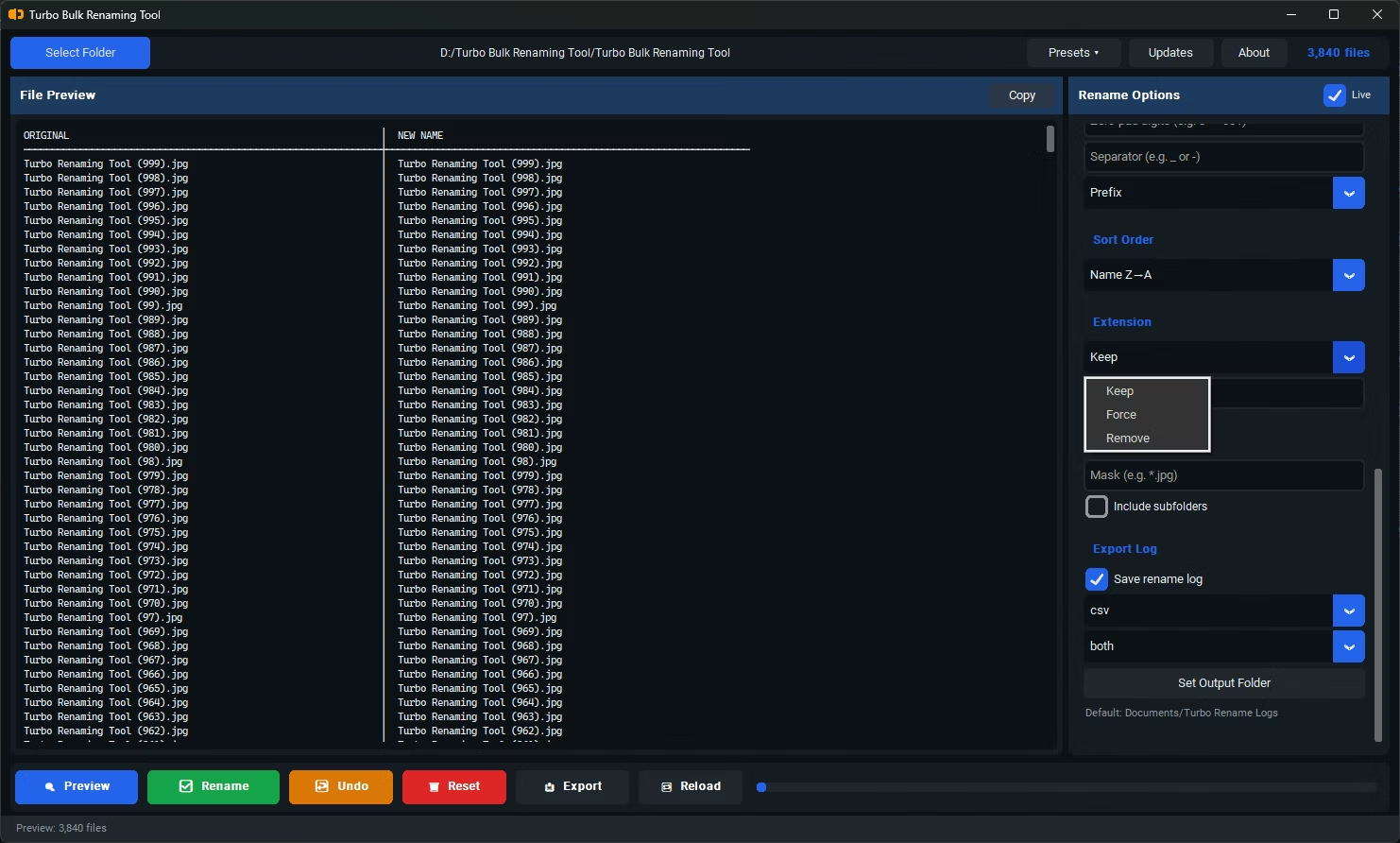
- Files are sorted alphabetically before numbering, so check the order in the live preview matches what you expect.
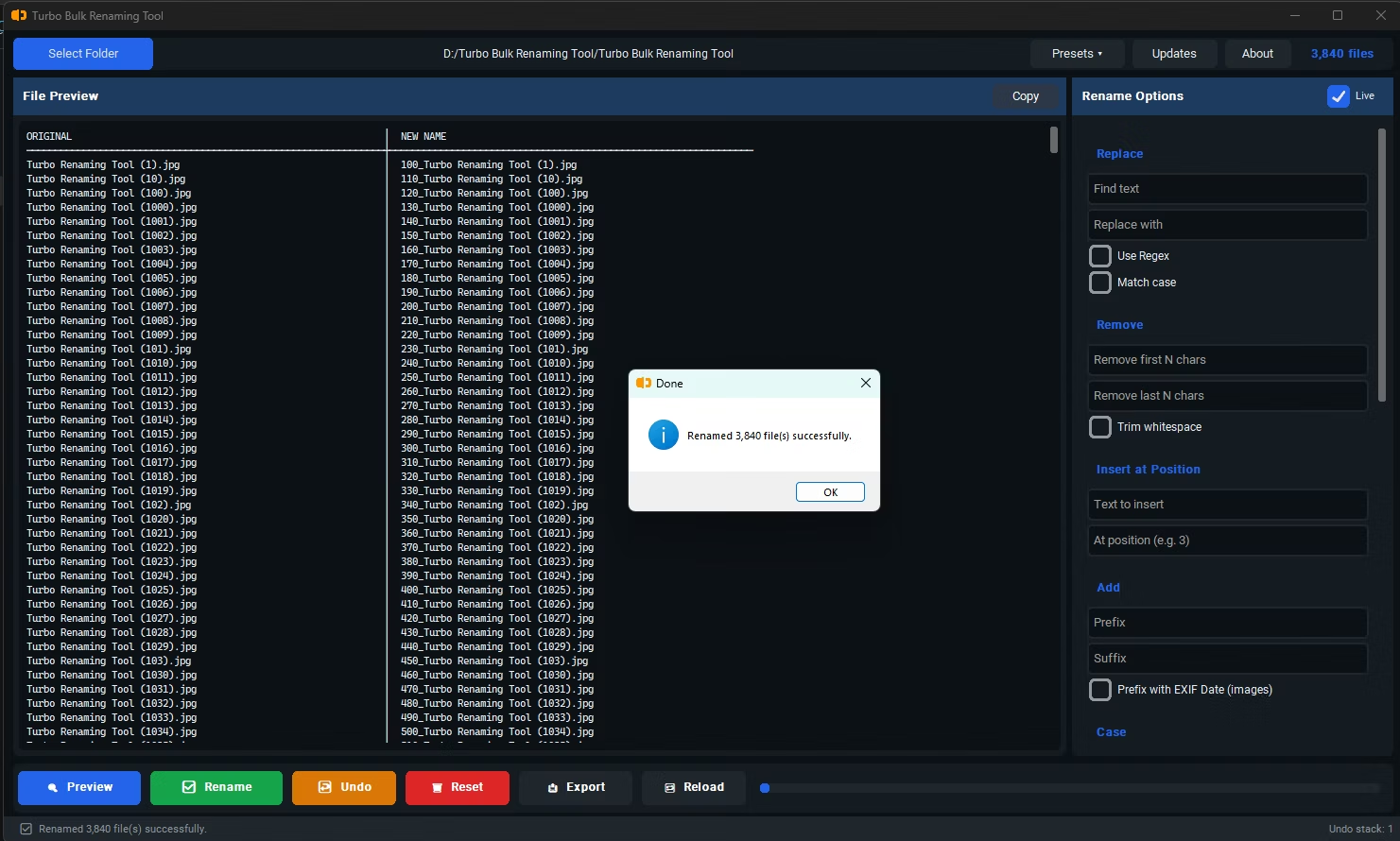
- Click Rename to apply sequential numbers to every file in one action — no brackets or parentheses added.
- Custom start value instead of always beginning at 1
- Choice of separator between the number and the rest of the filename
- Number placement as either a prefix or a suffix
- No brackets or parentheses added, unlike Windows Explorer's default behavior
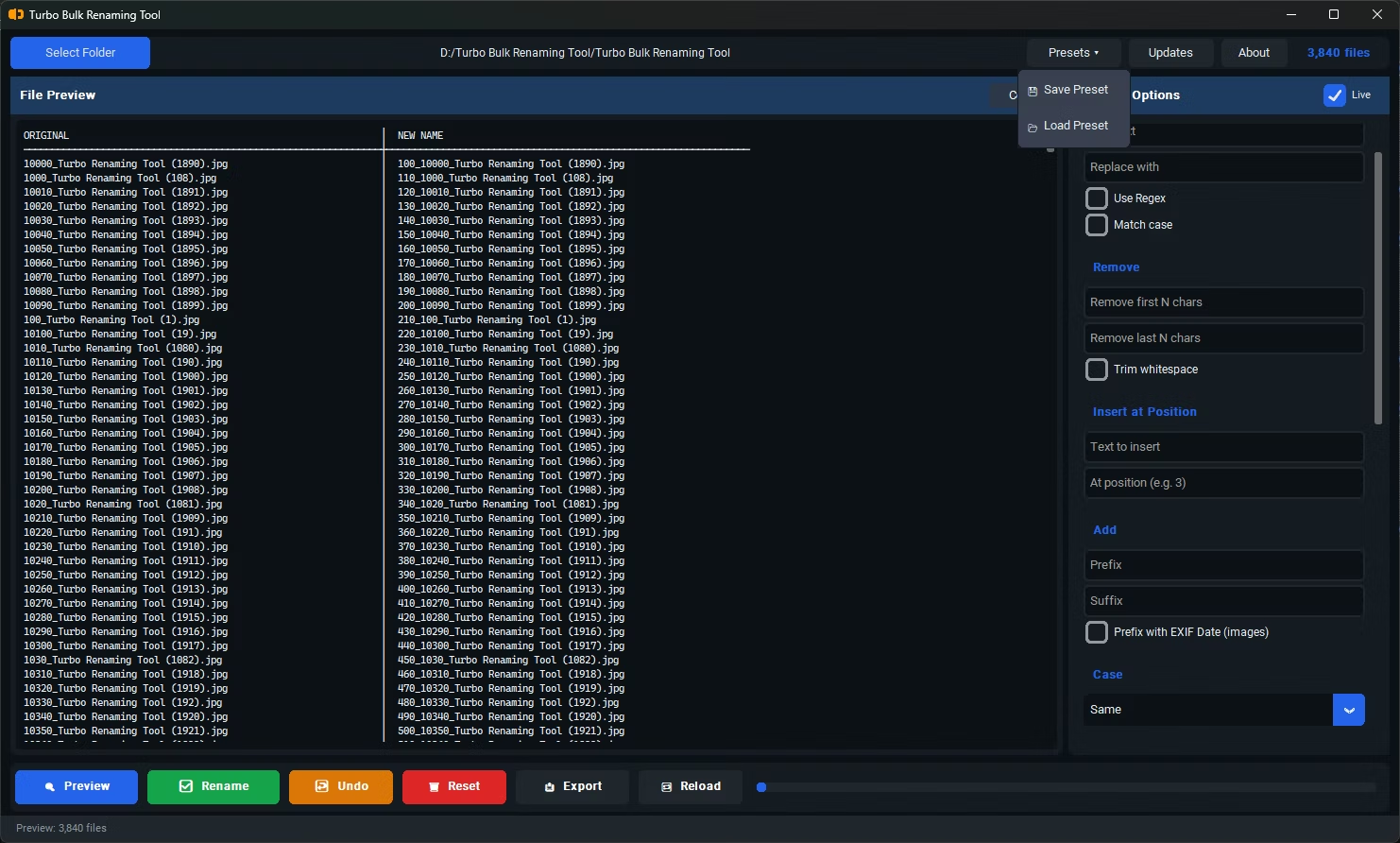
- Live preview shows the exact numbering order before you commit
- Works recursively across sub-folders if enabled
What order are files numbered in?
Files are sorted alphabetically before the numbering rule is applied, so the resulting sequence follows the alphabetical order of the original filenames.
Can I start numbering from a value other than 1?
Yes, the starting value is fully customizable, so you can begin at 1, 100, or any other number that fits your existing file organization.
Does the numbered file get brackets or parentheses added?
No. Unlike Windows Explorer's default batch rename, this tool adds the number cleanly using your chosen separator, without any brackets or parentheses.
Ready to rename your files in bulk, offline, with full privacy?