Most renaming tasks involve a few hundred or a few thousand files, but some situations — a massive scanned document archive, a years-old photo backup, or a server migration cleanup — genuinely involve six-figure file counts. At that scale, a few things matter more than they would for a smaller batch: how quickly the tool can scan the folder structure in the first place, whether the live preview stays usable instead of locking up, and whether the rename operation itself completes reliably without partial failures.
The good news is that the underlying renaming rules don't change at this scale — a sequential numbering rule or a Find & Replace works the same way whether you're applying it to 50 files or 150,000. What changes is how well the surrounding workflow holds up under that volume.
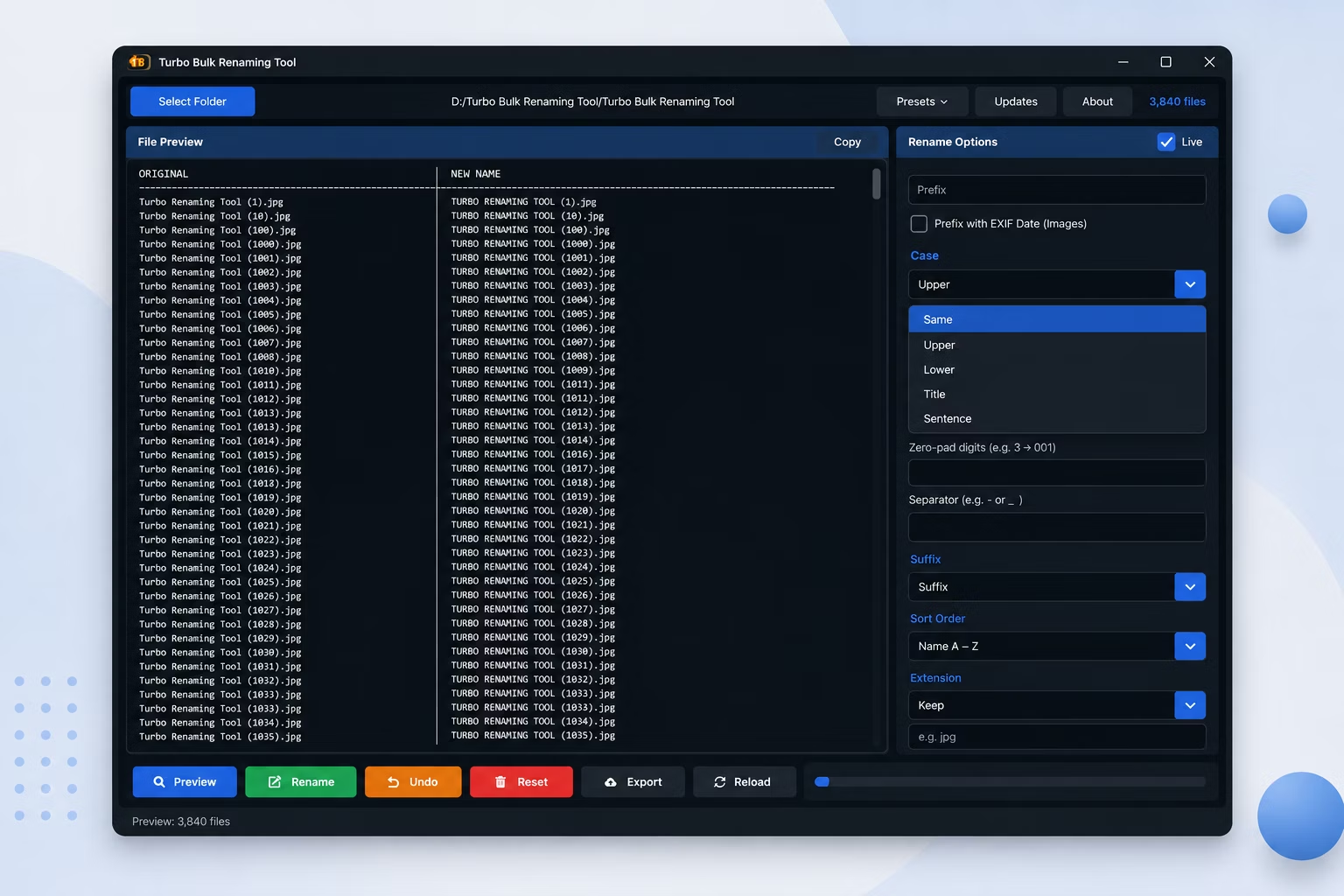
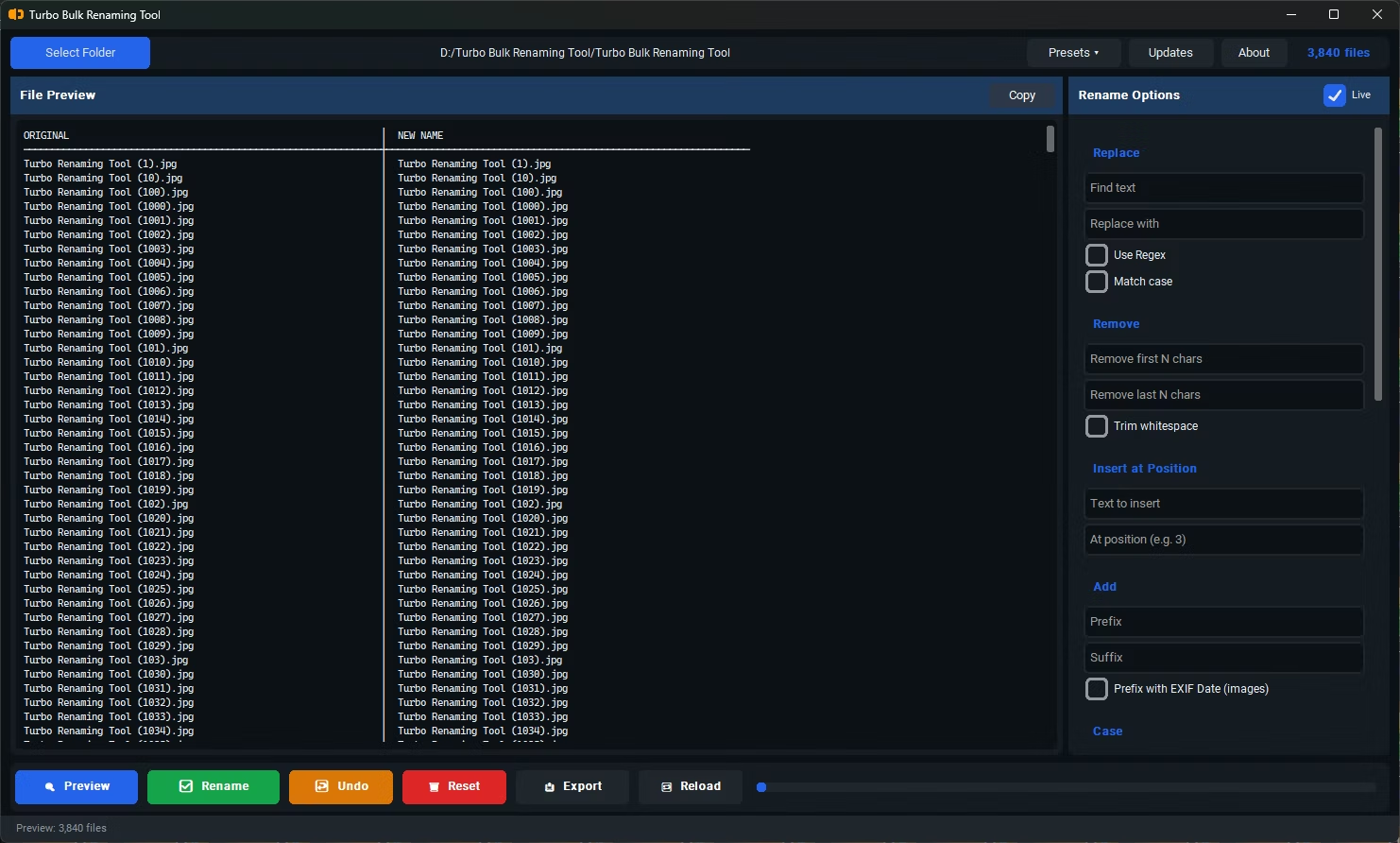
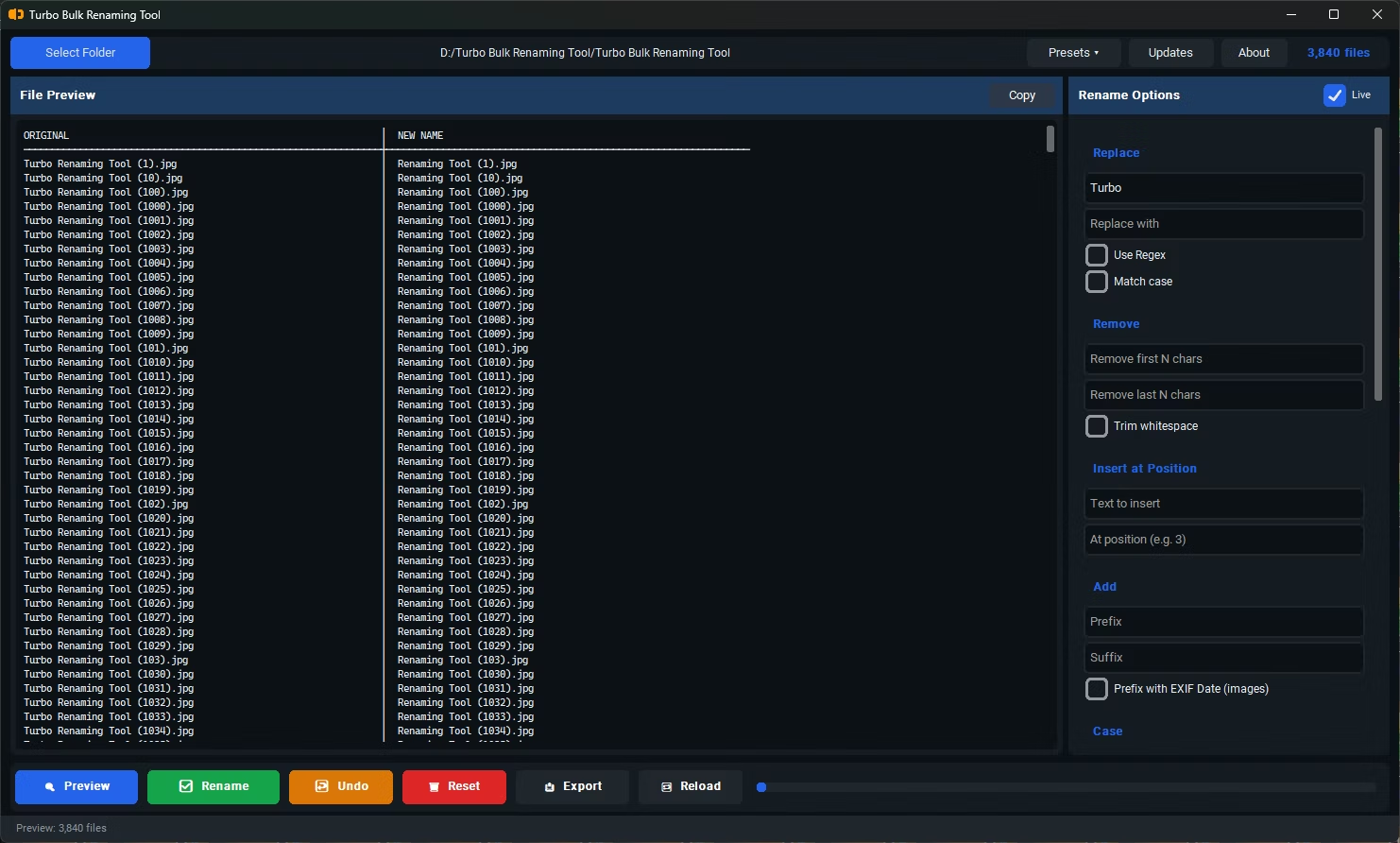
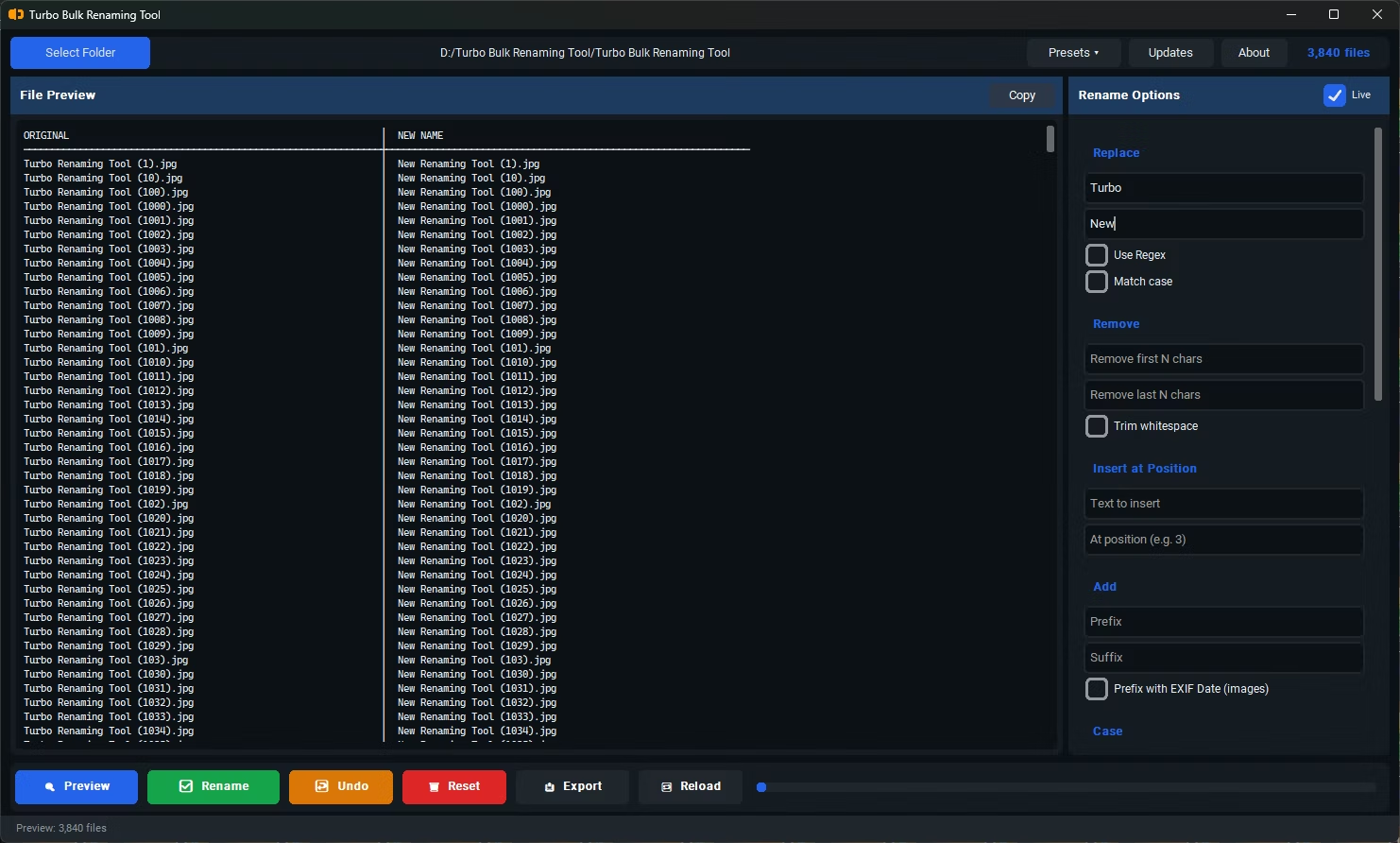
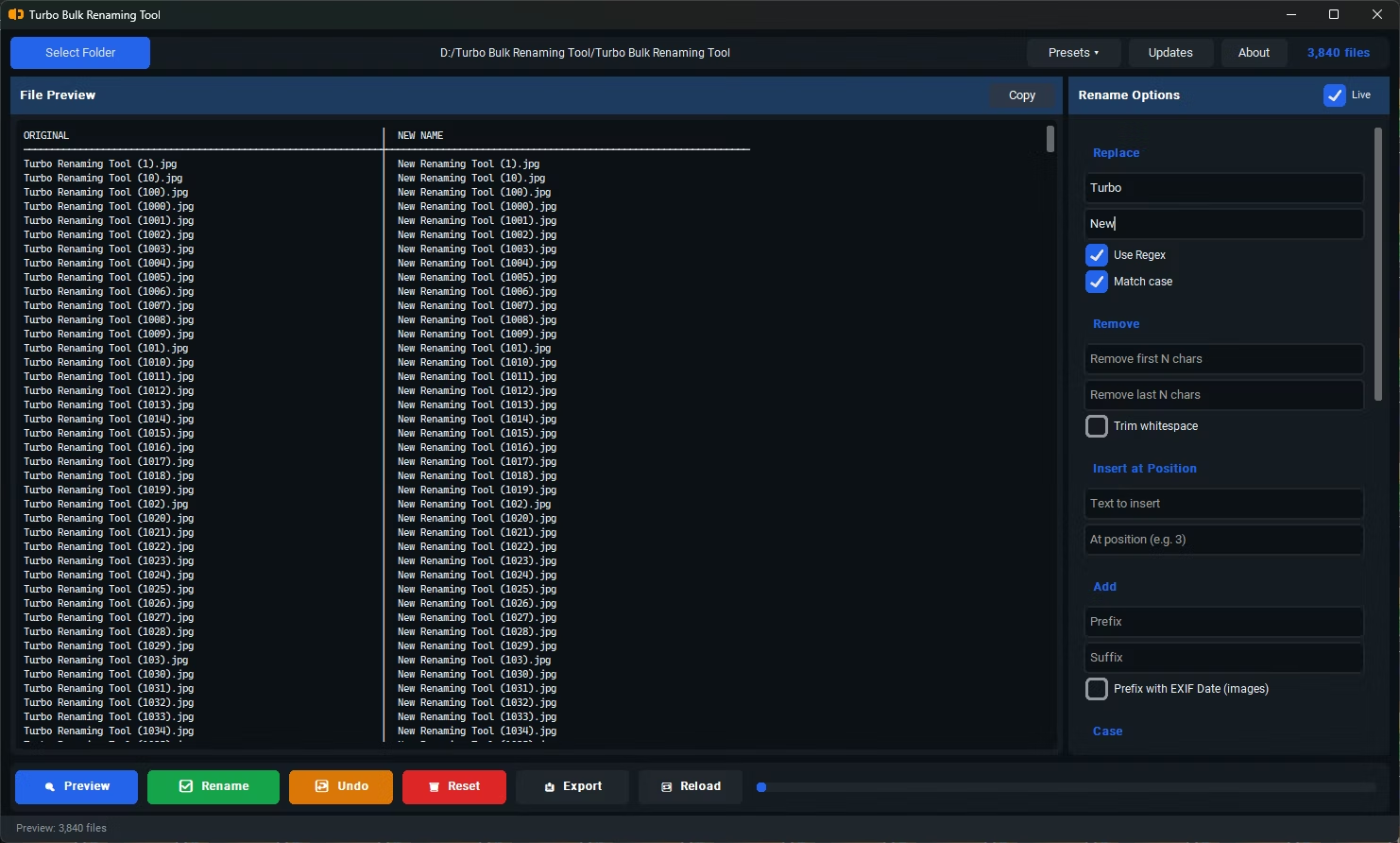
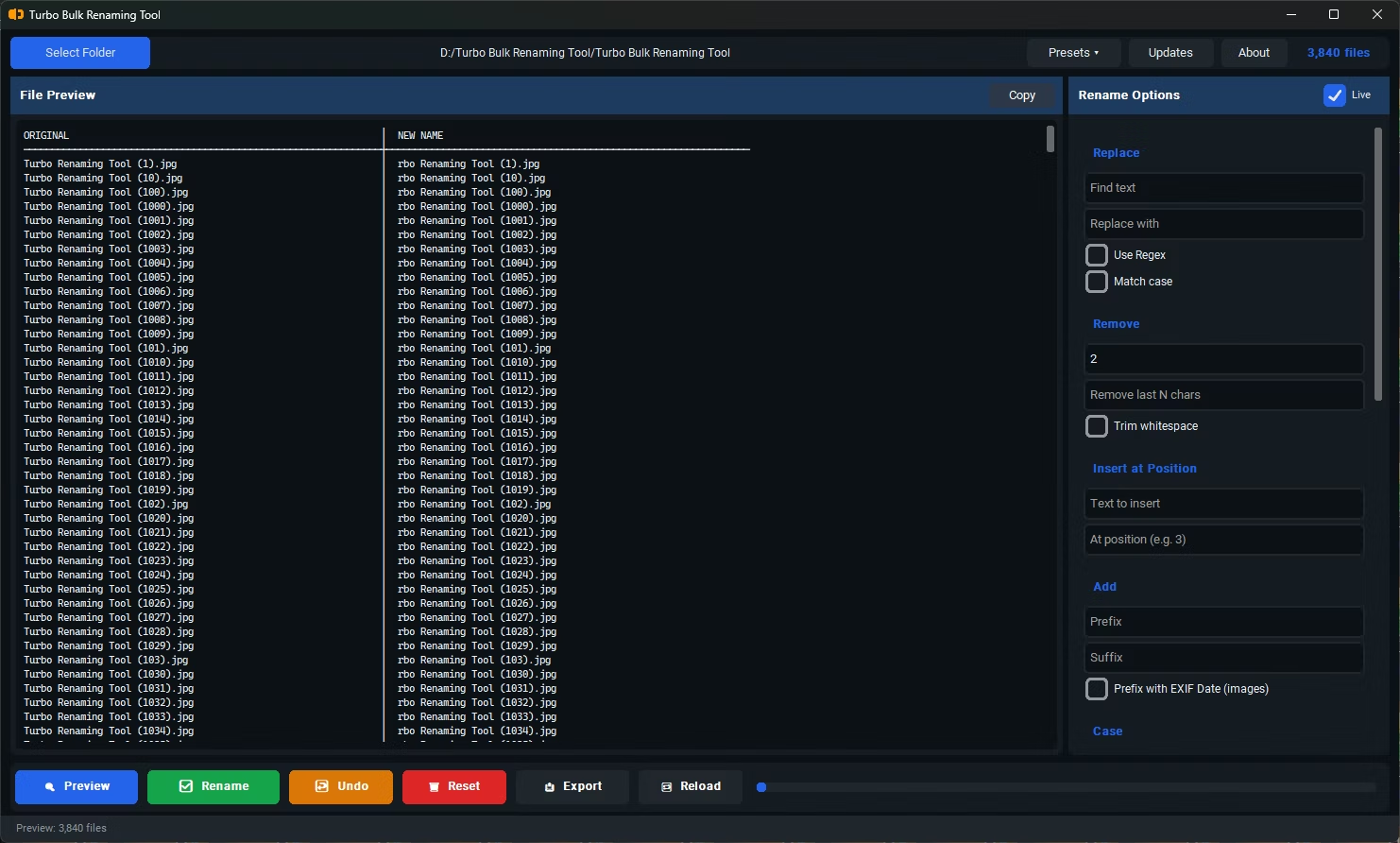
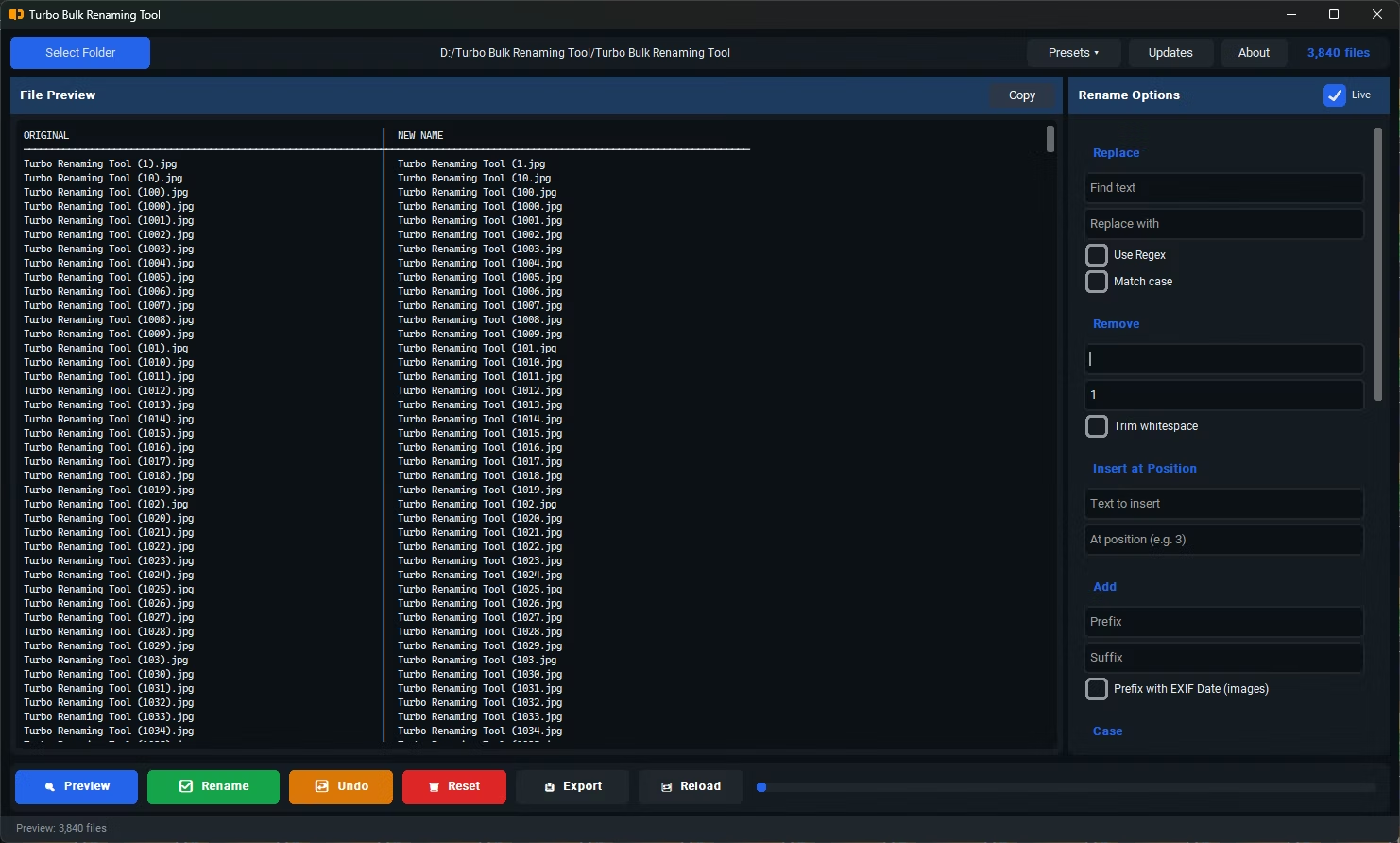
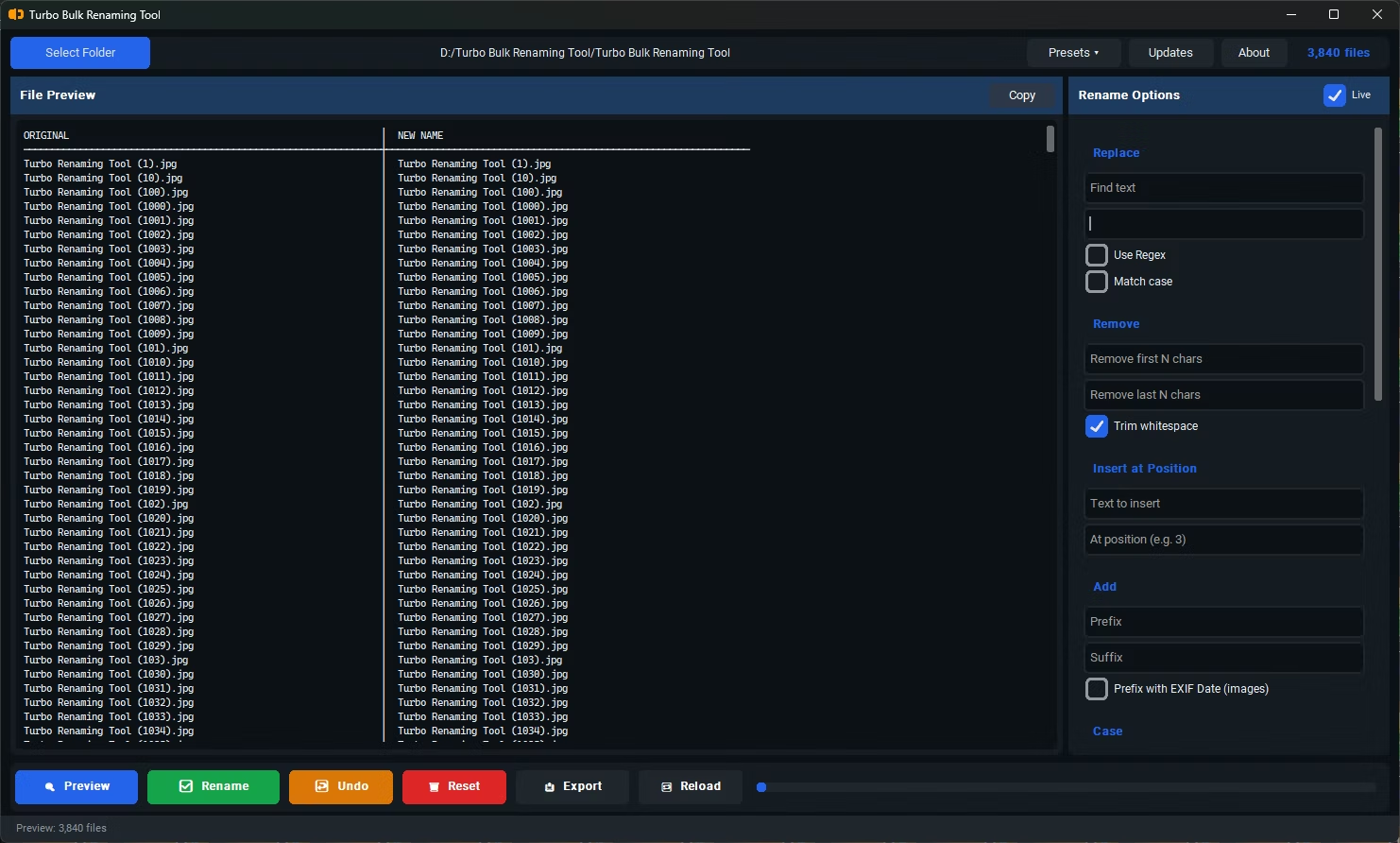
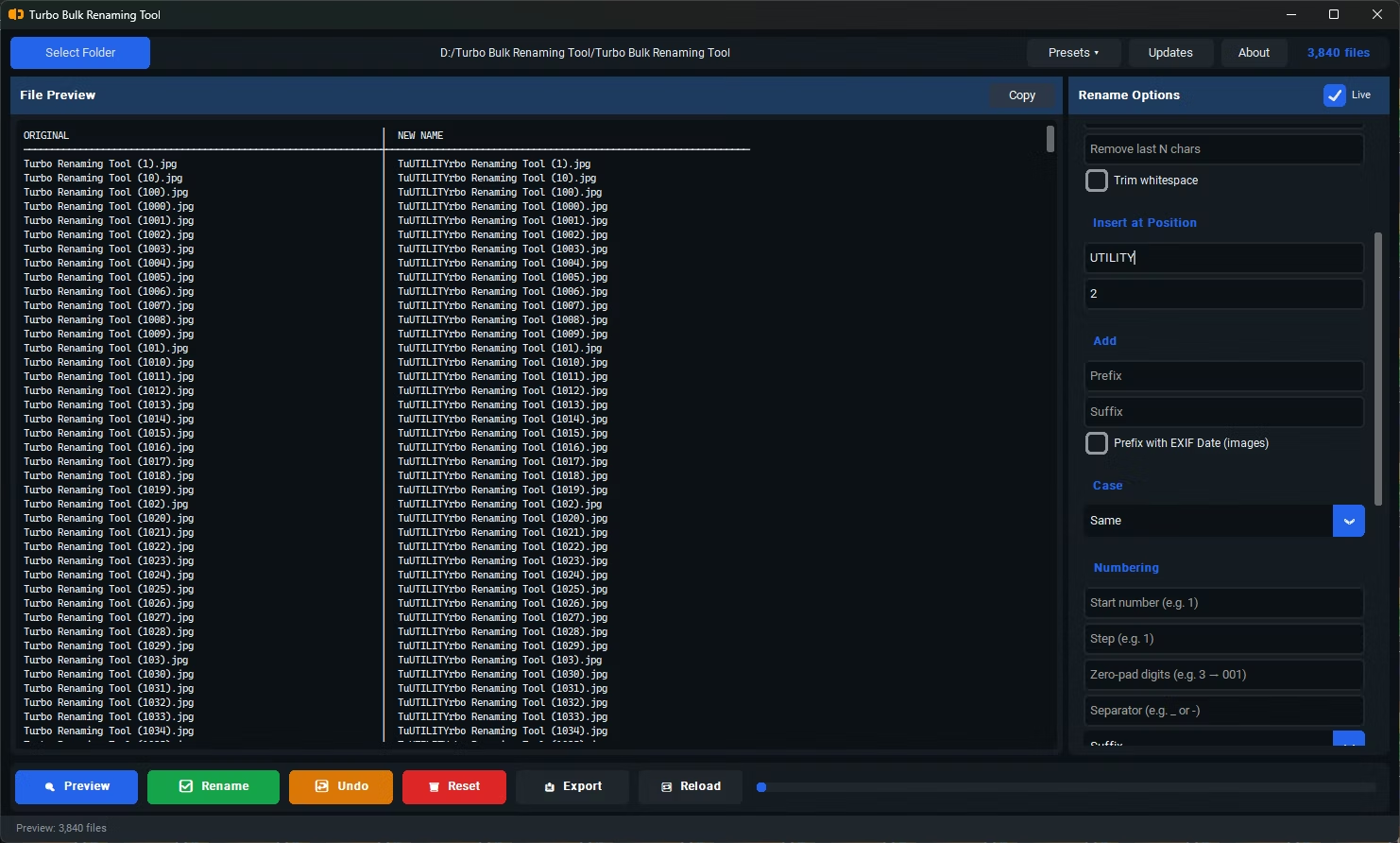
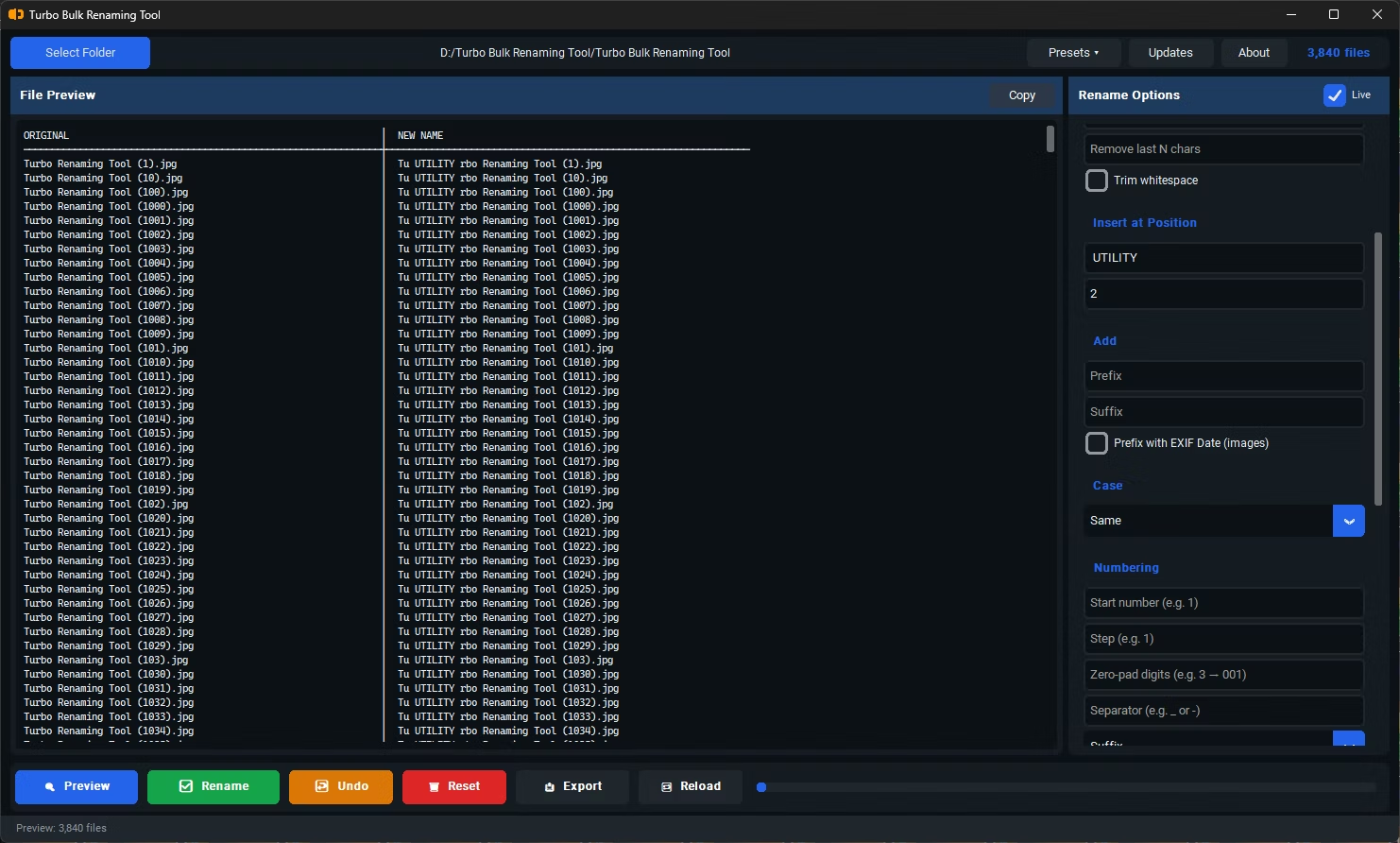
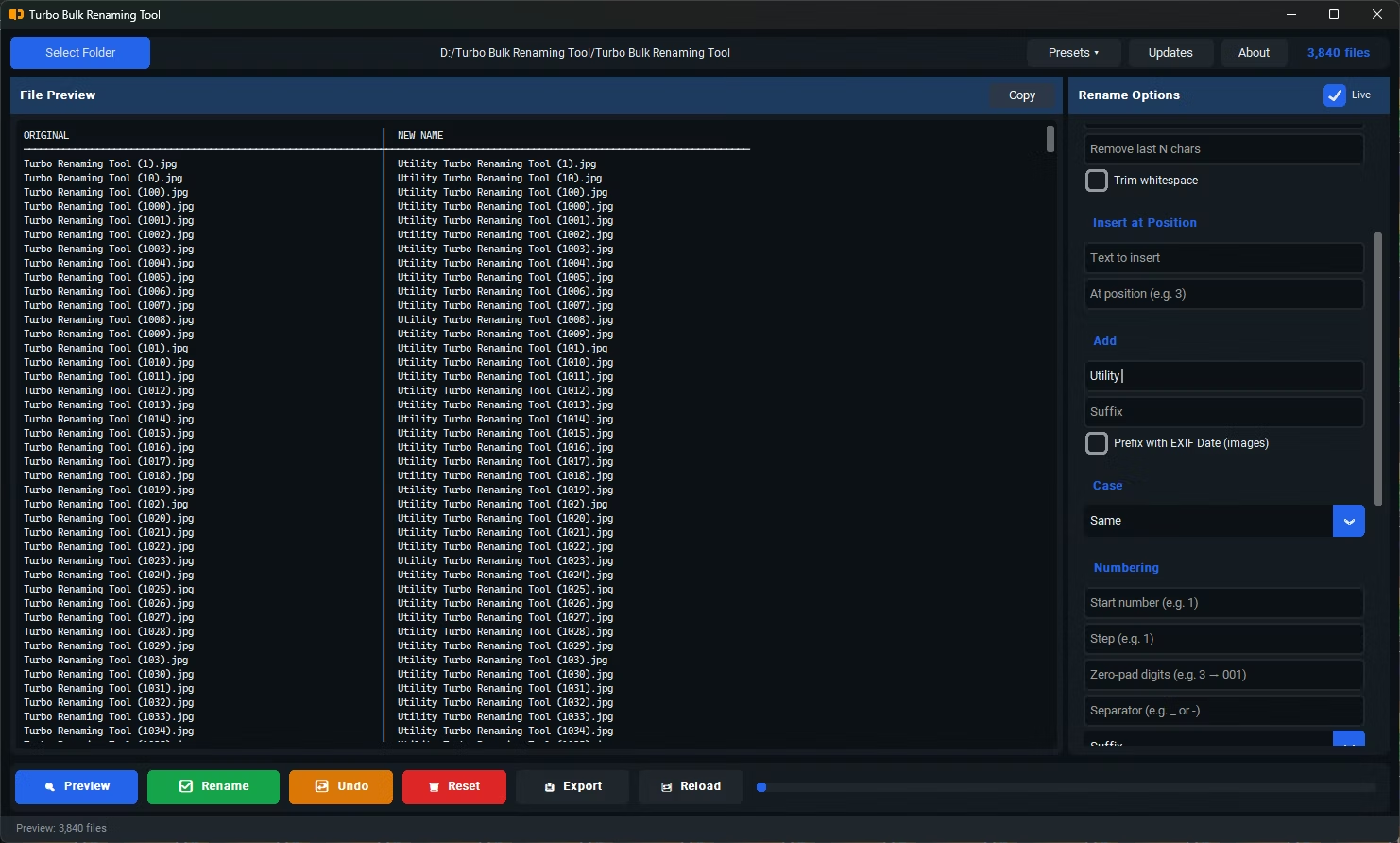
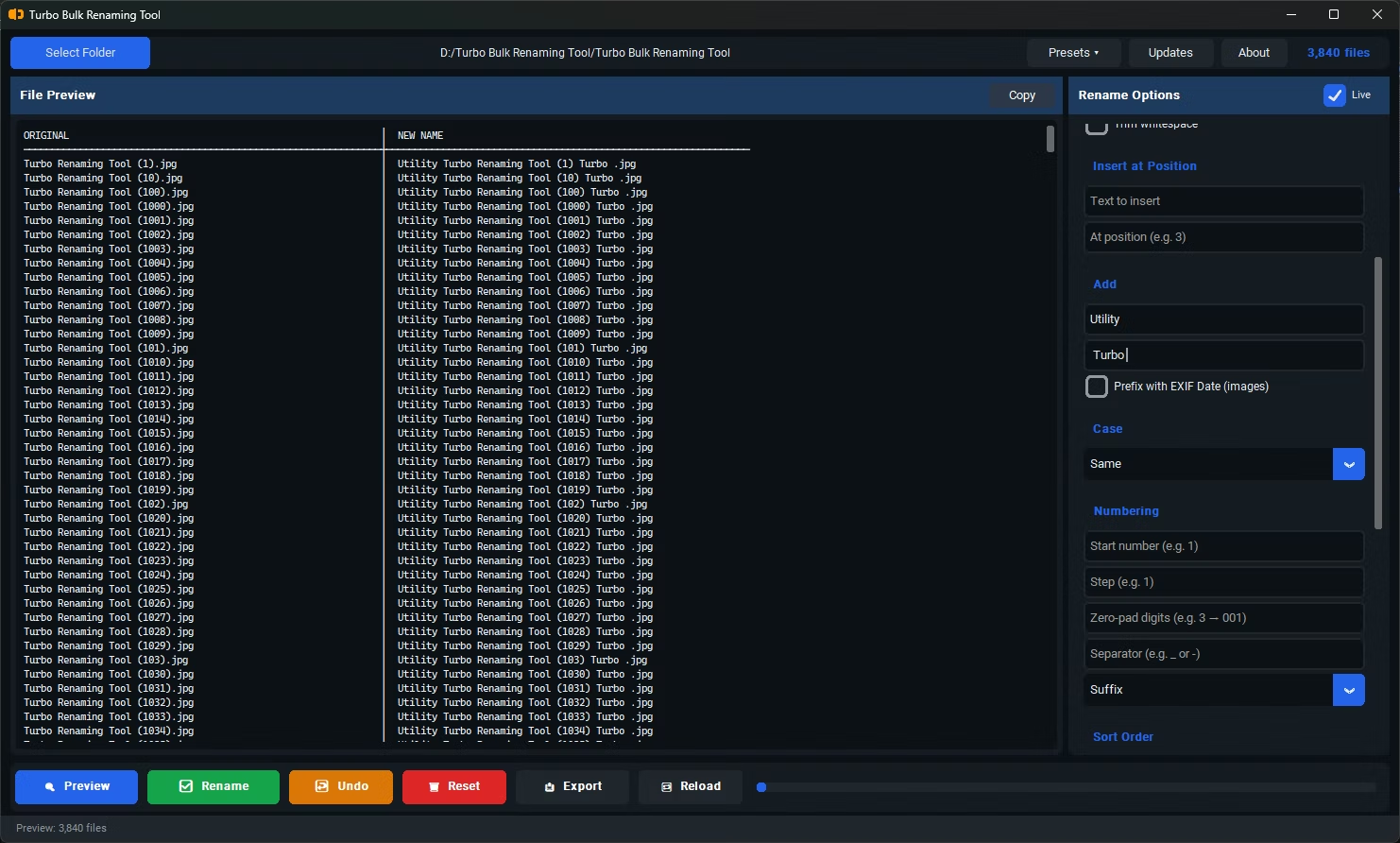
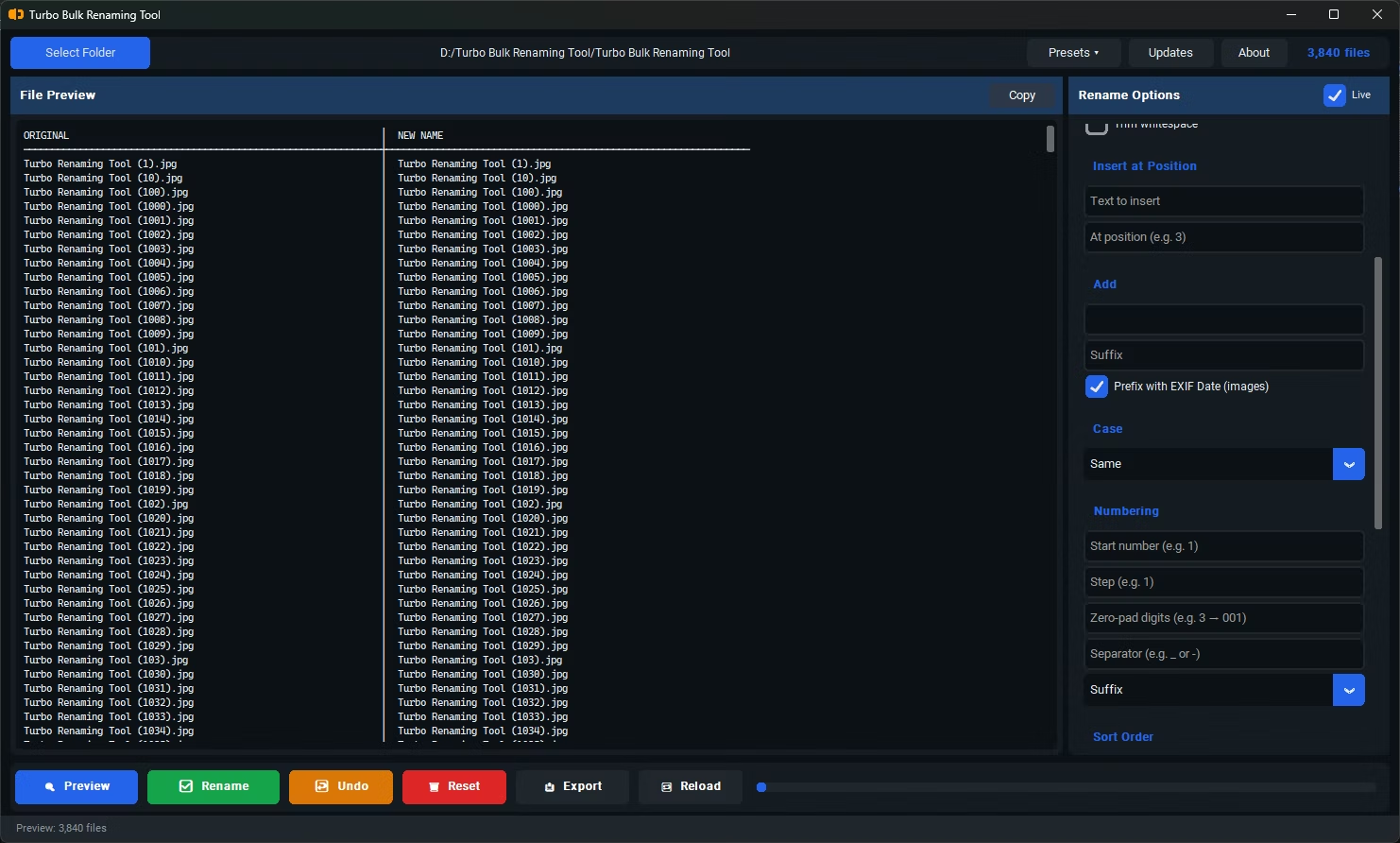
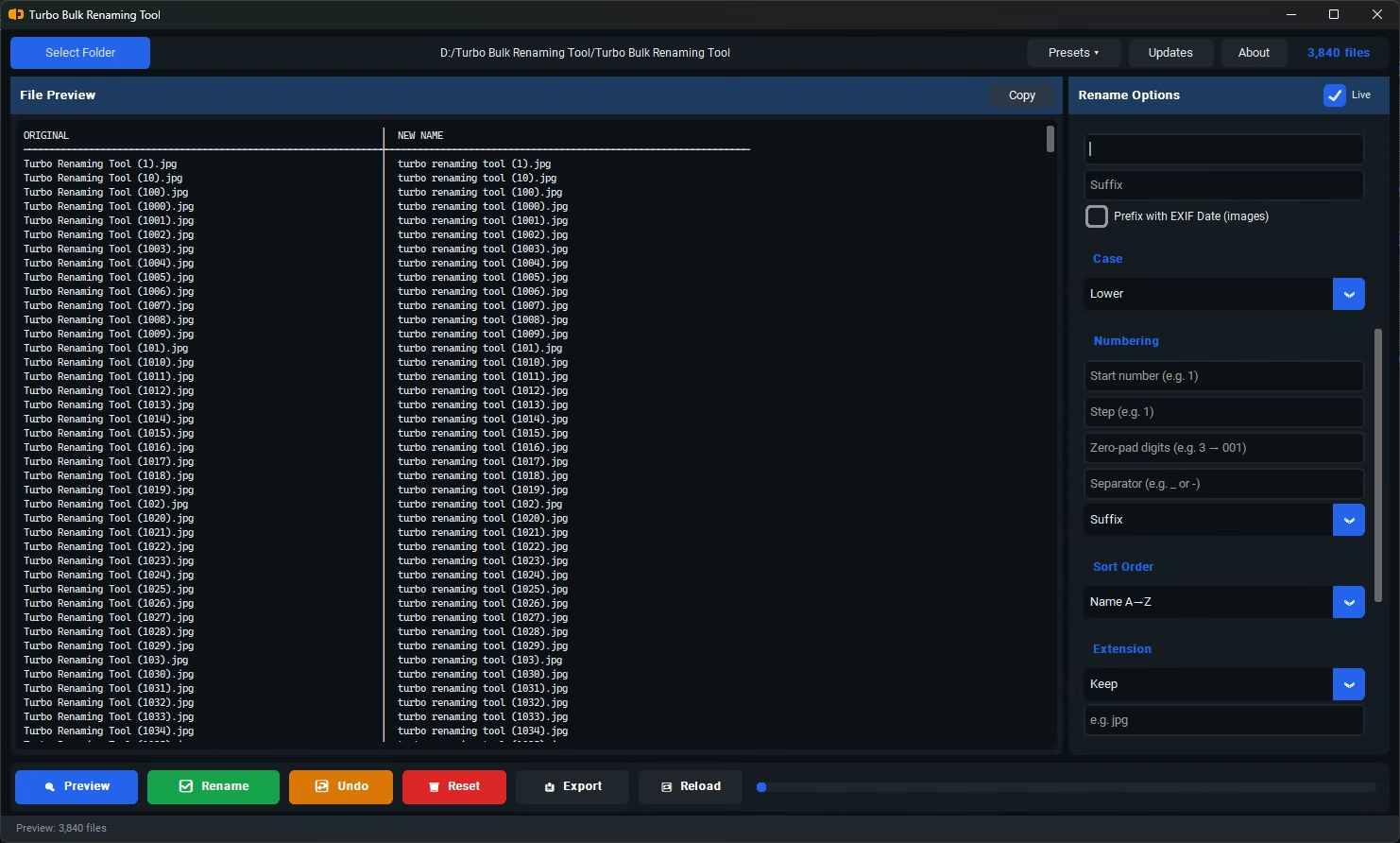
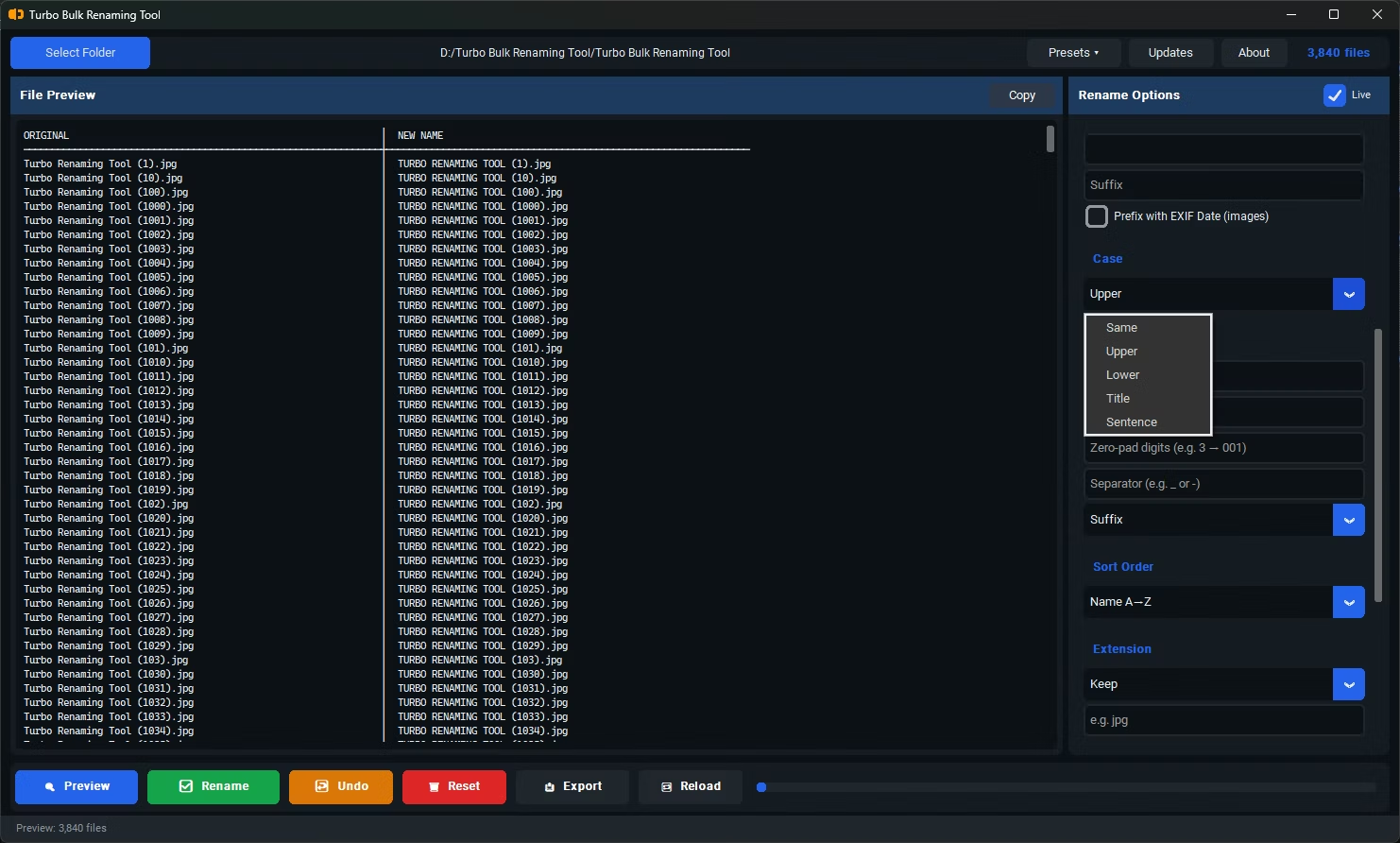
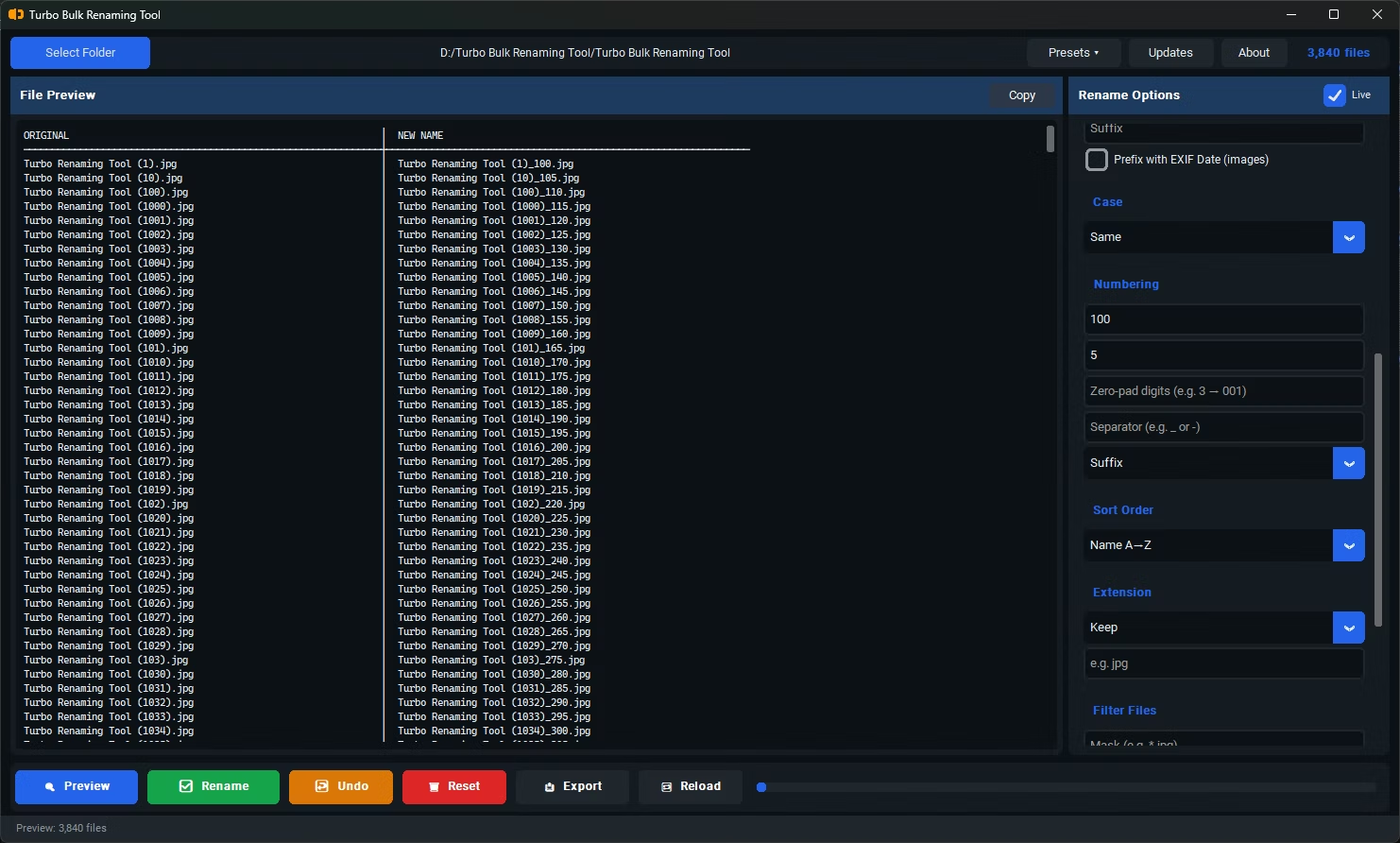

- Install Turbo Bulk Renaming Tool on a machine with enough free disk space for the operation, since renaming involves writing new directory entries for every file.
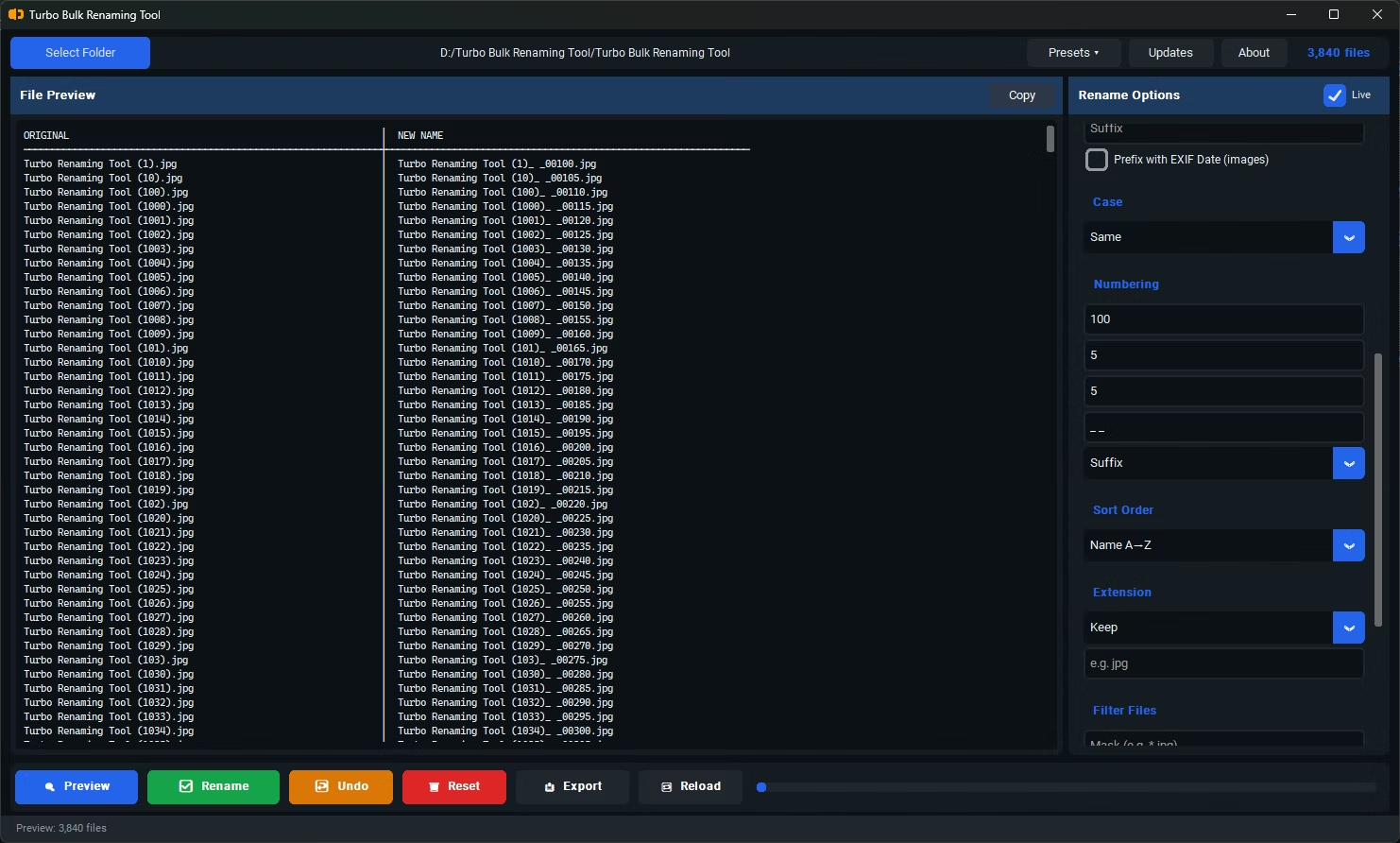
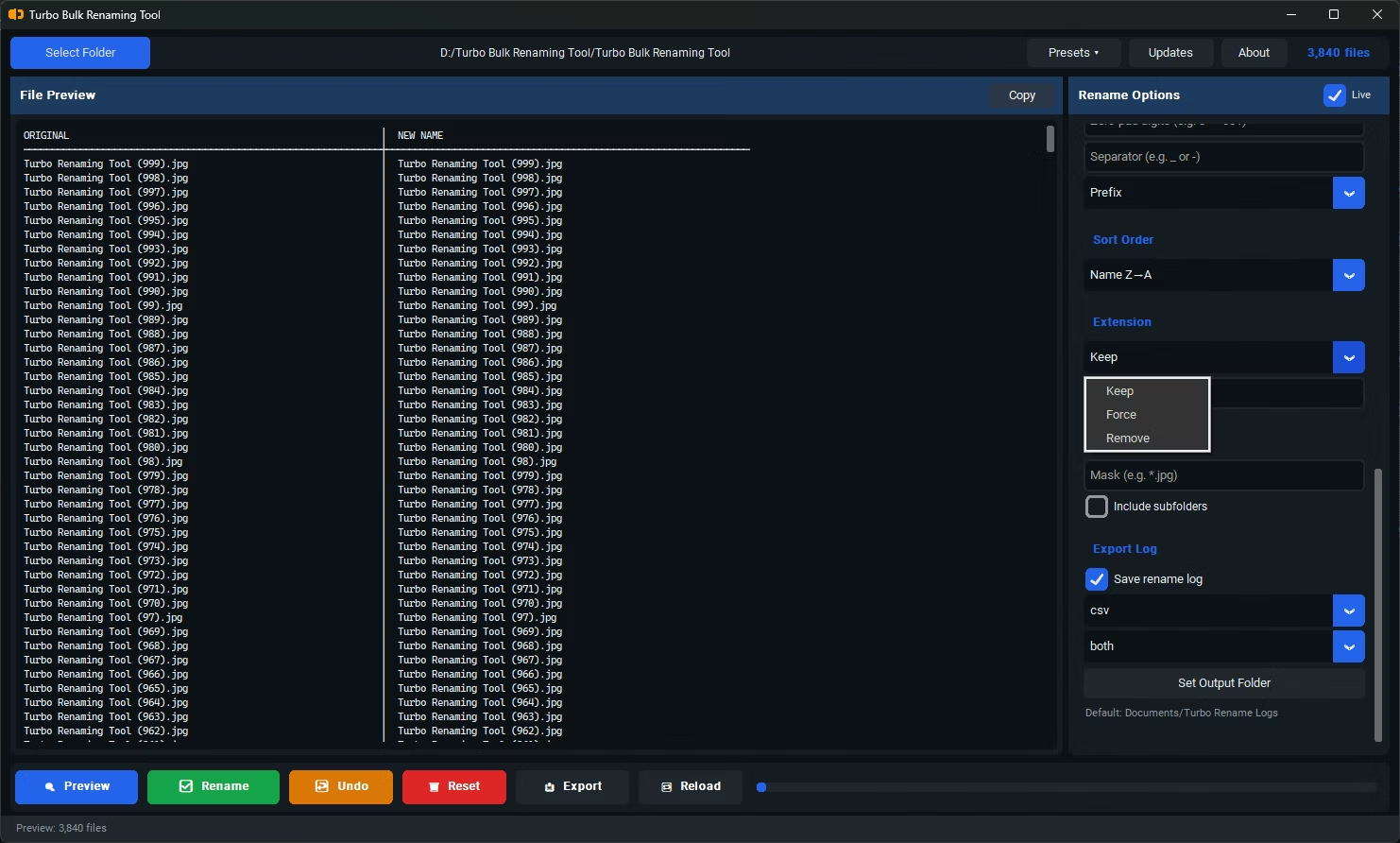
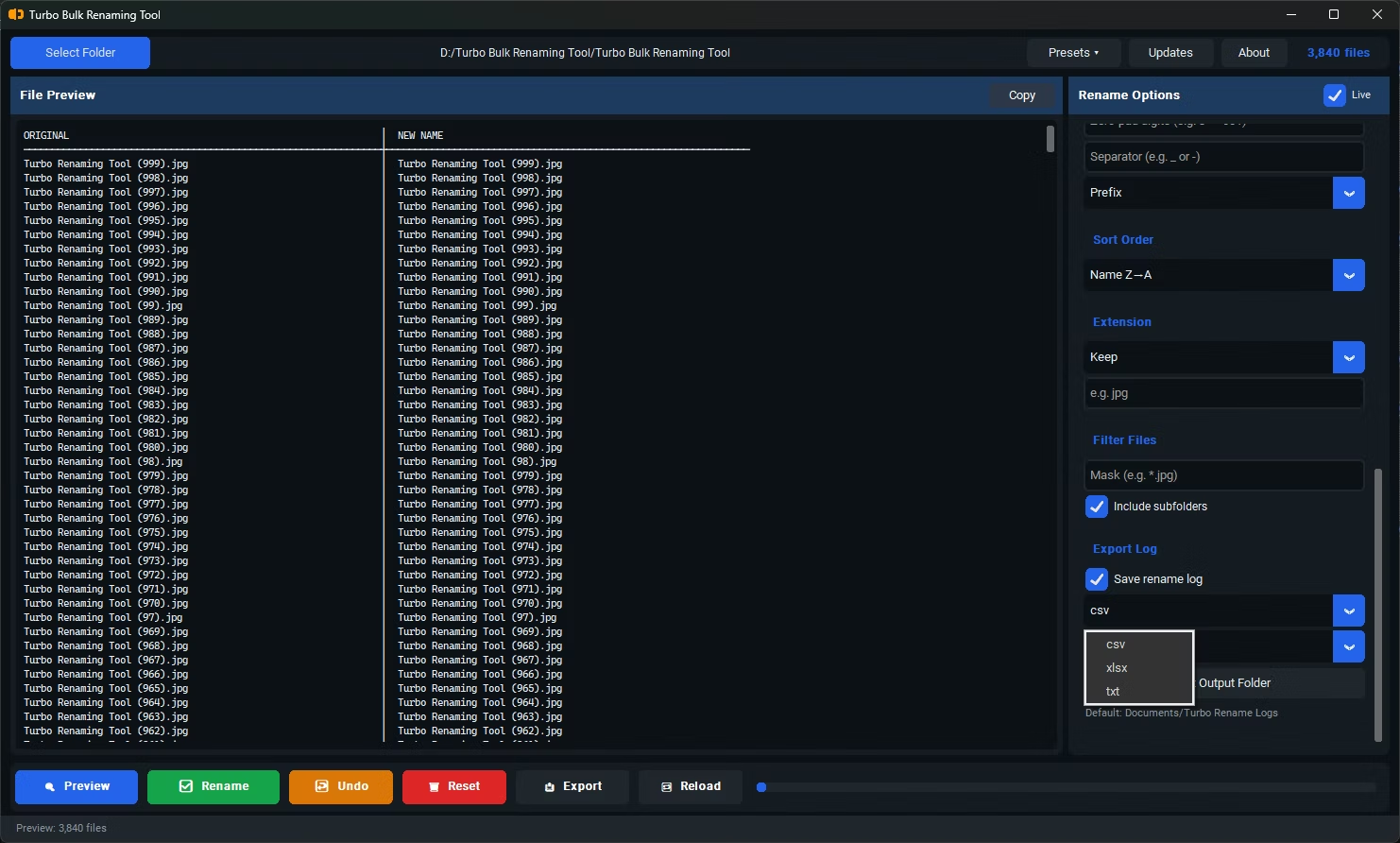
- Open the app and load the top-level folder, enabling "Include Subfolders" if your six-figure file count is spread across nested directories.
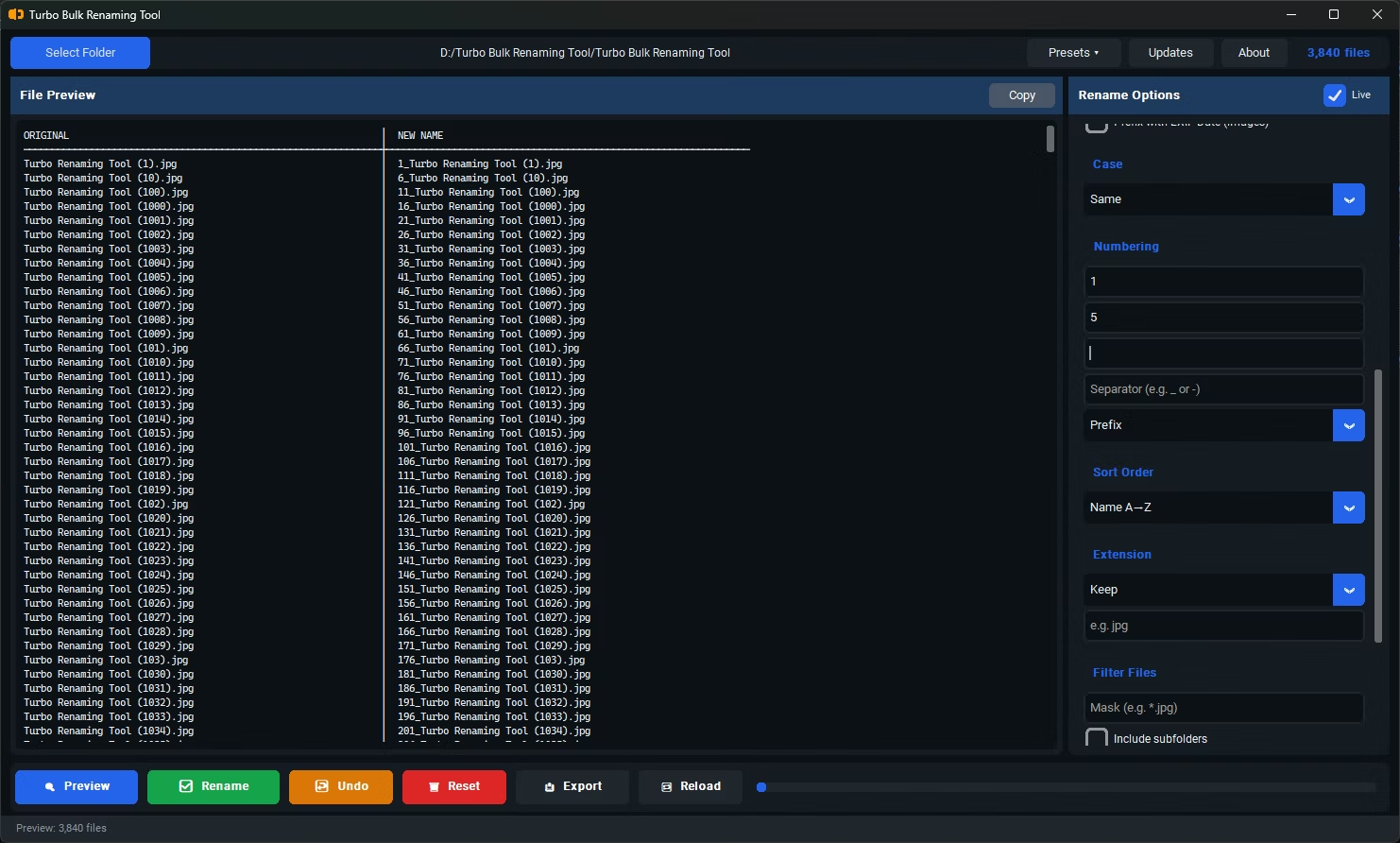
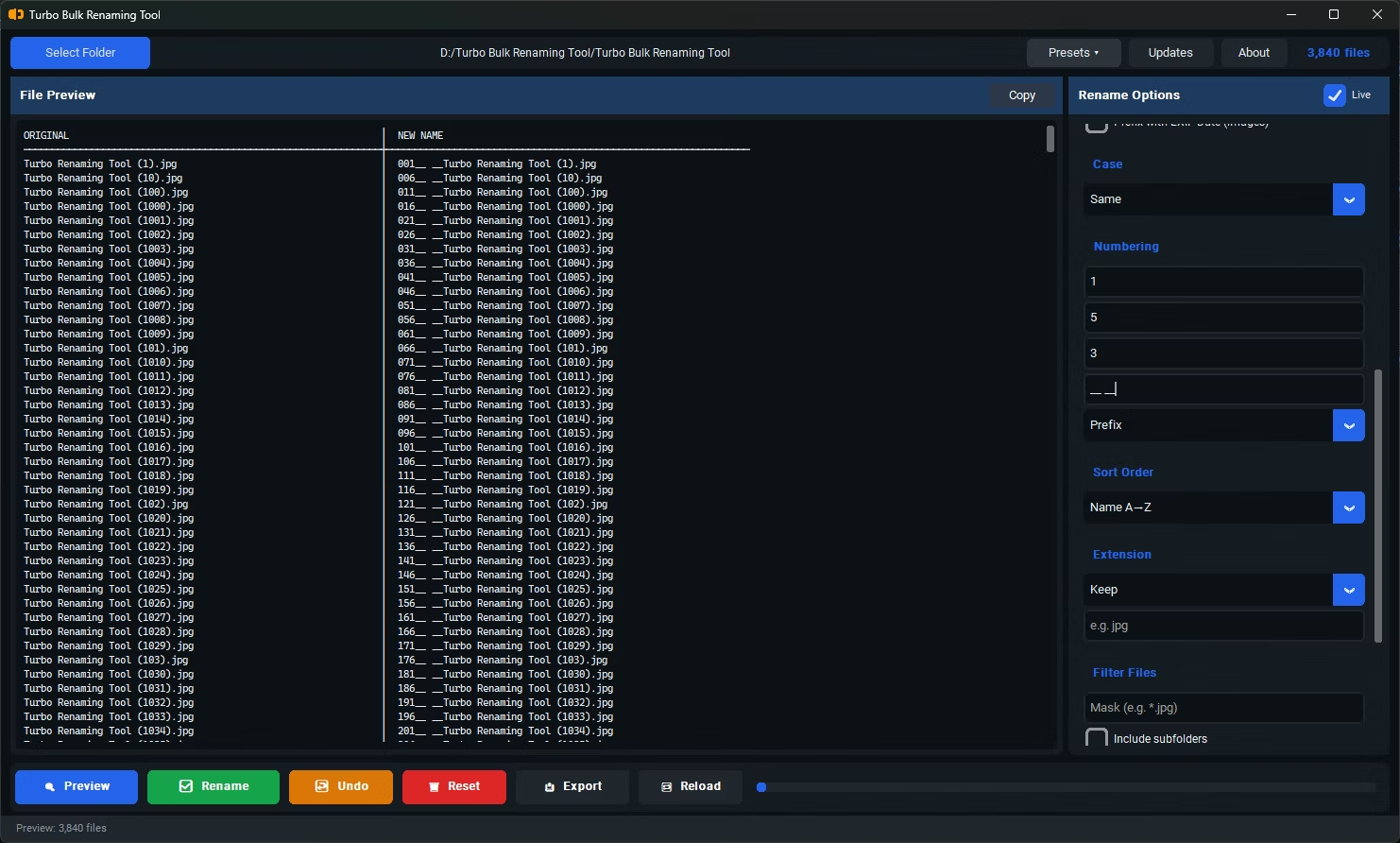
- Choose a renaming rule that applies uniformly, such as Sequential Numbering or Find & Replace, since rule consistency matters more at this scale than fine per-file tweaking.
- Be aware that for extremely large photo folders, EXIF-based preview generation is intentionally skipped above 100 files to keep the interface responsive; the rule still applies fully during the actual rename.
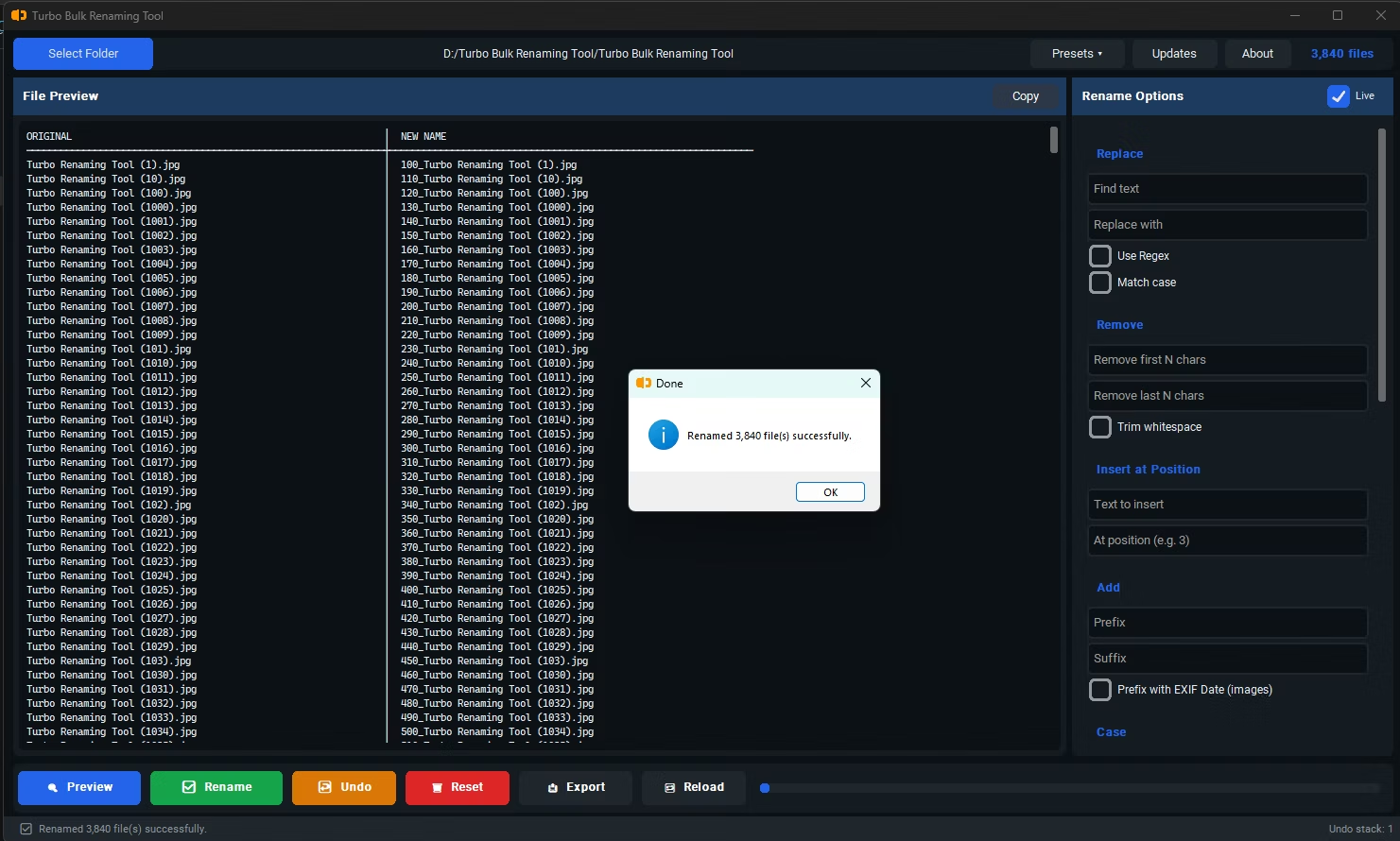
- Review whatever portion of the preview is available, then click Rename and allow the batch operation time to complete given the file count involved.
- Recursive sub-folder scanning that doesn't require manually navigating each directory
- No artificial file-count cap built into the renaming logic itself
- Runs fully offline, since uploading hundreds of thousands of files anywhere isn't realistic
- Conflict detection that scales with the batch rather than only checking a subset
- Undo support for the batch, in case a six-figure rename needs to be reversed
Will renaming this many files take a long time?
It takes longer than a small batch simply due to the volume of filesystem operations involved, though the rule logic itself processes each file quickly; total time depends largely on your storage speed.
Is it risky to rename such a large batch in one go?
It's reasonable to test your rule on a smaller subset first to confirm the pattern behaves as expected, then apply it to the full set once you're confident in the result.
Does the tool impose a maximum file count per batch?
No artificial limit is built into the renaming logic; practical limits come from your computer's storage and memory rather than the software itself.
Ready to rename your files in bulk, offline, with full privacy?