PSD files hold layered Photoshop projects, which is ideal for editing but useless for most other software. PNG is the better export target when you need transparency preserved — for logos, UI mockups, or graphics that will sit on top of another background — since PNG supports an alpha channel and is completely lossless, unlike JPG.
Manually opening each PSD in Photoshop to export a PNG is fine for one or two files, but quickly becomes tedious across a full design library. A batch converter automates the flattening and export step entirely, letting you process an entire folder of PSD files into PNG in one pass, without touching Photoshop.
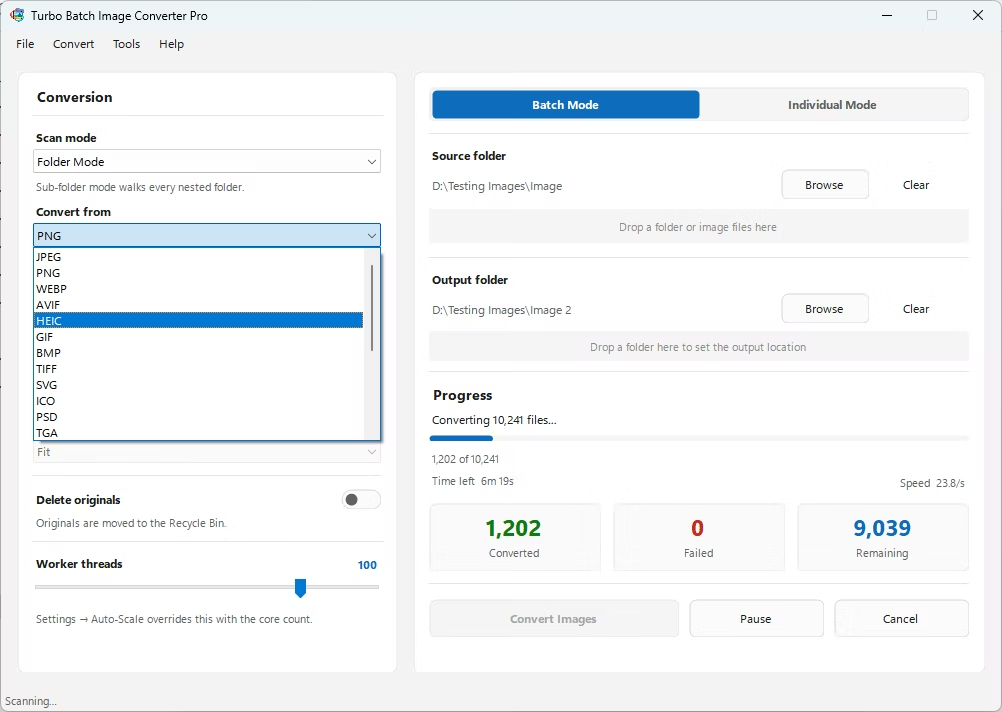
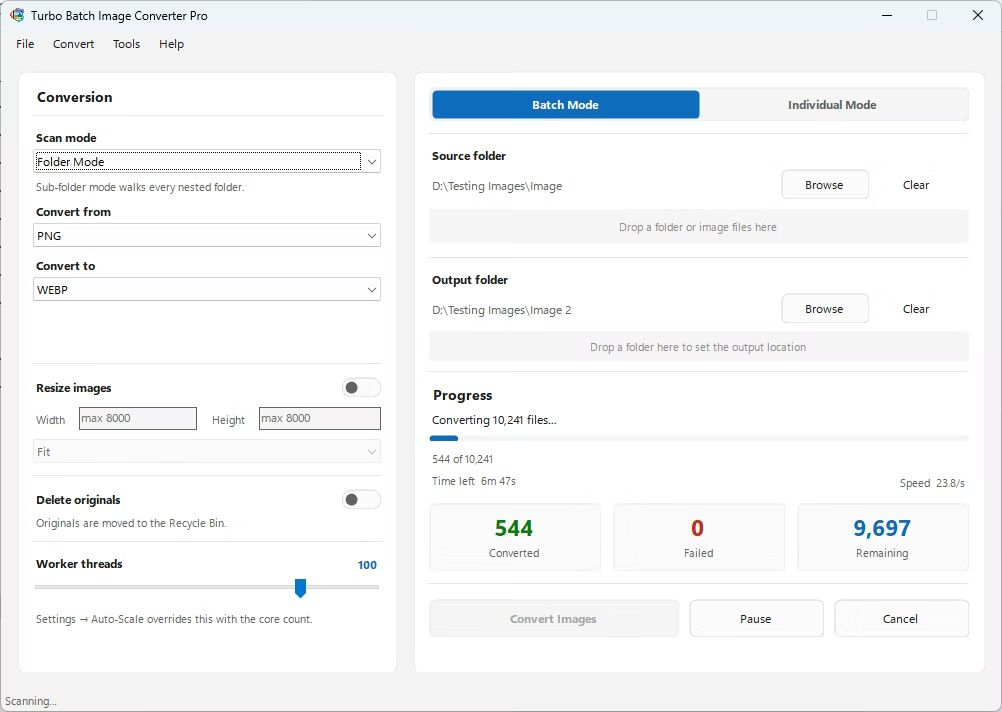
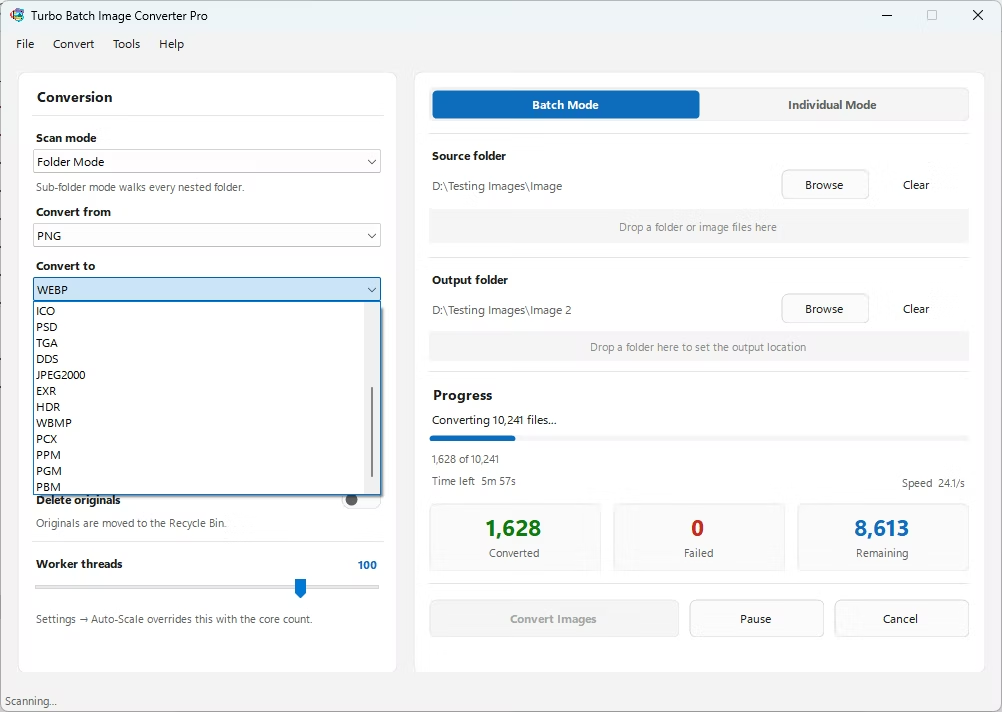
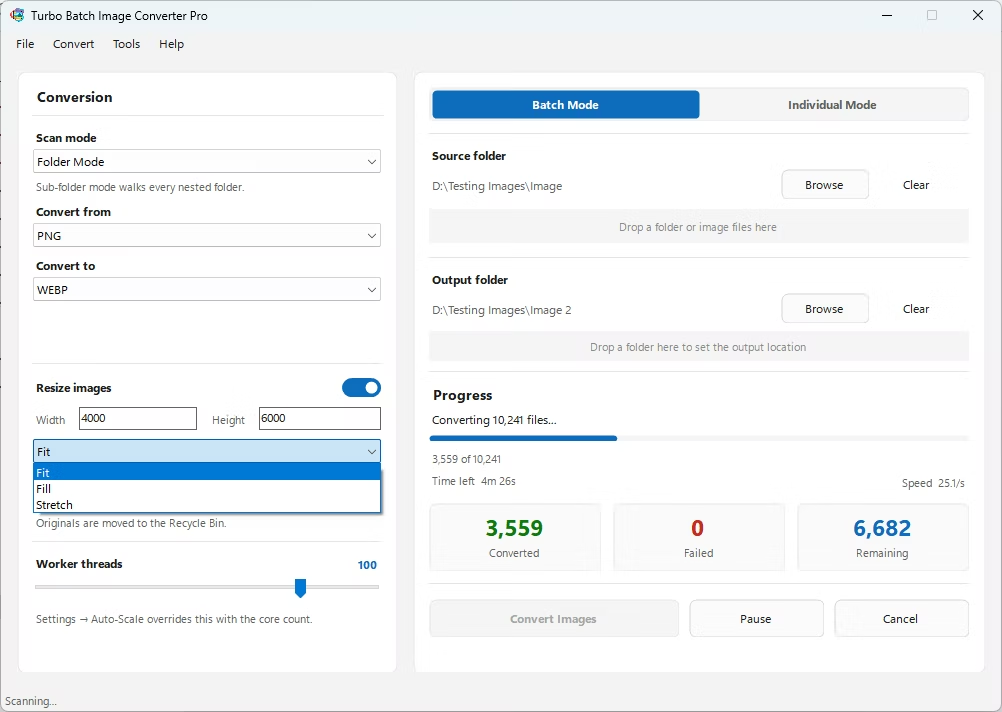
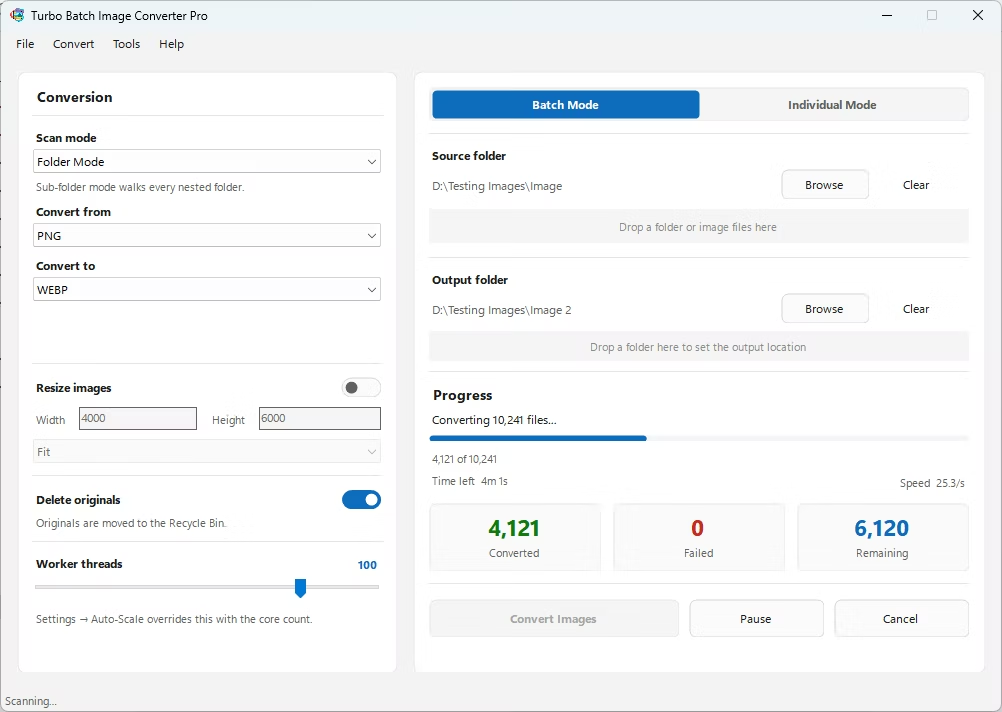
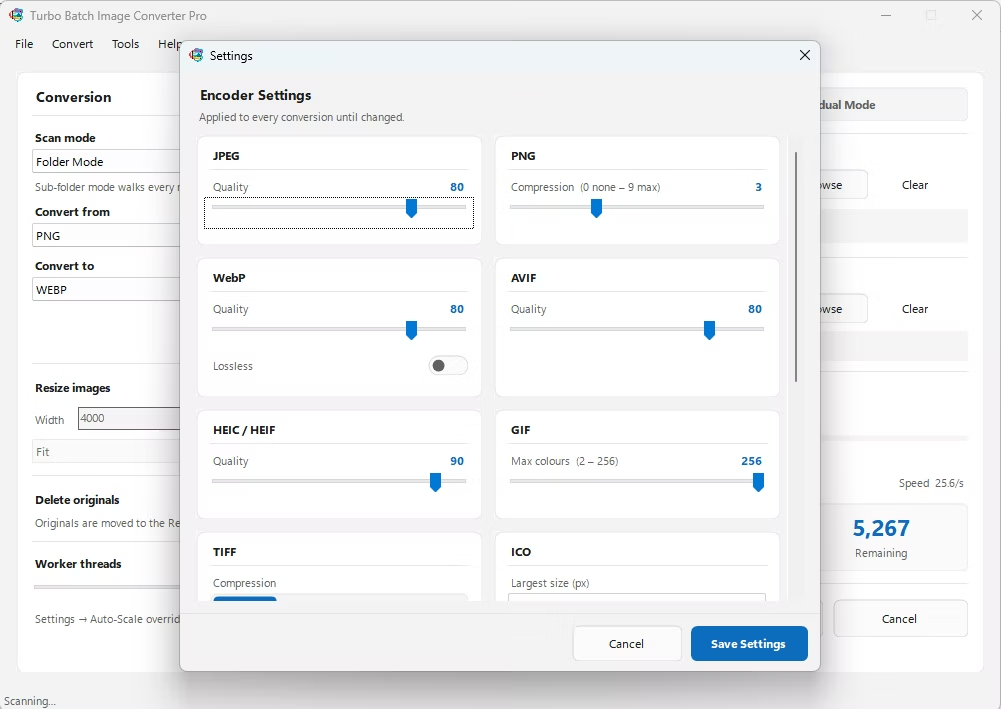
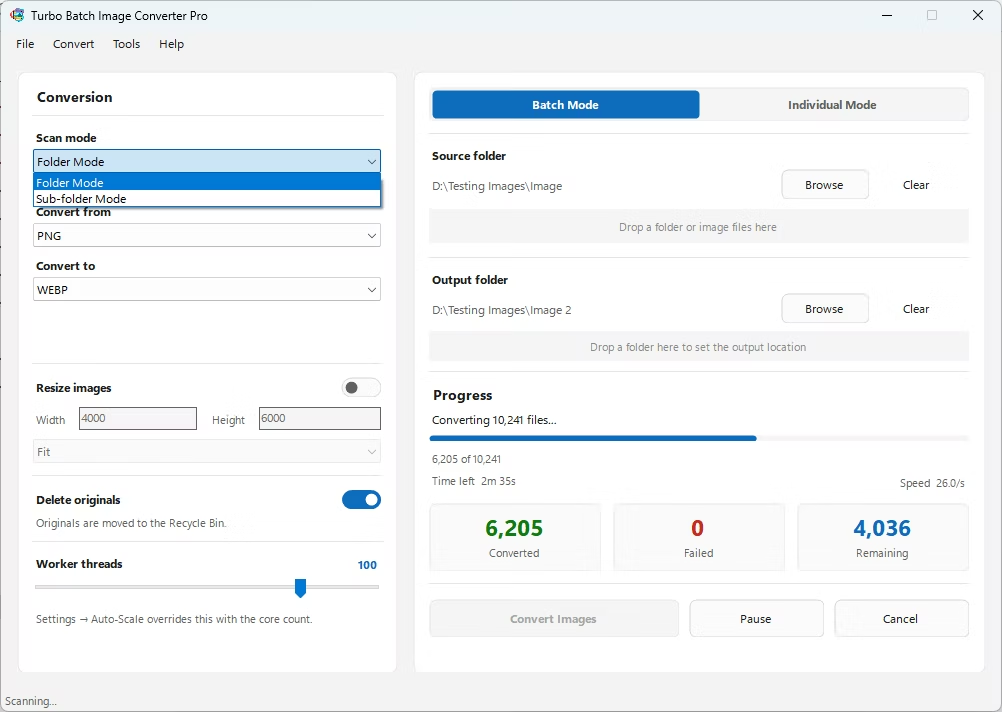
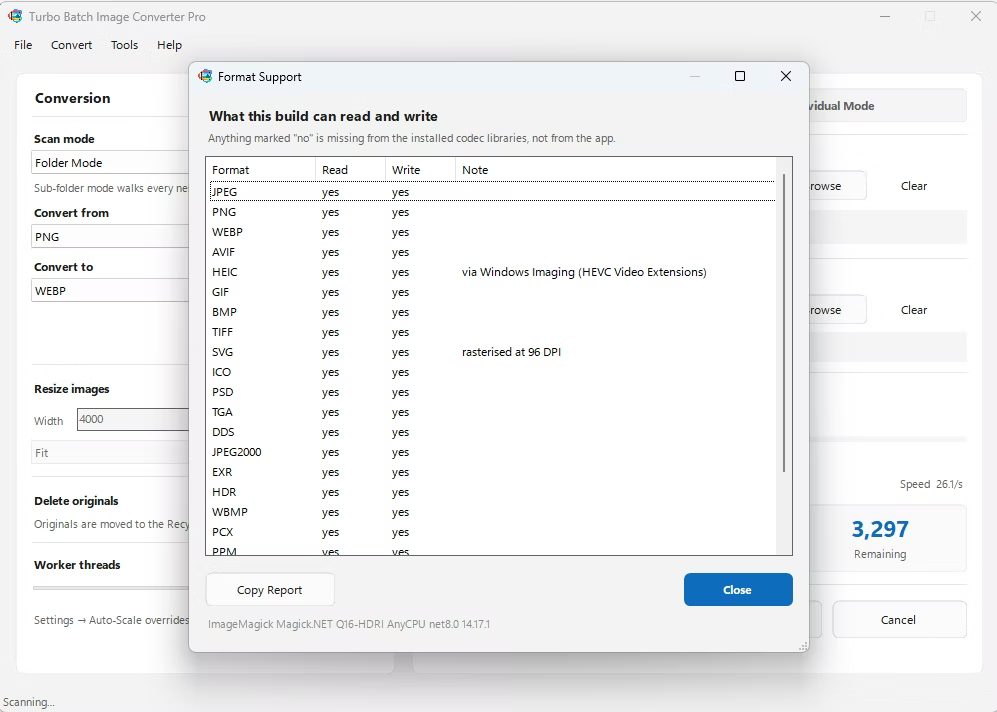
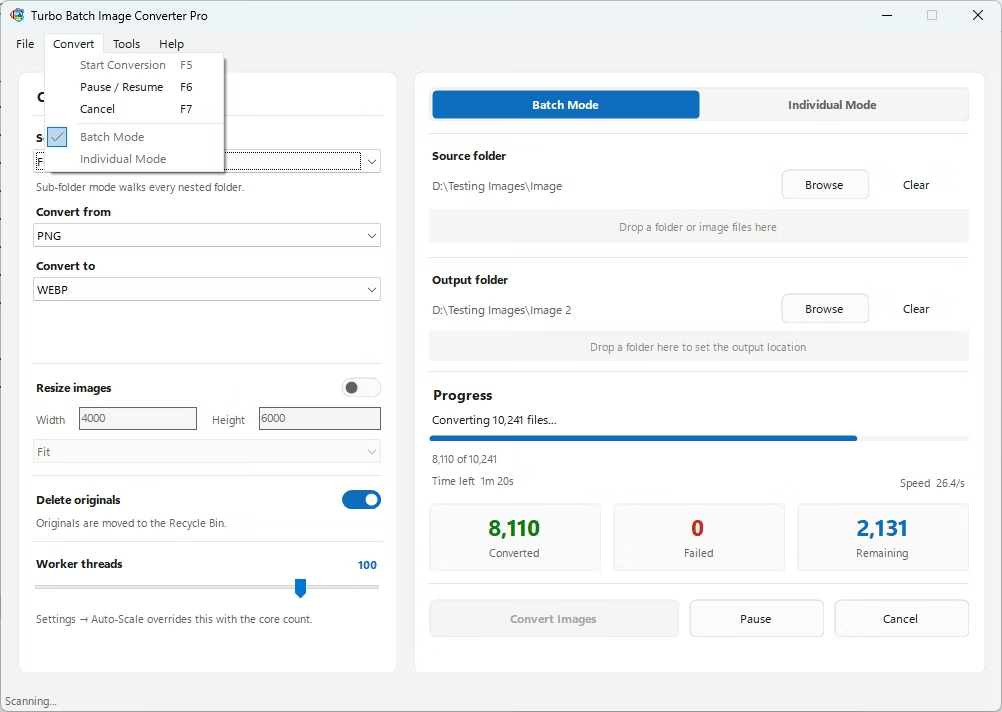
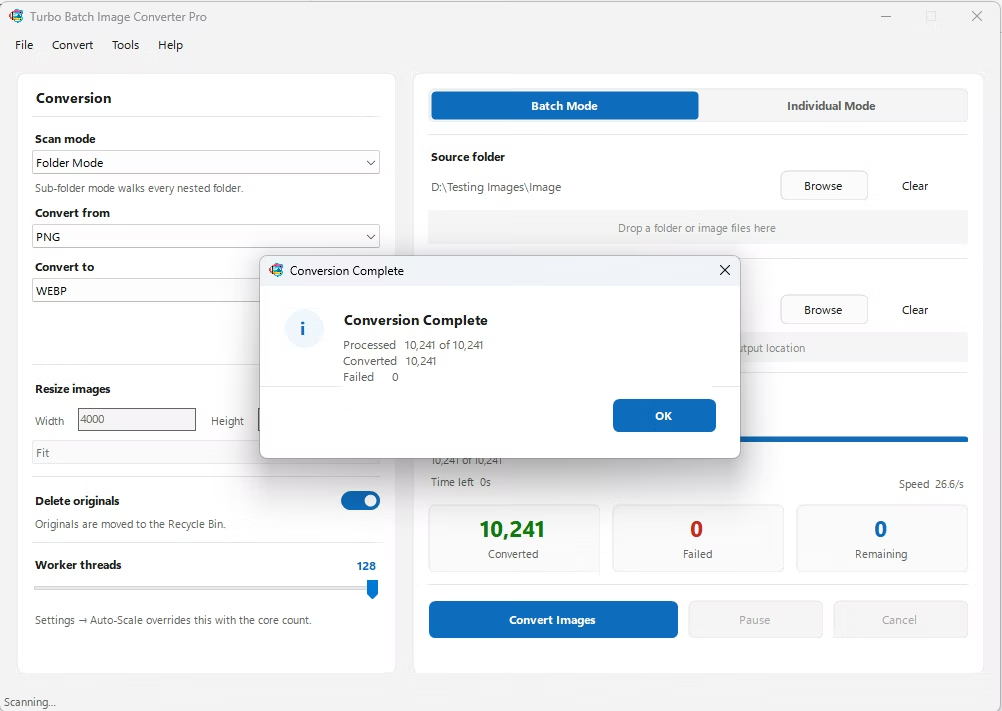
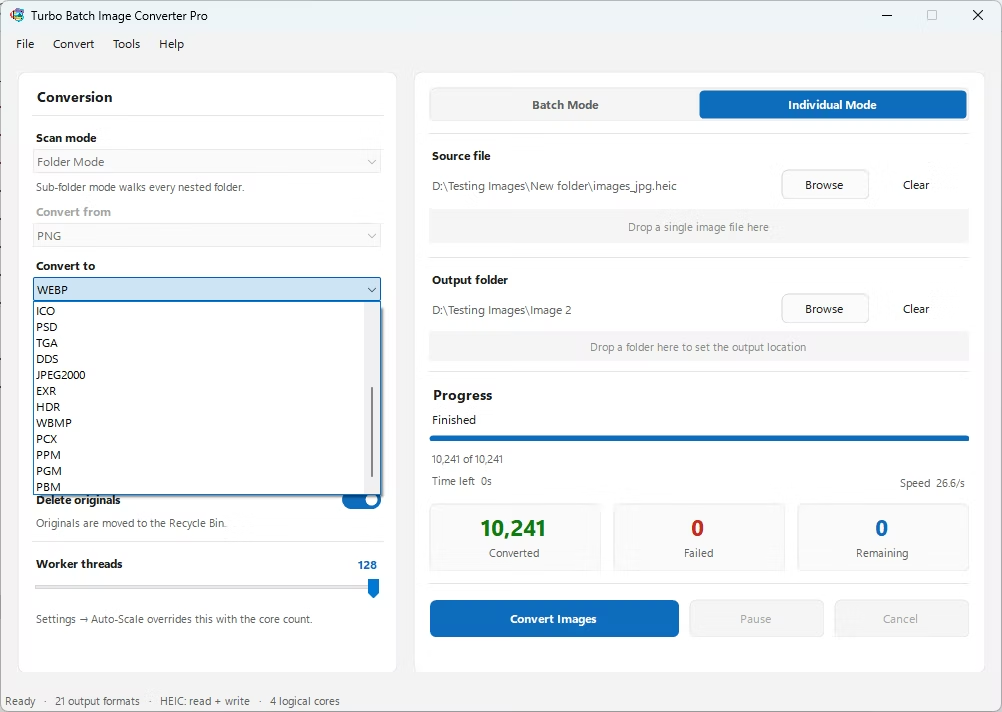
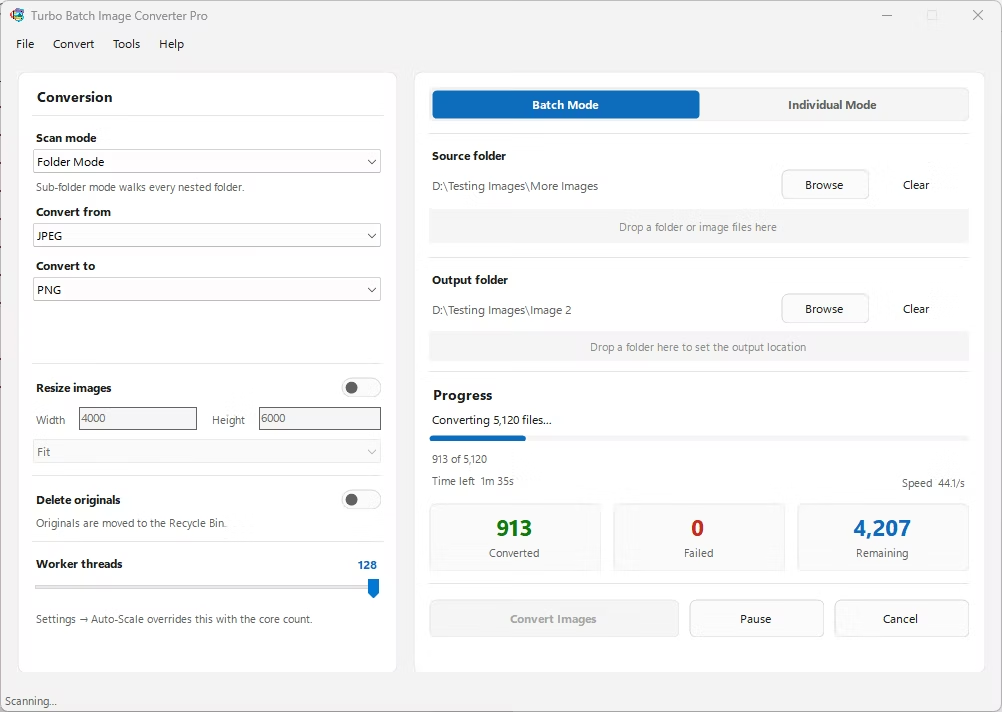
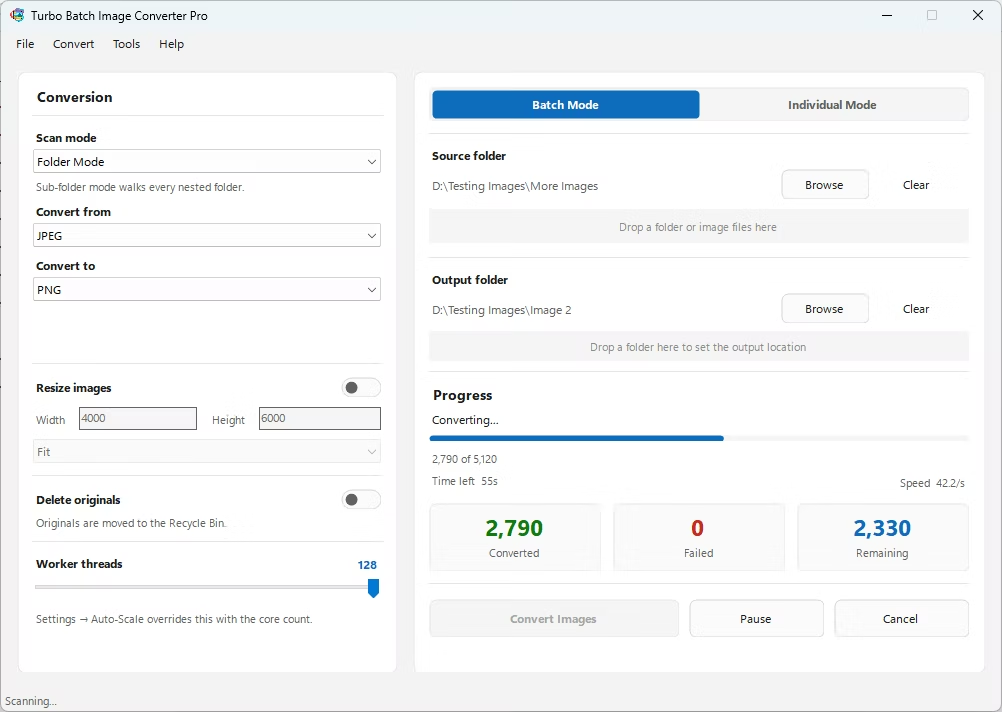
- Install Turbo Batch Image Converter Pro on Windows. No Photoshop license is needed.
- Open the app and choose Batch Mode for converting a whole design folder, or Individual Mode for a single PSD file.
- Drag your PSD files or folder into the app. Enable recursive sub-folder scanning if your assets are organized into nested project folders.
- Set the input format to PSD and the output format to PNG.
- Optionally apply resizing during the same conversion step if you need standardized output dimensions.
- Click Convert. Visible layers are flattened and exported as lossless PNG files, with transparency preserved where present, entirely offline.
- Preserves transparency from your PSD's alpha channel where present
- No Photoshop installation required to export files
- Bulk-convert entire design libraries in a single batch
- Recursive sub-folder scanning for nested project structures
- Fully offline — your unreleased design files never leave your computer
- Multi-core processing for fast batch jobs across large PSD collections
Will transparency be preserved when converting PSD to PNG?
Yes. If your PSD file has transparent areas in its visible layers, those are preserved in the exported PNG, since PNG supports an alpha channel.
Is PNG better than JPG for design exports?
For design assets like logos, icons, and UI elements, PNG is usually the better choice because it's lossless and supports transparency, while JPG is better suited to photographic images where smaller file size matters more.
Can this handle a large library of PSD files at once?
Yes. Batch Mode with recursive folder support is built specifically for processing large, nested collections of PSD files in one run.
Ready to convert your images offline, in bulk, with full privacy?