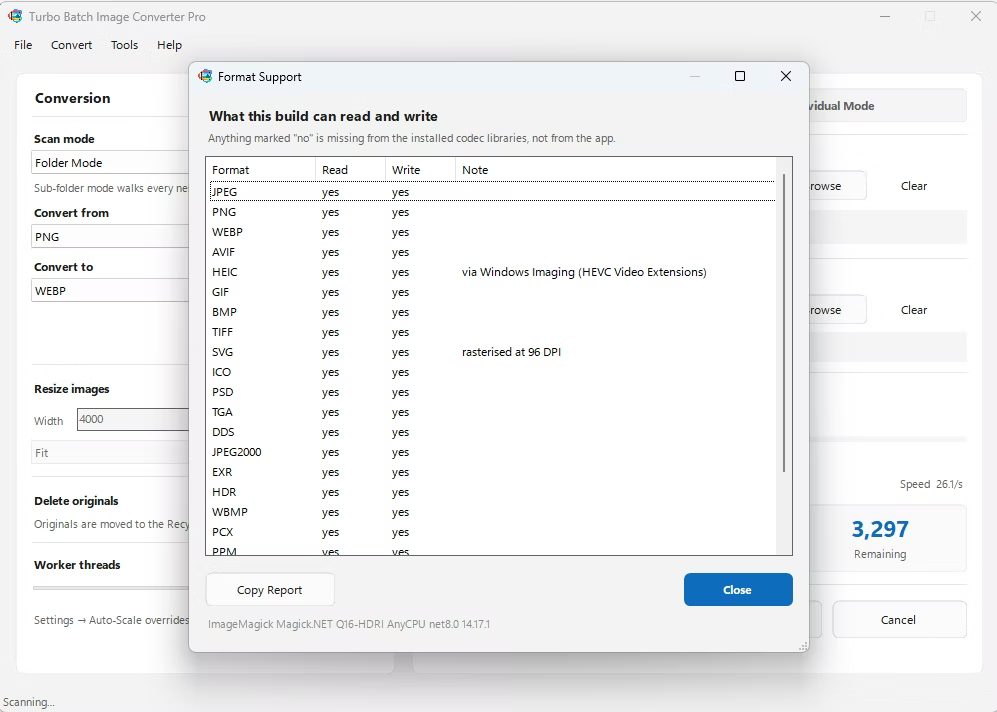
PSD is Photoshop's native layered format, ideal for editing but unreadable by most browsers, phones, and review tools. Which target format makes sense depends on what you need: JPG gives you the smallest file size for sharing photographic content, while PNG is the better choice when you need a lossless export or need to preserve transparency from your design's alpha channel.
Whichever target you choose, doing this for a whole folder of PSD files one at a time in Photoshop doesn't scale. A batch converter reads the PSD file directly, flattens the visible layers, and exports to your chosen format without requiring Photoshop to be installed.
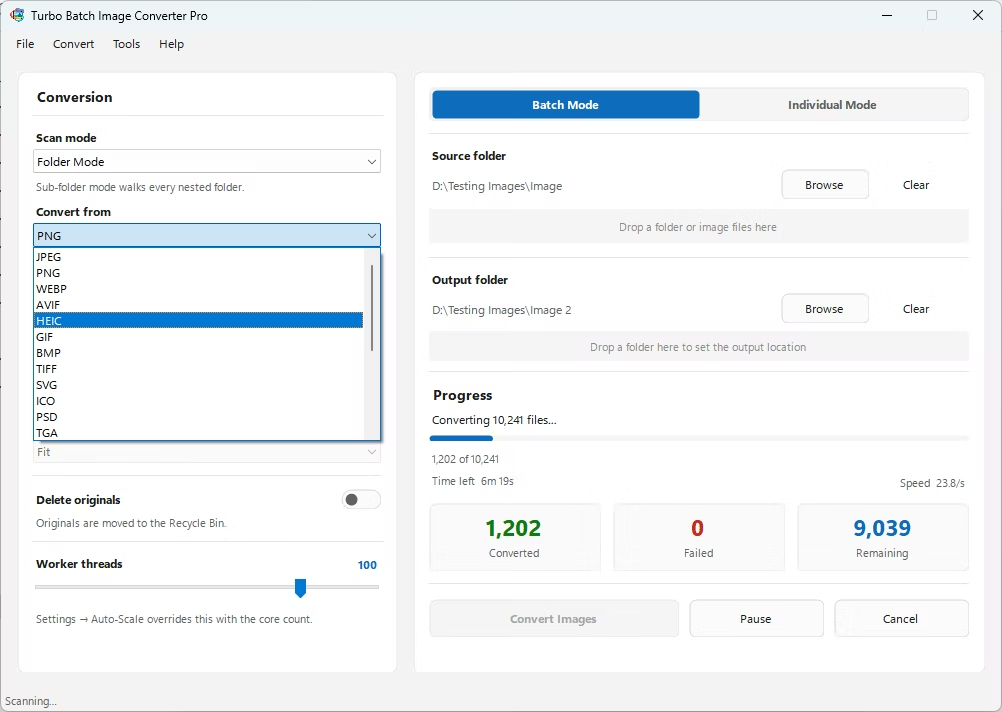
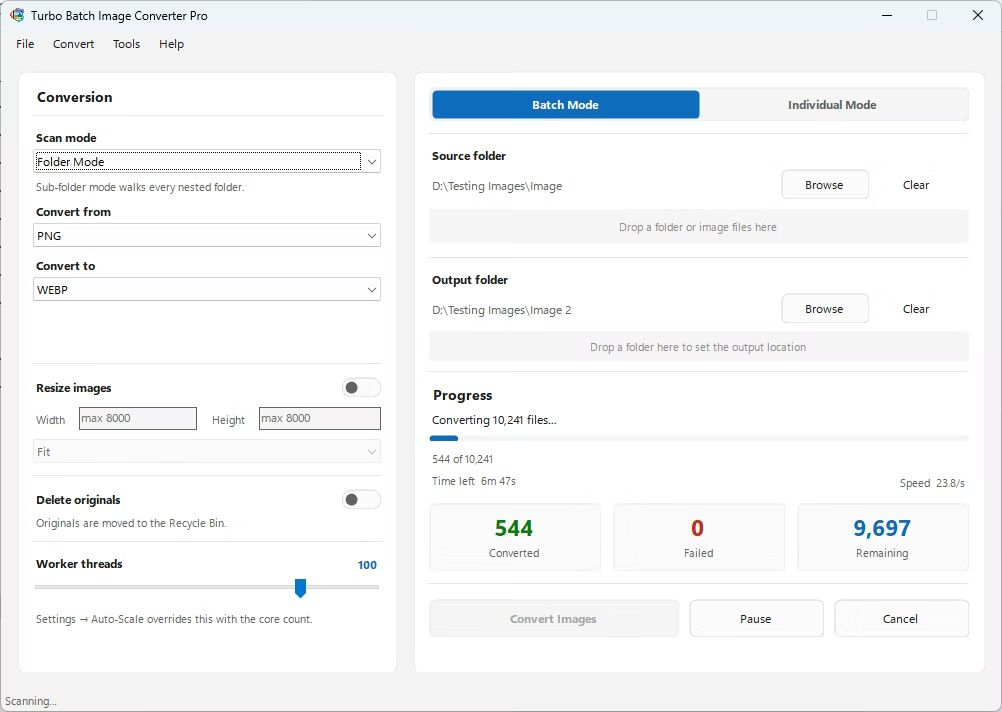
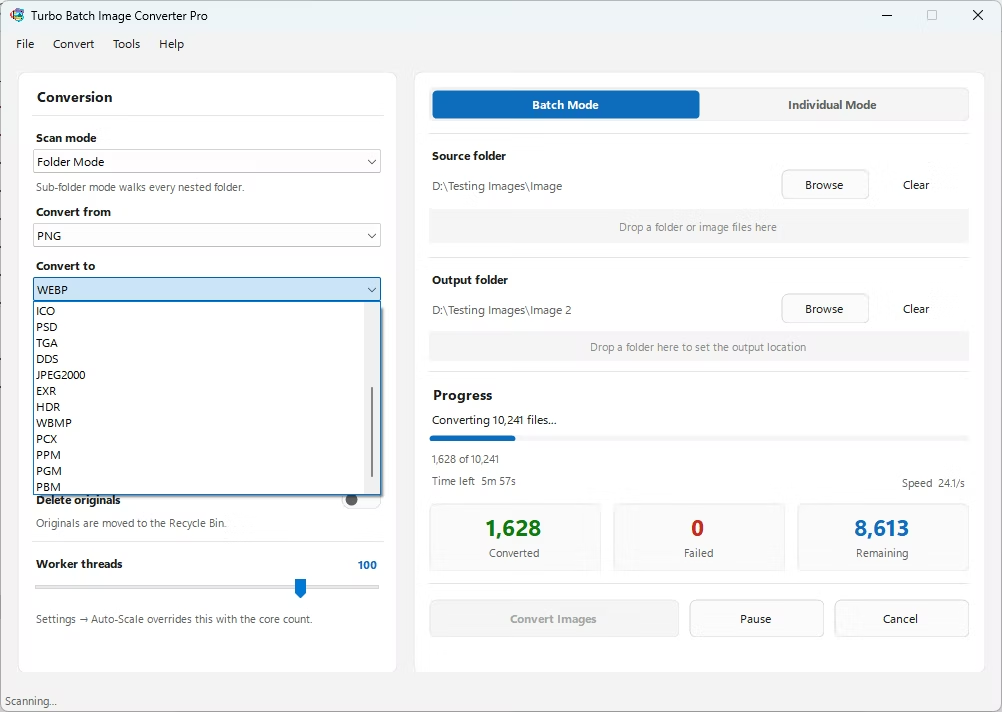
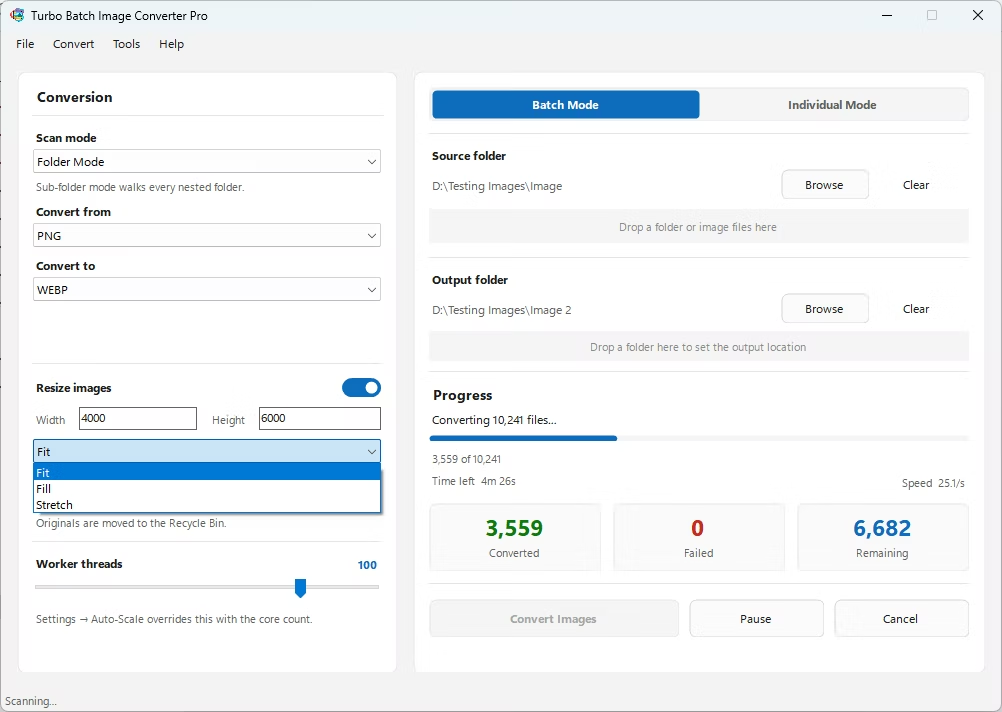
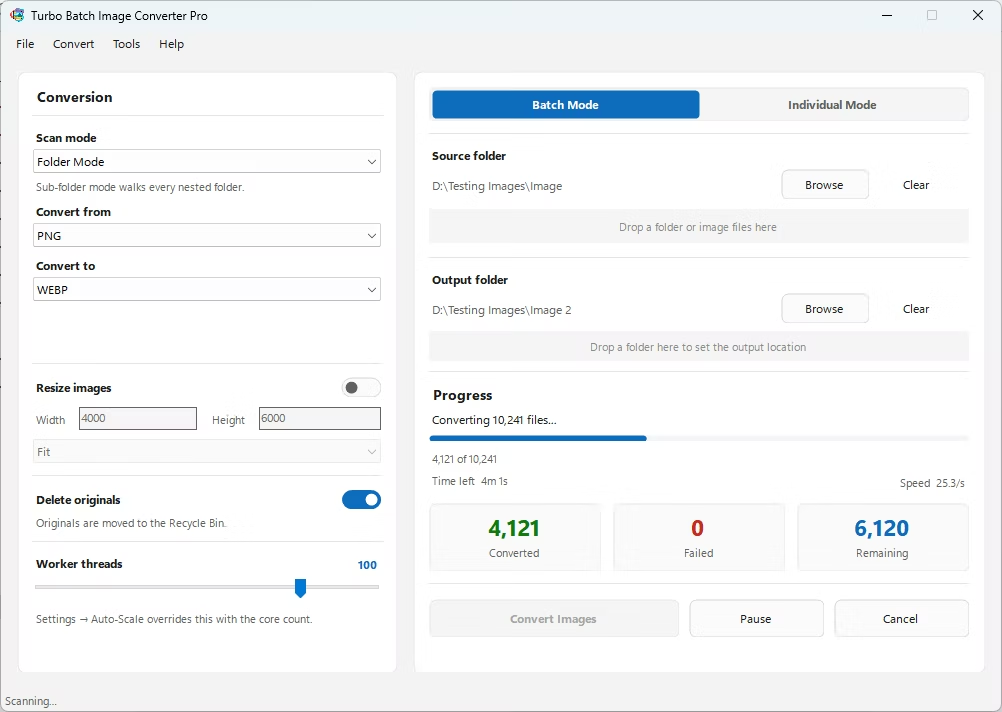
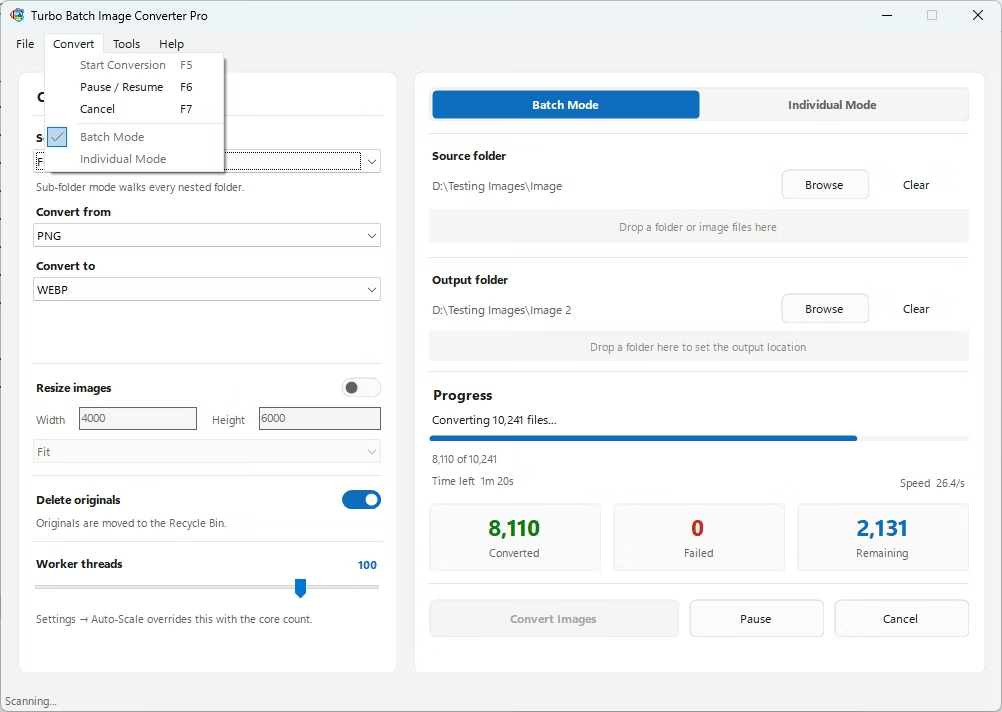
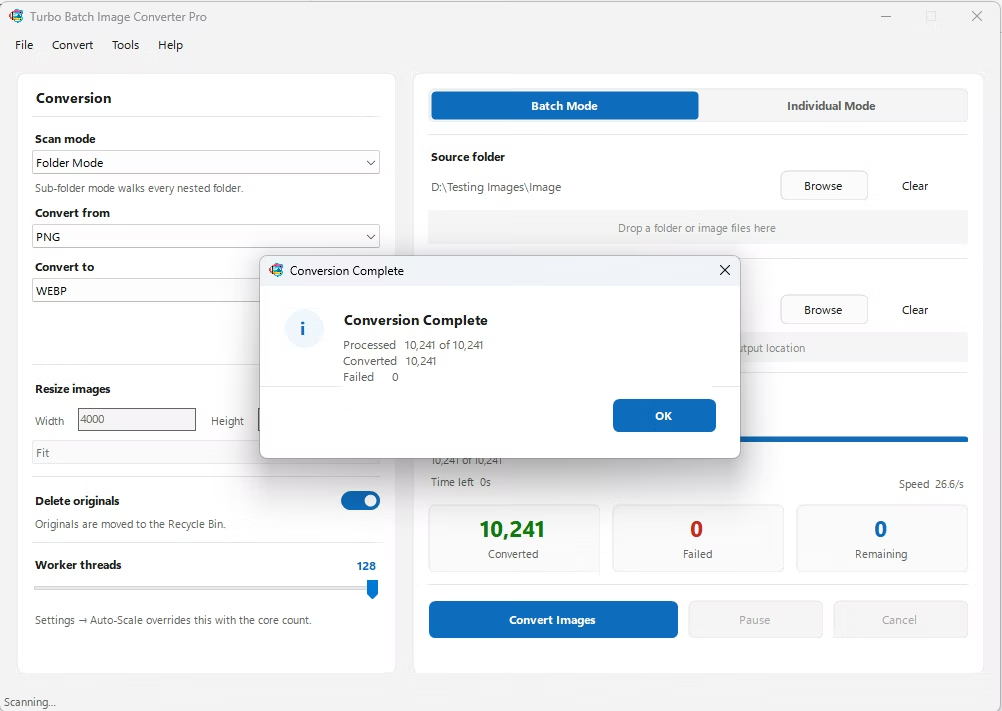
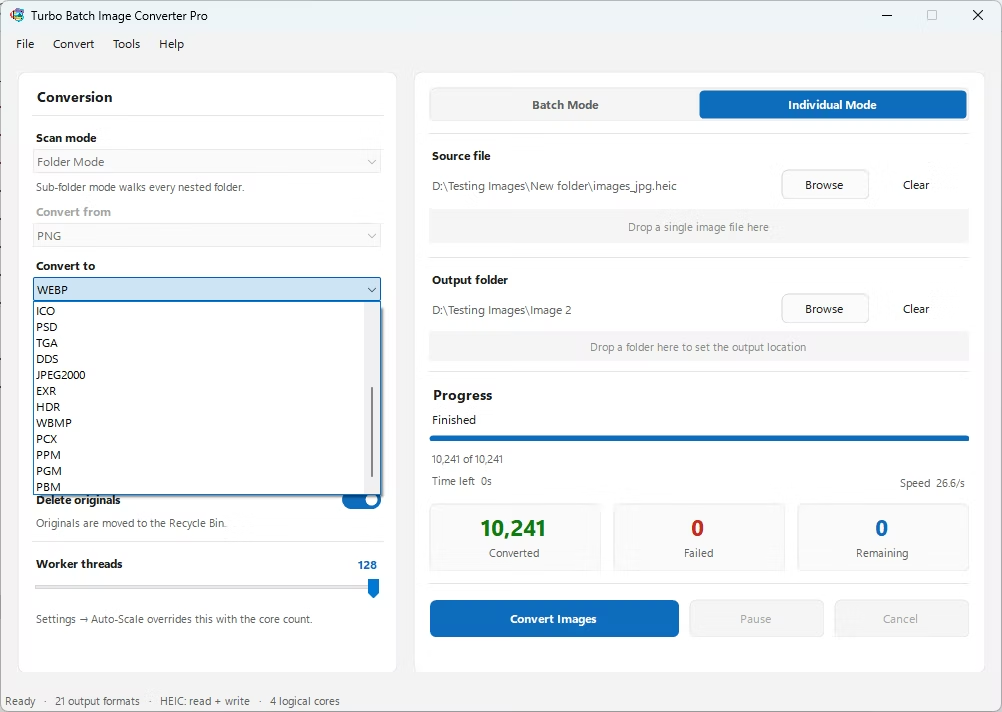
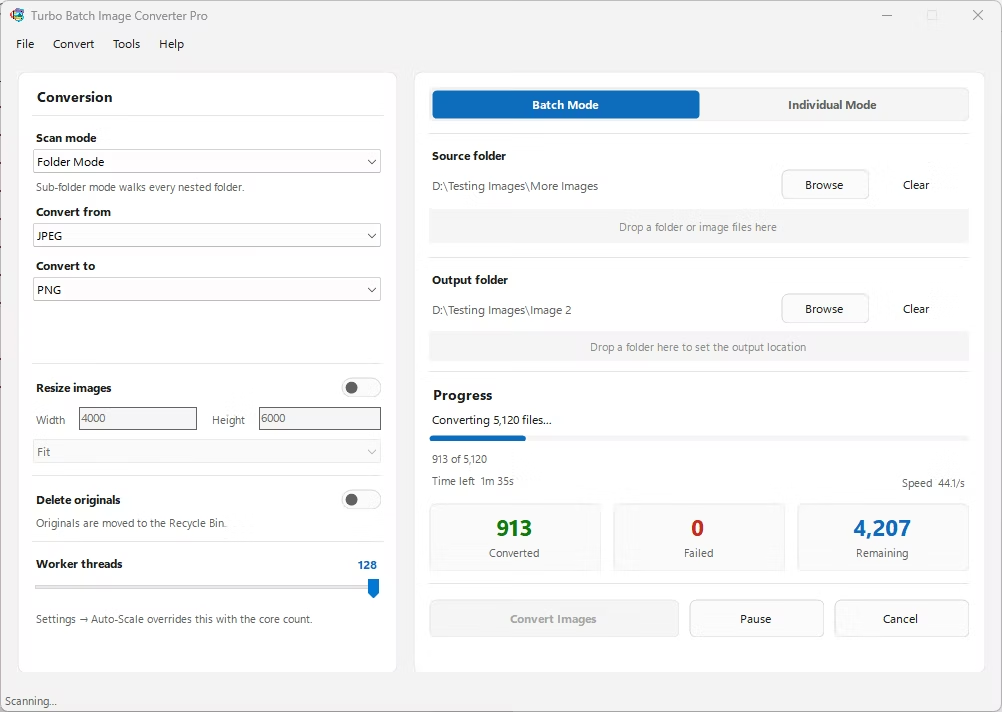
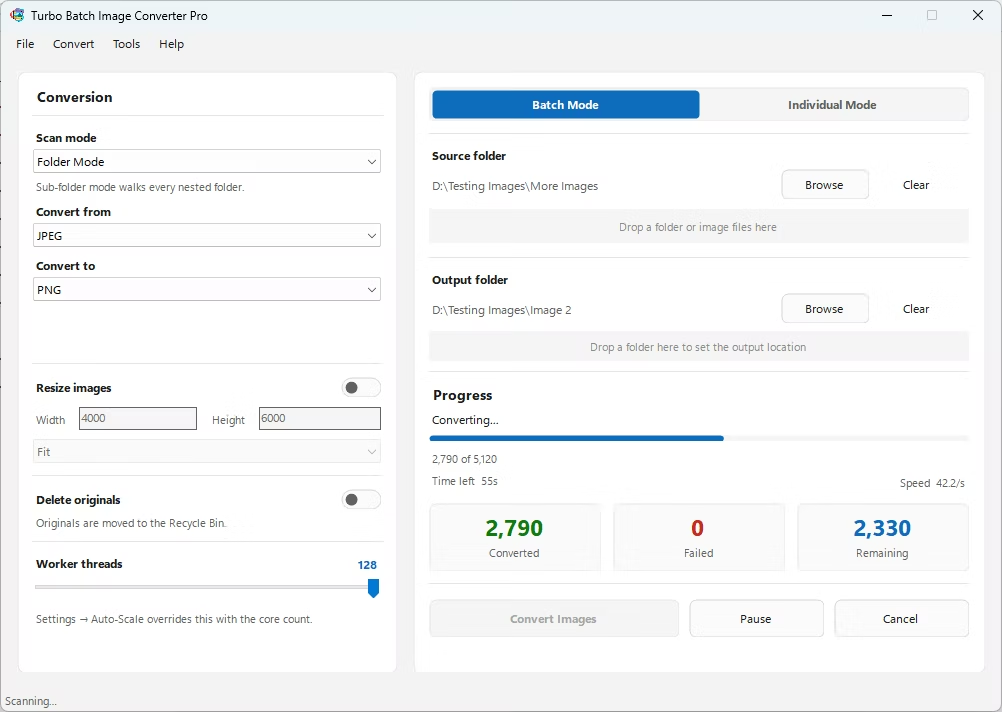
- Install Turbo Batch Image Converter Pro on your Windows PC. Photoshop is not required.
- Open the app and select Batch Mode for multiple files, or Individual Mode for a single PSD.
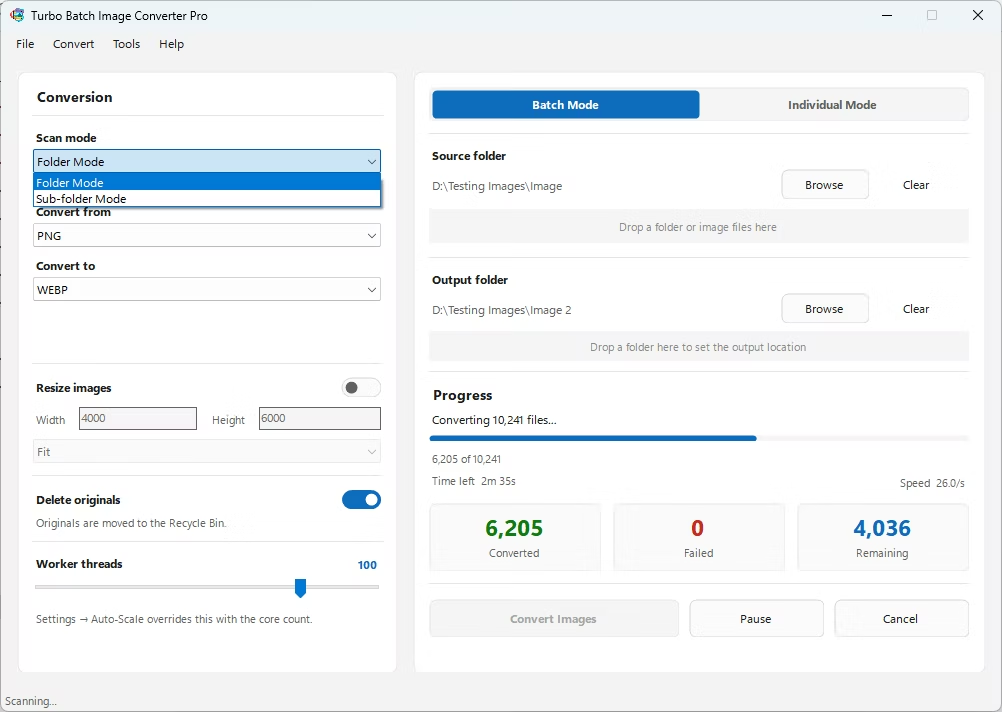
- Drag your PSD file or folder into the app window, enabling recursive folder scanning if needed.
- Set the "From" format to PSD, and choose PNG as the "To" format for a lossless, transparency-preserving export, or JPG for the smallest file size.
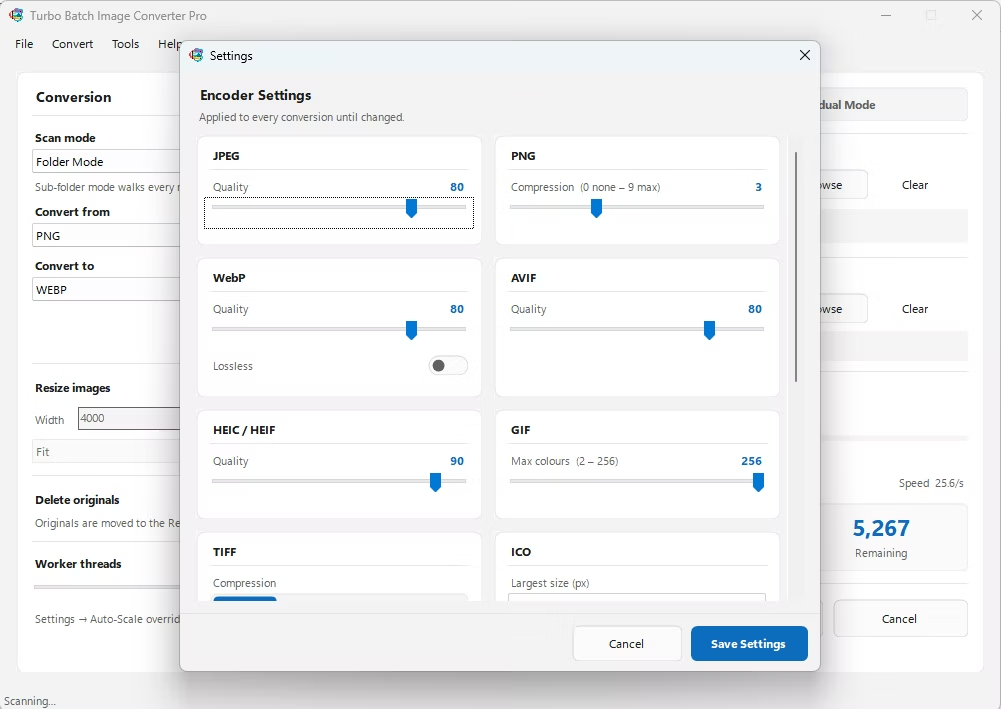
- For JPG output, adjust the quality slider to balance file size against visual detail.
- Click Convert. The app flattens each PSD's visible layers and exports to your chosen format, fully offline.
- No Photoshop license required to export PSD files
- Choose PNG for lossless, transparency-preserving output, or JPG for smaller files
- Bulk-convert entire project folders in a single batch job
- Recursive sub-folder support for organized design archives
- Runs fully offline, keeping unreleased design work private
- Multi-core processing for fast handling of large PSD batches
Should I choose PNG or JPG for my PSD export?
Choose PNG if you need transparency preserved or want a lossless result for further editing, and choose JPG if you want the smallest possible file size for sharing or web use.
Do I need Photoshop installed to convert PSD files?
No, the converter reads the PSD file structure directly and flattens the visible layers itself, so Photoshop is not required.
Can I batch-convert an entire design project folder?
Yes, Batch Mode with recursive folder scanning lets you point the app at a top-level project folder and convert every PSD file inside, including nested sub-folders.
Ready to convert your images offline, in bulk, with full privacy?