NEF is Nikon's RAW image format, used across Nikon DSLR and mirrorless cameras to store unprocessed sensor data with full editing latitude. NEF files give photographers maximum flexibility in post-processing, but they're large and aren't viewable in everyday photo viewers, browsers, or social platforms. Converting to JPEG produces a small, instantly shareable file that opens anywhere.
Whether you're delivering a handful of selected shots or processing an entire Nikon shoot, a desktop NEF to JPEG converter handles the conversion locally, without needing Nikon's own software or an internet connection to upload files anywhere.
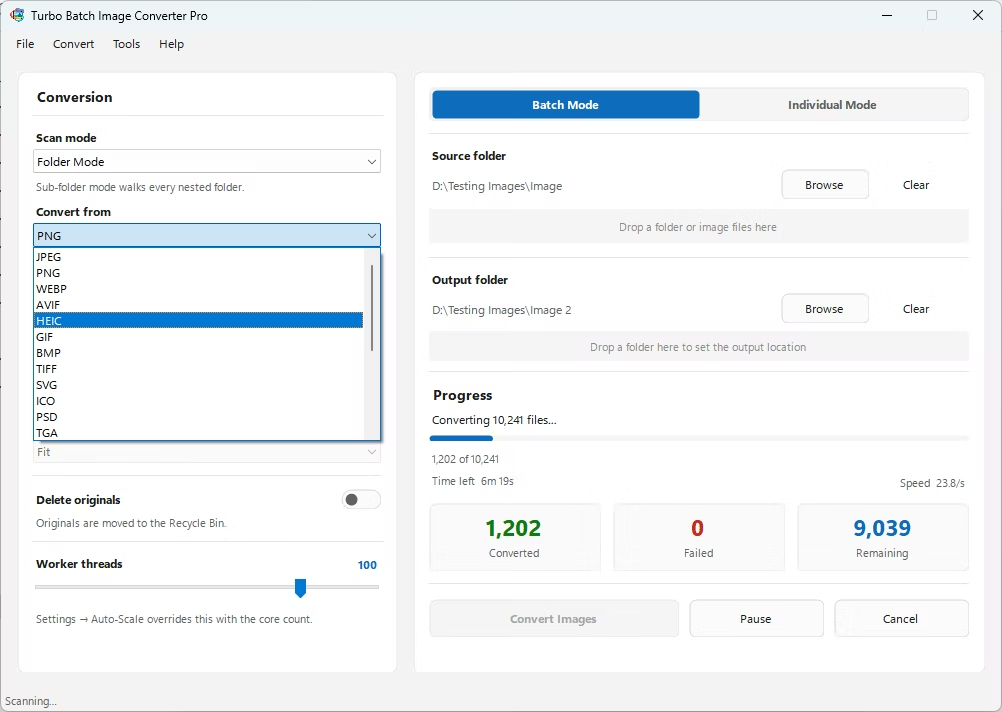
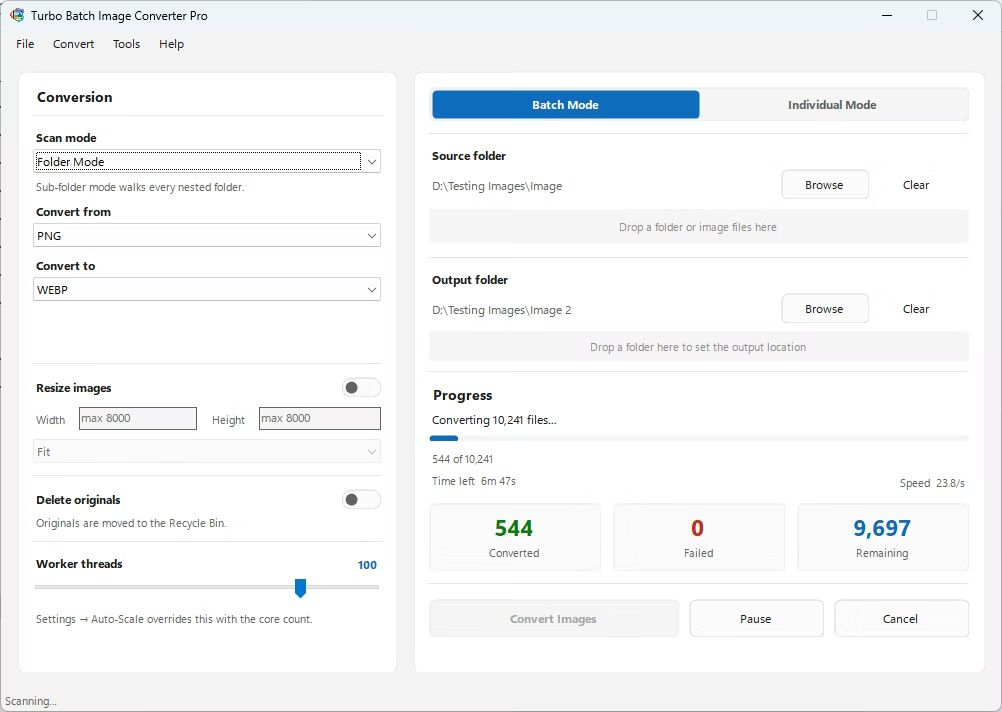
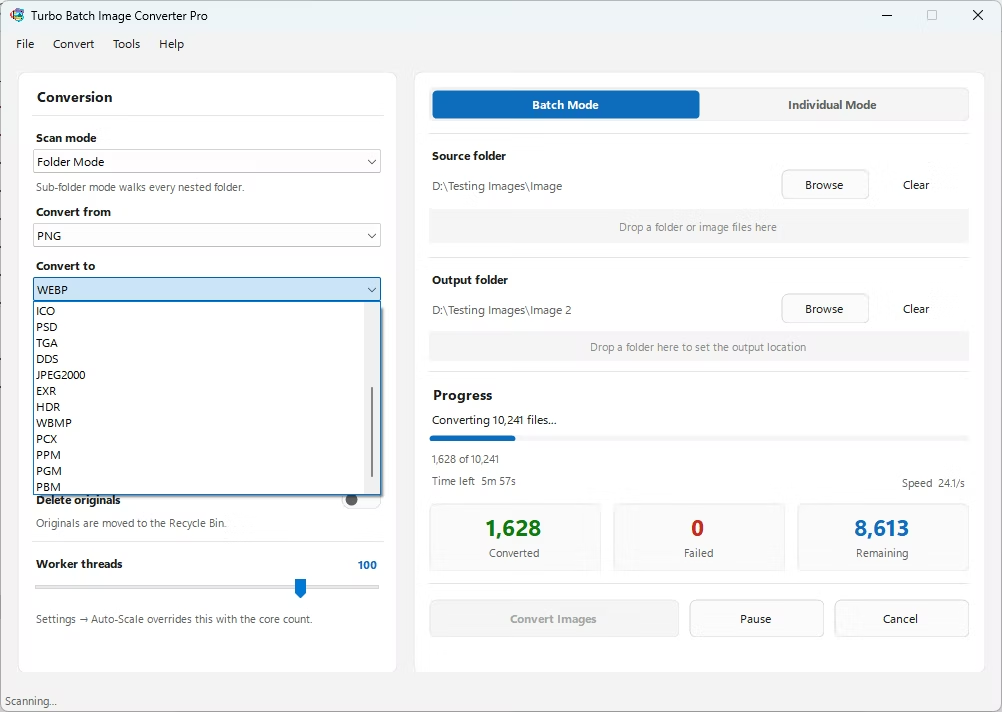
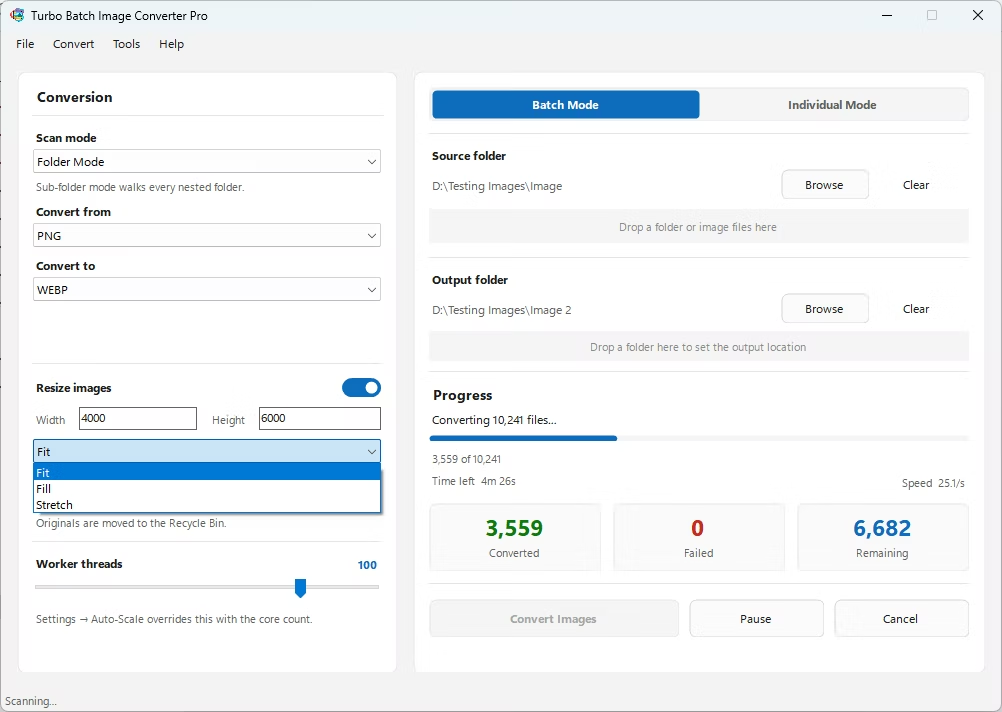
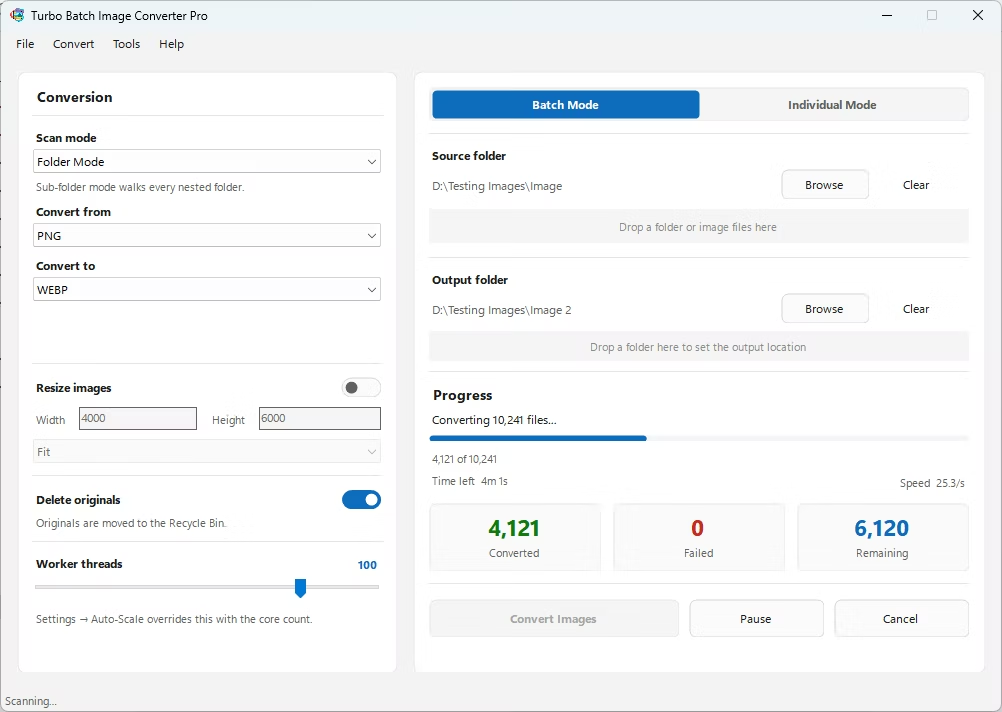
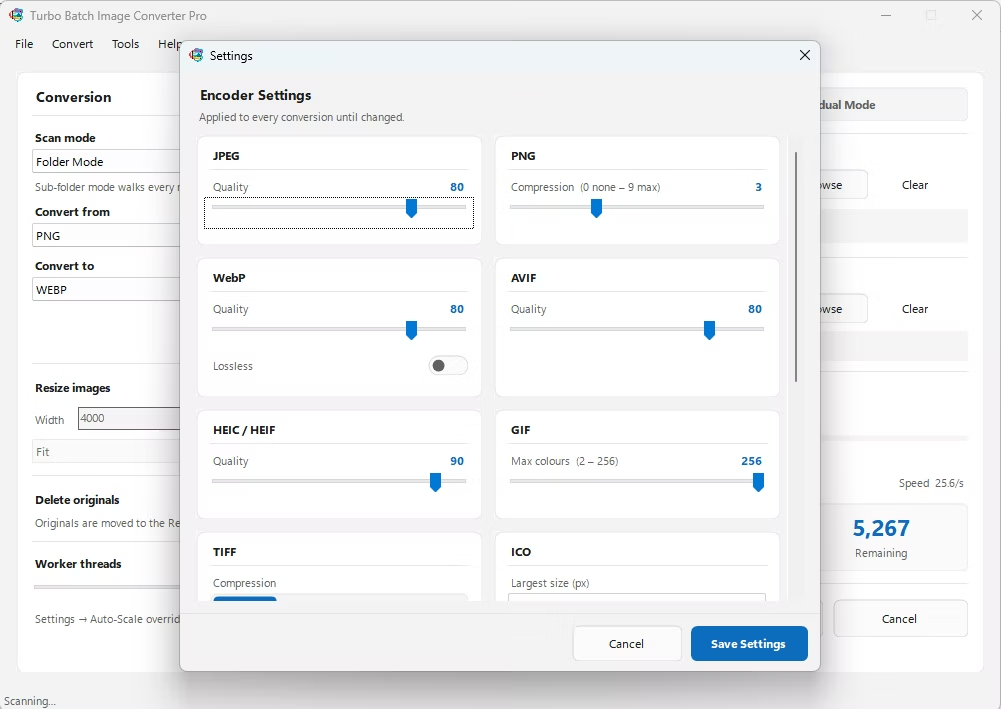
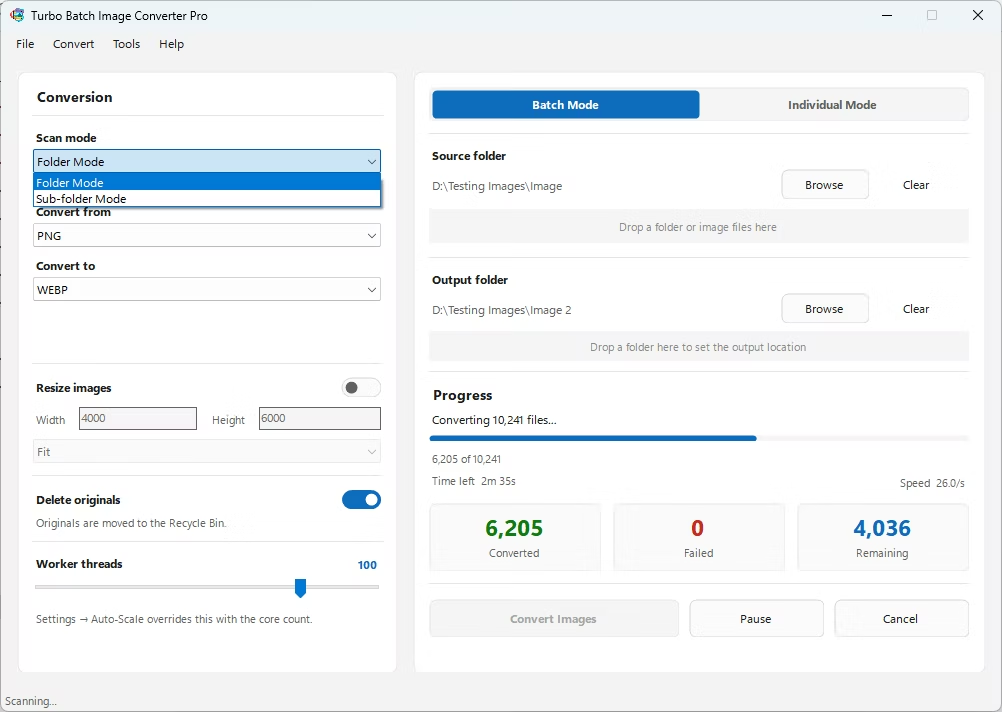
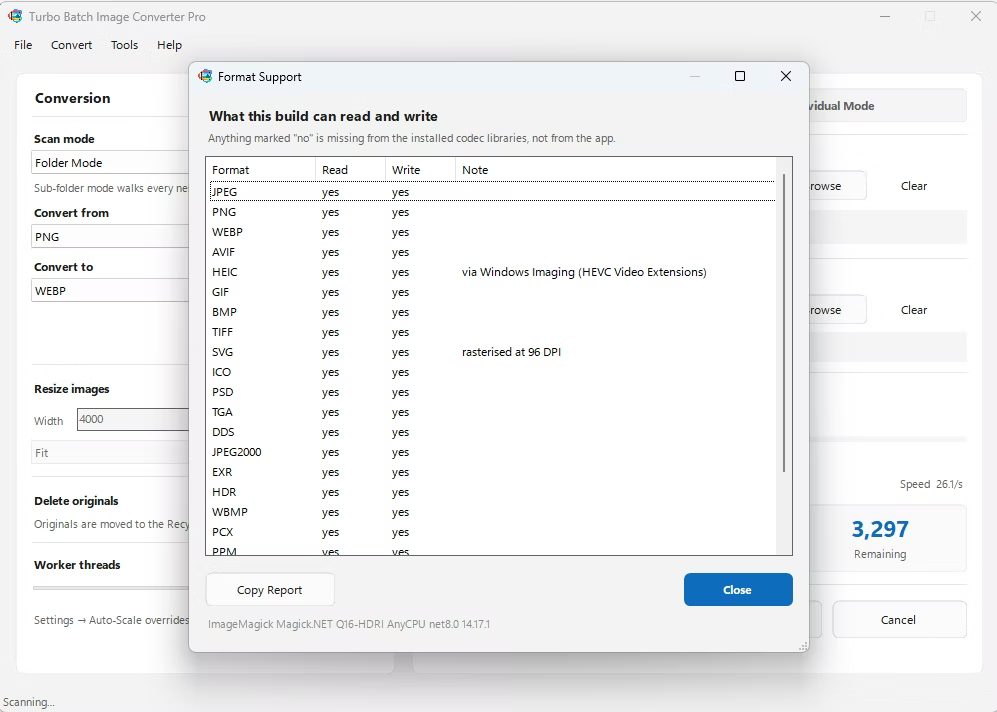
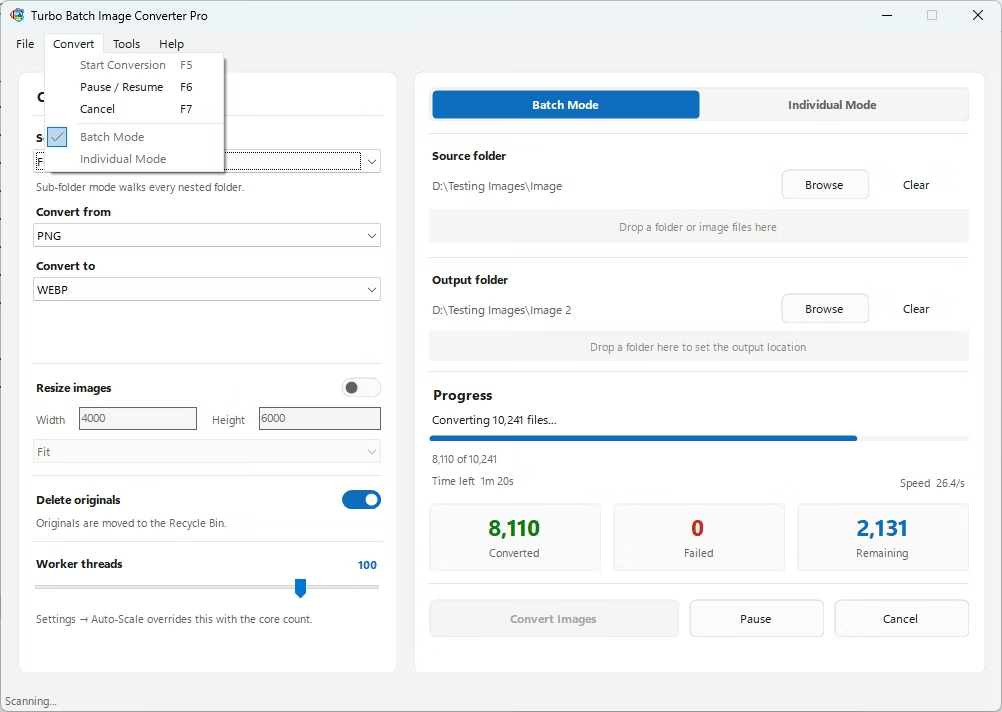
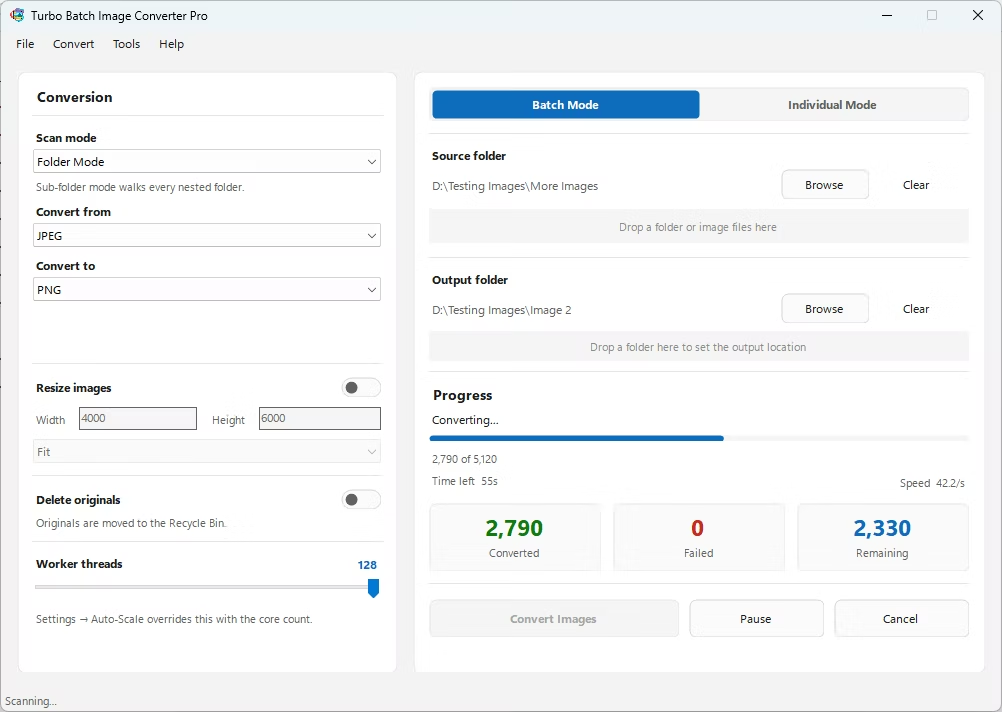
- Install Turbo Batch Image Converter Pro, which includes native NEF support among its 47 RAW formats.
- Open the app and select Individual Mode for a single NEF file, or Batch Mode to convert many at once.
- Drag your NEF file or folder into the app window. Enable recursive sub-folder scanning if your shoot spans multiple folders.
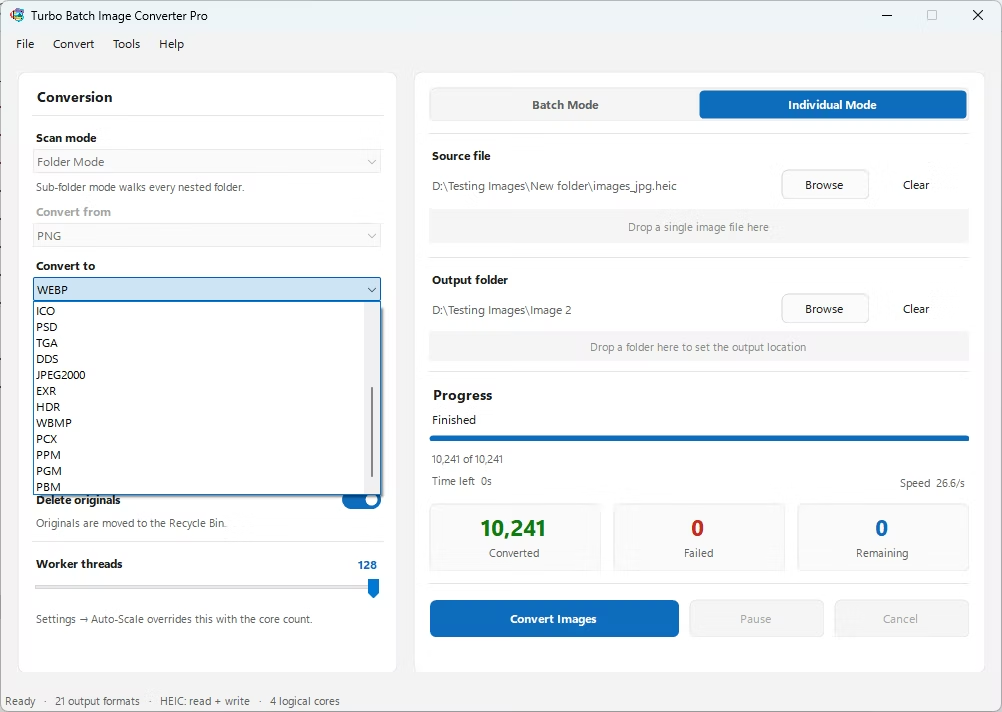
- Set the input format to NEF and the output format to JPEG.
- Adjust the JPEG quality setting to balance file size against image detail.
- Optionally resize the image during the same conversion step if needed.
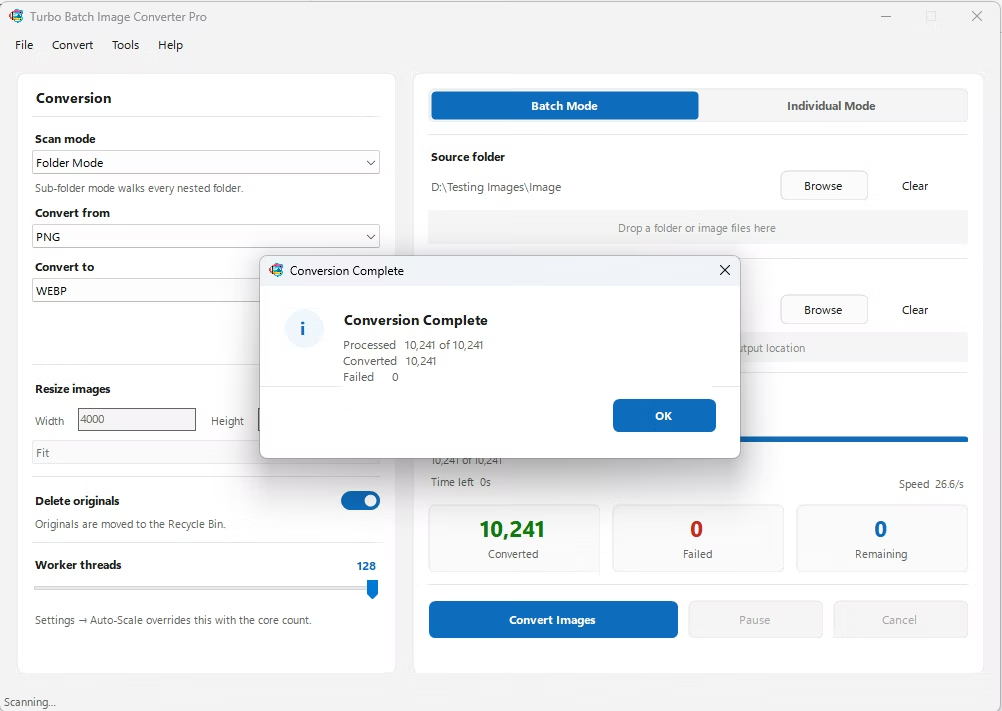
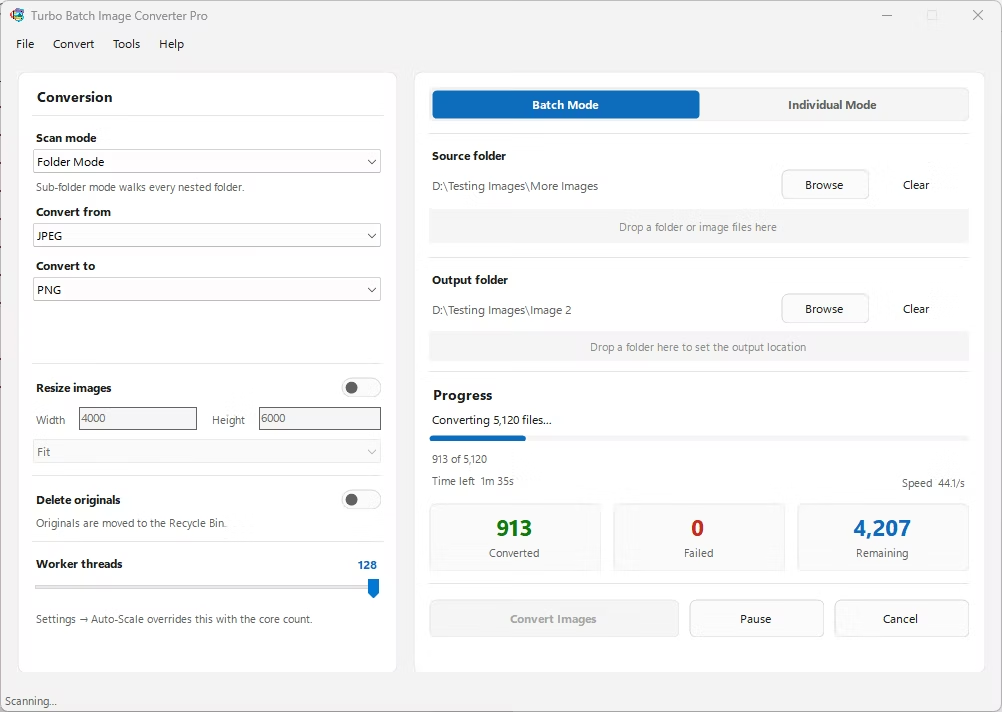
- Click Convert. The app processes your NEF files locally and writes JPEG files to your output folder, fully offline.
- Native NEF decoding without requiring Nikon's own software
- Convert a single shot or an entire shoot in the same workflow
- Recursive sub-folder support for organized photo archives
- Adjustable JPEG compression for delivery-ready output
- Fully offline conversion keeps unreleased shoots private
- Multi-core processing speeds up larger batch jobs
Do I need Nikon's software to convert NEF files?
No. The converter reads NEF sensor data directly and handles the demosaicing process itself, so Nikon's own software isn't required.
Will I lose quality converting NEF to JPEG?
JPEG uses lossy compression, so some quality is traded for a smaller file size. Using a higher quality setting in the converter keeps visible quality loss minimal for most uses.
Can I convert an entire folder of NEF files from a Nikon shoot?
Yes. Batch Mode with recursive folder scanning is built for exactly this, handling large, nested NEF collections in a single run.
Ready to convert your images offline, in bulk, with full privacy?