BMP is an uncompressed bitmap format that some older software, embedded systems, and specific Windows applications still require as input. Unlike JPG, BMP stores image data without lossy compression, which means no further quality loss happens during conversion, though file sizes end up considerably larger as a result.
If you need to feed a batch of JPG images into a tool or workflow that only accepts BMP, converting each one by hand is slow. A batch converter handles the entire folder in one pass, applying the conversion consistently across every file.
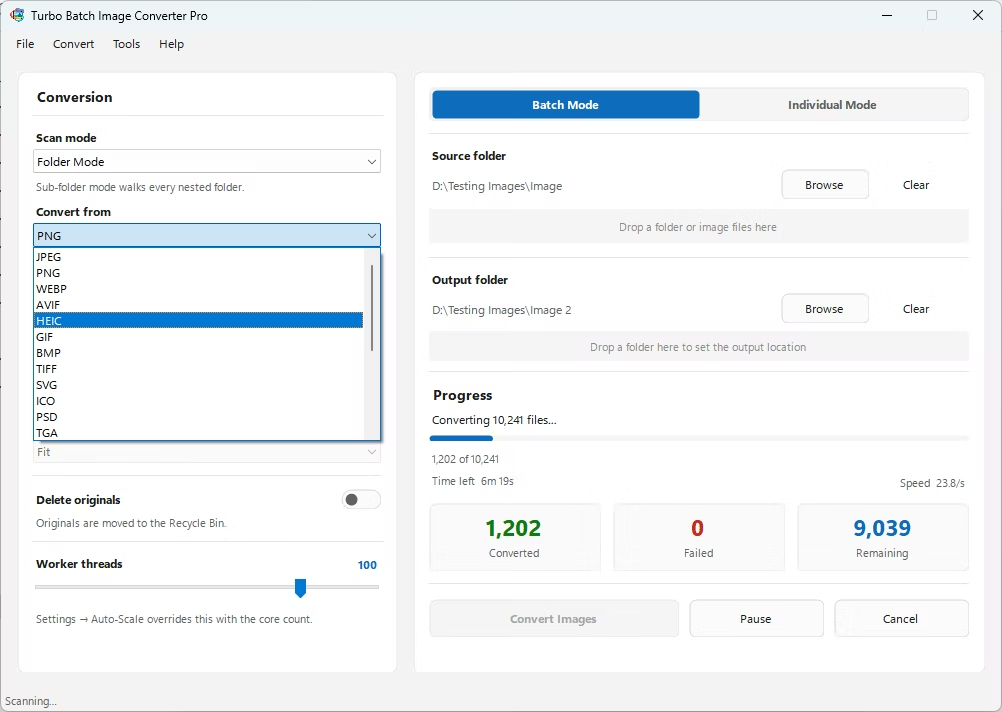
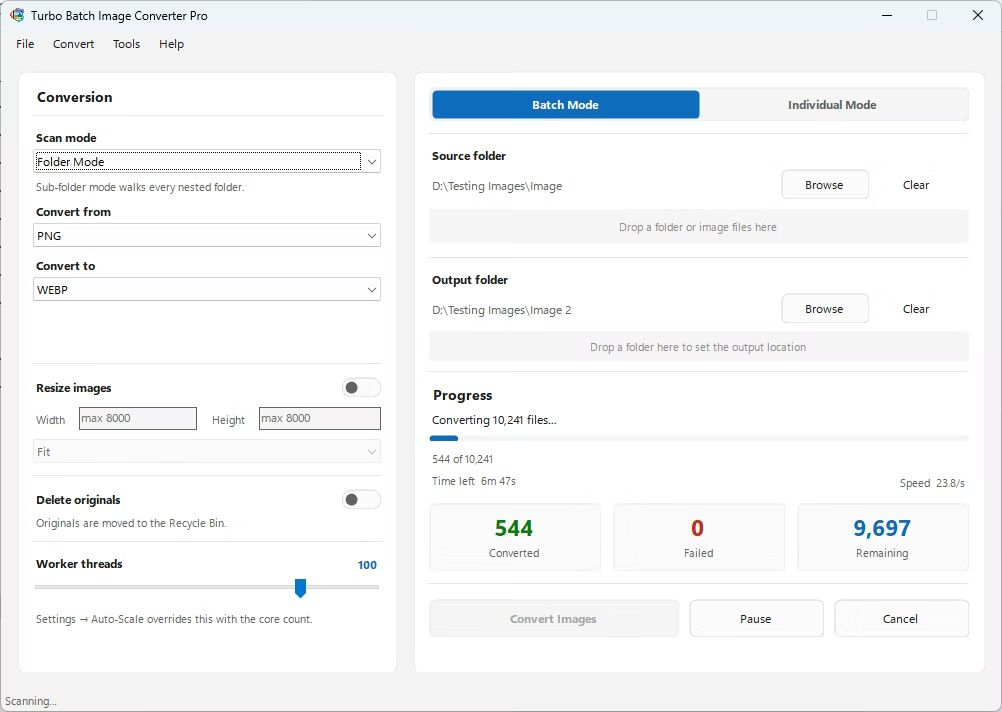
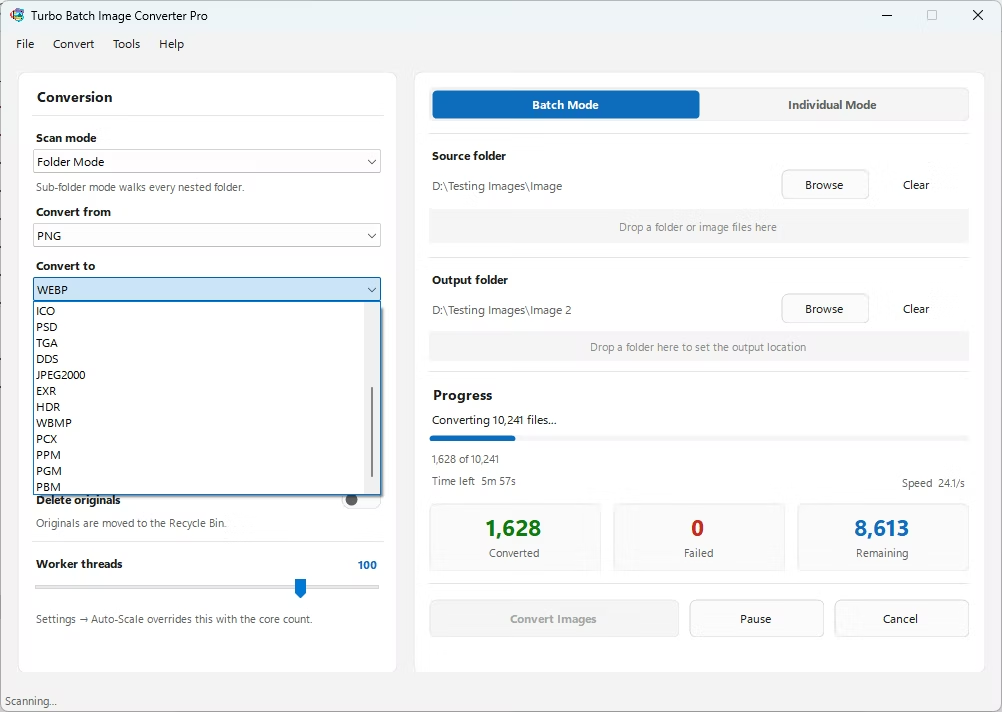
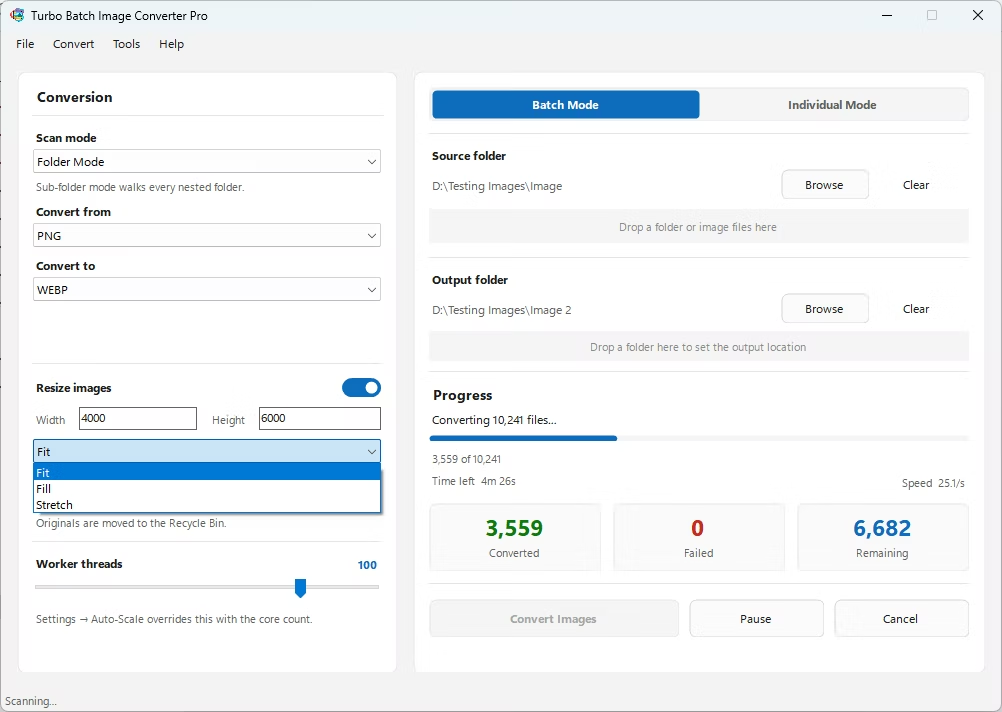
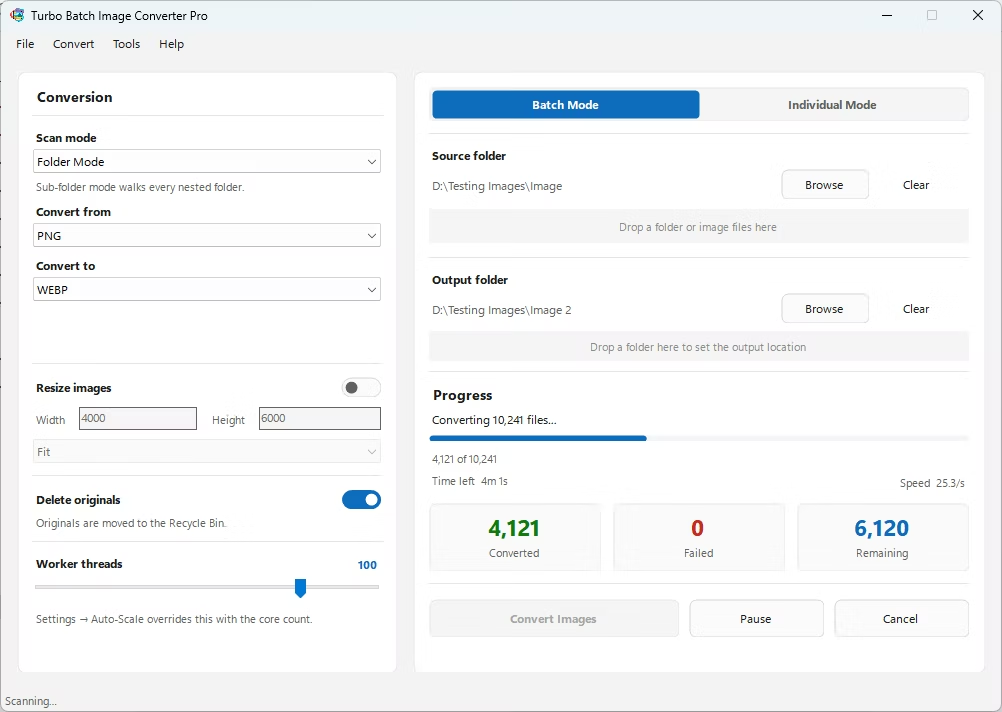
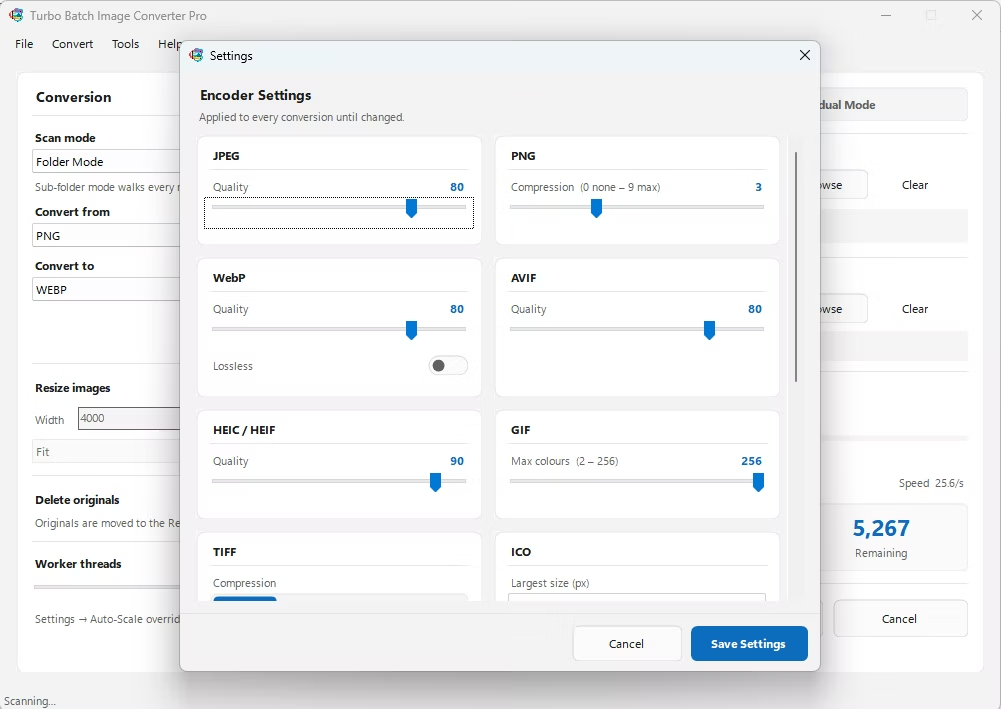
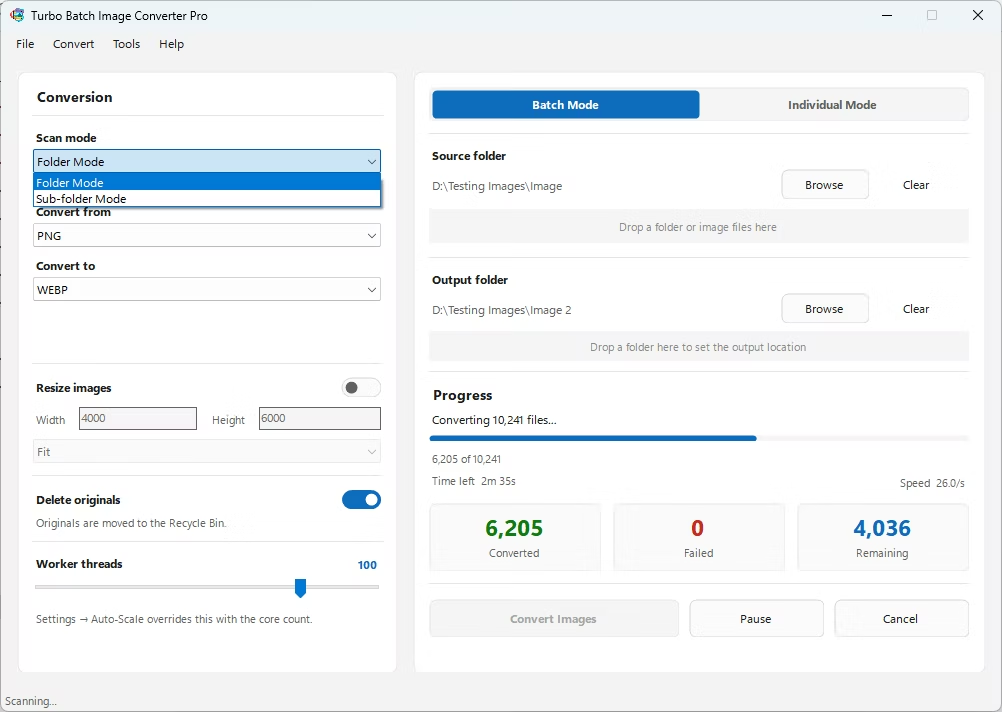
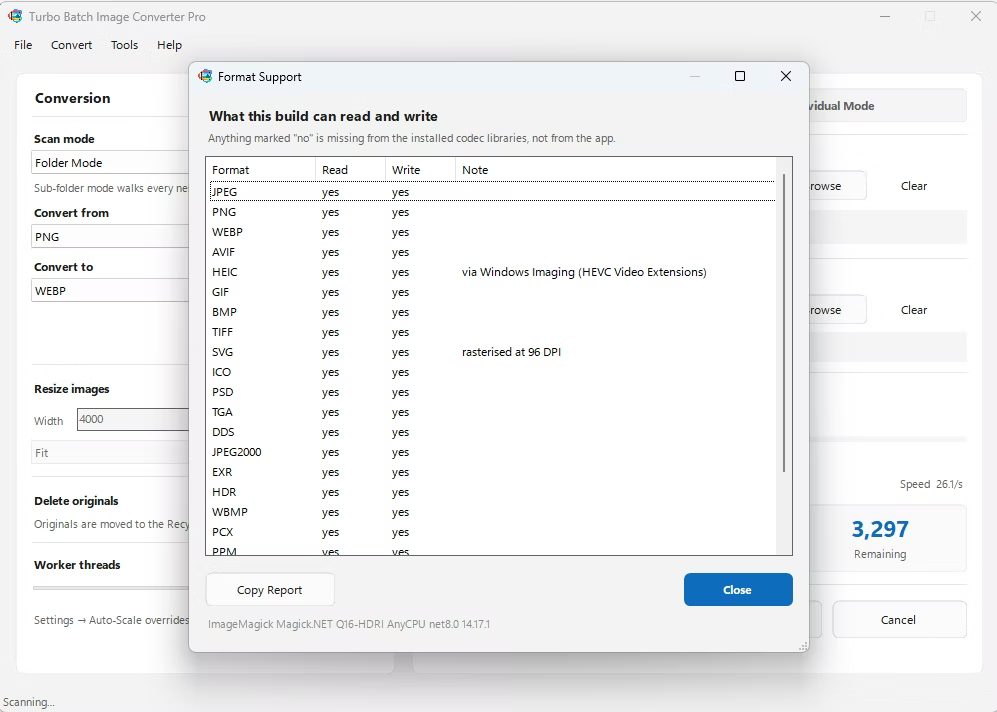
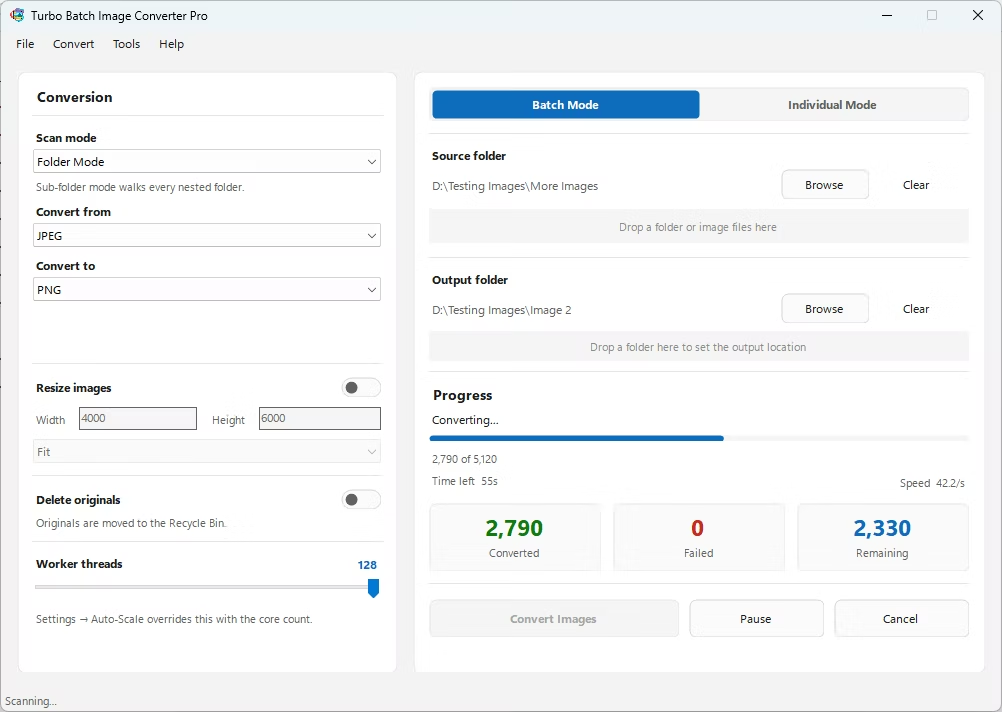
- Install Turbo Batch Image Converter Pro on your Windows PC.
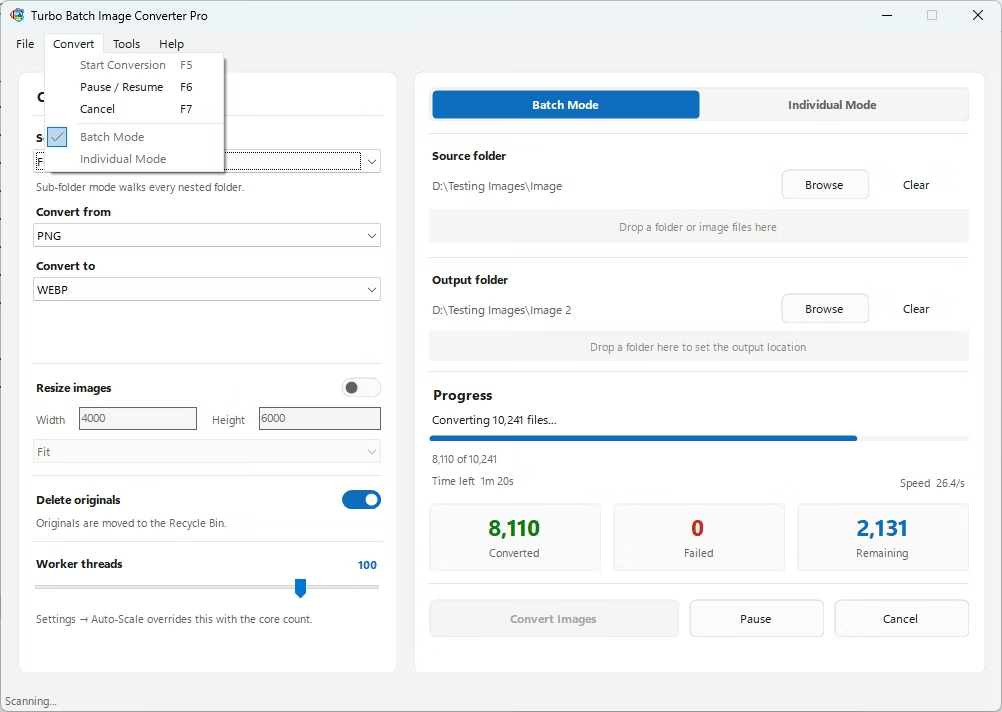
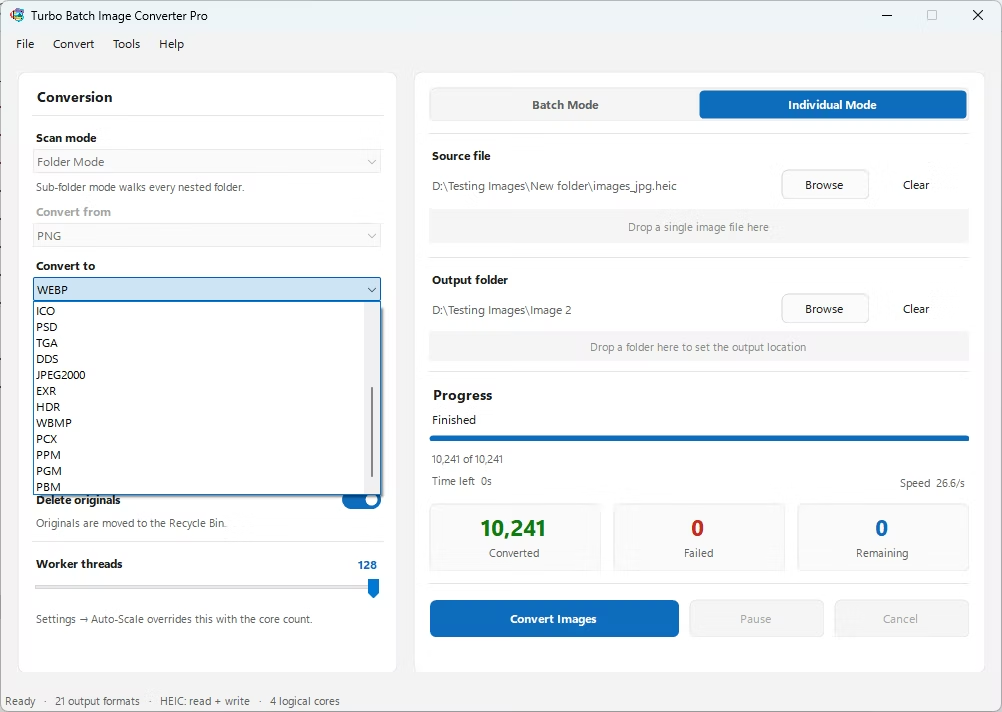
- Open the app and select Batch Mode for multiple files, or Individual Mode for a single JPG.
- Drag your JPG file or folder into the app window, enabling recursive folder scanning if needed.
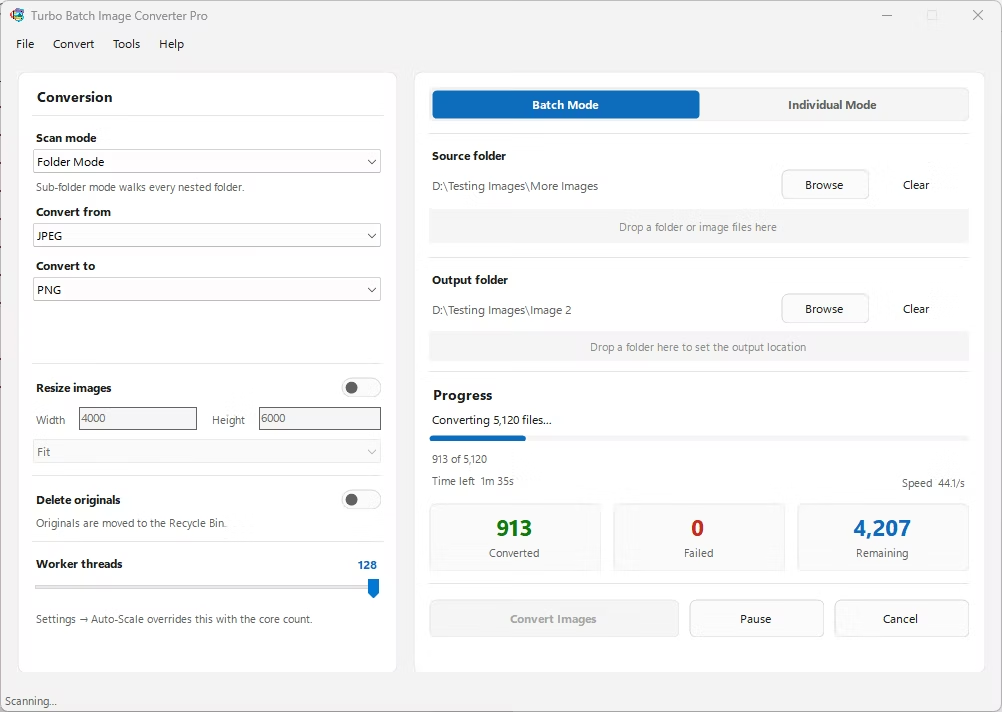
- Set the "From" format to JPG and the "To" format to BMP.
- Optionally resize the output during the same step if needed.
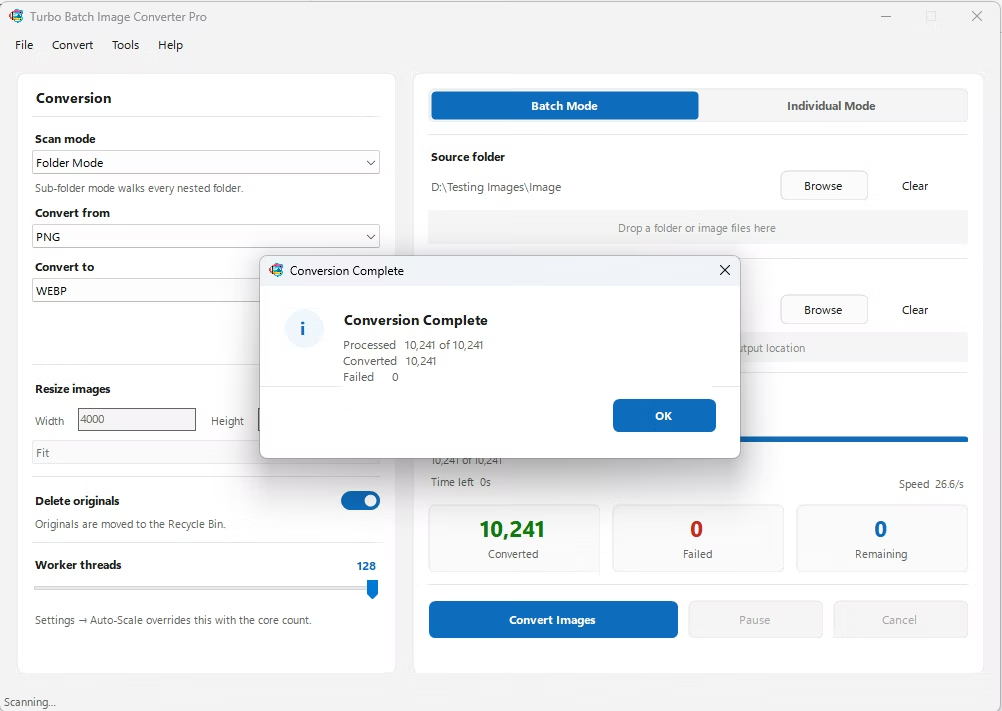
- Click Convert. Your BMP files are written to the output folder, fully offline.
- 100% offline — your images are never uploaded anywhere
- Bulk conversion of entire folders, including sub-folders, in one click
- Multi-core processing for fast handling of large batches
- Optional batch resizing while converting
- Option to delete original JPG files automatically after conversion
- No recurring subscription or hidden upload limits
Why are BMP files so much larger than JPG?
BMP typically stores image data uncompressed, while JPG uses lossy compression to shrink file size, which is why converting from JPG to BMP usually increases file size significantly.
Does converting JPG to BMP improve image quality?
No, BMP can't recover detail that was already lost during JPG's original compression. It simply stores the existing image data without compressing it further.
Can I batch-convert a whole folder of JPGs to BMP?
Yes, Batch Mode handles entire folders, including nested sub-folders, in a single conversion run.
Ready to convert your images offline, in bulk, with full privacy?