JPEG2000 (often saved with a .jp2 extension) is used in specific fields like medical imaging, satellite photography, and digital archiving, where its superior compression and quality retention make it a good choice for storage. However, it isn't widely supported by everyday photo viewers, browsers, or social platforms the way JPG is, which makes JPG conversion necessary when you need to share or view these files normally.
If you have a batch of JPEG2000 files from a specialized source — a scanner, archive export, or imaging system — converting them one at a time is impractical. A batch converter processes an entire folder of JP2 files into standard JPG in one pass.
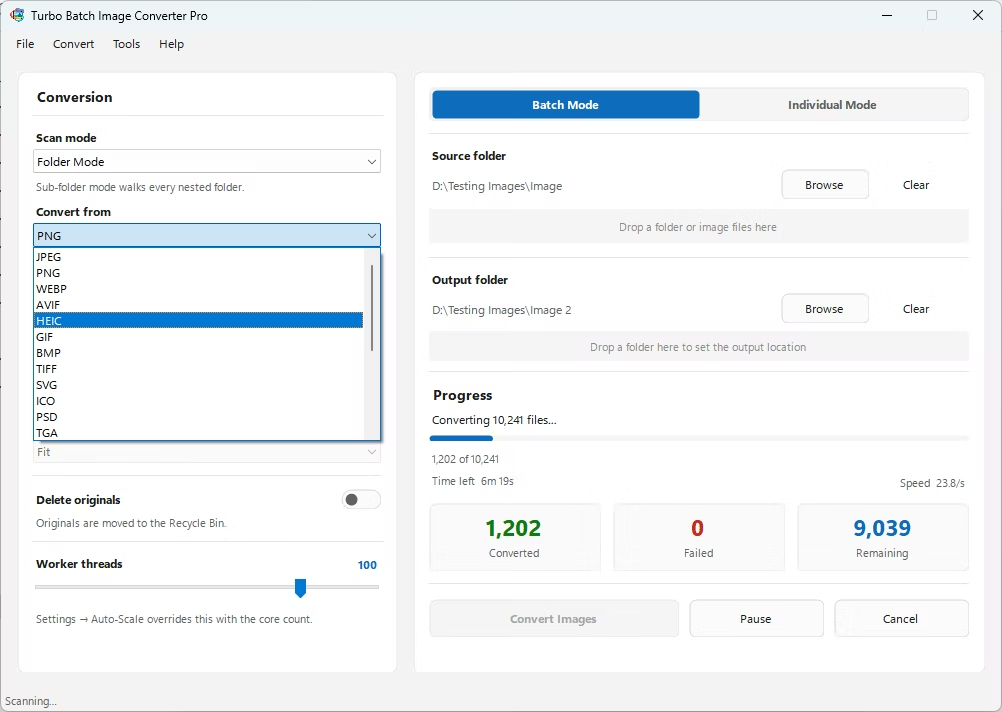
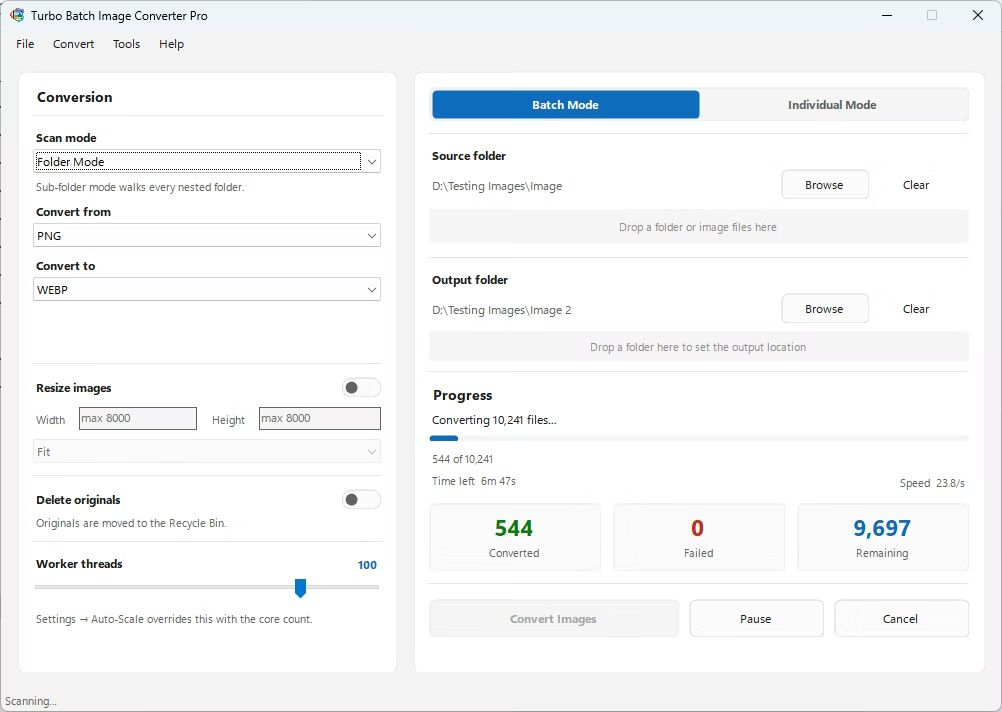
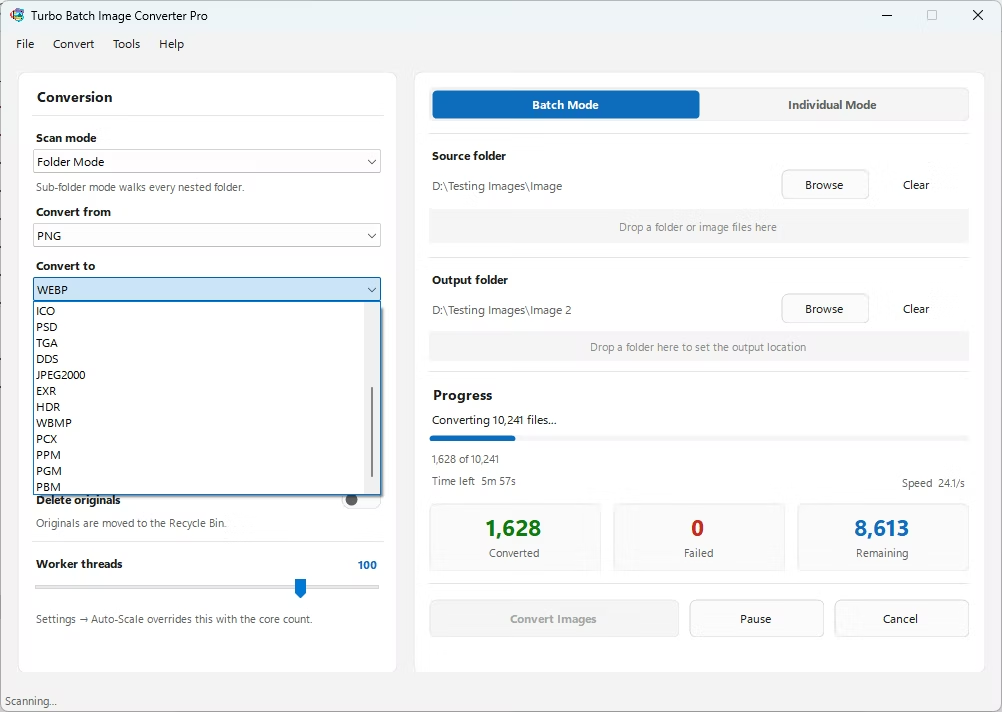
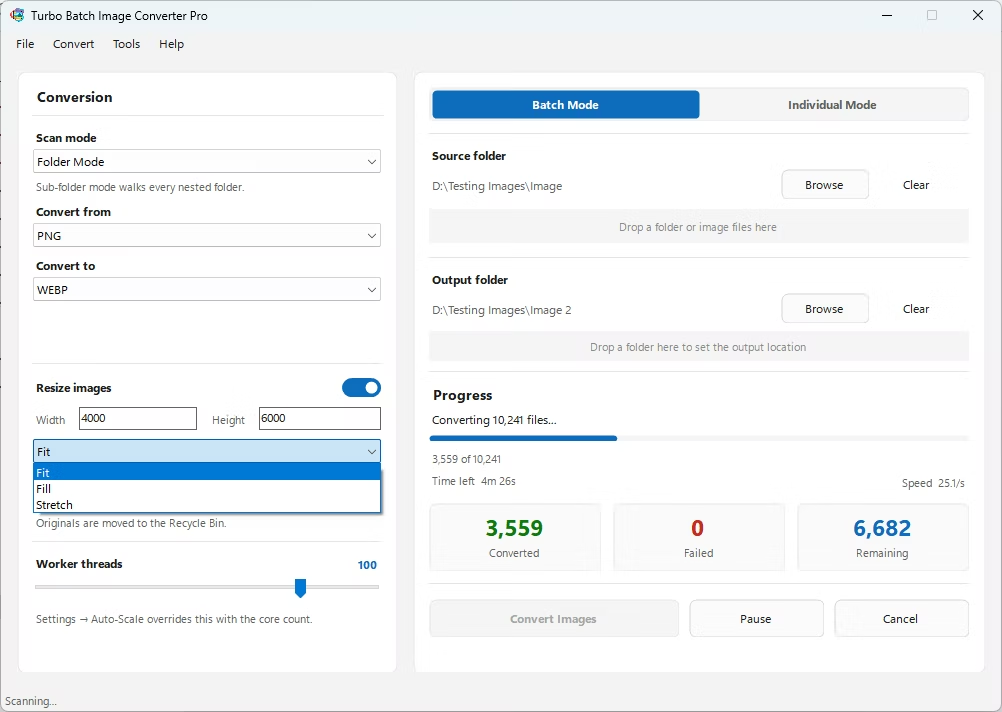
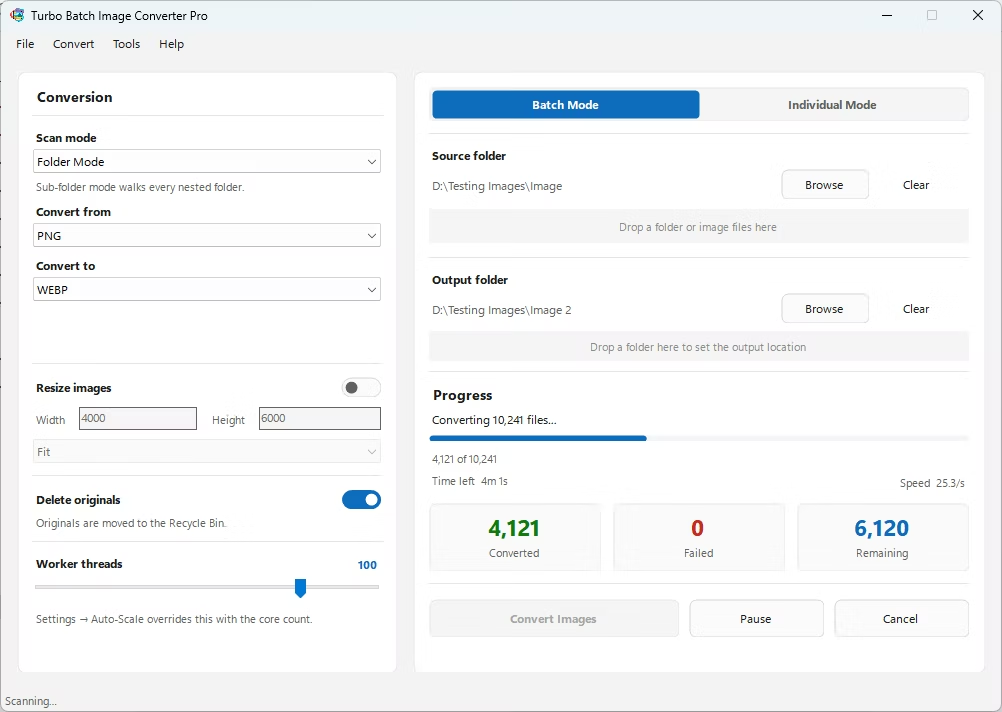
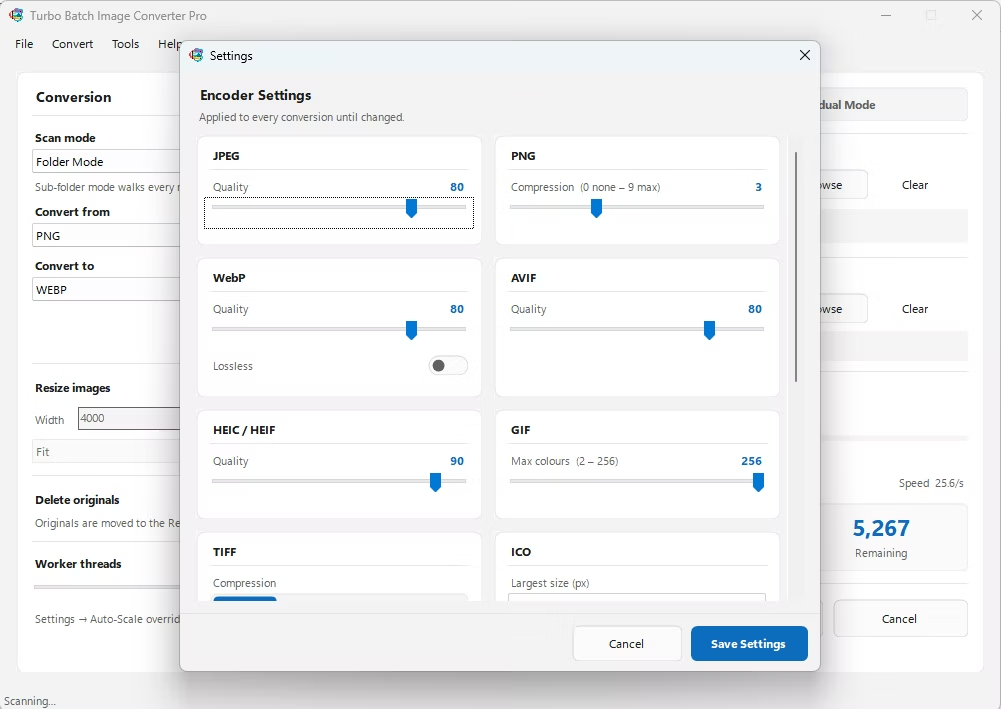
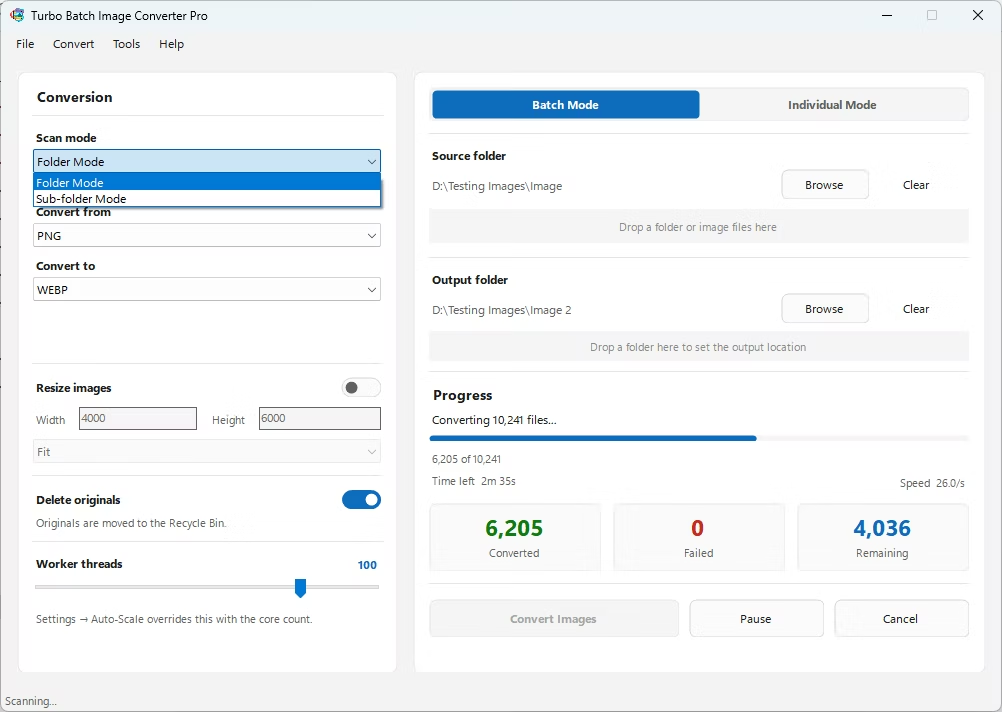
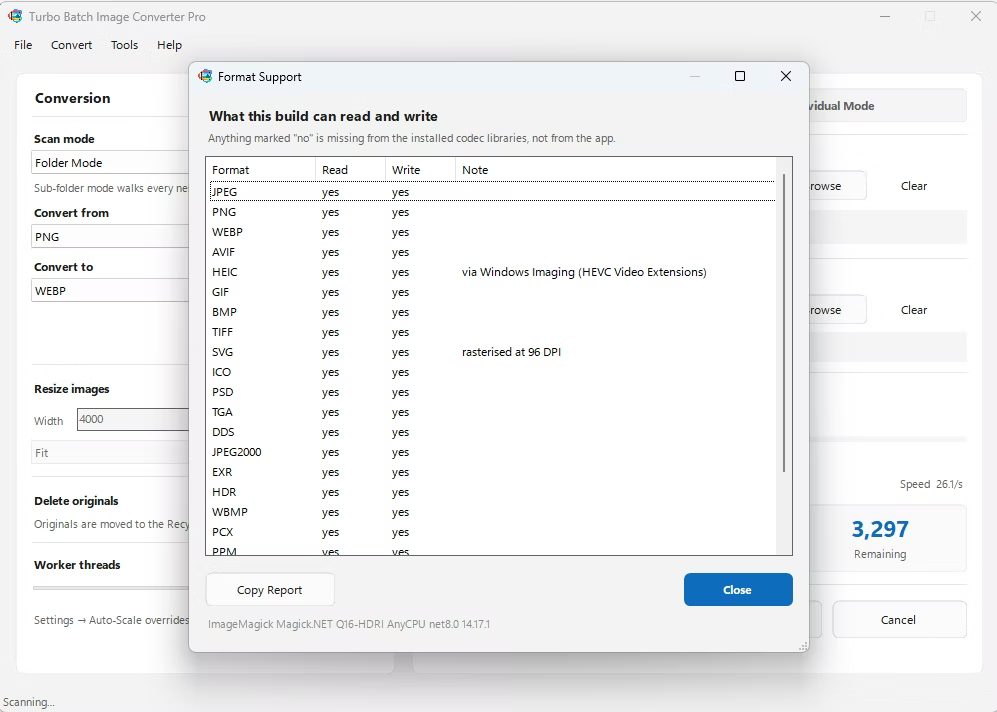
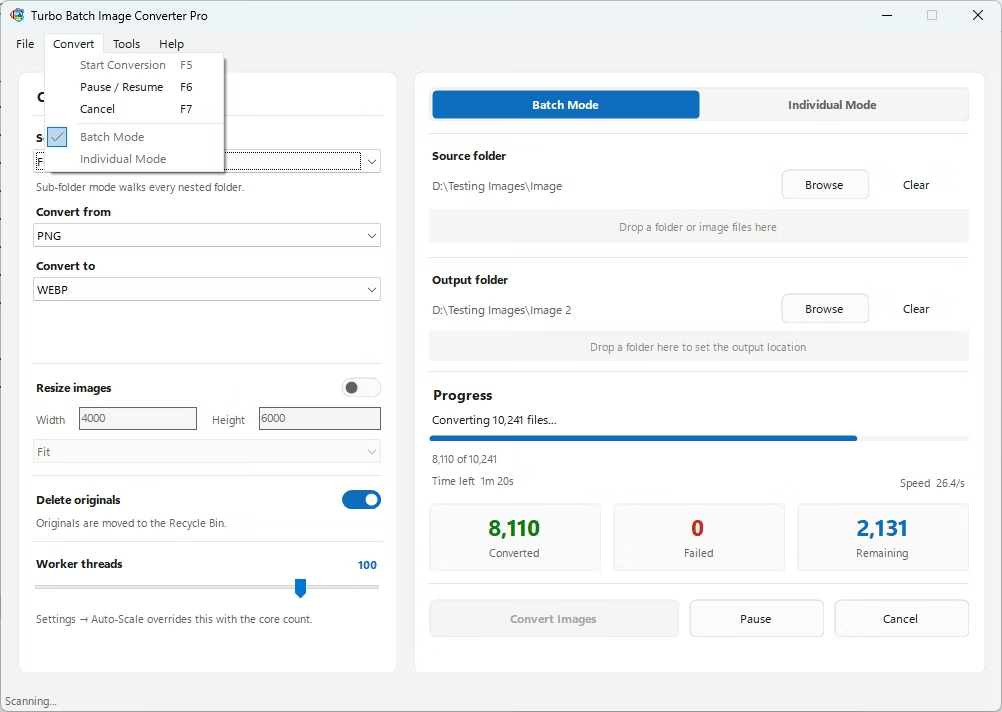
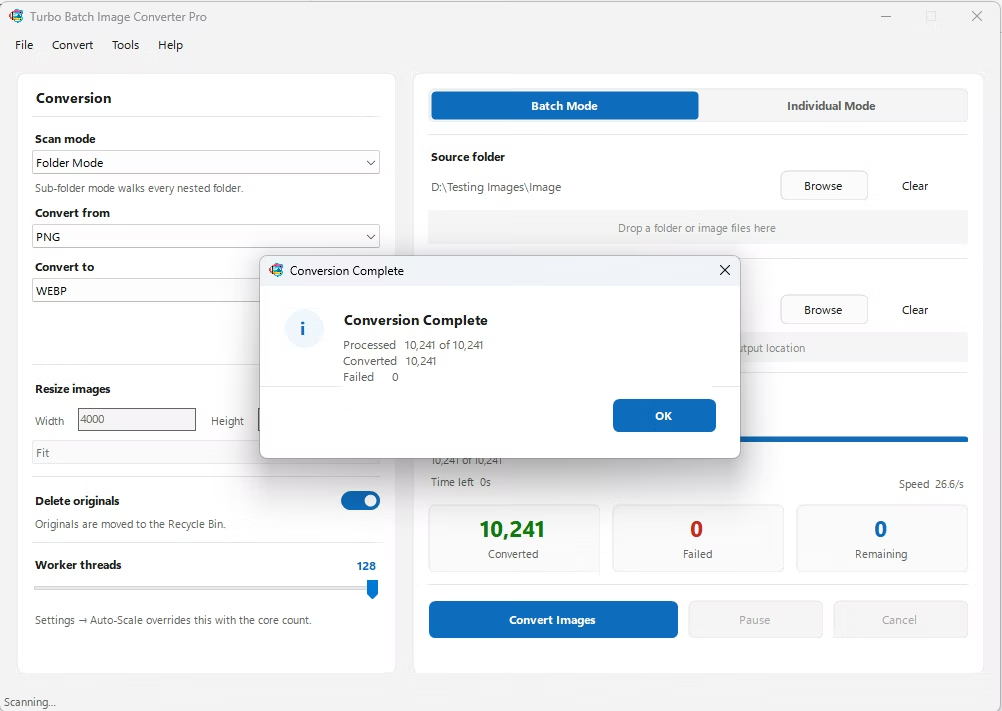
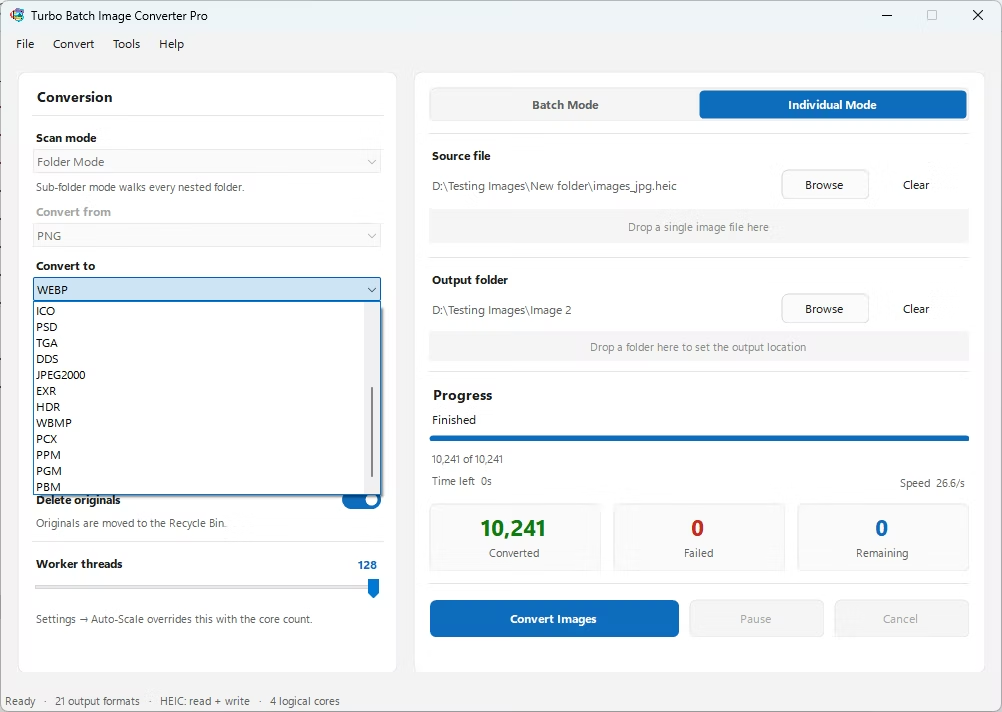
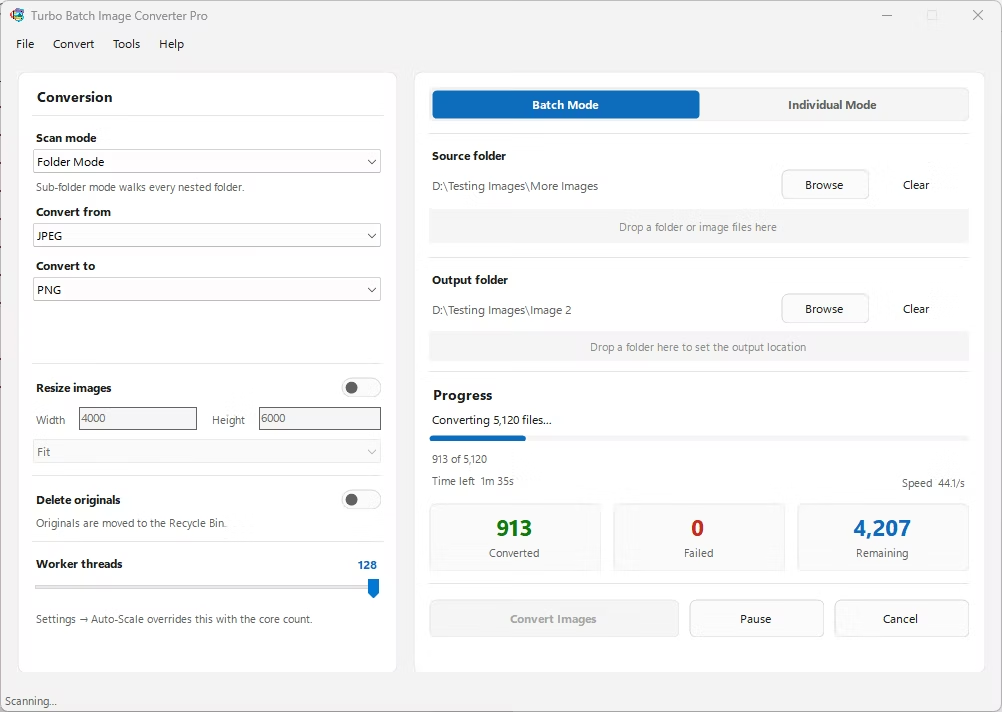
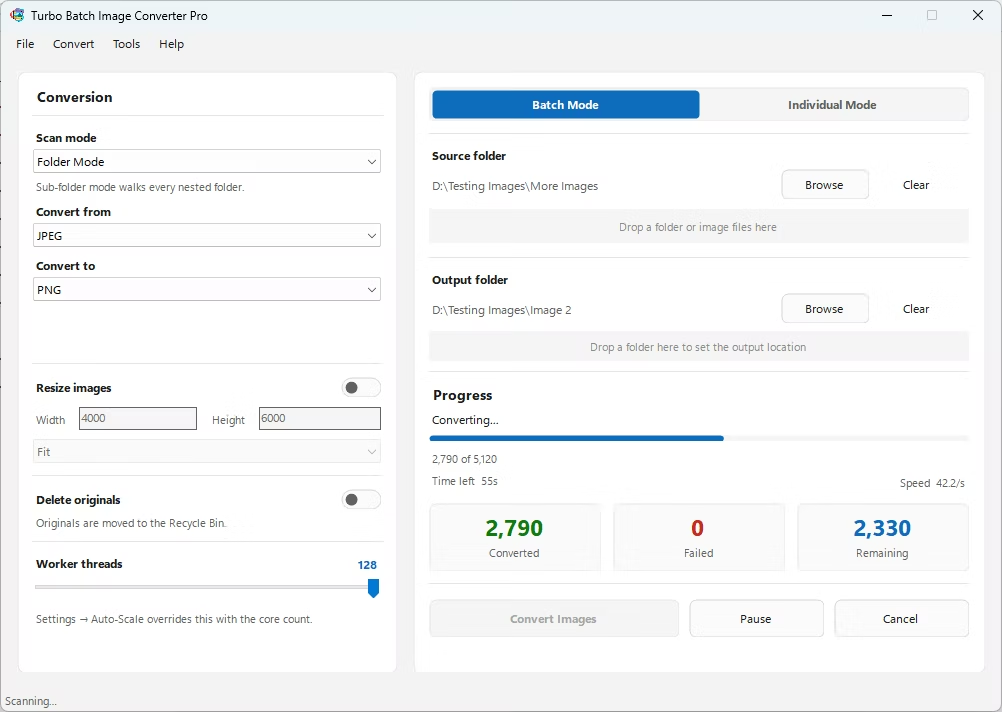
- Install Turbo Batch Image Converter Pro on your Windows PC.
- Open the app and select Batch Mode for multiple files, or Individual Mode for a single JPEG2000 file.
- Drag your JP2 file or folder into the app window, enabling recursive folder scanning if needed.
- Set the "From" format to JPEG2000 and the "To" format to JPG.
- Adjust the JPG quality slider to balance file size against image clarity.
- Click Convert. Your JPG files are written to the output folder, fully offline.
- Native JPEG2000 (.jp2) decoding without specialized viewer software
- Bulk conversion of entire folders, including sub-folders, in one click
- Adjustable JPG compression for the right size-to-quality balance
- Multi-core processing for fast handling of large batches
- Runs fully offline, keeping sensitive imaging data private
- No recurring subscription or hidden upload limits
Where are JPEG2000 files commonly used?
JPEG2000 is common in medical imaging, satellite and aerial photography, and digital archiving, where its compression efficiency and quality retention are valued for large-scale storage.
Why can't I open .jp2 files in most photo viewers?
JPEG2000 never achieved the same widespread adoption as JPG, so many everyday photo viewers, browsers, and platforms don't support it natively, which is why conversion to JPG is often necessary.
Can I convert a whole folder of JP2 files at once?
Yes, Batch Mode handles entire folders, including nested sub-folders, in a single conversion run.
Ready to convert your images offline, in bulk, with full privacy?