Sometimes a prefix or suffix isn't enough — you need to insert text in the middle of a filename, such as adding a category code after a fixed-length ID, or inserting a separator between two existing parts of the name. Insert at Position gives you that level of control, letting you specify exactly where in the filename the new text should be added, rather than only at the very start or end.
This is especially useful for filenames that already follow a consistent structure, where the insertion point is the same character position across every file in the batch.
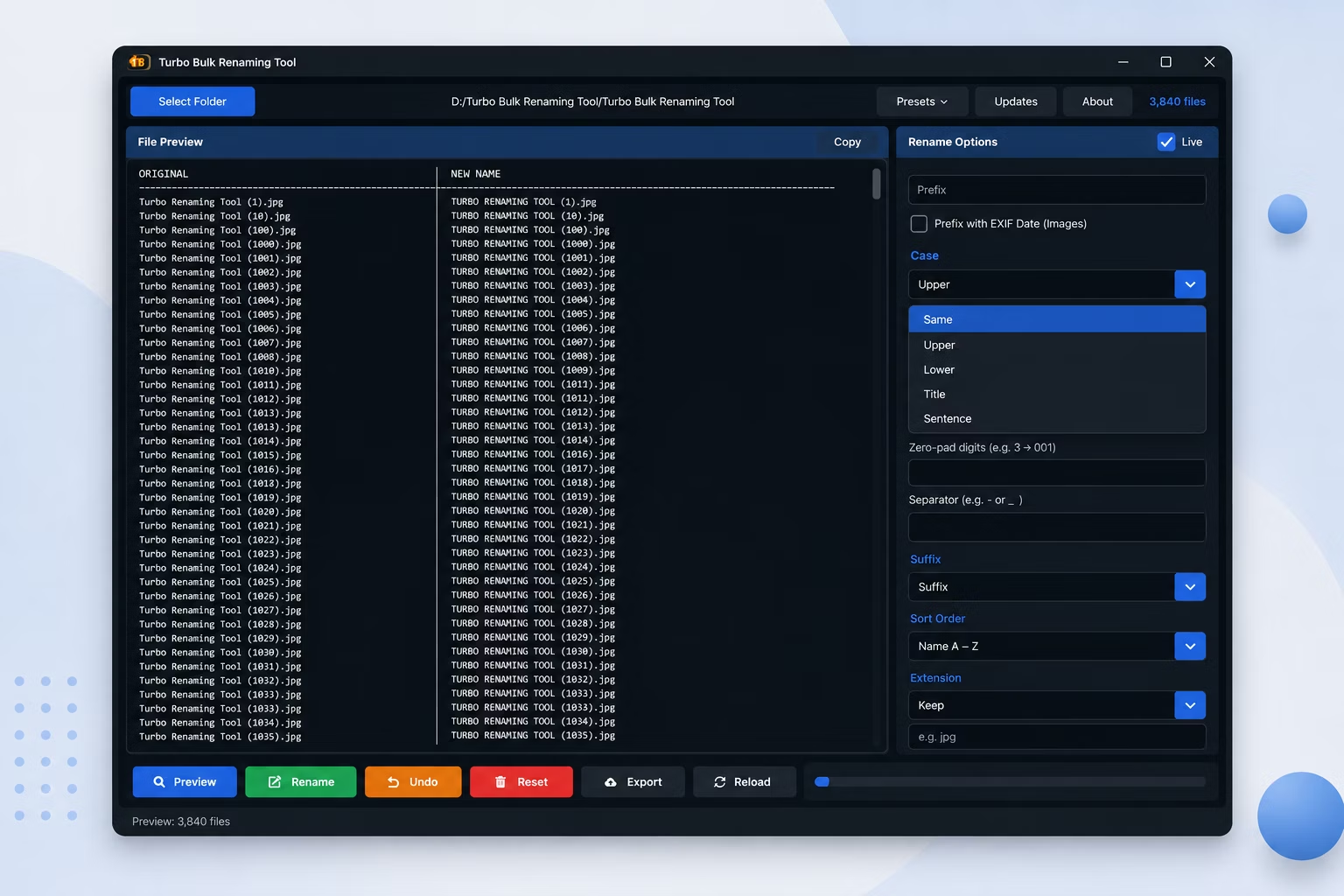
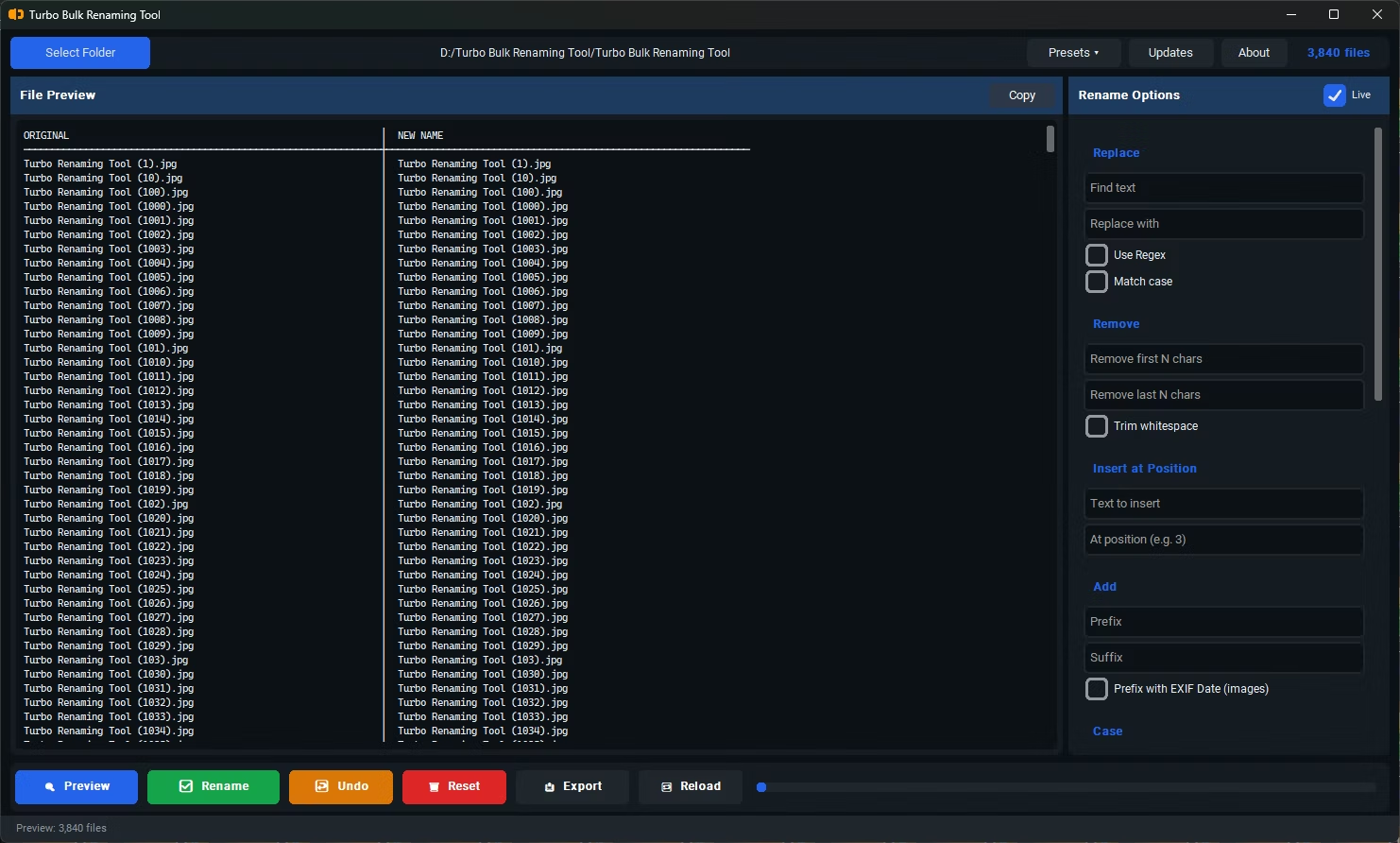
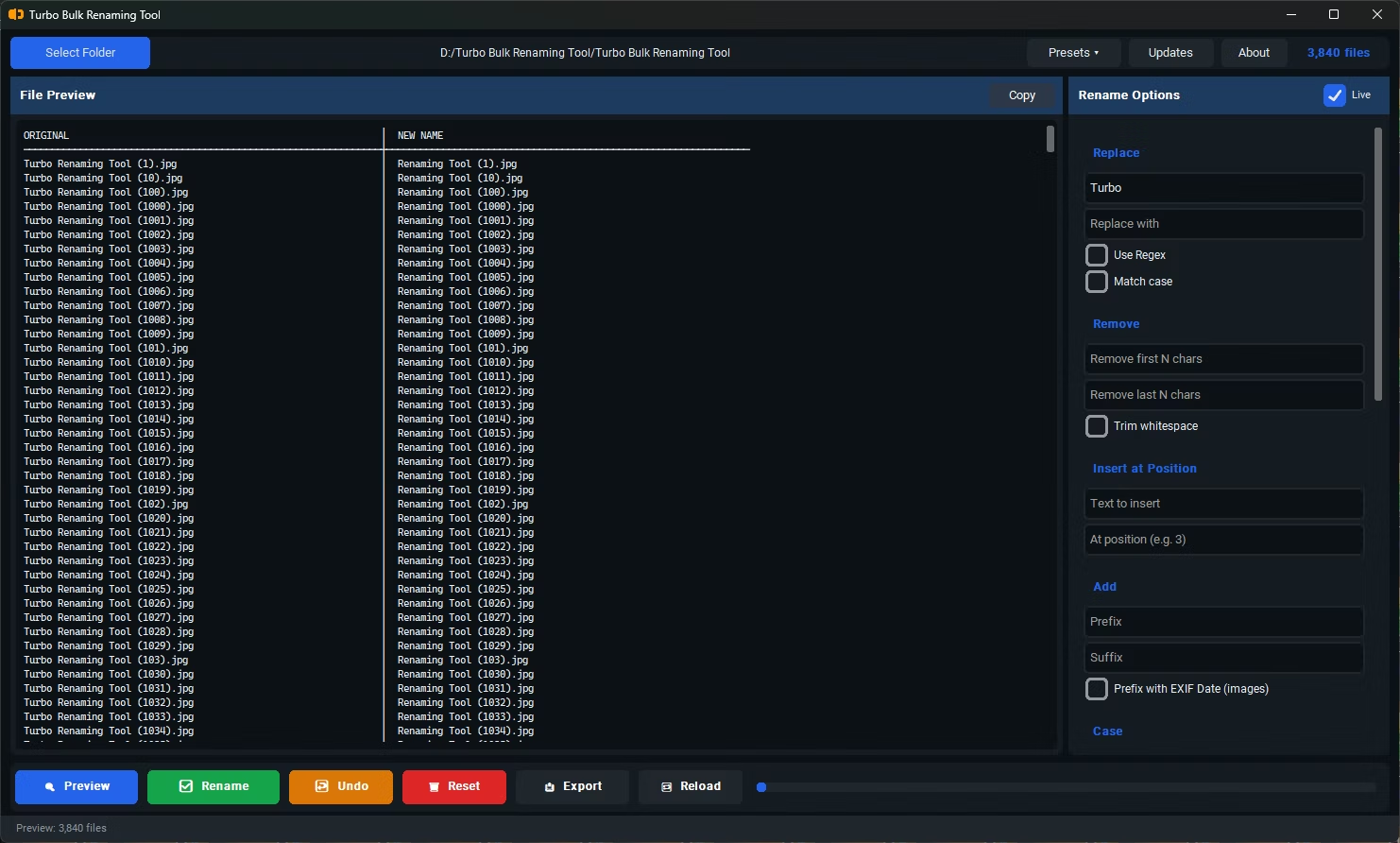
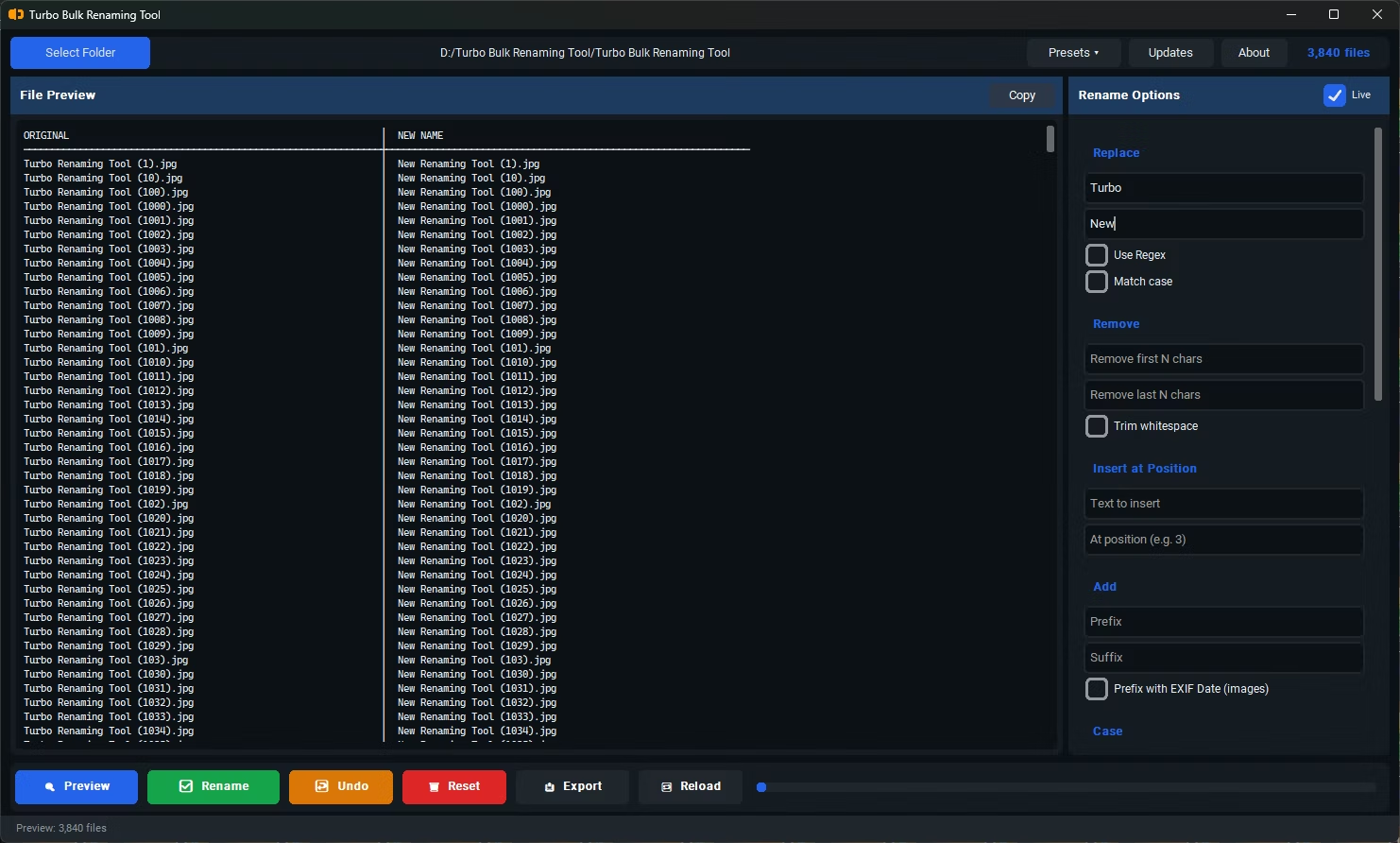
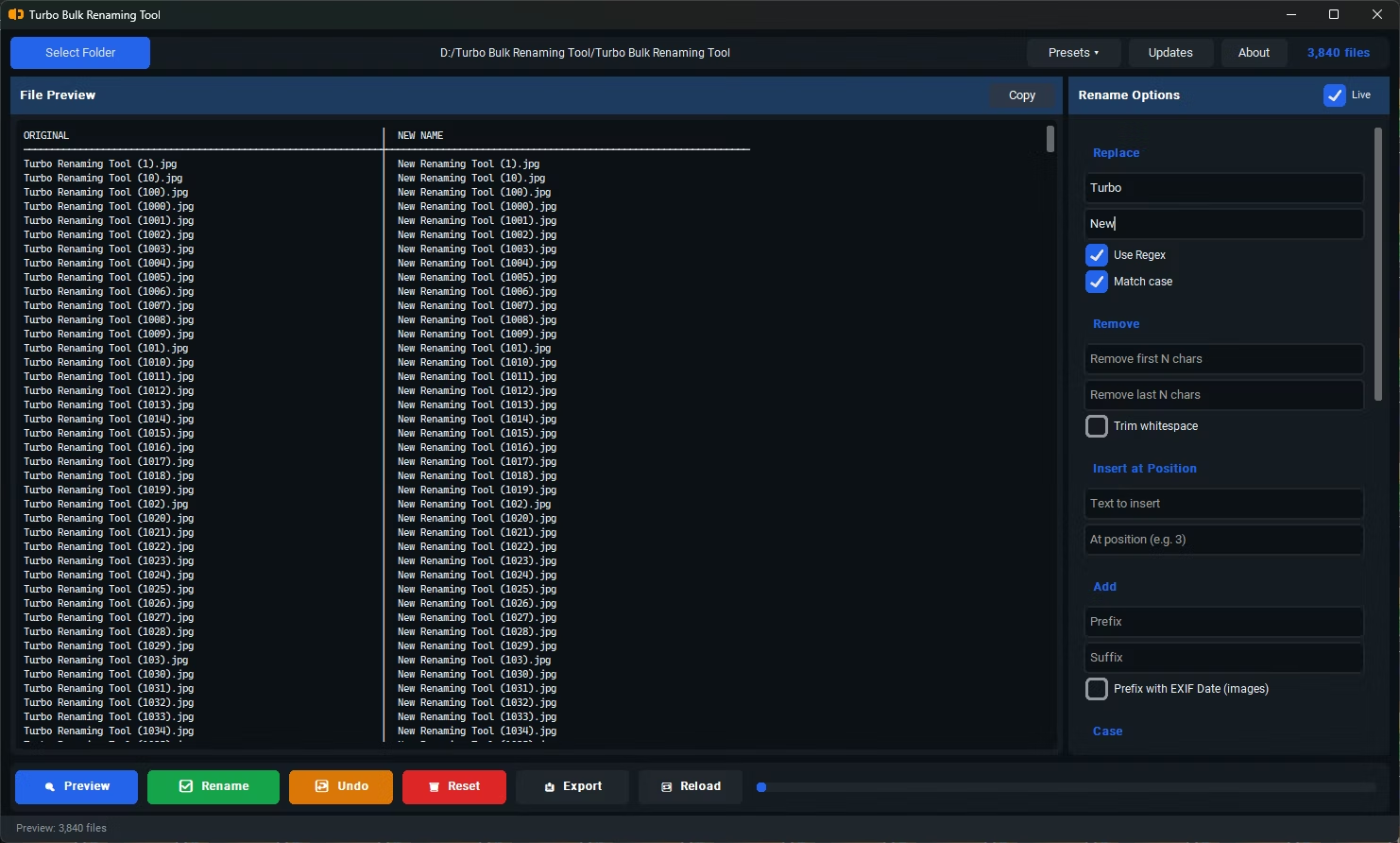
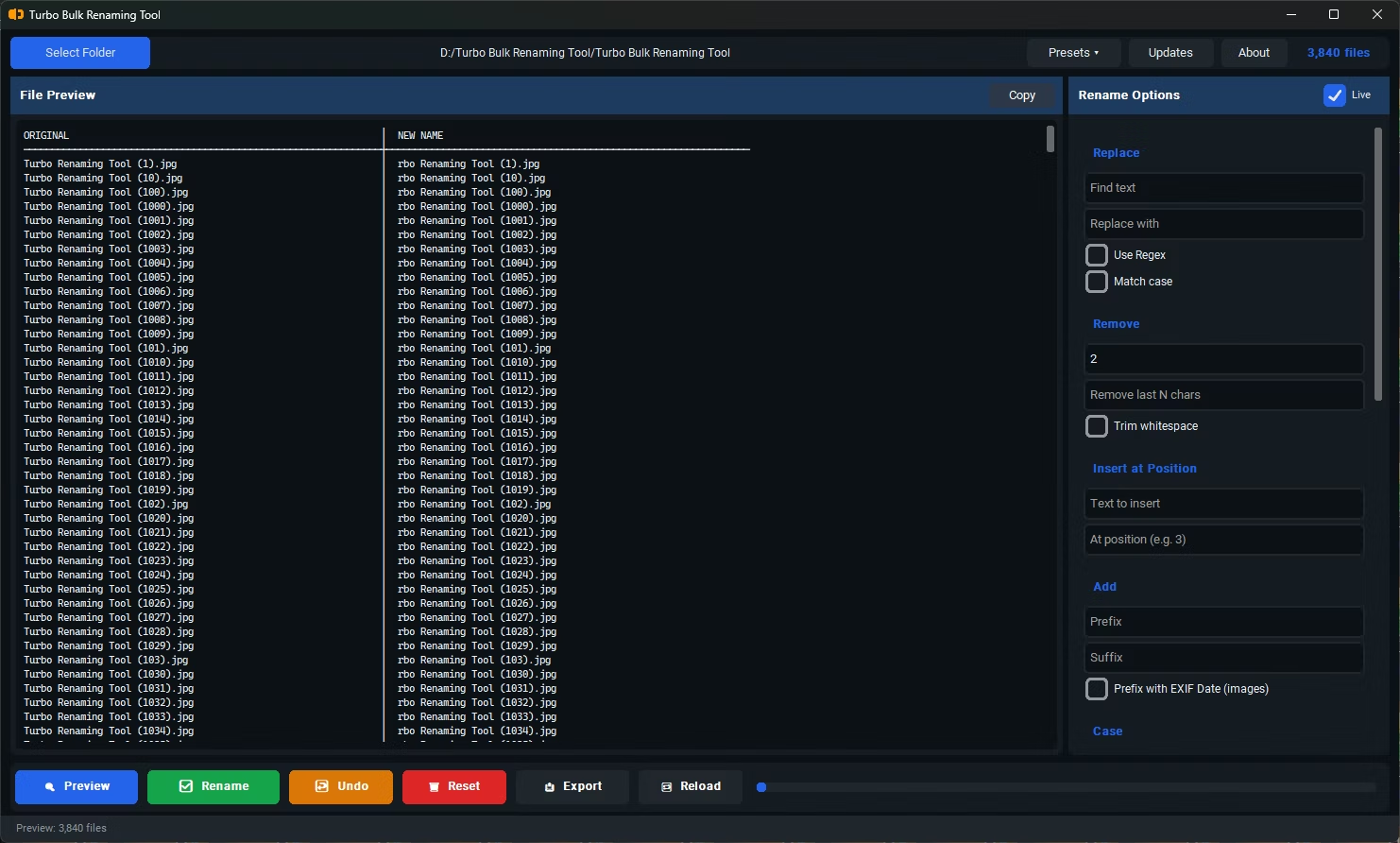
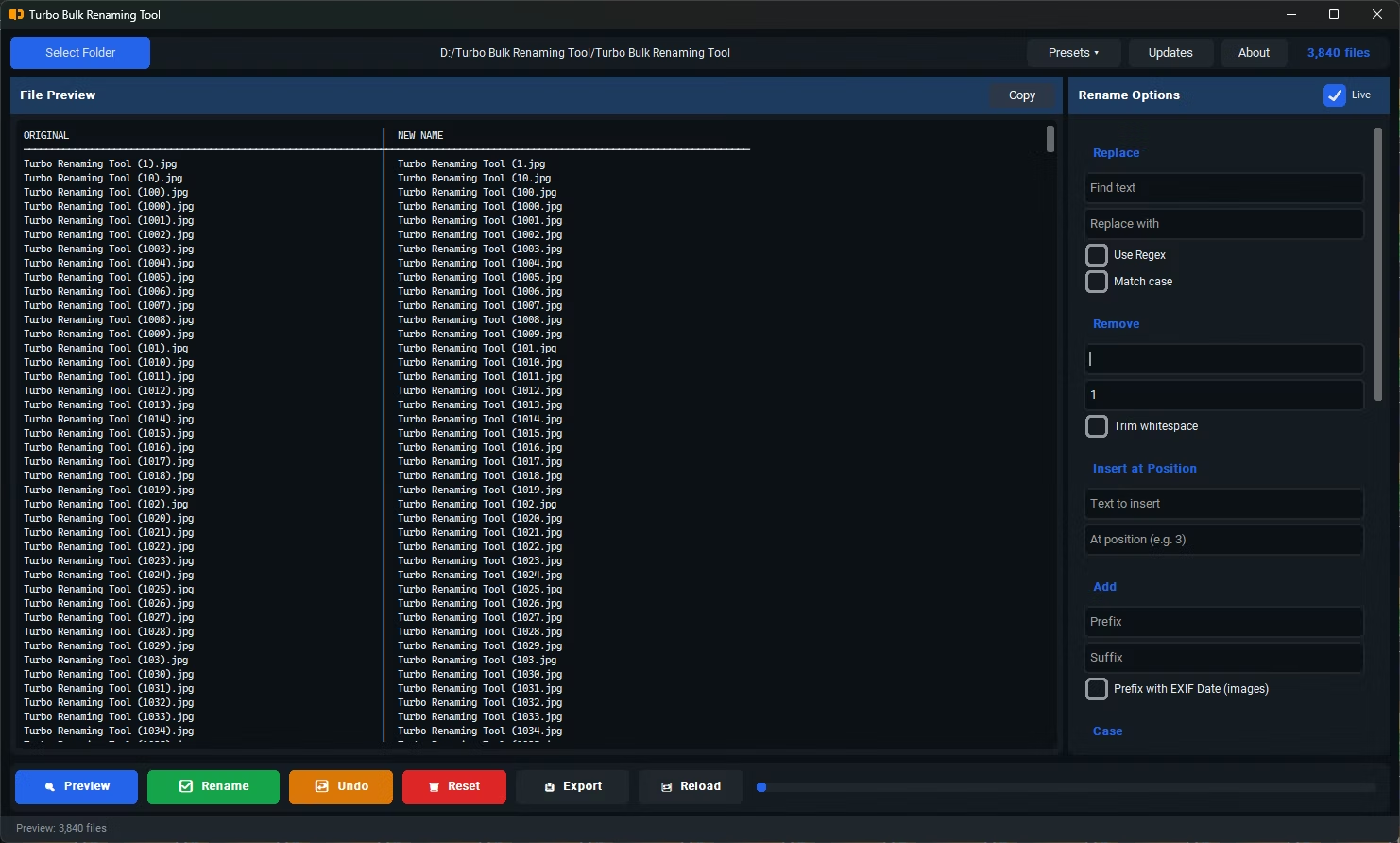
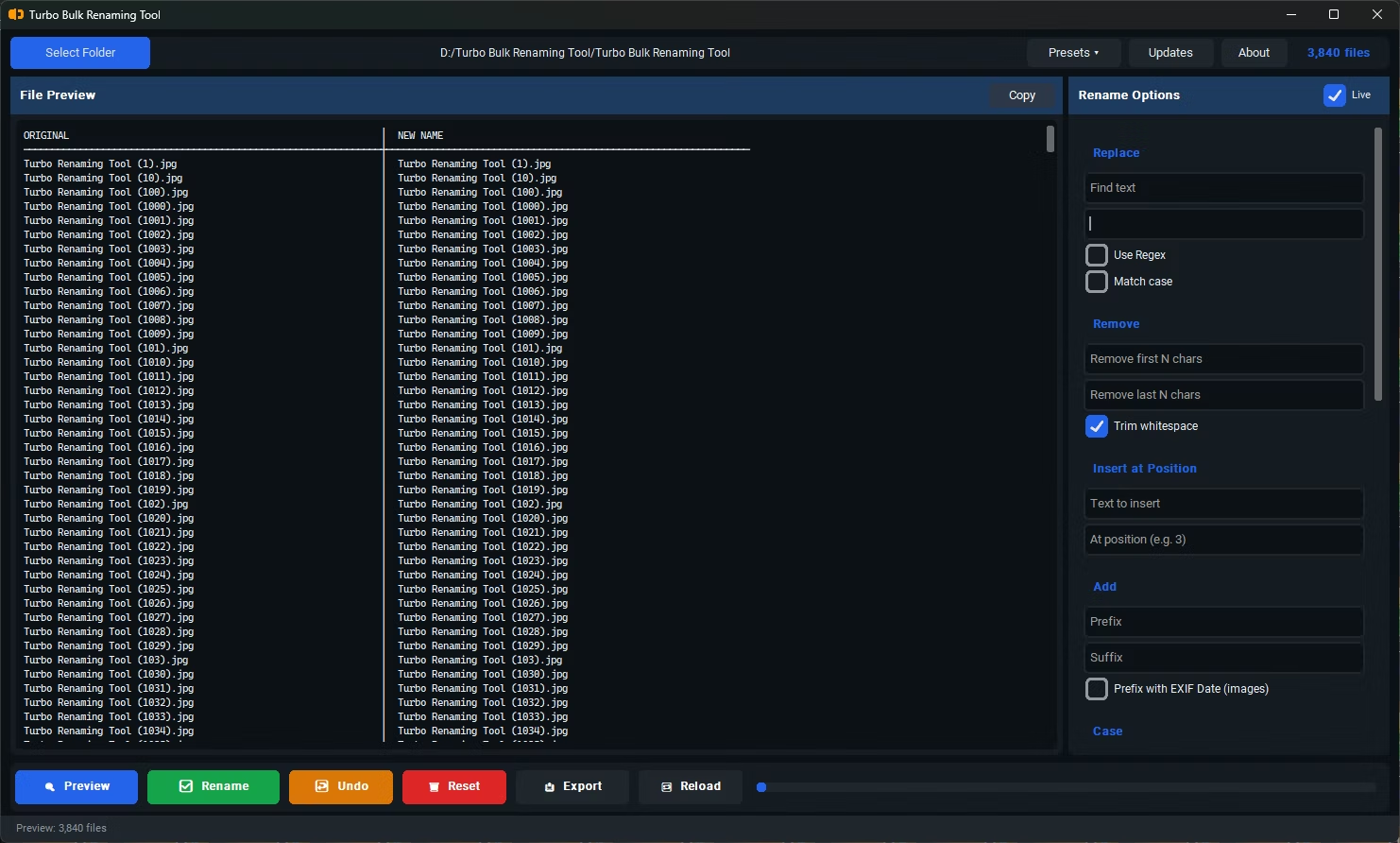
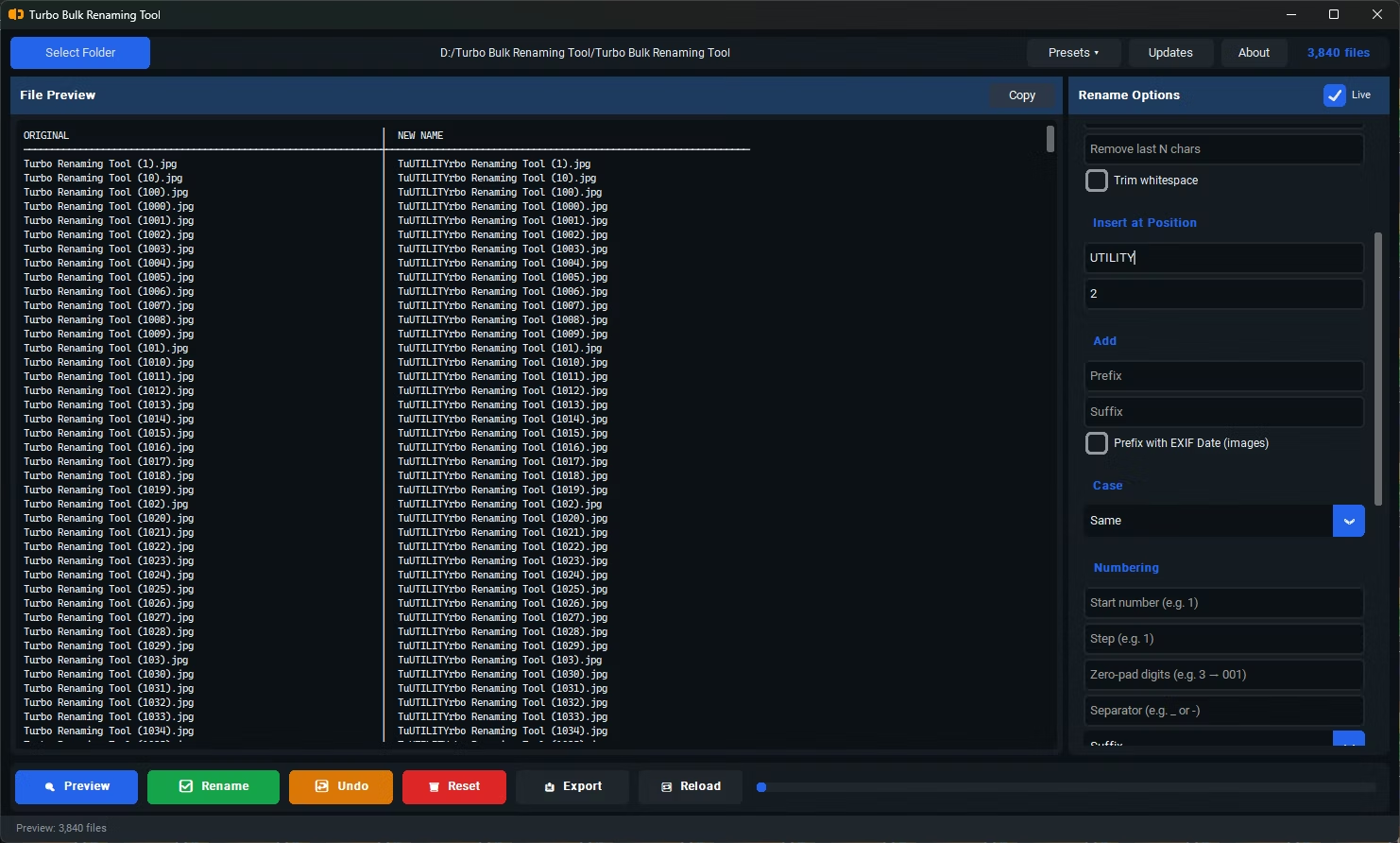
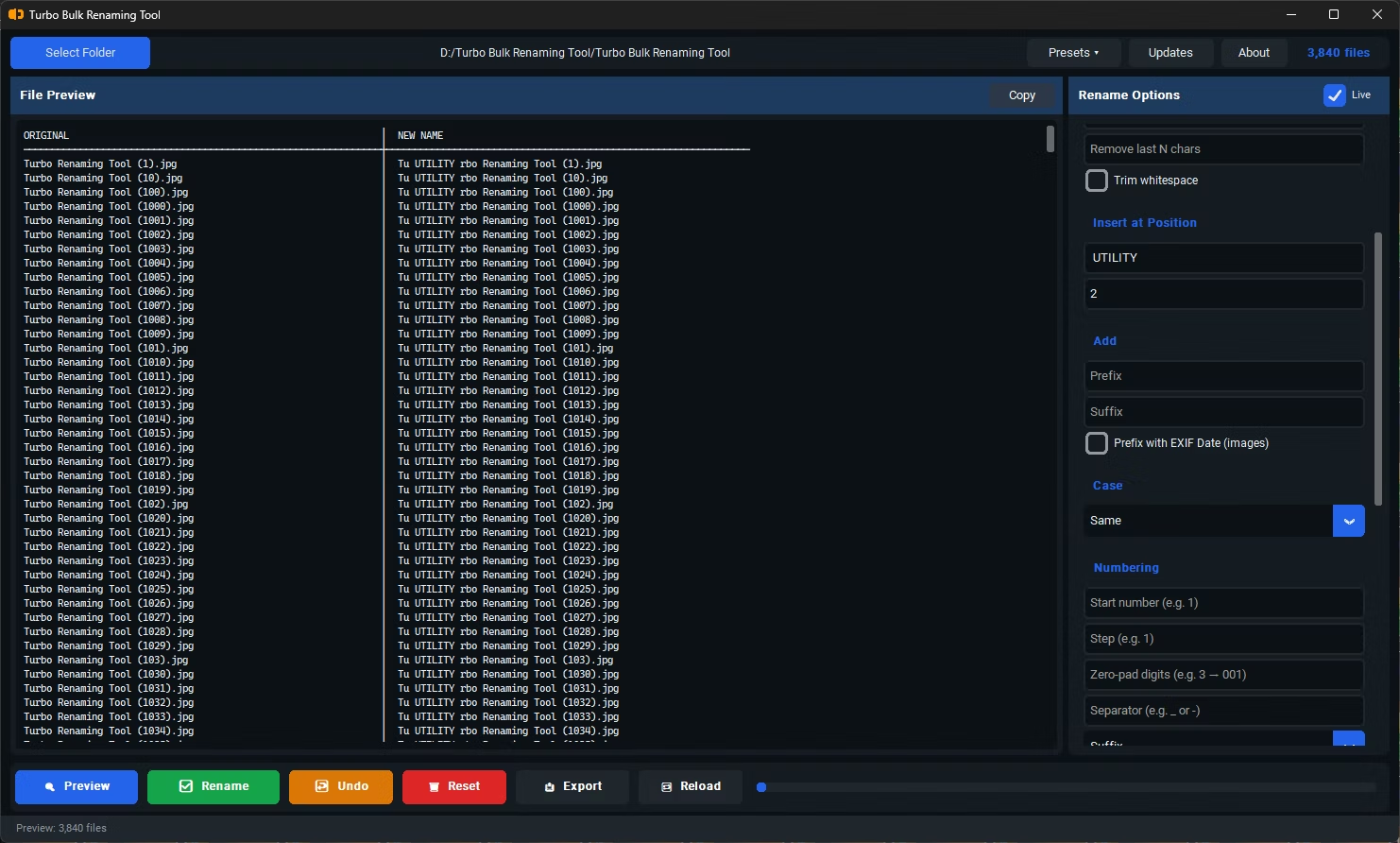
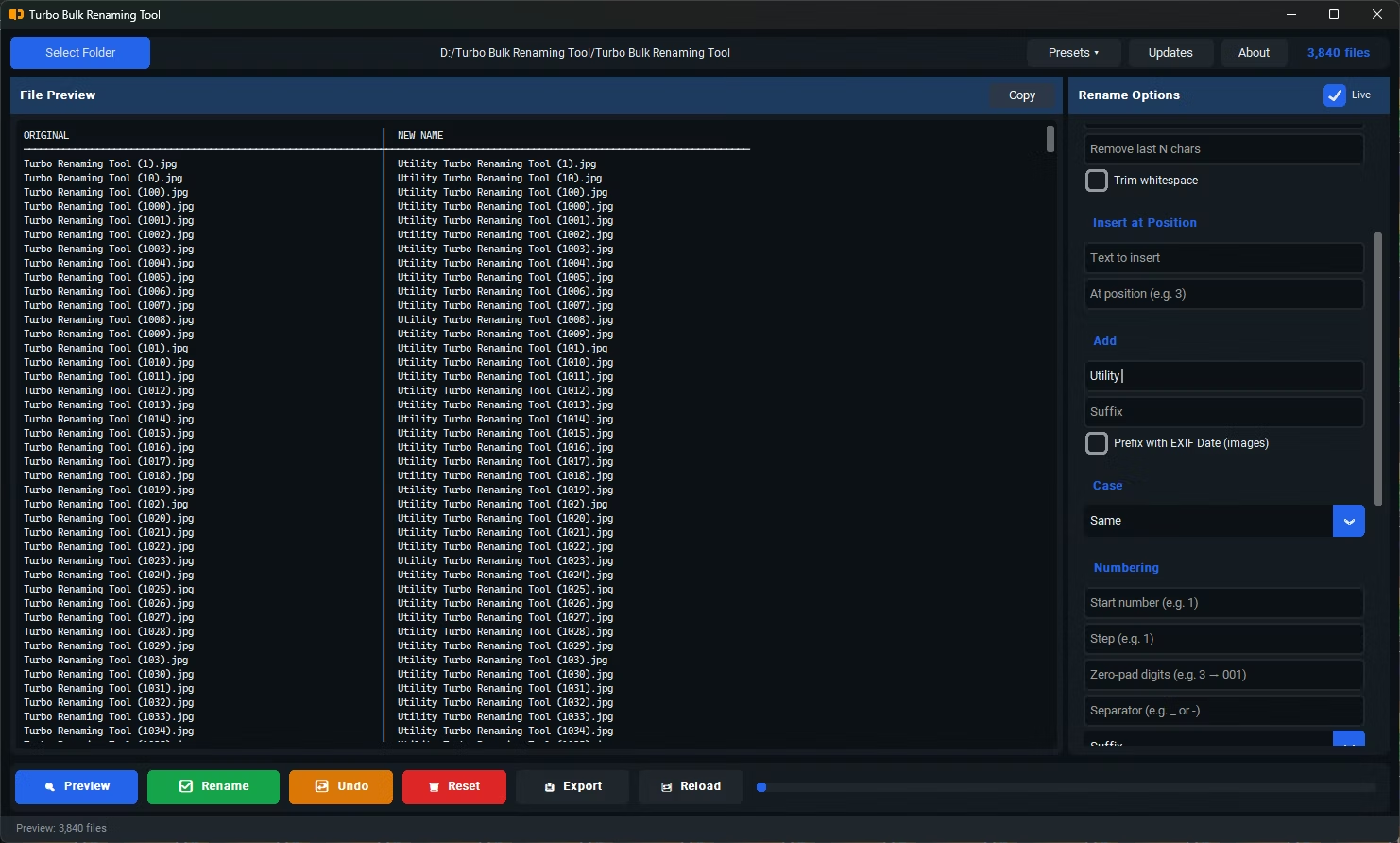
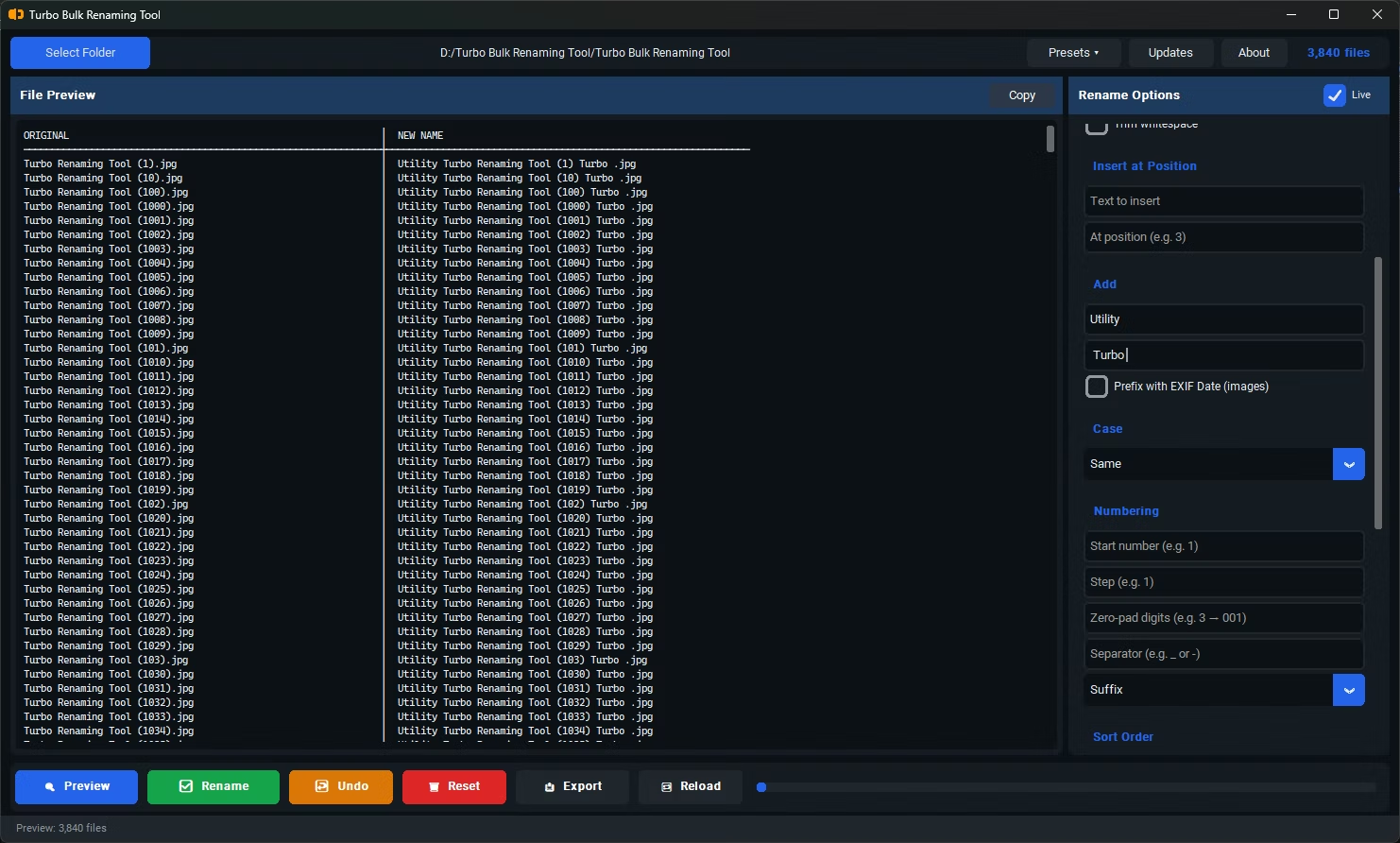
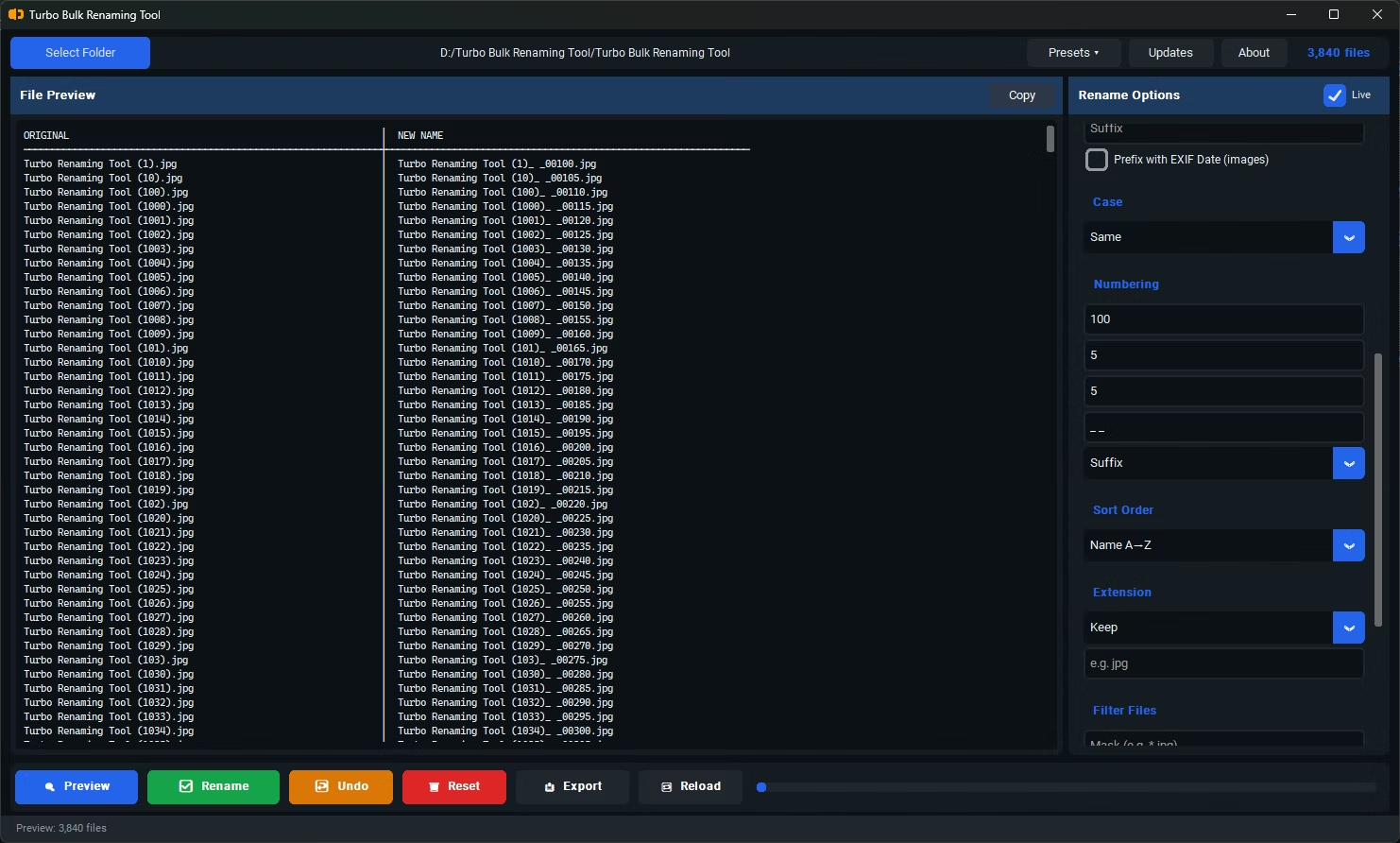
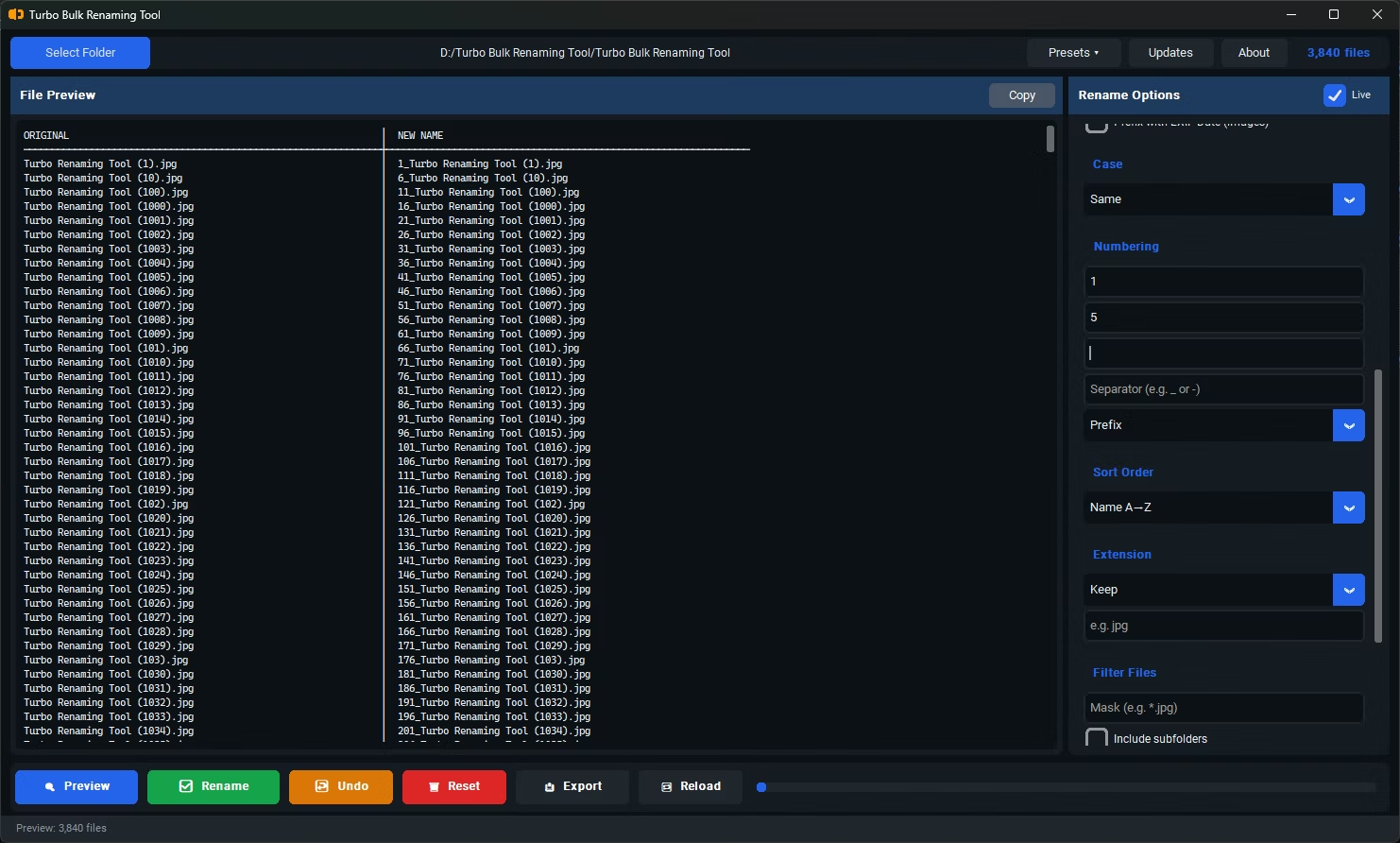
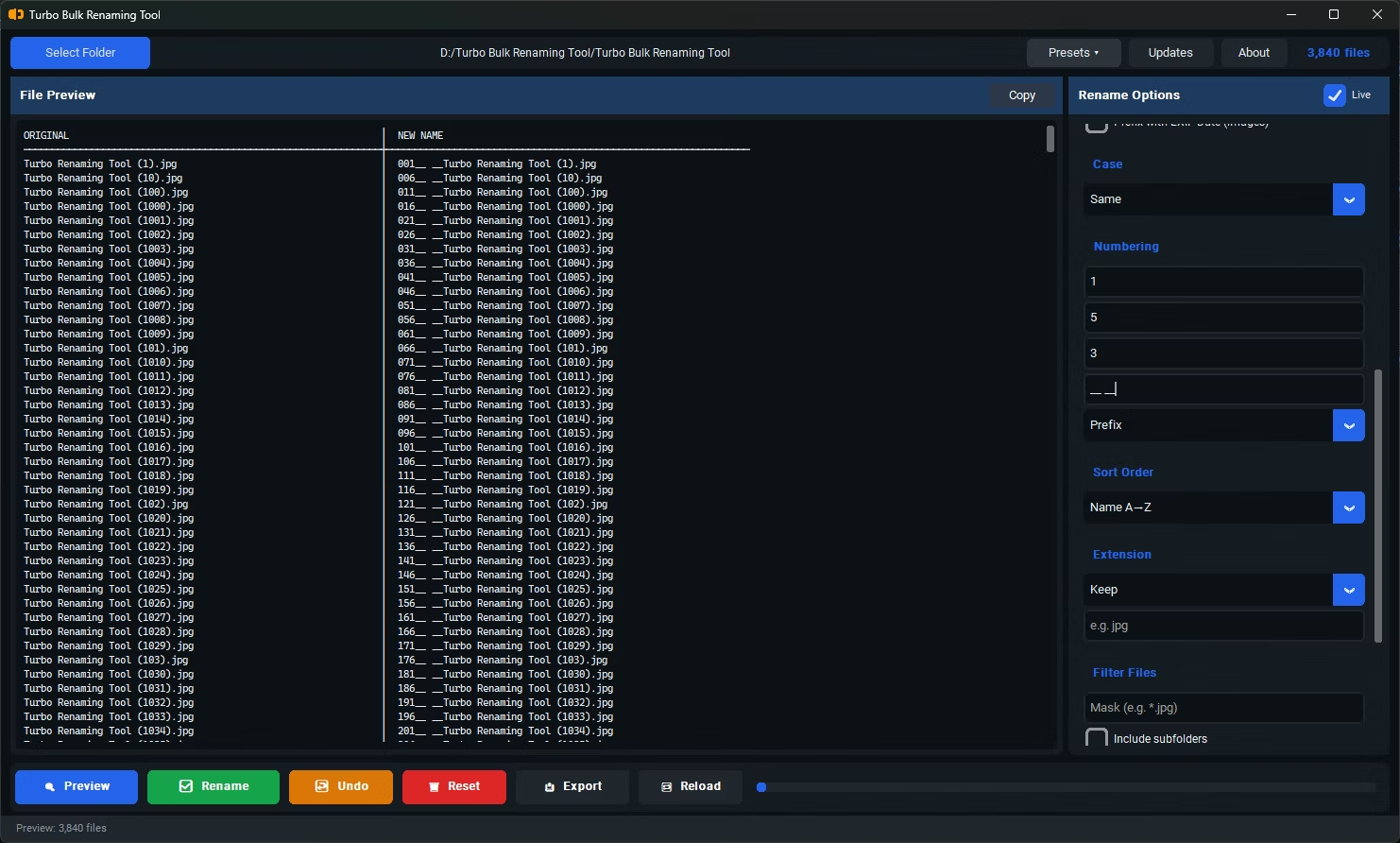

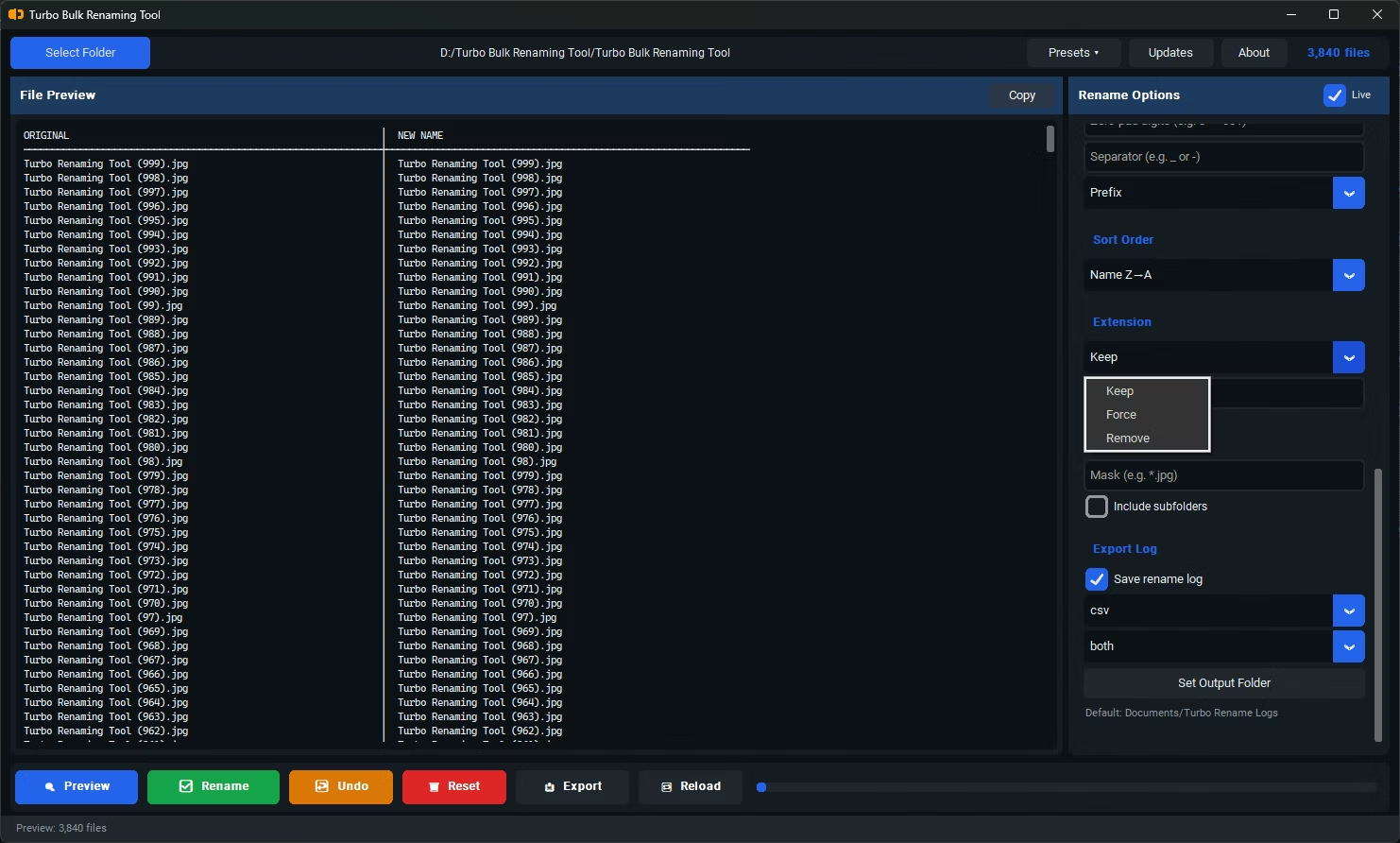
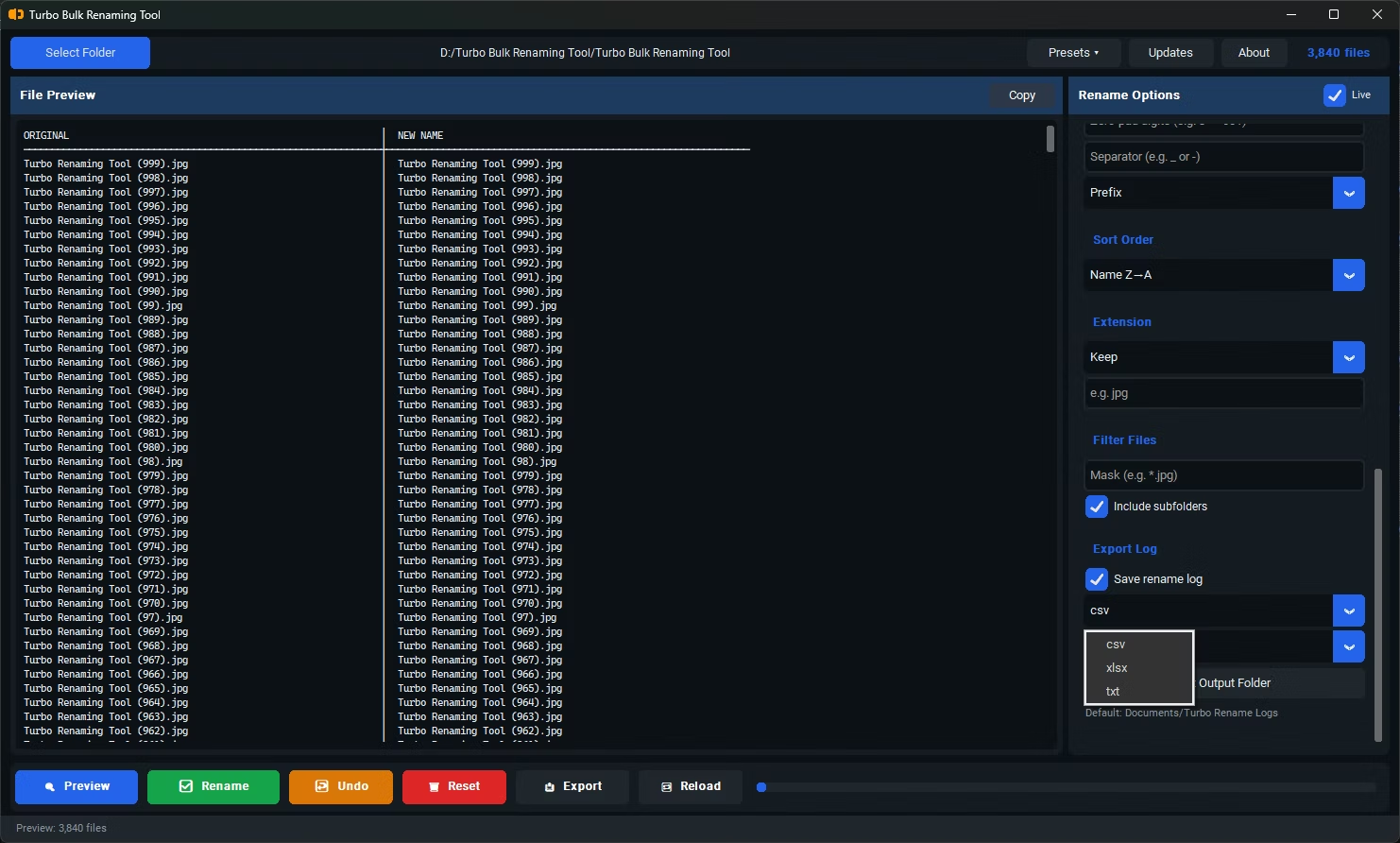
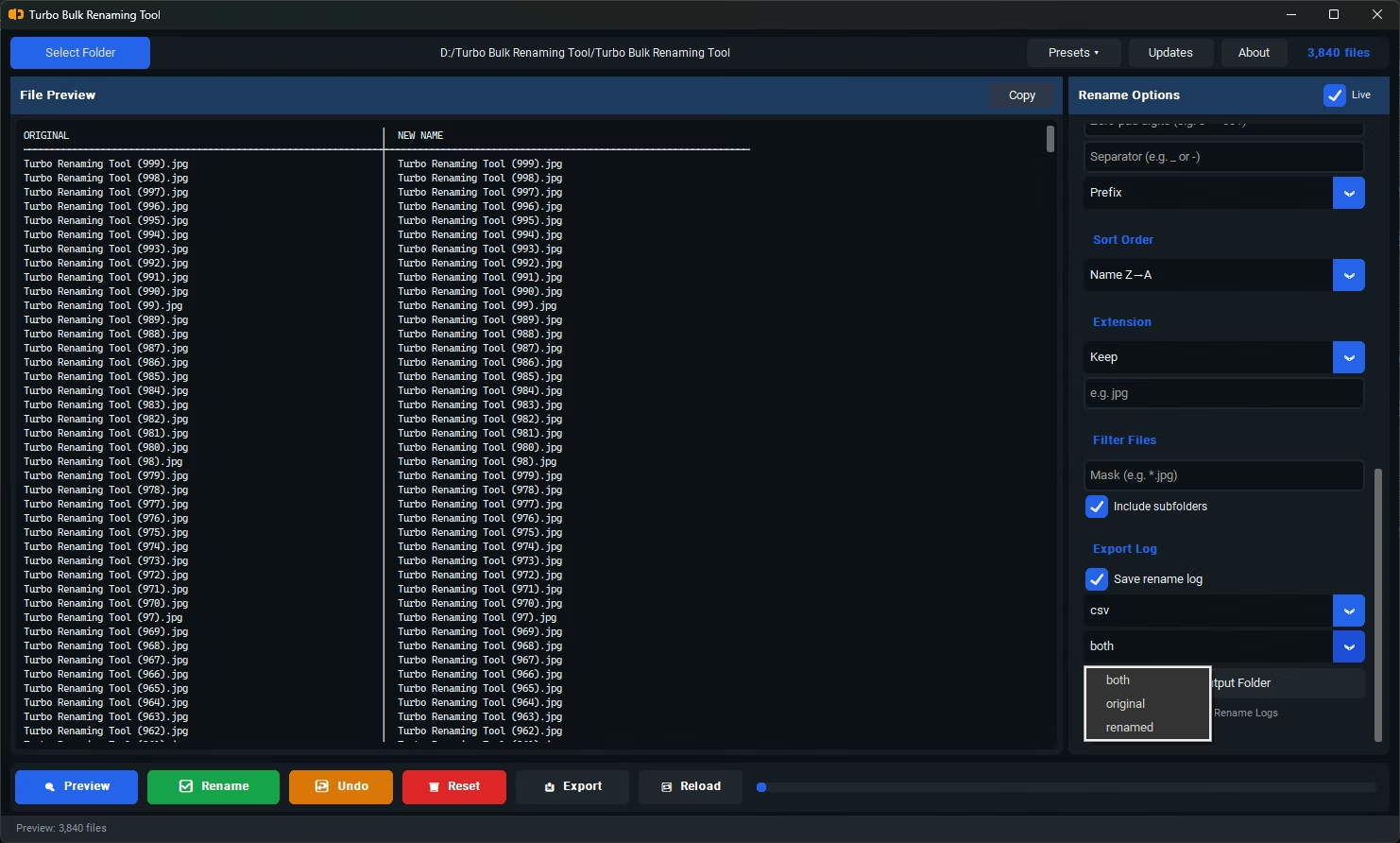
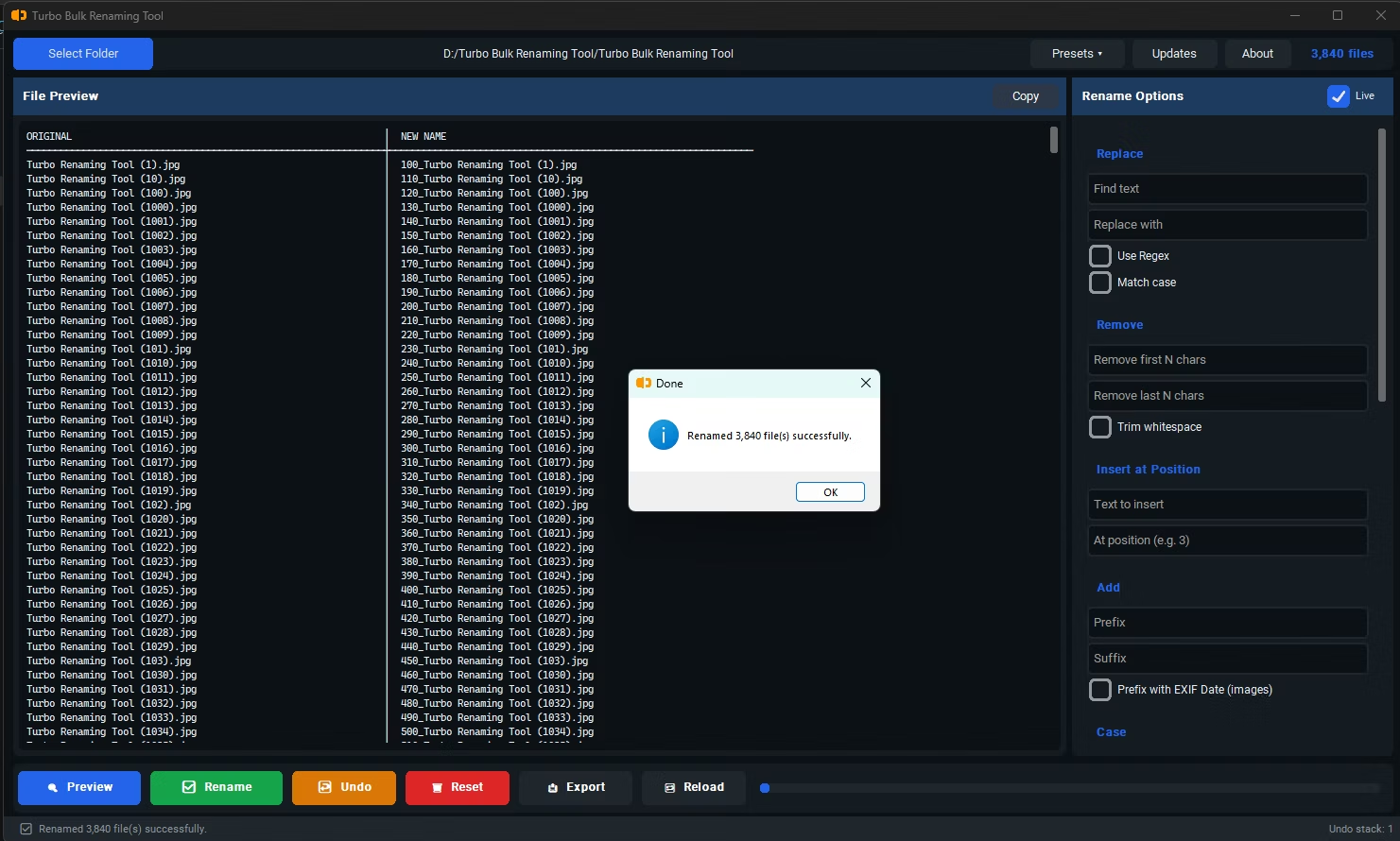
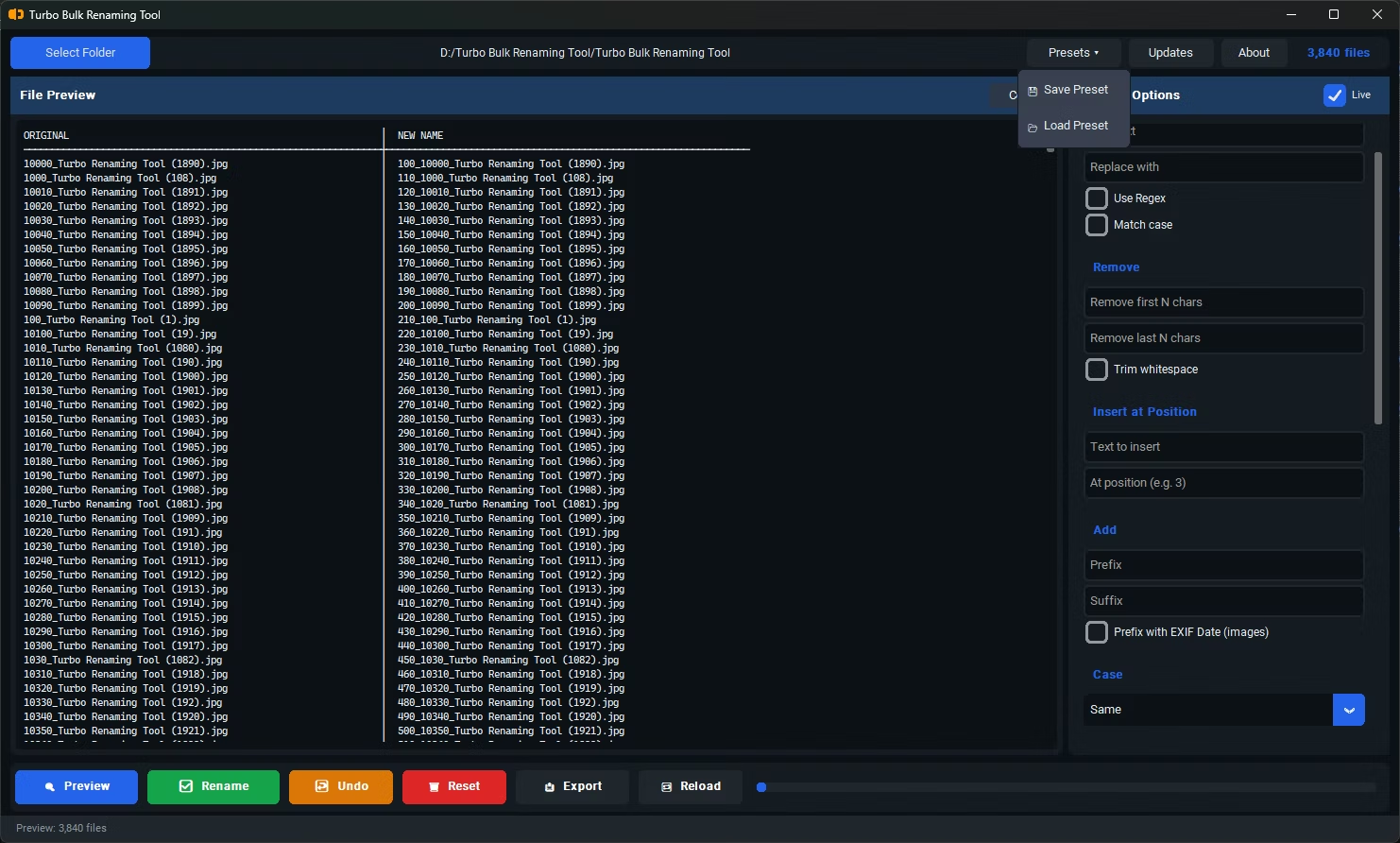
- Install Turbo Bulk Renaming Tool on your Windows PC.
- Open the app and load the folder containing the files you want to modify.
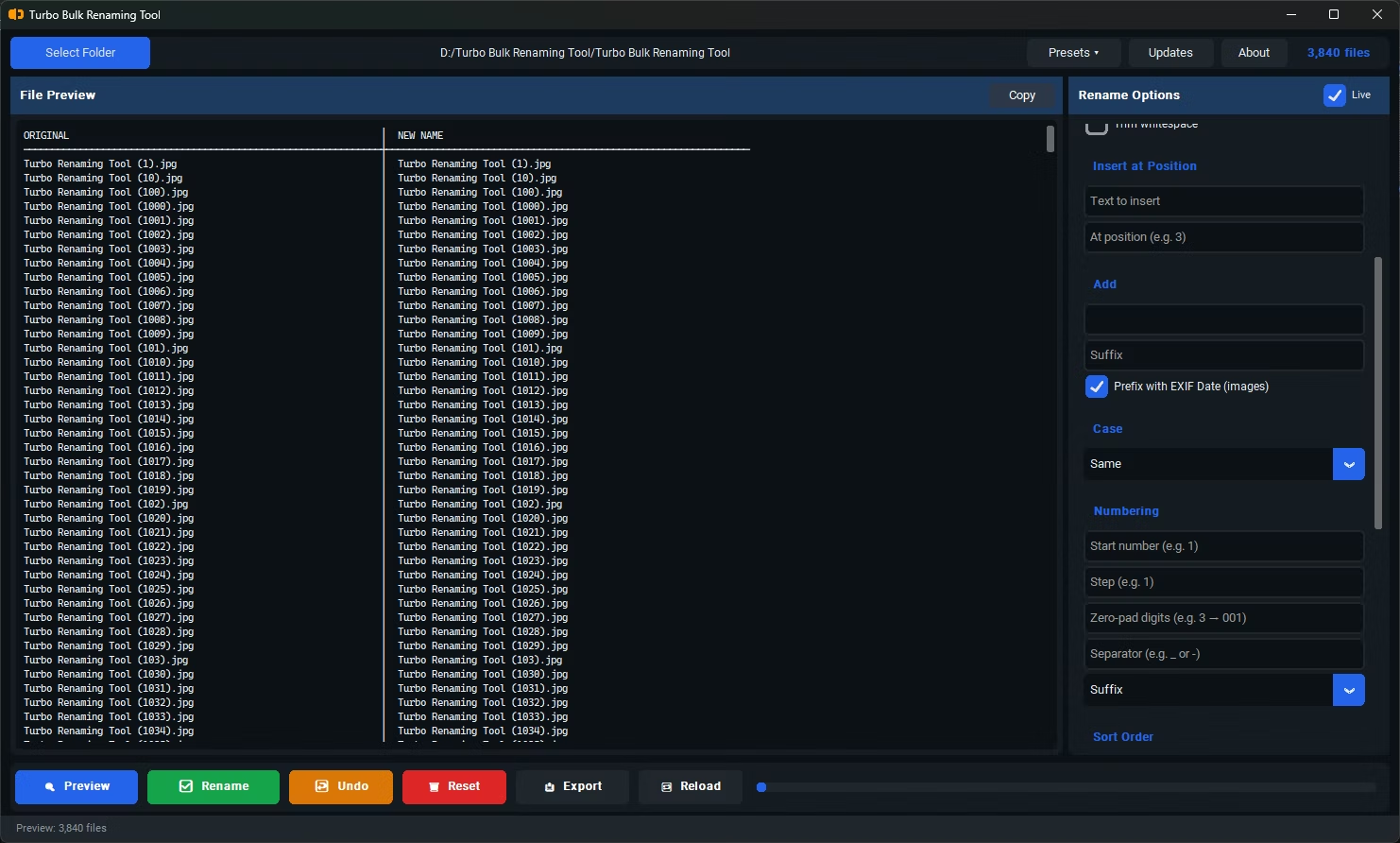
- Select the Insert at Position renaming rule.
- Enter the text you want to insert and specify the character position where it should be placed.
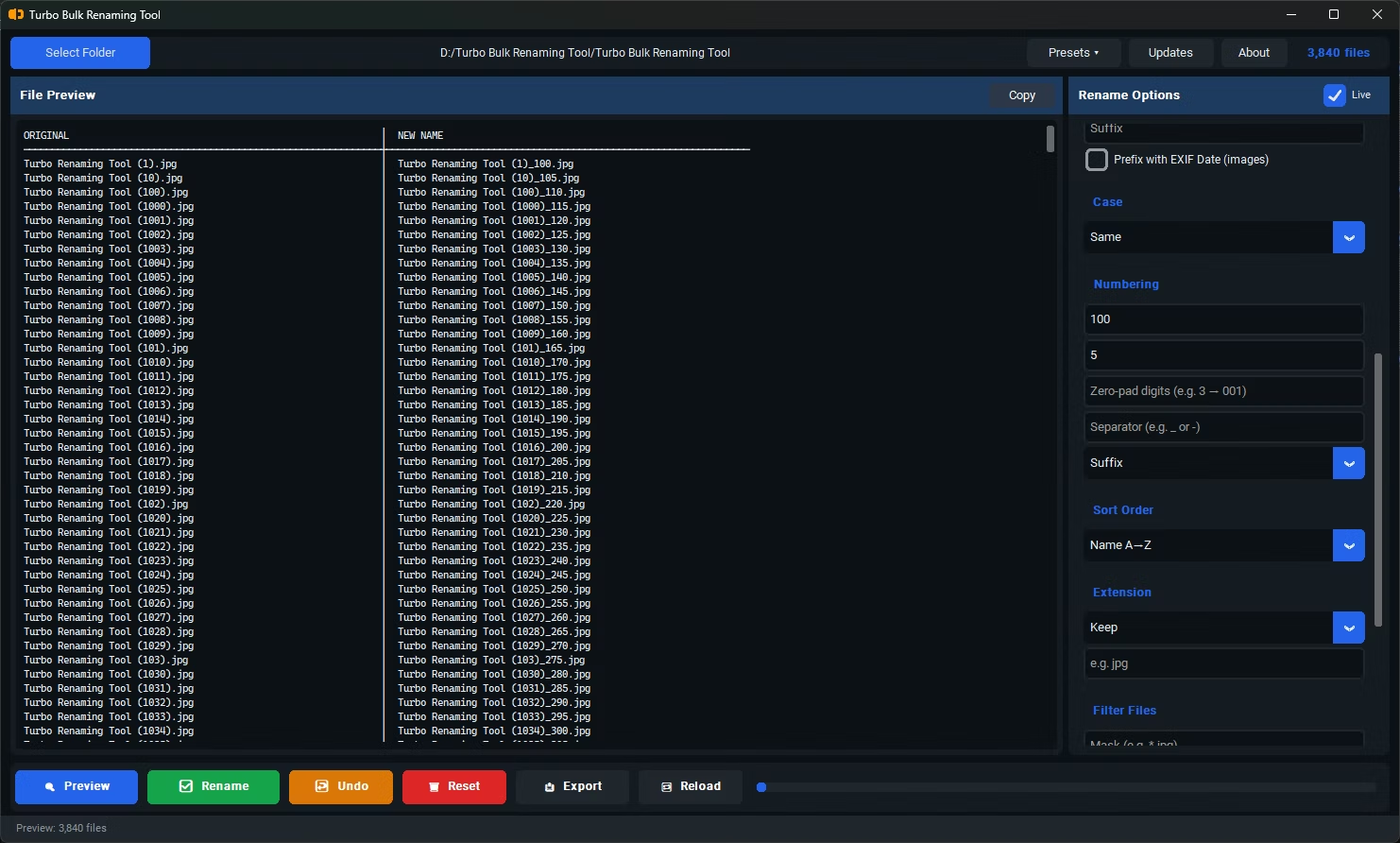
- Check the live preview to confirm the text lands in the correct spot across all filenames.
- Click Rename to apply the insertion to every selected file at once.
- Insert text at any character position within the filename, not just the start or end
- Works consistently across filenames that share a similar structure
- Live preview confirms the exact insertion point before you commit
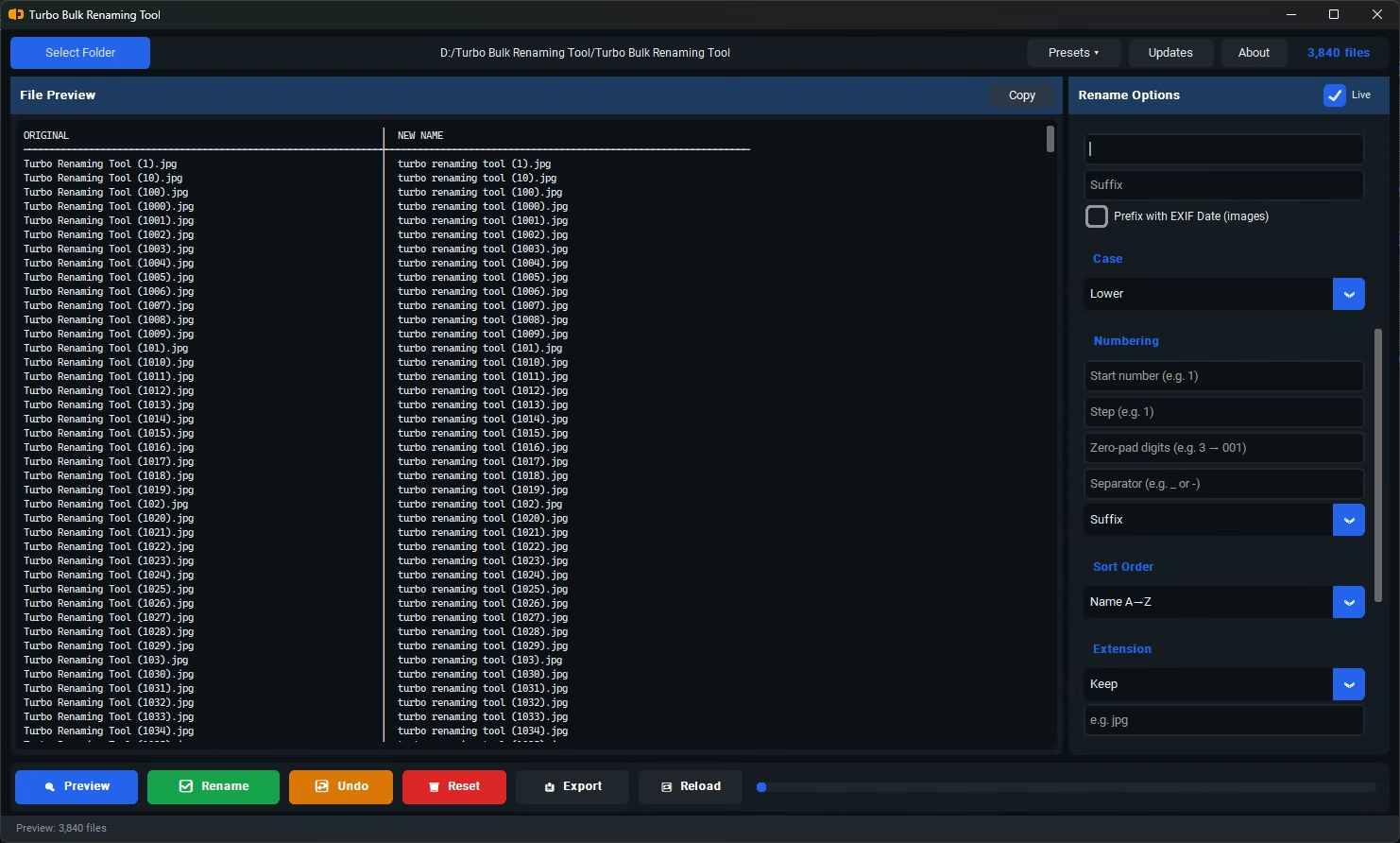
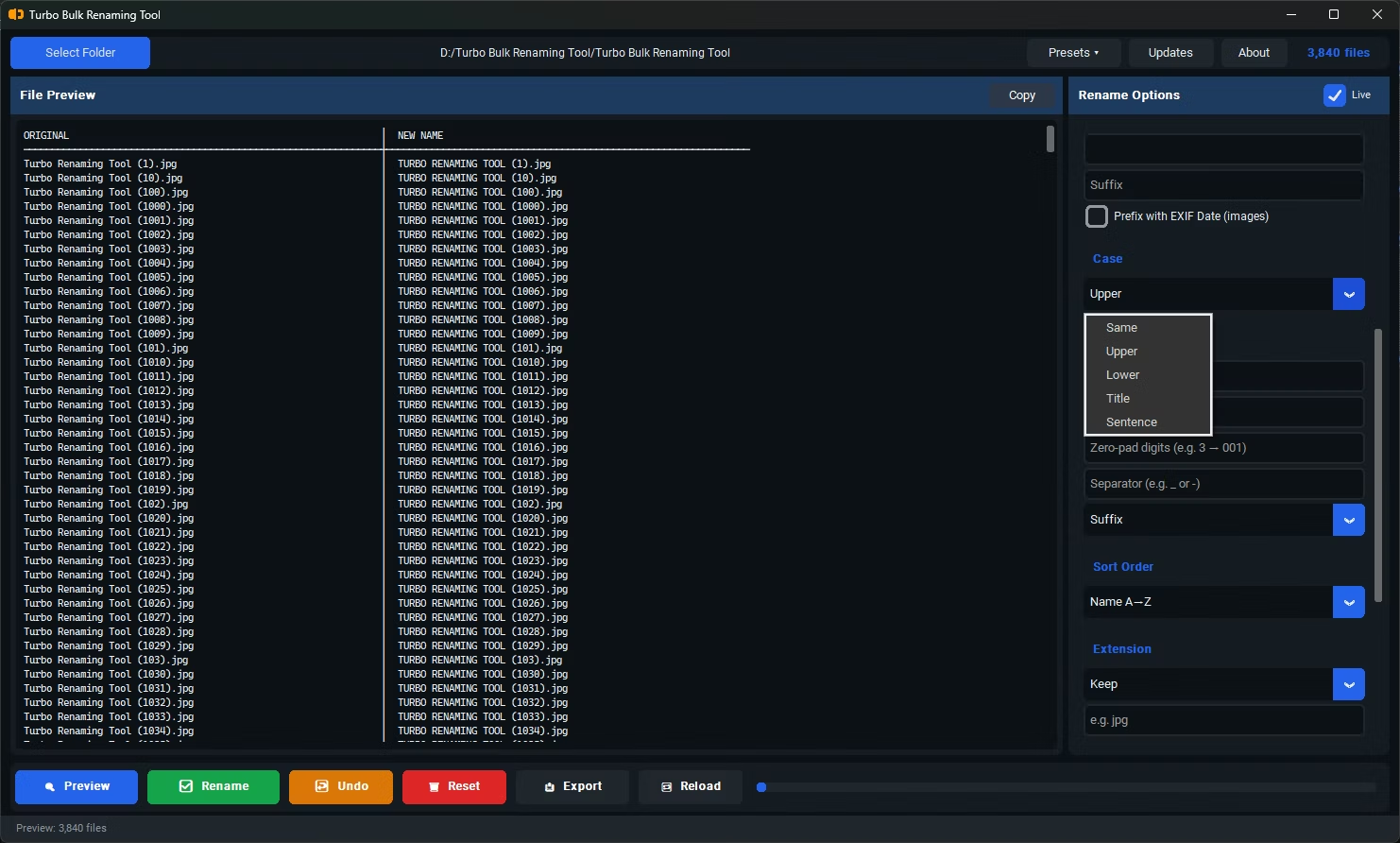
- Can be combined with other rules, such as Case Conversion, for further refinement
- Recursive sub-folder support for applying the same insertion across nested folders
- Conflict detection flags any resulting duplicate filenames before renaming
What happens if filenames have different lengths?
Since the insertion point is based on character position, filenames shorter than that position may behave differently. The live preview lets you check this across your specific batch before committing.
Can I insert text right before the file extension?
Yes, by specifying a position relative to the end of the filename, or by using the dedicated Suffix rule if you always want the insertion right before the extension.
Is this different from using a prefix or suffix rule?
Yes, prefix and suffix rules always add text at the very start or end, while Insert at Position lets you place new text anywhere within the existing filename.
Ready to rename your files in bulk, offline, with full privacy?