HEIC is space-efficient and is the default format for photos taken on recent iPhones, but it isn't well supported across older Windows software, many websites, and most third-party photo tools. JPG remains the most universally compatible image format, which makes HEIC to JPG one of the most common conversions iPhone users need after transferring photos to a PC.
Browser-based converters require uploading your photos to a remote server, which is slow for large photo libraries and not ideal for private images. A desktop converter that works fully offline solves both problems — your photos stay on your device, and you can convert your entire camera roll in one batch instead of one file at a time.
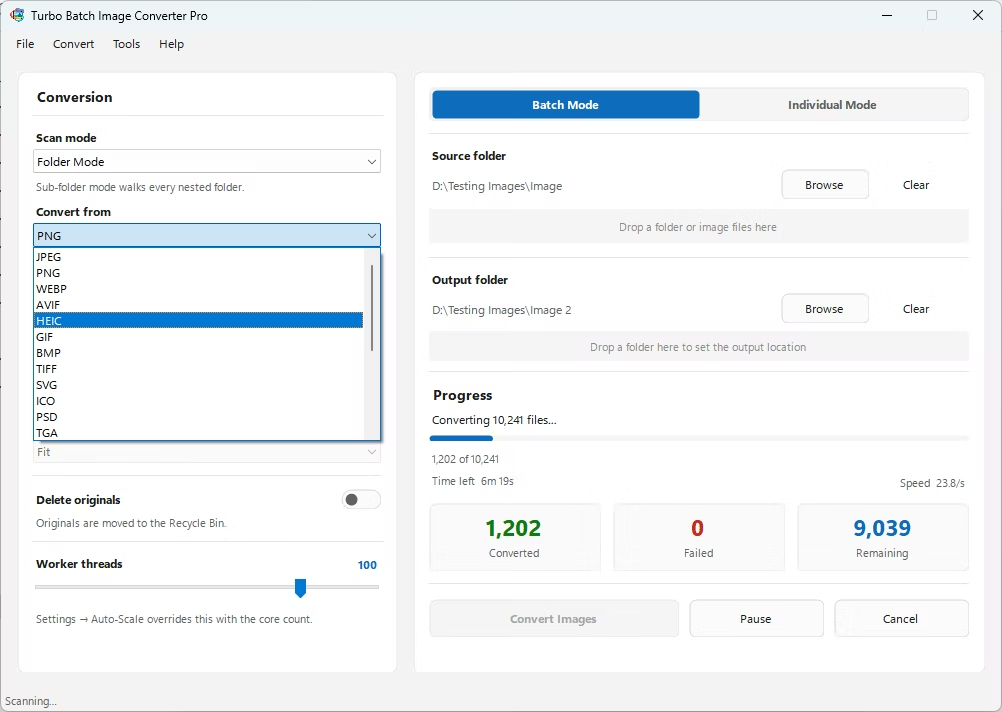
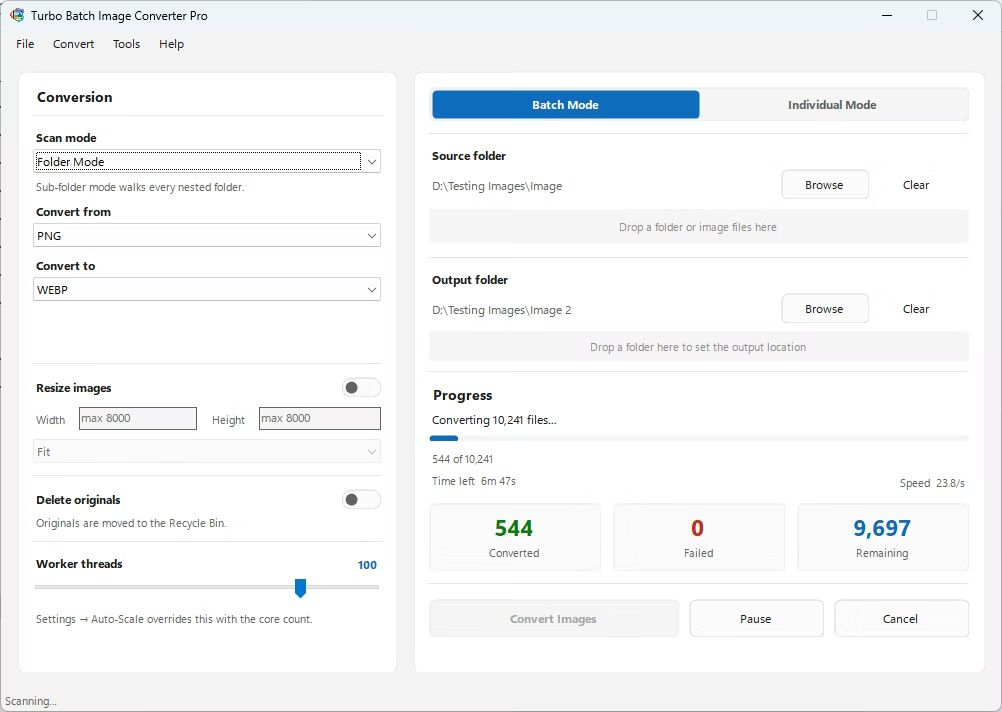
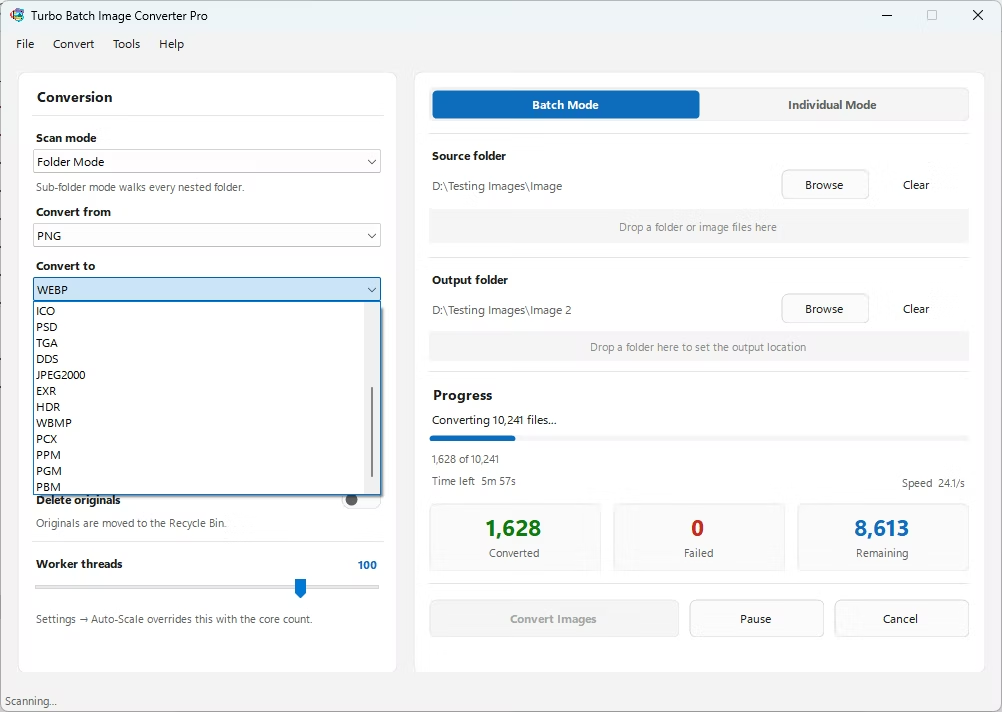
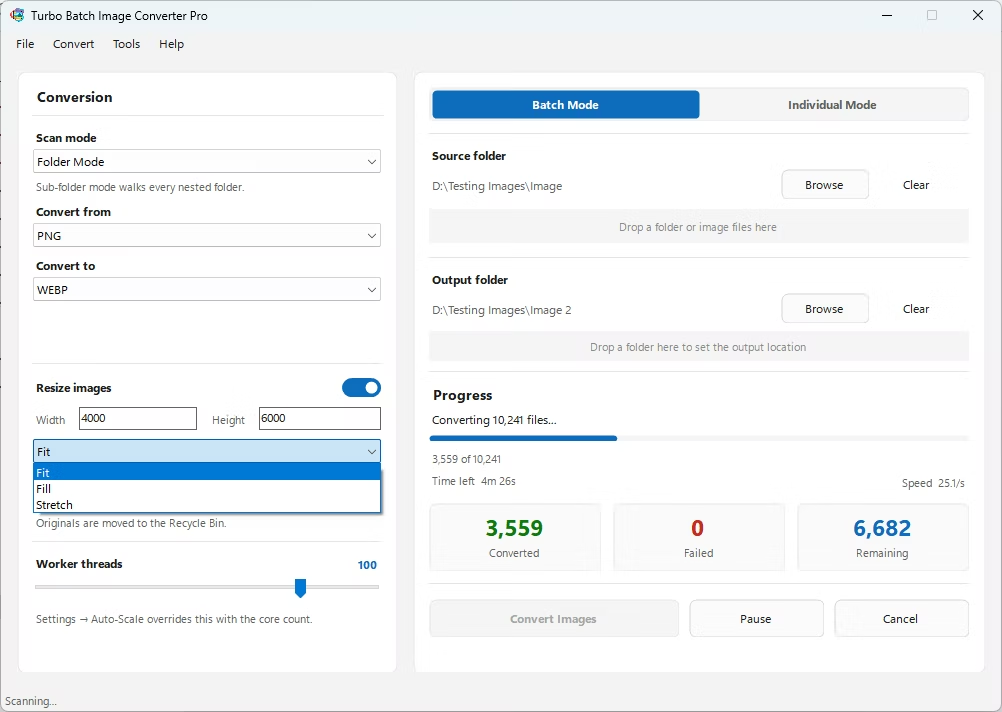
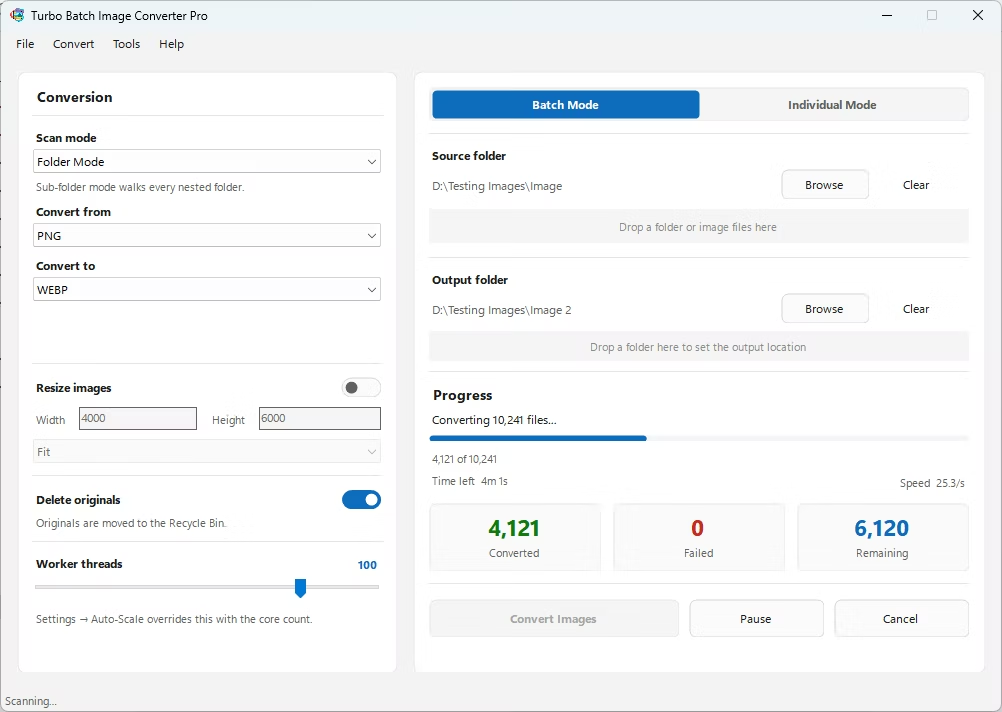
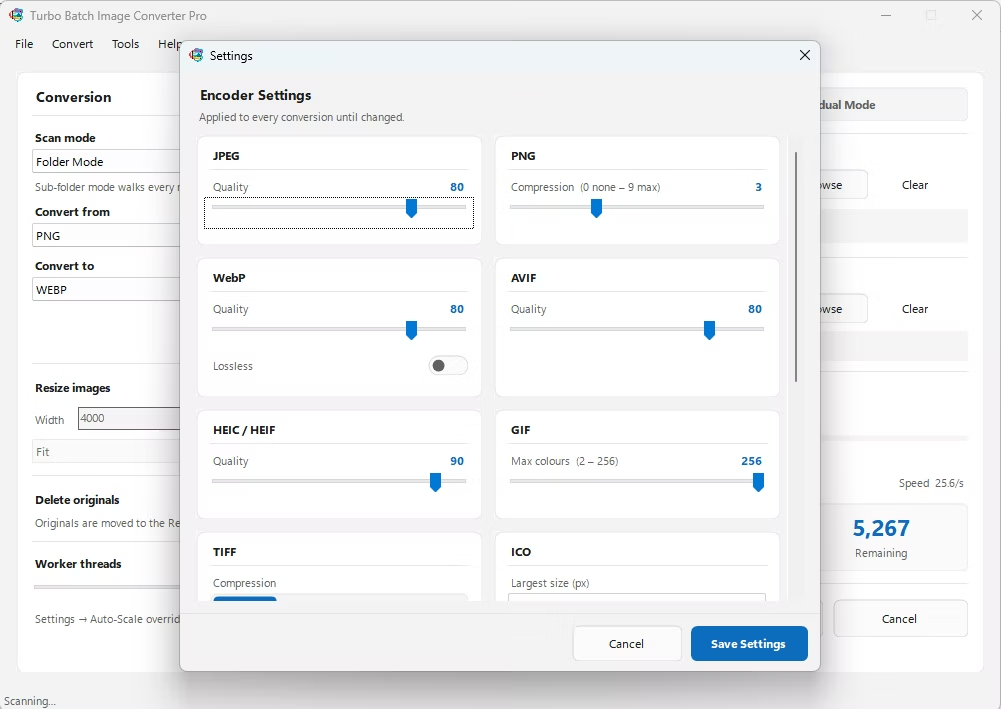
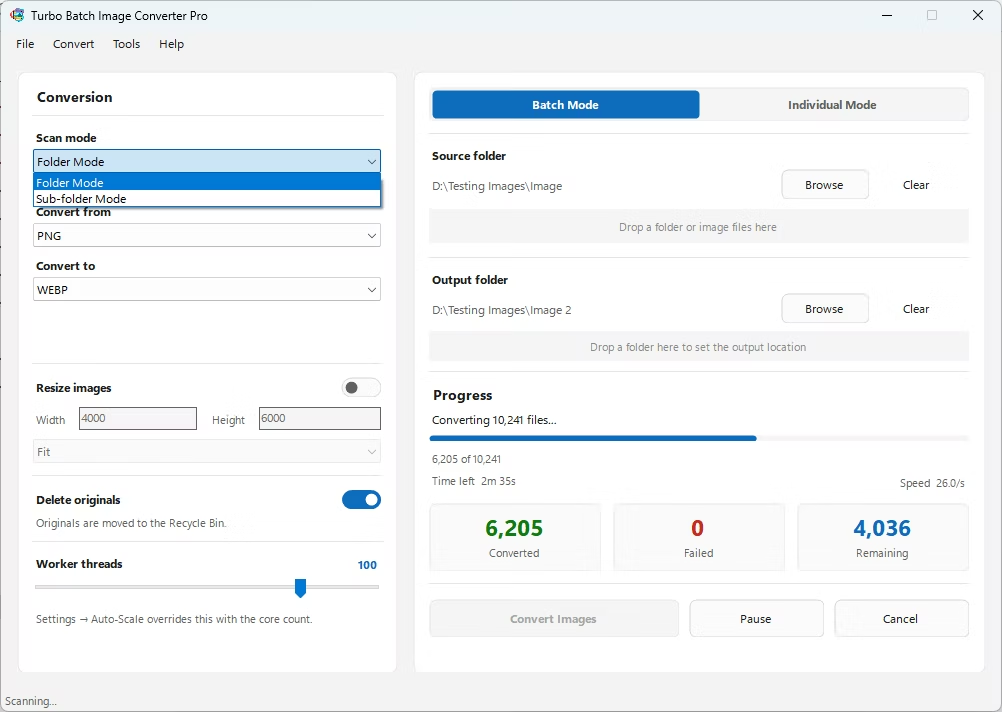
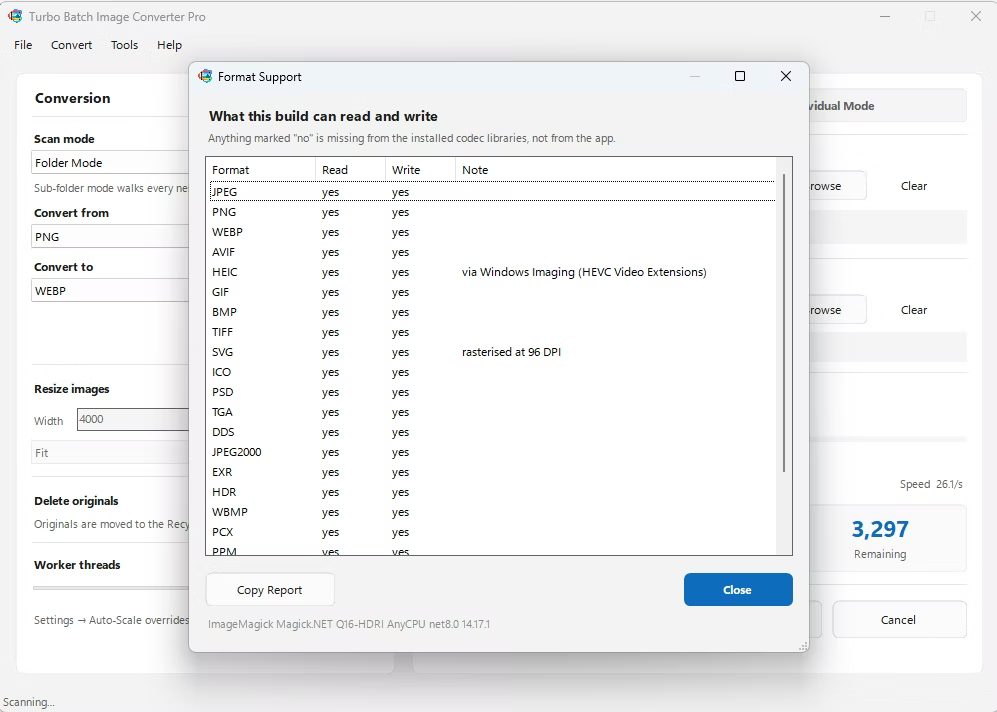
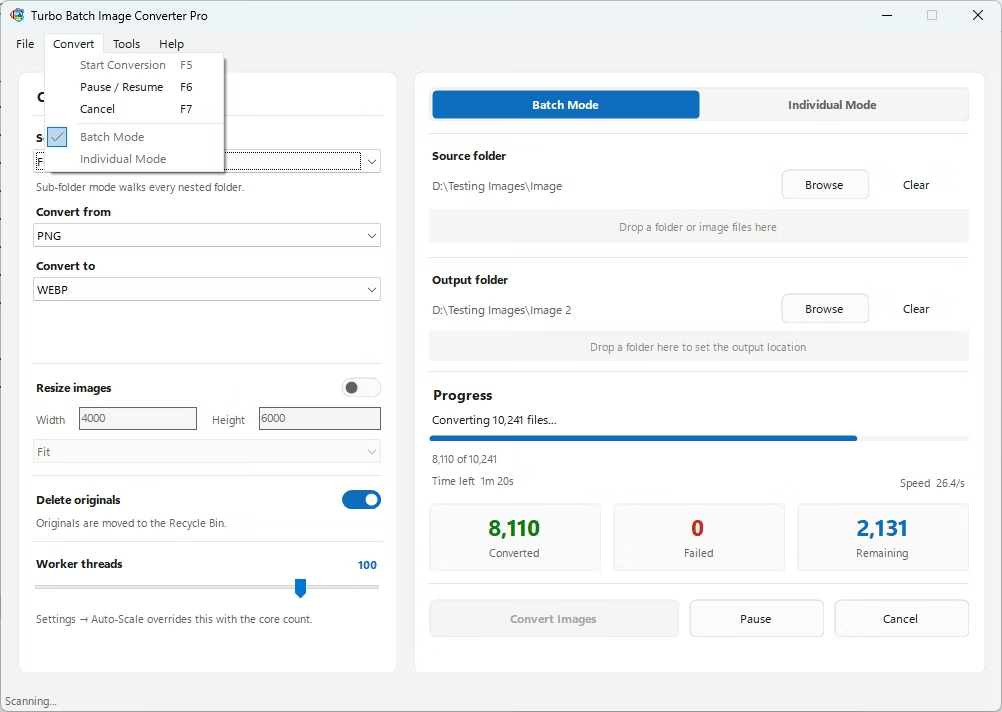
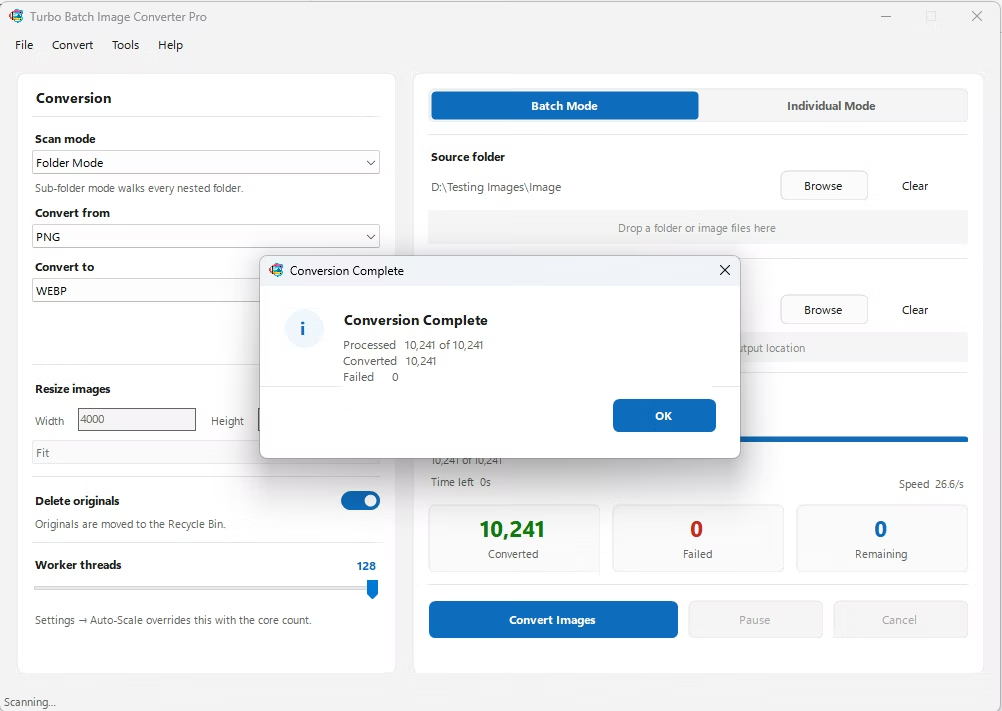
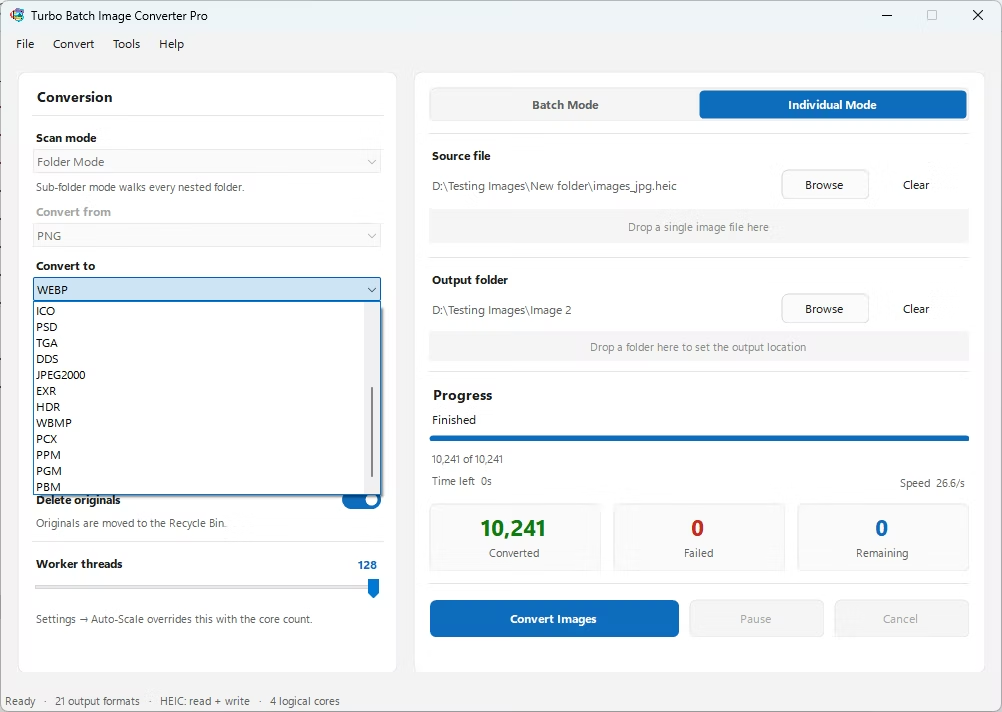
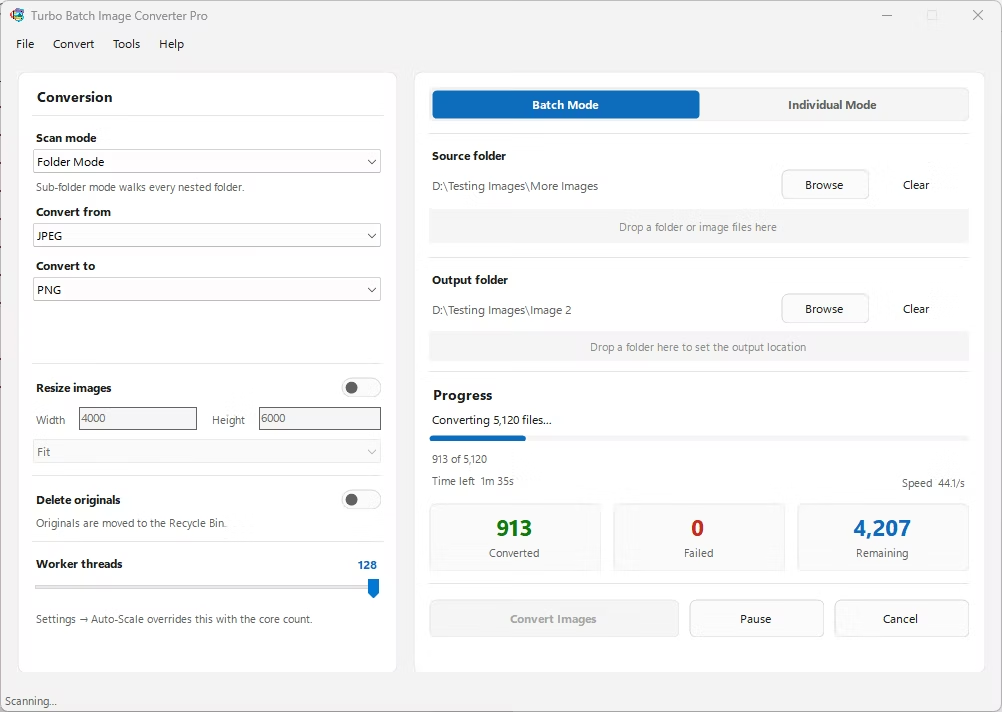
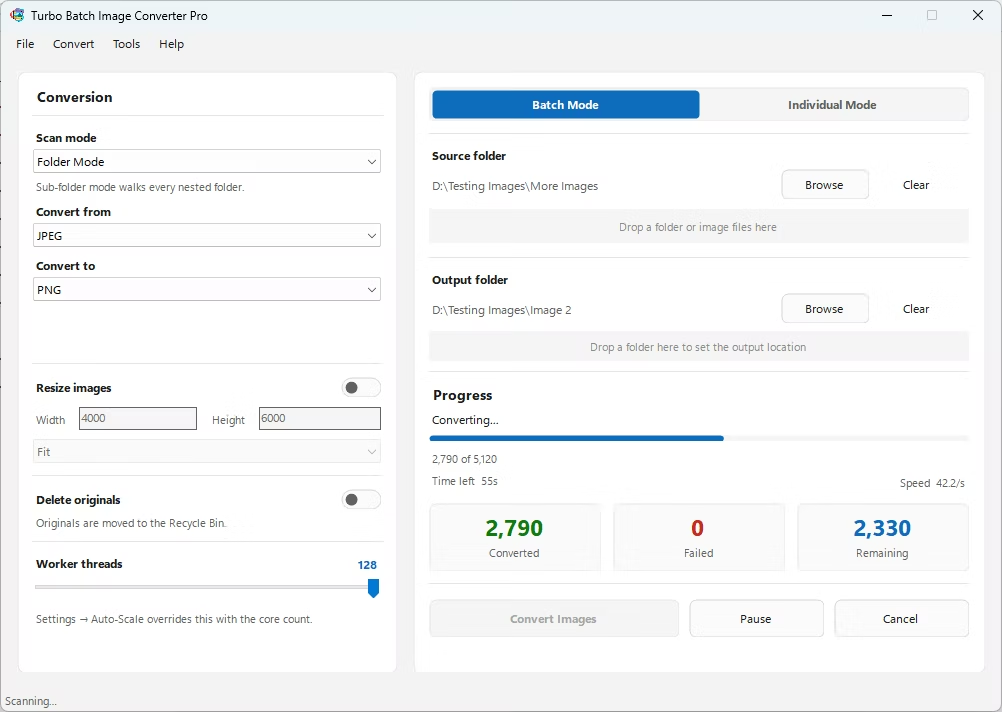
- Install Turbo Batch Image Converter Pro on your Windows PC. It works completely offline once installed.
- Open the app and select Batch Mode for converting many photos, or Individual Mode for a single file.
- Drag your HEIC photos or the whole folder into the app window. Enable recursive folder scanning if your photos are spread across sub-folders.
- Set "From" to HEIC and "To" to JPG.
- Adjust the JPG quality setting to balance image quality against file size.
- Optionally resize images during the same conversion if you want smaller dimensions for sharing.
- Click Convert. All processing happens locally on your machine — nothing is uploaded anywhere.
- 100% offline — ideal for converting private photo libraries safely
- Convert your entire iPhone camera roll in one batch job
- Recursive sub-folder support for organized photo backups
- Adjustable JPG compression to control output file size
- Multi-core processing for fast handling of large photo sets
- Optional automatic deletion of original HEIC files after conversion
Why do iPhone photos show up as HEIC on my PC?
iPhones save photos in HEIC by default to save storage space, but many Windows applications and websites expect JPG instead, which is why conversion is often necessary.
Can I convert hundreds of HEIC photos at once?
Yes, Batch Mode is designed for exactly this, including support for nested sub-folders so you don't need to manually sort your photos first.
Is my photo privacy protected during conversion?
Yes. Since conversion happens entirely on your own computer with no upload step, your photos are never transmitted to any external server.
Ready to convert your images offline, in bulk, with full privacy?