Listing a handful of filenames is trivial, but once a folder holds more than a thousand files — common with photo archives, scanned document batches, or downloaded datasets — manually copying names one at a time stops being realistic. What you need at that point is a tool that can scan the entire folder, including any nested sub-folders, and produce a single export containing every filename without you touching each file individually.
The main thing to watch for at this scale is whether the export tool actually captures everything reliably, including files buried several folders deep, rather than only the files visible at the top level.
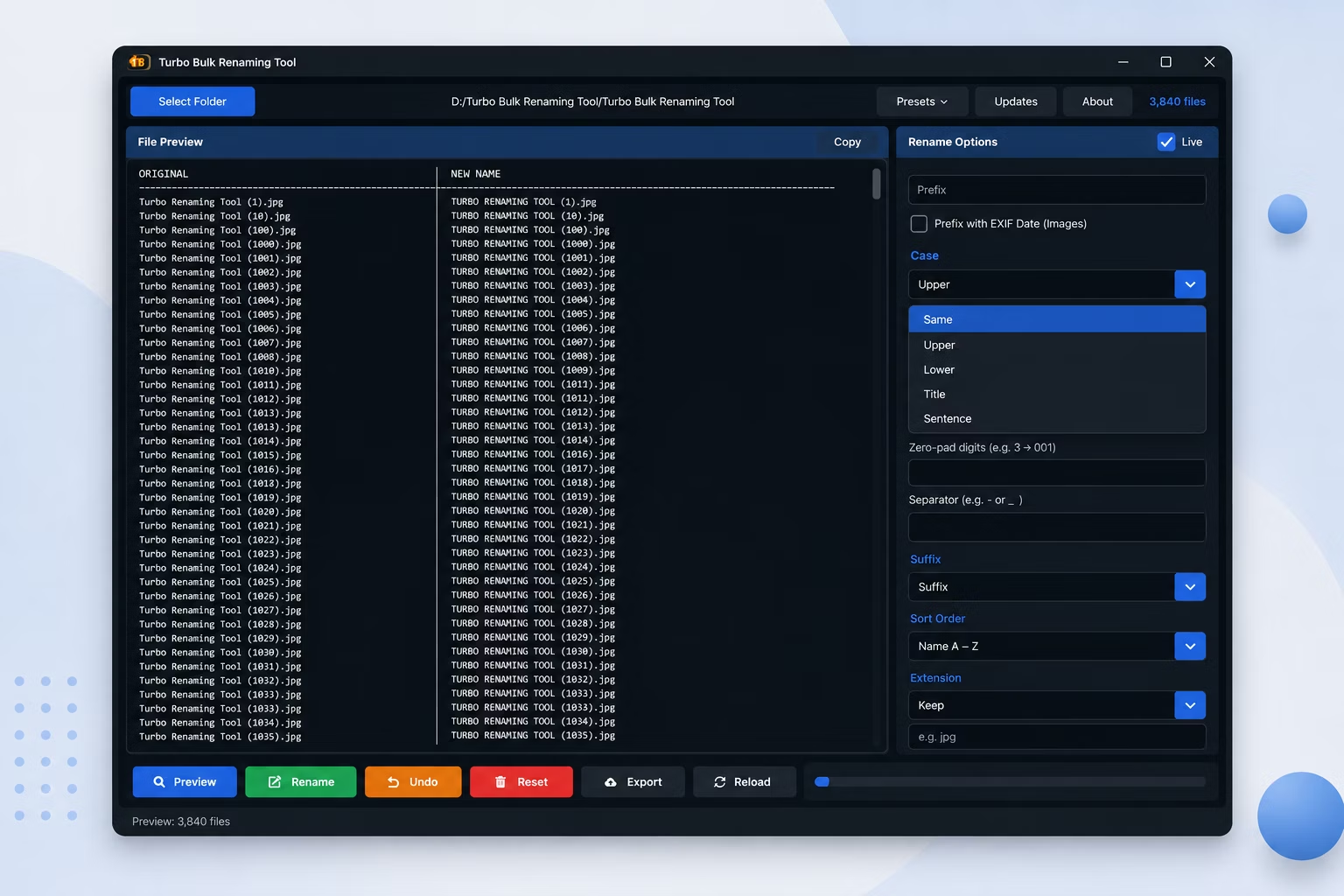
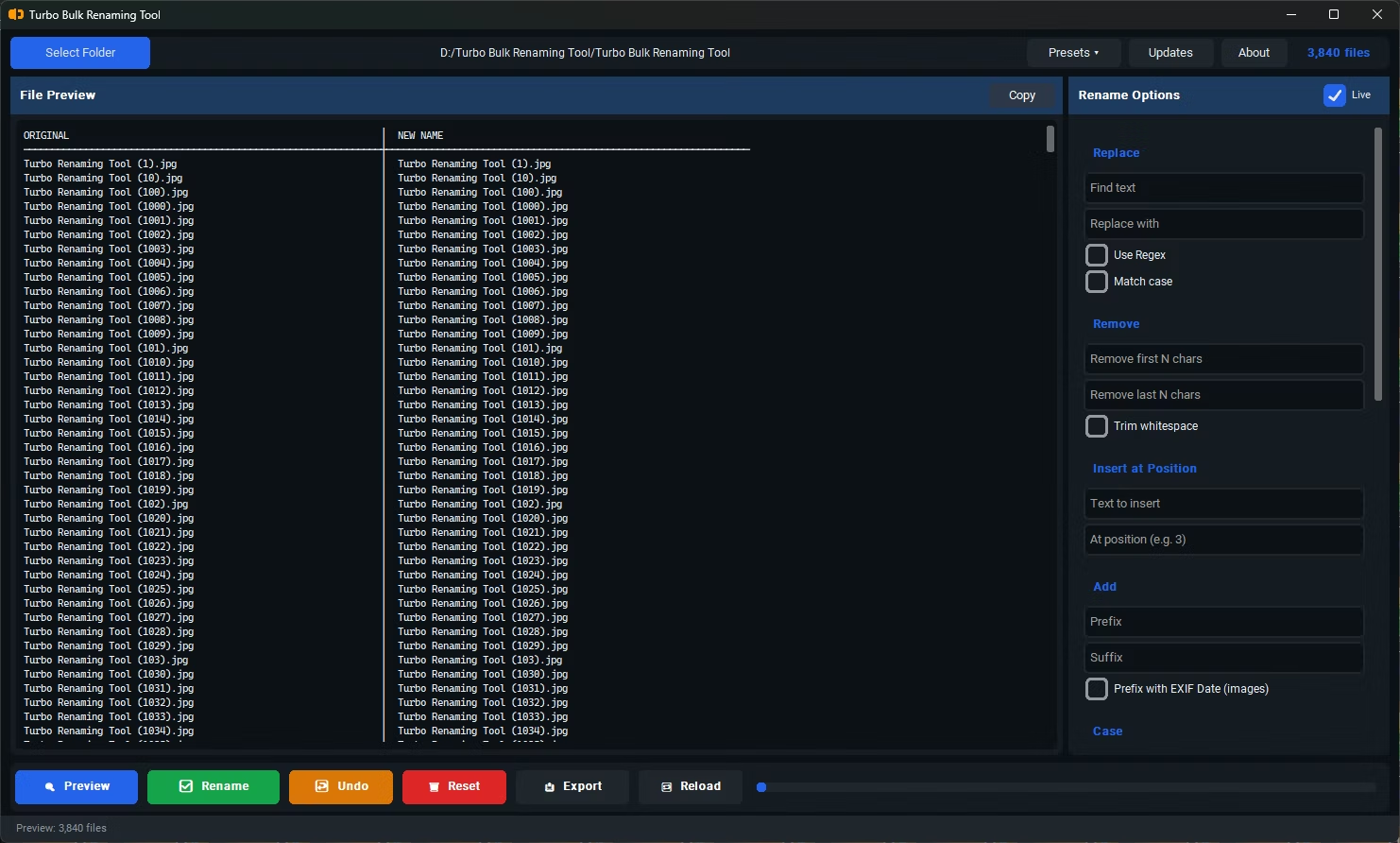
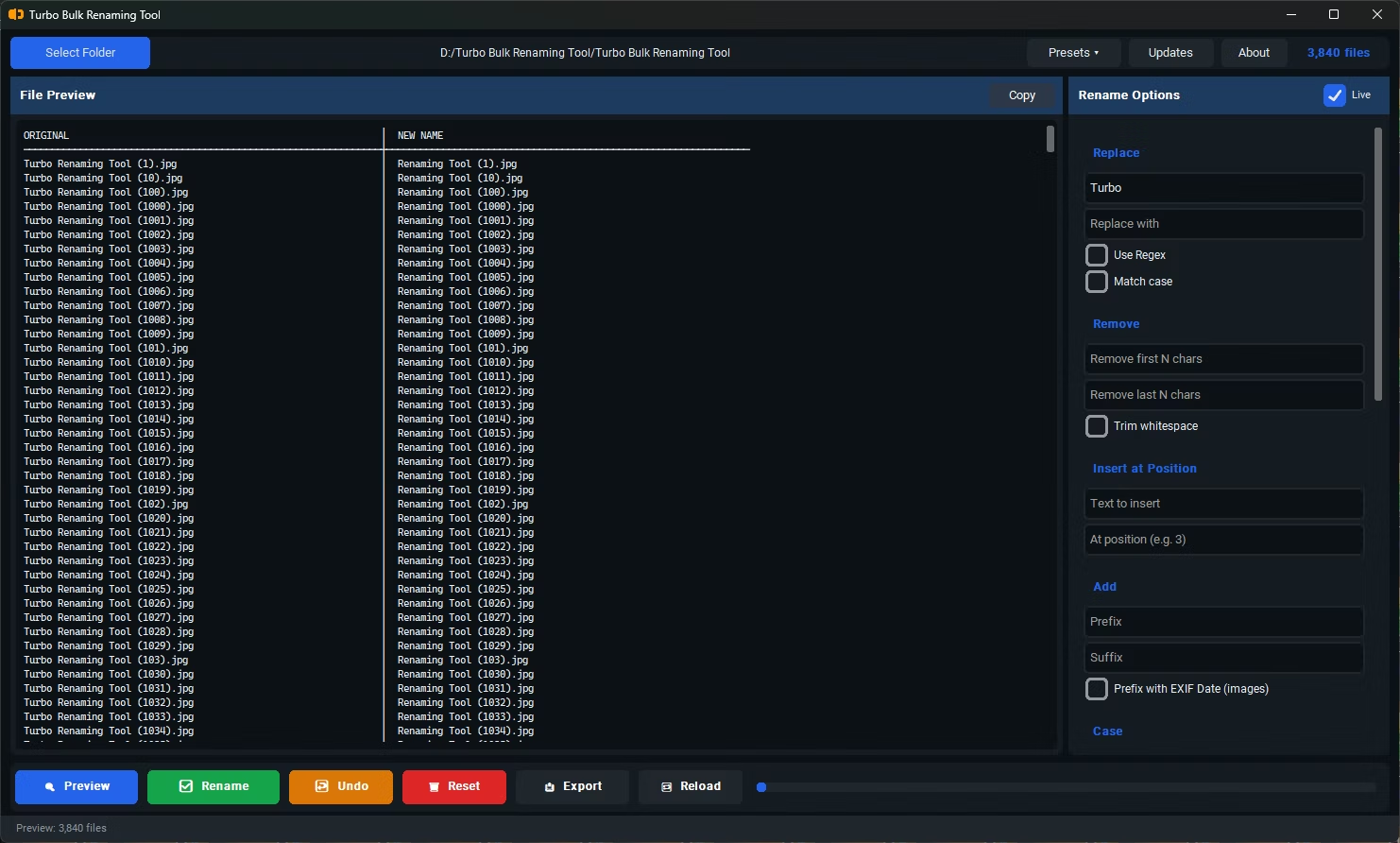
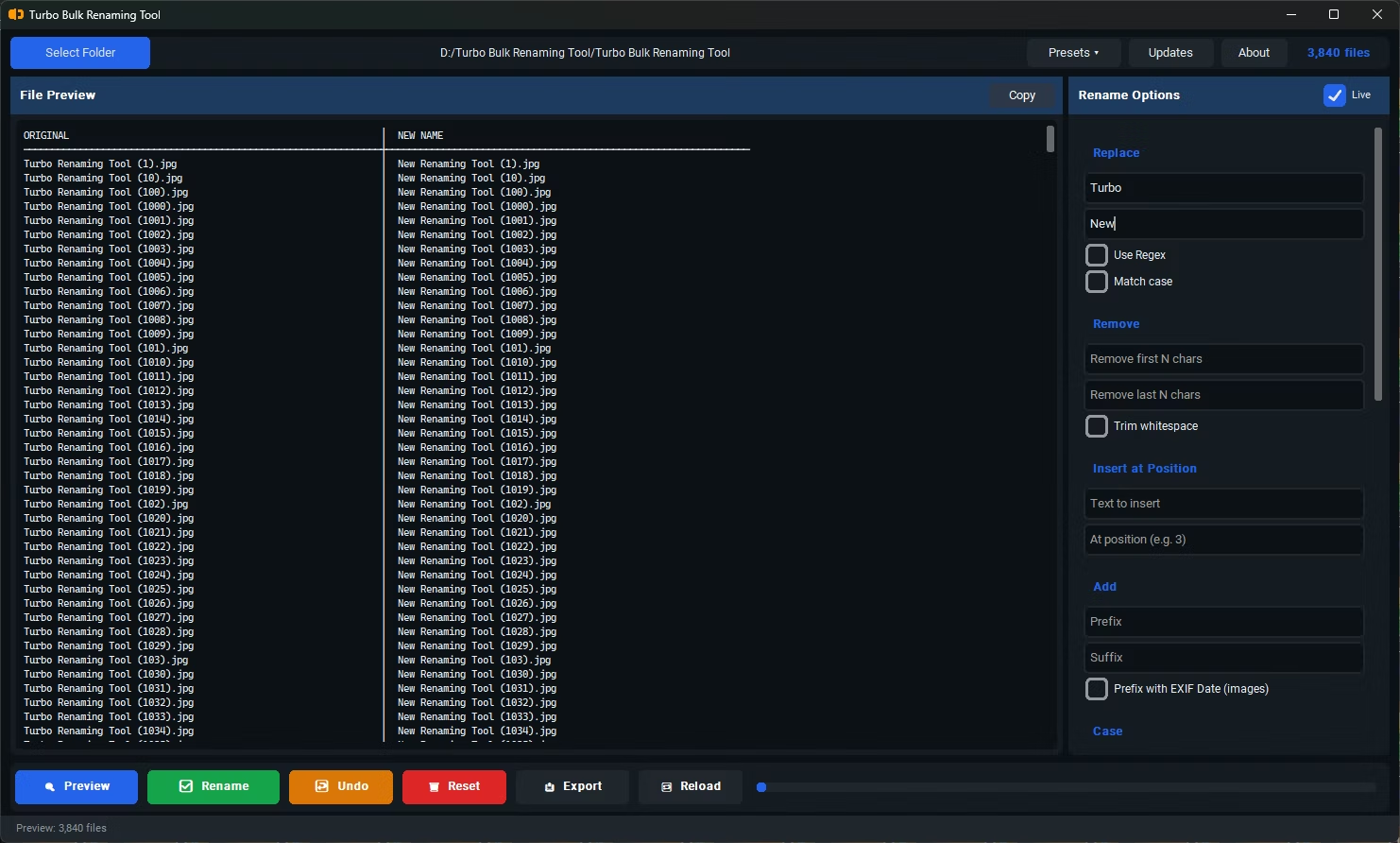
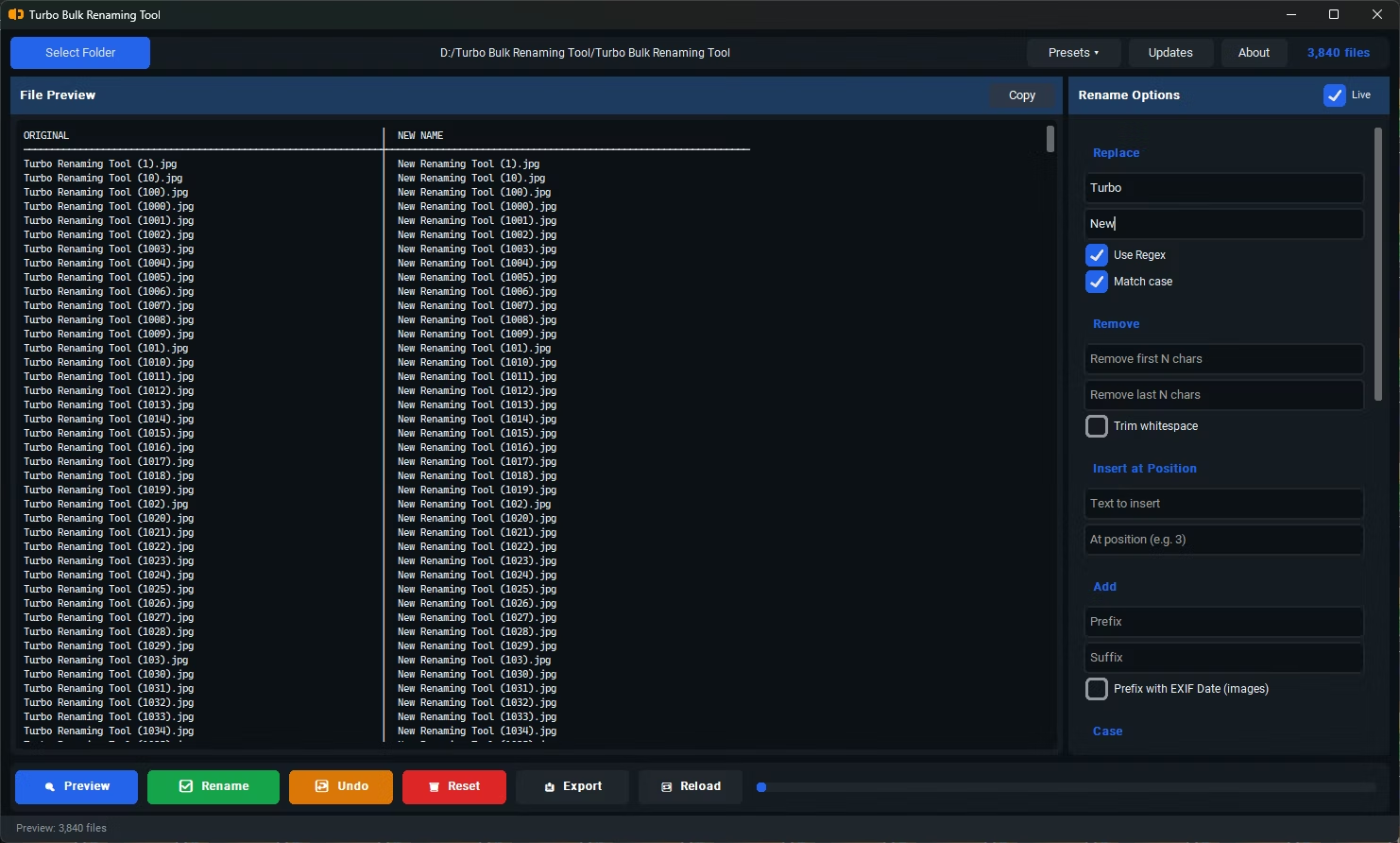
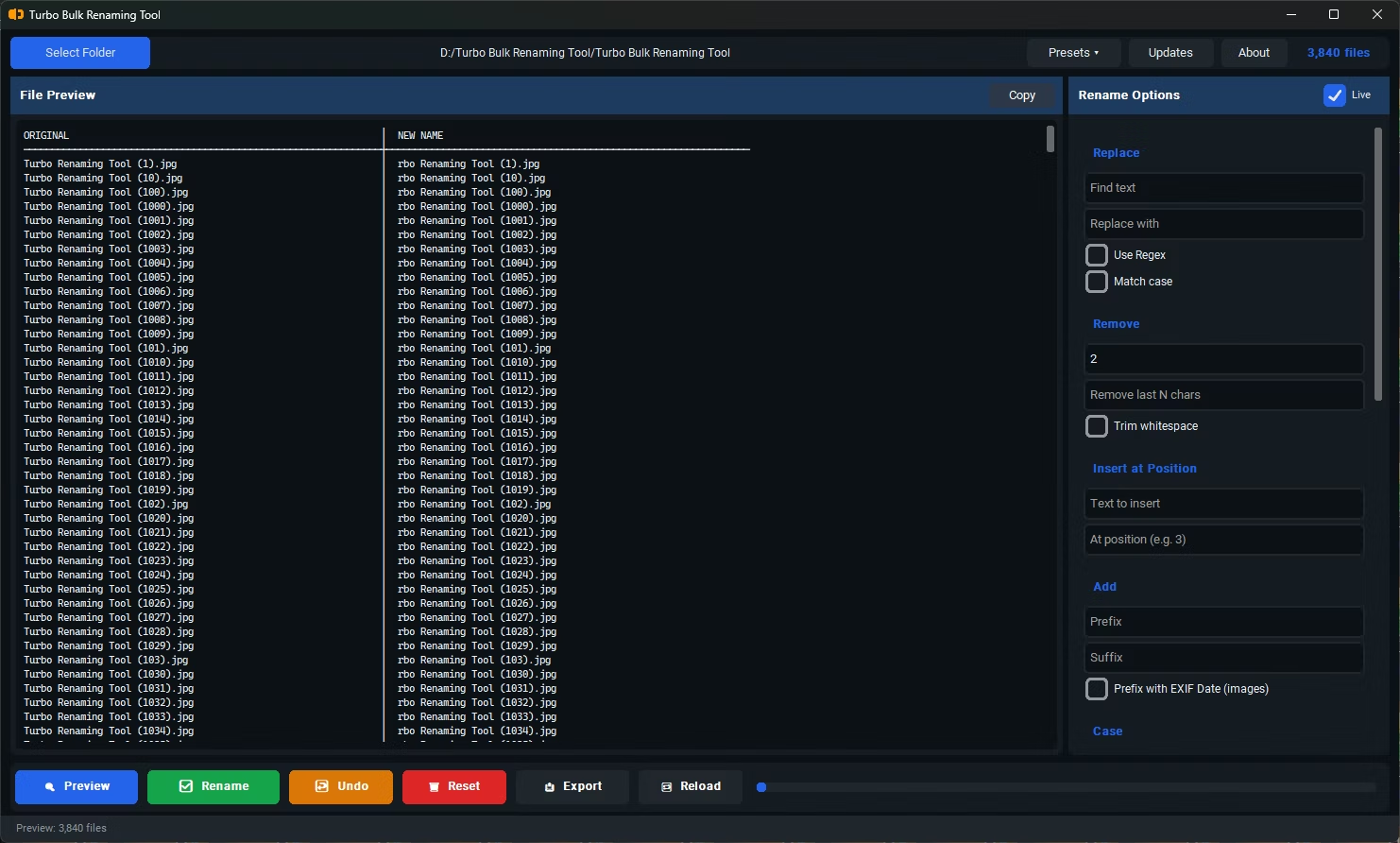
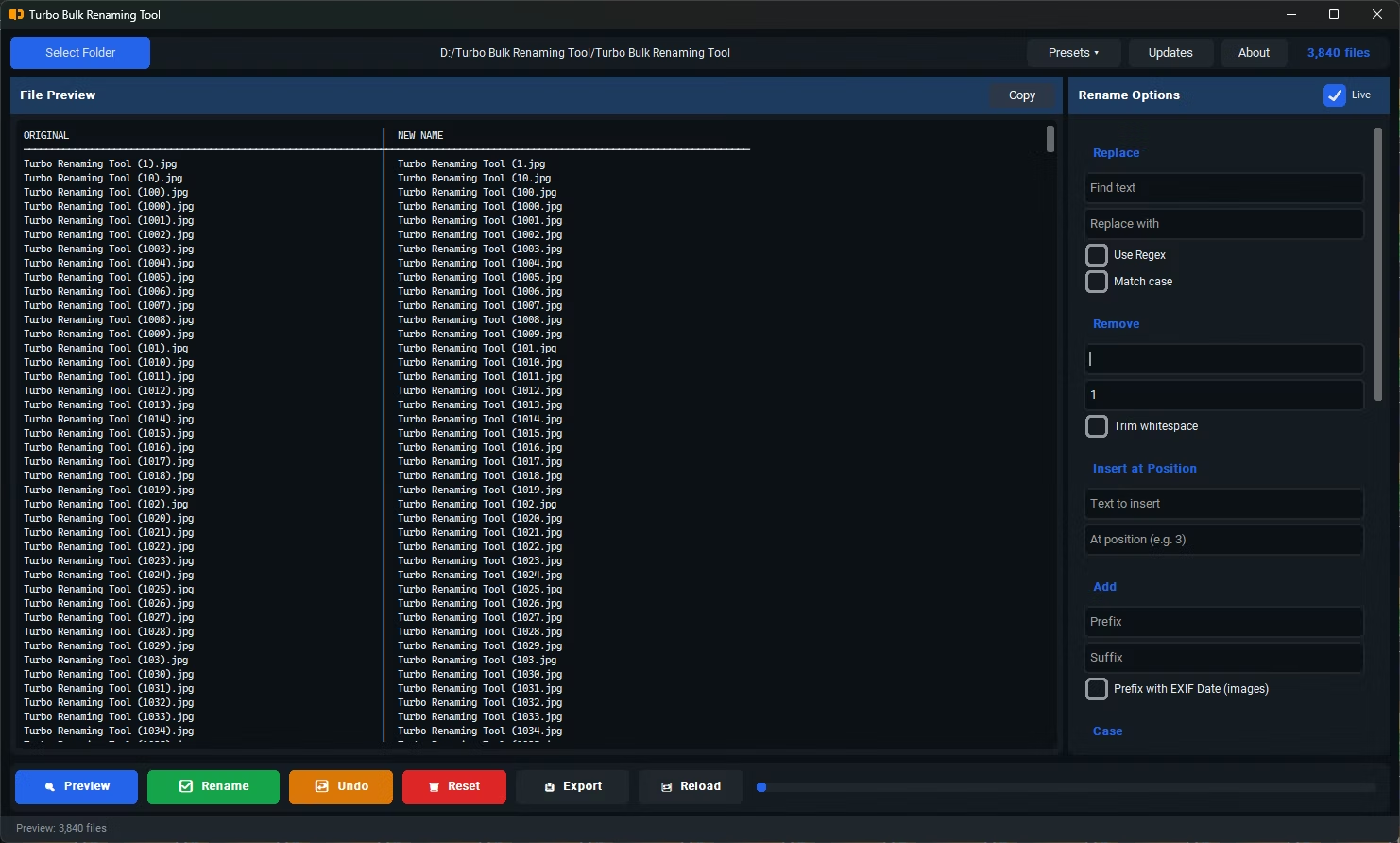
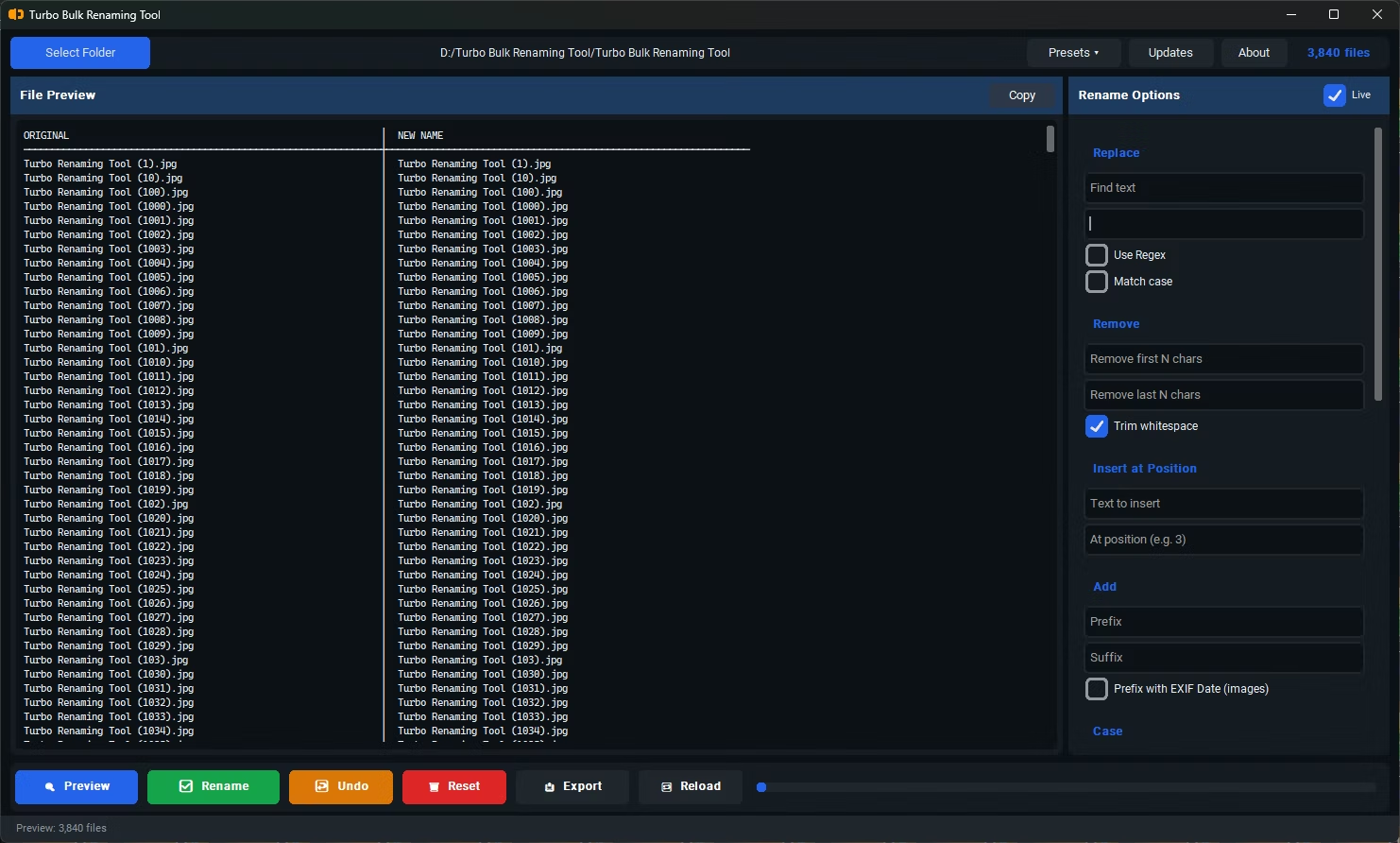
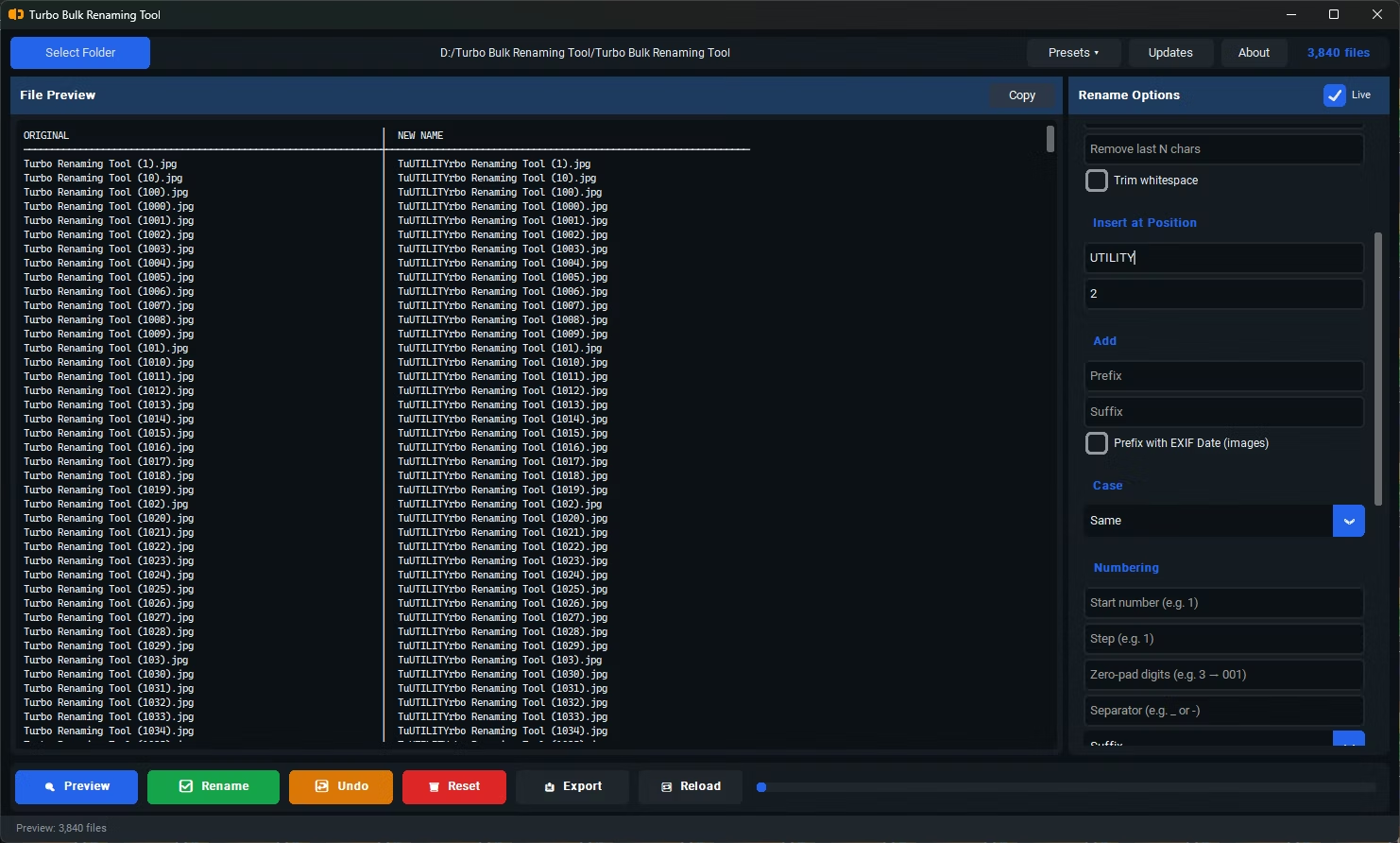
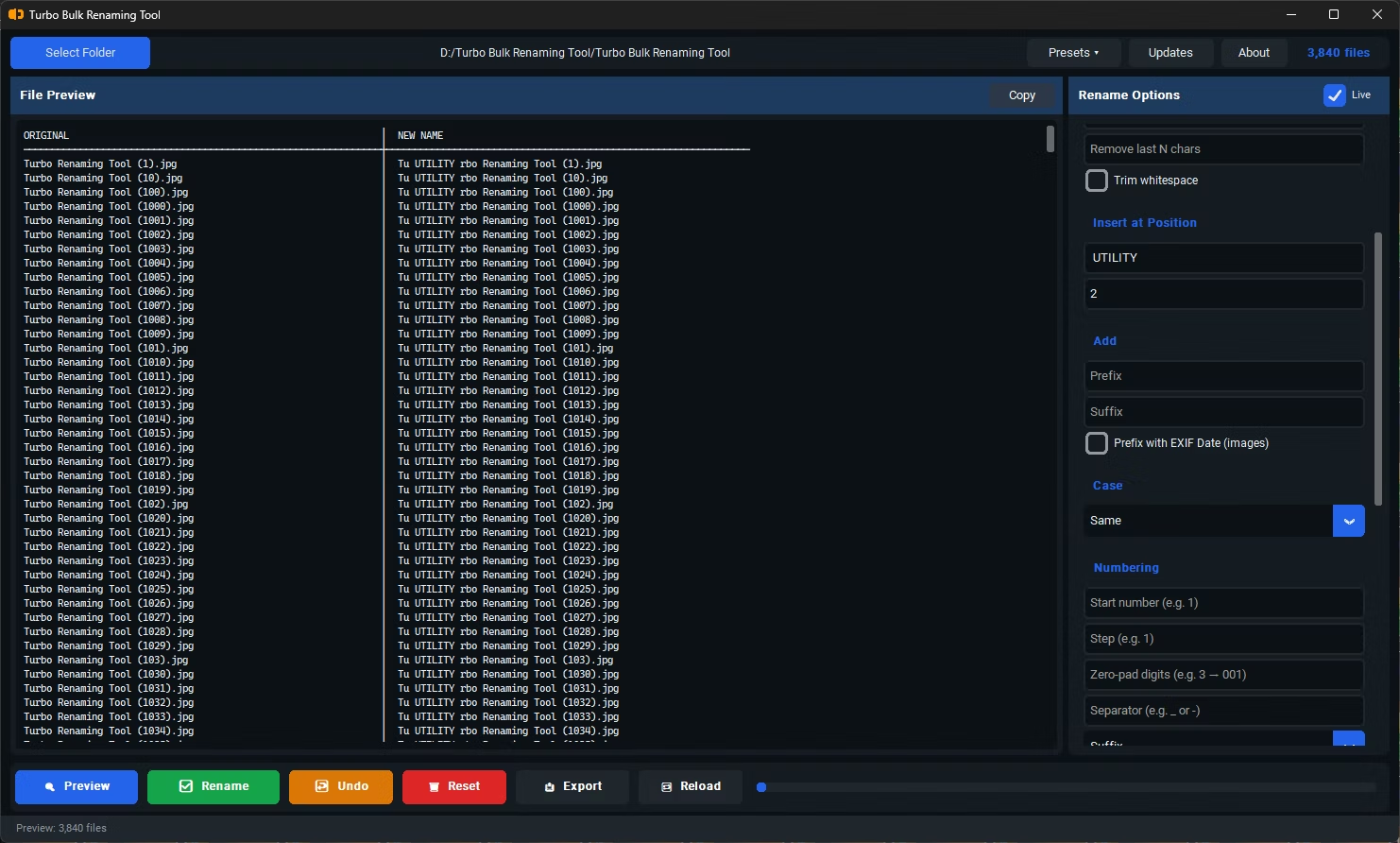
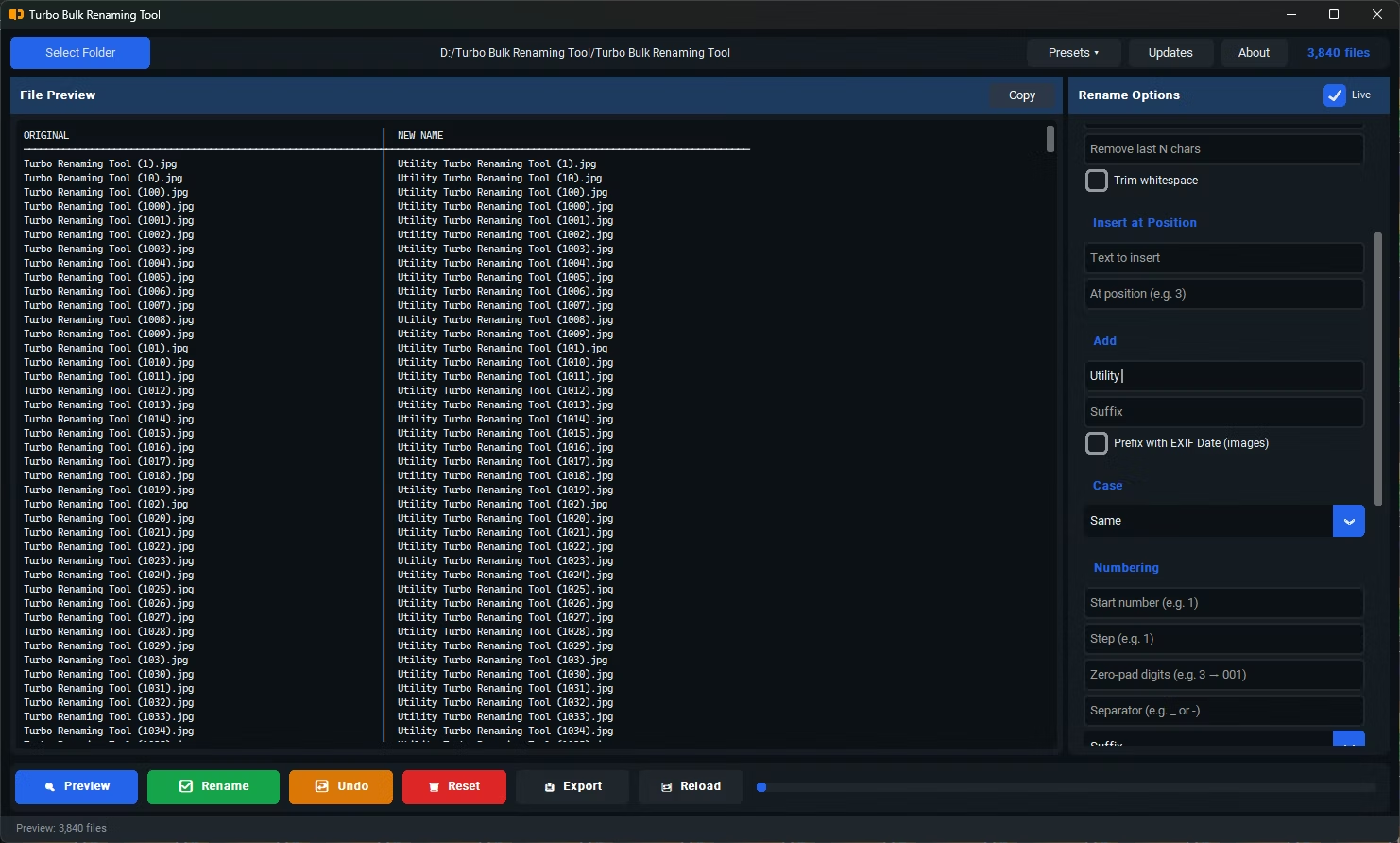
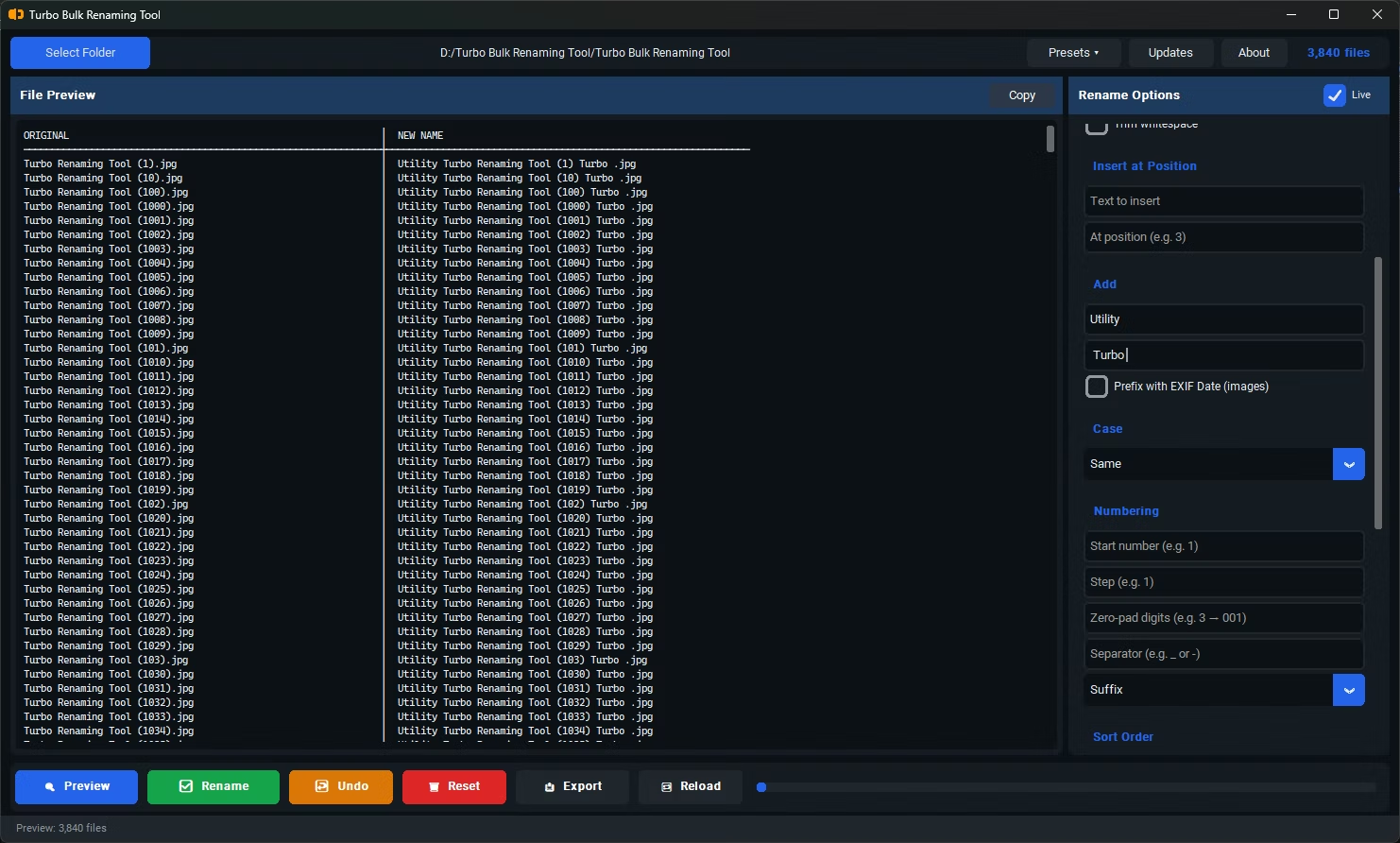
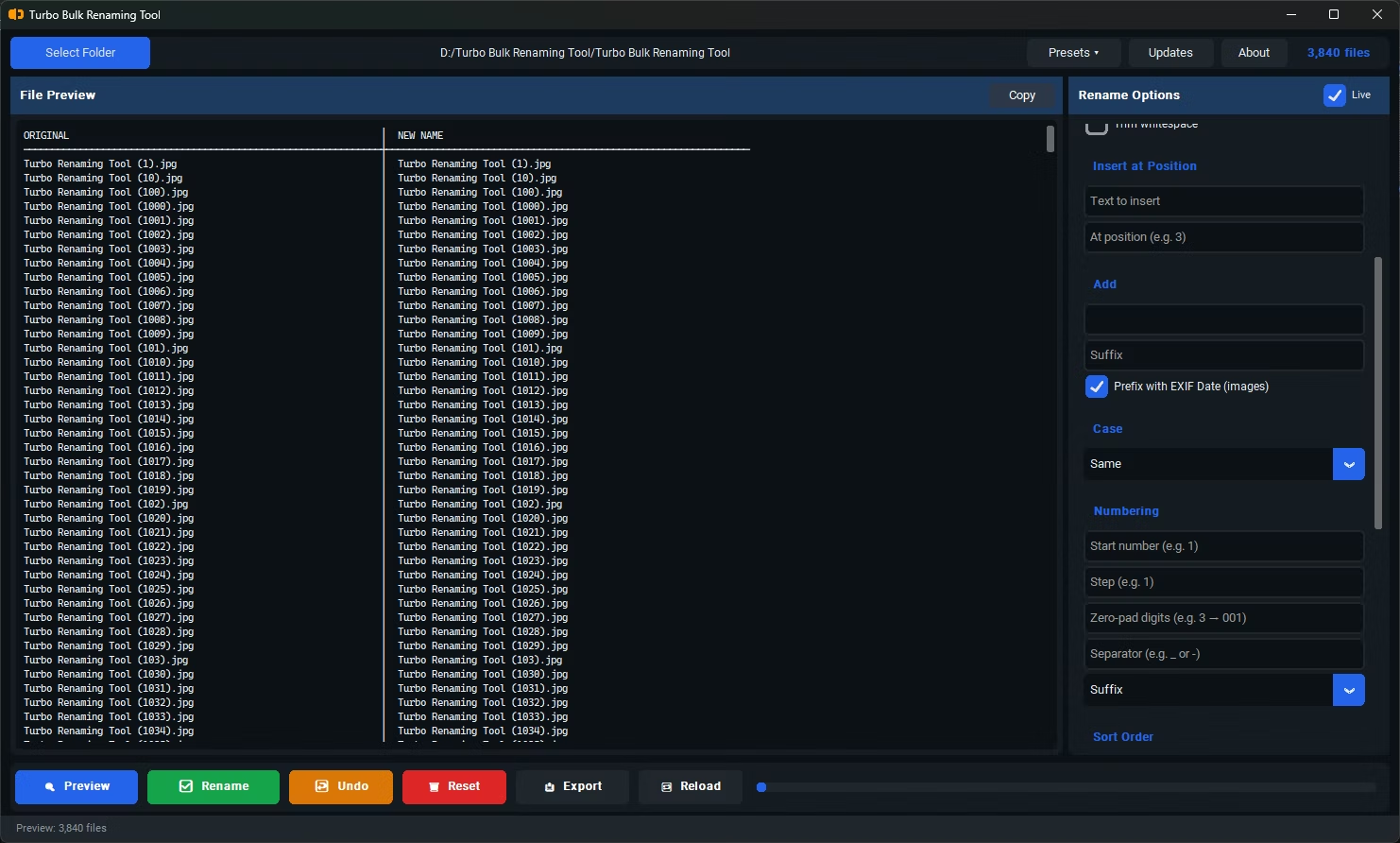
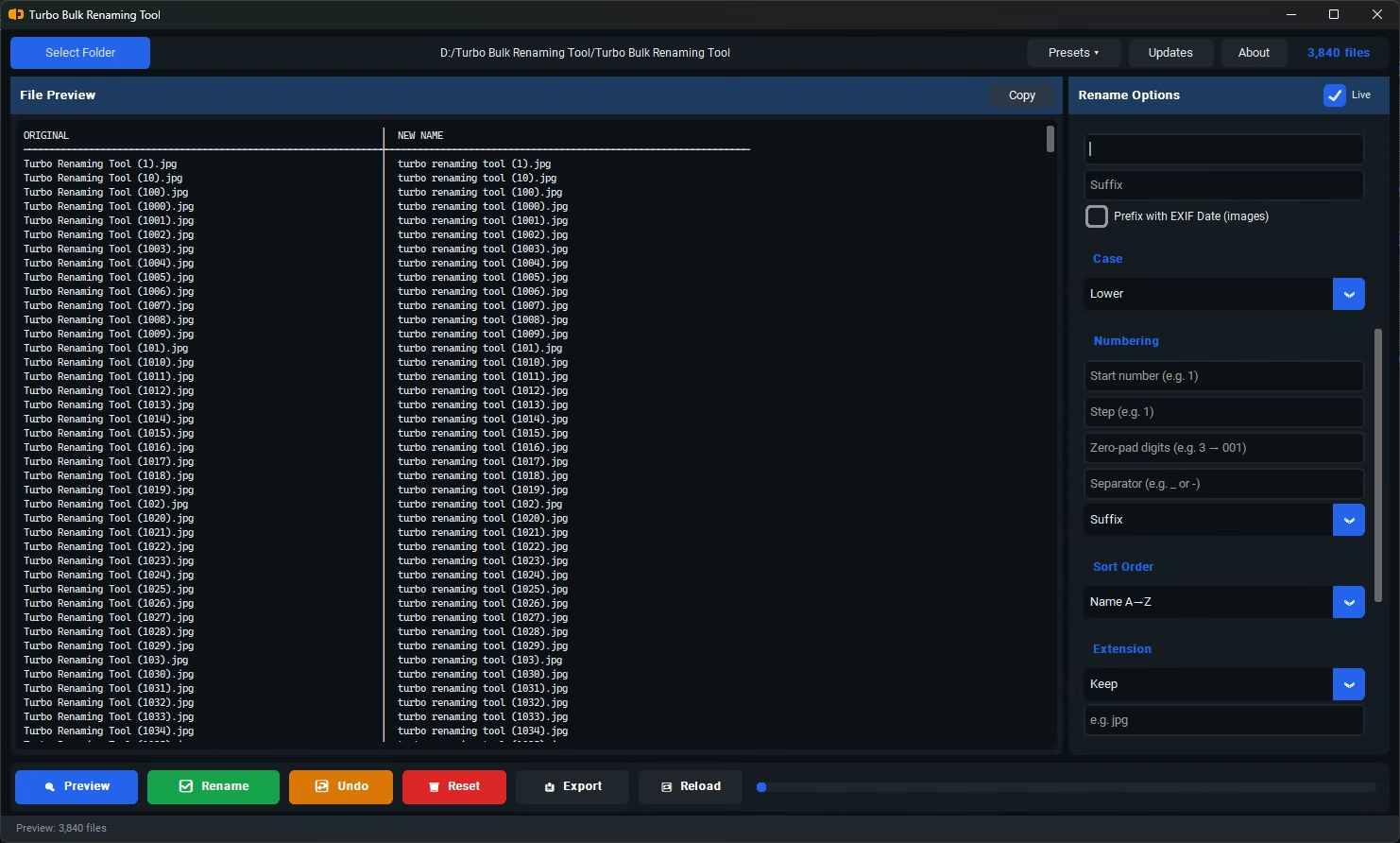
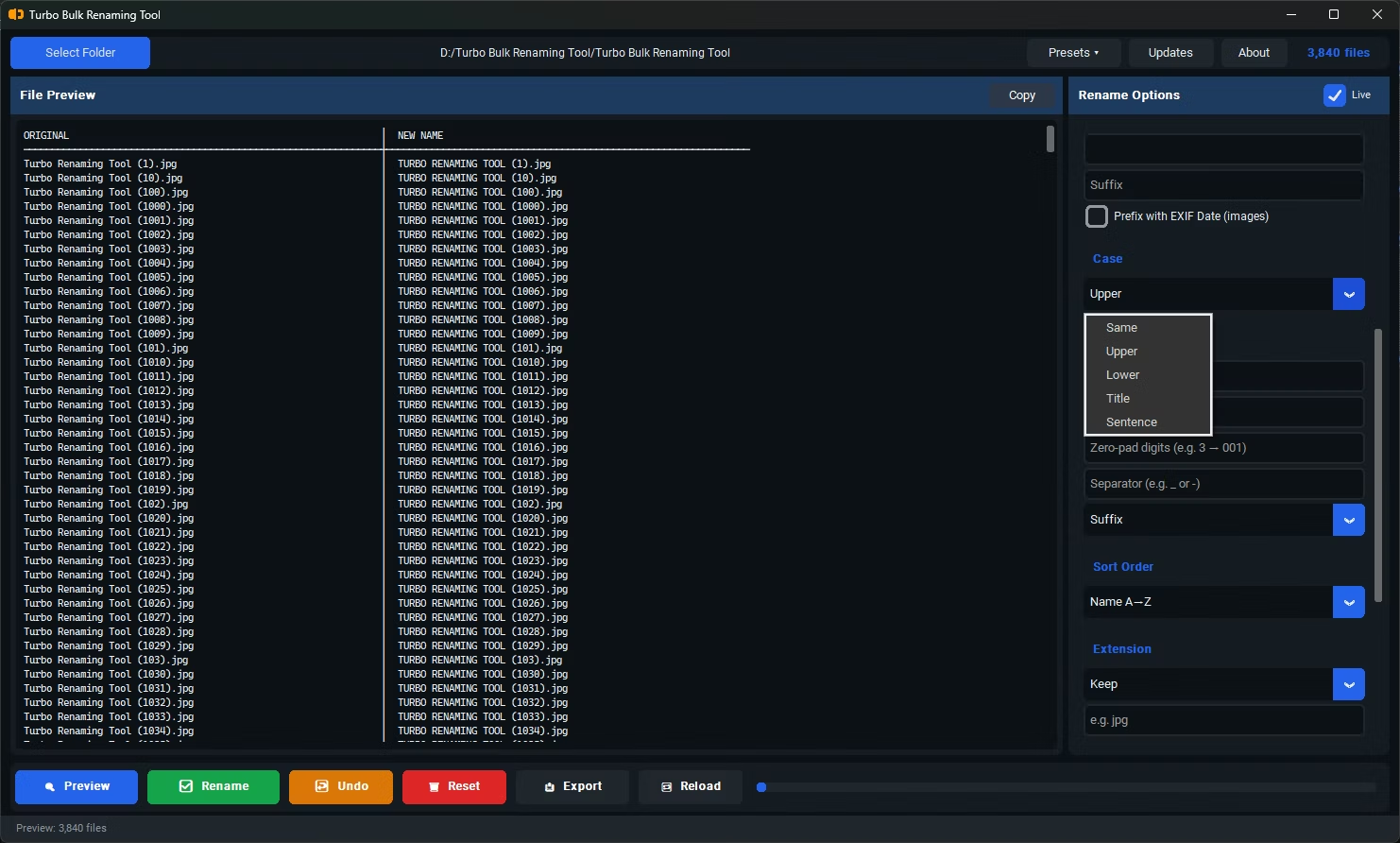
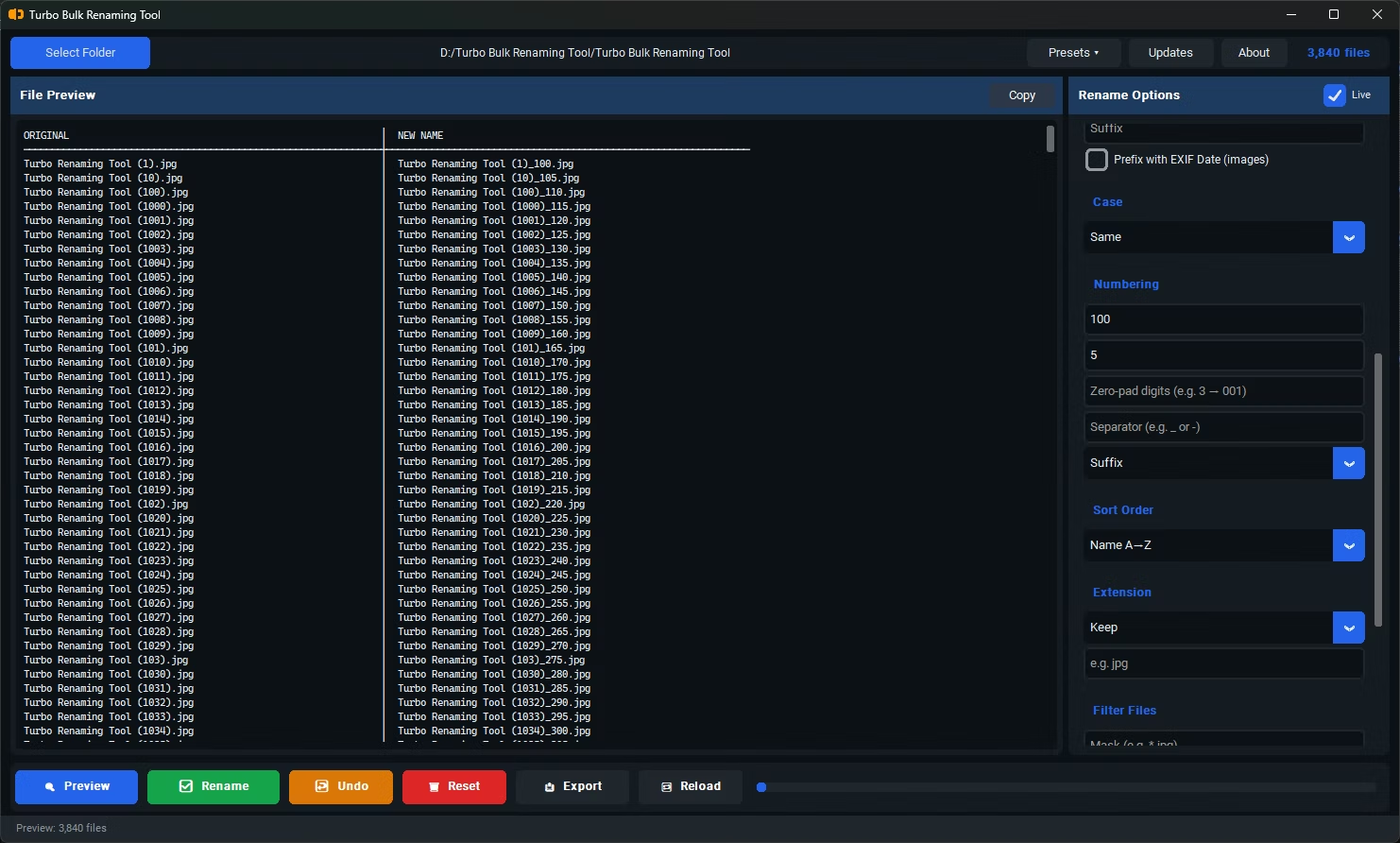
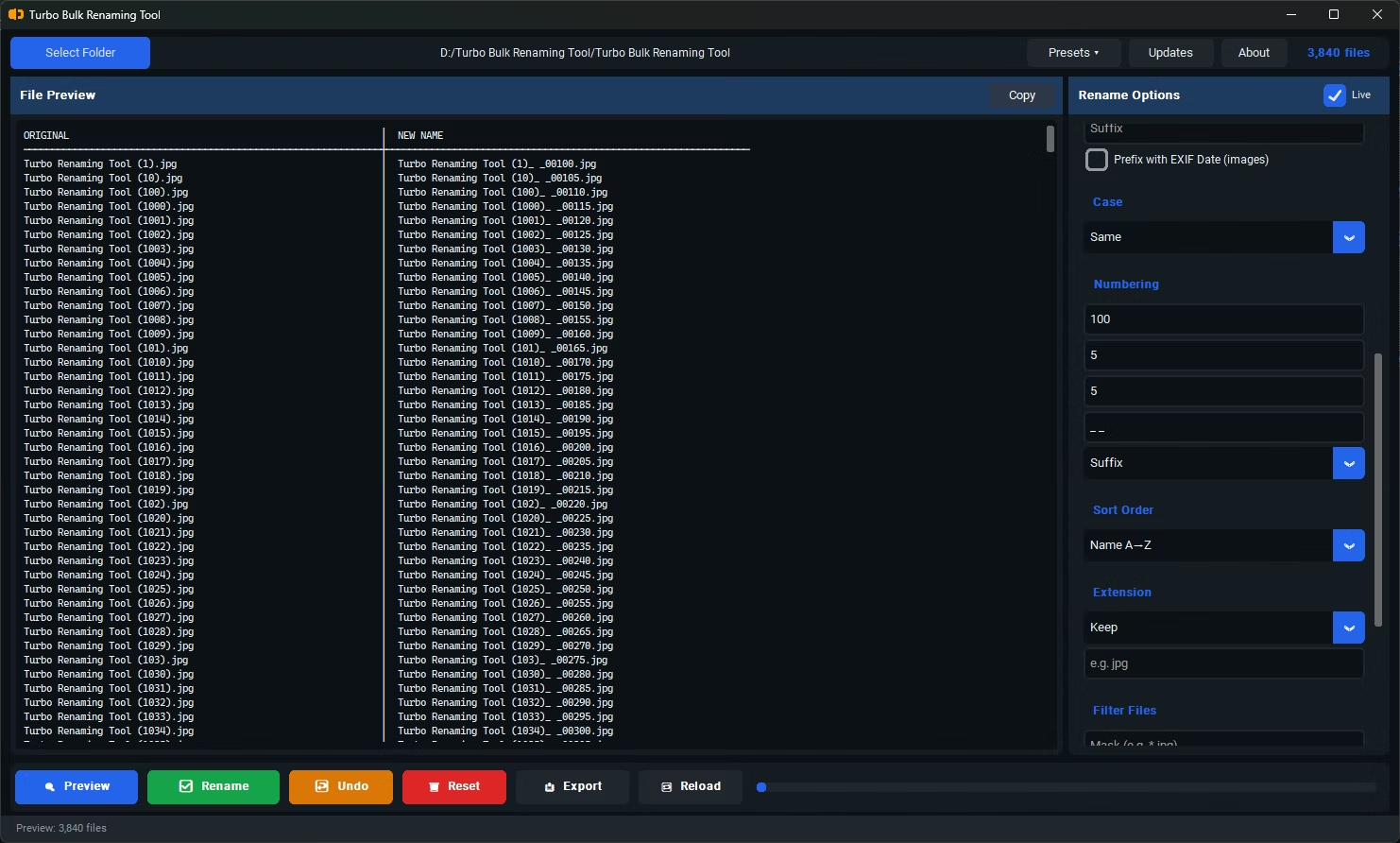
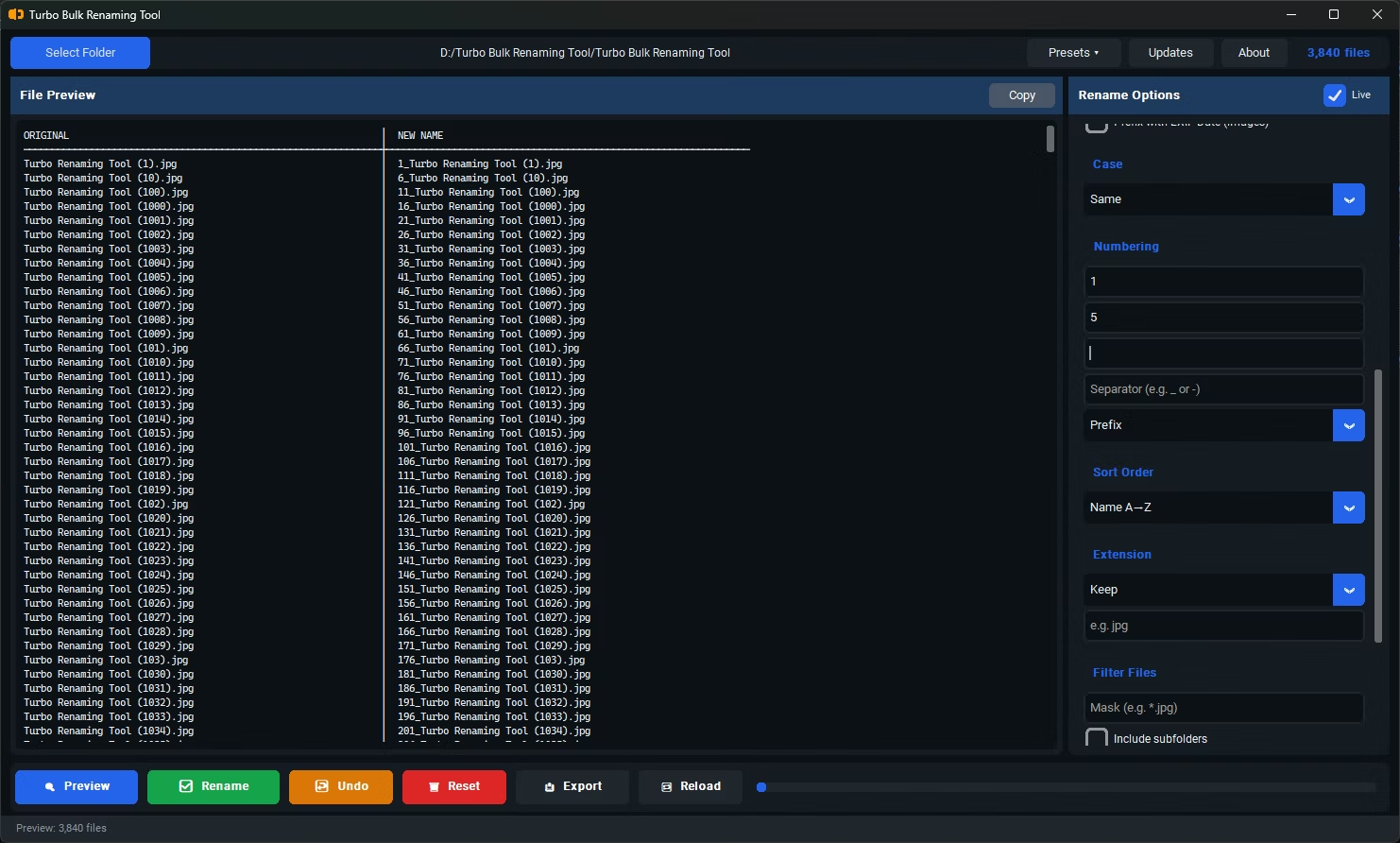
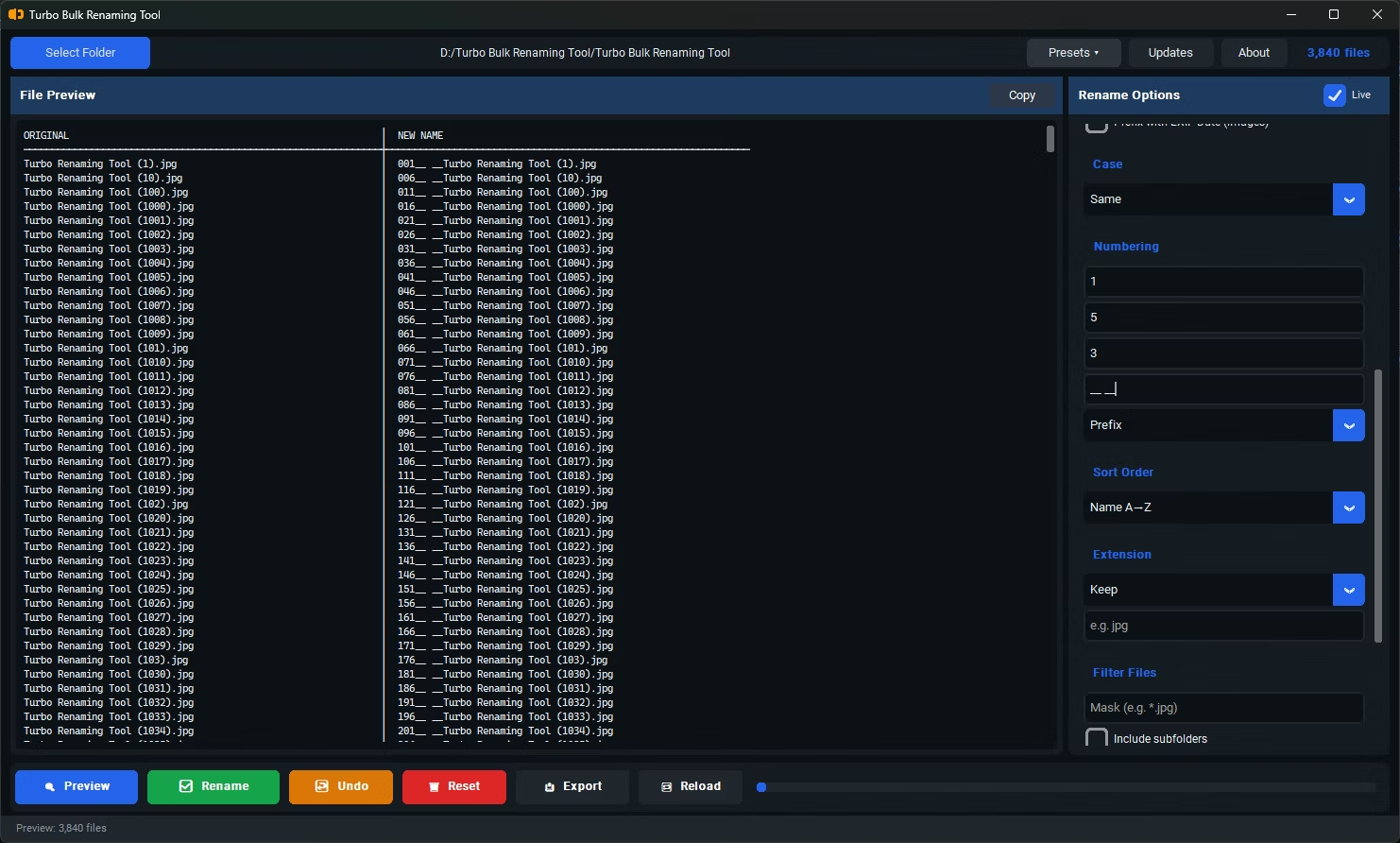

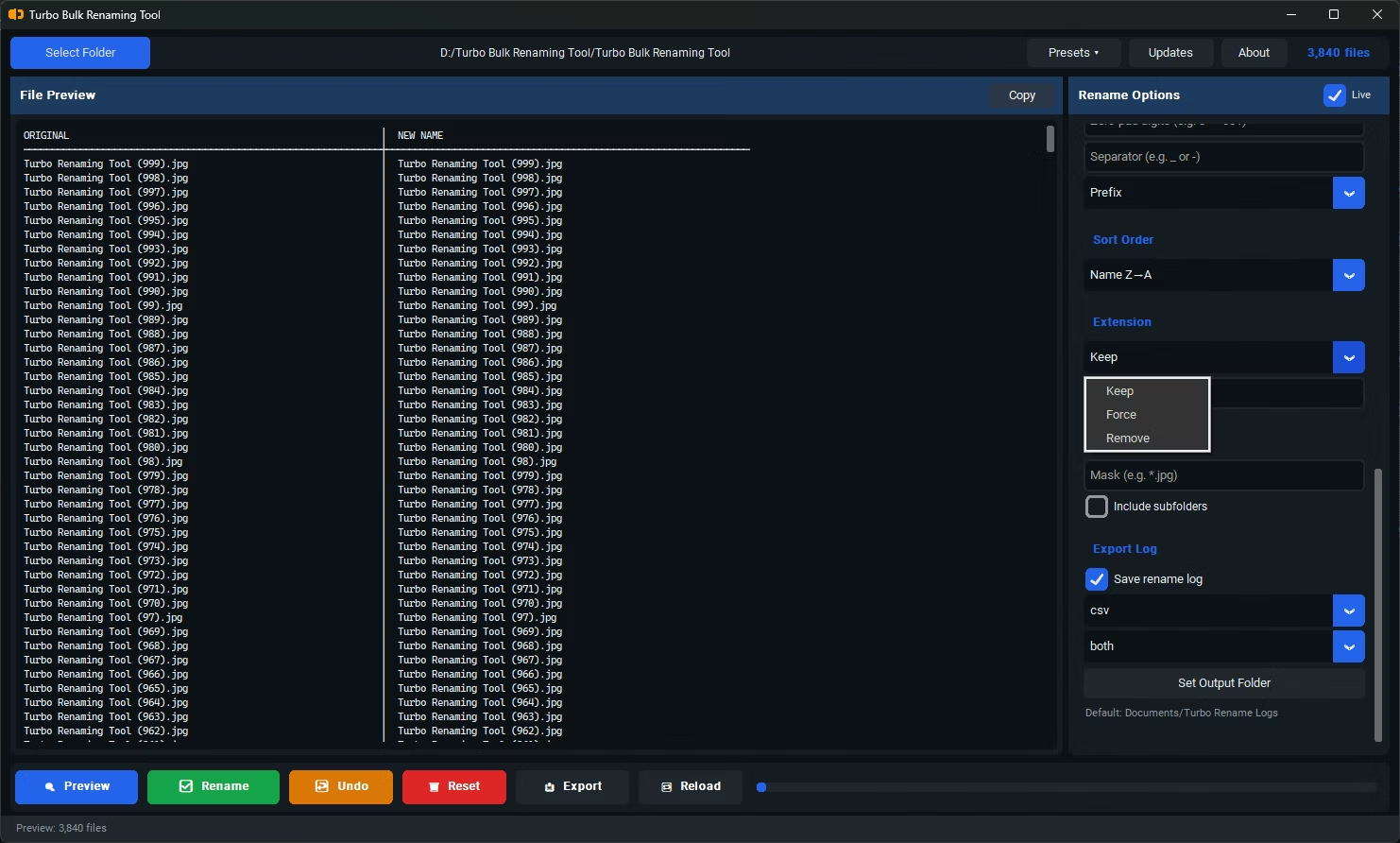
- Install Turbo Bulk Renaming Tool on your Windows PC.
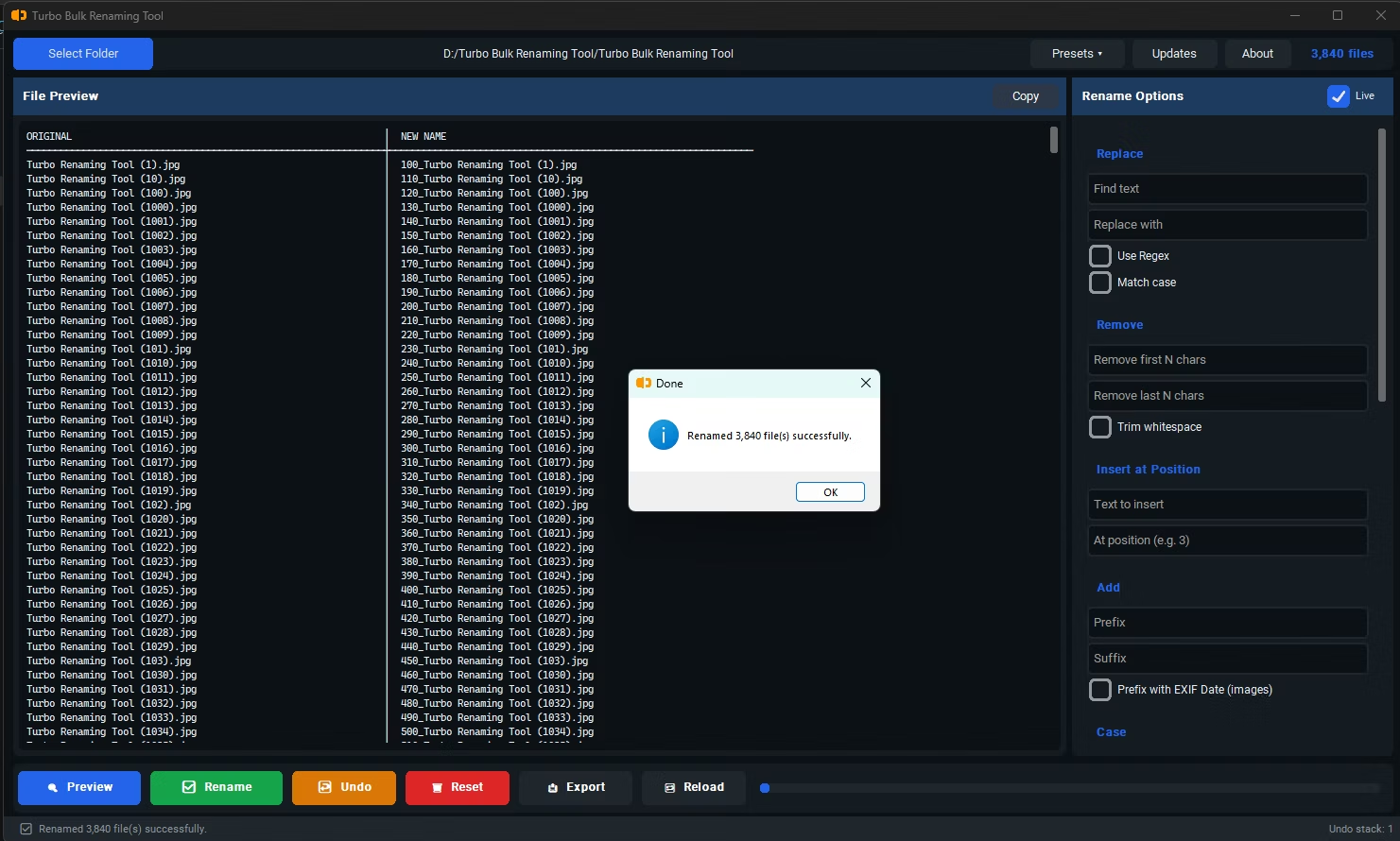
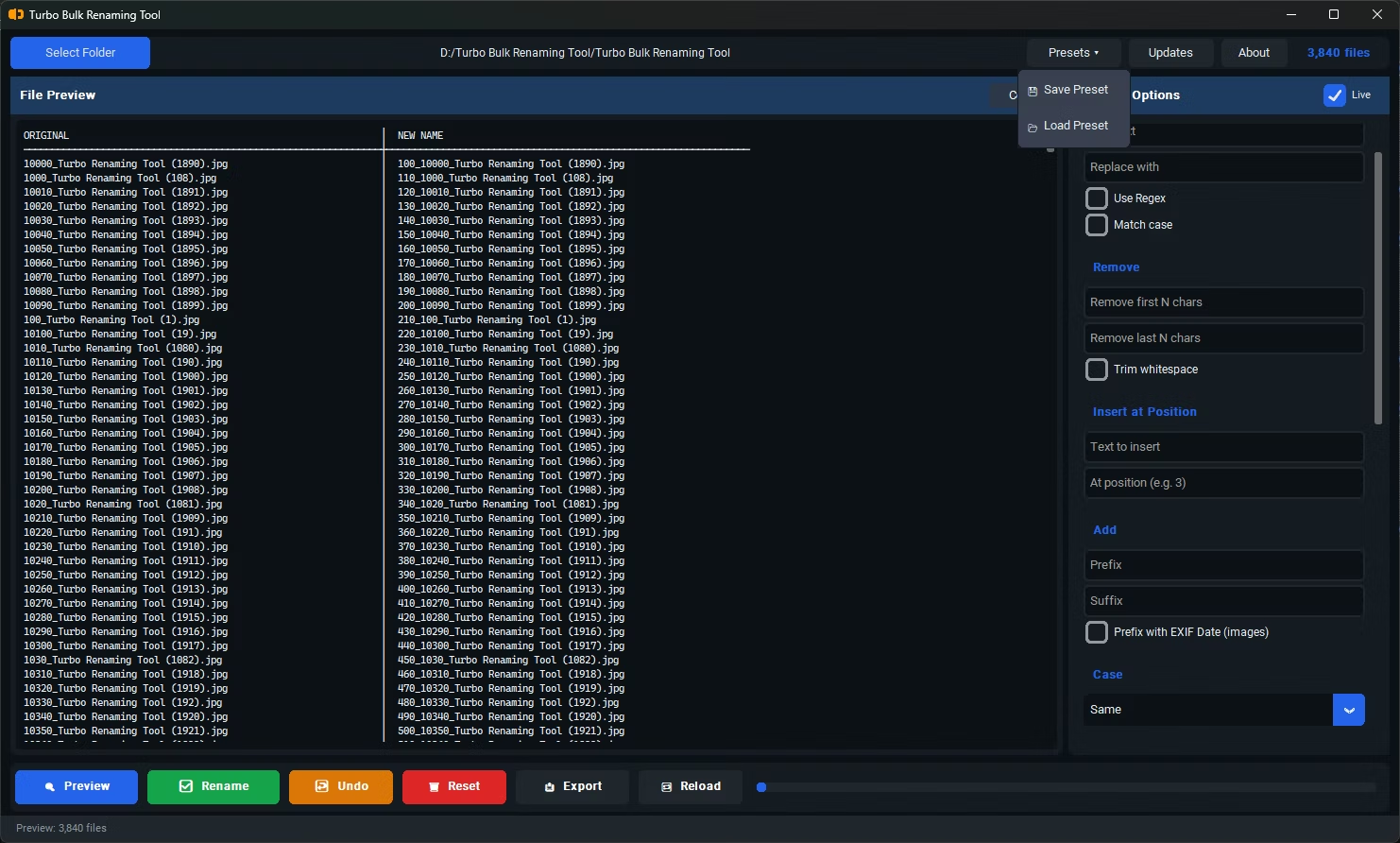
- Open the app and load the top-level folder containing your large file set.
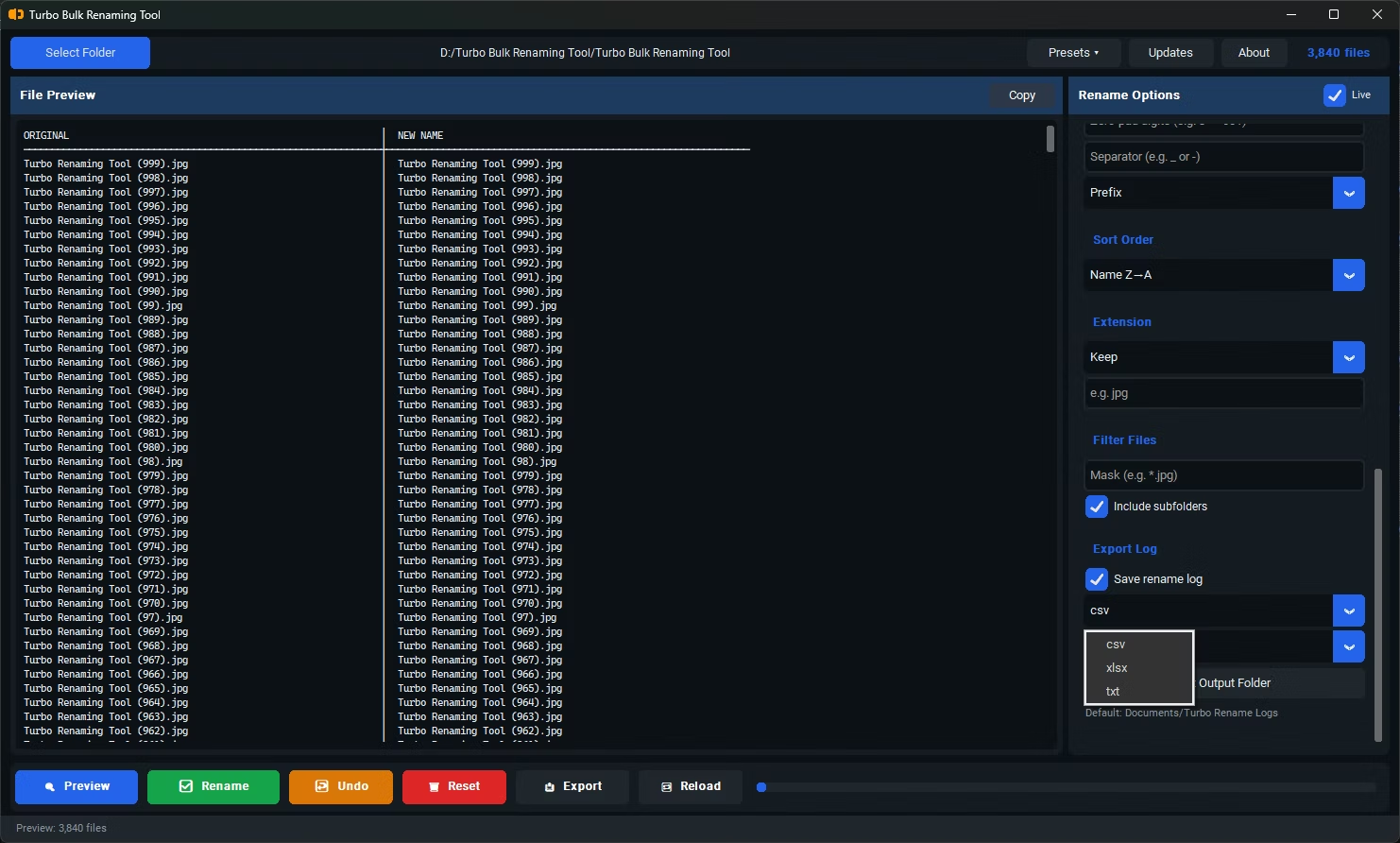
- Enable "Include Subfolders" so the scan covers every nested directory, not just the top level.
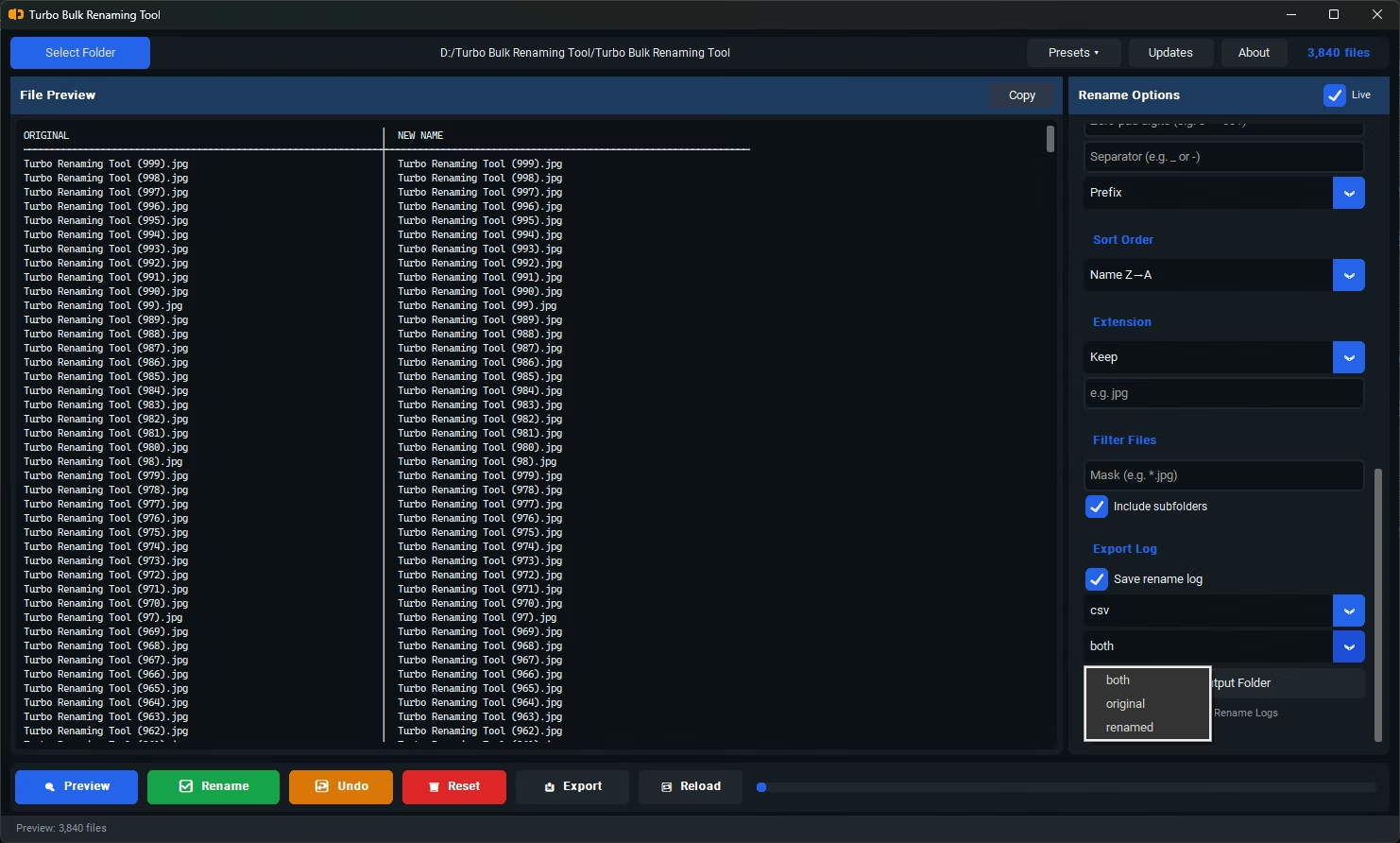
- Click Export Only rather than applying a rename rule, and choose CSV, XLSX, or TXT as your export format.
- Choose whether to export original names, renamed names, or both, depending on your purpose.
- Save the generated file, which now contains every filename found across the entire folder structure.
- Recursive scanning captures filenames from every nested sub-folder automatically
- No manual navigation required, regardless of how many sub-folders exist
- Exports to CSV, XLSX, or TXT depending on what you need the list for
- Works as a standalone export, independent of any renaming operation
- Runs fully offline, so a large file inventory never has to be uploaded anywhere
- No artificial cap on how many filenames can be included in a single export
Will the export miss files in deeply nested sub-folders?
No, as long as "Include Subfolders" is enabled, the scan covers every level of nesting, not just the immediate folder you load.
Which export format works best for a list this large?
XLSX or CSV are generally easiest to work with for large lists, since they open directly in spreadsheet software where you can sort, filter, or search the results.
Do I need to rename the files before exporting their names?
No, Export Only works independently, so you can generate a list of existing filenames without applying any rename rule first.
Ready to rename your files in bulk, offline, with full privacy?