Beyond just listing filenames, exporting a full file inventory to Excel is often part of a larger task — auditing a project archive, preparing a handover document, reconciling files against a database, or documenting backups before deleting originals. Doing this well means capturing not just the top-level folder but everything inside it, including nested sub-folders, in one consistent export.
A bulk file management tool handles this by scanning the entire folder structure you point it at and generating a spreadsheet with every filename it finds, without you needing to click into each sub-folder individually.
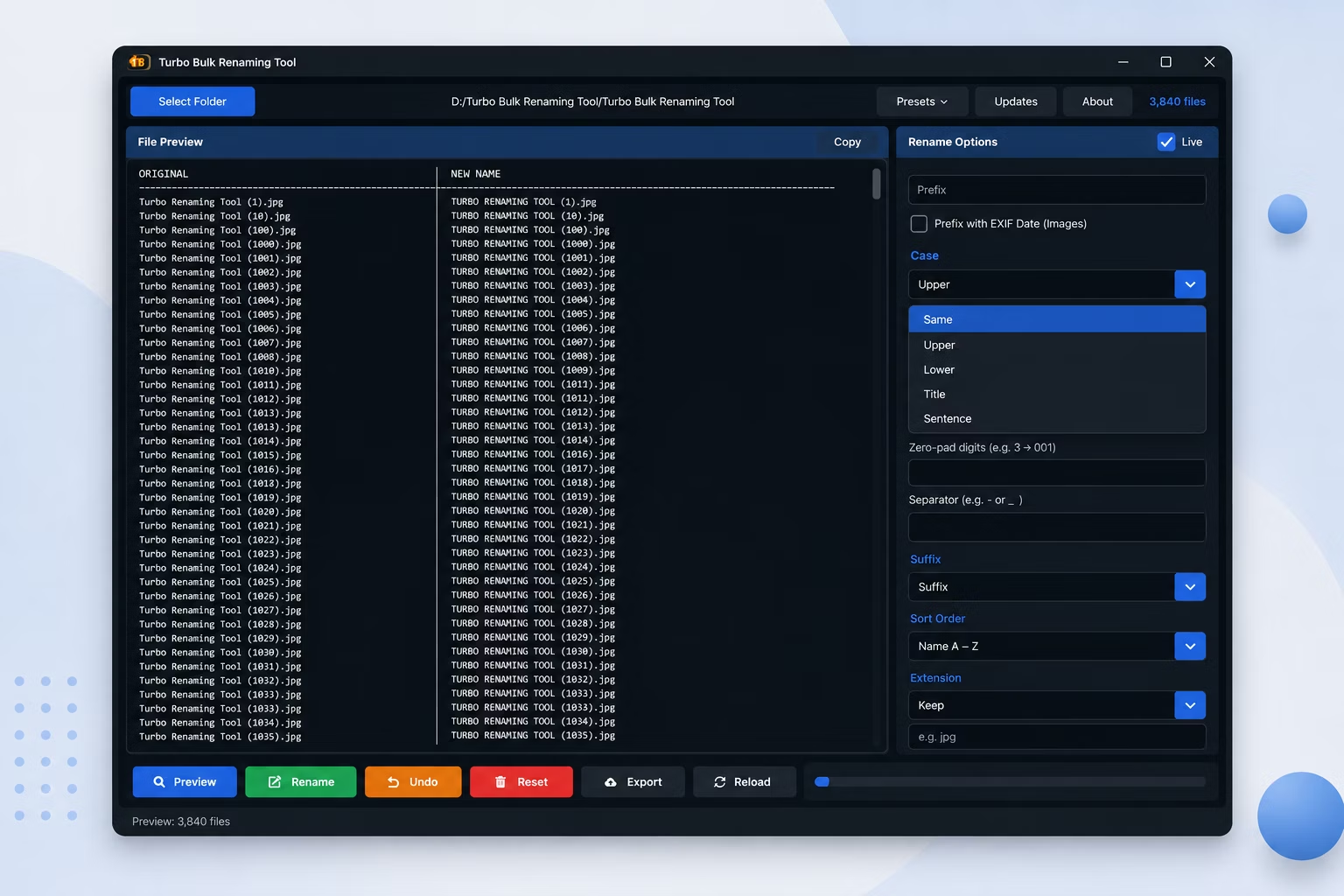
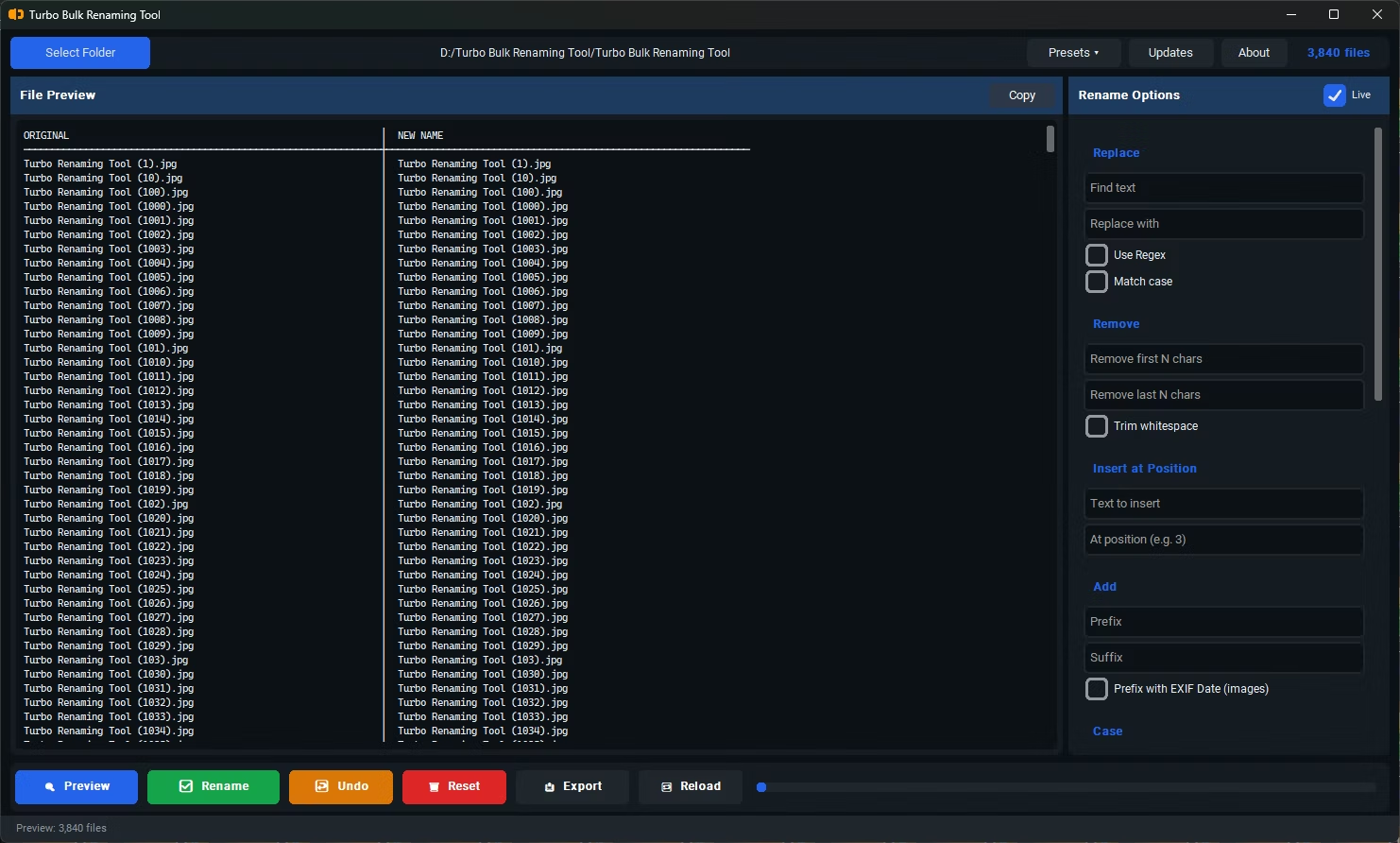
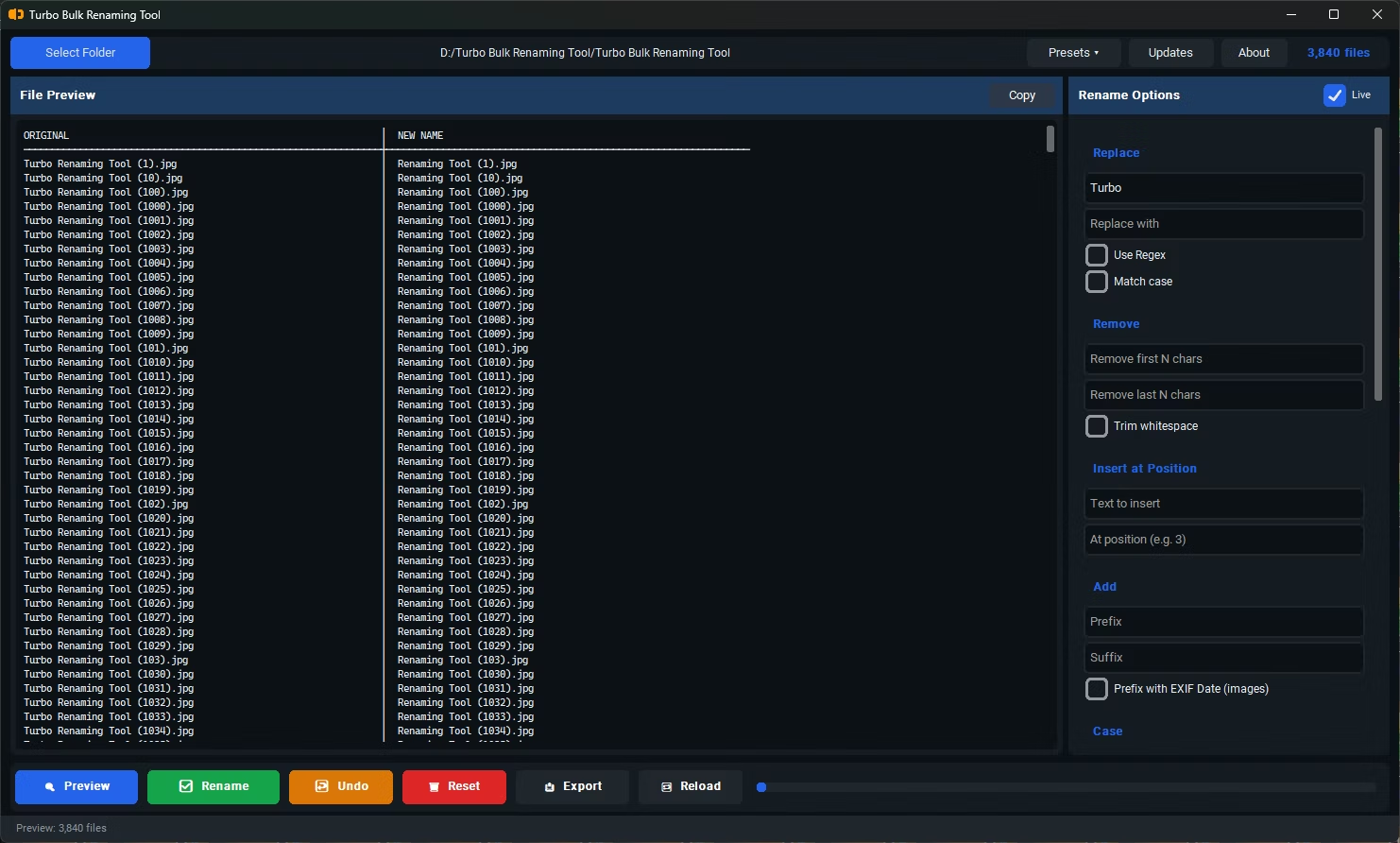
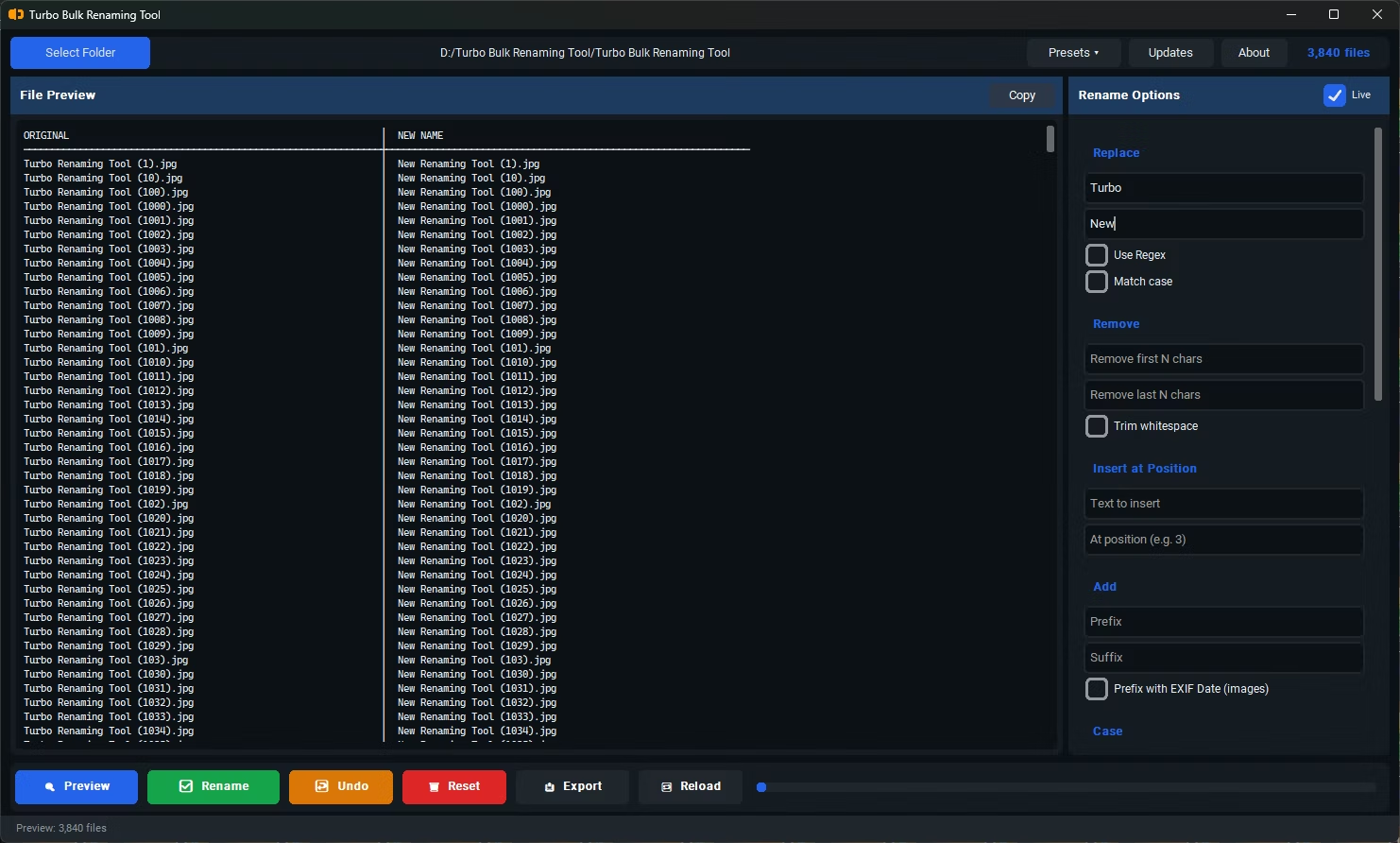
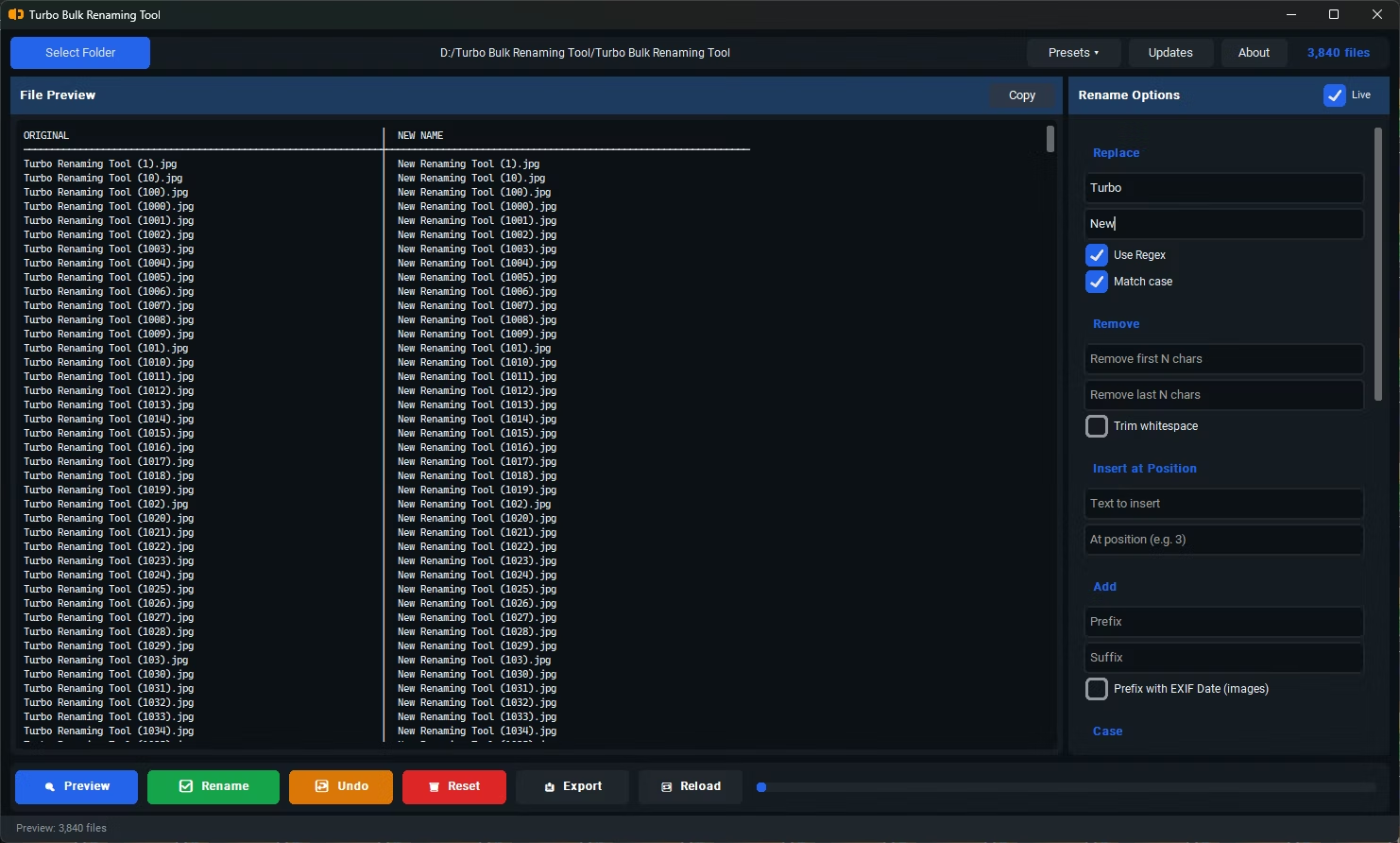
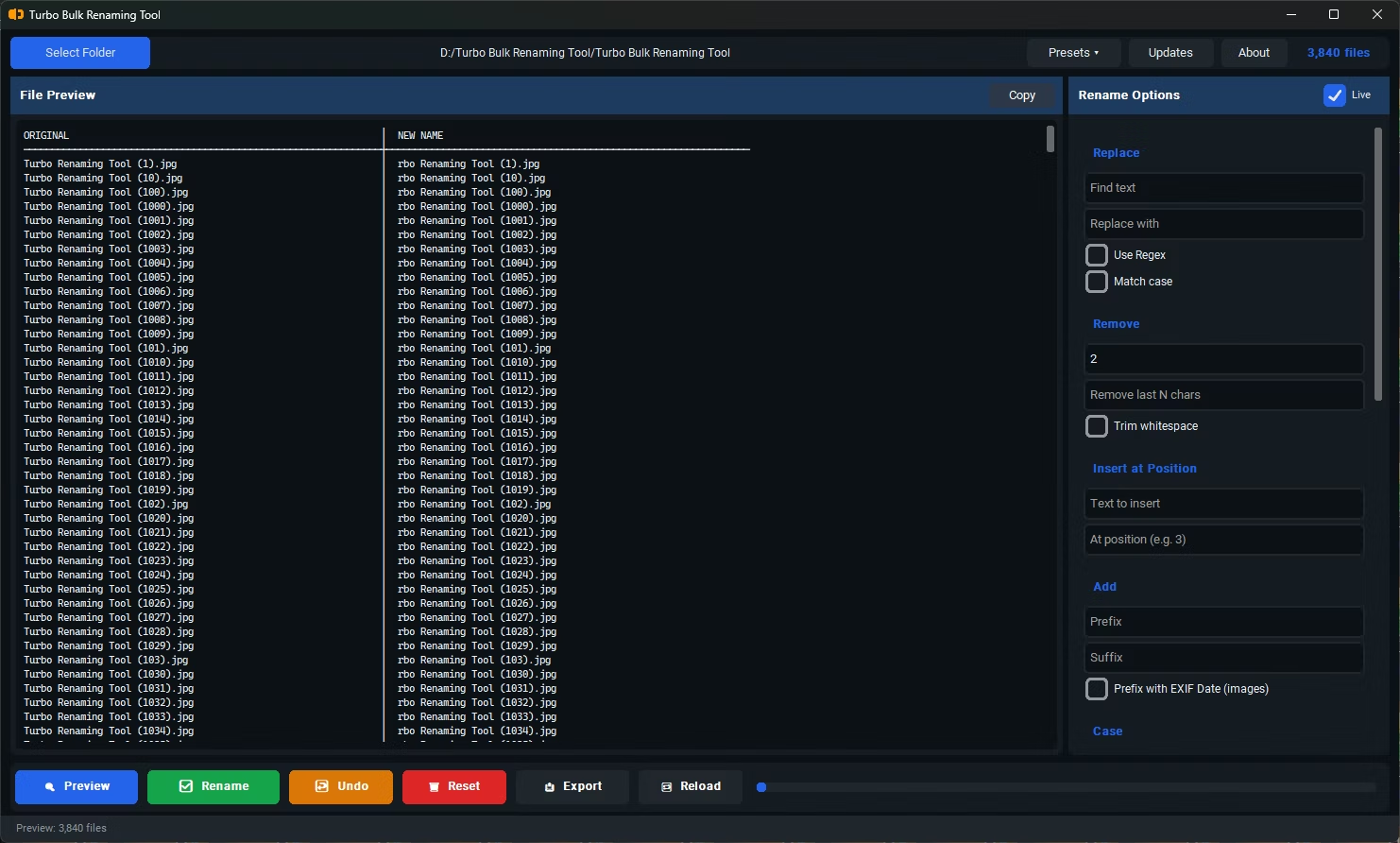
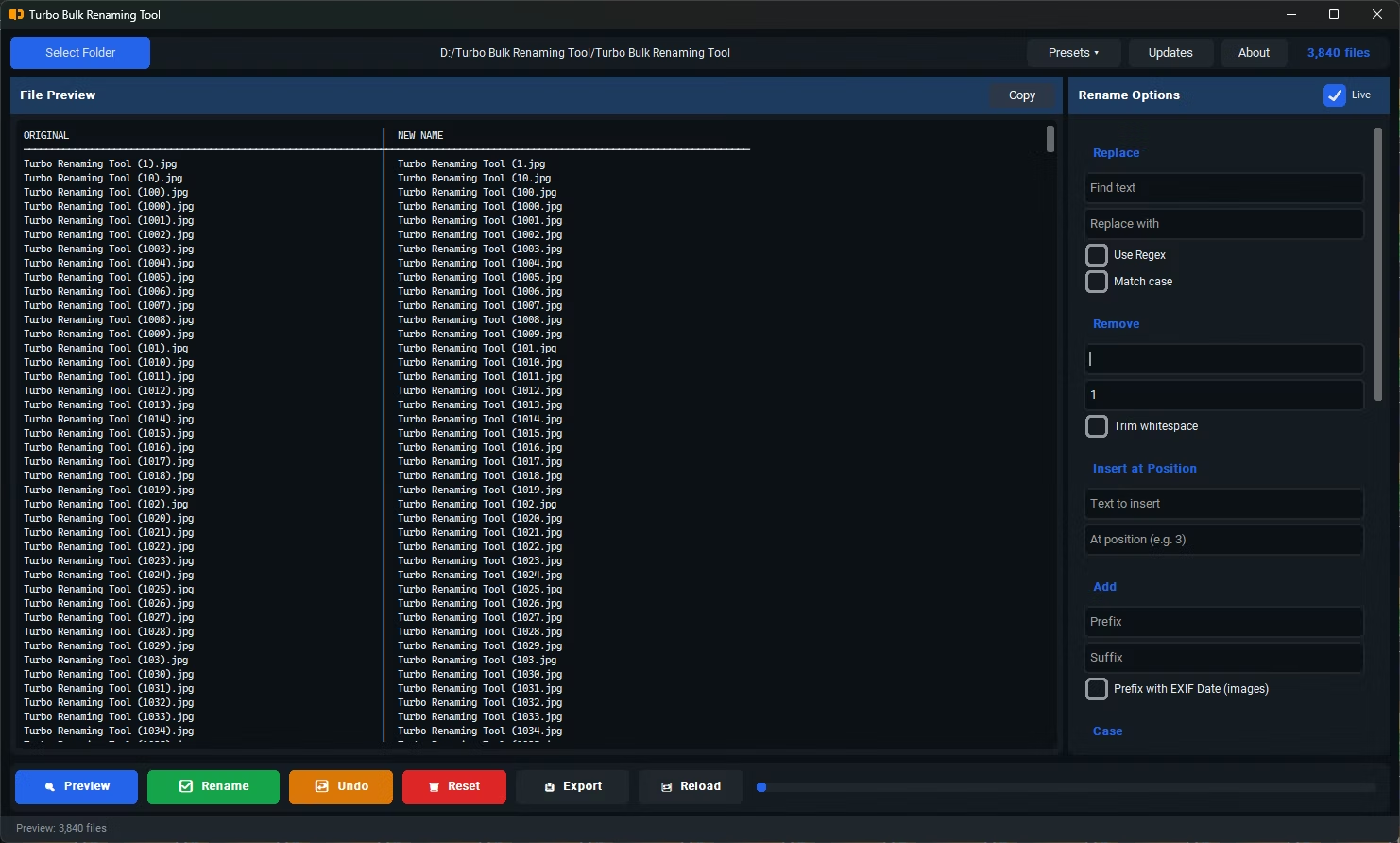
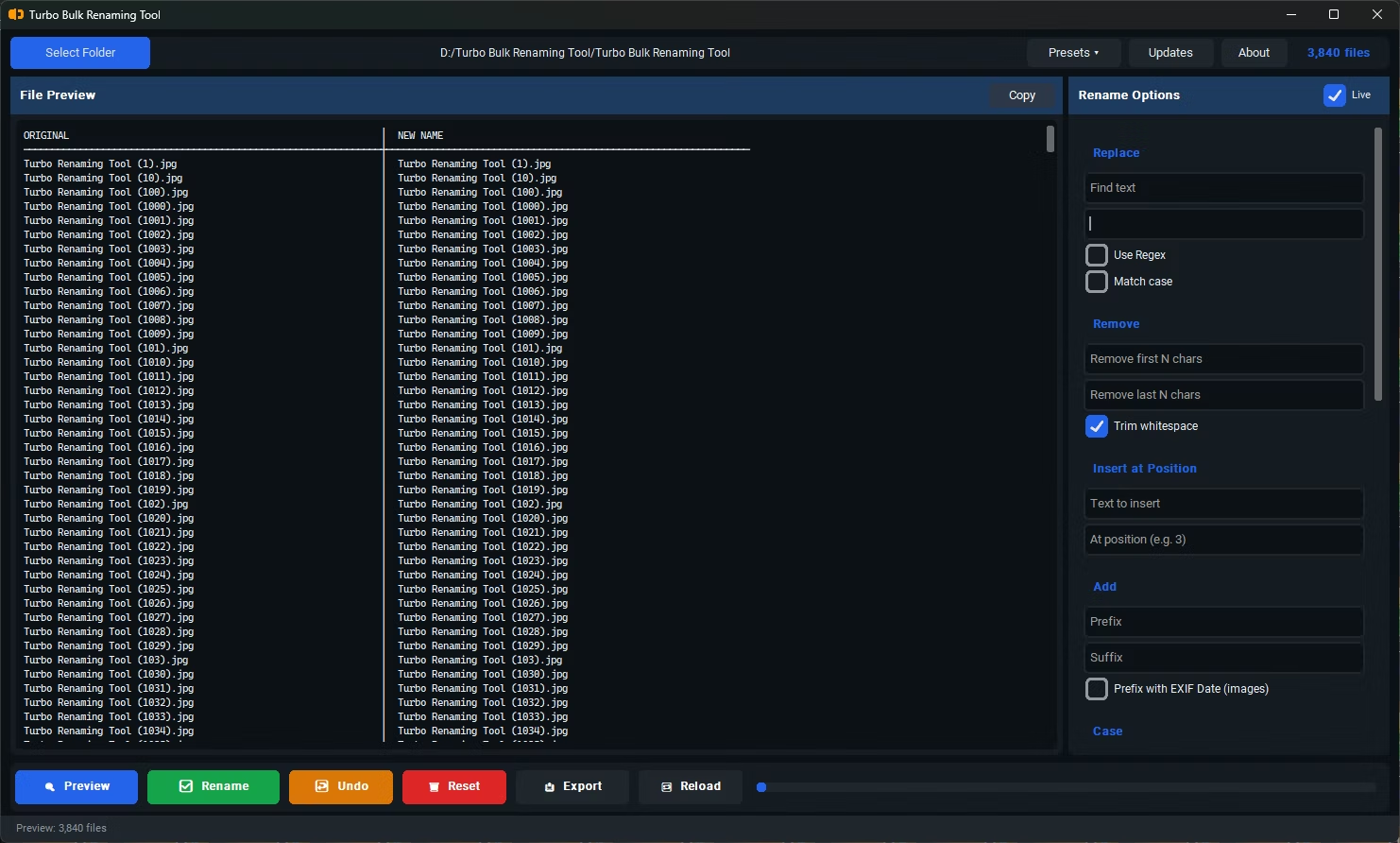
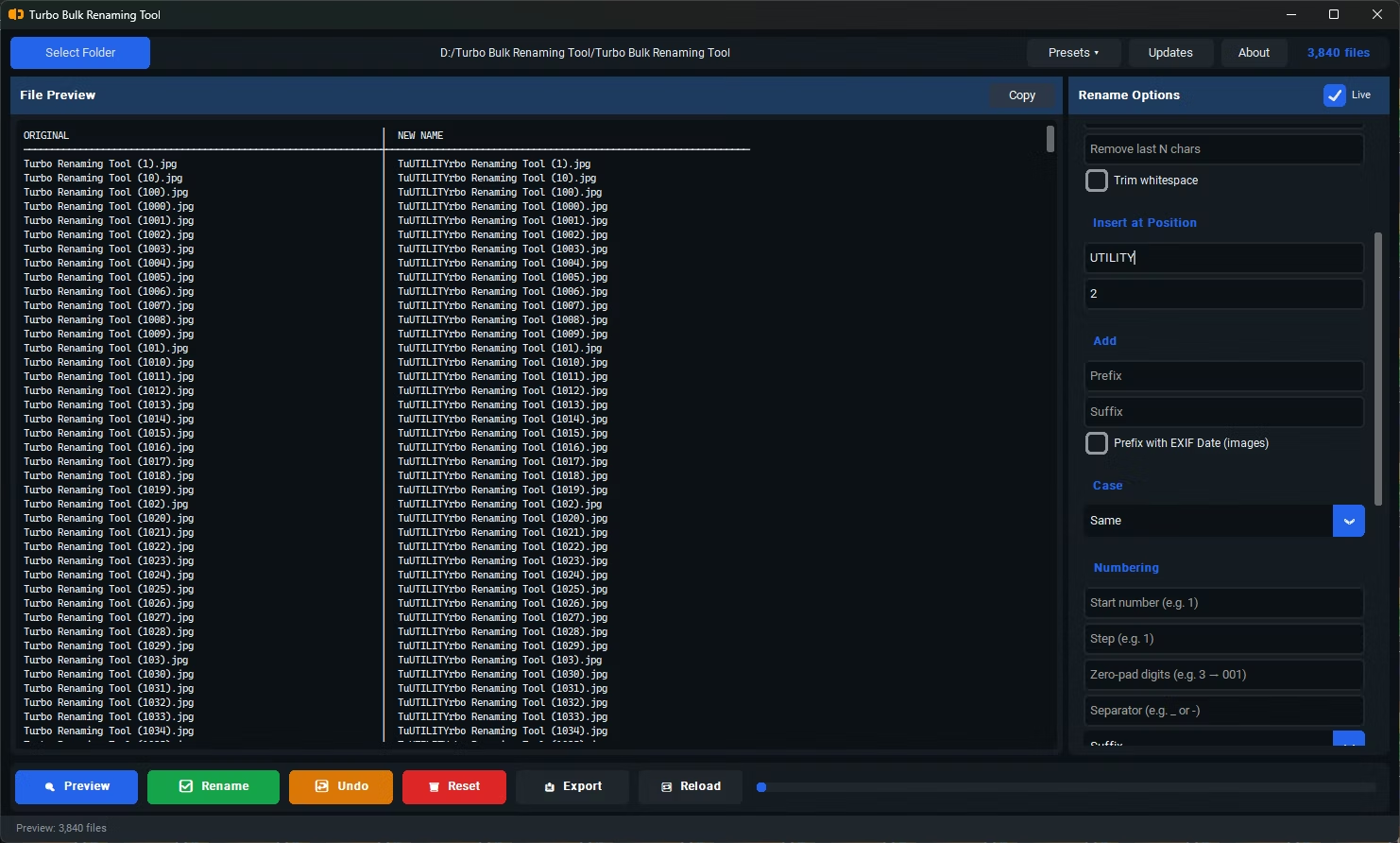
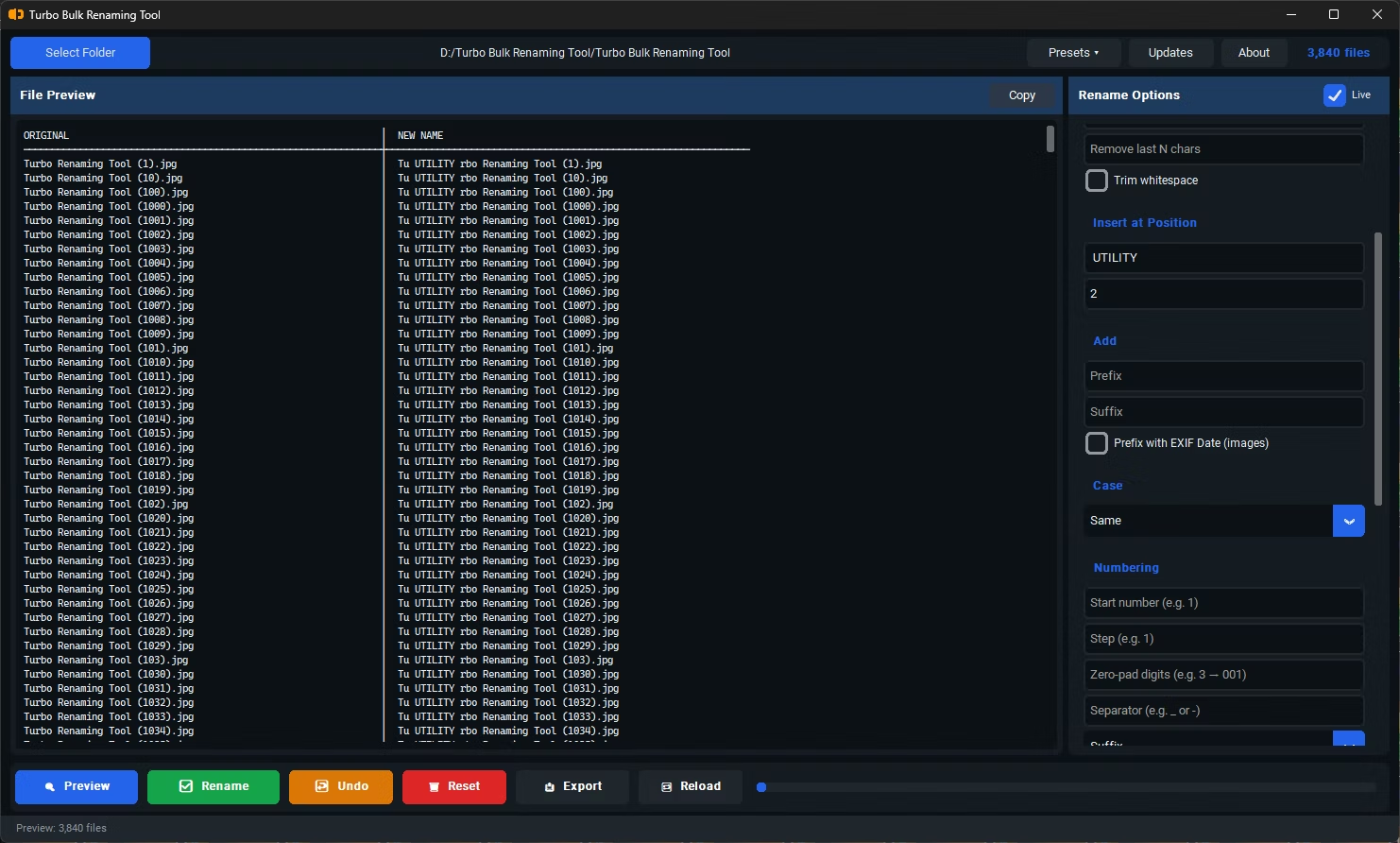
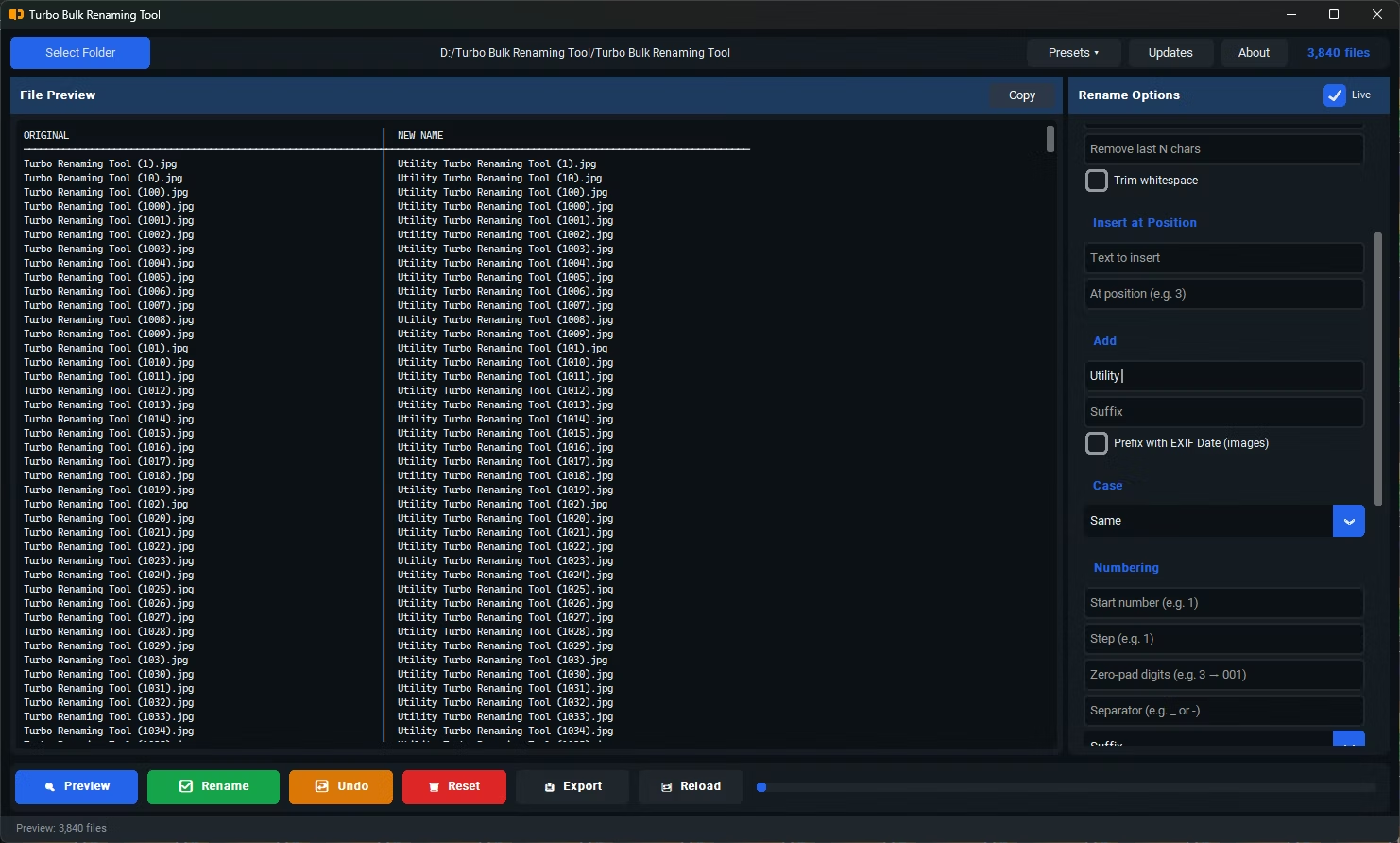
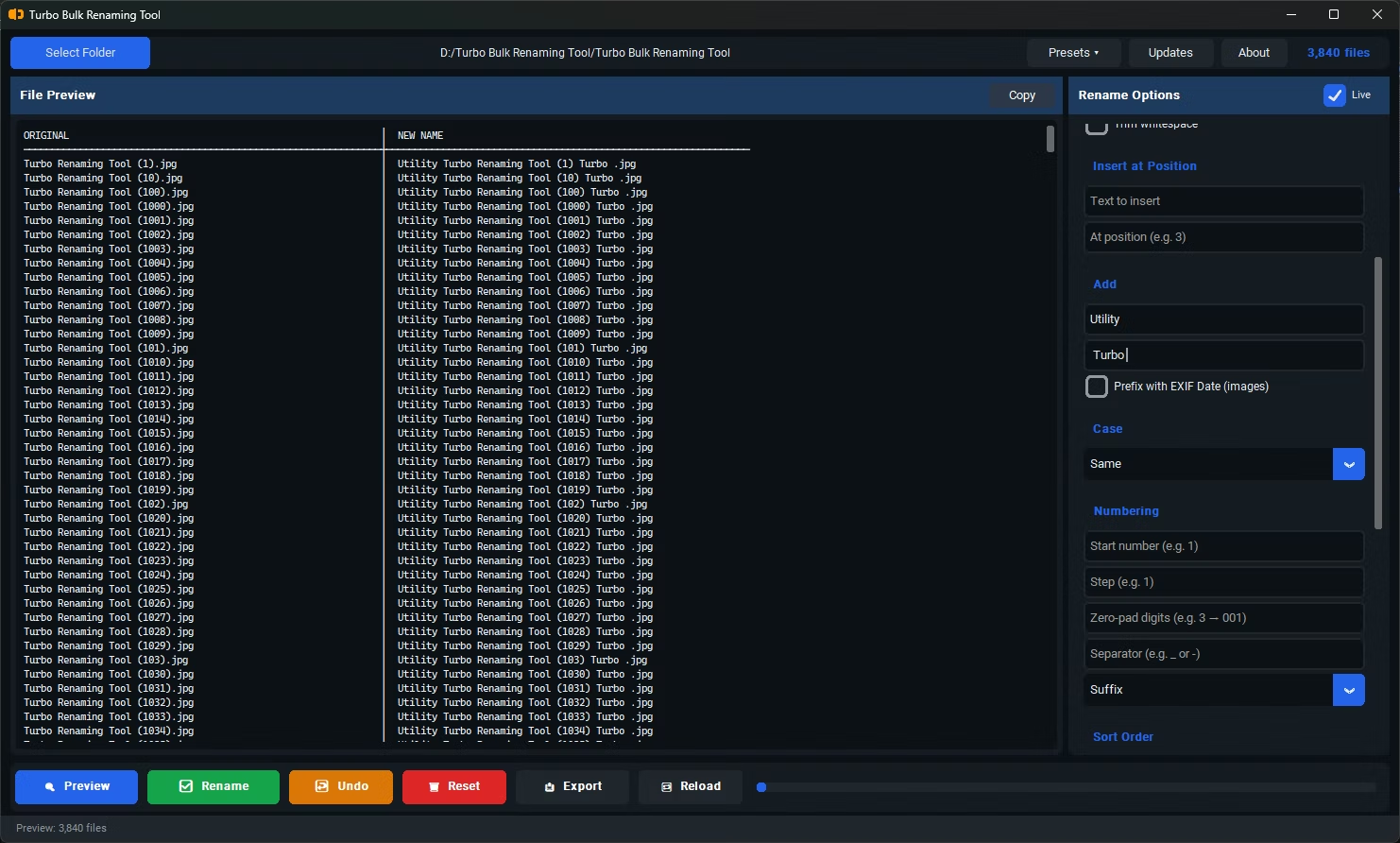
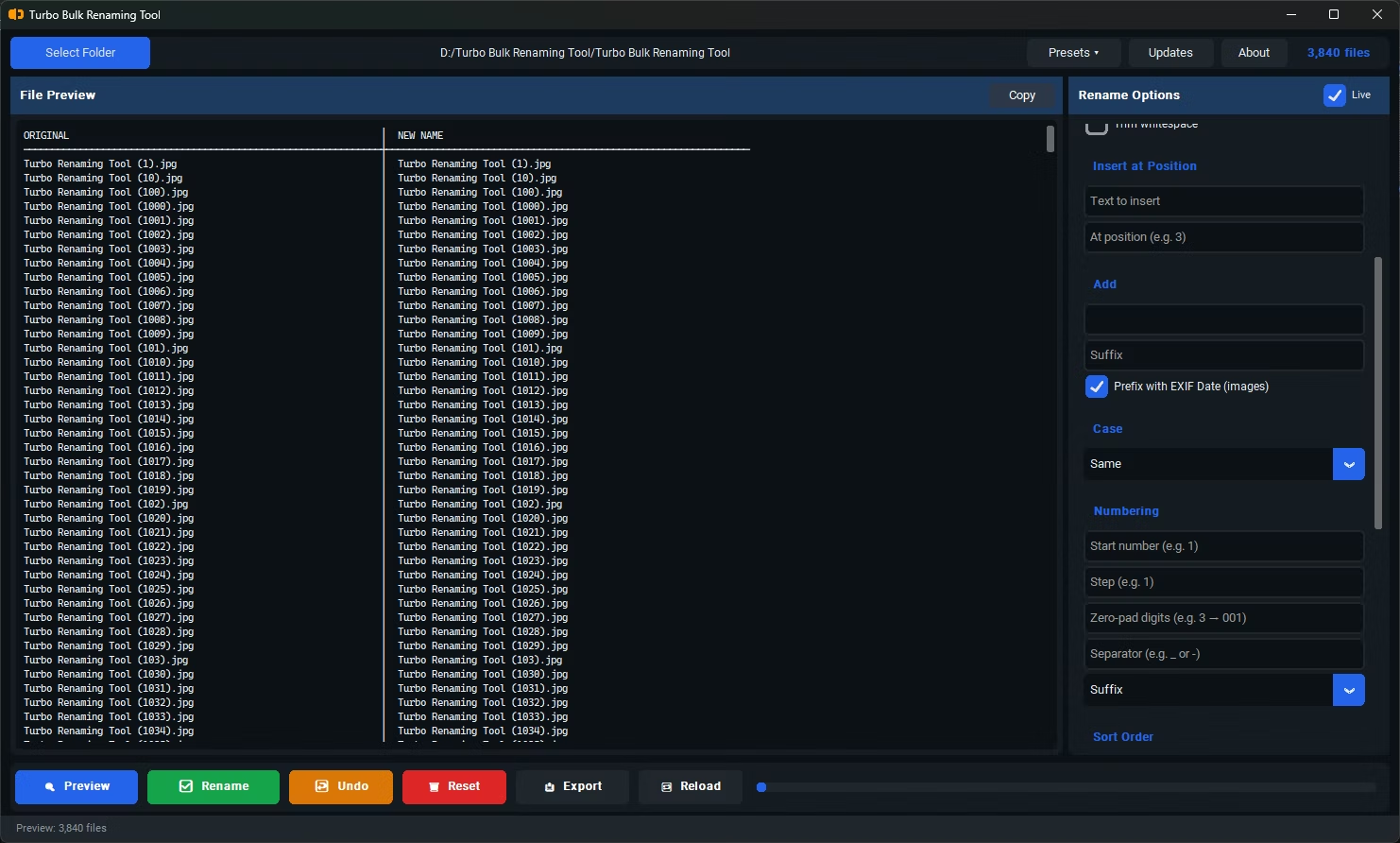
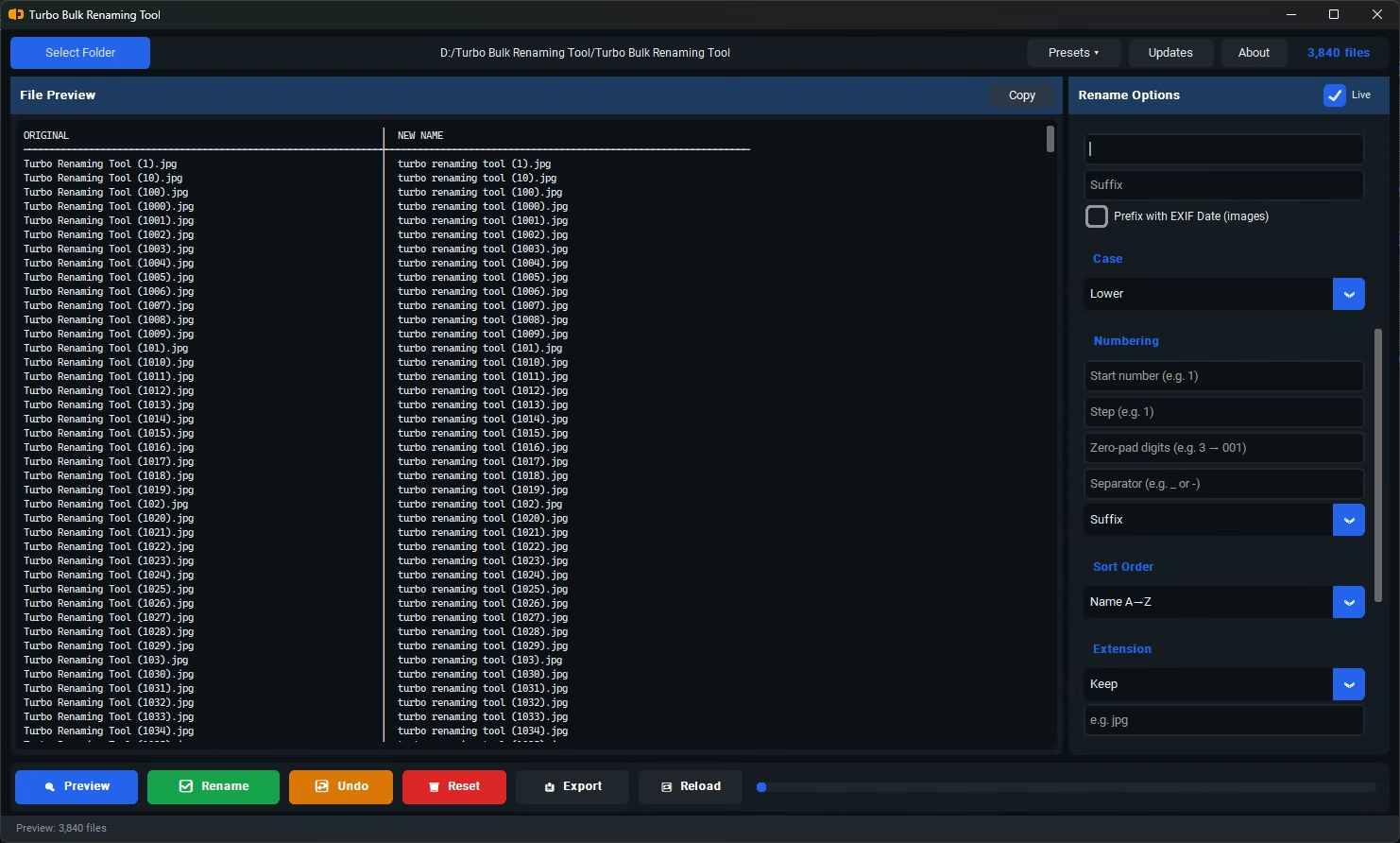
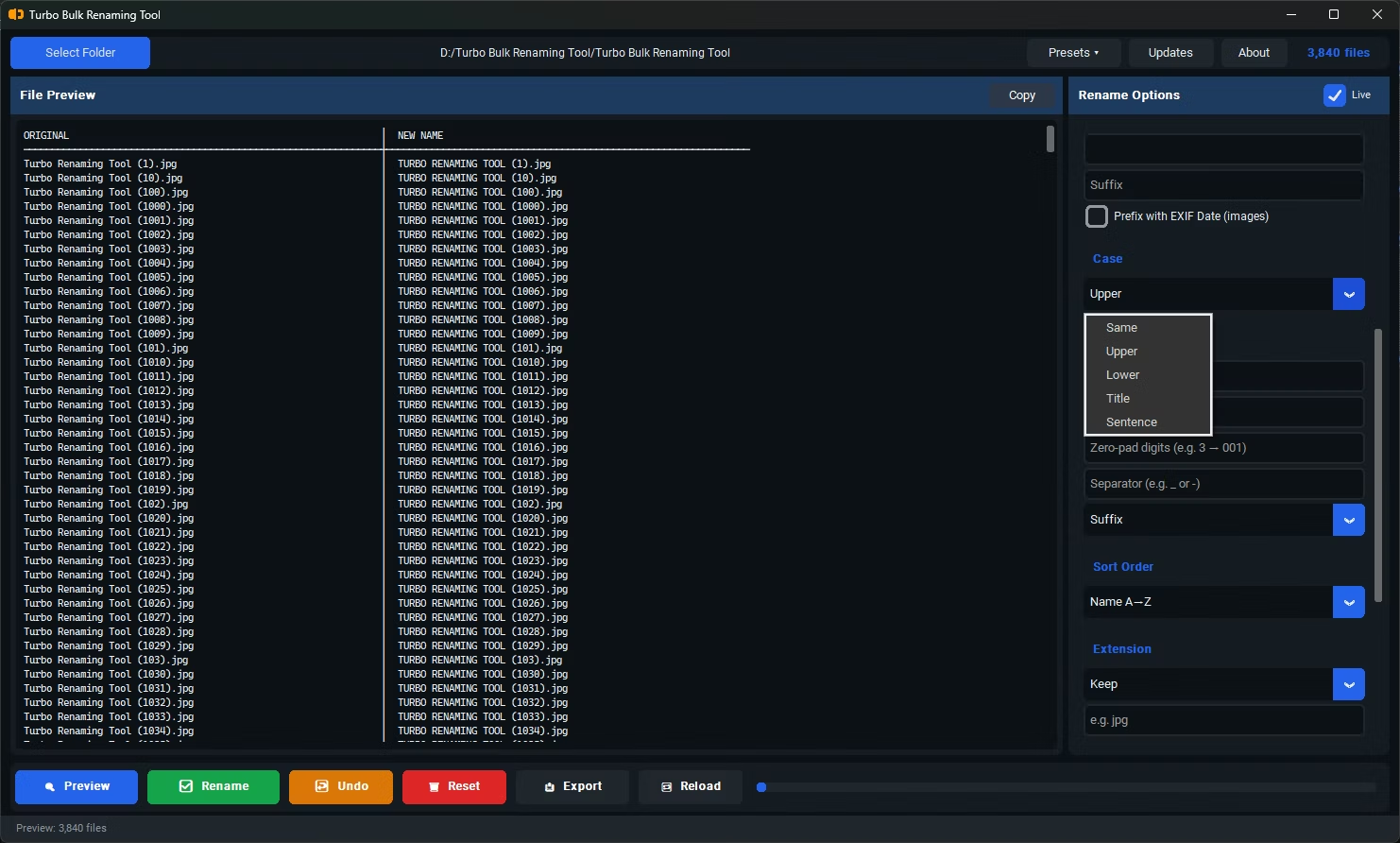
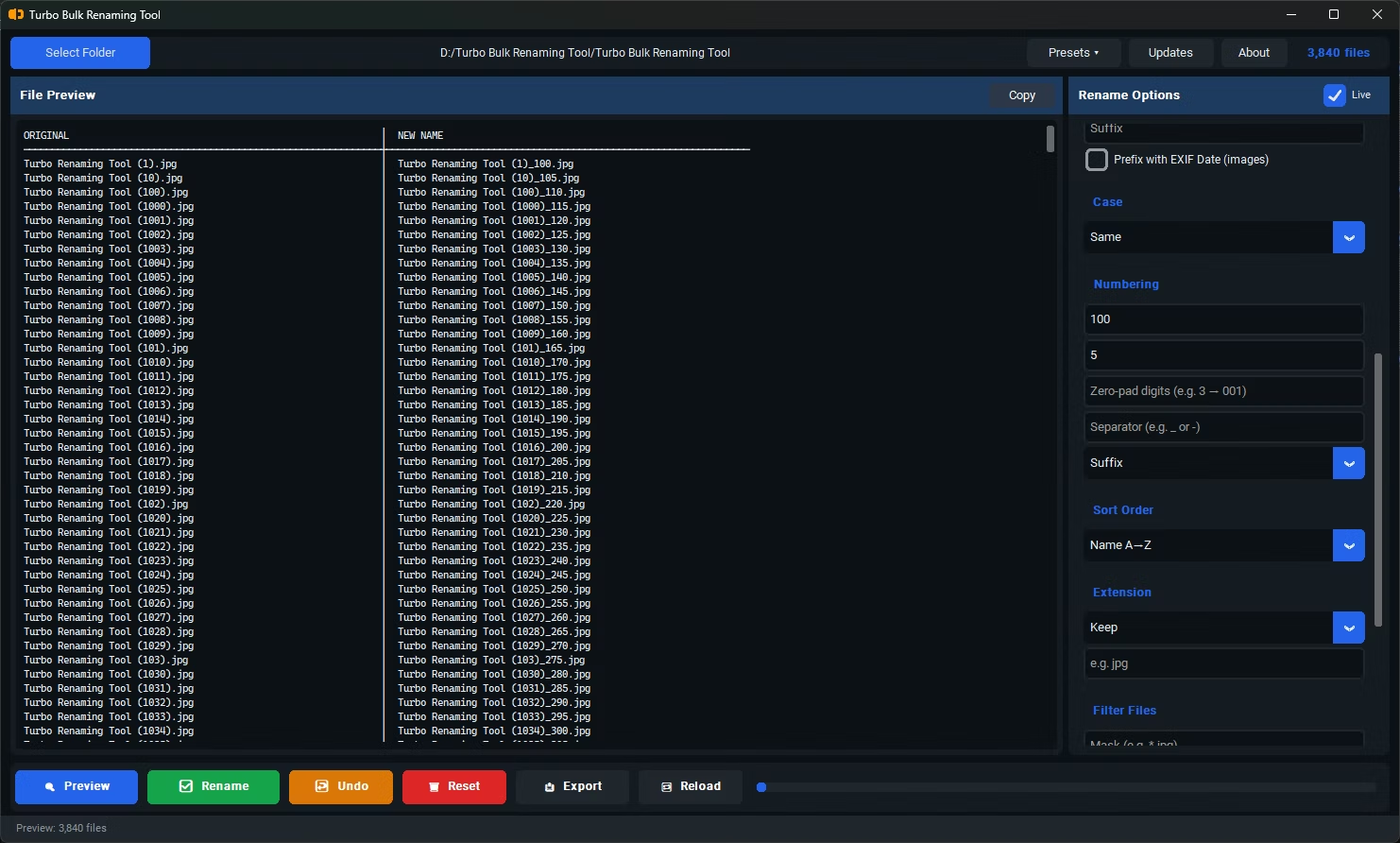
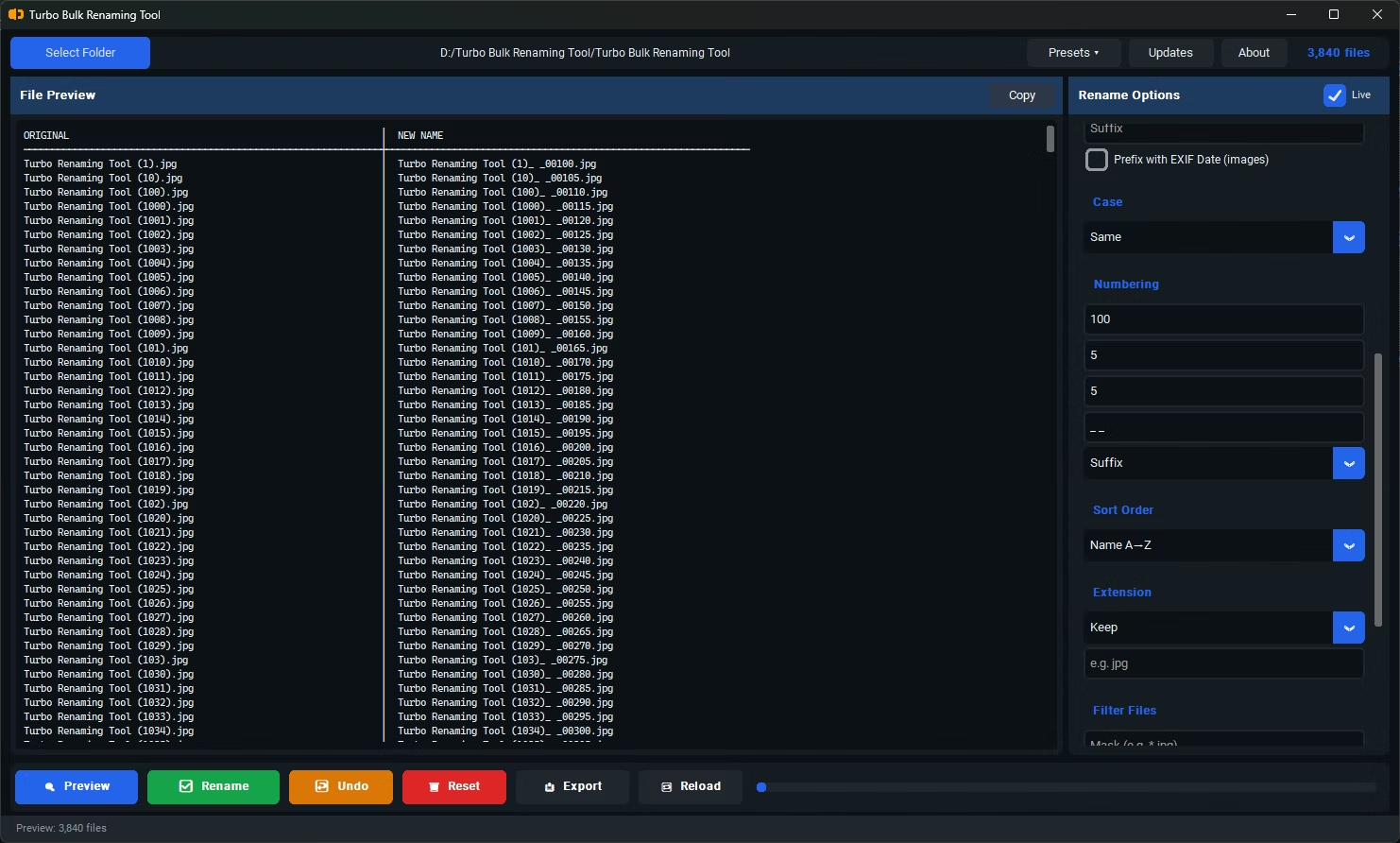
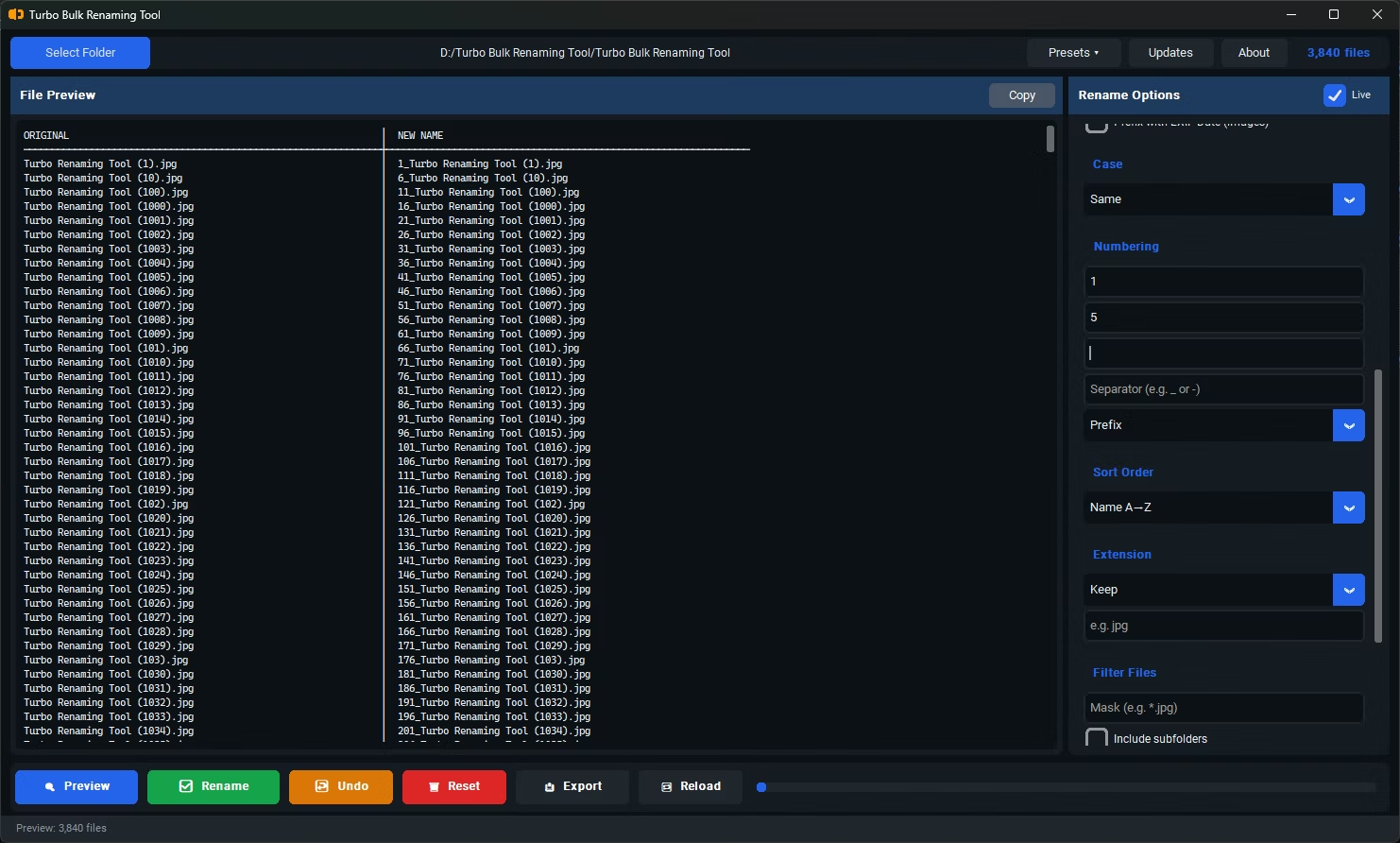
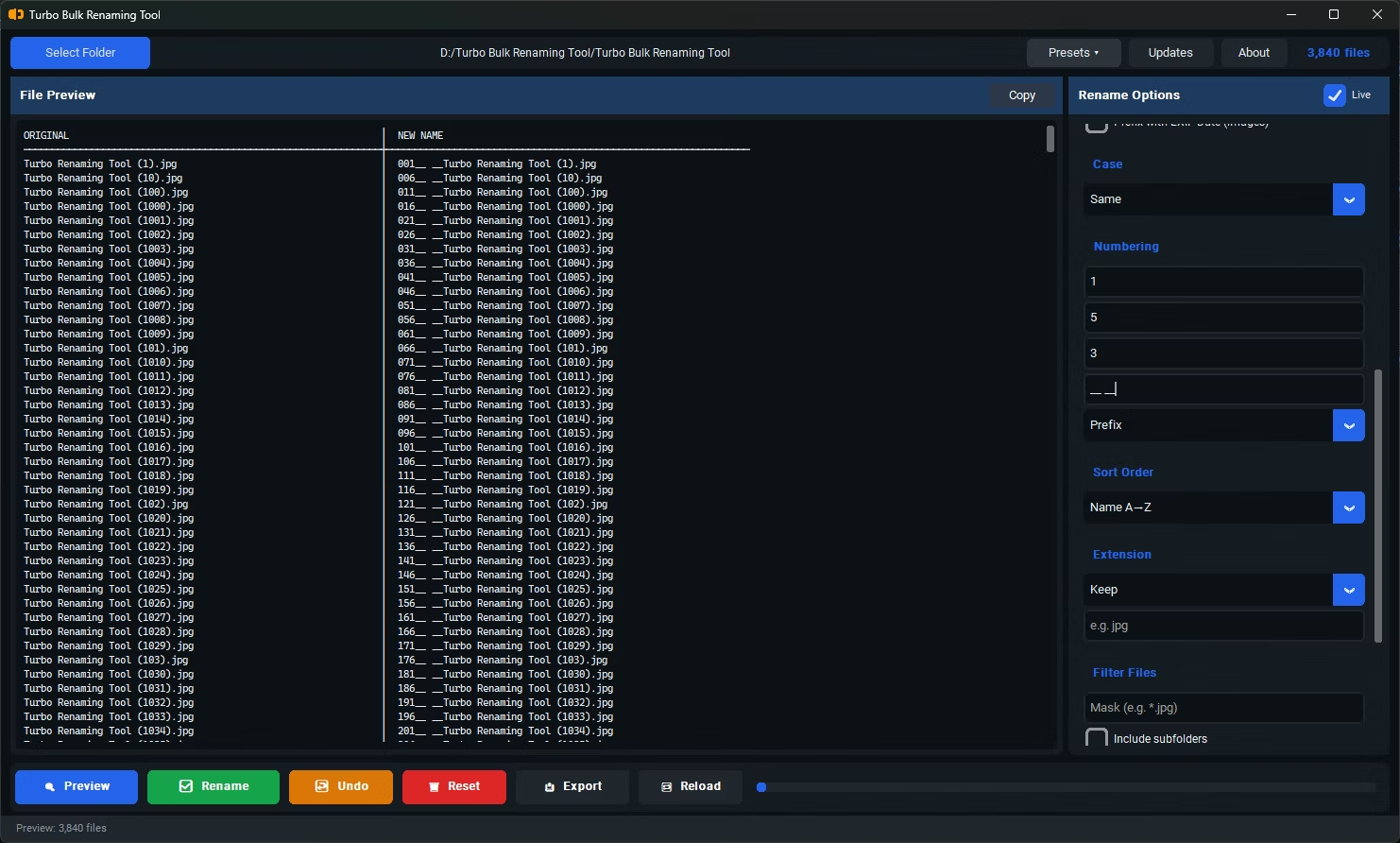

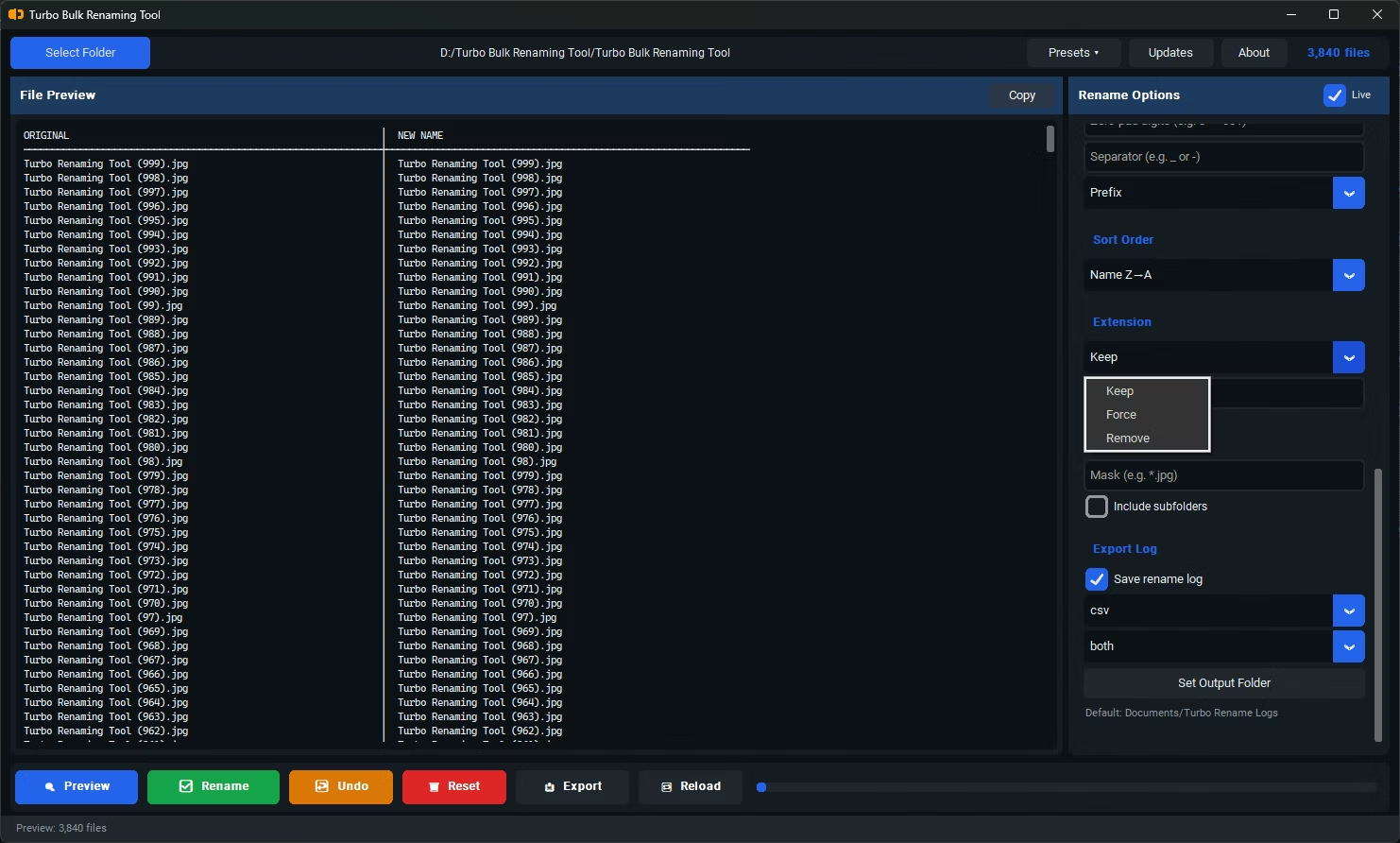
- Install Turbo Bulk Renaming Tool on your Windows PC.
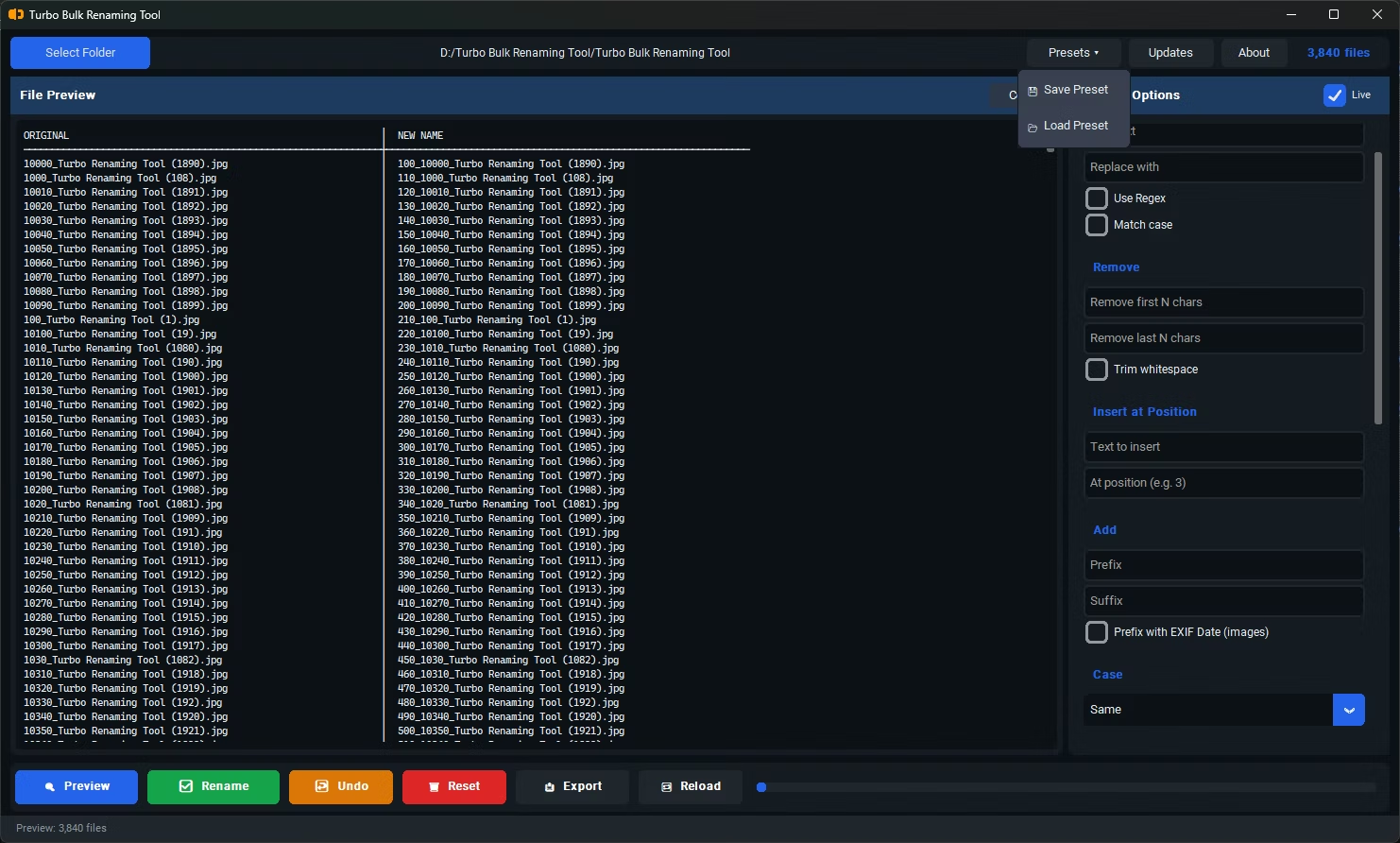
- Open the app and load the top-level folder you want to inventory.
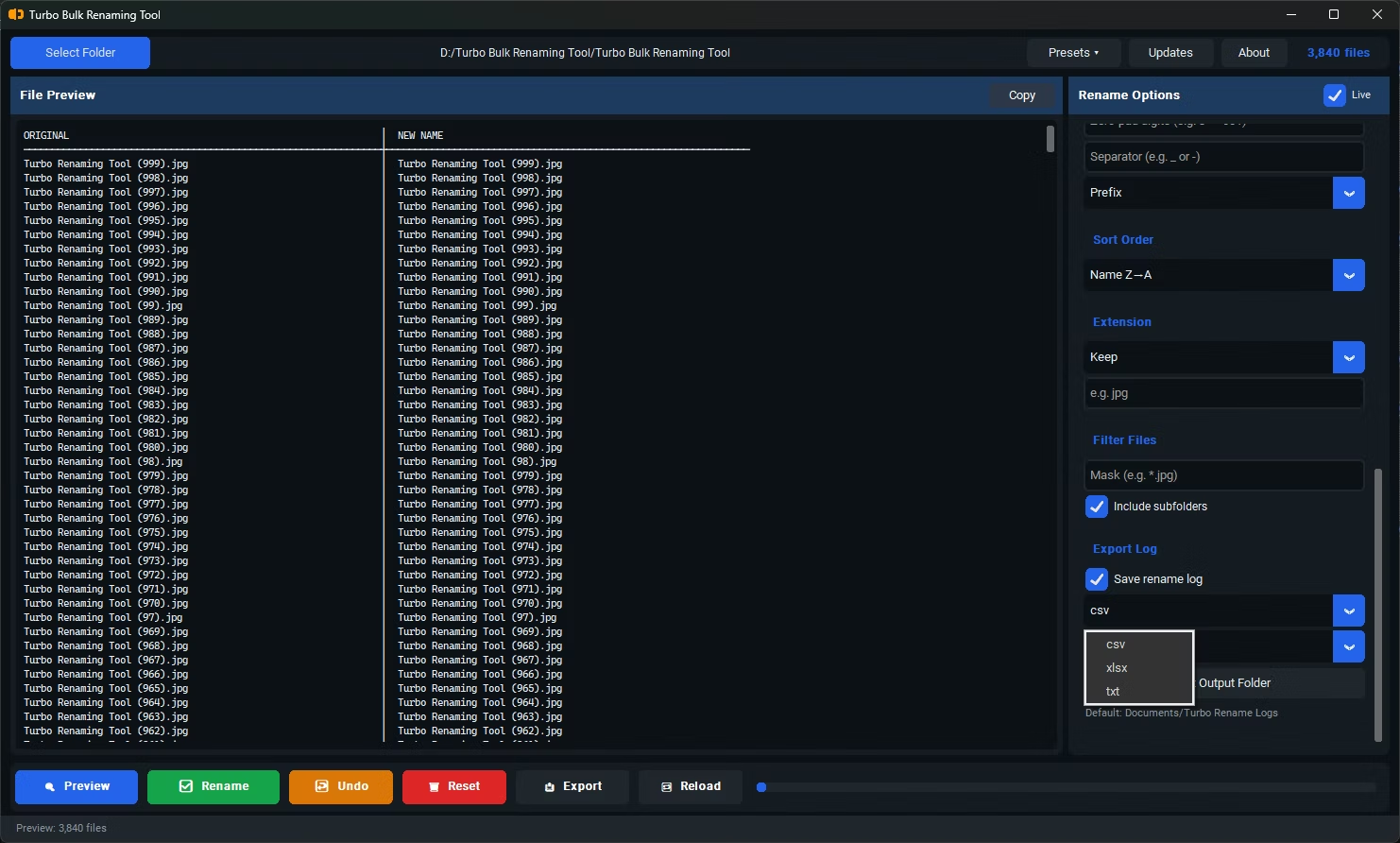
- Enable "Include Subfolders" so every nested directory is scanned as part of the export.
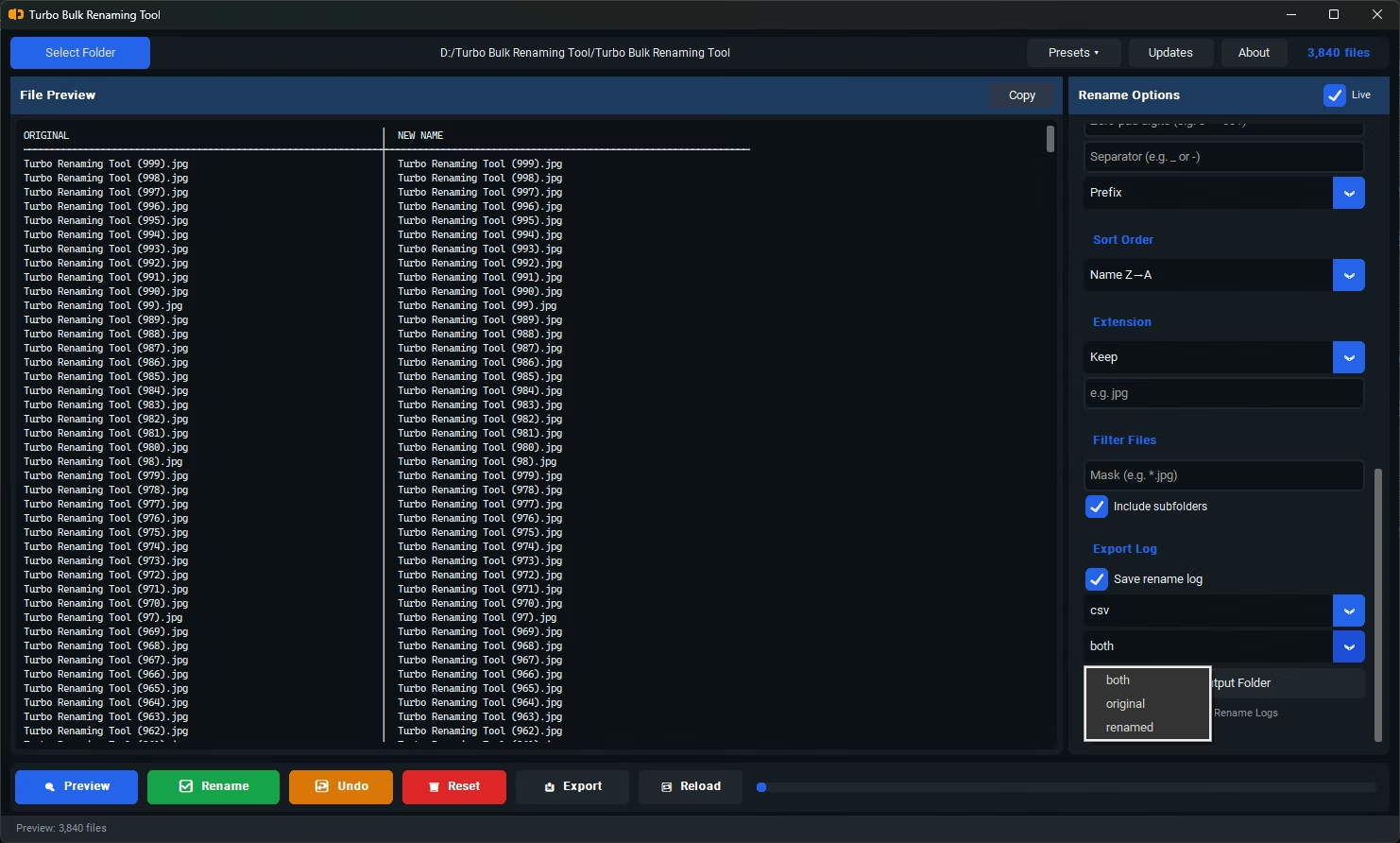
- Click Export Only and choose XLSX as your export format.
- Select whether you want original names only, renamed names only, or both as separate columns.
- Save the generated spreadsheet, which now contains a complete file inventory from your chosen folder.
- Scans an entire folder tree, not just the top level, when sub-folders are enabled
- Generates a ready-to-use XLSX spreadsheet without manual data entry
- Supports CSV and TXT export as well, for different downstream uses
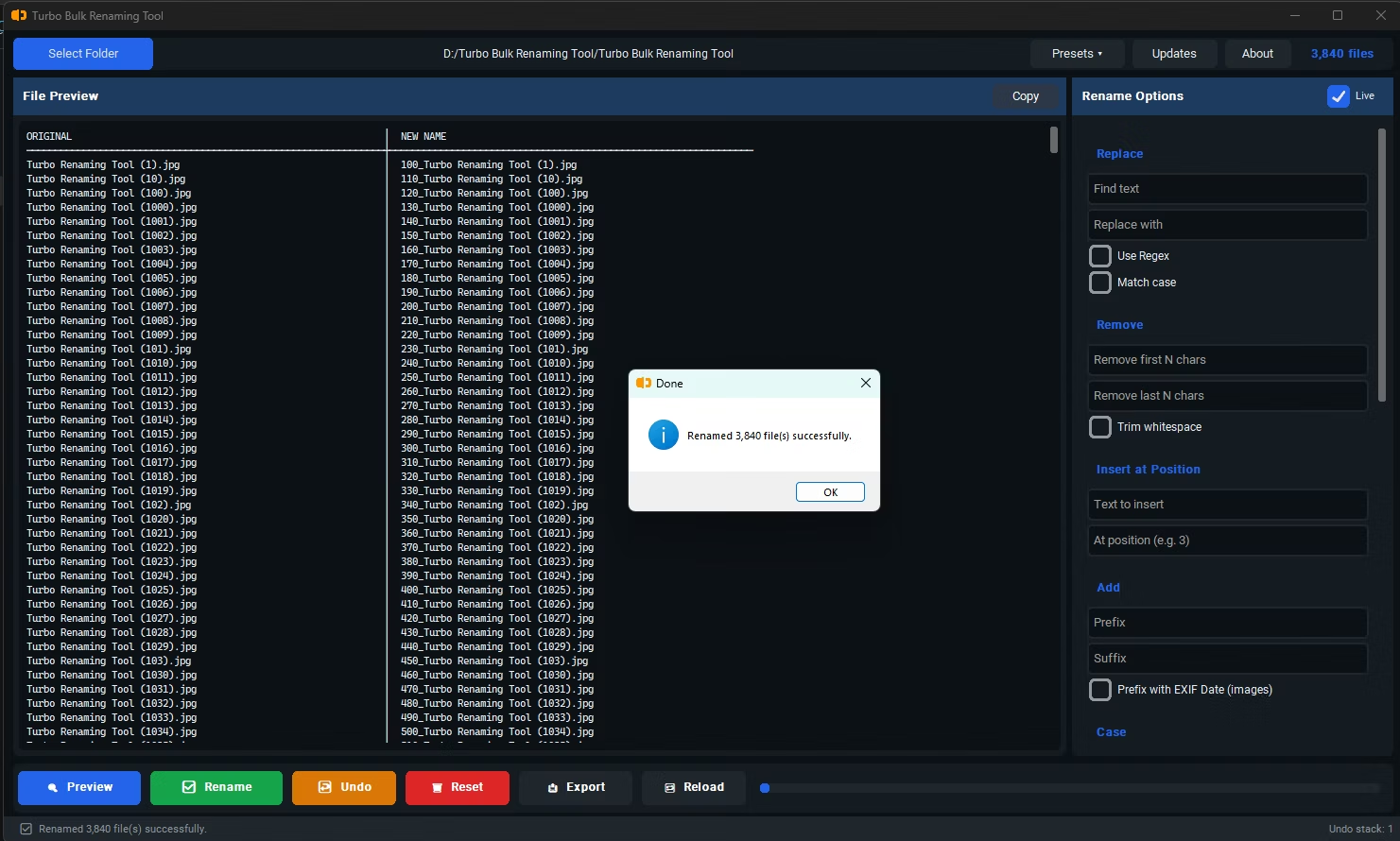
- Can capture both original and renamed filenames side by side for before/after documentation
- Runs fully offline, so a sensitive file inventory never leaves your computer
- Handles large, multi-folder archives in a single export operation
Can I export an entire archive with many sub-folders in one go?
Yes, enabling "Include Subfolders" before exporting ensures the entire folder tree is scanned and included in the resulting spreadsheet.
Is it possible to document both old and new filenames after a rename?
Yes, the export can include original names, renamed names, or both as separate columns, which is useful for keeping a record of what changed.
Does the export include file paths or just filenames?
The export is focused on filenames; for full path documentation, the file's relative location within the scanned folder structure is reflected in how sub-folder contents are organized in the export.
Ready to rename your files in bulk, offline, with full privacy?