CR3 is Canon's current RAW format, used across most recent mirrorless and DSLR models to capture full, unprocessed sensor data. When you need a lossless export instead of a compressed one — for archival copies, further editing, or graphics work — PNG is the better target than JPG, since it introduces no additional compression artifacts during conversion.
Photographers shooting CR3 often accumulate hundreds of files per session, organized across multiple folders. A bulk CR3 to PNG converter processes the whole shoot in one pass, including nested sub-folders, entirely on your own computer.
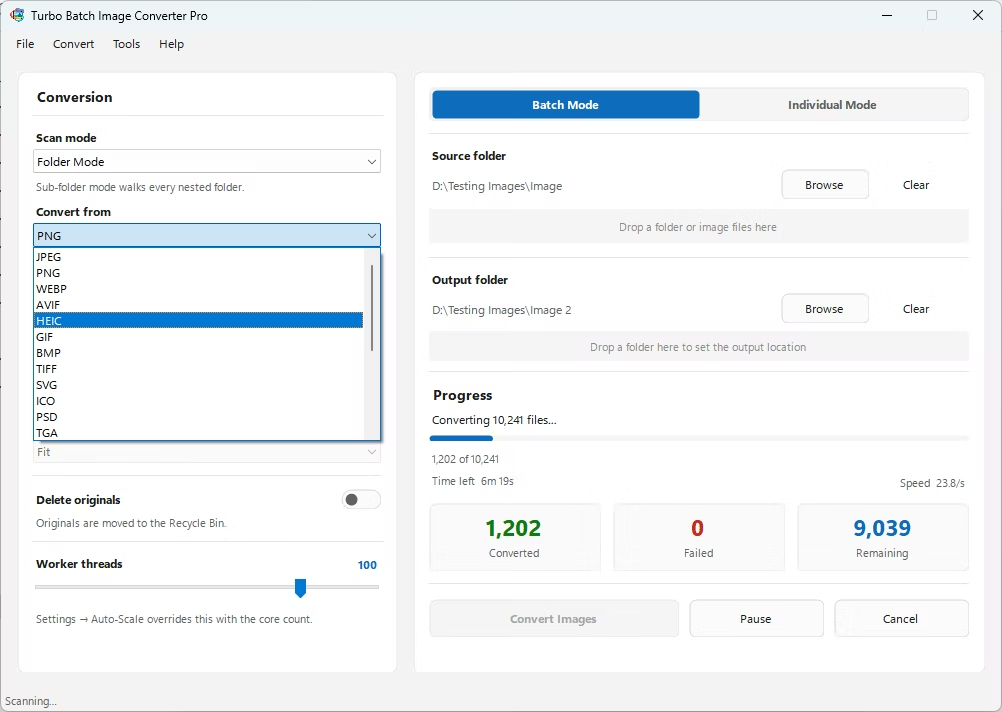
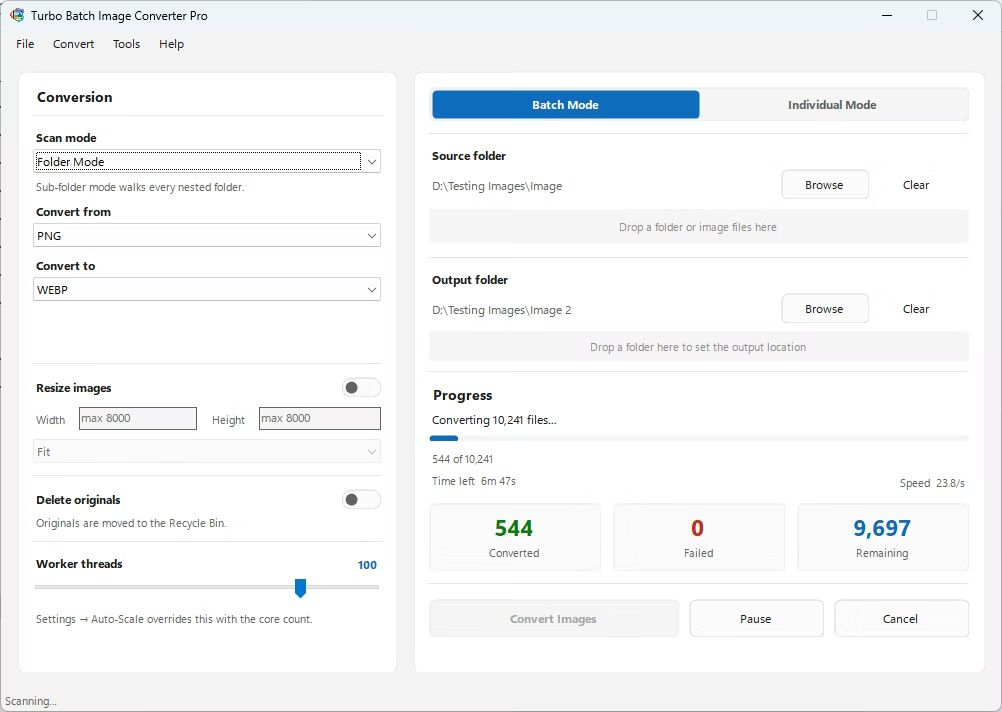
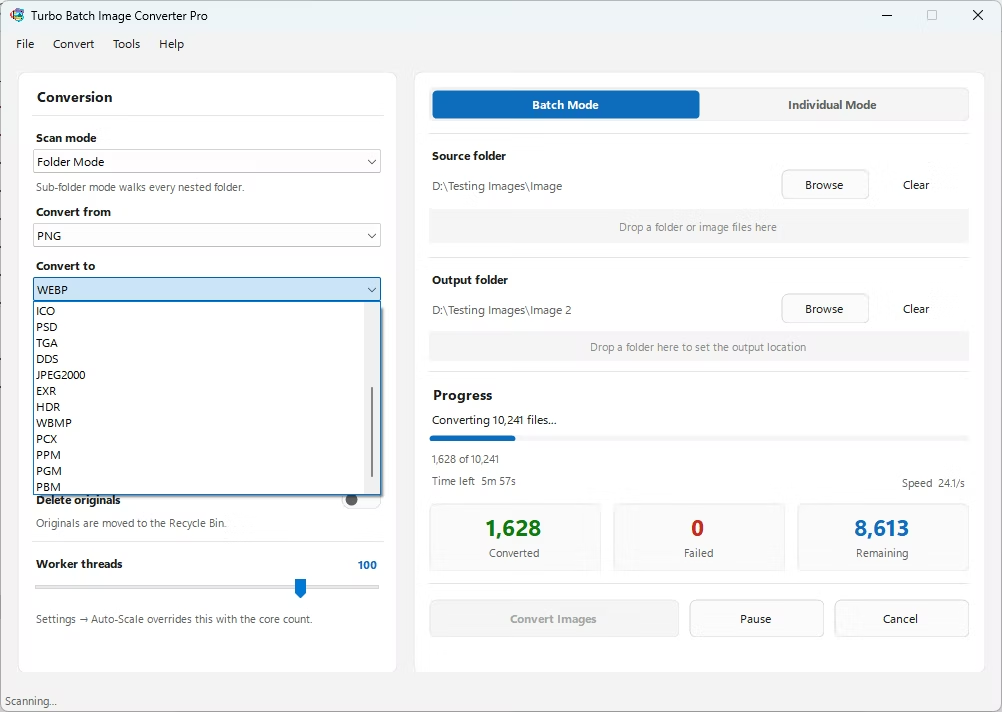
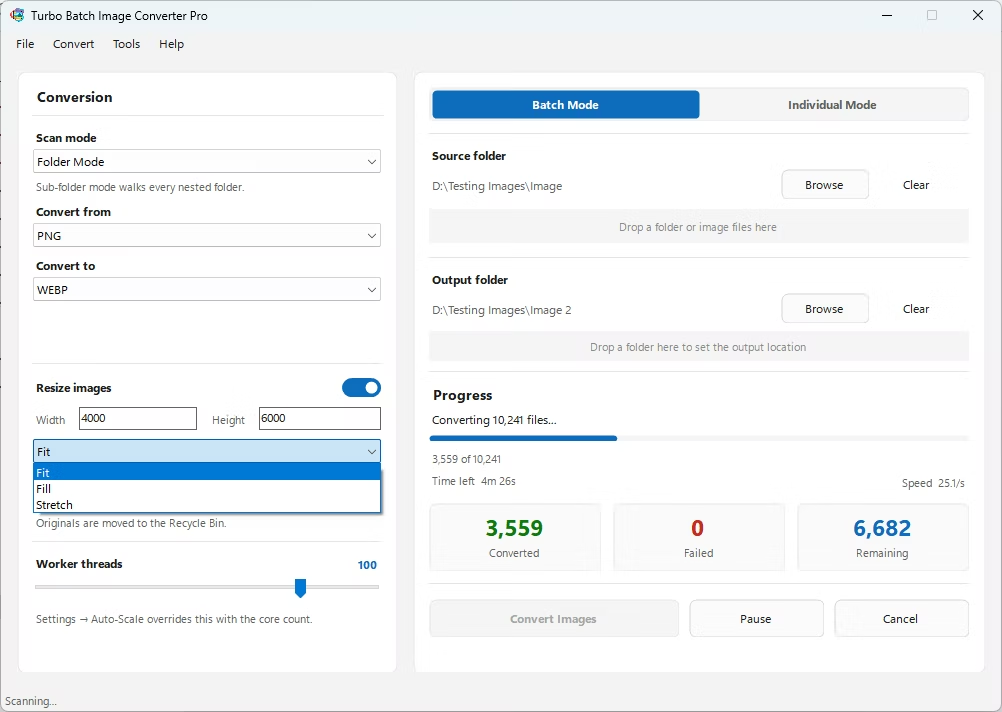
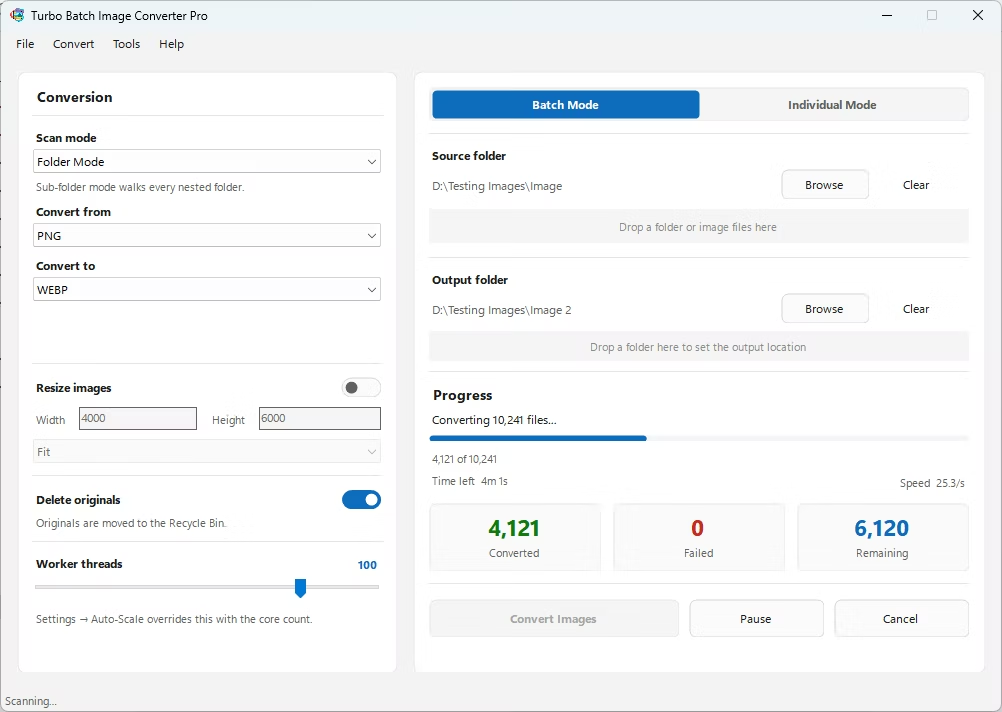
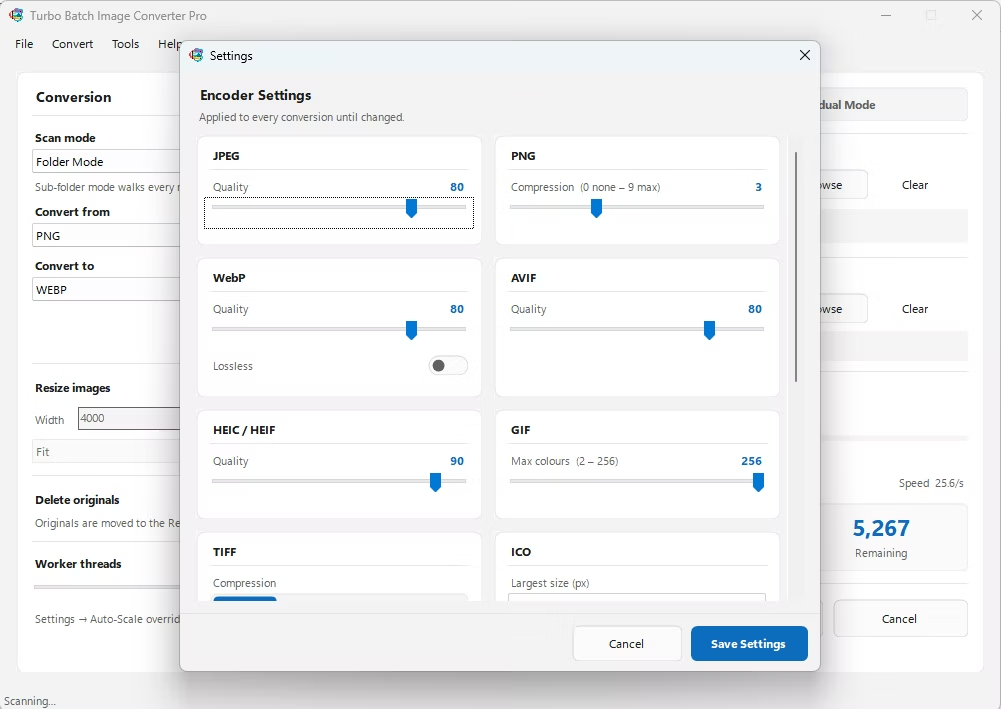
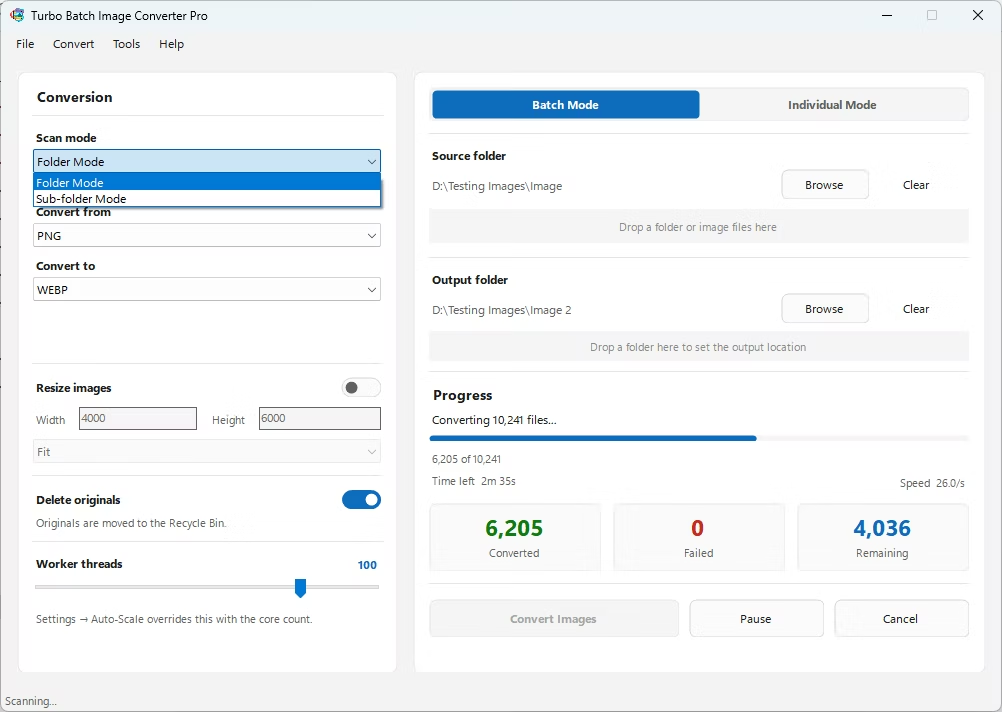
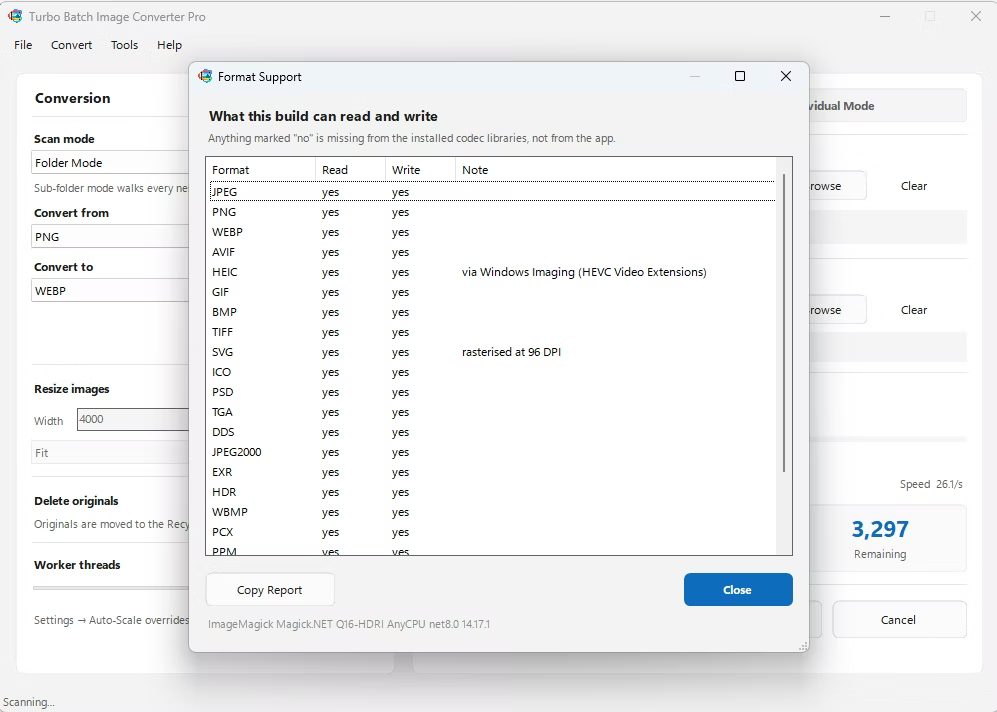
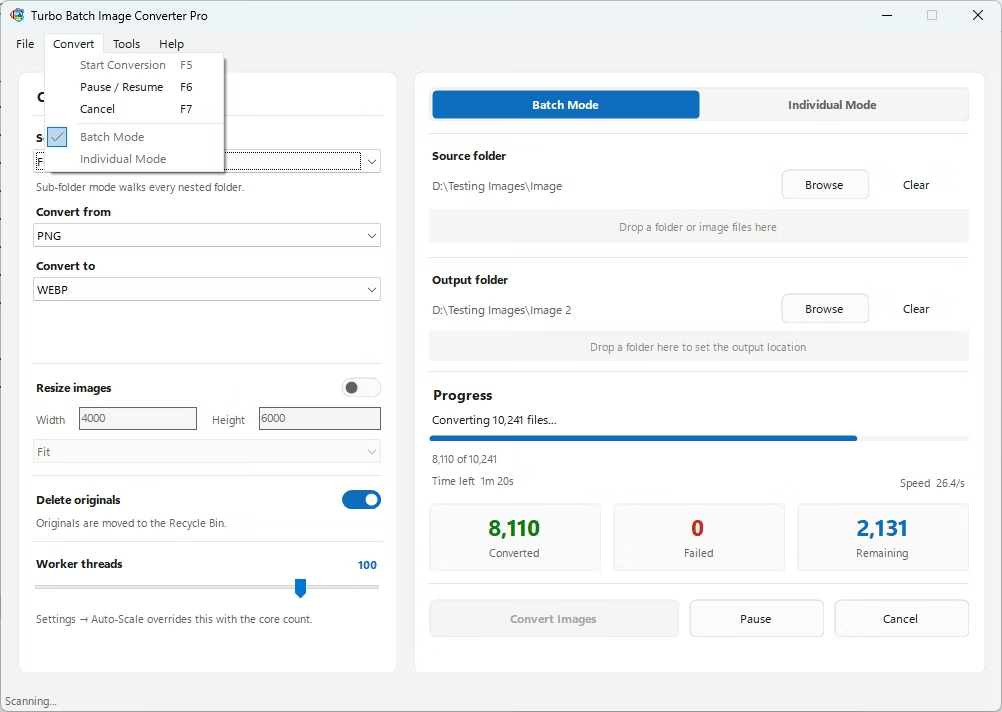
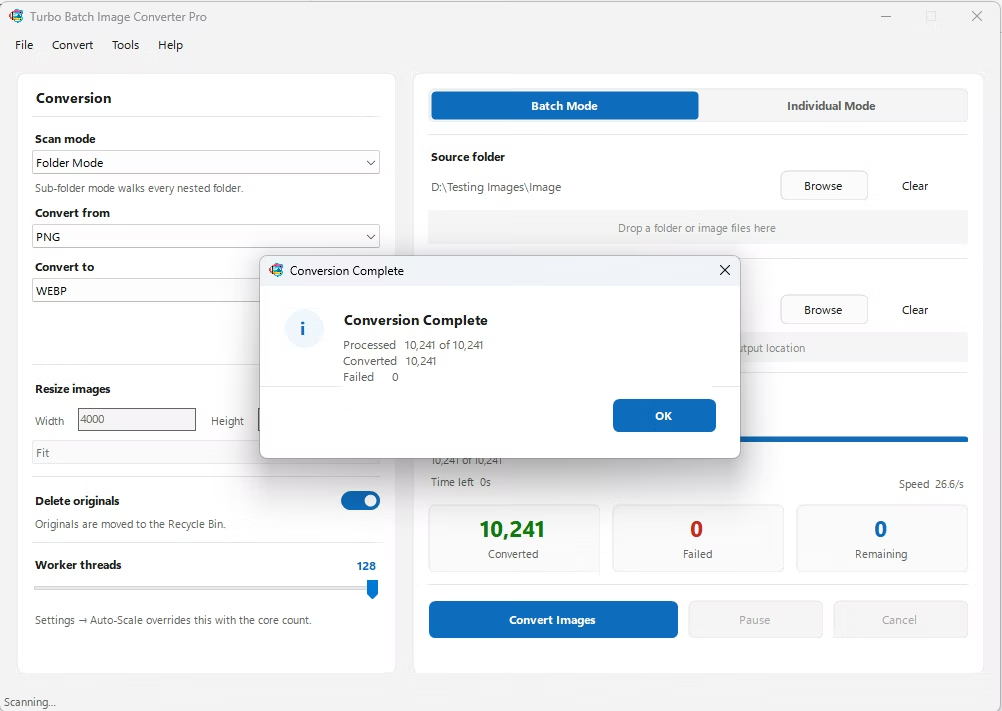
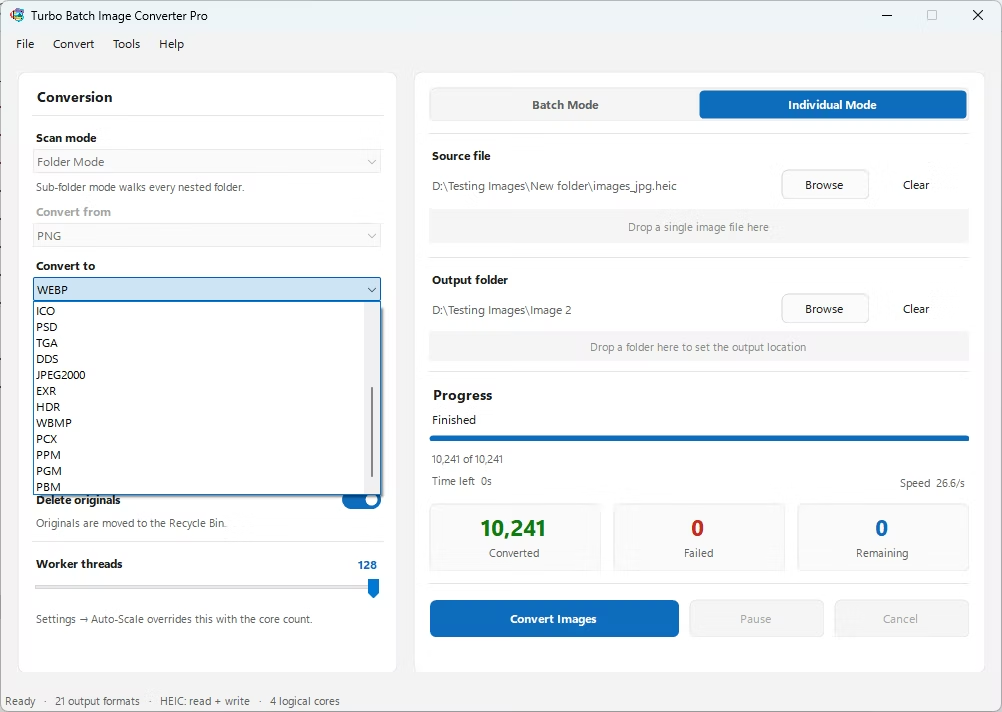
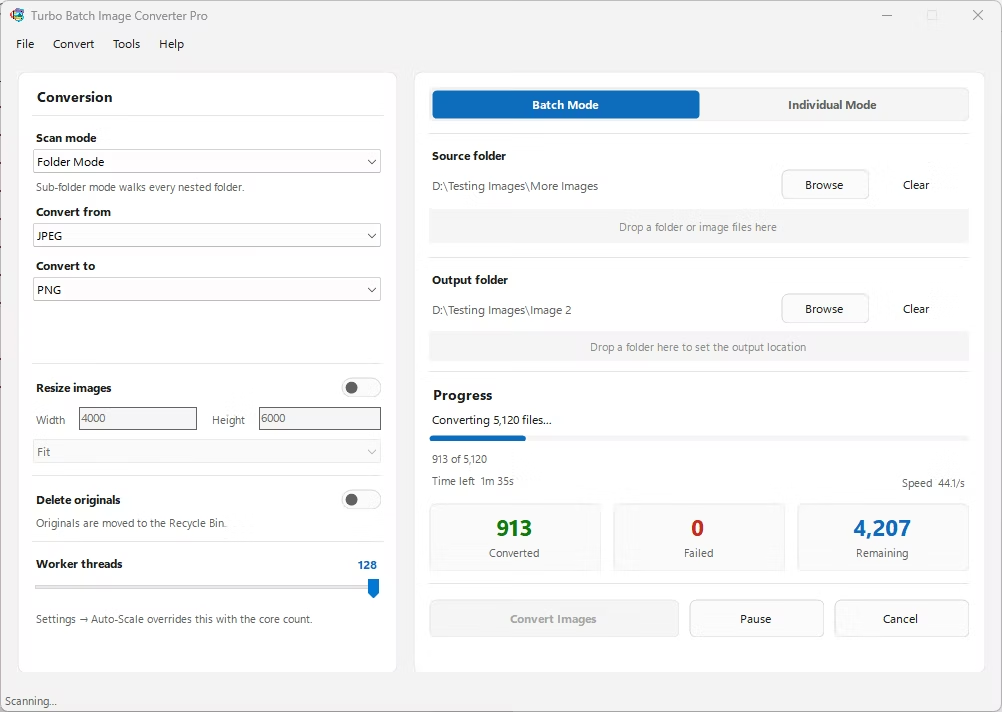
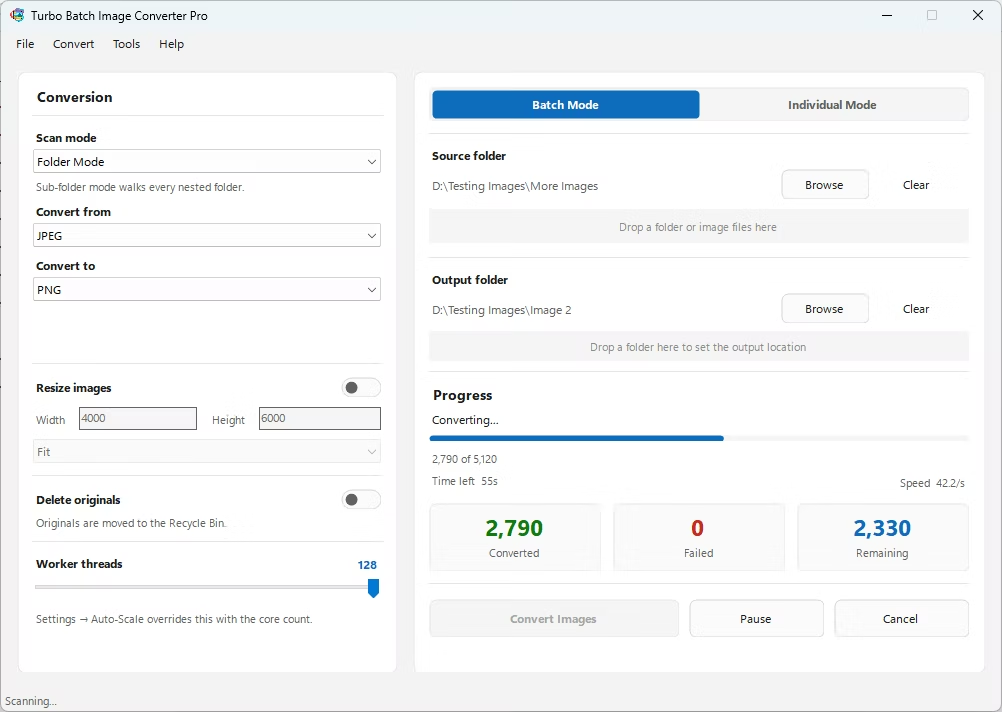
- Install Turbo Batch Image Converter Pro, which natively supports CR3 among its 47 RAW formats.
- Open the app and select Batch Mode to process a full folder of CR3 files, or Individual Mode for a single file.
- Drag your CR3 folder into the app, enabling recursive sub-folder scanning if your shoot spans multiple session folders.
- Set the input format to CR3 and the output format to PNG.
- Optionally apply resizing during the same step if you need specific output dimensions.
- Click Convert. The app demosaics each CR3 file locally and writes lossless PNG files to your output folder.
- Native CR3 decoding built in, no Canon software required
- Lossless PNG output preserves full detail with no compression artifacts
- Bulk-convert an entire shoot's worth of CR3 files in one batch
- Recursive folder scanning for multi-session shoot structures
- Fully offline, ideal for unreleased or client photo work
- Multi-core processing for fast handling of large batches
Why convert CR3 to PNG instead of JPG?
PNG is lossless, making it the better choice when preserving maximum image detail for archiving or further editing matters more than minimizing file size.
Can I process an entire multi-folder CR3 shoot at once?
Yes. Recursive sub-folder scanning lets you point the app at a top-level shoot folder and convert every CR3 file inside, regardless of how it's organized into sub-folders.
Is this conversion done locally on my computer?
Yes. All CR3 decoding and PNG encoding happens on your own machine, with no files uploaded to any external server.
Ready to convert your images offline, in bulk, with full privacy?