Sometimes a spreadsheet is overkill and what you actually need is a simple written list of filenames — for a report, a content inventory in a document you're already drafting, or a printable checklist. Getting a clean list of filenames into Word doesn't require typing each one manually; you can export the list as plain text and paste it directly into your document.
This approach also avoids formatting issues that can happen when copying directly from File Explorer, since an exported text list comes through as clean, plain filenames with no extra icons or metadata attached.
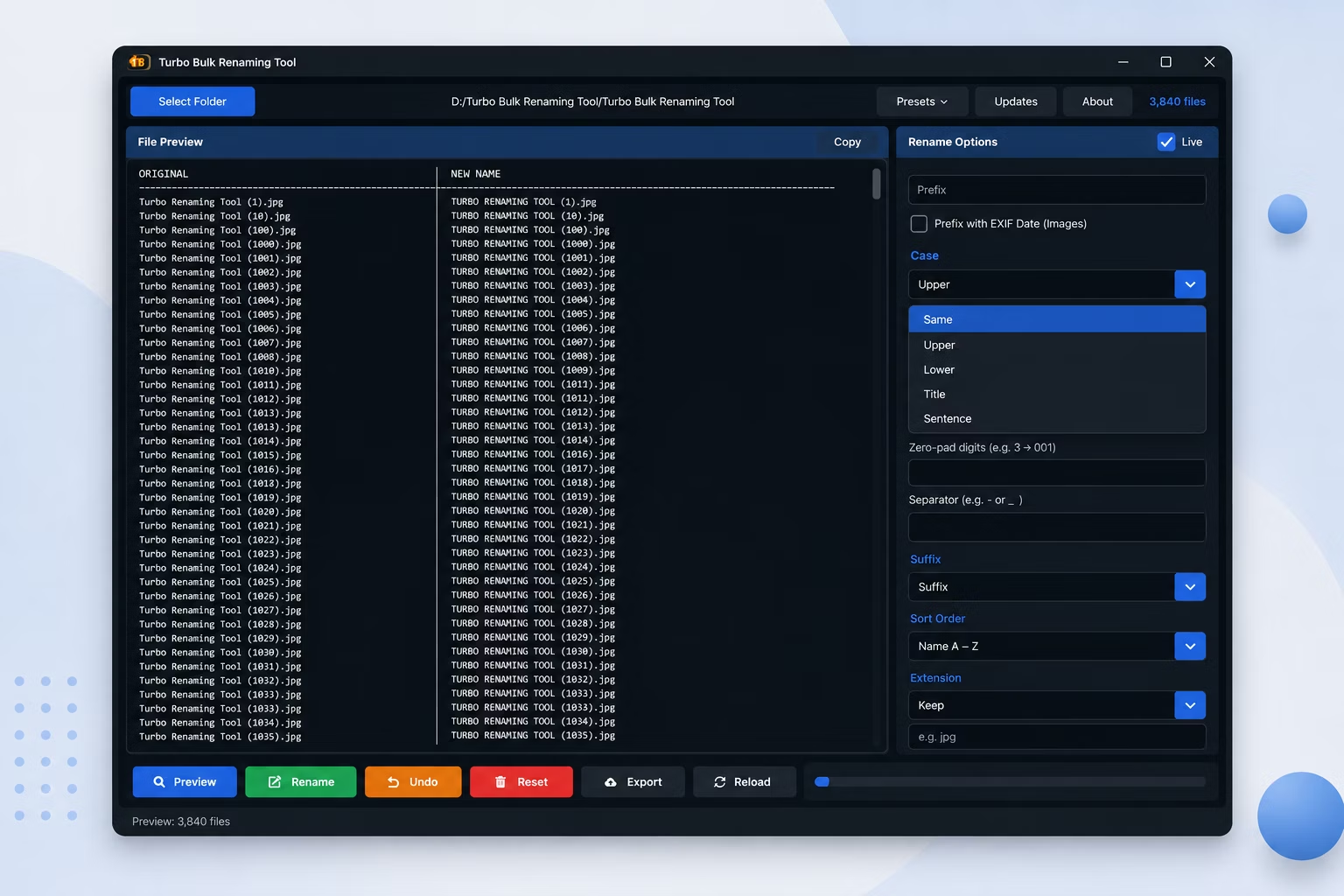
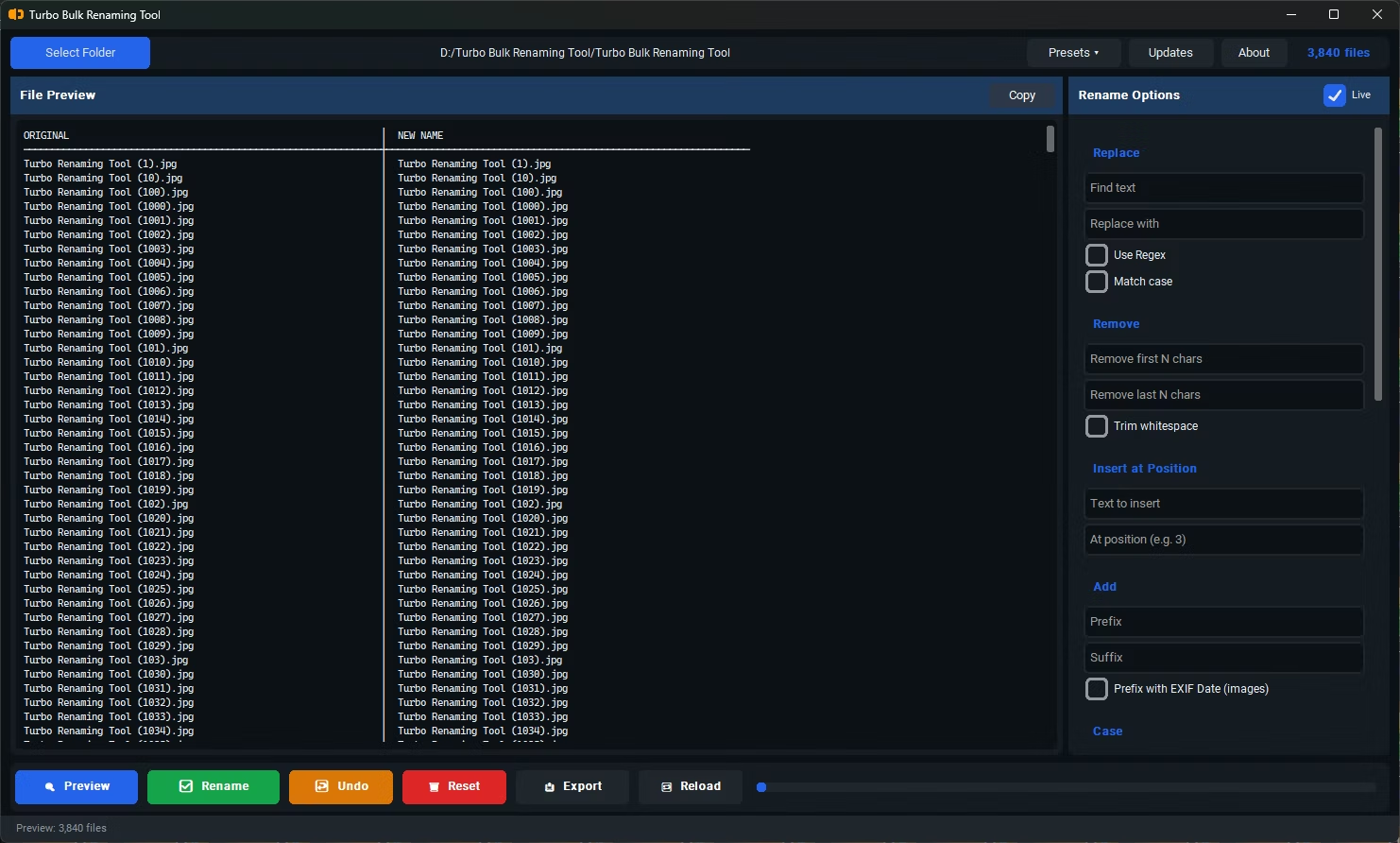
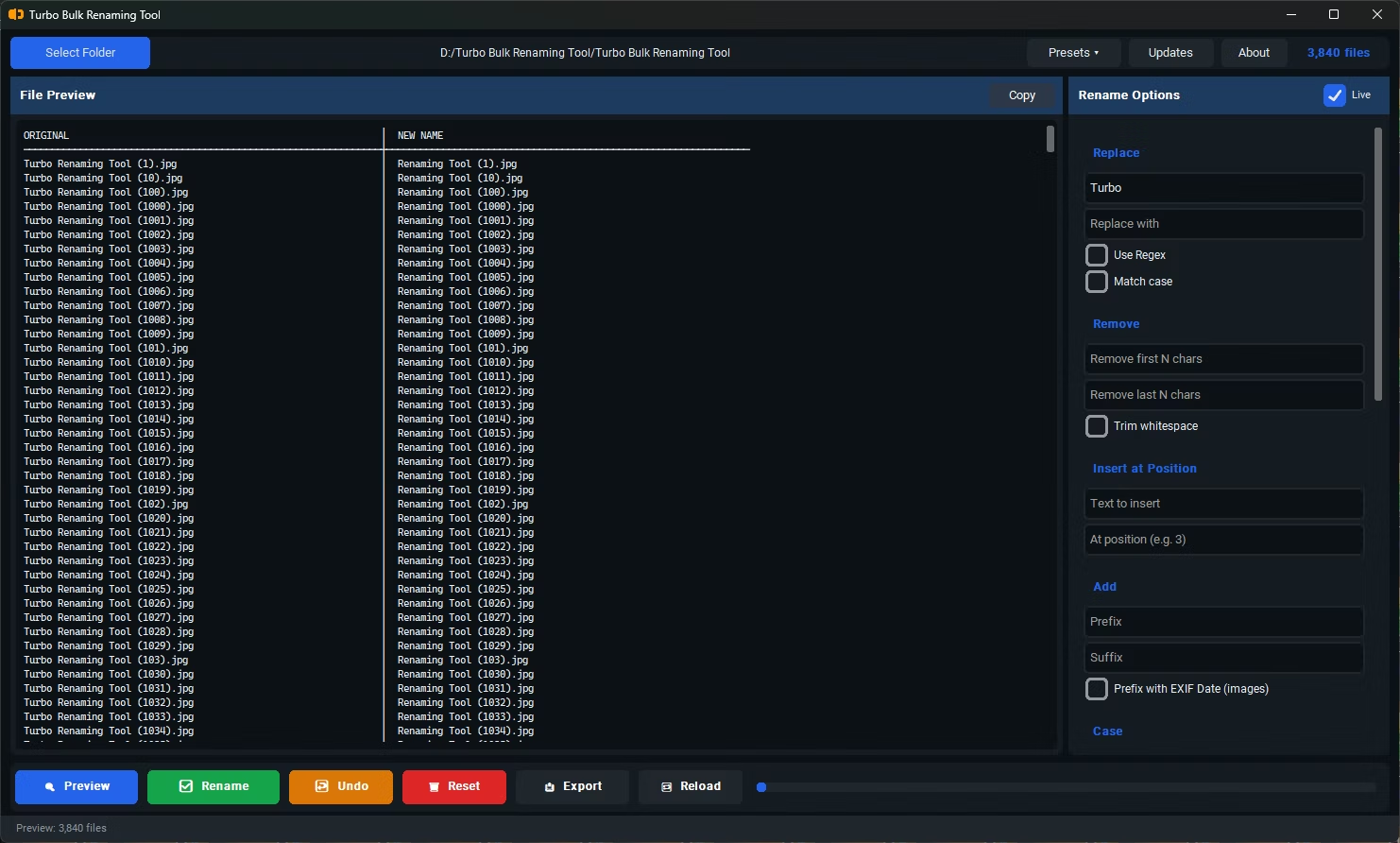
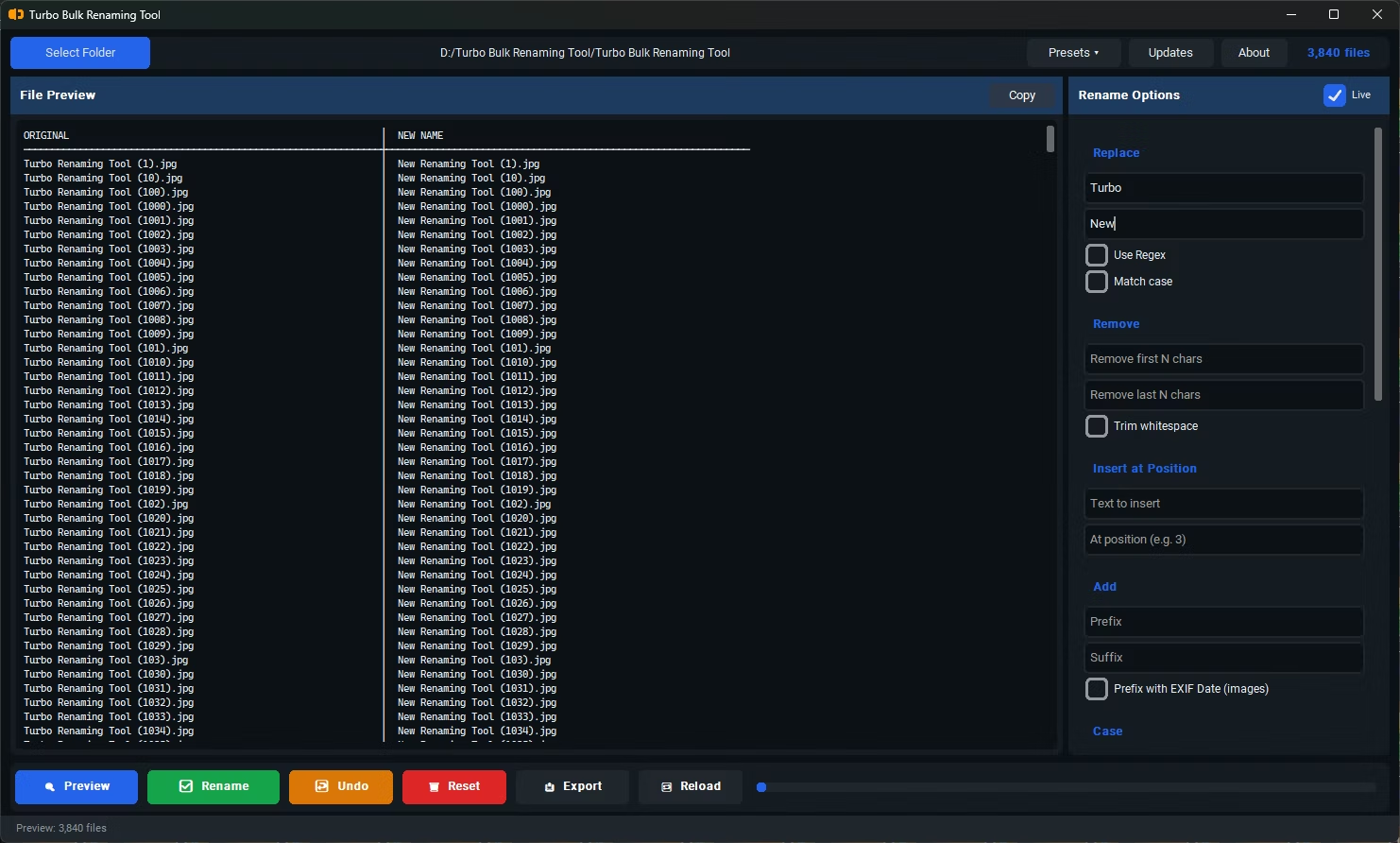
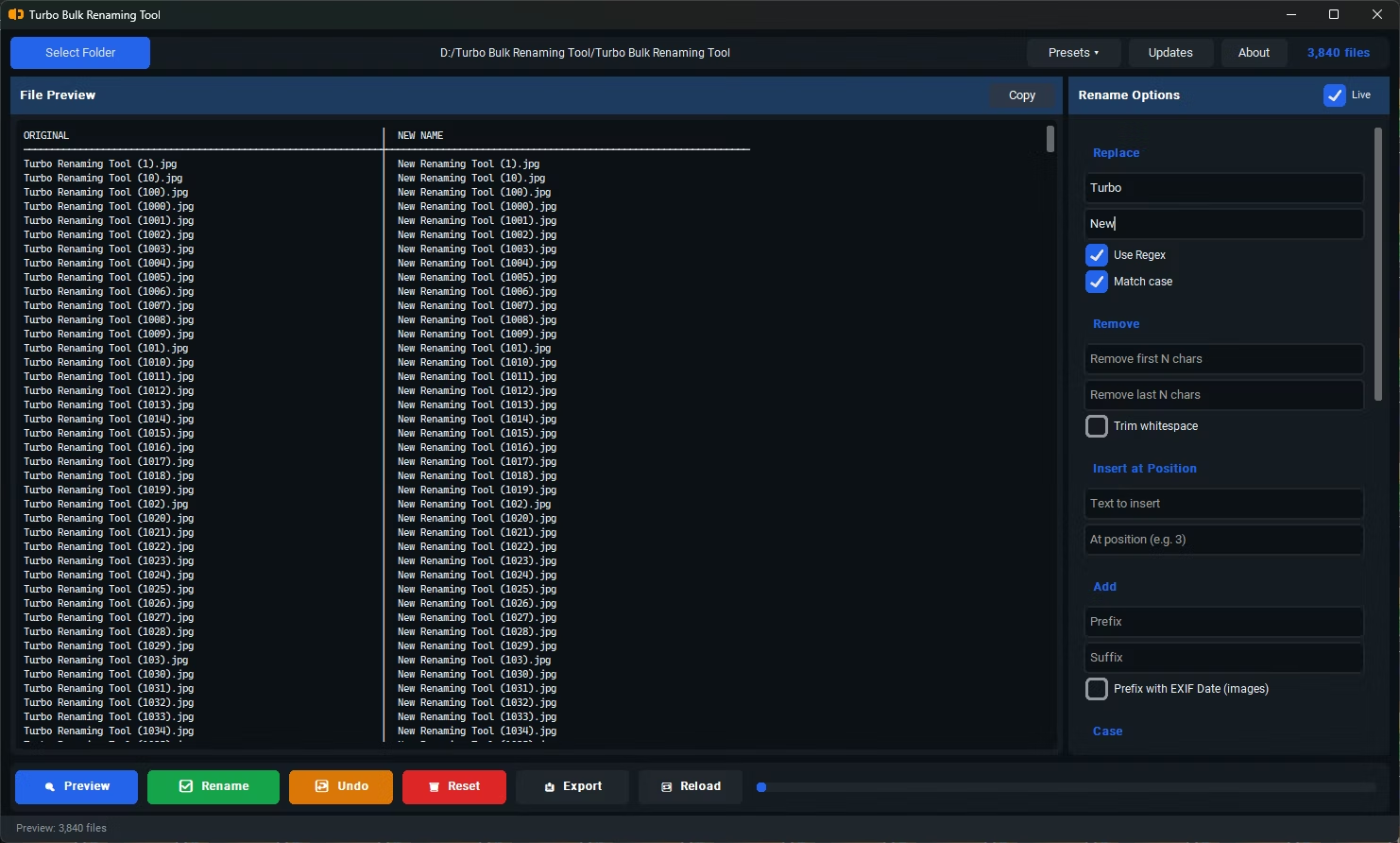
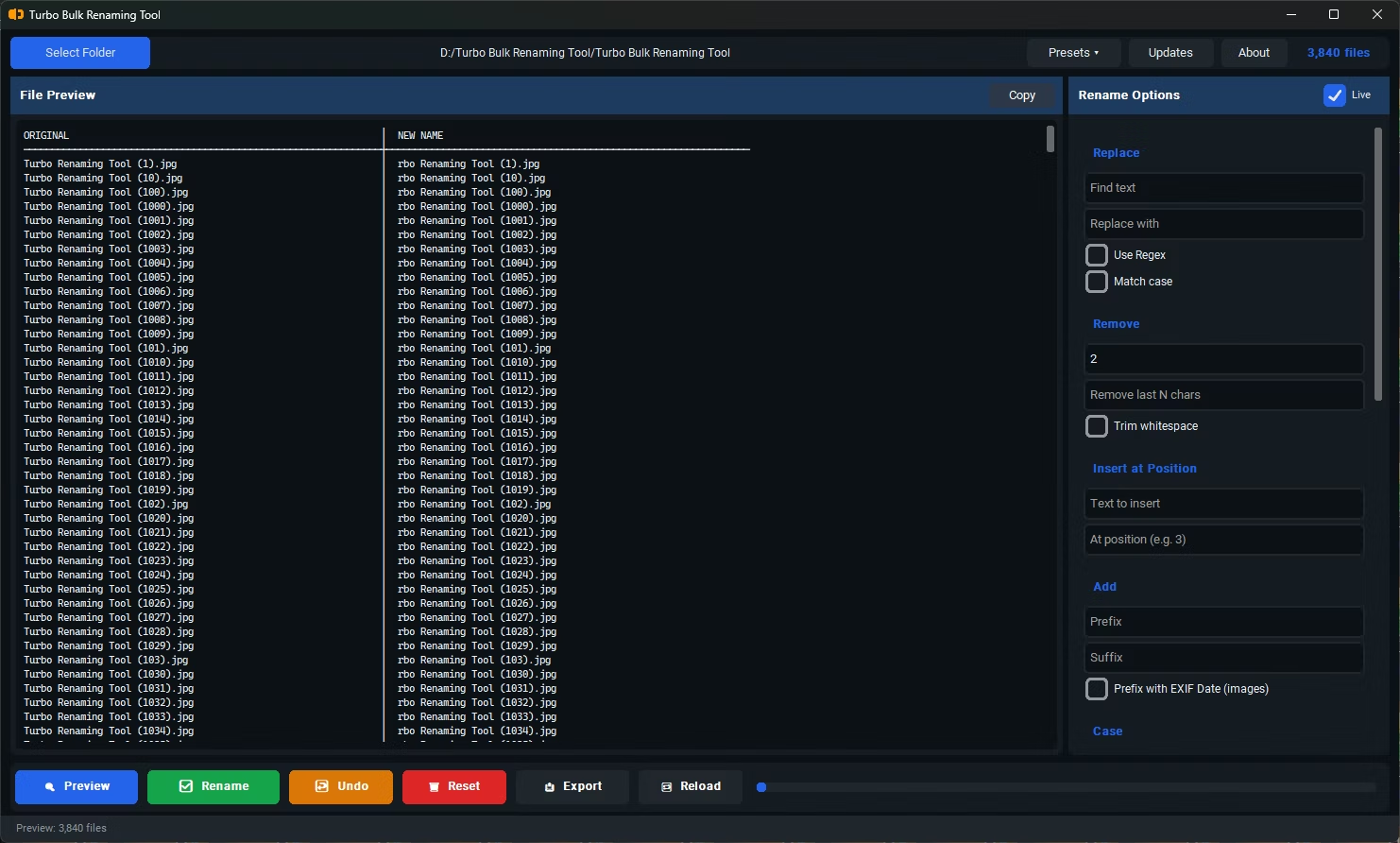
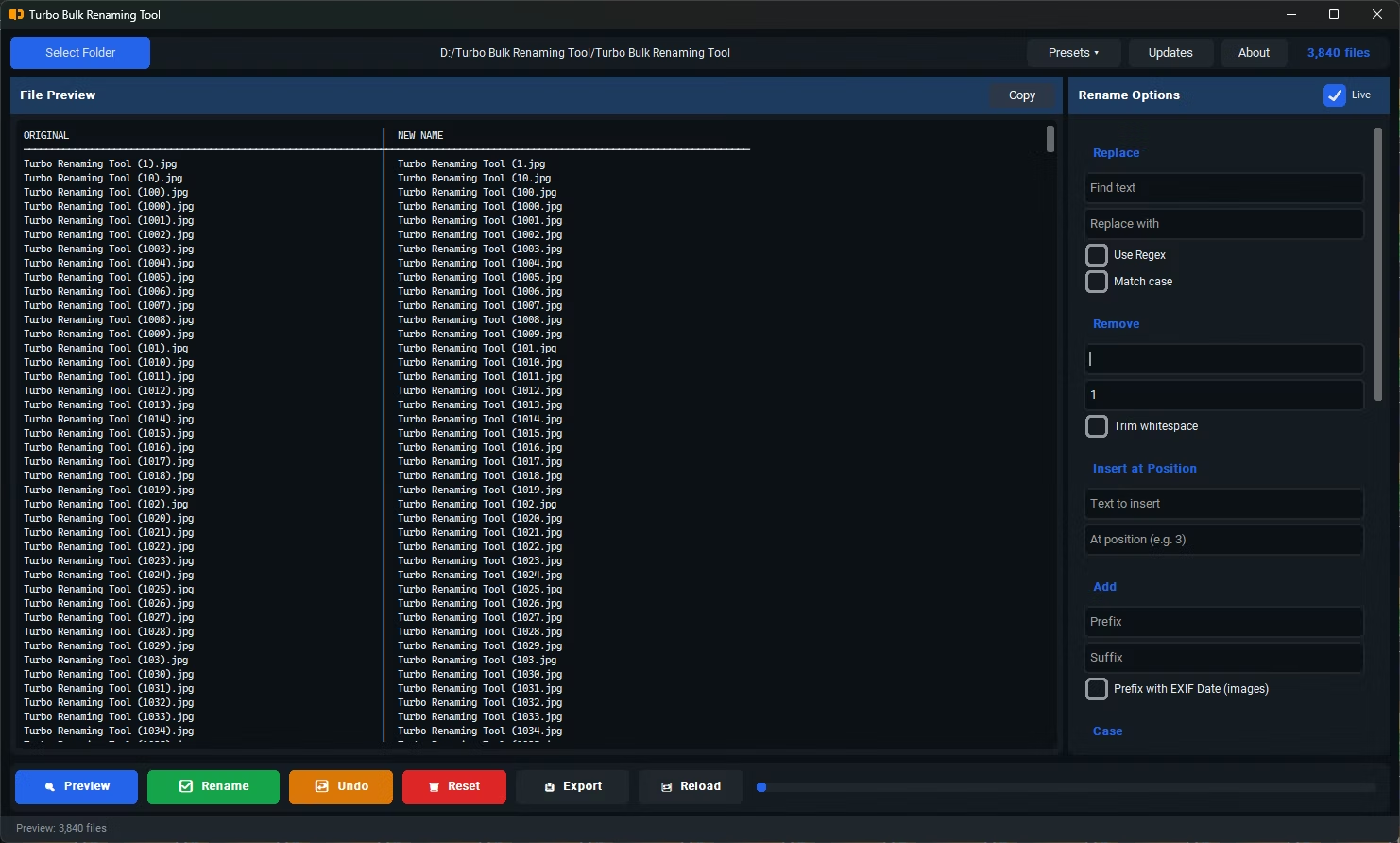
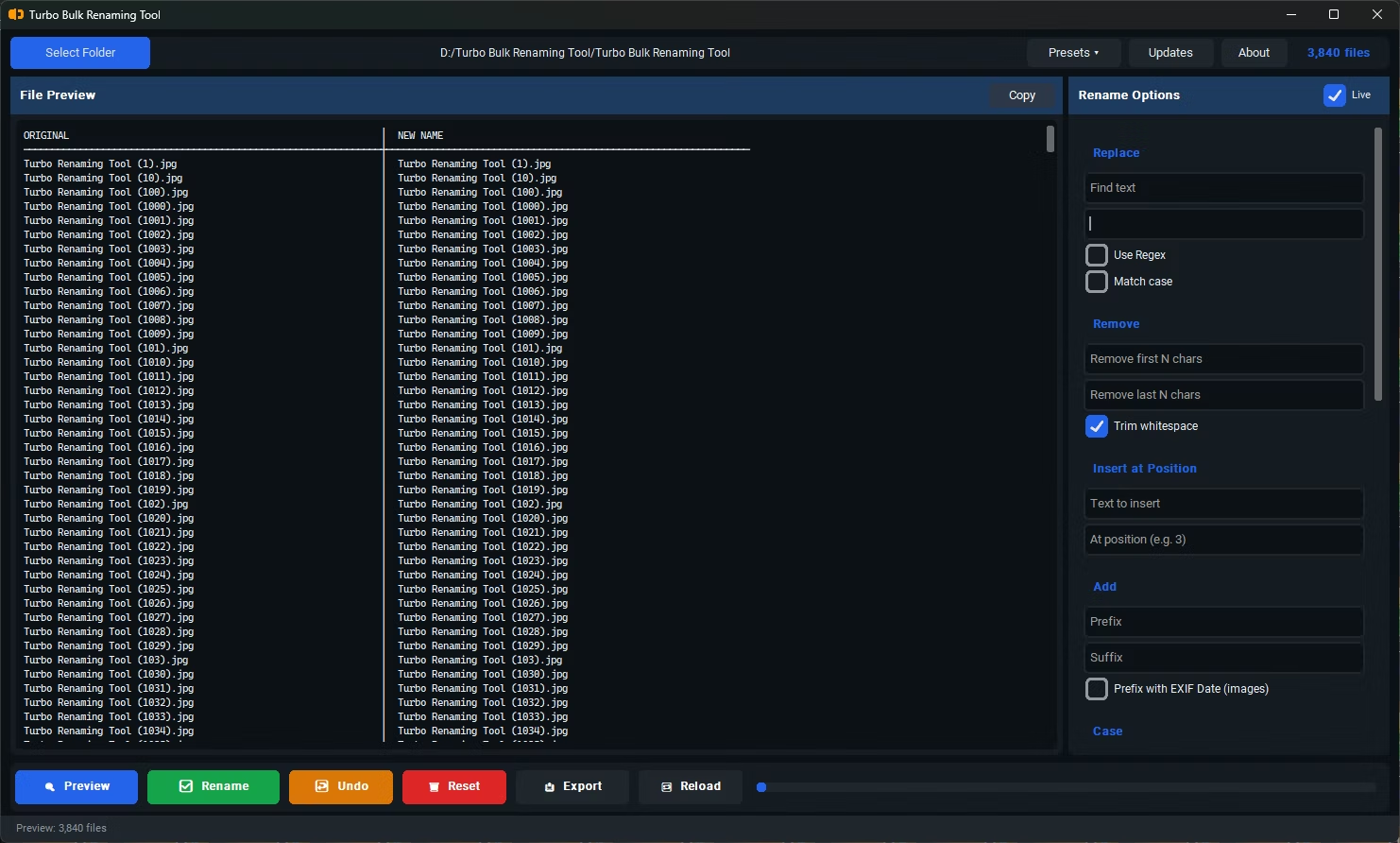
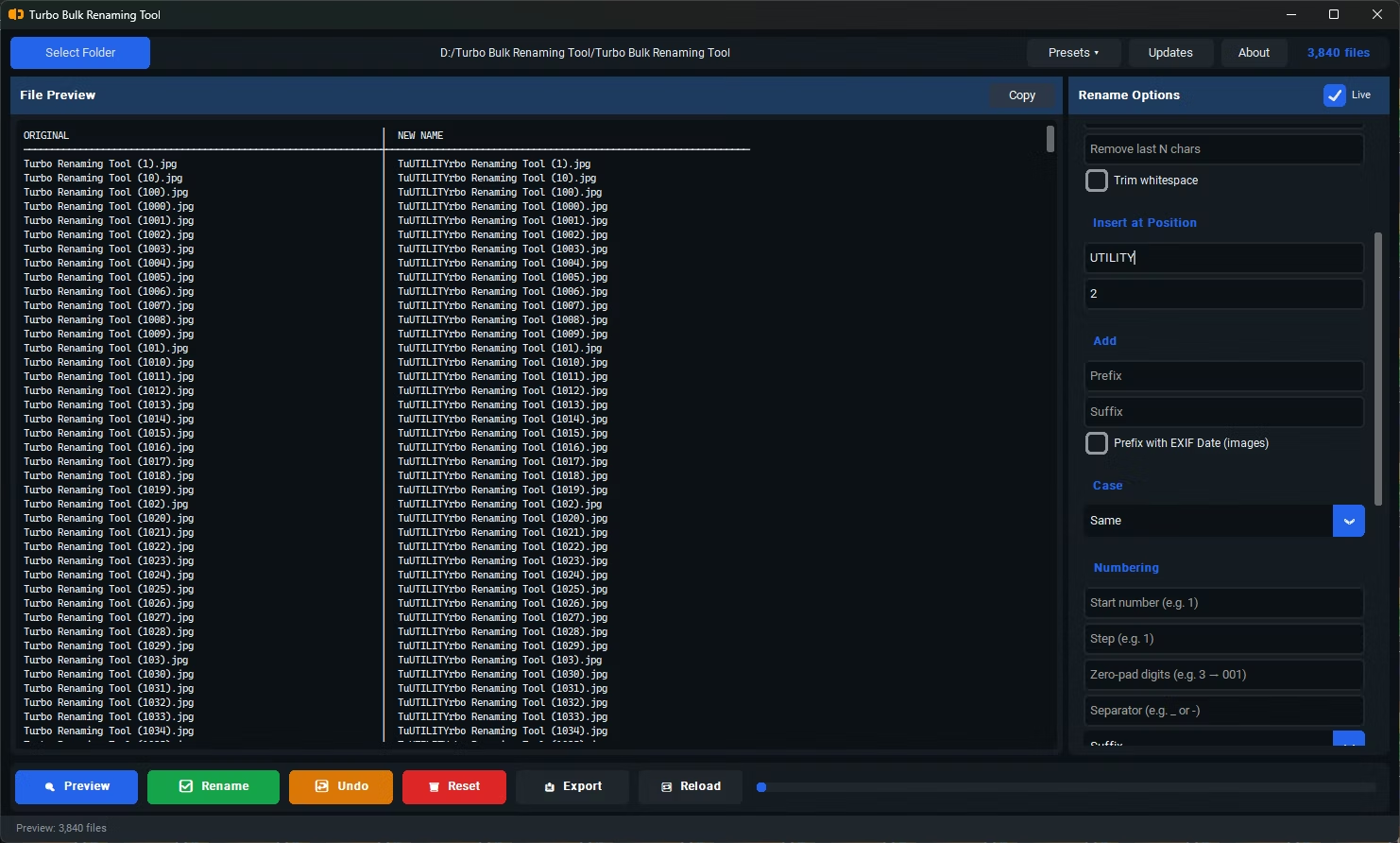
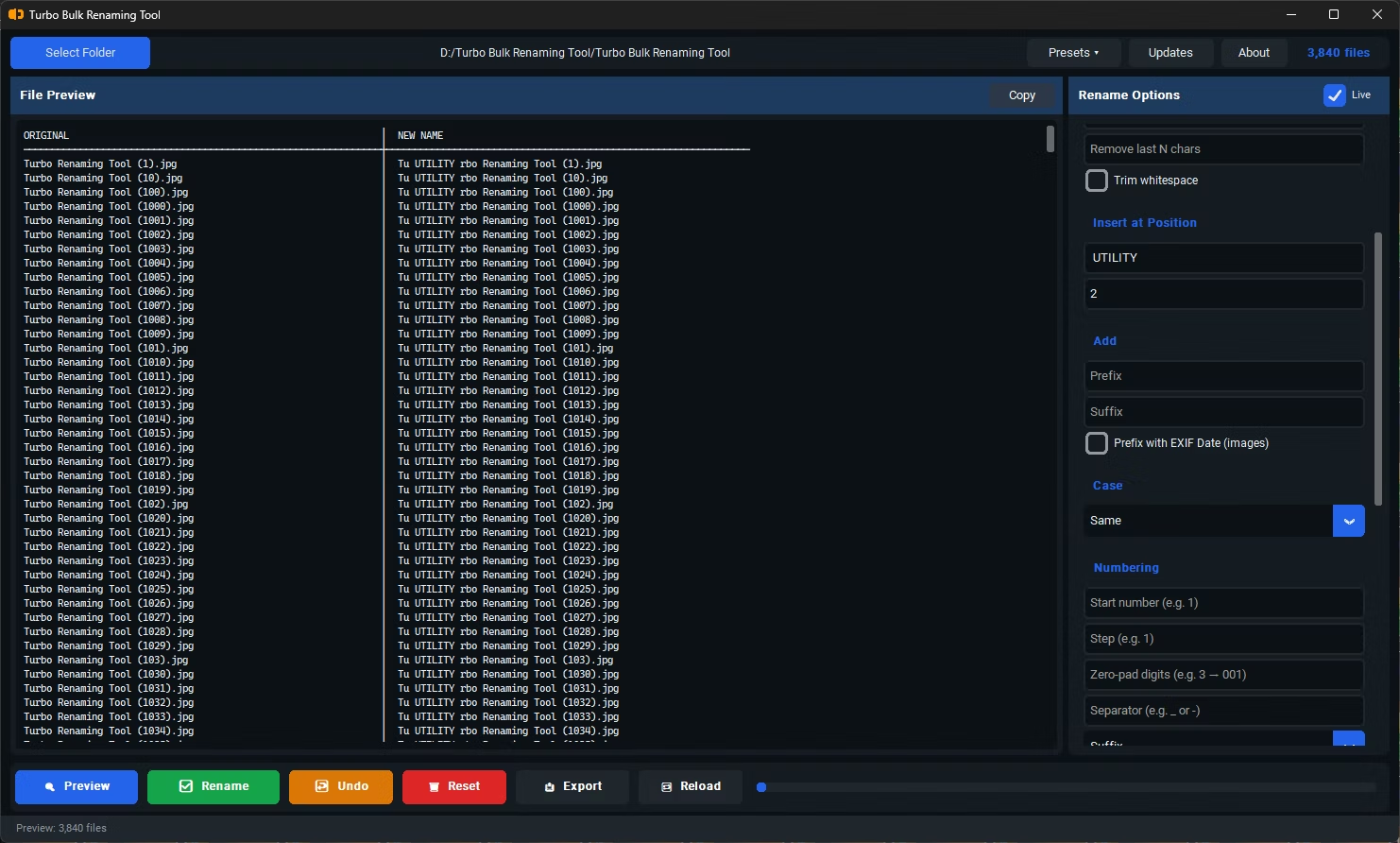
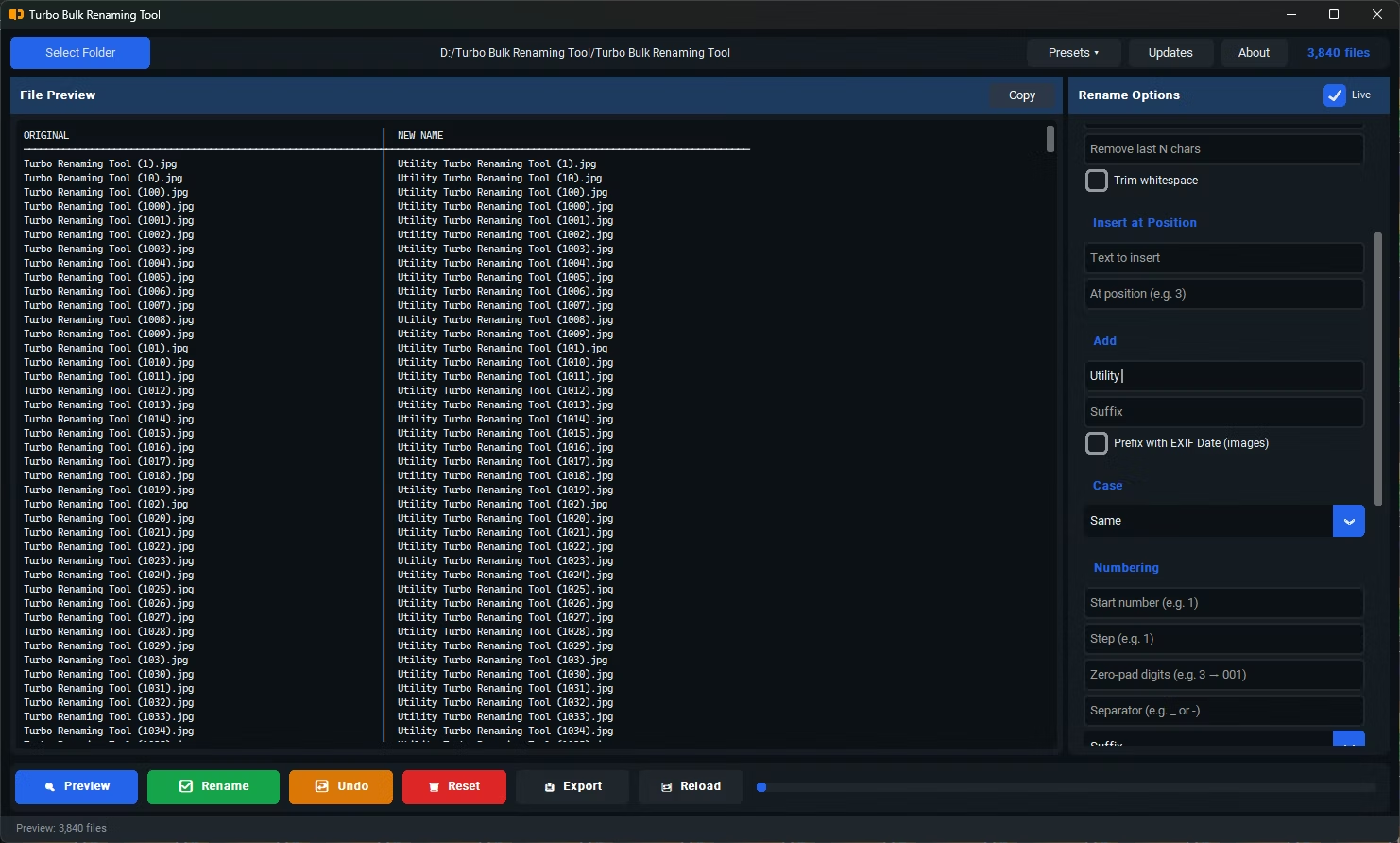
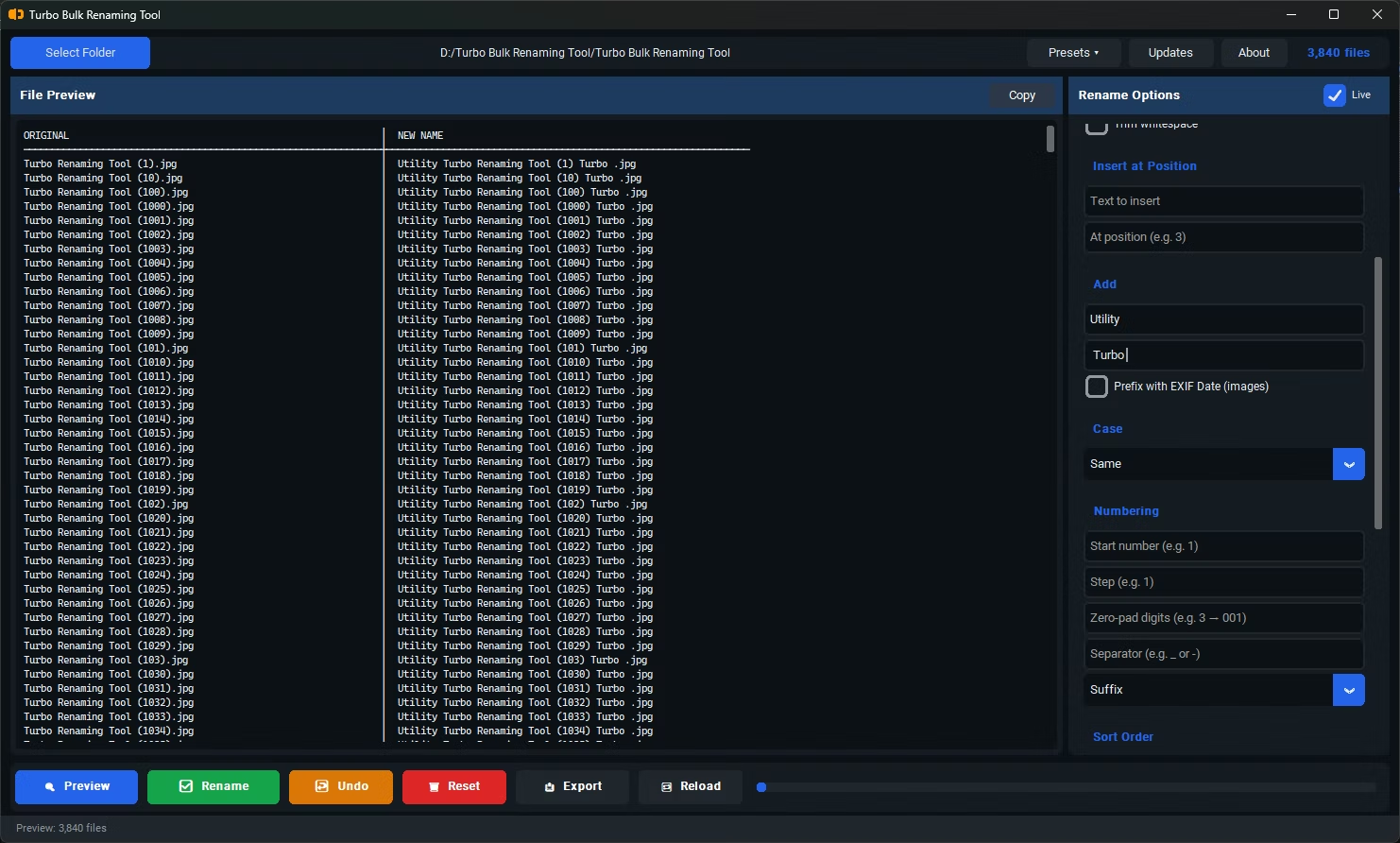
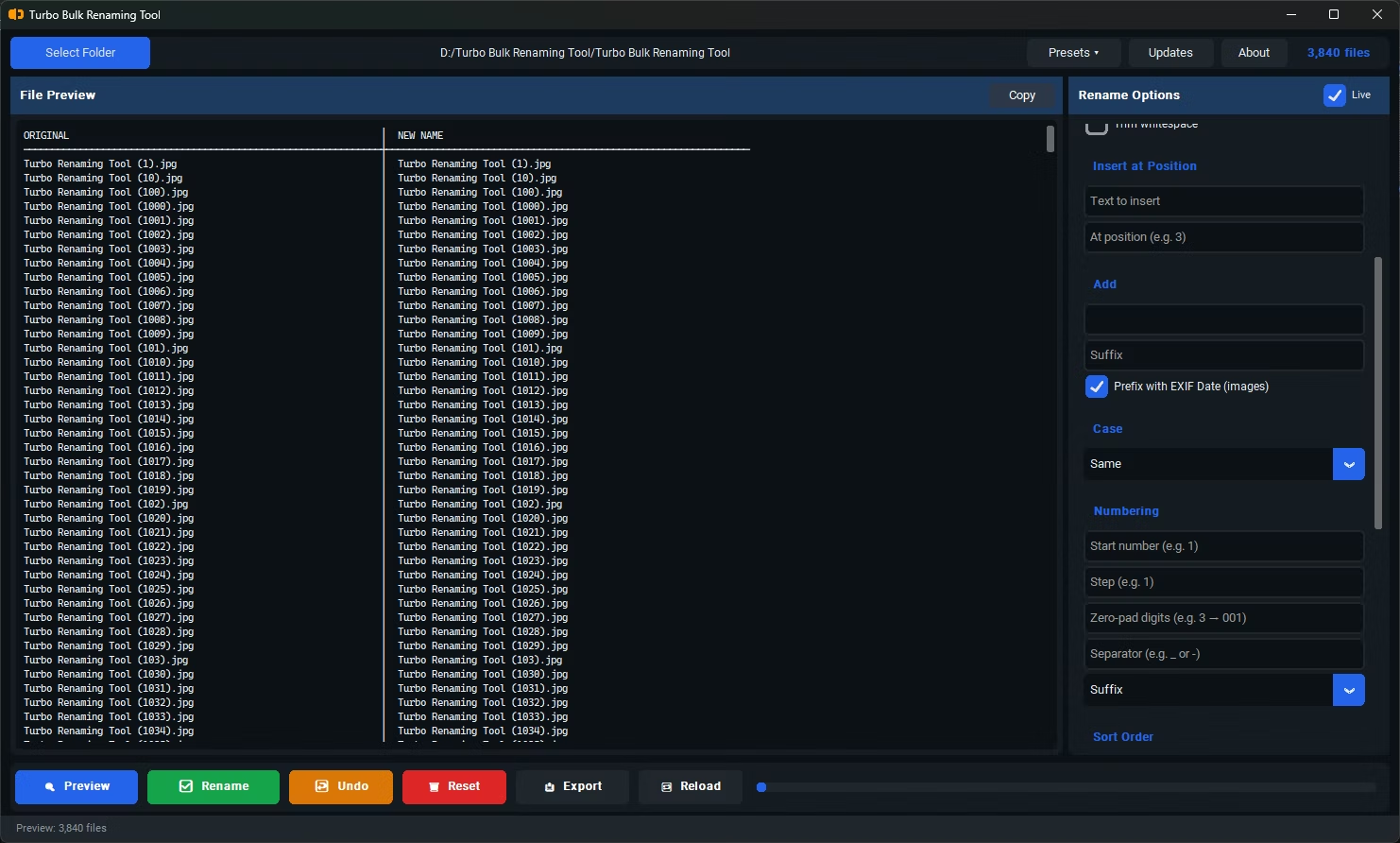
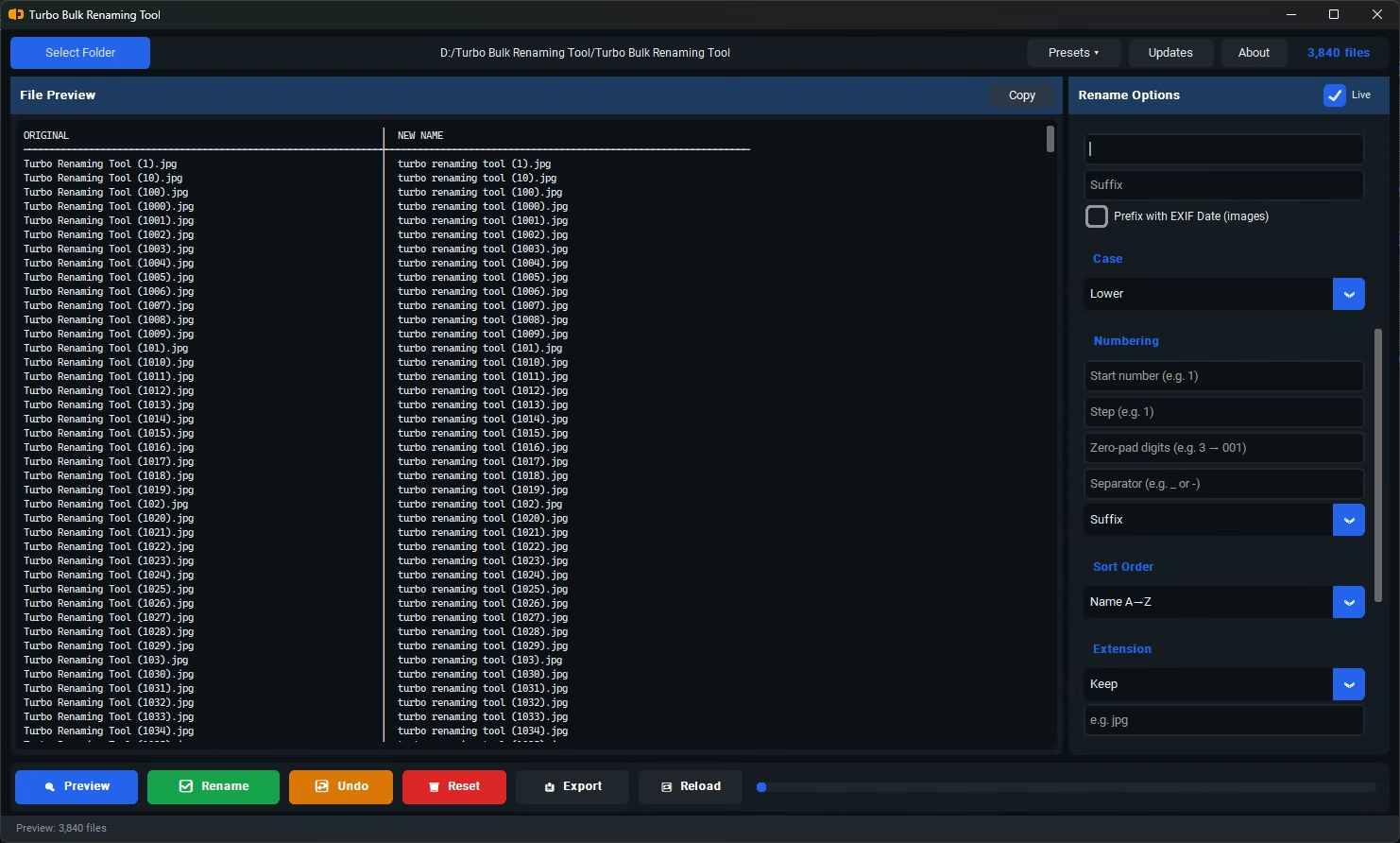
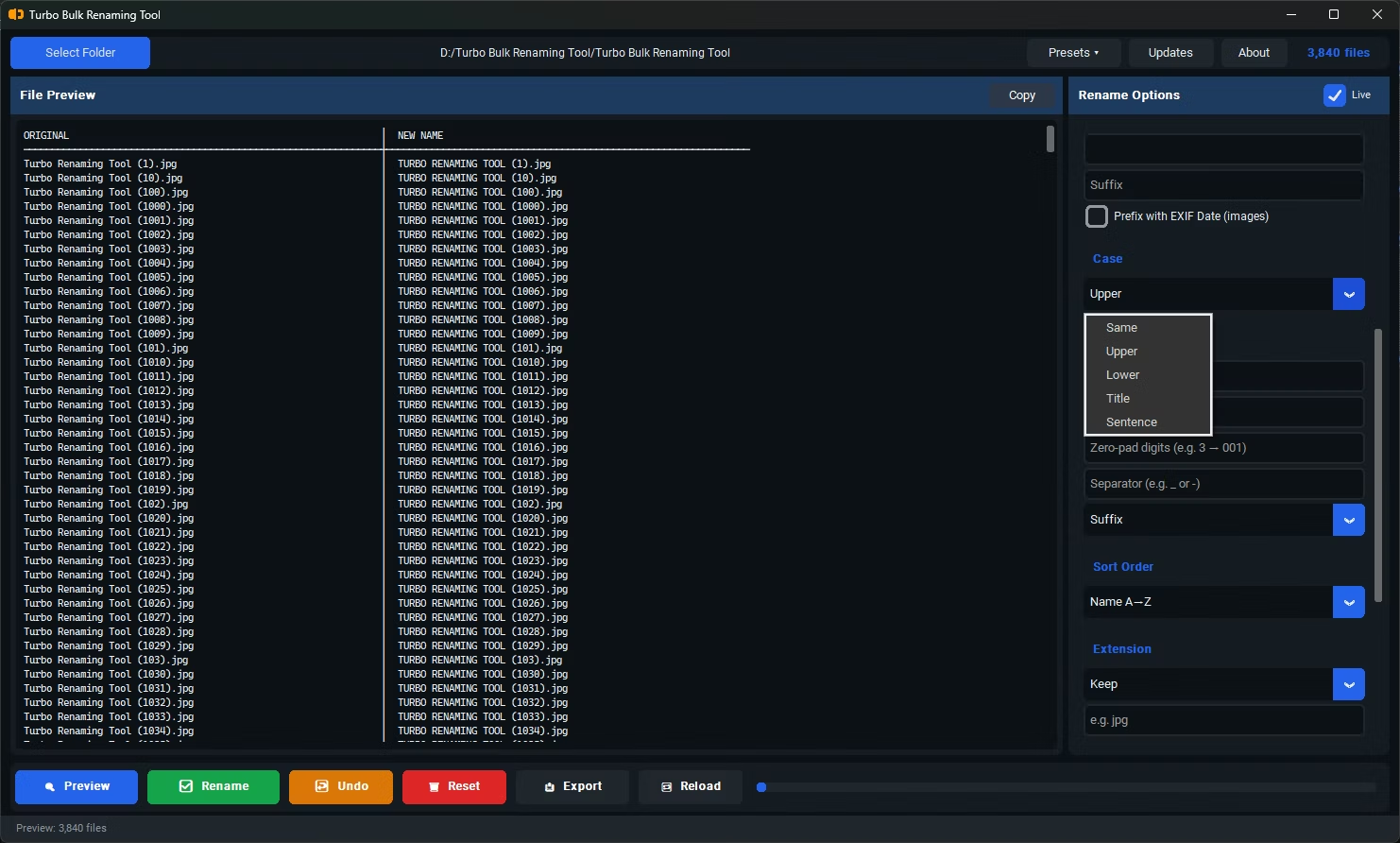
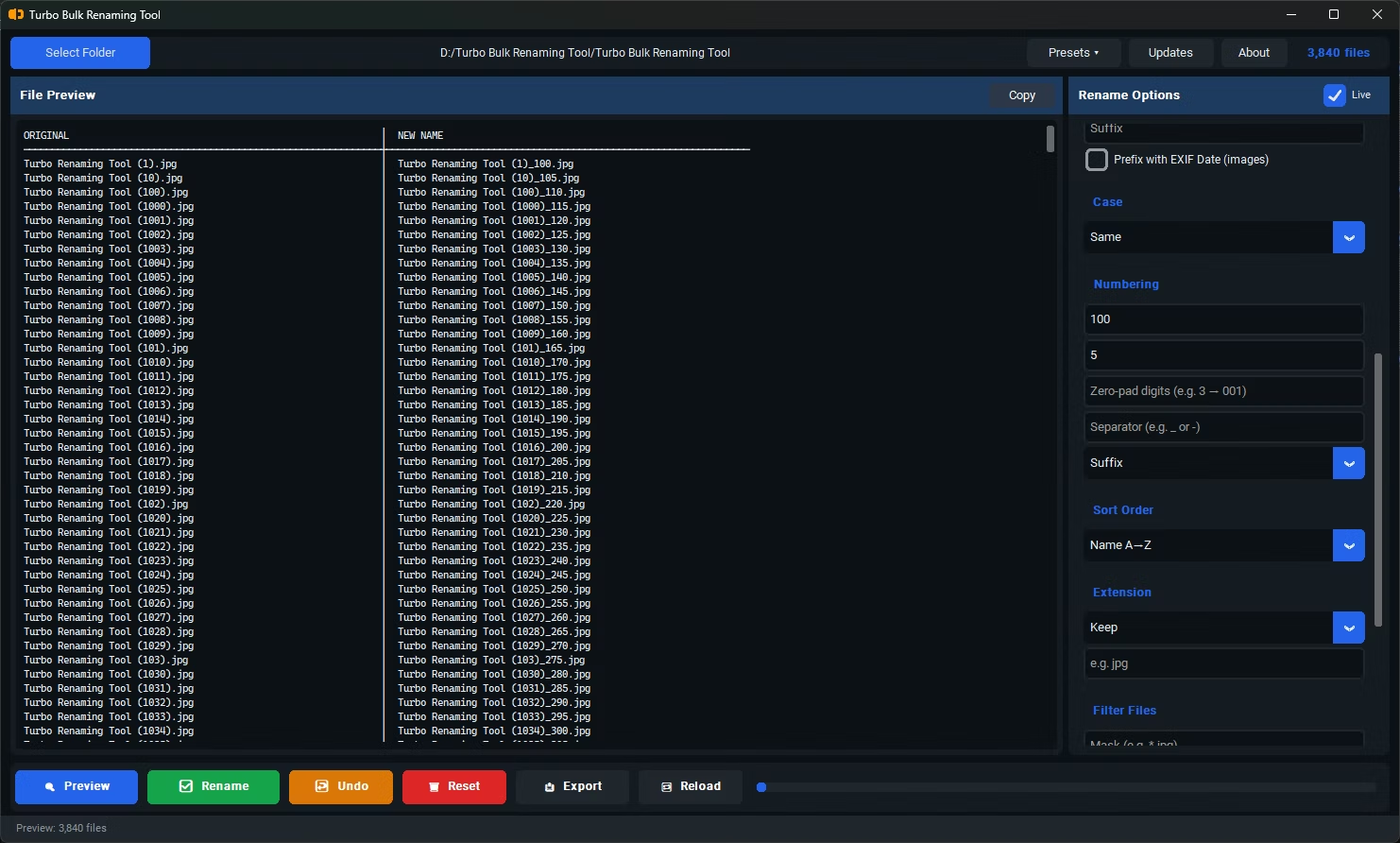

- Install Turbo Bulk Renaming Tool on your Windows PC.
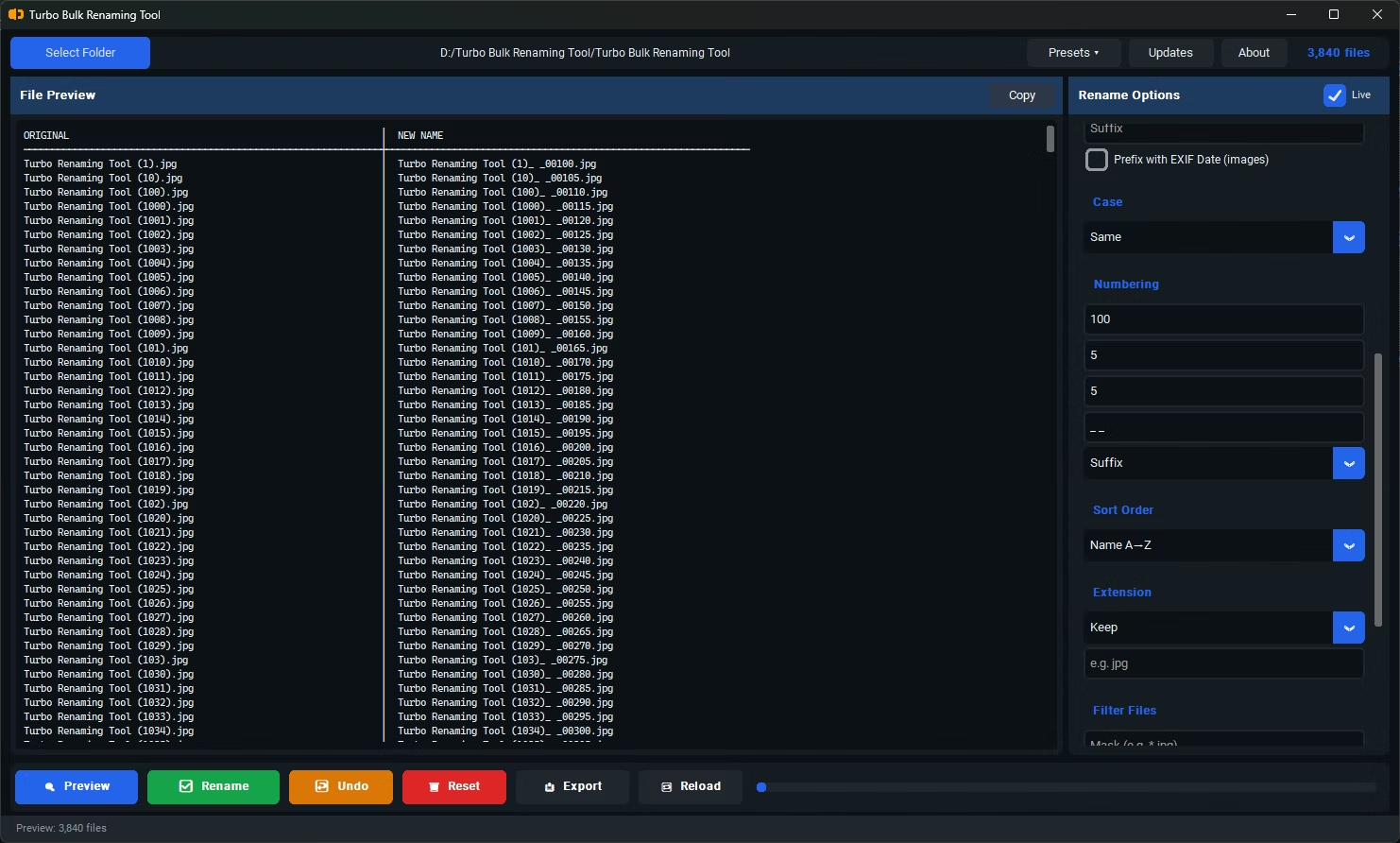
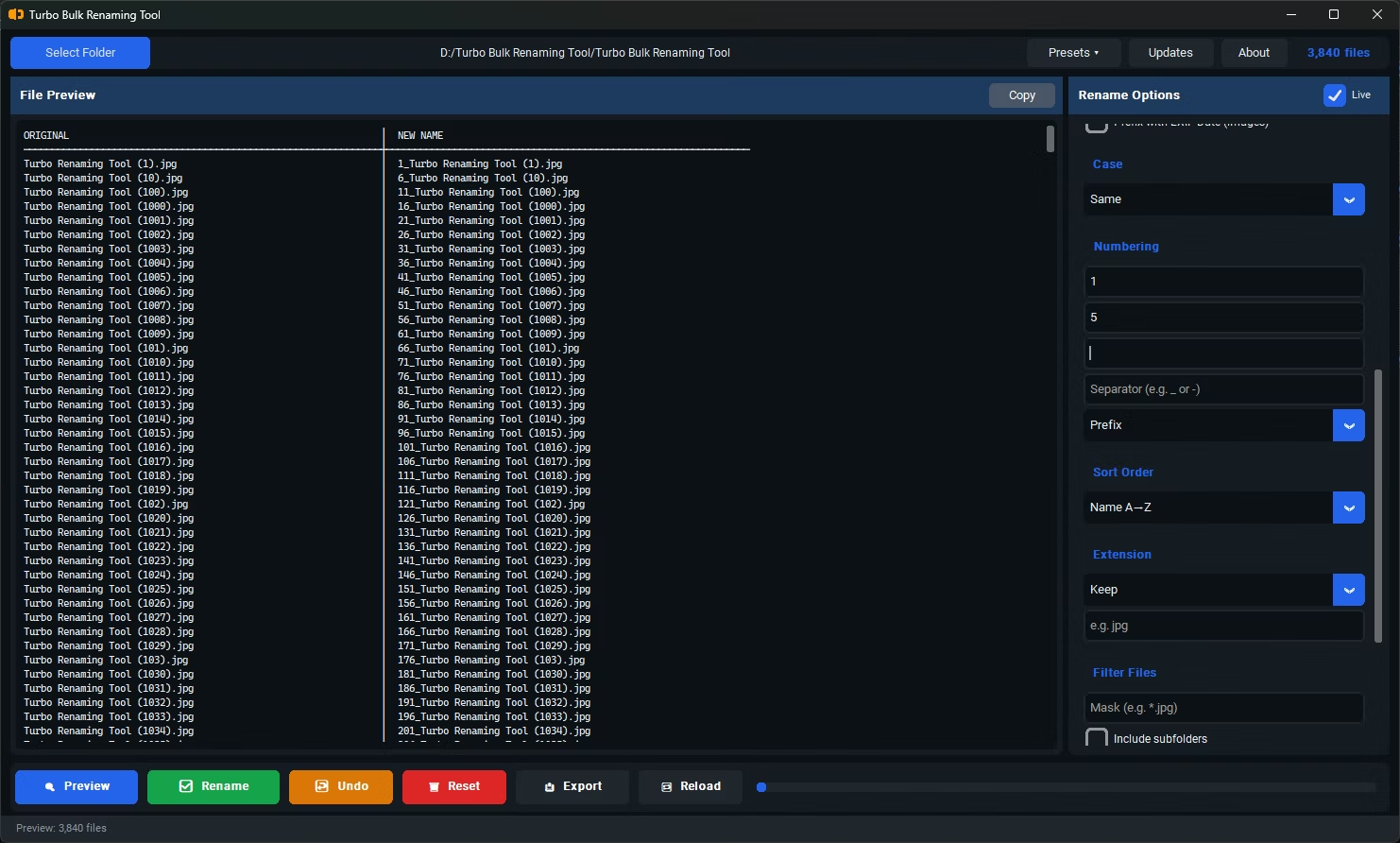
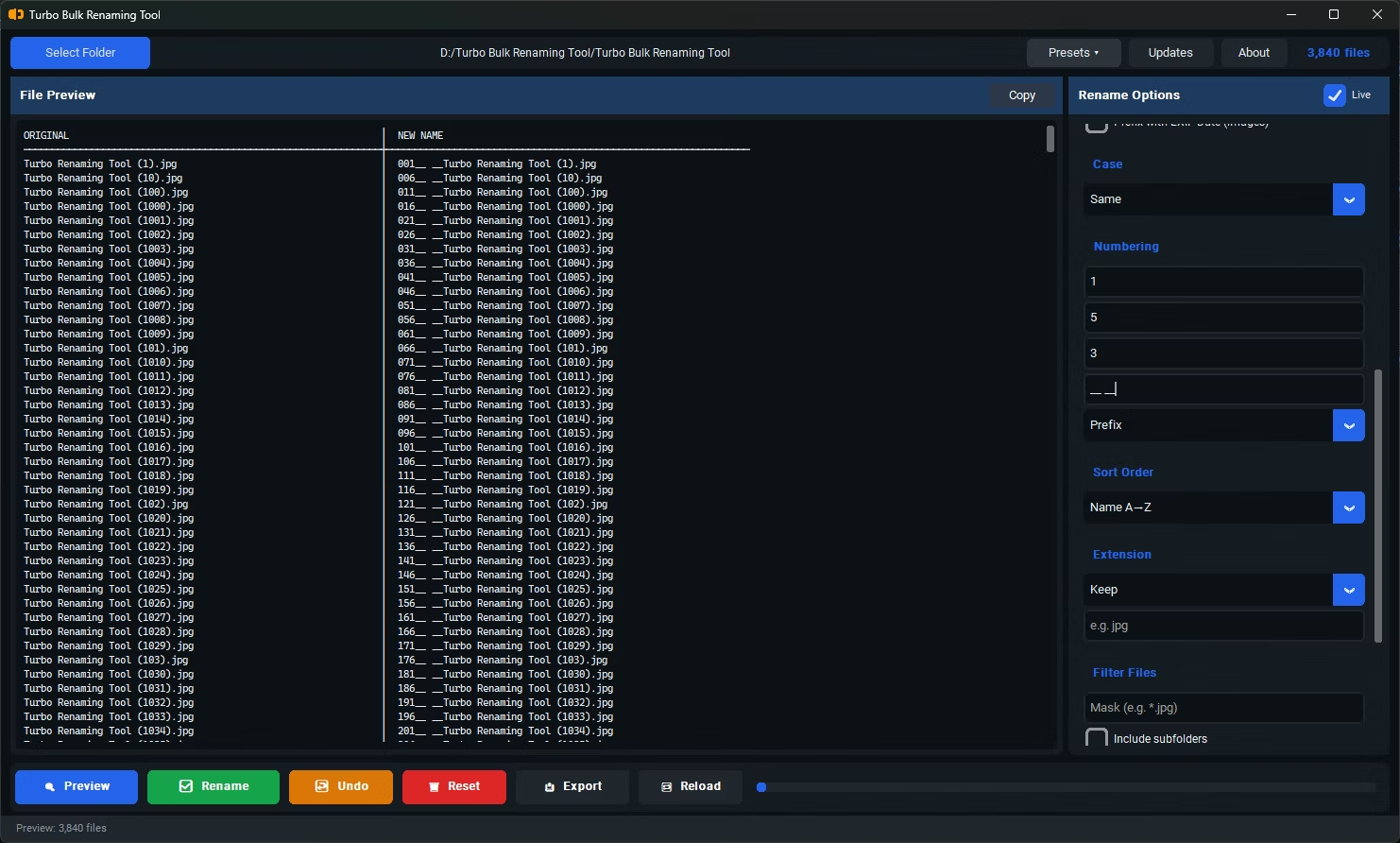
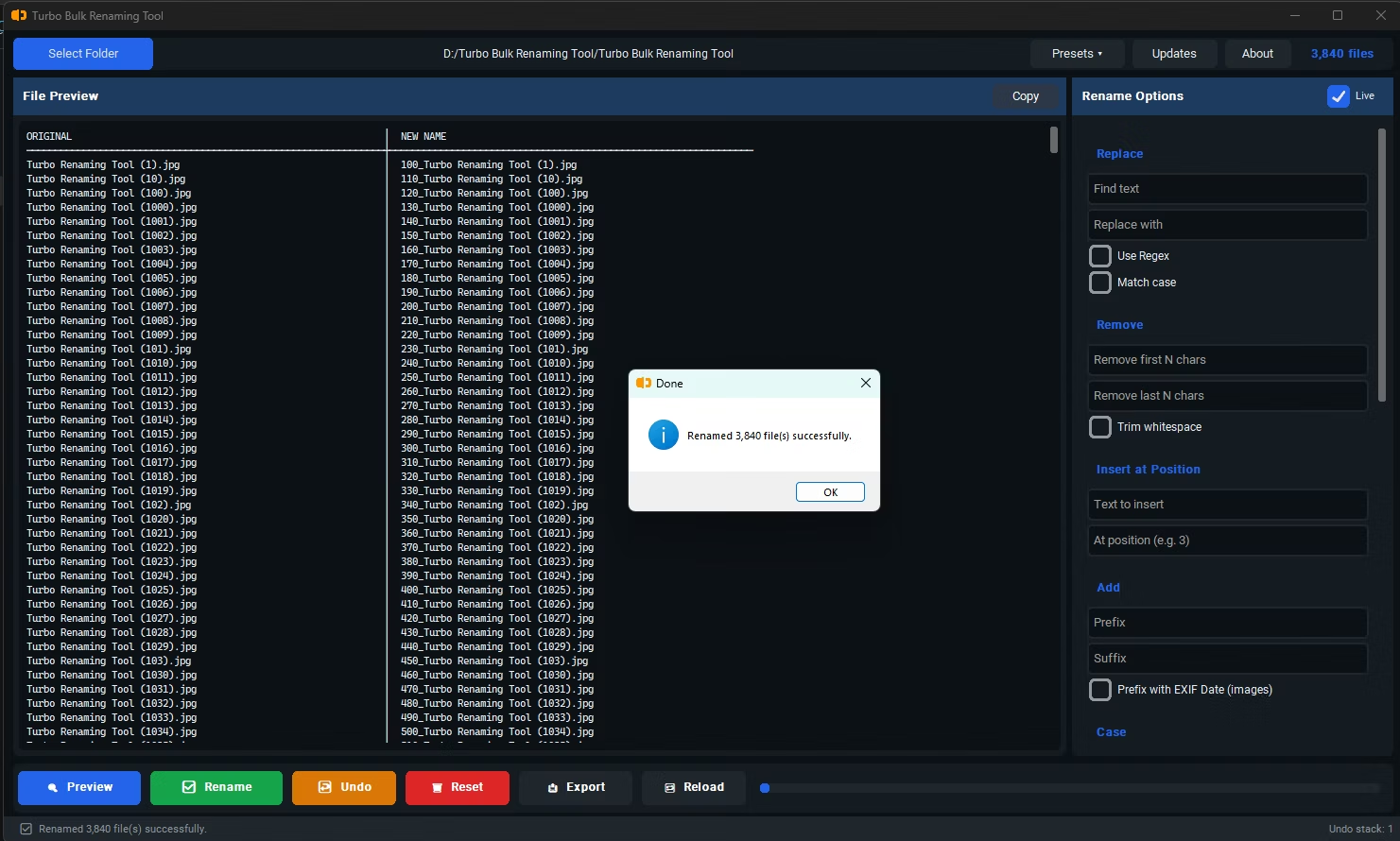
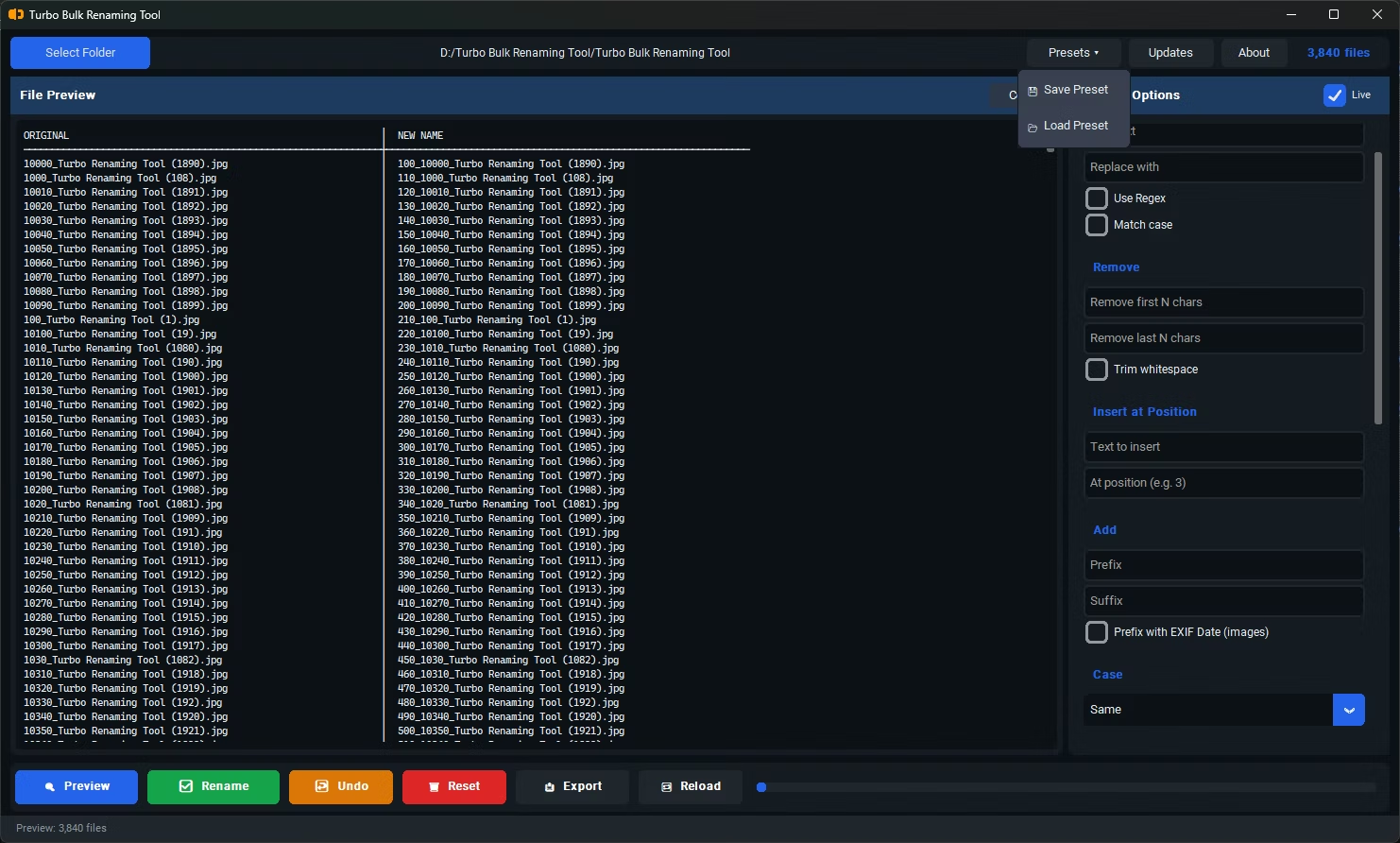
- Open the app and load the folder containing the files whose names you want listed.
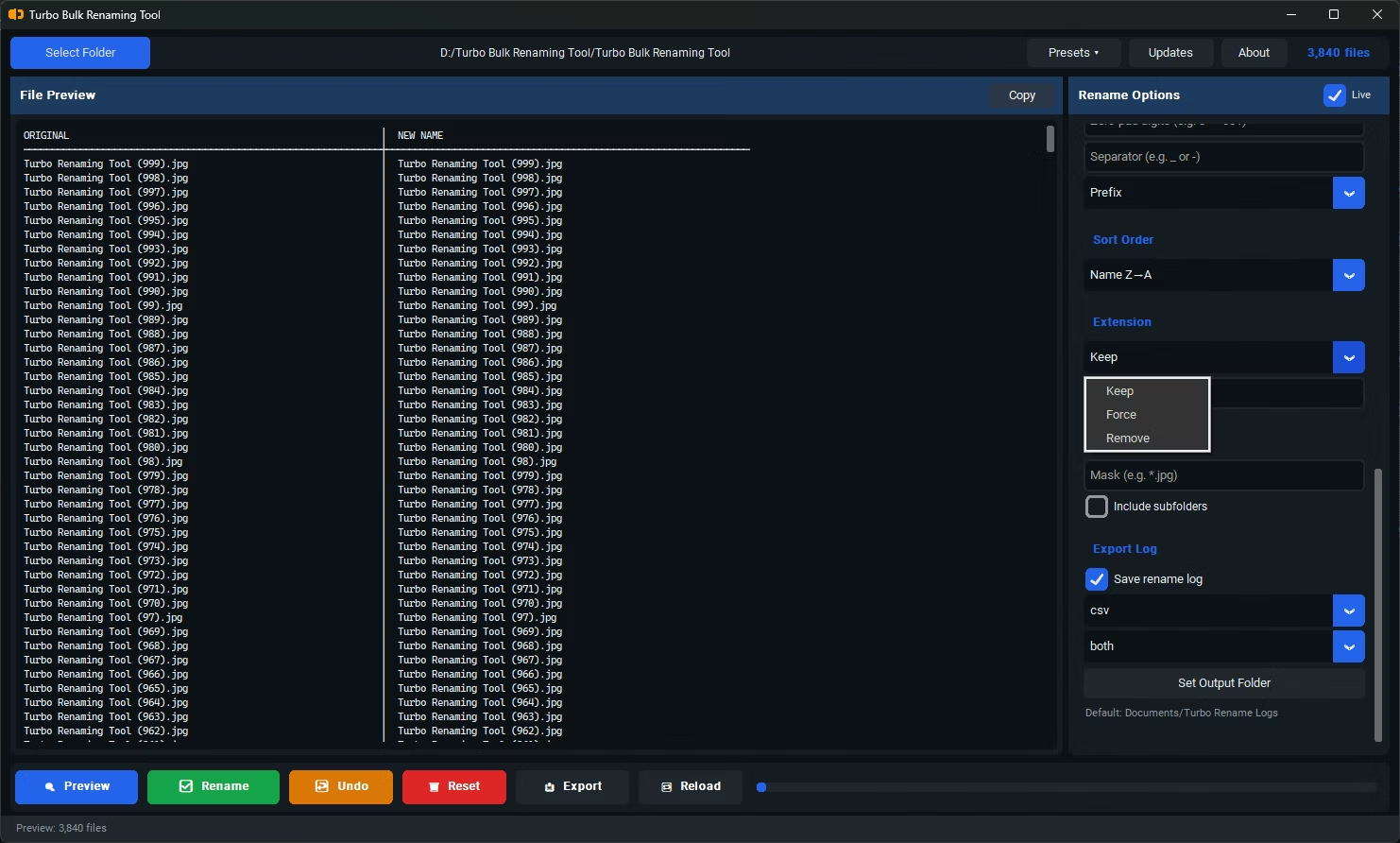
- Enable "Include Subfolders" if you want filenames from nested folders included as well.
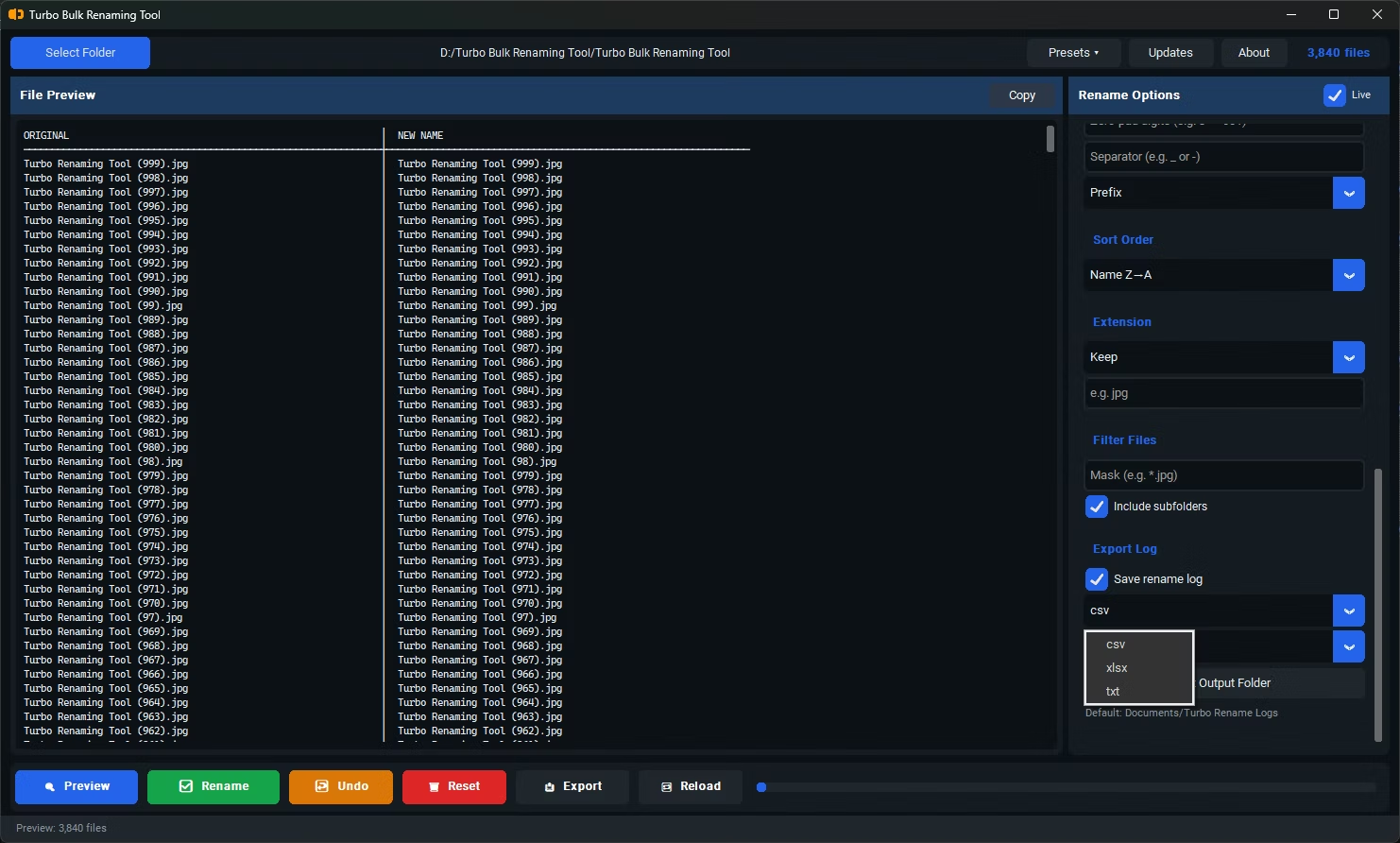
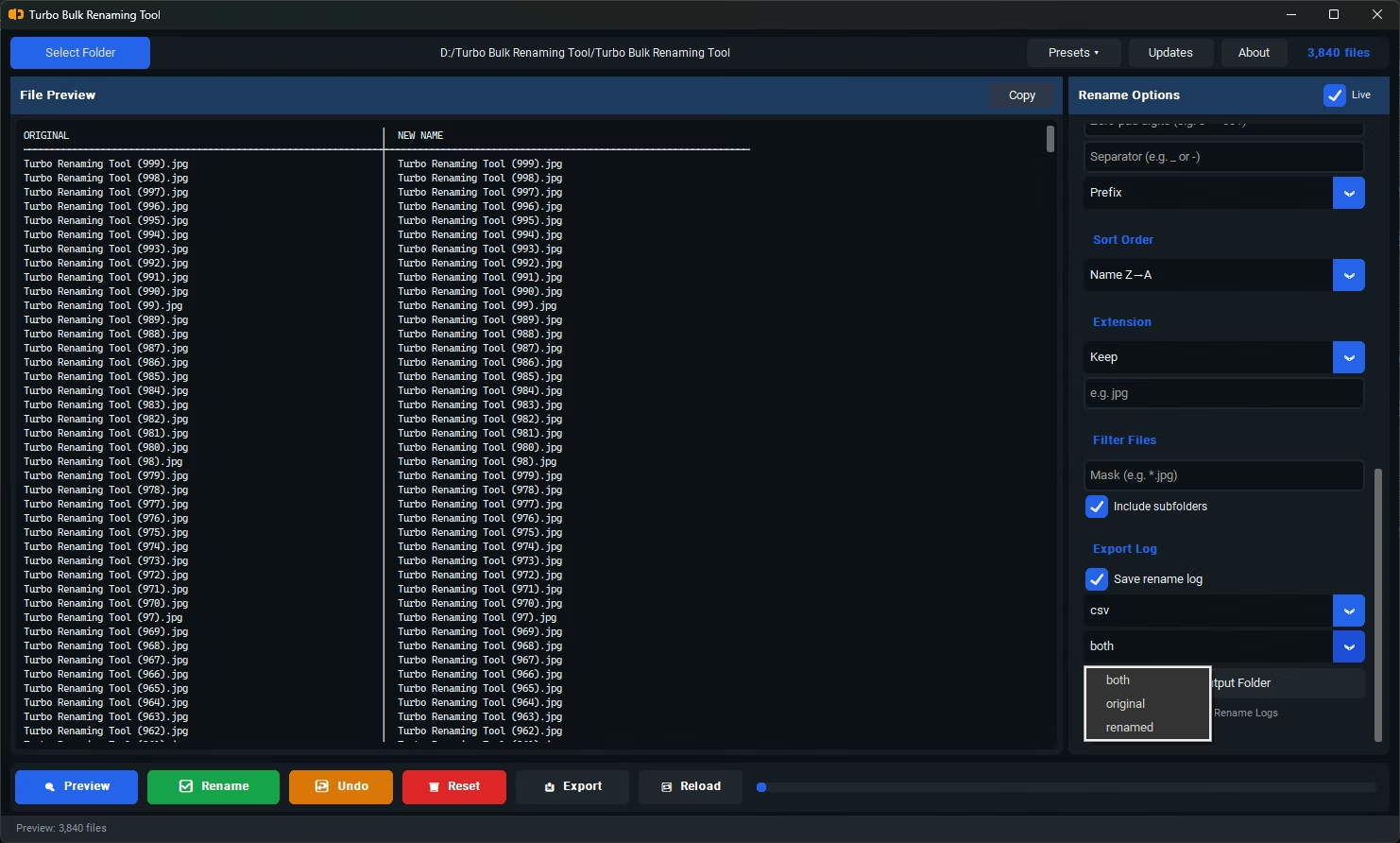
- Click Export Only and choose TXT as the export format.
- Open the generated text file, select all the filenames, and copy them.
- Paste the list directly into your Word document, where each filename appears on its own line.
- Produces a clean plain-text list with no extra formatting or icons attached
- Captures every filename in a folder, including nested sub-folders if enabled
- Avoids manually retyping filenames, which is slow and error-prone
- Works as a standalone export, without requiring any renaming to take place first
- Runs fully offline, so your file listing never leaves your computer
- Handles large folders just as easily as small ones
Why not just copy filenames directly from File Explorer?
Copying directly from File Explorer can bring along extra formatting or only work for a small selection at a time. Exporting first produces a clean, complete list ready to paste anywhere.
Can I include file extensions in the exported list?
Yes, the export includes full filenames with extensions exactly as they appear on disk, unless you've chosen to export renamed names instead.
Does this work for very large folders?
Yes, the export process handles large folders the same way it handles small ones, producing a complete list regardless of file count.
Ready to rename your files in bulk, offline, with full privacy?