Most online image converters are designed around occasional, small-scale use — convert a few files, get them back, done. The moment you have "many" images, meaning dozens, hundreds, or thousands, the upload-based model starts working against you: free tiers cap how many files or how much total size you can process, and even paid tiers still require every file to travel over the internet before conversion can begin.
A desktop converter sidesteps this entirely by working with files already sitting on your hard drive. There's no concept of an "upload limit" because nothing is being uploaded — the software reads, converts, and writes files locally, regardless of how many you're processing.
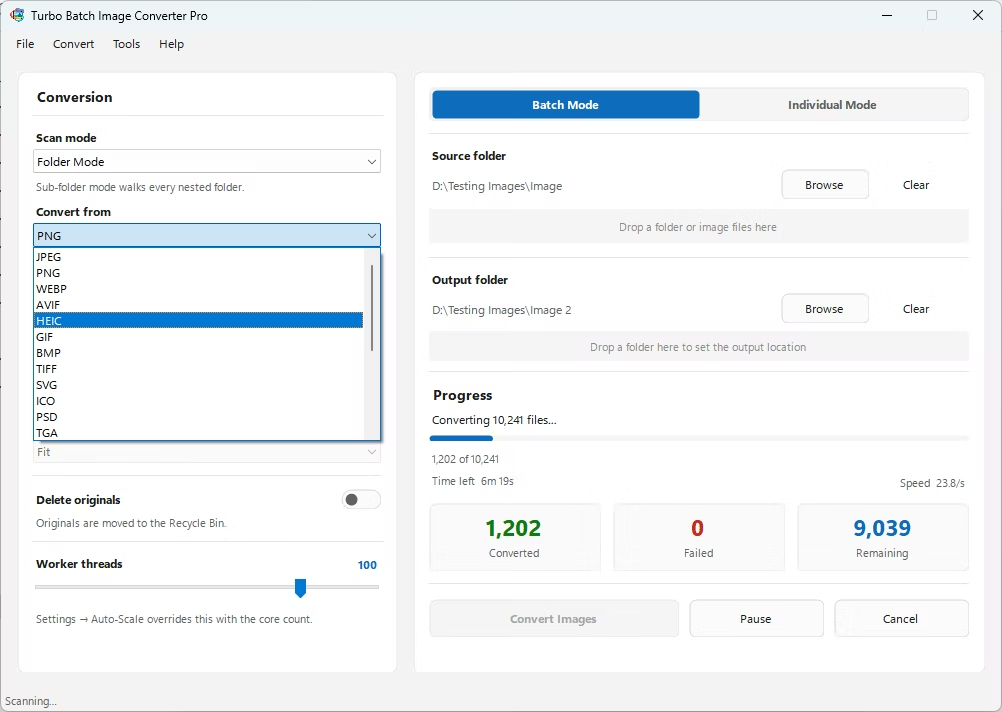
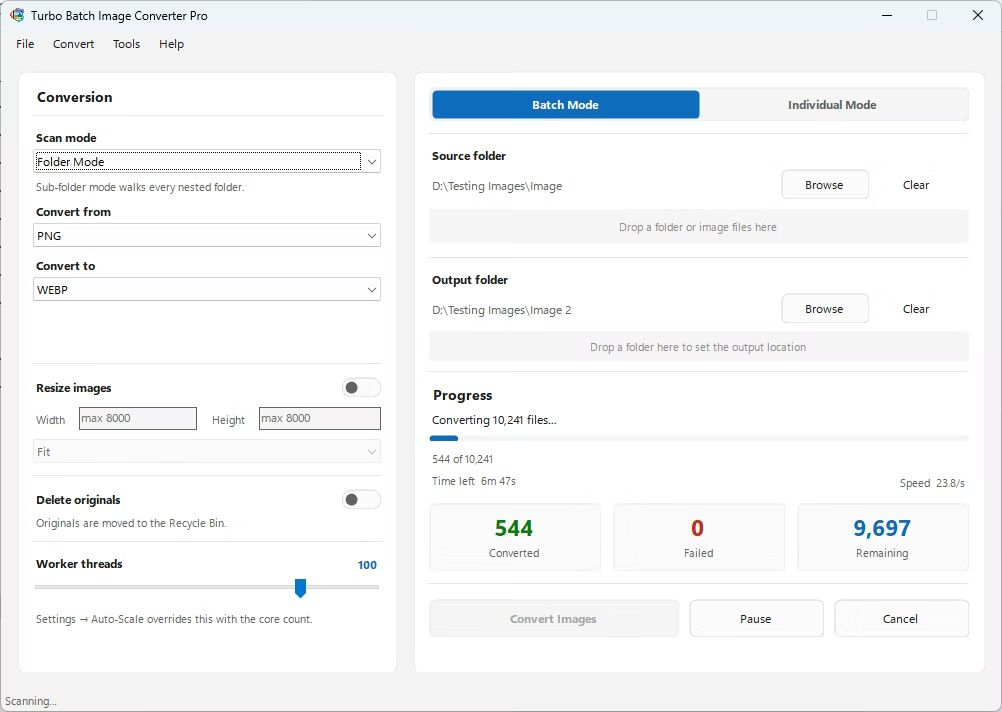
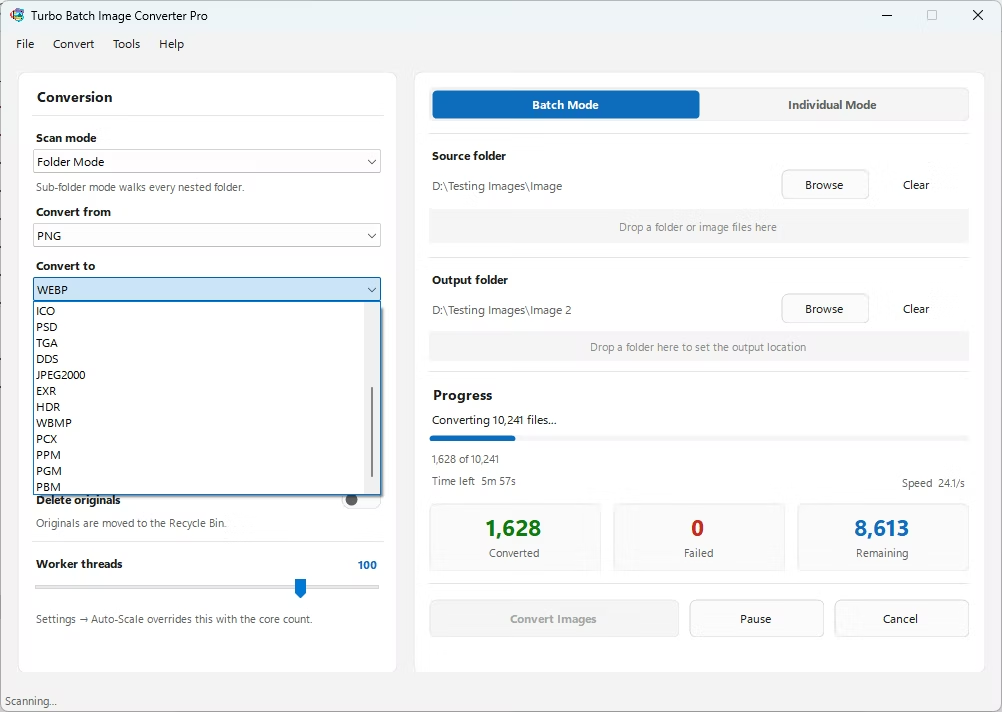
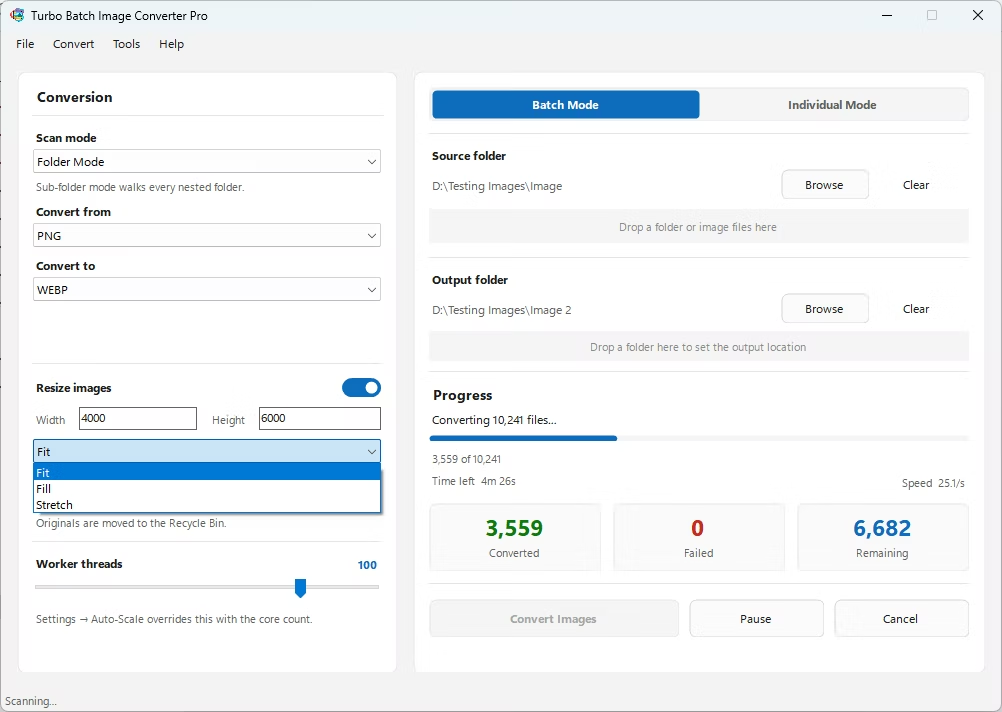
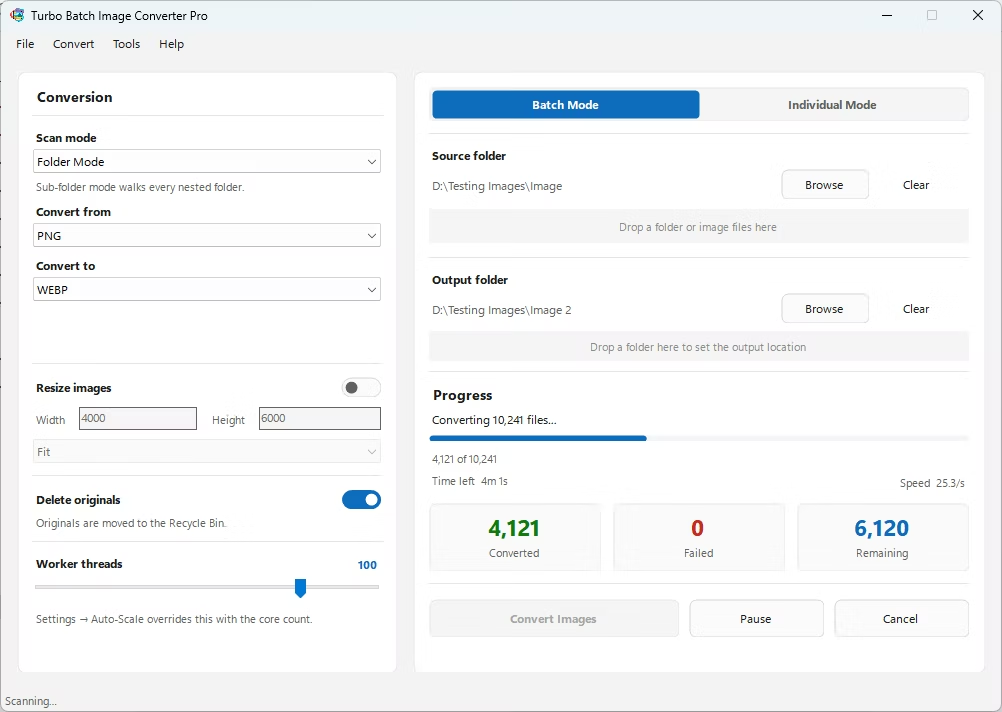
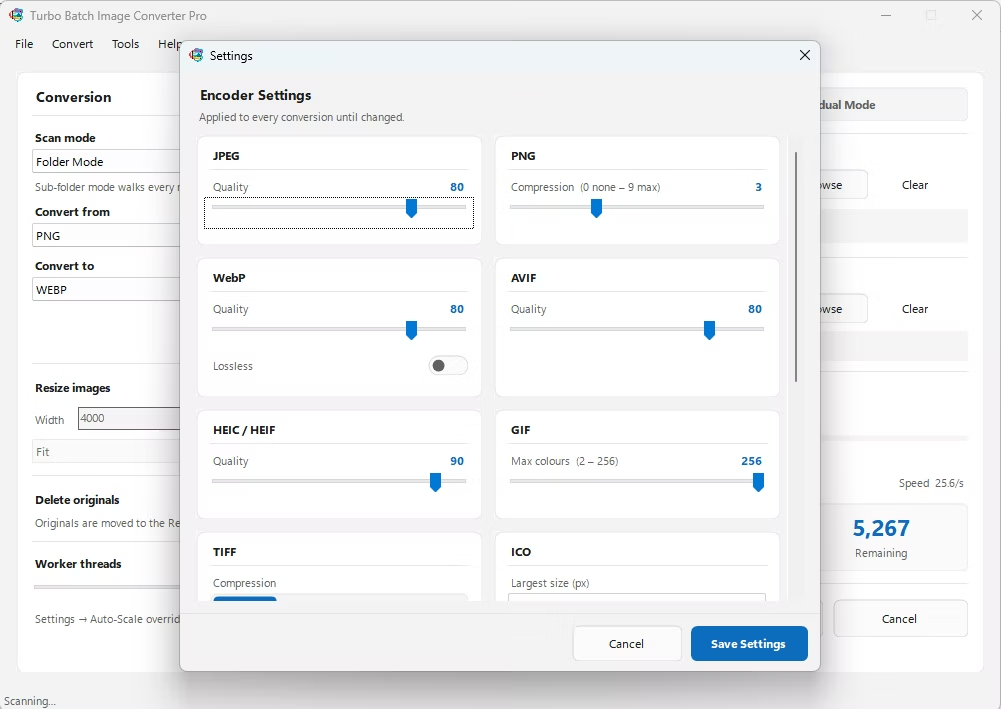
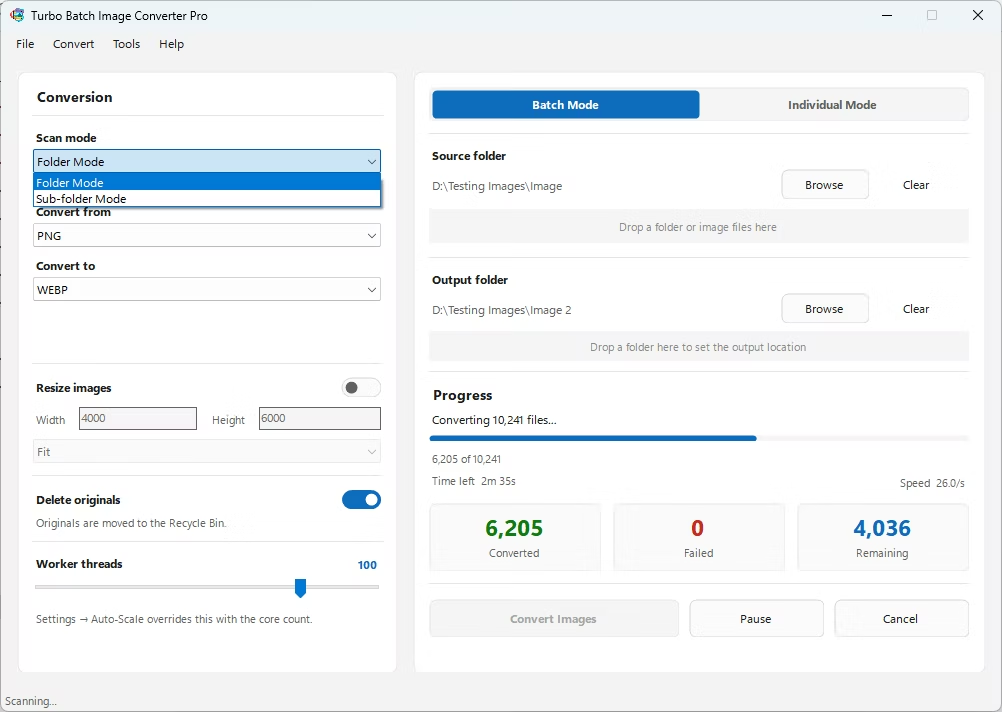
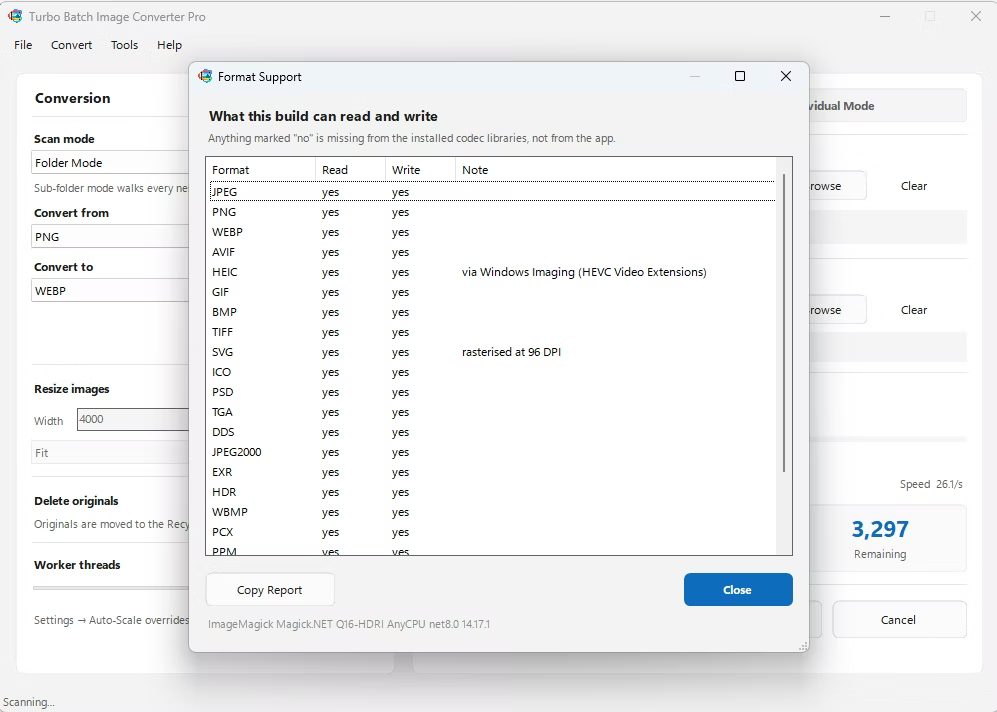
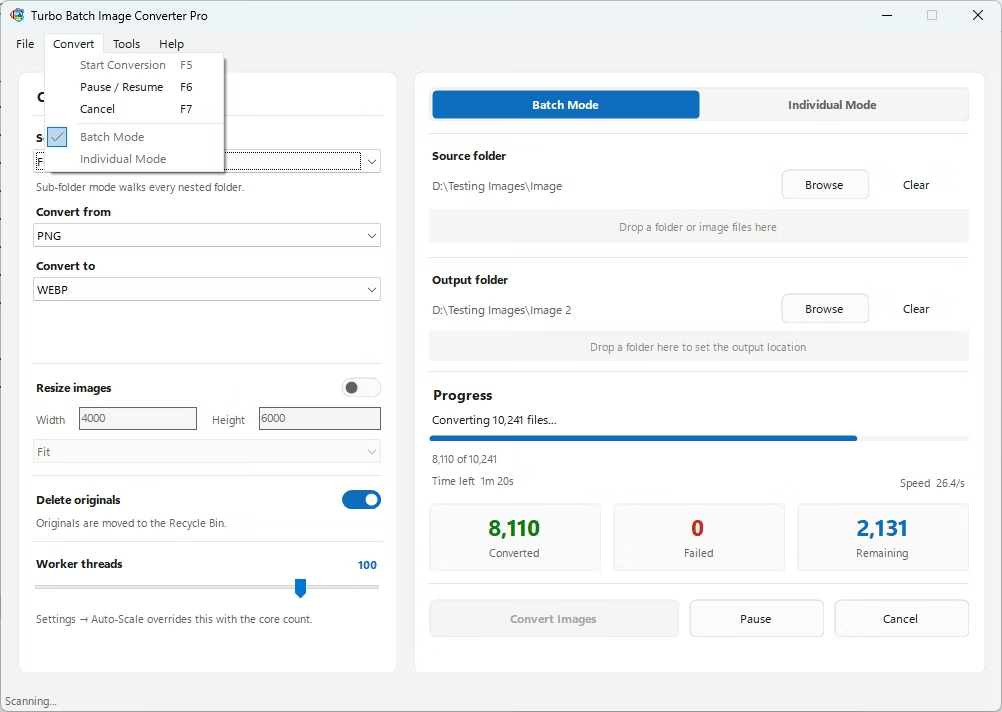
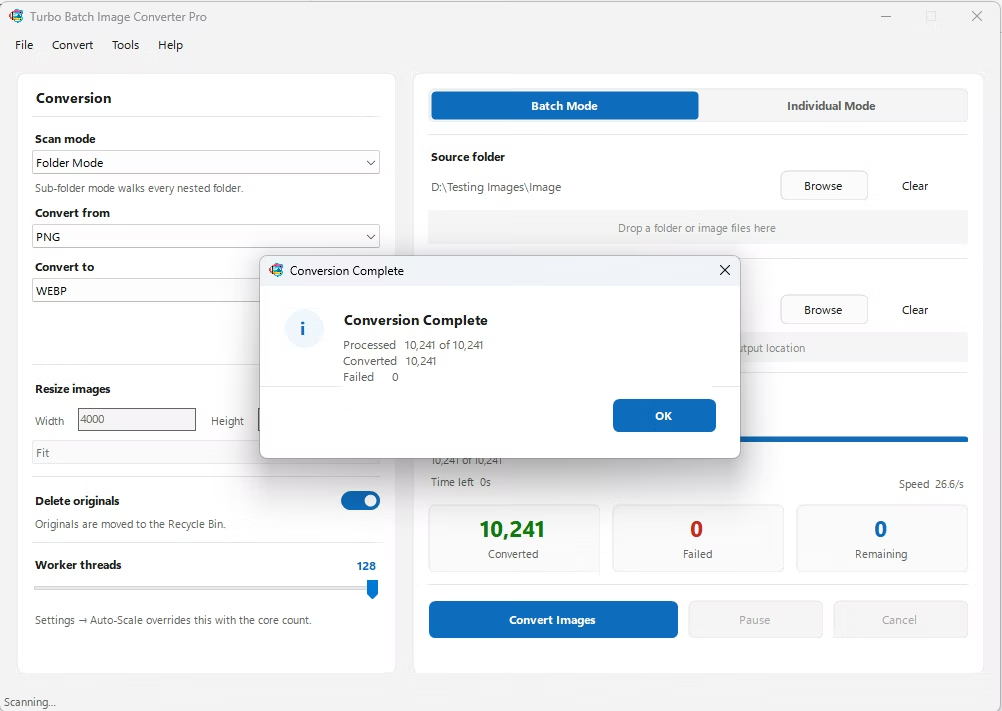
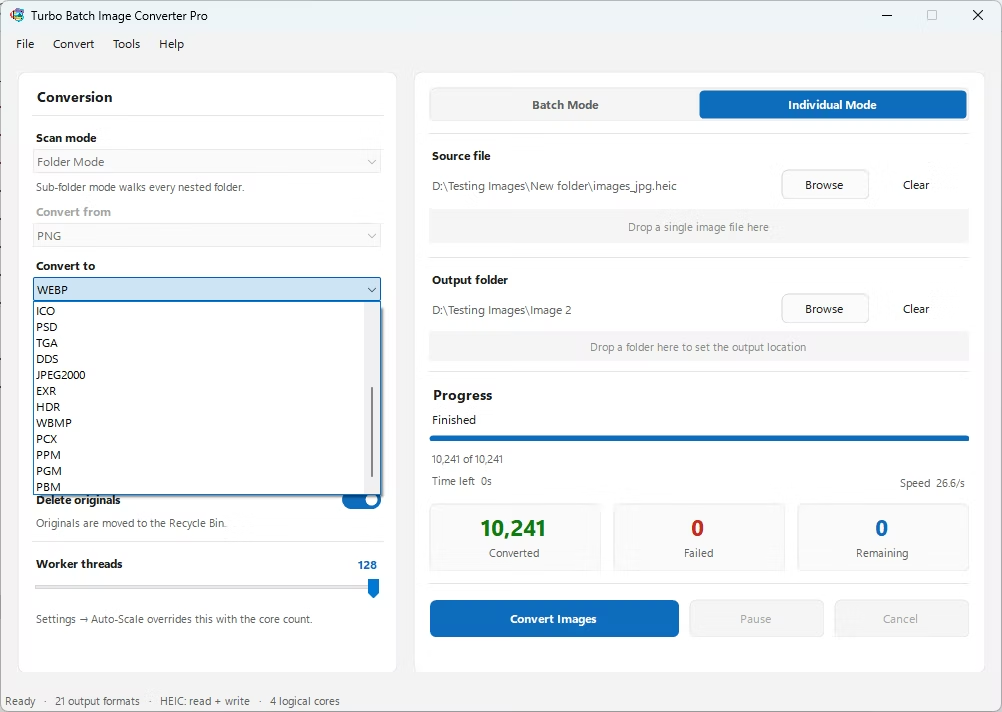
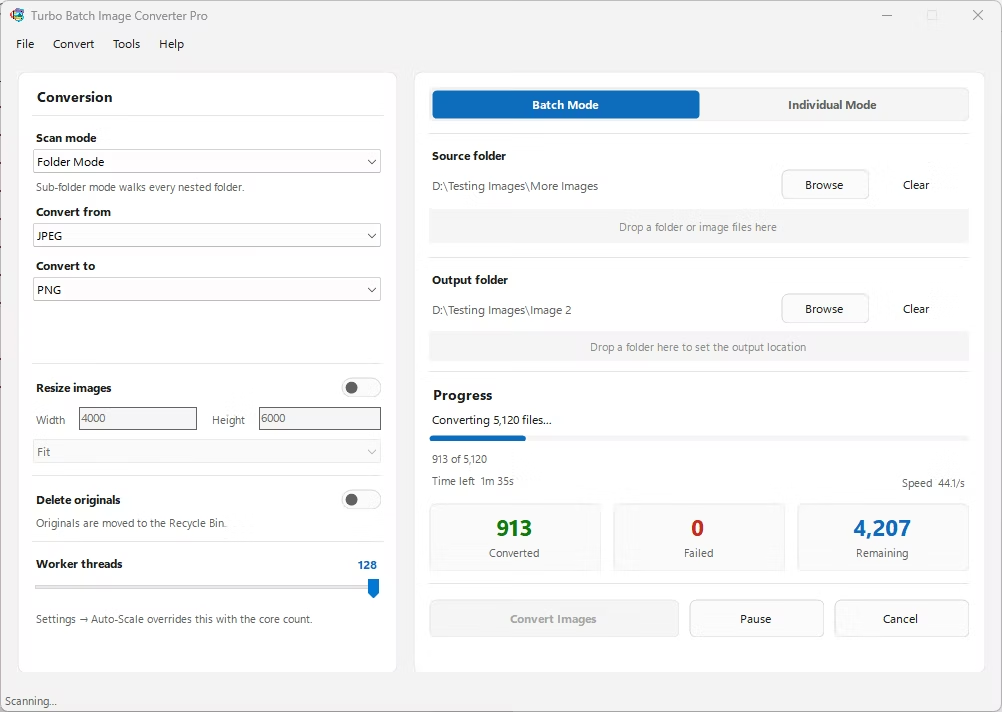
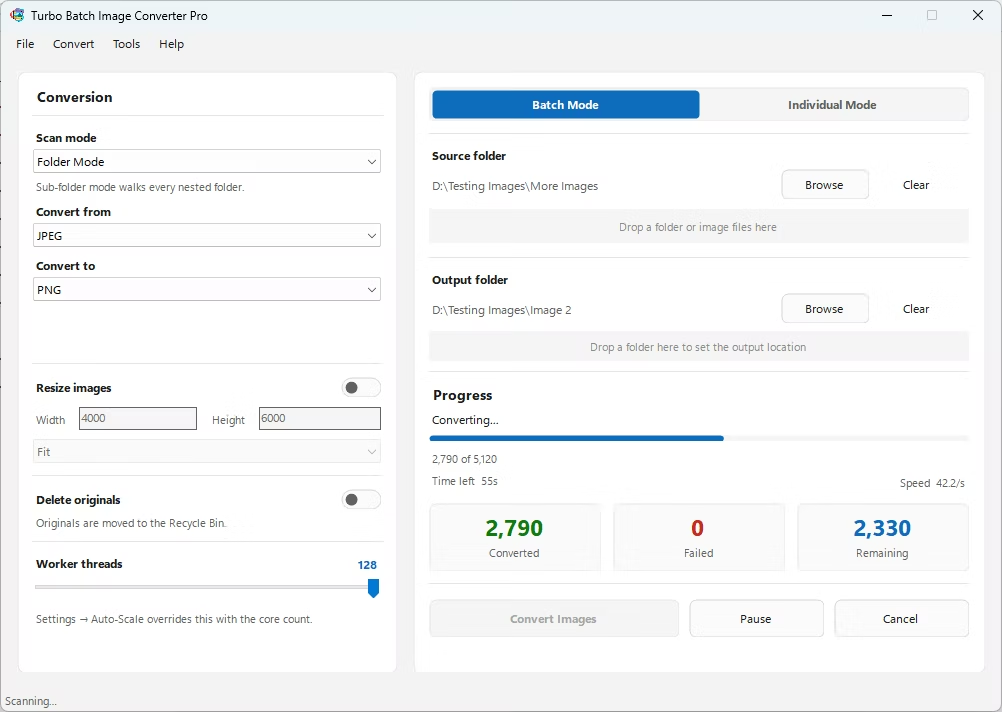
- Install Turbo Batch Image Converter Pro on your Windows PC.
- Open the app and switch to Batch Mode, built for processing large numbers of files at once.
- Drag in your folder of images, enabling recursive folder scanning if your files span multiple sub-folders.
- Choose your input and output formats from the supported list, covering 25 standard formats plus 47 RAW camera formats.
- Click Convert. Every file is read, processed, and written back to your output folder locally, with no upload step at any point regardless of file count.
- No file-count cap tied to a free tier or paid subscription
- No upload size limit, since files never leave your computer
- Recursive folder scanning processes nested directories automatically
- Multi-core processing scales up to 32 concurrent workers for large batches
- Conversion speed depends on your own hardware, not a shared remote server's queue
- Works the same whether you're converting 10 images or 10,000
Is there a maximum number of images I can convert without uploading?
No artificial cap is built into the software; practical limits come from your computer's available storage and processing power rather than the application itself.
Why do online converters limit how many files I can process?
Online tools have to manage server costs and bandwidth across many users, which is why free and even some paid tiers impose file-count or total-size limits that don't apply to offline software.
Does converting many images at once slow down my computer?
You can adjust the number of concurrent workers used during conversion, letting you balance speed against keeping your computer responsive for other tasks.
Ready to convert your images offline, in bulk, with full privacy?