Many people accumulate thousands of images over the years across phone backups, camera imports, and downloaded files, often mixed together in different formats. Converting that many images one at a time isn't realistic, and uploading all of them to an online tool isn't practical either — it would take far too long and raises privacy concerns for personal photo collections. The practical answer is offline batch software that processes everything locally, at the speed of your own computer.
The key to handling truly large volumes is software that can scan nested folders automatically, queue every matching file without manual selection, and use multiple CPU cores so the workload doesn't bottleneck on a single thread.
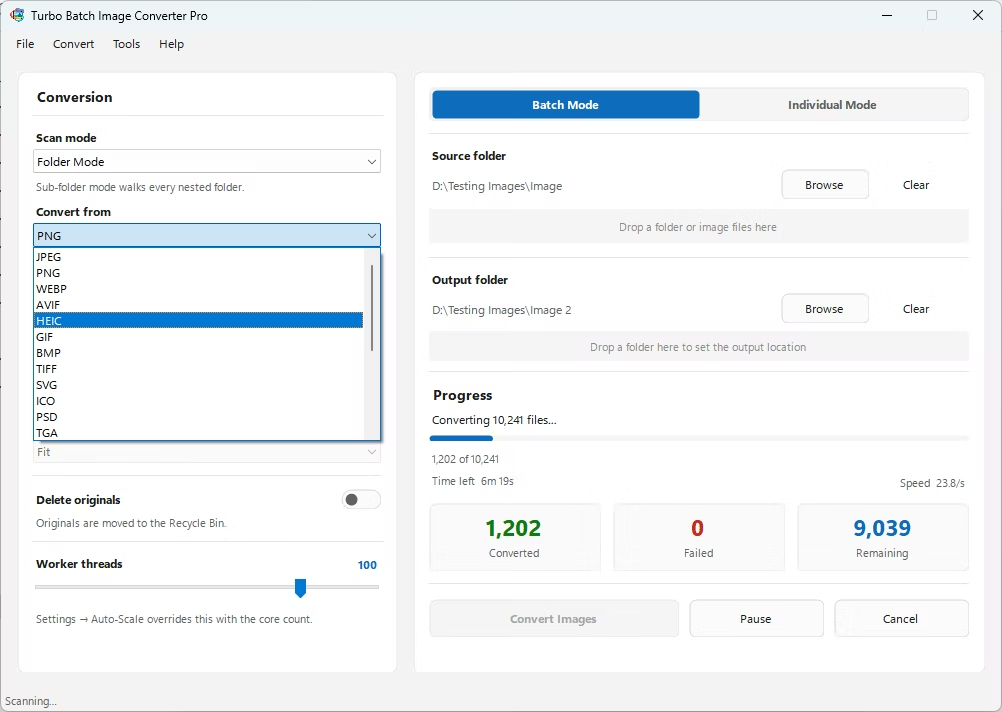
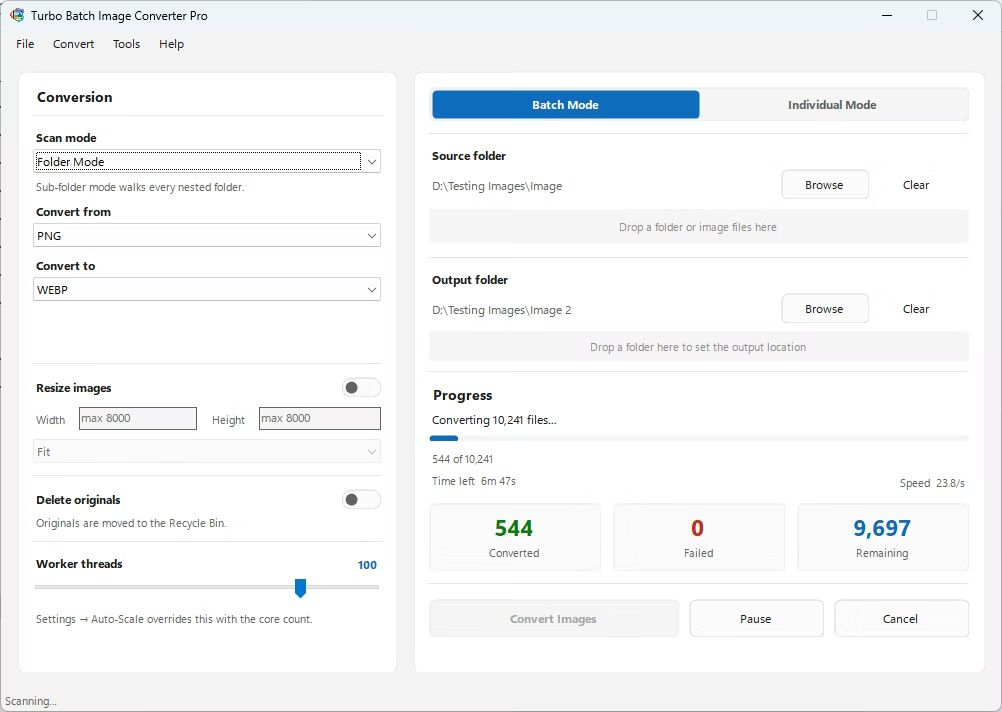
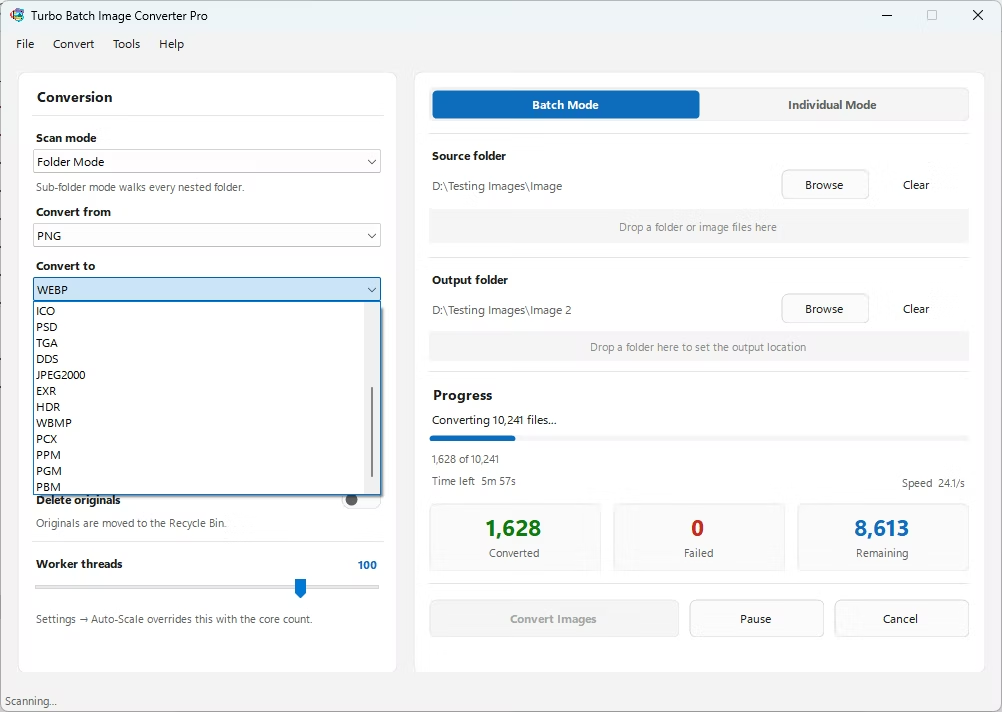
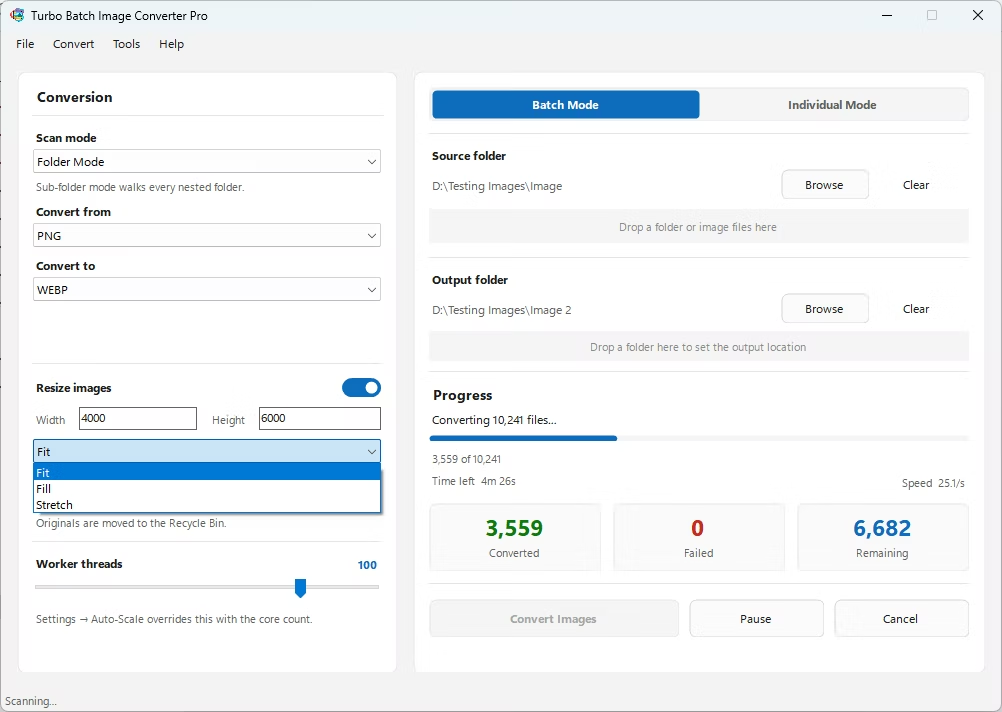
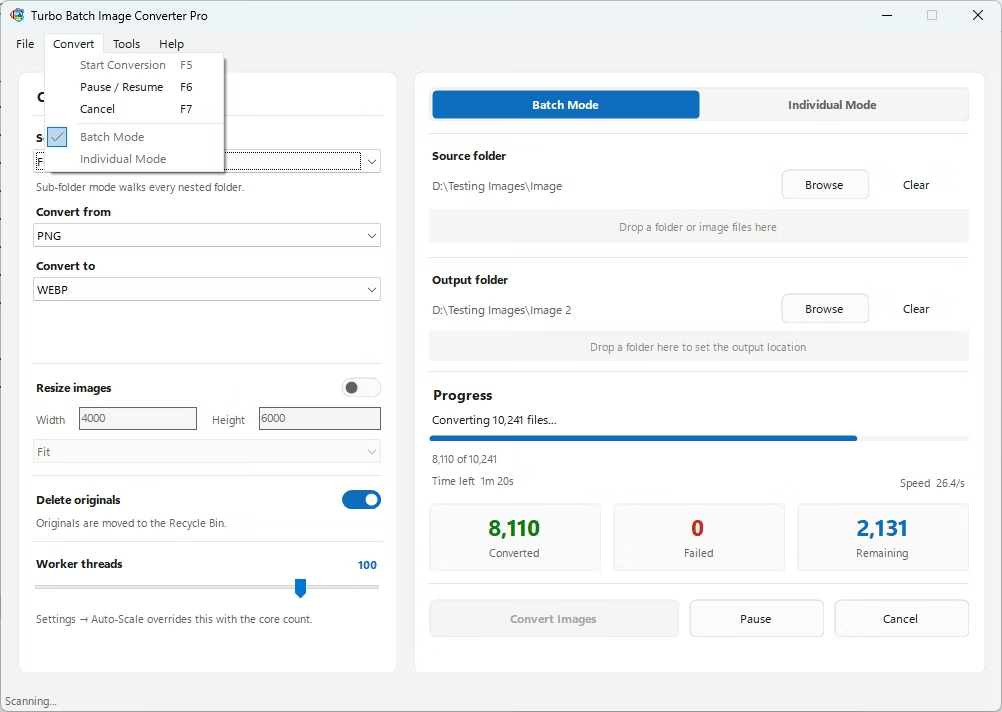
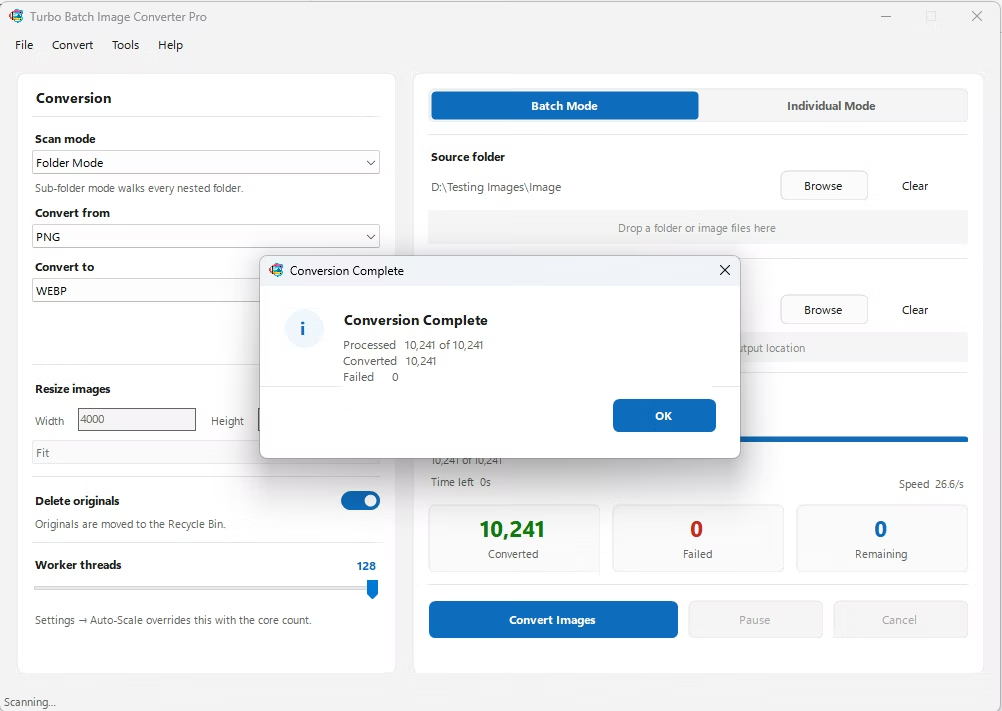
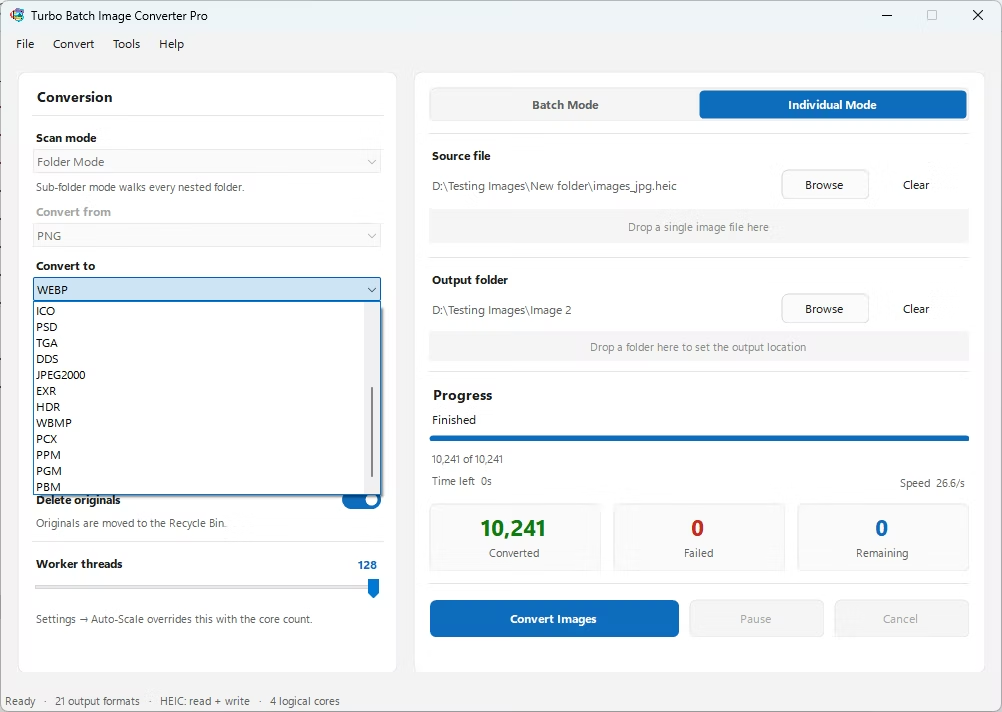
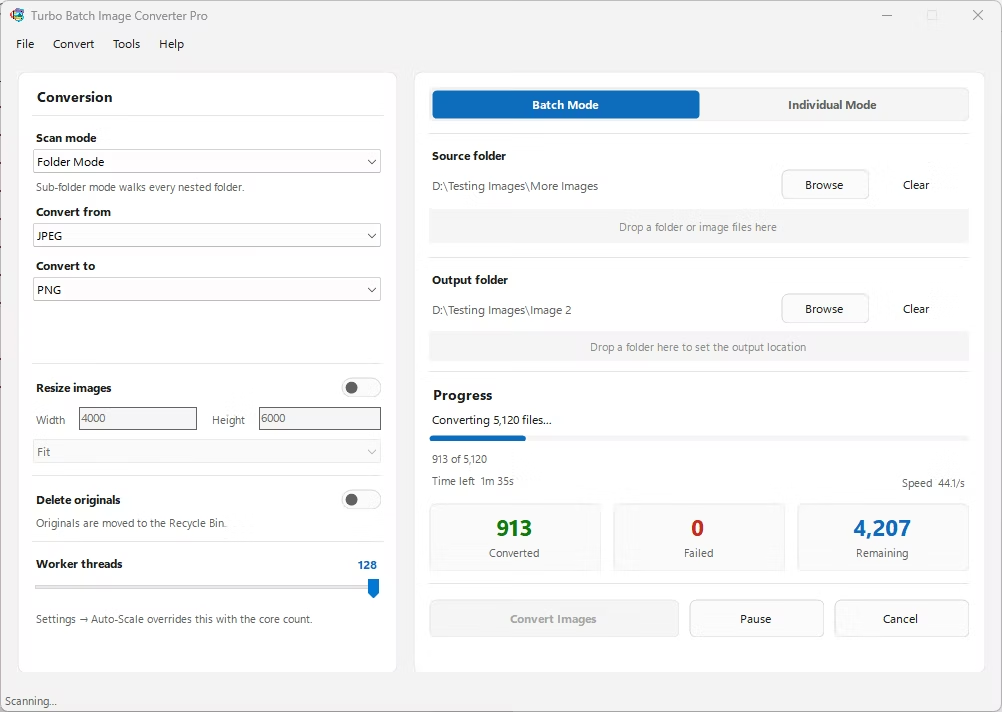
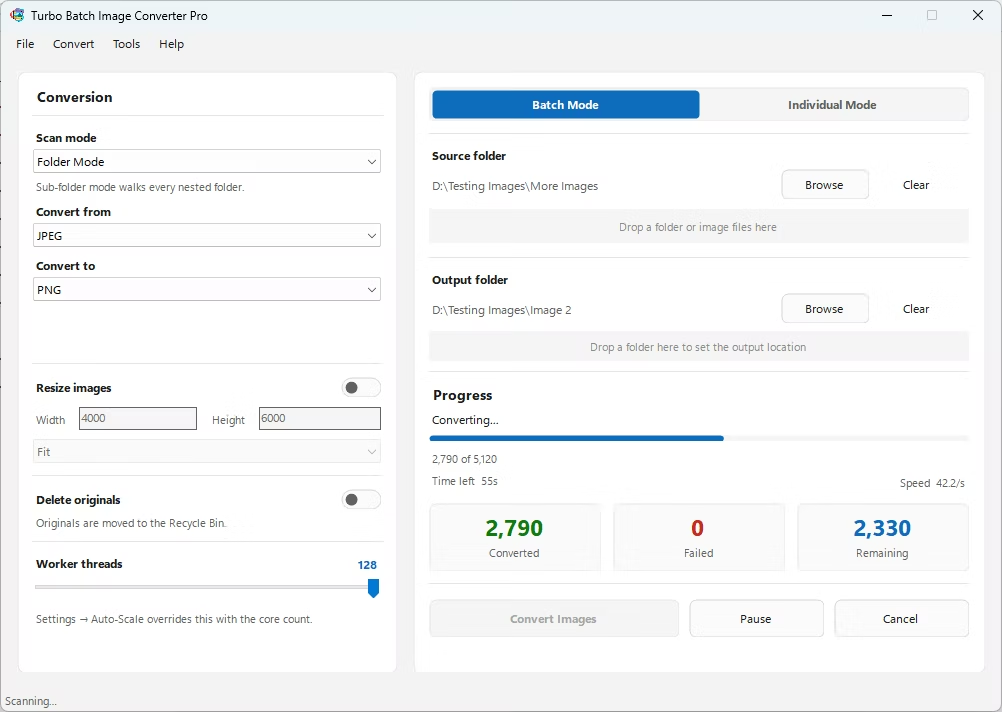
- Install Turbo Batch Image Converter Pro on your Windows PC. Once installed, it works without an internet connection.
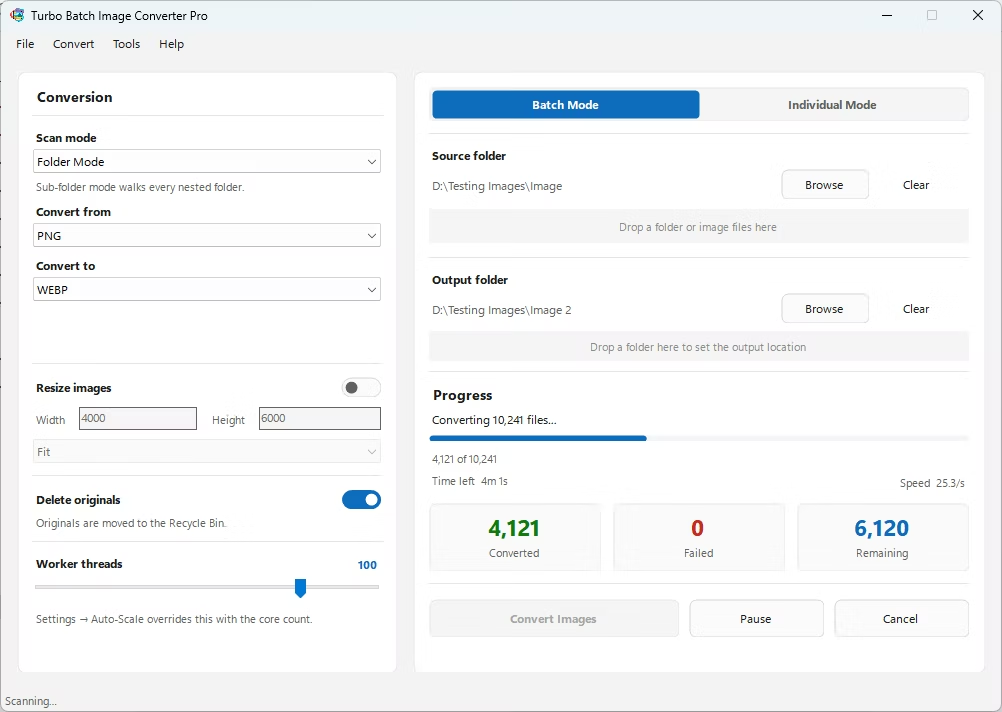
- Open the app and select Batch Mode, built specifically for large-scale conversions.
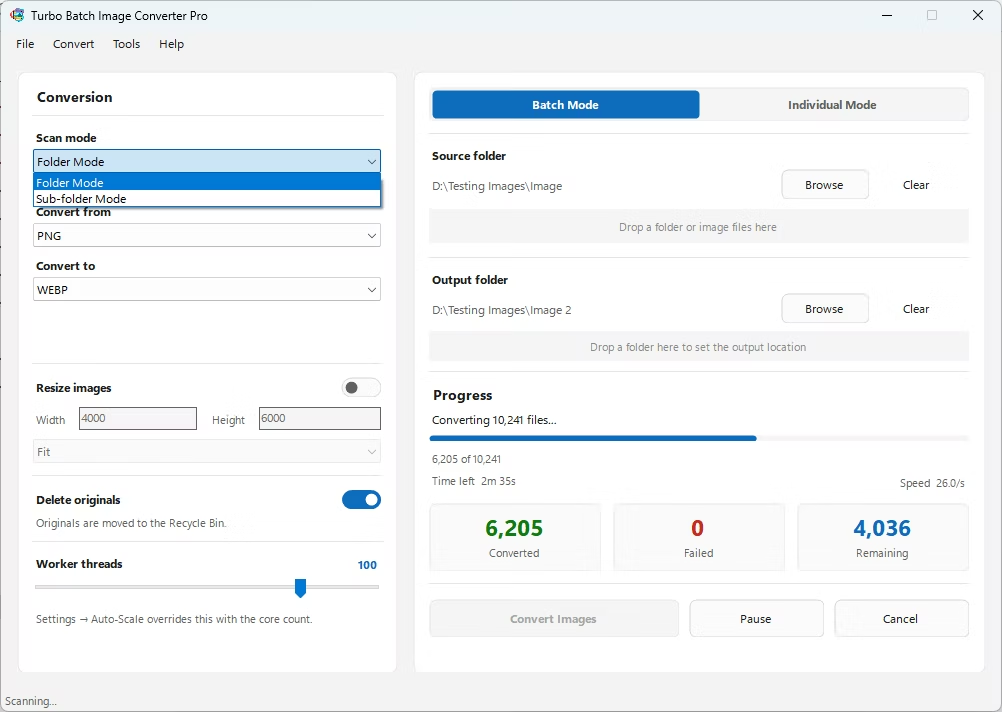
- Drag in your top-level folder — for example, your entire Photos library or backup drive — and enable recursive sub-folder scanning so every nested folder is included automatically.
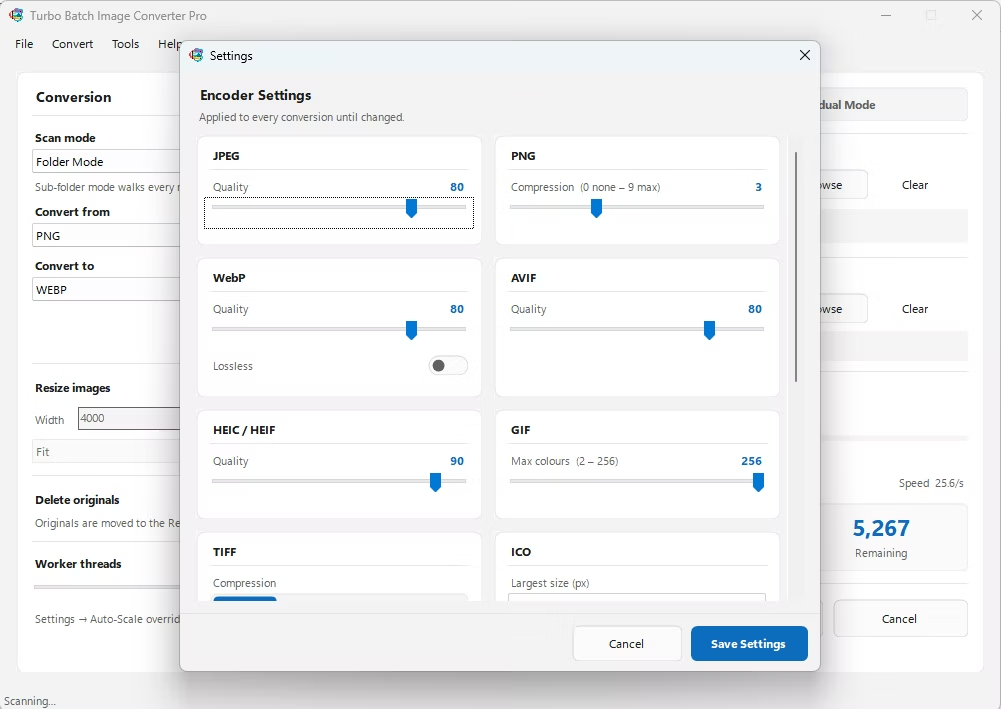
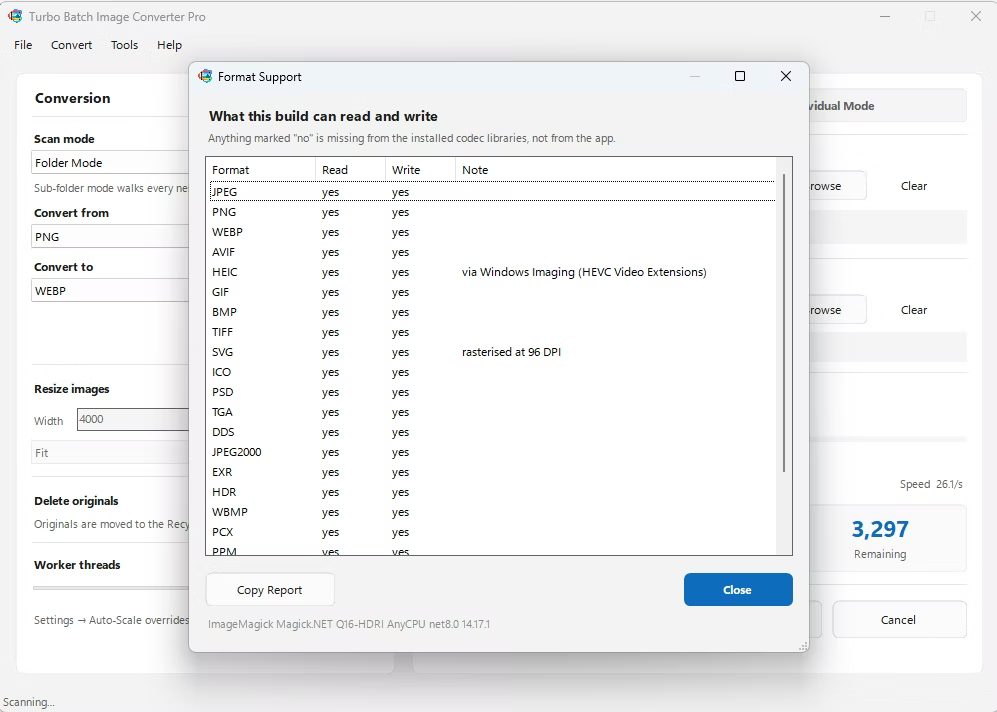
- Choose your input and output formats. The app supports 25 standard formats and 47 RAW camera formats, covering most mixed collections.
- Adjust the concurrent worker count if you want to fine-tune how much of your CPU is used during the job.
- Click Convert and let the app work through the entire collection in one run, writing converted files to your chosen output location.
- Recursive folder scanning finds every image across nested sub-folders automatically
- No artificial cap on the number of files processed in one batch
- Concurrent worker scaling up to 32 workers for multi-core CPUs
- Fully offline, so even very large personal photo libraries stay private
- Optional automatic deletion of originals once conversion is verified complete
- Works without an internet connection for the entire conversion process
Can this handle tens of thousands of images in one job?
Yes, the software doesn't impose an artificial file-count limit; practical limits depend on your computer's storage space and processing power rather than the application itself.
What if my images are spread across many nested folders?
Recursive sub-folder scanning is built in, so you can point the app at a top-level folder and it will find and queue every supported image inside, no matter how deeply nested.
Will converting this many images slow down my computer?
You can adjust the number of concurrent workers to control how much CPU capacity is used, which lets you balance conversion speed against keeping your computer responsive for other tasks.
Ready to convert your images offline, in bulk, with full privacy?