Converting images one at a time through an online tool gets impractical fast once you have more than a few files. Online converters also mean uploading your photos to someone else's server, which adds wait time, depends on your internet connection, and isn't ideal if your images are private, unreleased, or simply numerous. Converting offline with a desktop app removes the upload step entirely and lets you process as many files as you want, limited only by your own computer.
An offline batch converter reads files directly from your hard drive, processes them using your own CPU, and writes the results straight back to disk — no network round-trip involved at any point.
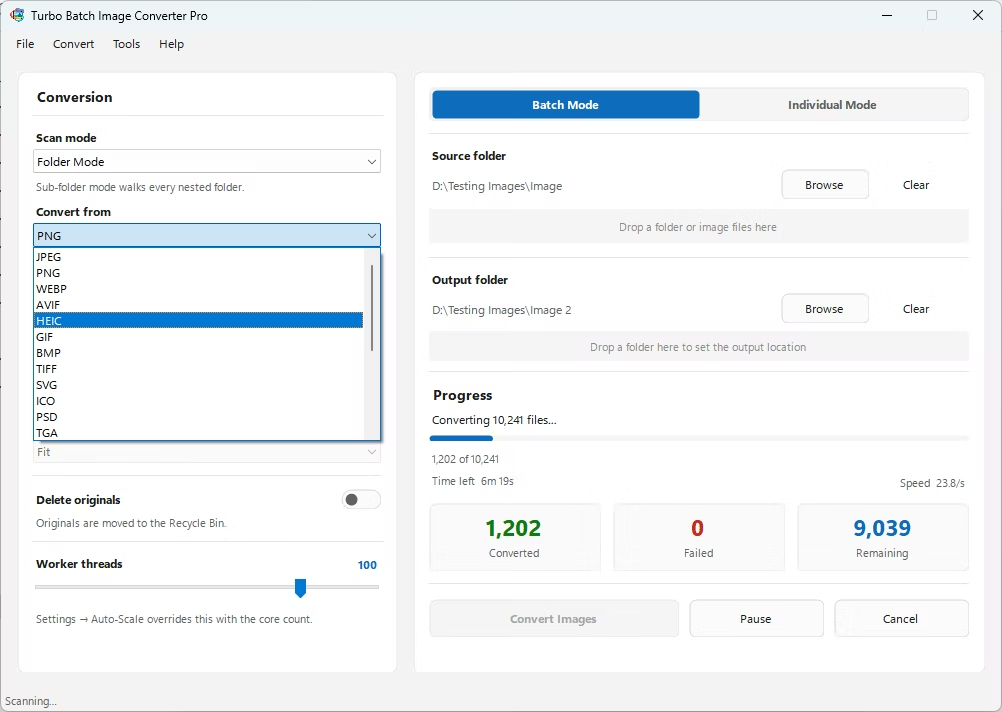
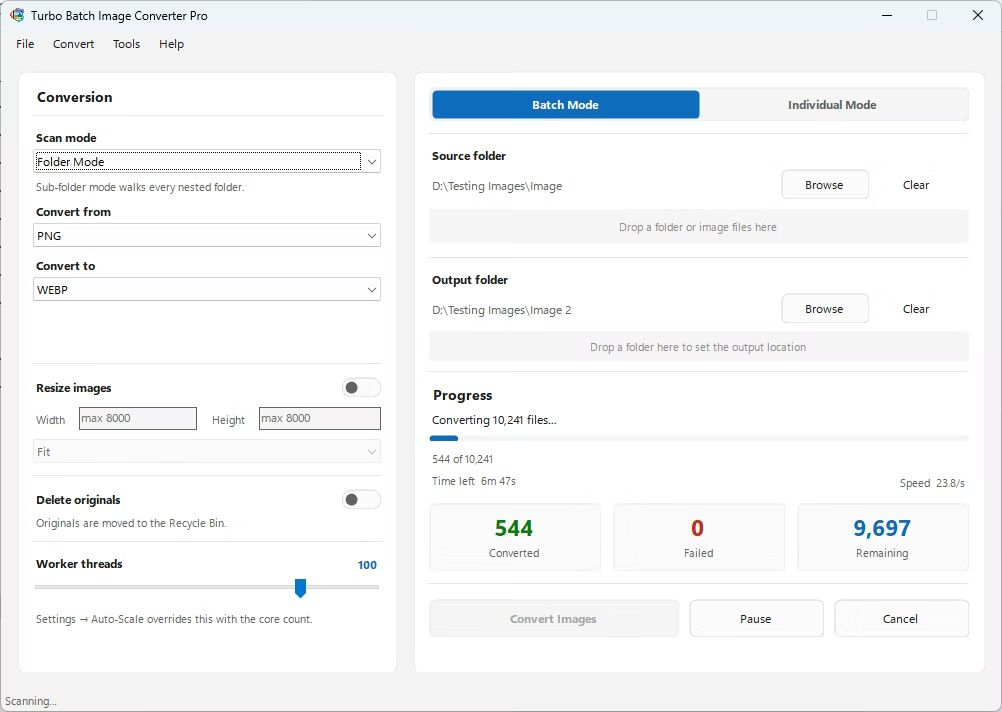
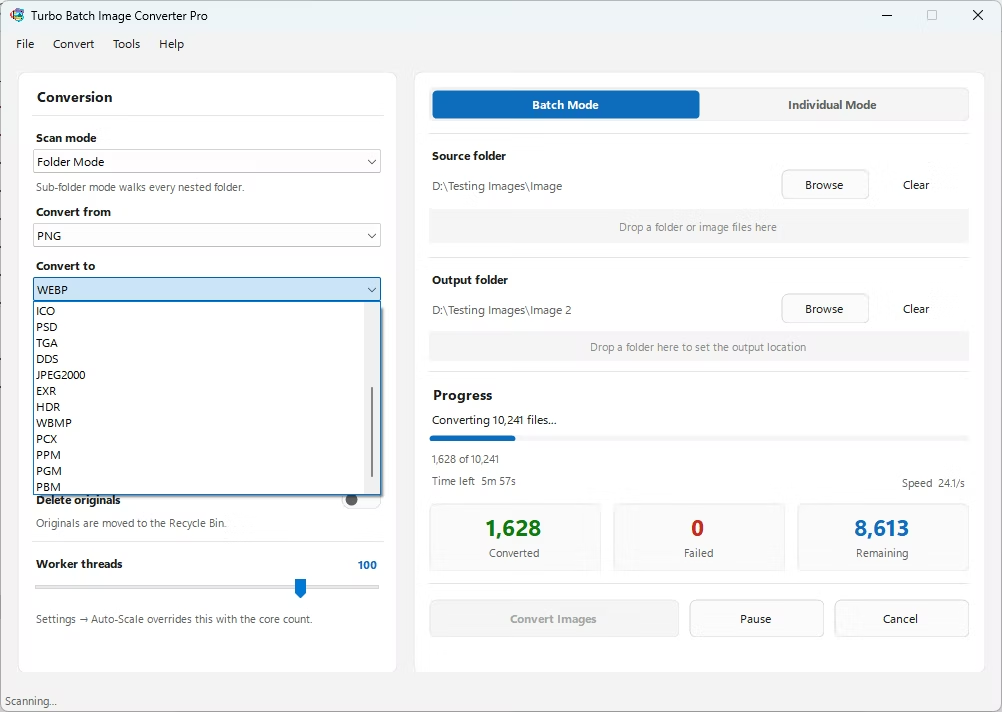
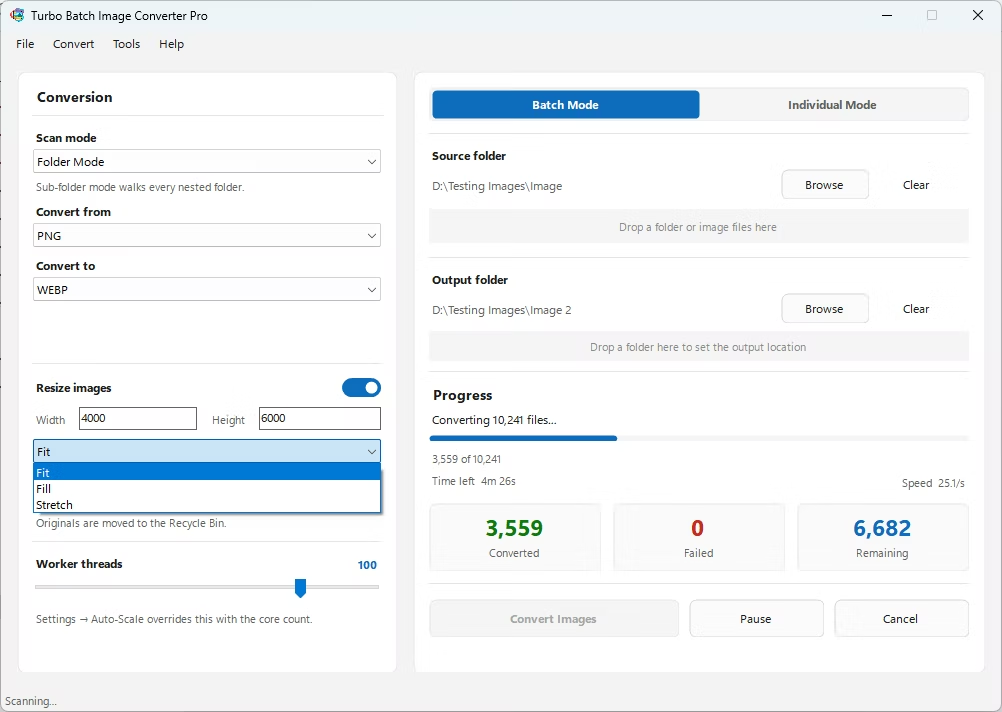
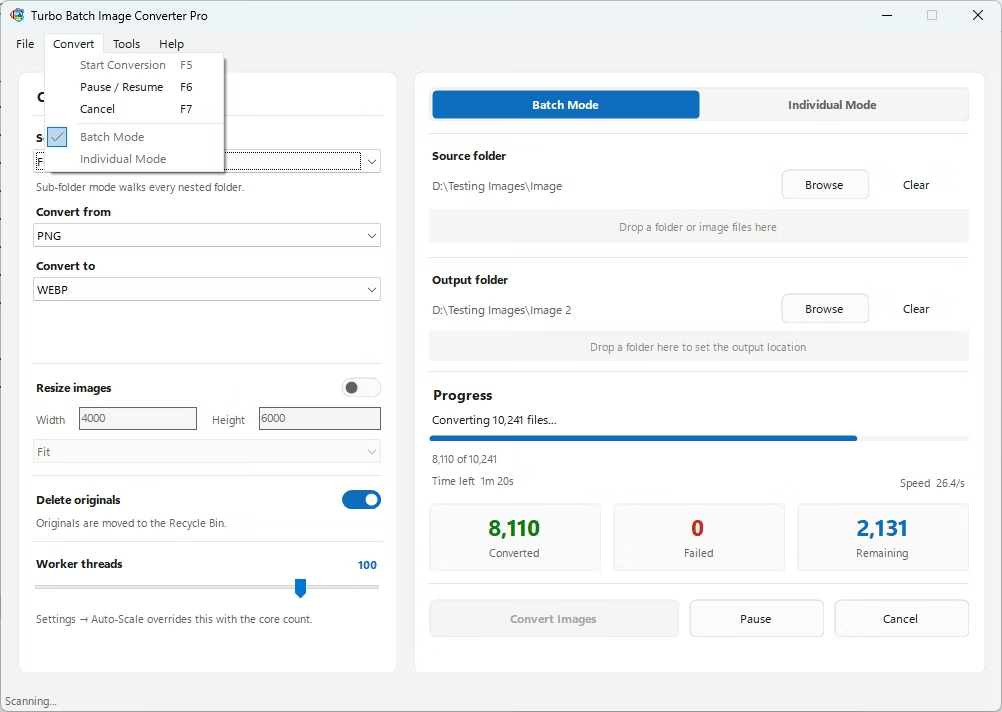
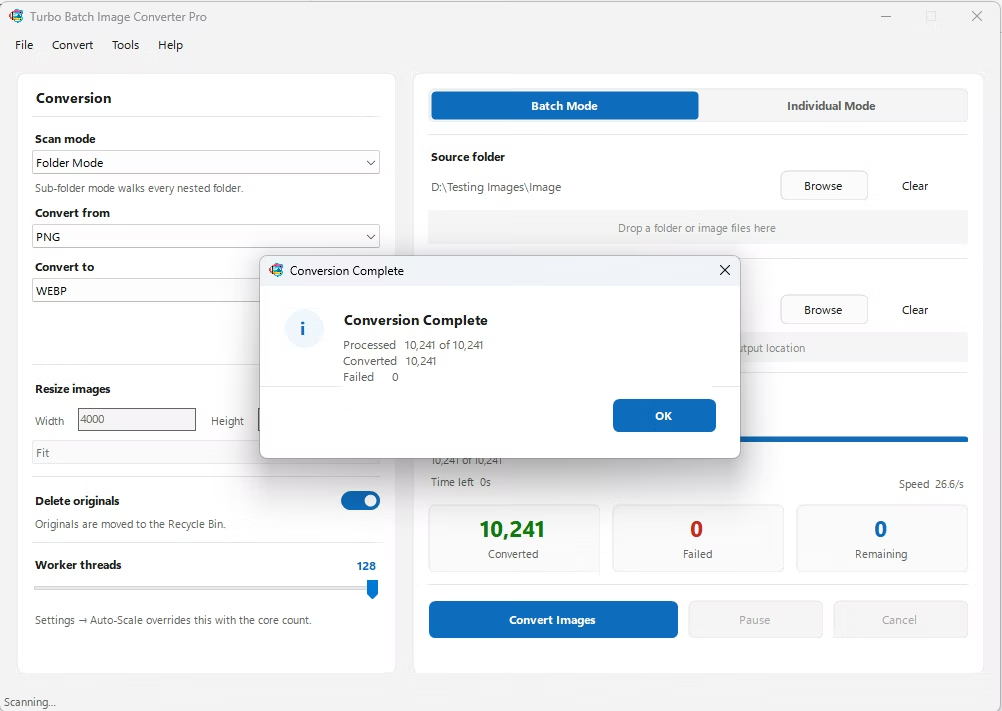
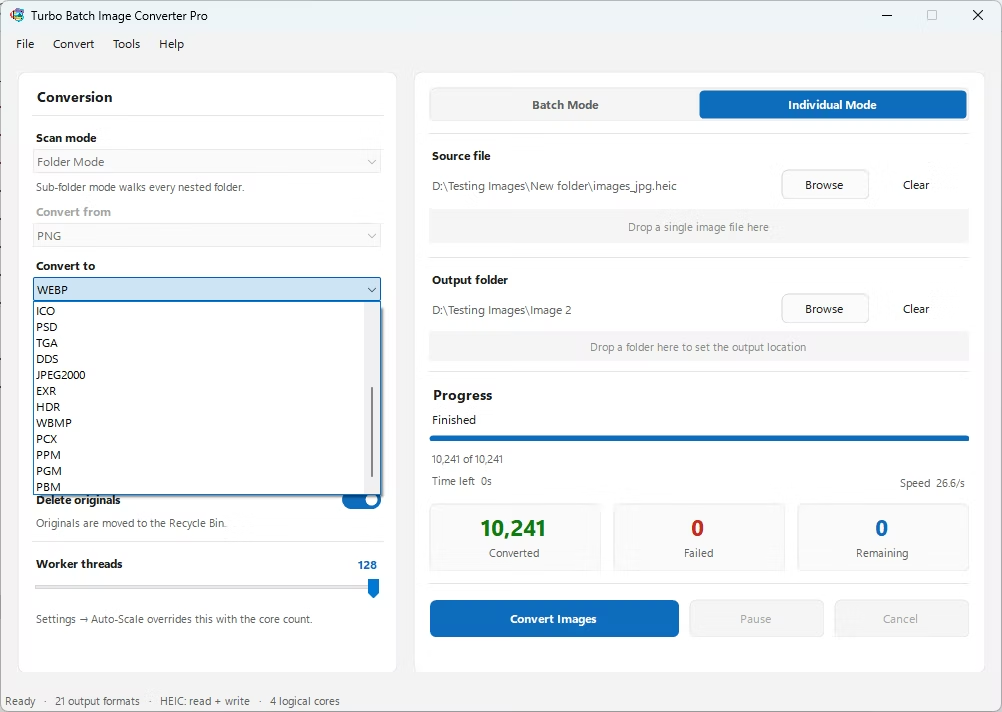
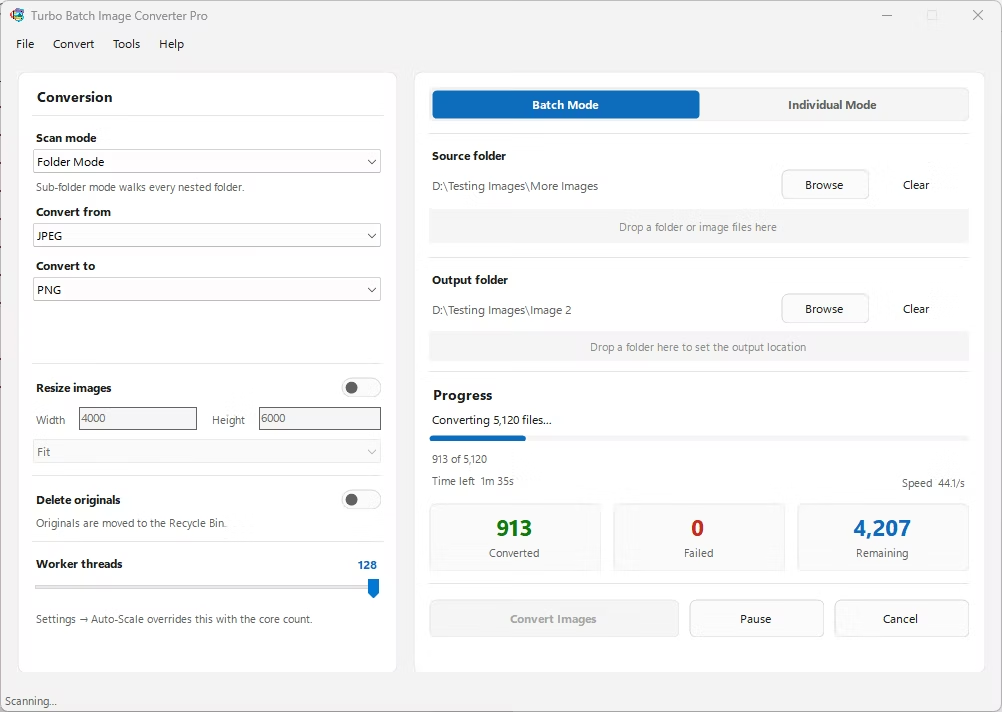
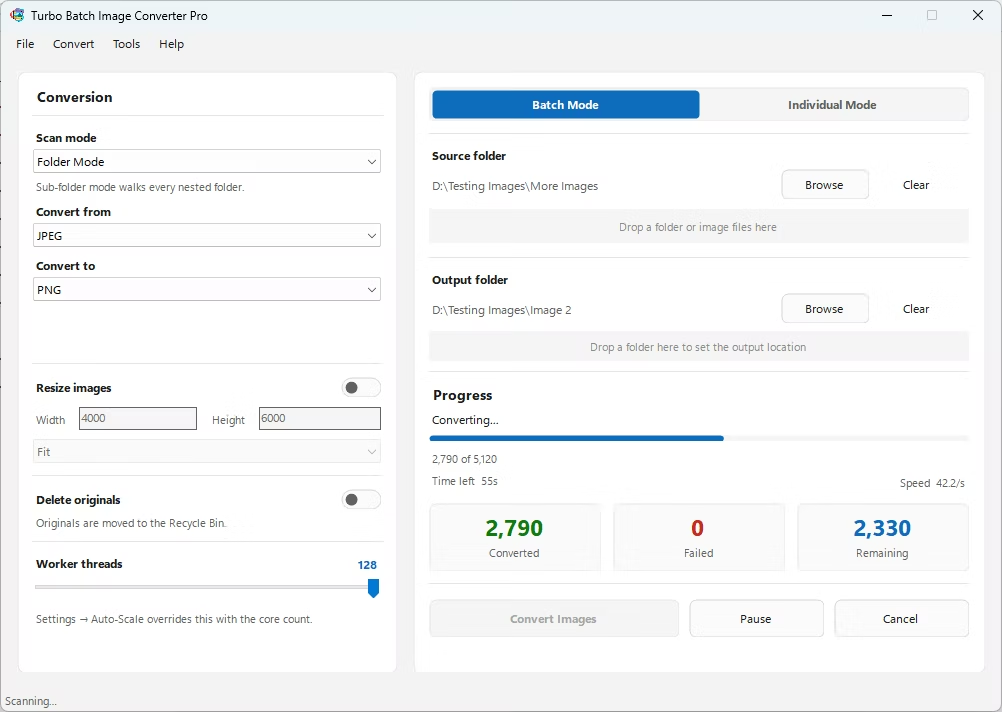
- Install Turbo Batch Image Converter Pro on your Windows PC. Once installed, no internet connection is required to convert.
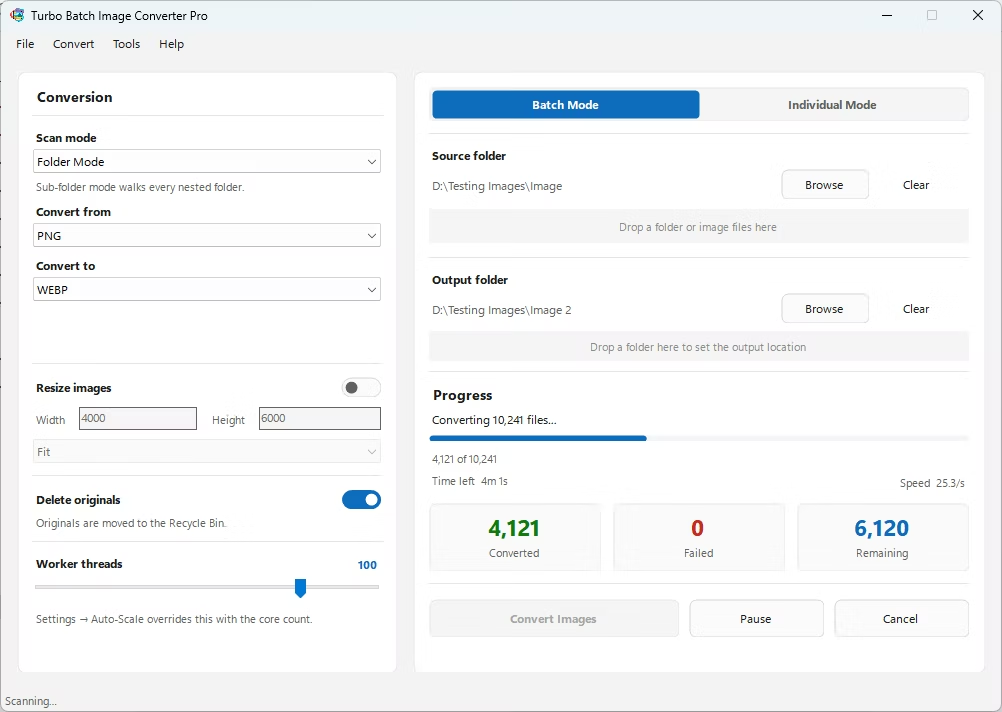
- Open the app and select Batch Mode, designed specifically for converting large numbers of files at once.
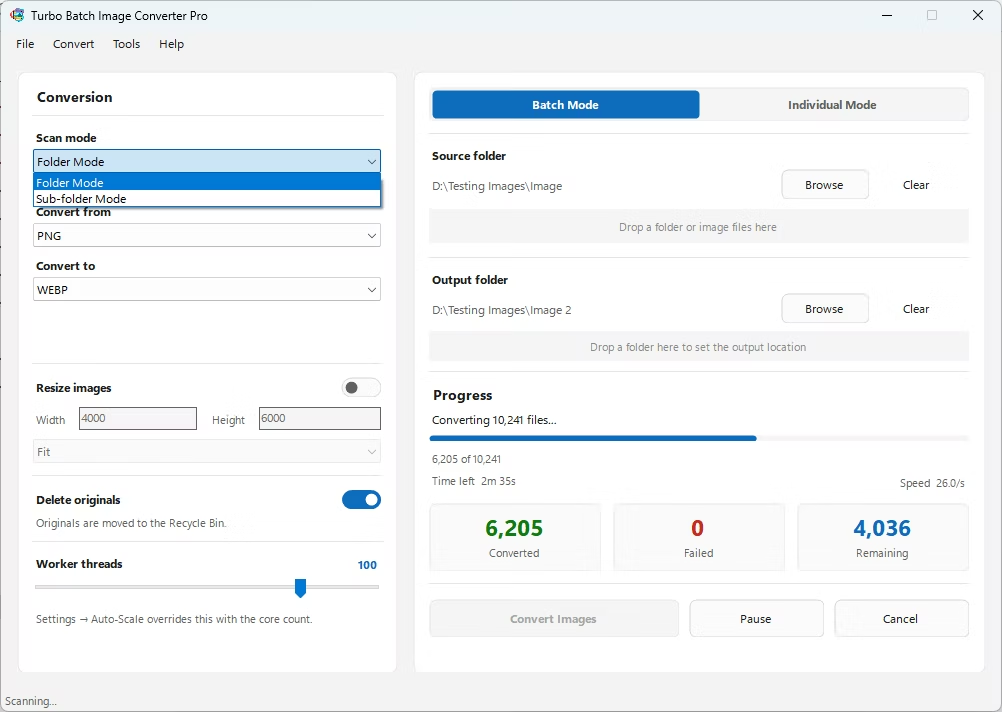
- Drag in your folder of images. Enable recursive sub-folder scanning if your files are organized across nested folders.
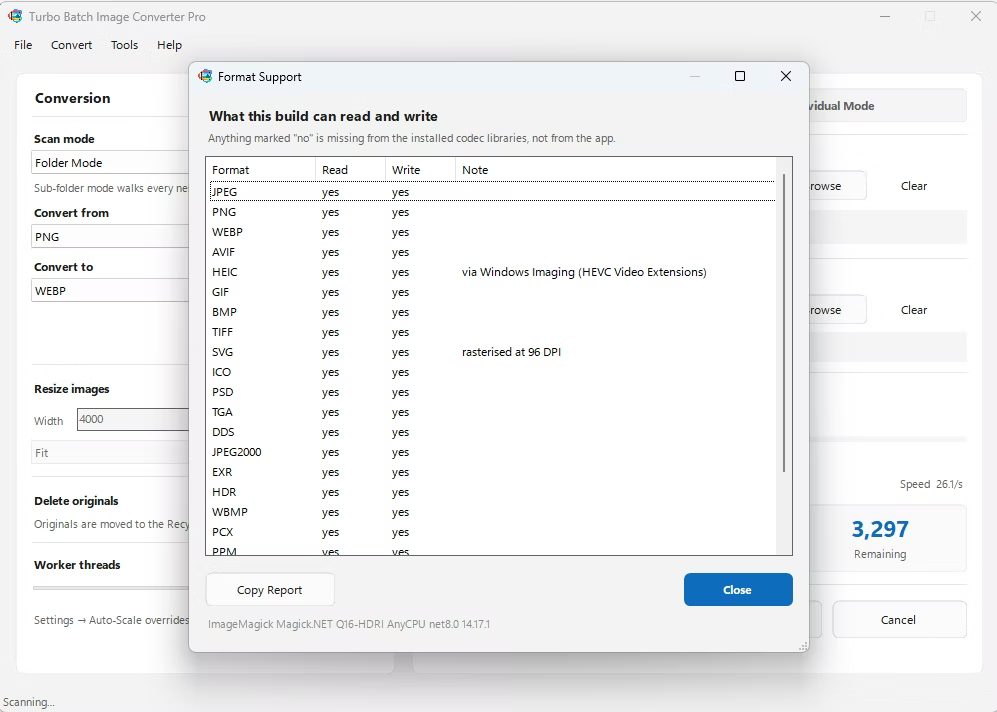
- Choose your input format and your desired output format from the supported list, which covers 25 image formats including HEIC, RAW, AVIF, JPG, and PNG.
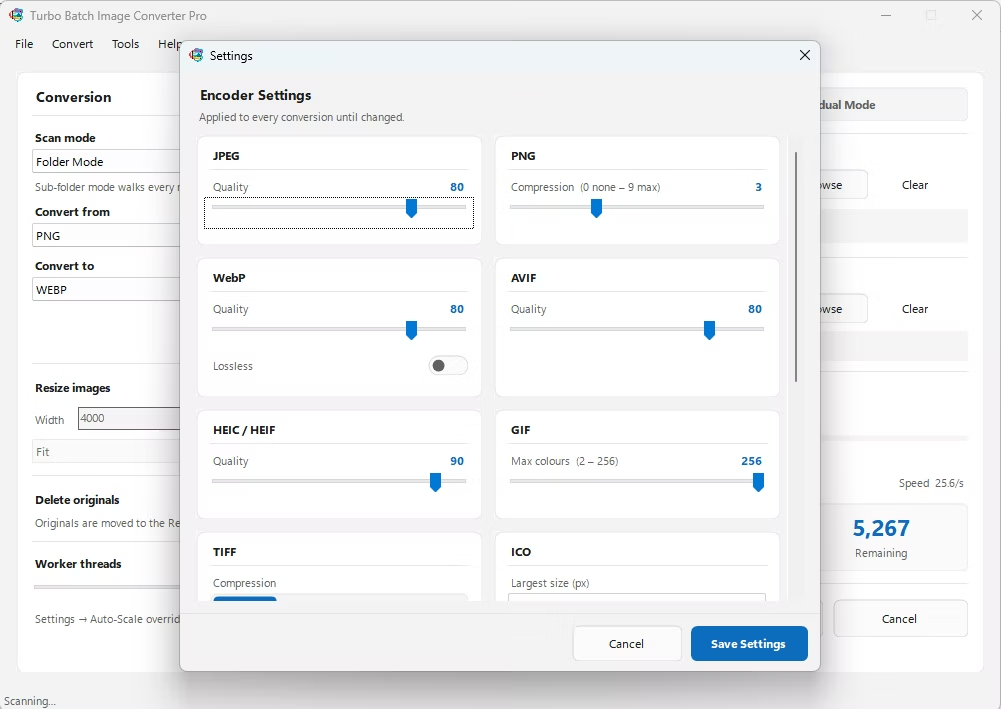
- Adjust quality, compression, or resizing settings as needed for your batch.
- Click Convert. The app uses multiple CPU cores to process the entire batch quickly, entirely on your own machine.
- No upload step means no waiting on your internet connection
- No file-count or file-size limits imposed by a remote server
- Your images stay private on your own device throughout the process
- Recursive sub-folder support handles large, organized image libraries
- Concurrent worker scaling up to 32 workers for fast multi-core processing
- Works without an internet connection once the app is installed
How many images can I convert in one batch offline?
There's no artificial cap built into the software — batches are limited only by your computer's storage and processing power, which makes it practical for very large image collections.
Is offline conversion faster than online tools?
Generally yes, since there's no upload or download step involved, and processing scales using your own CPU cores rather than a shared remote server.
Do I need an internet connection at any point?
Only to download and install the application initially. After that, all conversion happens completely offline.
Ready to convert your images offline, in bulk, with full privacy?