How to View Clipboard History on Windows 11
See everything you've copied recently, in one searchable popup
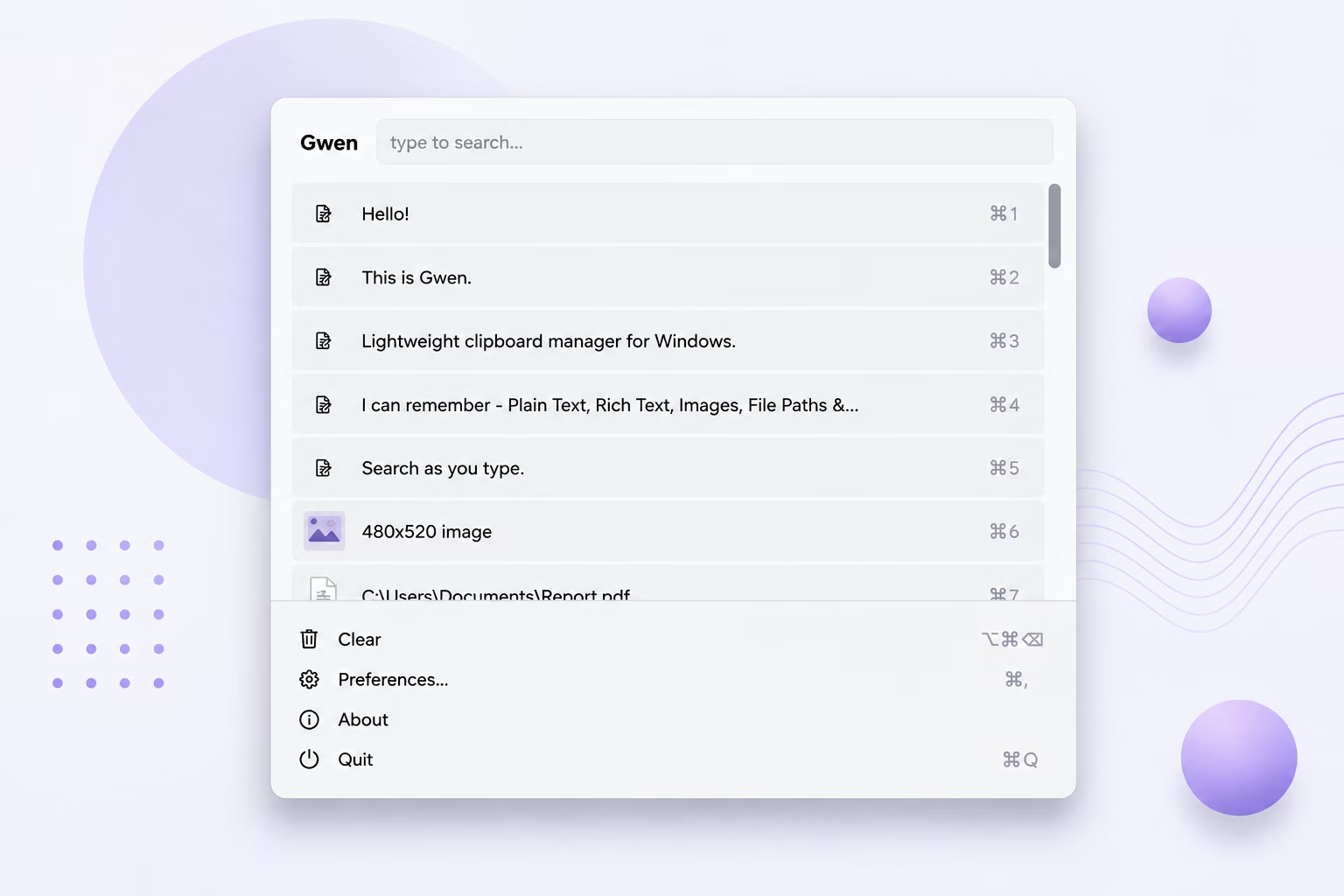
Windows 11 includes a built-in clipboard history (Win+V), but it clears on restart, has limited item previews, and offers no dedicated support for hex color detection or fast keyboard-only navigation.
Gwen gives you a purpose-built alternative: a fast popup showing your full history — including real image thumbnails and color swatches — that persists across reboots and opens with a single hotkey.
How to View Your Clipboard History
- Install and activate Gwen on your Windows 11 PC.
- Copy a few items — text, an image, a file, or a hex color code — to build up some history.
- Press Ctrl+Shift+V to open the Gwen popup near your cursor at any time.
- Scroll or use the arrow keys to browse your history, newest items always shown at the top.
- Type to instantly filter the list down to items matching what you're looking for.
What You Can See in Gwen's History View
- Real thumbnail previews for copied images, not just filenames
- Live color swatches for copied hex codes like #FE92F5
- Text entries truncated cleanly with "…" so long copies don't break the layout
- Numbered rows 1–9 for instant keyboard-only selection
- A live search box to filter history as you type
Frequently Asked Questions
Is this different from the built-in Windows 11 clipboard history?
Yes. Windows 11's Win+V history clears on restart and has more limited previews; Gwen keeps a persistent, richer history with image thumbnails and color swatches.
Can I use both Win+V and Gwen at the same time?
Yes, they don't conflict — Gwen simply adds its own hotkey and popup on top of the normal Windows clipboard.
Does viewing history require an internet connection?
No, viewing and browsing your clipboard history works entirely offline; internet is only used for the initial license check.
Related guides and tools
This guide is part of TurboSoft’s clipboard management resources. Gwen Clipboard Manager handles all of these tasks offline on Windows.