How to Search Your Clipboard History Instantly
Find that one thing you copied earlier without scrolling through everything
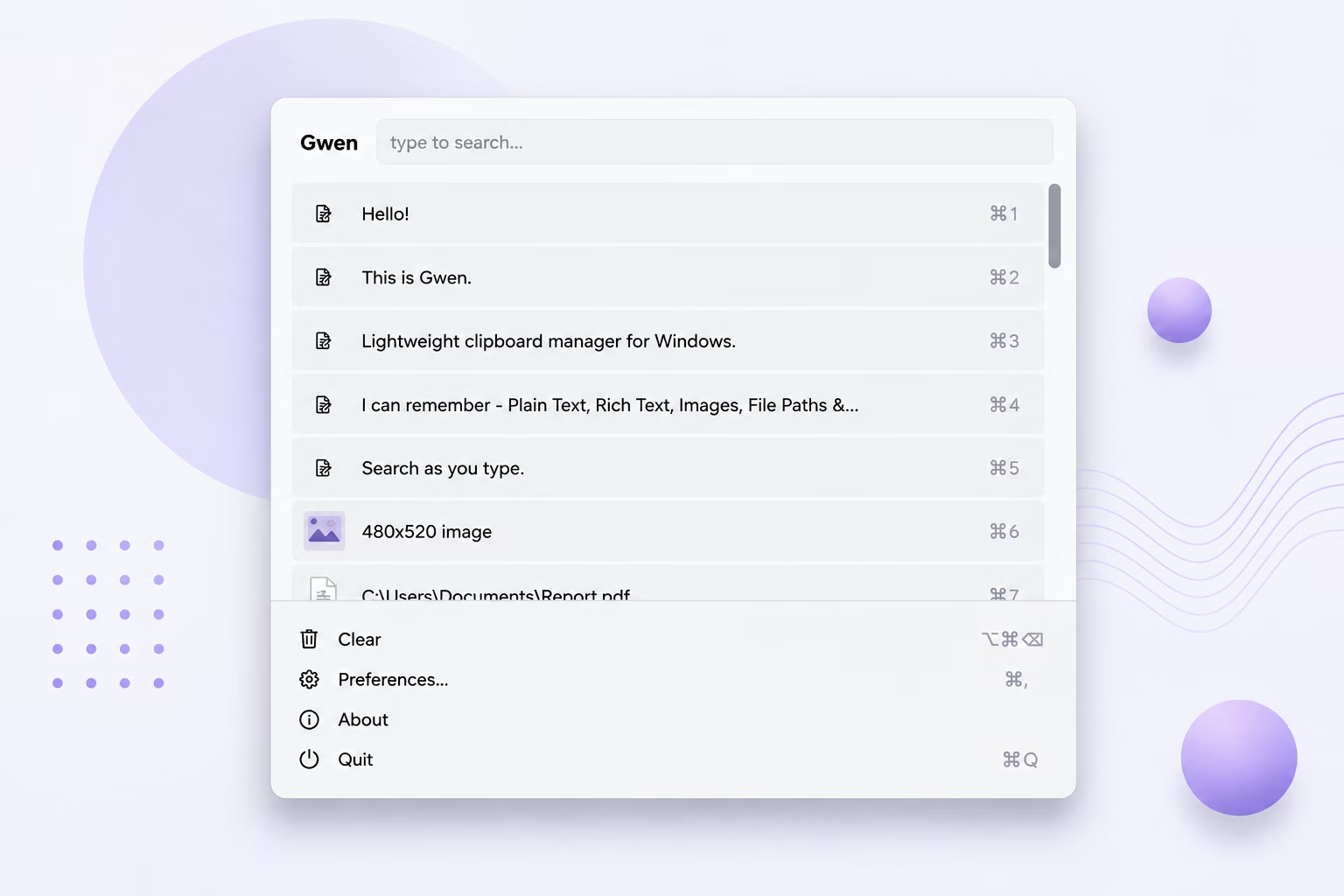
The more you rely on clipboard history, the longer that history gets — and scrolling through dozens of old entries to find one specific snippet quickly becomes tedious. A search box turns clipboard history from a simple list into something you can actually navigate quickly.
Gwen's popup includes a live search box right at the top, so you can filter your entire history down to matching items as fast as you can type.
How to Search Clipboard History in Gwen
- Press your global hotkey (default Ctrl+Shift+V) to open the Gwen popup.
- Start typing any part of the text you're looking for — no need to click into a separate search field first.
- Watch the list filter live, showing only entries that match what you've typed so far.
- Use the arrow keys to move through the filtered results.
- Press Enter to paste the item you found, or Esc to close the popup without pasting.
What Makes Gwen's Search Fast
- Search filters the list live as you type, with no need to press Enter to search
- Works across all stored text entries in your history
- Combines naturally with keyboard navigation and number-key shortcuts
- No separate search window or menu — just start typing in the main popup
- Runs entirely locally, so searching is instant with no network delay
Frequently Asked Questions
Can I search inside copied images or files?
Search currently matches against text content and file paths; image entries are best found visually via their thumbnail preview in the list.
Do I need to click into a search box first?
No, simply start typing while the Gwen popup is open and it filters automatically — there's no separate field to click into.
What happens if my search doesn't match anything?
The list will show no results; pressing Esc clears the popup, and you can try a shorter or different search term.
Related guides and tools
This guide is part of TurboSoft’s clipboard management resources. Gwen Clipboard Manager handles all of these tasks offline on Windows.