Designers and developers copy hex color codes constantly — from design tools, style guides, or CSS files — but a plain text clipboard gives you no visual sense of what that code actually looks like until you paste it somewhere and check.
Gwen automatically recognizes hex color codes copied as text and shows a live color swatch right in the clipboard history list, so you can identify the right color at a glance.
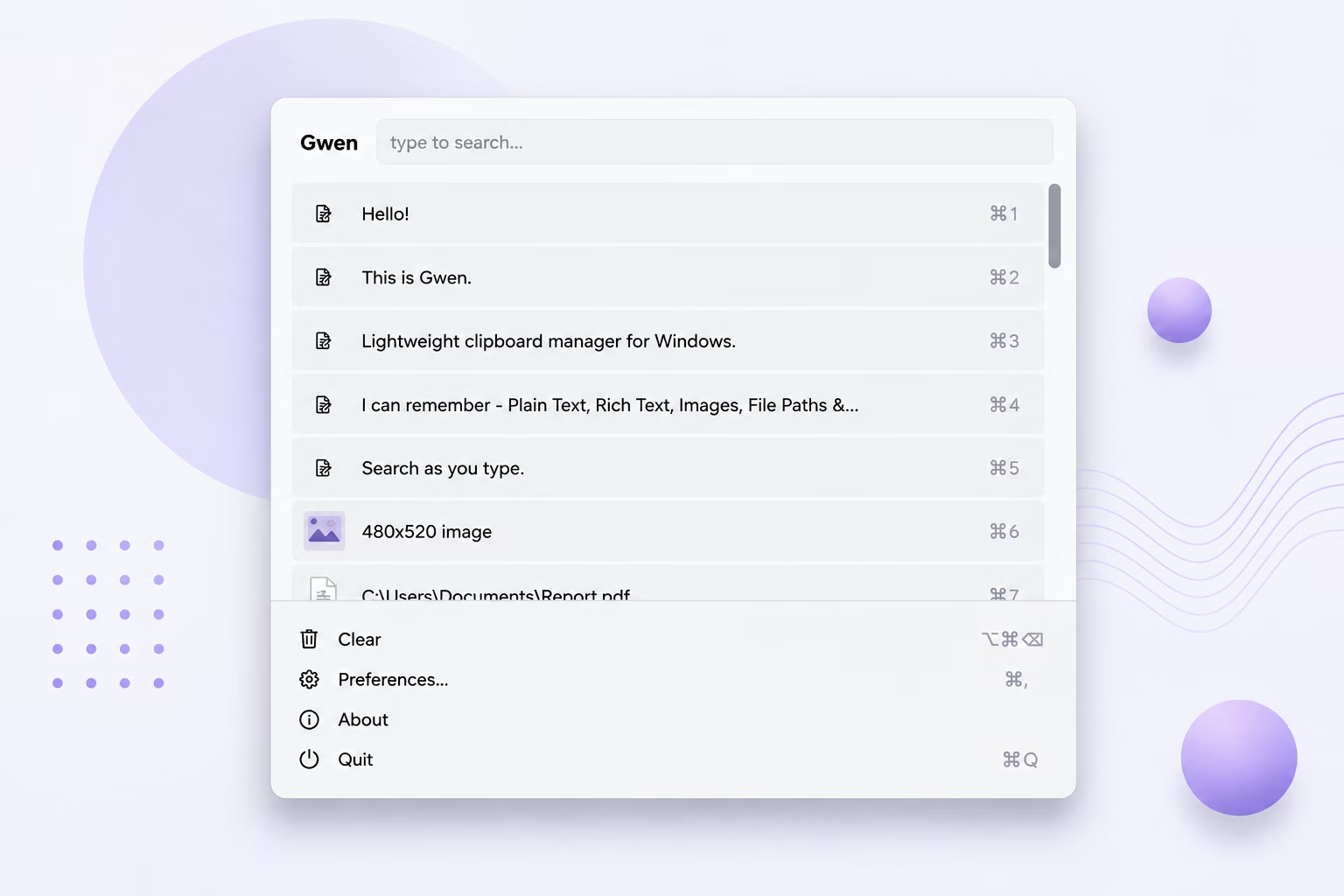
- Copy any hex color code as plain text, with or without the leading #, such as FE92F5 or #FE92F5.
- Gwen automatically detects the pattern the moment it lands on the clipboard — no configuration needed.
- Open the Gwen popup with your hotkey to see that entry rendered with a color swatch next to it.
- Copy several different hex codes to compare their swatches side by side in the history list.
- Select any entry and press Enter to paste the hex code text back exactly as you copied it.
- Works automatically — no manual tagging or setup required for color detection
- Recognizes hex codes both with and without the leading # symbol
- Shows an actual rendered color swatch, not just the raw text string
- Matches the same visual pattern used by Maccy, the macOS clipboard manager Gwen is modeled on
- Pastes the original hex text exactly as copied, so formatting is never altered
Does Gwen convert hex codes to other color formats like RGB?
No, Gwen detects and previews the hex code visually but pastes back the original text exactly as copied, without converting it.
Will Gwen detect a hex code copied without the # symbol?
Yes, both formats — with or without a leading #, such as FE92F5 or #FE92F5 — are automatically detected.
Does this work for any 6-digit hex value?
Yes, any valid 6-digit hex color pattern copied as text is detected and shown with its corresponding swatch.
Ready to stop losing what you copy?