How to Copy Multiple Items to Clipboard at Once
Work with several copied items in a single session, without overwriting each other
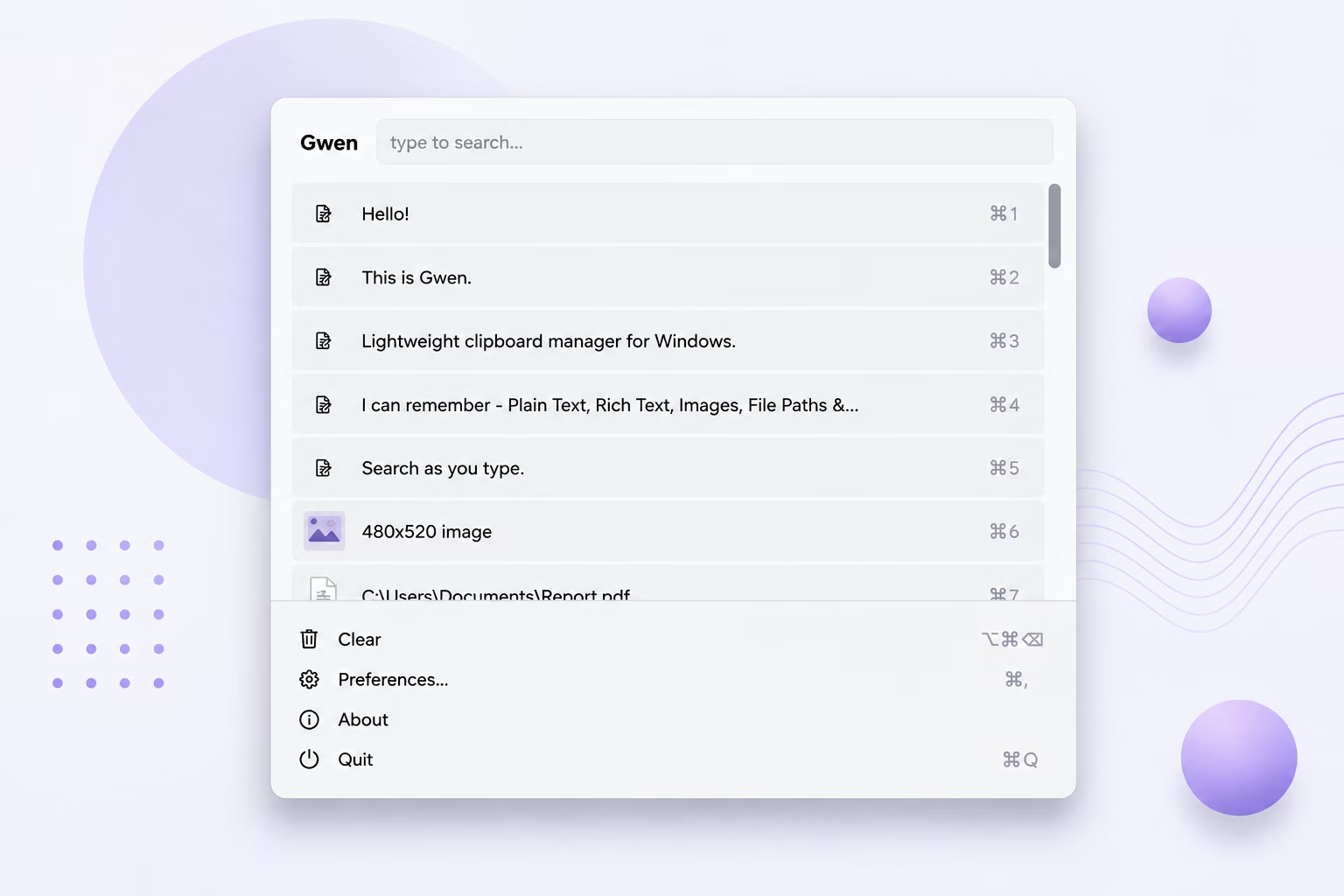
Windows' native clipboard can only ever hold one item, which becomes a real bottleneck when you need to paste several different snippets, images, or file references into a document one after another.
Gwen effectively turns your single-item clipboard into a running list — you keep copying normally, and every item stays available for later, in the order you copied it.
How to Work With Multiple Copied Items
- Copy your first item as usual (text, image, file, or color).
- Copy a second, third, and however many more items you need — each one is saved automatically, none are lost.
- Open the Gwen popup with your hotkey whenever you're ready to start pasting.
- Select any item from the list — not just the last one you copied — and paste it.
- Repeat as needed, working through your copied items in any order you like.
Features That Make Multi-Item Copying Easy
- Every copy is preserved, so copying a new item never overwrites an older one
- Number keys 1–9 give near-instant access to your most recent handful of copies
- Live search lets you jump straight to a specific item among many
- Works the same way for text, images, files, and hex colors
- History size is configurable if you regularly work with a large batch of copied items
Frequently Asked Questions
Can I paste items in a different order than I copied them?
Yes, you can select any item from the history list regardless of the order you copied it in.
Is there a limit to how many items I can have copied at once?
The limit is your configured maximum history size in Preferences, which can be increased if you regularly work with many items.
Does this work for copying multiple images?
Yes, each copied image is stored separately with its own thumbnail preview in the history list.
Related guides and tools
This guide is part of TurboSoft’s clipboard management resources. Gwen Clipboard Manager handles all of these tasks offline on Windows.