Copying a screenshot or an image from a browser is common, but Windows' single-slot clipboard means the moment you copy something else, that image is gone. If you need to paste the same screenshot into several places, or compare a few recent captures, you're normally out of luck.
Gwen captures every copied image automatically, storing a full-resolution PNG plus a small inline thumbnail so you can browse and re-paste past images just as easily as text.
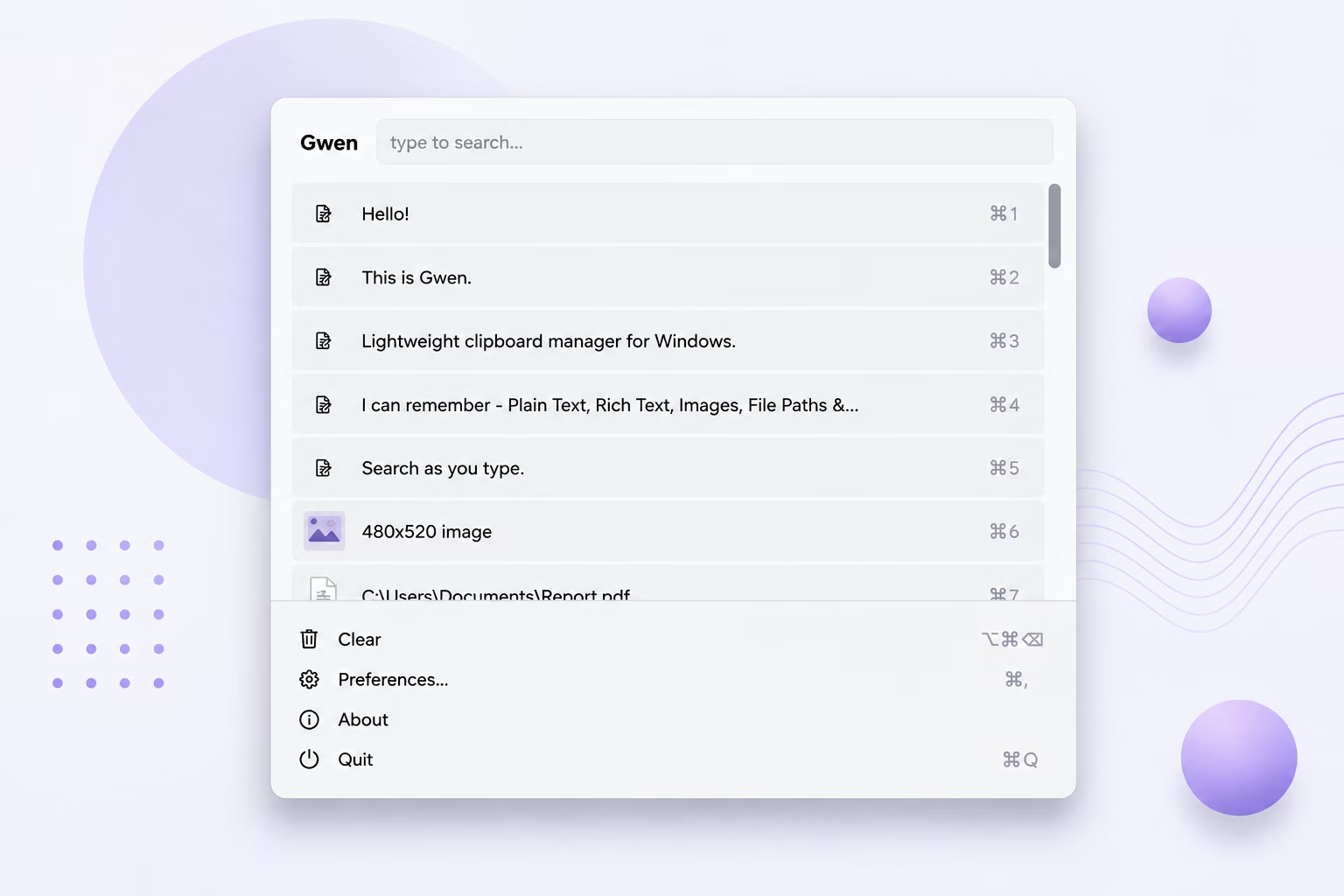
- Copy any image — a screenshot, a picture from a browser, or an image file in Explorer.
- Gwen detects the copy automatically and saves a full PNG to its local cache folder.
- Open the Gwen popup with your hotkey to see a thumbnail preview of that image in the list.
- Copy additional images as needed; each one gets its own row with its own preview.
- Select any image from history and press Enter to paste it back wherever you need it.
- Full-resolution PNGs are cached locally alongside a small inline thumbnail for fast previews
- Duplicate image copies — common when an app writes more than one clipboard format — are only stored once
- Thumbnails are decoded once and cached for the life of the popup for fast scrolling
- Image history is trimmed automatically once you exceed your configured maximum item count
- Everything stays local — no image is ever uploaded anywhere
Does copying the same screenshot twice create duplicate entries?
No, Gwen fingerprints each image capture and avoids storing the same image twice from a single copy action.
How much disk space do images use?
Images are stored as full PNGs in a local cache folder; typical screenshot volumes are fine, but very frequent large-image copying will use more disk space over time.
Can I control how many images are kept?
Yes, the max_items setting in Preferences controls how many entries — including images — are kept before older ones are trimmed.
Ready to stop losing what you copy?