How to Set a Global Hotkey for Your Clipboard Manager
Open your clipboard history instantly from any app, with any key combination you choose
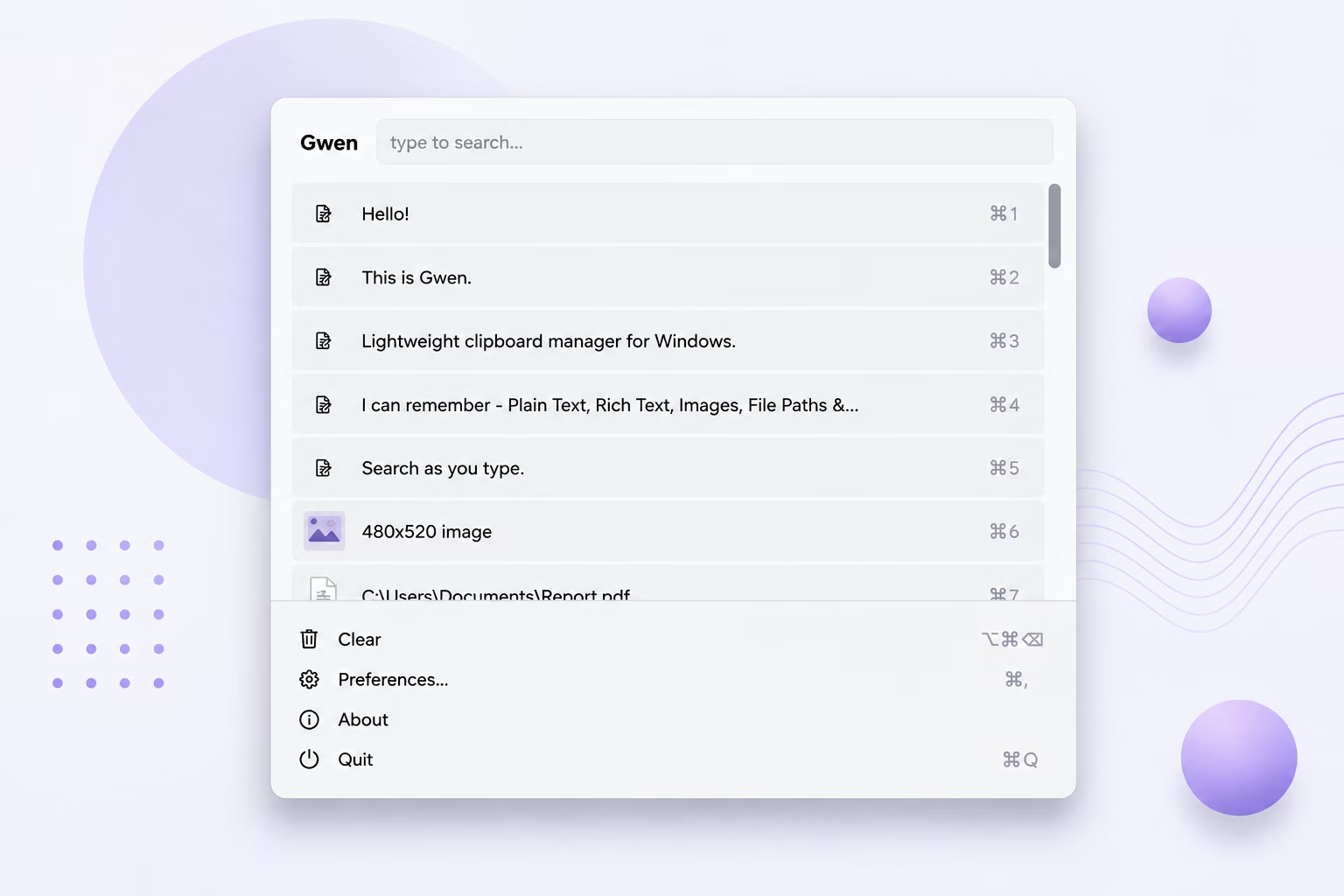
A clipboard manager is only as useful as it is fast to reach. If opening your history takes several clicks through a tray menu, you'll stop using it. A global hotkey solves this by letting you summon your clipboard popup from literally anywhere in Windows — inside a browser, a code editor, or a document — with a single key combination.
Gwen ships with Ctrl+Shift+V as its default hotkey, and lets you change it to whatever combination fits your workflow.
How to Change Gwen's Global Hotkey
- Open Gwen's Preferences window from the tray icon menu or the popup's menu bar.
- Find the Hotkey field, which shows the current combination (Ctrl+Shift+V by default).
- Click into the field and press your desired new key combination.
- Click Save — the new hotkey takes effect immediately, with no restart required.
- Test it by pressing the new combination from any application to confirm the popup opens as expected.
Hotkey Features Worth Knowing
- Changes apply live — no need to restart Gwen after saving a new hotkey
- Works globally, from inside any application, not just specific programs
- Falls back gracefully if a chosen combination conflicts with another app's shortcut
- Can also be edited directly in the config.json file under %LOCALAPPDATA%\Gwen
- Paired with number keys 1–9 inside the popup for near-instant paste actions
Frequently Asked Questions
What is Gwen's default hotkey?
The default global hotkey is Ctrl+Shift+V, though it can be changed to any combination you prefer from Preferences.
Do I need to restart Gwen after changing the hotkey?
No, hotkey changes apply immediately once you click Save in Preferences.
What if my hotkey doesn't seem to trigger the popup?
If you're copying from an elevated or admin-level application, try running Gwen as administrator too, since hotkey injection can silently fail across privilege levels.
Related guides and tools
This guide is part of TurboSoft’s clipboard management resources. Gwen Clipboard Manager handles all of these tasks offline on Windows.