How to Auto-Start Your Clipboard Manager With Windows
Make sure clipboard history is always watching, right from the moment you log in
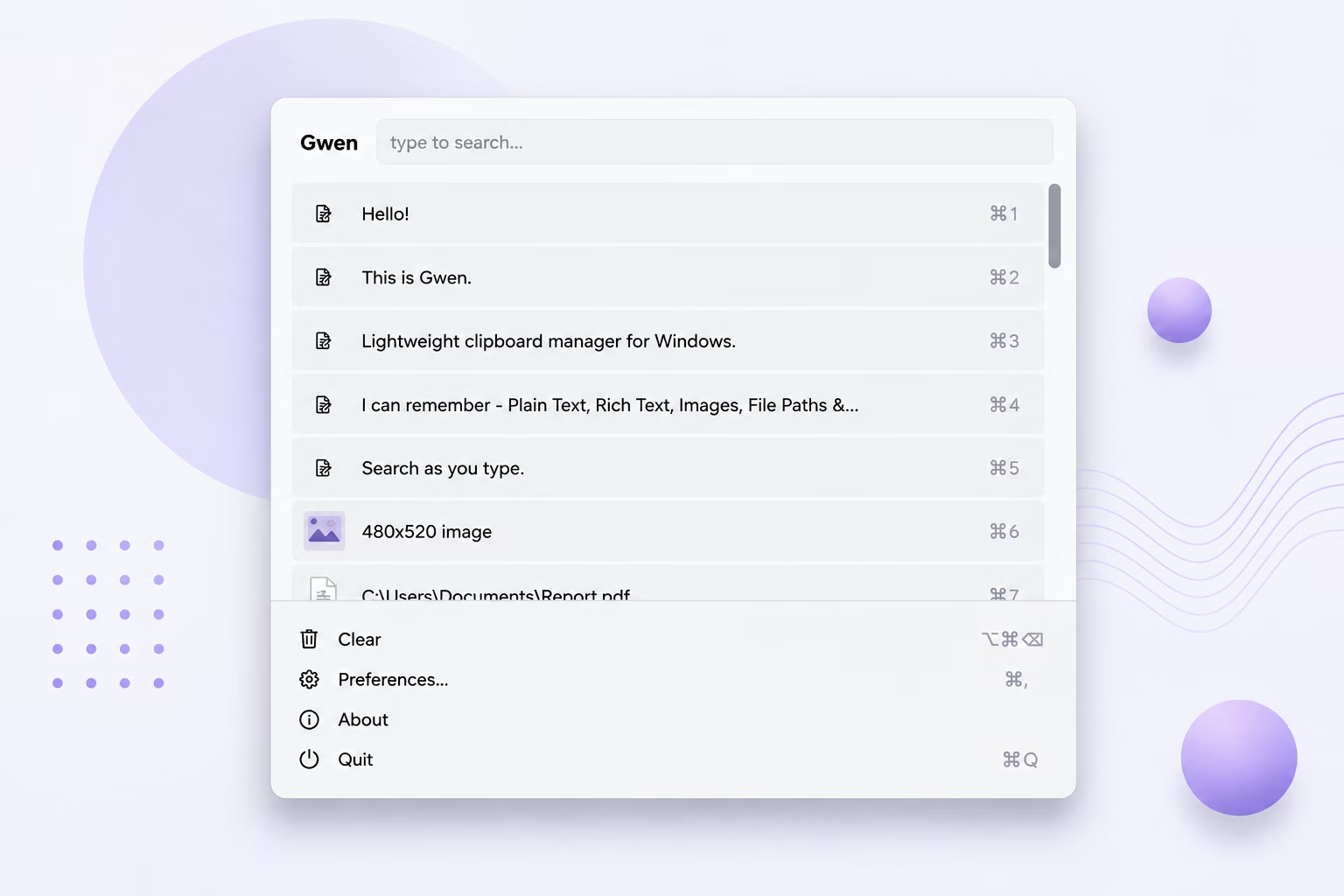
A clipboard manager only captures what you copy while it's actually running. If you forget to launch it manually after every reboot, you'll lose history for anything copied before you remember to start it — defeating much of the point.
Gwen includes a simple Start-with-Windows toggle so it's silently running in the tray from the moment you log in, watching your clipboard without any extra effort on your part.
How to Enable Autostart for Gwen
- Open Gwen's Preferences window from the tray icon or the popup menu.
- Find the "Start with Windows" toggle and switch it on.
- Click Save — this writes a standard Windows Run registry entry for your user account.
- Alternatively, right-click the Gwen tray icon and select "Start with Windows" directly from the menu.
- Restart your PC once to confirm Gwen's tray icon appears automatically without manual launching.
How Gwen's Autostart Works
- A single toggle in Preferences or the tray menu enables autostart — no manual setup needed
- Uses a standard per-user Windows Run registry key, the same mechanism as most tray-icon apps
- Both the Preferences toggle and the tray menu option write to the same key, avoiding duplicate entries
- No admin rights required, since it's a per-user, not system-wide, setting
- Can be switched off just as easily if you'd rather launch Gwen manually
Frequently Asked Questions
Does enabling autostart require administrator permissions?
No, autostart uses a per-user registry key that doesn't require admin rights to set or remove.
Will I end up with two Gwen processes if I use both the tray toggle and Preferences?
No, both controls write to the same registry key, so there's exactly one autostart entry regardless of which one you use.
Does the installer enable autostart automatically?
Not by default — the installer only copies files. You need to enable Start-with-Windows once yourself, from Preferences or the tray menu, after your first launch.
Related guides and tools
This guide is part of TurboSoft’s clipboard management resources. Gwen Clipboard Manager handles all of these tasks offline on Windows.